Craigslist bot
The Craigslist Bot searches http://sfbay.craigslist.org and returns the top results to a spreadsheet.
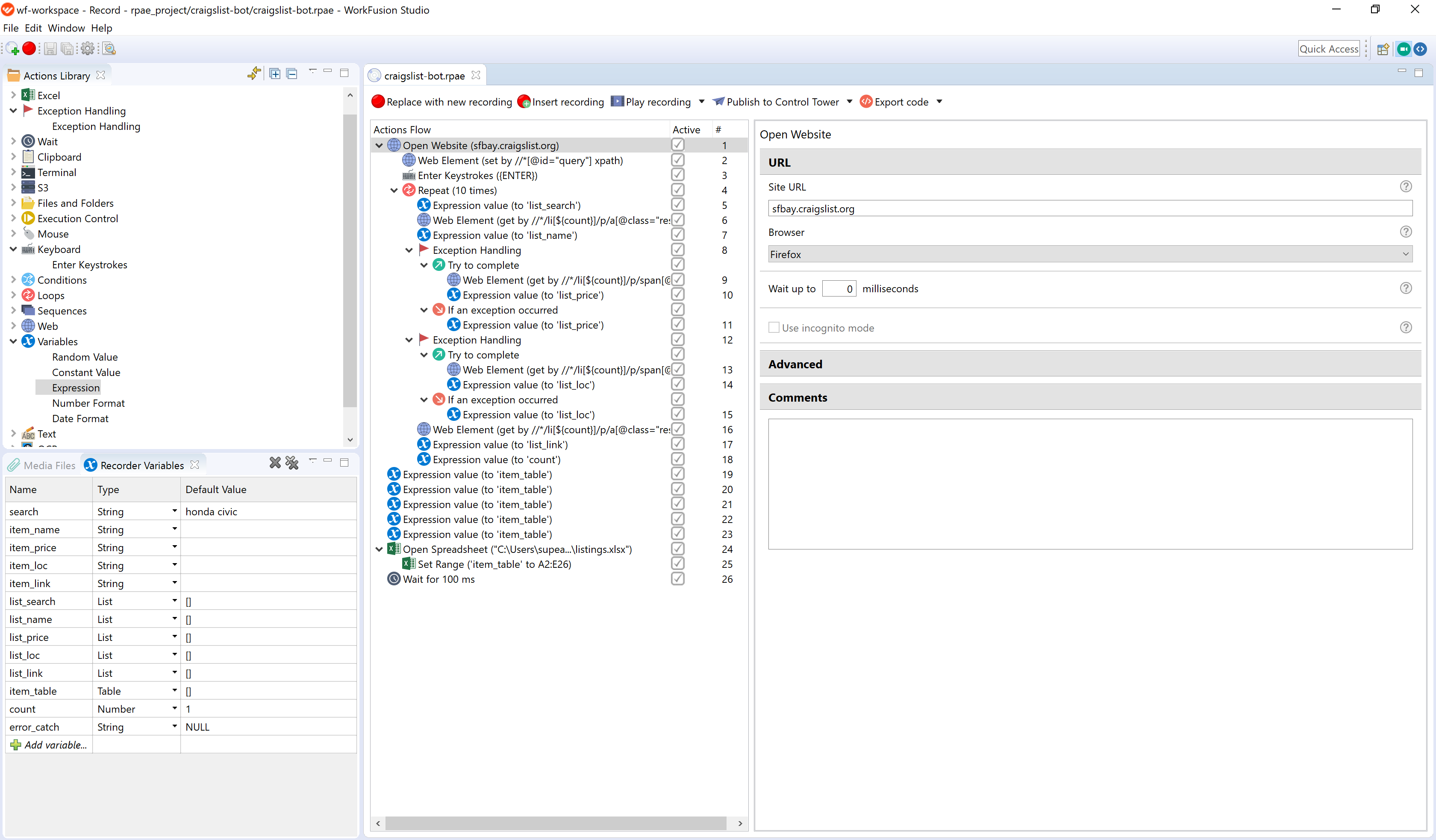
Search parameters are configurable. The bot execution takes around 55 seconds for 10 items.
Constructing this script from scratch requires knowledge of XPath. See the XPath guide for more details.
Quick links
- Video:
Craigslist Bot Recording.mp4 - Download Link:
craigslist-bot.zip
Access bot
To access the bot, do as follows:
Download and extract the
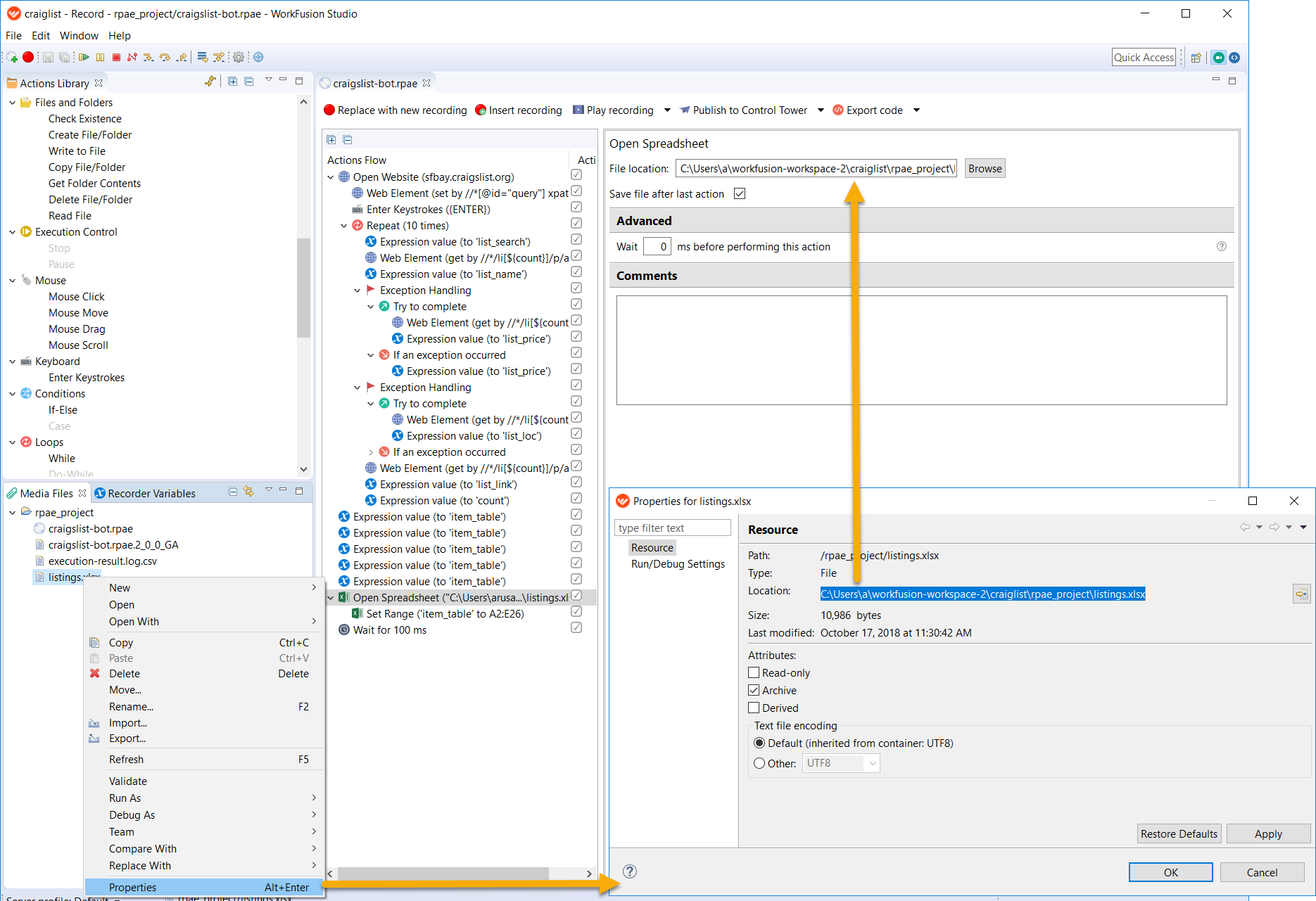
craigslist-botfolder to therpae_projectfolder in your workspace.To configure the Excel file path, right-click
listings.xlsxon the Media Files tab, select Properties > Resource > Location, and copy the resource location.Go to the Excel Open spreadsheet action and insert the copied value to the File location field.
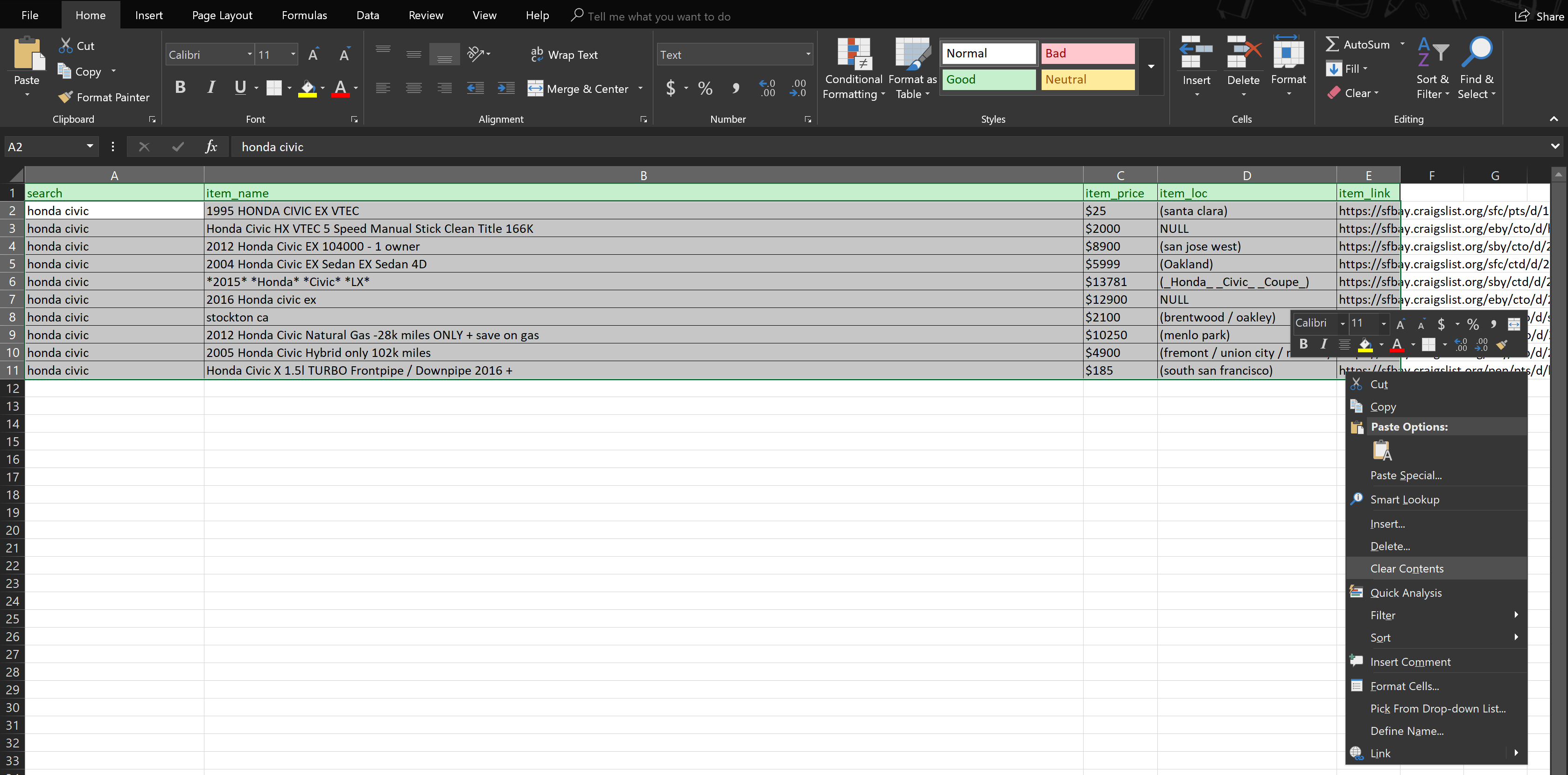
Navigate to your spreadsheet, highlight all the data from five columns, select Clear Contents, and save.
Script workflow
Configure variables
Before you start building your script, define all the needed Recorder Variables:
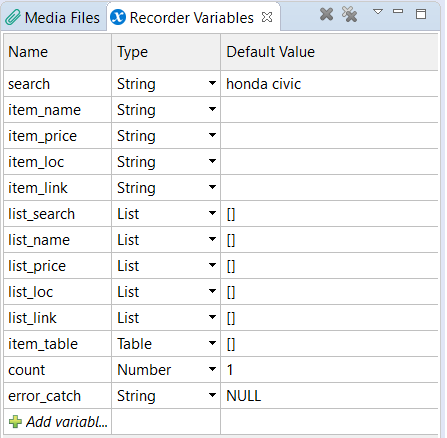
Set up the following String variables:
search: the default search value. You can search for "apple watch", "macbook pro", "honda civic", and so on.item_name: item name.item_price: item price.item_loc: item location.item_link: item link.error_catch: the default value isNULL.
Set up the following List variables:
list_searchlist_namelist_pricelist_loclist_link
Add a Table variable (
item_table) and a Number variable (count).
Specify search parameters
Go to Actions Library and add Web > Open Website to Actions Flow.
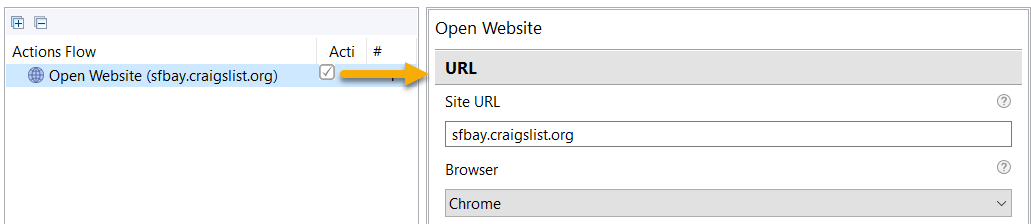
- Enter "sfbay.craigslist.org" into the Site URL field.
- Specify your browser in Browser.
Add Web > Web Element to identify a search bar for entering a search request. Drag the action inside the Open Website group.
- Select Mode > Set value.
- Select the
searchvariable for Input. - Specify the element's XPath:
//*[@id="query"].
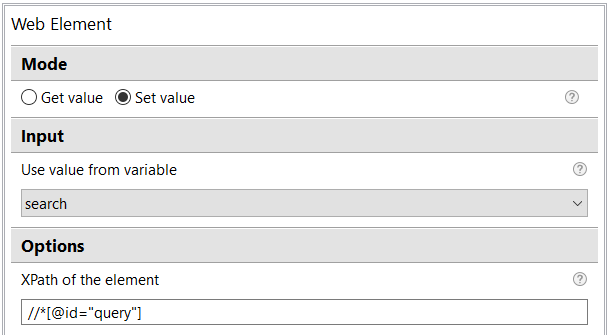
Add Keyboard > Enter Keystrokes. To set up the key, click Change within Key combination and press Enter.

Extract search results
Go to Actions Library and add Loops > Repeat. Enter 10 (times) for Repeat the nested actions.
To instruct your Bot which search results to extract, add expression values. Add Variables > Expression for the
list_searchvariable inside the Loops group.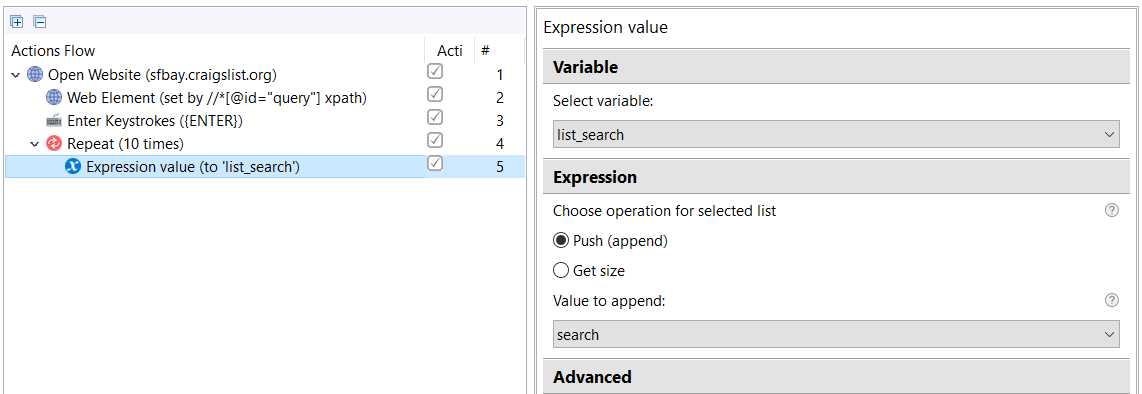
- Select
list_searchfor Variable. - Check Push (append).
- Select
searchas Value to append.
- Select
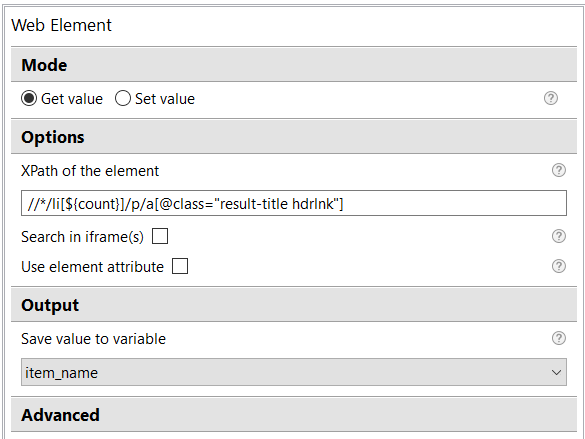
Add Web > Web Element to get the item name.
- Select Mode > Get value.
- Specify the element's XPath:
//*/li[${count}]/p/a[@class="result-title hdrlnk"]. - Select
item_namefor Output.
Add Variables > Expression for the
list_namevariable.- Select
list_namefor Variable. - Check Push (append).
- Select
item_nameas Value to append.
- Select
Add Exception Handling to ensure safe execution of your workflow.
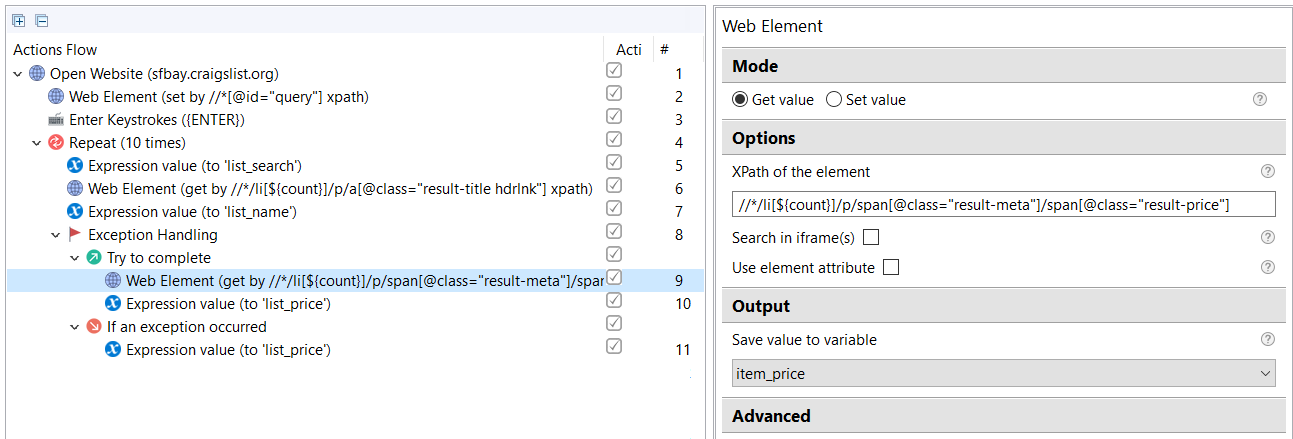
- Within Try to complete, add Web > Web element to get the item price.
- Select Mode > Get value.
- Specify the element's XPath:
//*/li[${count}]/p/span[@class="result-meta"]/span[@class="result-price"]. - Select
item_pricefor Output.
- Add Variables > Expression.
- Select
list_pricefor Variable. - Check Push (append).
- Select
item_priceas Value to append.
- Select
- Within If an exception occurred, add Variables > Expression.
- Select
list_pricefor Variable. - Check Push (append).
- Select
error_catchas Value to append.
- Select
- Within Try to complete, add Web > Web element to get the item price.
Add one more Exception Handling.
- Within Try to complete, add Web > Web element to get the item location.
- Select Mode > Get value.
- Enter
//*/li[${count}]/p/span[@class="result-meta"]/span[@class="result-hood"]in the XPath field. - Select
item_locfor Output.
- Add Variables > Expression.
- Select
list_locfor Variable. - Check Push (append).
- Select
item_locas Value to append.
- Select
- Within If an exception occurred, add Variables > Expression.
- Select
list_locfor Variable. - Check Push (append).
- Select
error_catchas Value to append.
- Select
- Within Try to complete, add Web > Web element to get the item location.
Add Web > Web element to get the item link.
- Select Mode > Get value.
- Specify the element's XPath:
//*/li[${count}]/p/a[@class="result-title hdrlnk"]. - Check Use element attribute and enter
href. - Select
item_linkfor Output.
Add Variables > Expression for the
list_linkvariable.- Select
list_linkfor Variable. - Check Push (append).
- Select
item_linkas Value to append.
- Select
Add Variables > Expression for the
countvariable.- Select
countfor Variable. - Enter
${count}+1for Expression.
- Select
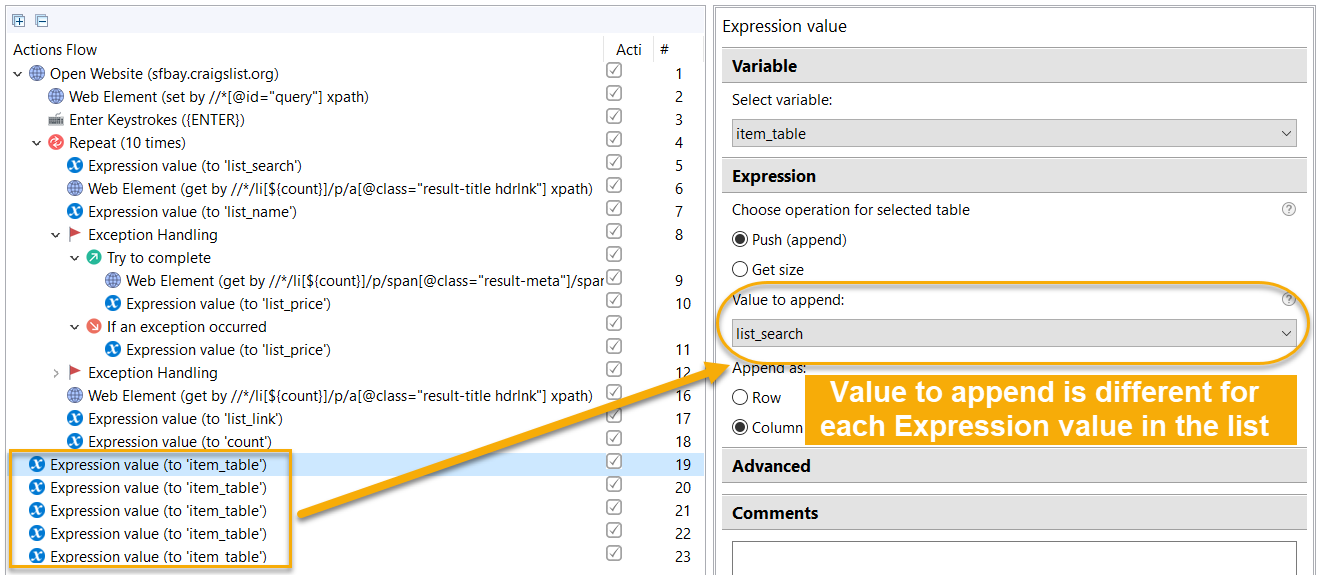
To populate the list, add Variables > Expression for the
item_tablevariable.- Select
item_tablefor Variable - Check Push (append).
- Select Column for Append as.
- Select a variable for Value to append. The variables to be selected in the field are as follows:
list_searchlist_namelist_pricelist_loclist_link
- Select
As the expression value is added for five variables mentioned above, repeat Step 10 five times in the script, with each variable selected for Value to append.
Enter results into Excel file
Go to Actions Library and add Excel > Open spreadsheet.
- Specify the file path in the File location field:
C:/Users/username/workfusion-workspace-2/craiglist/rpae_project/listings.xlsx. - To save the document when all the values are inserted, check Save file after last action.
- Specify the file path in the File location field:
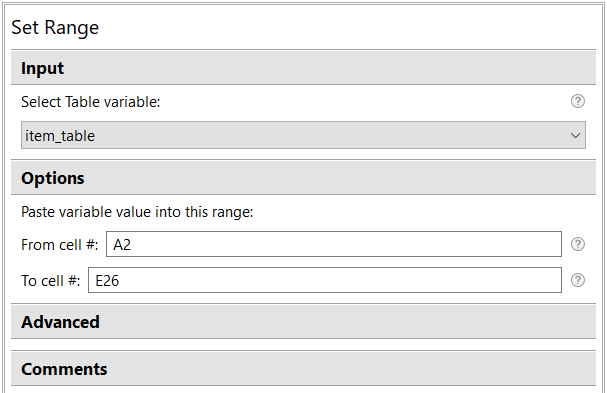
Add Excel > Set Range.
- Select
item_tablefor Input. - Go to Options and set up the range: From cell # – A2; To cell # – E26.
- Select
Add the Wait action and set up Pause script execution (for 100 milliseconds).
Play script
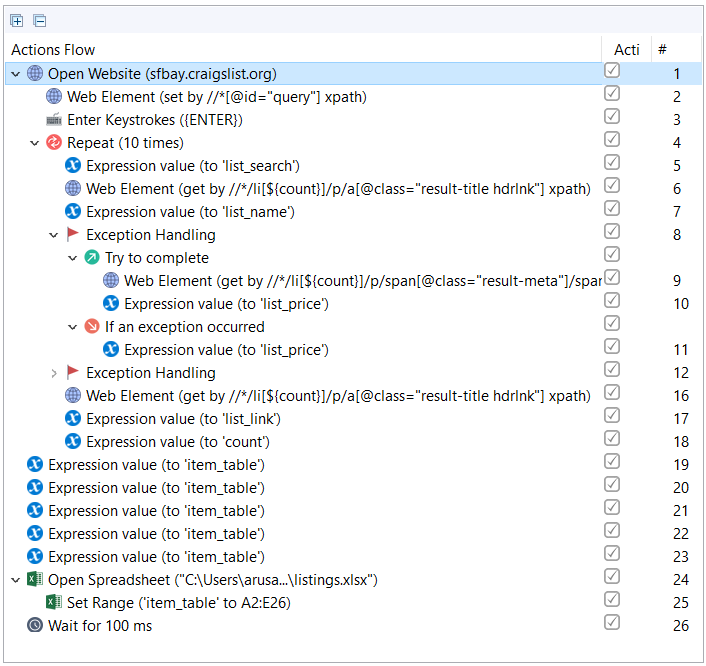
When you finish building your script, you should have the following order of actions in Actions Flow:
Click Play Recording to view the Craigslist performance.