Run post-installation steps
After the setup of the components, do not delete the installation directory for future on-demand password changes and common upgrade procedures.
Check installation
Once the installation is completed, check the WorkFusion Platform with a Business Process (BP) and a Manual Task:
- To check S3, OCR, RPA, AutoML, and Workspace, run an environment health check.
- All the checks must produce the "OK" status.
Activate OCR license
Activate the license on the OCR Server as described in the Activate OCR license topic.
Activate WF ELK license
Activate the WF ELK license as described in the Activate ELK license topic.
Import SSL certificates
The SSL certificates are required for correct rendering of web pages over HTTPS. If you have installed the Work.AI platform using the self-signed certificates, remember to add the ca.crt to your browser.
To acquire the certificate, follow the steps below:
- In your browser, type the Control Tower URL, and add
/ca.crtto it:http://ct-lb-hostname.workfusion.com/ca.crt. - Press Enter. The certificate is downloaded to your computer.
Check high-availability feature
Once the Work.AI platform is installed in the HA mode, you can check whether the configuration is correct in Kibana. Kibana's HA Overview dashboard displays the status of all servers for a selected time range.
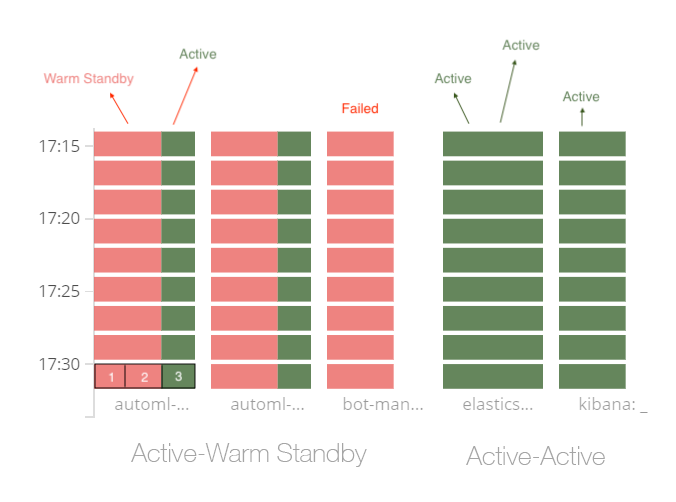
In the figure above:
- Active-Active services must be fully green.
- Active-Warm Standby services must be red and green. The green sector (3) means that the Active server is up and running normally. Two red sectors (1, 2) mean that the emergency servers are working, while the component is installed on them but not running.
For more information on health checks, see Check high-availability environment.