Set up clients
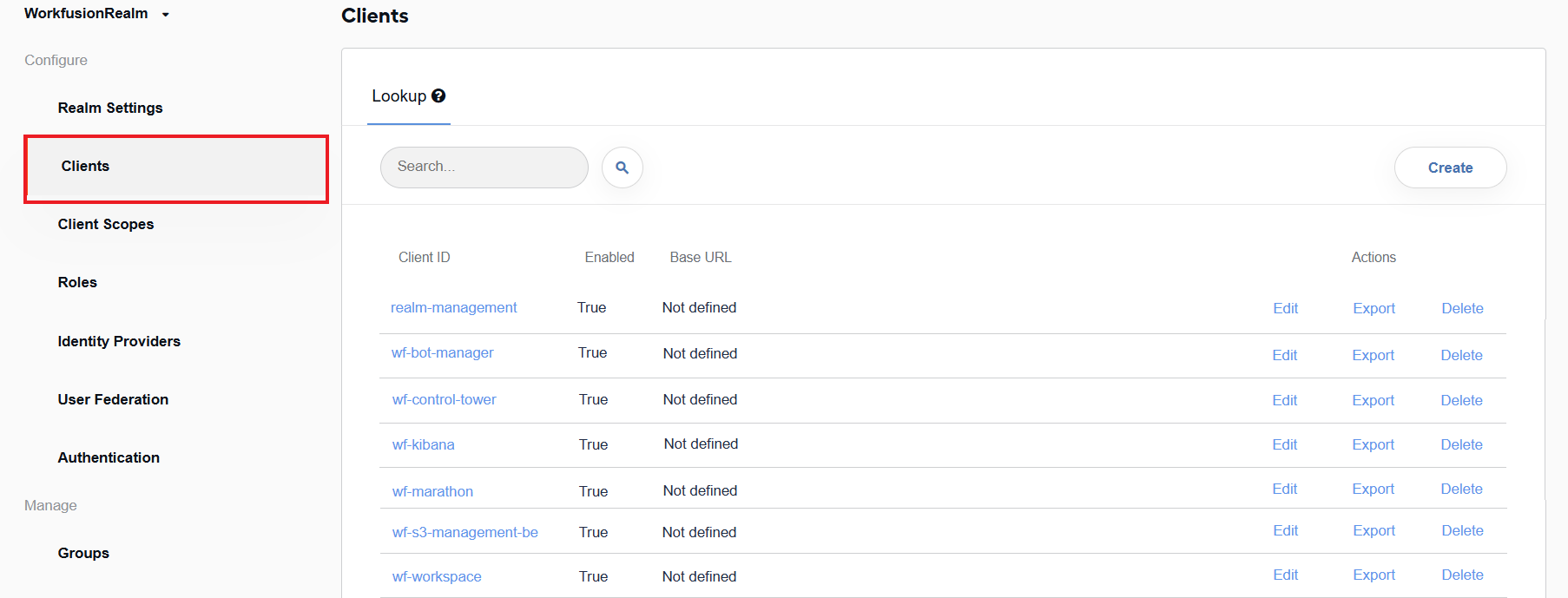
The WorkFusion User Management UI comprises the following clients that are available by default:
wf-control-tower corresponding to the Control Tower application
wf-workspace representing Workspace
wf-kibana associated with Kibana
wf-marathon associated with Marathon
wf-s3-management-be representing S3 Manager
wf-bot-manager corresponding to the Bot Manager application
realm-management for managing permissions to access and modify the settings of the User Management UI
To view available clients, select Clients on the left menu. The client list becomes visible on the right.
Configure clients
The settings of the default clients are preconfigured for you. To view the settings, find a client on the client list, and click its Client ID or Edit next to it. This brings you to the client's settings page.
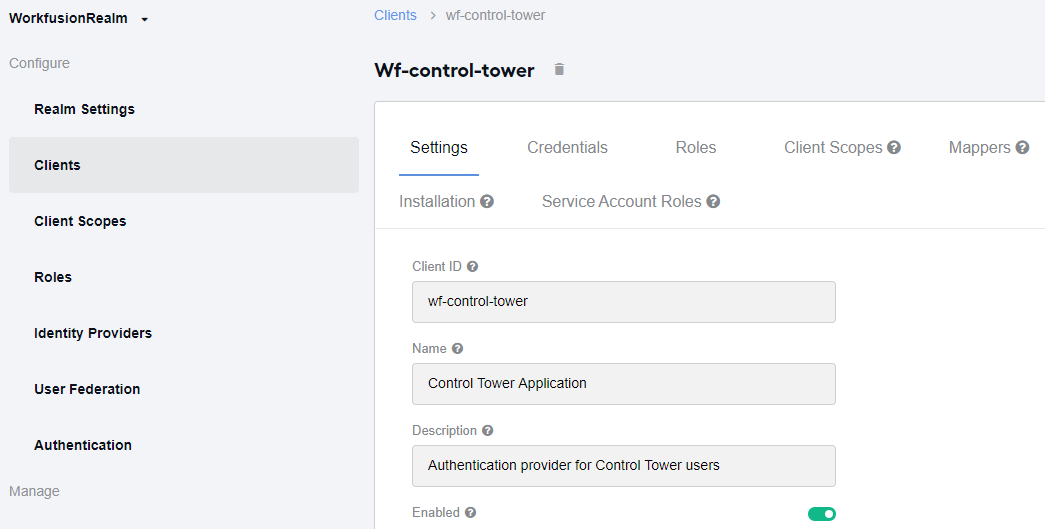
It is not recommended to change the settings, but for the few exceptions on the Settings tab:
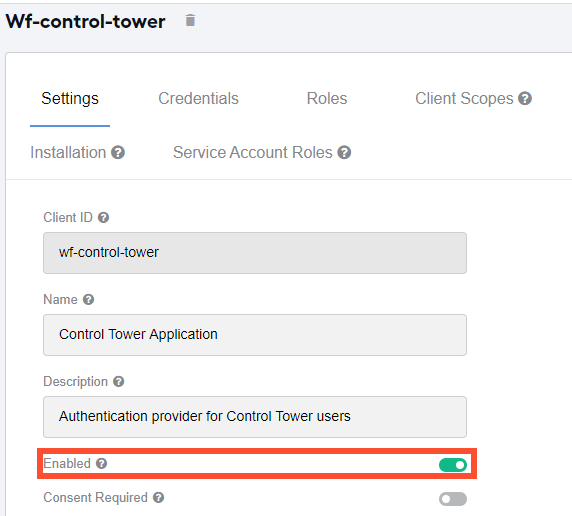
You can enable or disable a client by turning on or off the Enabled toggle.
If you move the WorkFusion applications to another host, you may need to modify the Root URL and the Valid Redirect URIs settings.

To add a redirect URI pattern (port), specify it in the respective field and click the + sign. To delete an invalid pattern, click the - sign next to it.
If you change any of the above settings, do not forget to click Save to apply the changes.
Manage client scopes
Client scopes enable mapping users to clients together with user-associated roles and protocol mappers. In the WorkFusion User Management, client scopes are preconfigured for you. It is not recommended to change them.
To view the available client scopes, select Client Scopes on the left menu. The list of preconfigured client scopes appears on the right.
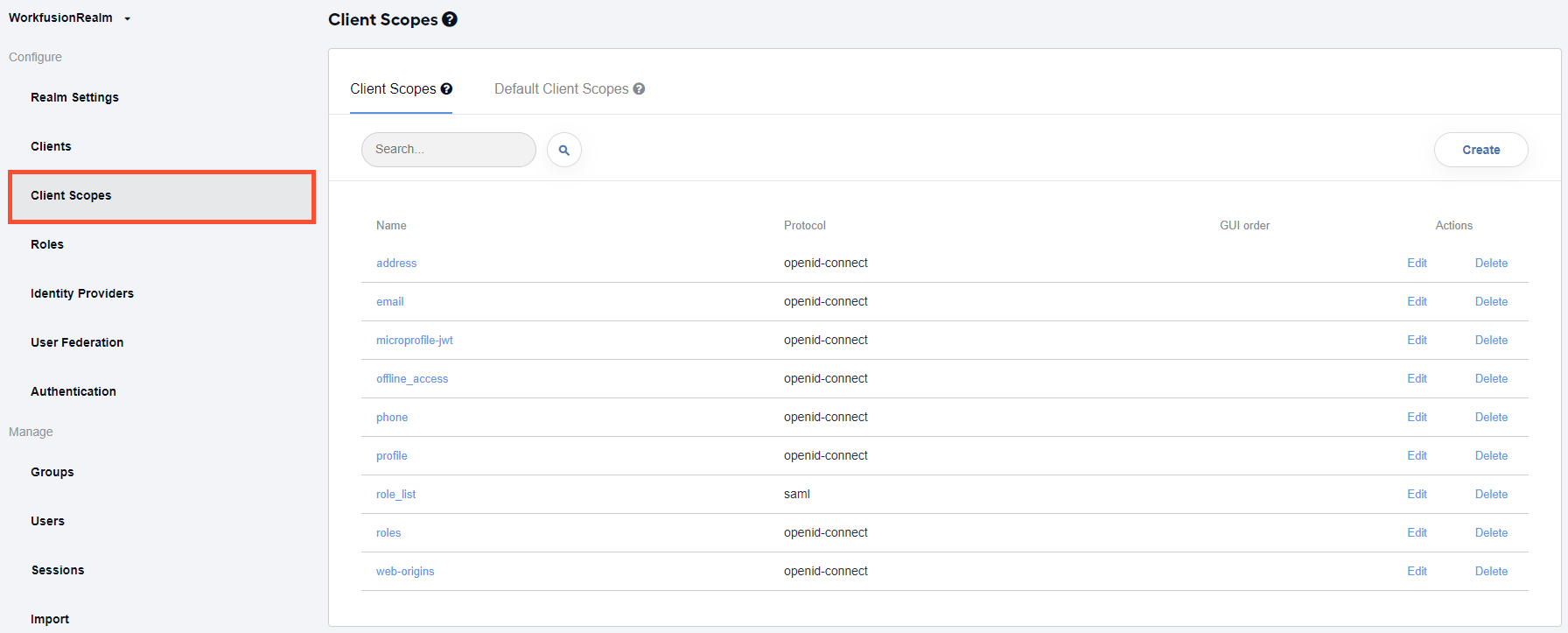
To view the settings of a client scope, find the required scope on the list and click its name or Edit next to it.