Add connections
Before you can use a Business Process (BP), you must link its elements by connections, thus defining the flow of data file Records across the process steps. The arrow displays the connection direction.
Create connection
To create a connection for a BP step, follow the instructions below:
Deselect the step by clicking the empty space within the canvas.
Hold the pointer over the step. An arrow icon is displayed to the right.

Drag the arrow icon to another element. A colored dashed line appears.
- If the line is green, the action is allowed.

- If the line is red, the action is not allowed. An error message is displayed.

- If the line is green, the action is allowed.
Check that each connection has blue squares at its start and end. Otherwise, the connection is not valid, and the WorkFusion engine throws an error message.
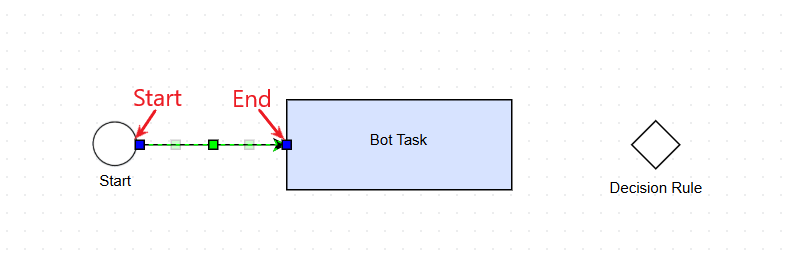
Edit connection
To edit a connection, follow the steps below:
- Select a connection by clicking it.
- Drag and drop the beginning or ending point to another element
- If the line is green, the action is allowed.
- If the line is red, the action is not allowed.
To move around the connection label, drag it by the yellow square in the middle.

Set composite rule outcome
Outcome is an outgoing connection for a decision rule. You can edit the Outcome name and conditions. To open the editing screen, double-click the decision rule element or click the element and choose Edit in the context menu. For more details, refer to the Add composite rules.