Manage bot execution resources from Control Tower
Manage BEP resources
Control Tower offers a dedicated interface that allows managing the resources of the Bot Execution Platform (BEP) in the following way:
Adjust the worker resource requirements when the default values configured in
worker*.ymlduring an artifact build do not satisfy the workload scenario. For example, the heap memory limit is not enough to process the intake without an out-of-memory application crash.Adjust the count of worker pool apps: generally, it is the Worker Management Service (WMS) that orchestrates worker pools and the worker count of each pool using generic algorithms, depending on the actual task count and task processing speed for the worker pool. You can adjust the count when the WMS decisions are not optimal to maintain good performance or satisfy the Service Level Agreeement (SLA) requirements.
Below are cases when you might need to use the BEP resource management interface:
Running mixed (batch-based and streaming-based) Business Process (BP) workload scenarios simultaneously at a single Work.AI instance.
A single BP that has a wave-like behavior by design causes a high worker startup-shutdown rate for different pools synchronously with the arrival of a wave.
A single BP or multiple BPs that have intake records coming rarely, but the records are very sensitive to the end-to-end execution latency and require a pre-heated cluster with workers already deployed and ready to handle the load.
In the above cases, the WMS cannot predict or be aware of the specific BP features of design and operation. The Work.AI administrator should analyze the problem and make corrections to the WMS deployment strategy by adjusting the minimum and maximum worker count for worker pools.
Access BEP resource management interface
To access the user interface for managing BEP resources, open the main menu in Control Tower and go to System settings > BEP Resources.
To use the BEP Resources page, make sure you have the Manage BEP resources (MANAGE_BEP_RESOURCES) permission. For details, see the Manage Control Tower roles and permissions.
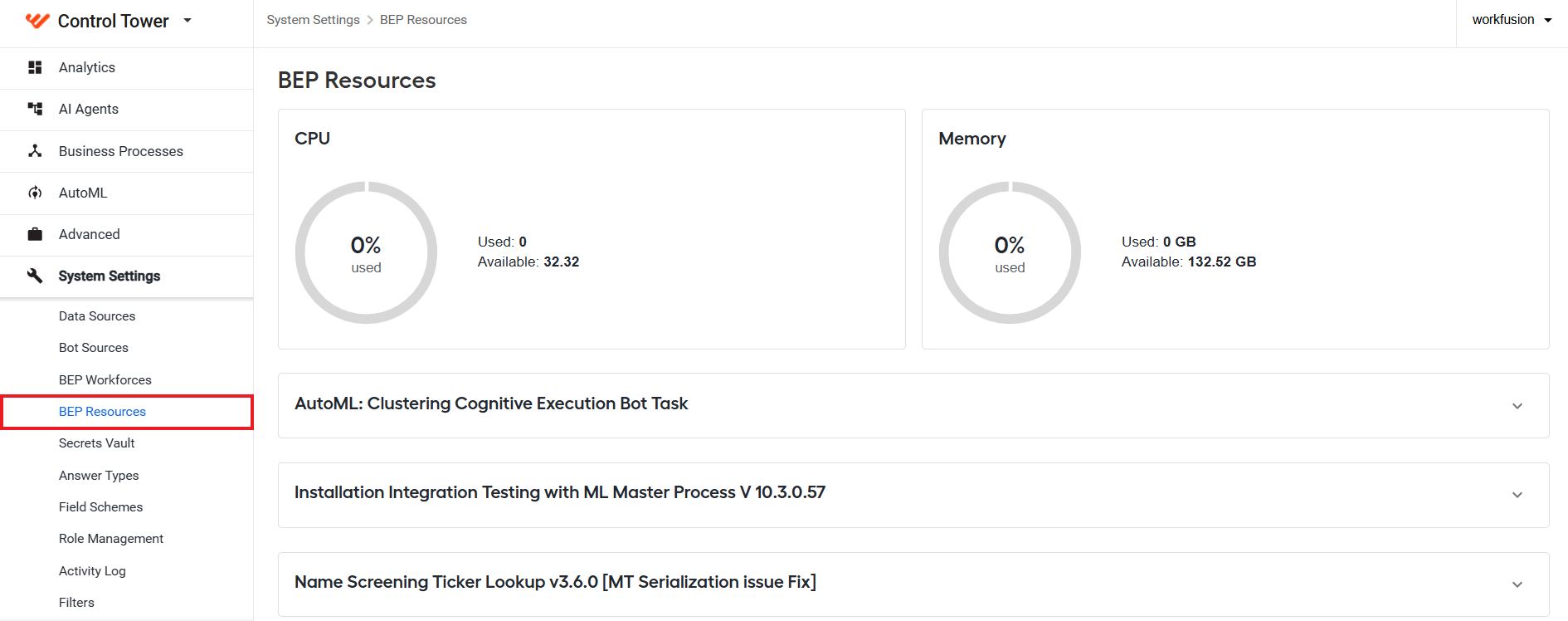
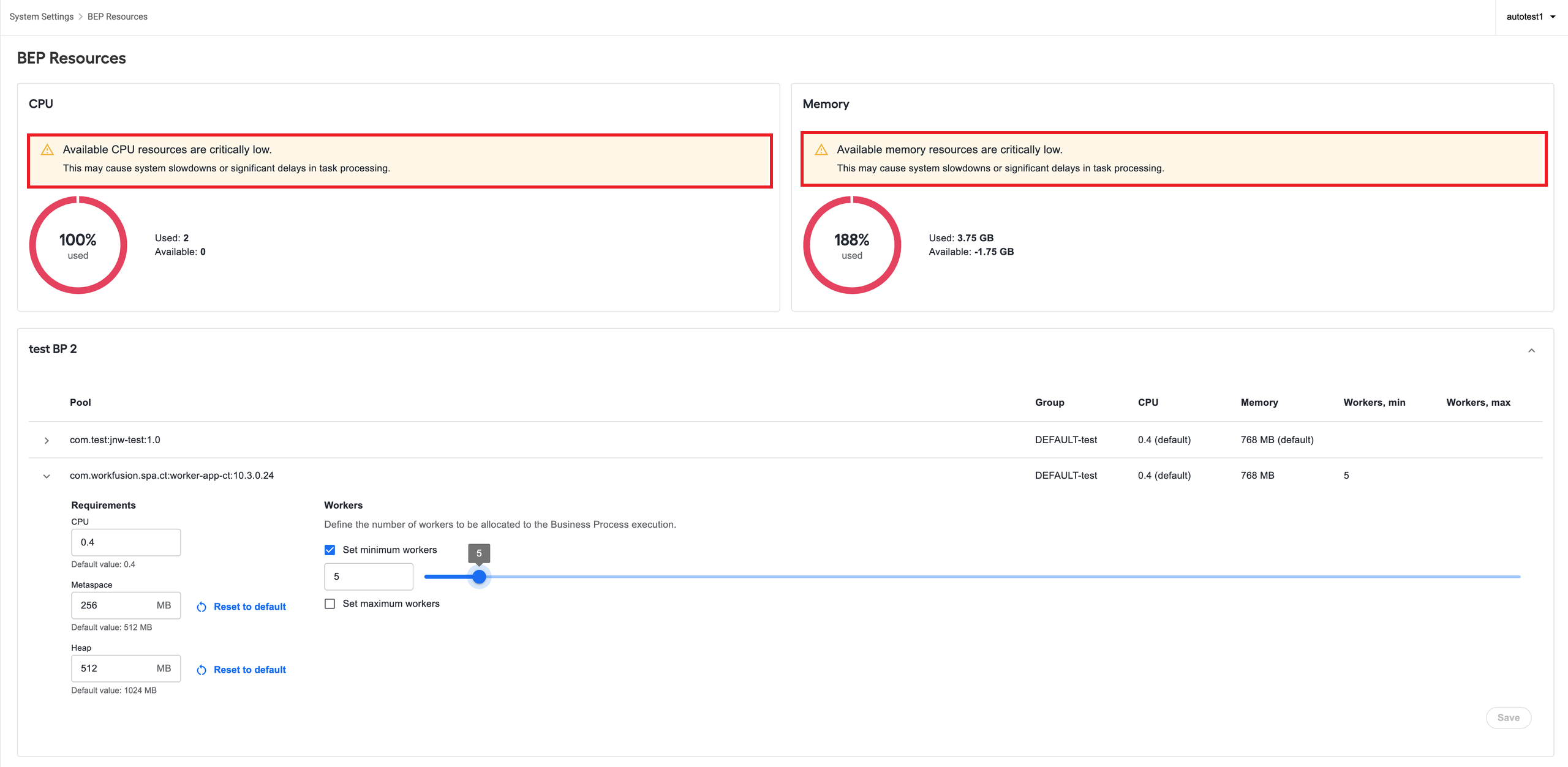
In the figure above, the charts at the top of the BEP Resources page show the total available cluster resources and explicit resource allocation defined by the administrator by setting the min limit for one or more pools.
In the sections below the top charts (Test BP, Test BP 2 in the figure above), you will find available active BP definitions. If you expand a BP definition section, you will see the worker pools available for it:
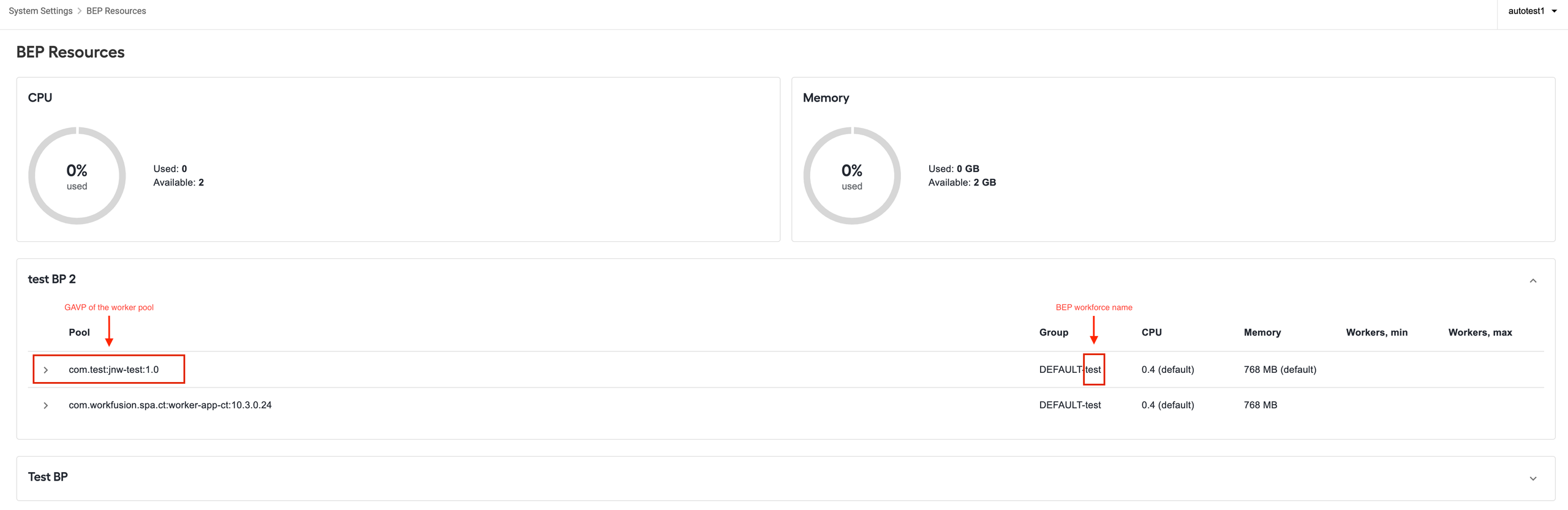
For AutoML and OCR pools, GAVP (group artifact version profile) can be retrieved only at runtime. So, associated pools become visible only after the BP is launched and at least one task reaches the AML or OCR step.
Each pool row contains the following:
A worker pool GAVP coordinates (if any)
Group identifier consisting of two parts: group ID and BEP workforce name (default if the workforce is not set) with a hyphen in between
Current CPU and memory resource requirements
Minimum and maximum limits (if configured)
After you expand a worker pool, you can review configurations and adjust them as needed. Any changes you make are sent to the WMS for validation and then propagated to appropriate ZooKeeper nodes in runtime. Restarting the WMS is not required.
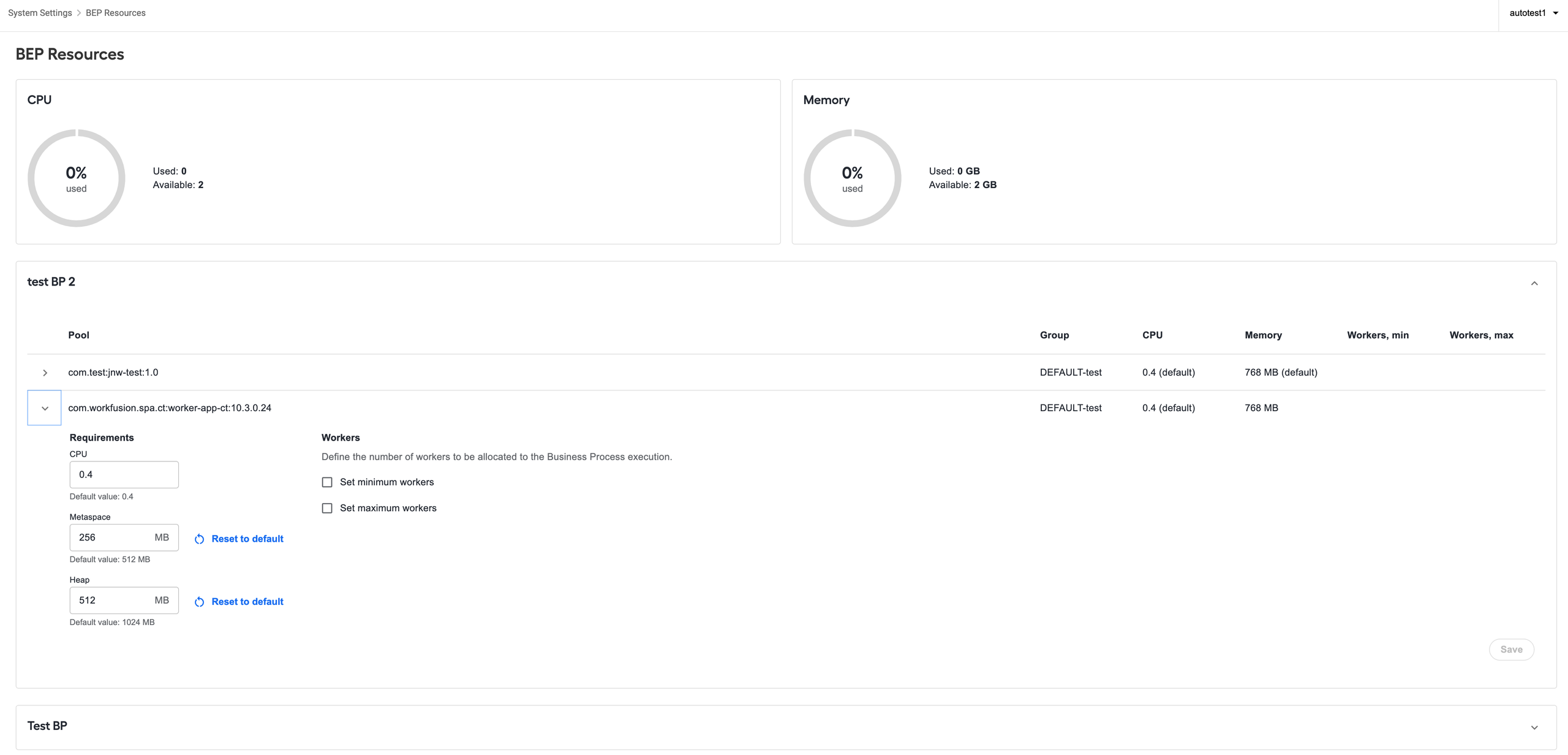
Adjust resource requirements
The fields you can access to configure depend on the resource properties initially set for the application in the worker*.yml file. It can be only the Memory field if the legacy memory format is used, or these can be Heap, Metaspace, and a child limit value.
Once you adjust the field values as needed, the Save button becomes active. To revert a resource requirement adjustment, click the Reset to default button next to the respective field.
The adjusted resource requirements are only applied to new workers deployed after the adjustments. If a number of workers from the adjusted pool are already running on a cluster, new resource settings are not propagated to them because it is impossible to apply those without restarting the worker app.
Adjust minimum and maximum limits
To adjust the limits, select one or both checkboxes and specify the required minimum and maximum worker counts. The minimum limit defines how much cluster resources you can explicitly allocate. The cluster resources are calculated as resource requirements * min count value. The WMS deploys and keeps running the configured number of workers for the pool as long as there are tasks for it.
As you click the Save button, the change is reflected in the resource consumption charts.
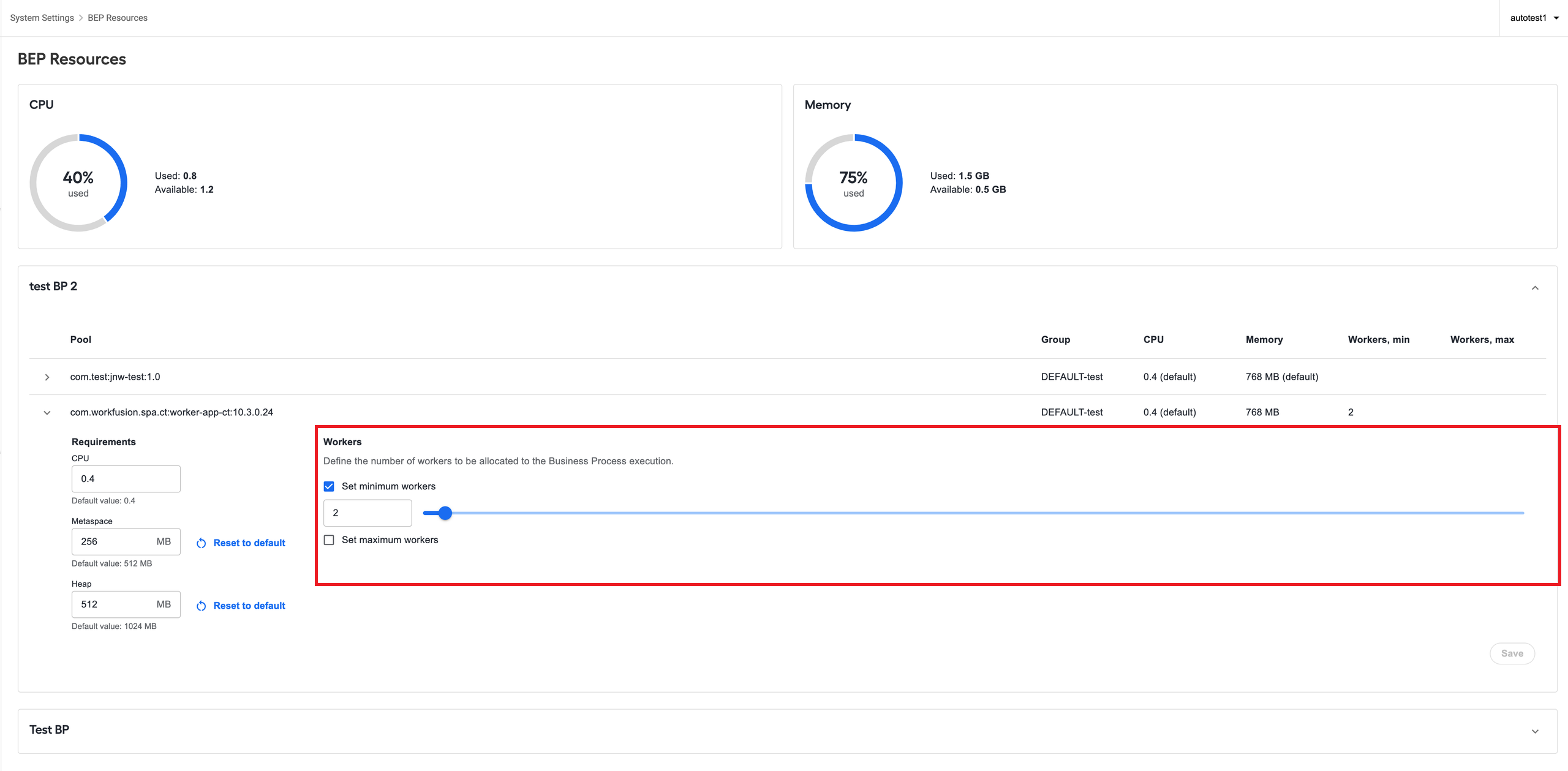
By setting the maximum value, you configure the upper worker count limit. The WMS will not deploy worker over the limit.
When setting the limits, mind that allocated resources should not exceed the cluster capacity! In case of such a misconfiguration, you get a warning in the chart section.
Manage BEP workforces
The BEP Workforce feature supports the allocation of BP processing resources by enabling you to explicitly associate one or more dedicated worker pools with a specific BP definition. This prevents the starvation of processing capabilities (worker pools) for such BPs because dedicated pools with BEP workforces serve only the tasks related to them.
The BEP Workforce feature supports not only CT processing pools (Java Native Worker (JNW), legacy WebHarvest) but also AutoML and OCR. It allows you to easily configure the entire BP definition without the need to configure each step of the BP definition with a specific Bot Source.
See sample use cases for BEP workforces
You can allocate dedicated processing worker pools only after analyzing the workload and SLA issues. By default, the platform is optimized for fair execution capabilities (even distribution of the computation cluster capacity) across all BPs. If the cluster capacity is enough for the workload and there is no obvious violation of the SLA due to this default behavior, there is no need to create dedicated workforces.
In case the cluster capacity is too small to handle the workload without the contention for resources (all worker pools used in running BPs cannot be launched simultaneously with one worker per pool), a dedicated workforce will make the problem worse. In this case, the solution is to add more computational resources to the cluster.
Example 1
Assume, you have the following two BP definitions running:
BP1 has batch-based input when a huge batch of input data is received for processing from time to time. It has no strict SLAs on the end-to-end processing time of a single record.
BP2 is a streaming-based BP where single records come from an external system continuously. It has strict SLAs on the end-to-end processing time of the incoming records (for example, the record should be processed within one minute).
For the setup where a huge batch intake is fed to BP1, a common problem is that it affects the SLA of BP2-related records because the computational capacity of the target worker pools is shared with BP1 and tasks for both BPs are evenly mixed. In this case, creating a BEP workforce and adding BP2 to it helps to mitigate the problem.
Example 2
Assume, you have the following two BP definitions running:
BP1 has batch-based input when a huge batch of input data is received for processing from time to time. It does not have strict SLAs on the end-to-end processing time of a batch (throughput SLA).
BP2 is also batch-based but it has strict throughput SLA (for example, 10,000 records should be processed in one hour).
To make sure the processing of BP2 tasks is unaffected by the tasks from BP1, you can add the BP2 definition to a workforce.
Often adding a BP definition to a workforce may not be enough to maintain the SLA, and the platform administrator should explicitly allocate the resources to workforce-specific BP worker pools. It can be configured from the BEP resource management page. For details, see Manage BEP resources.
Access BEP workforces
To access the user interface for managing BEP workforces, open the main menu in Control Tower and go to System settings > BEP Workforces.
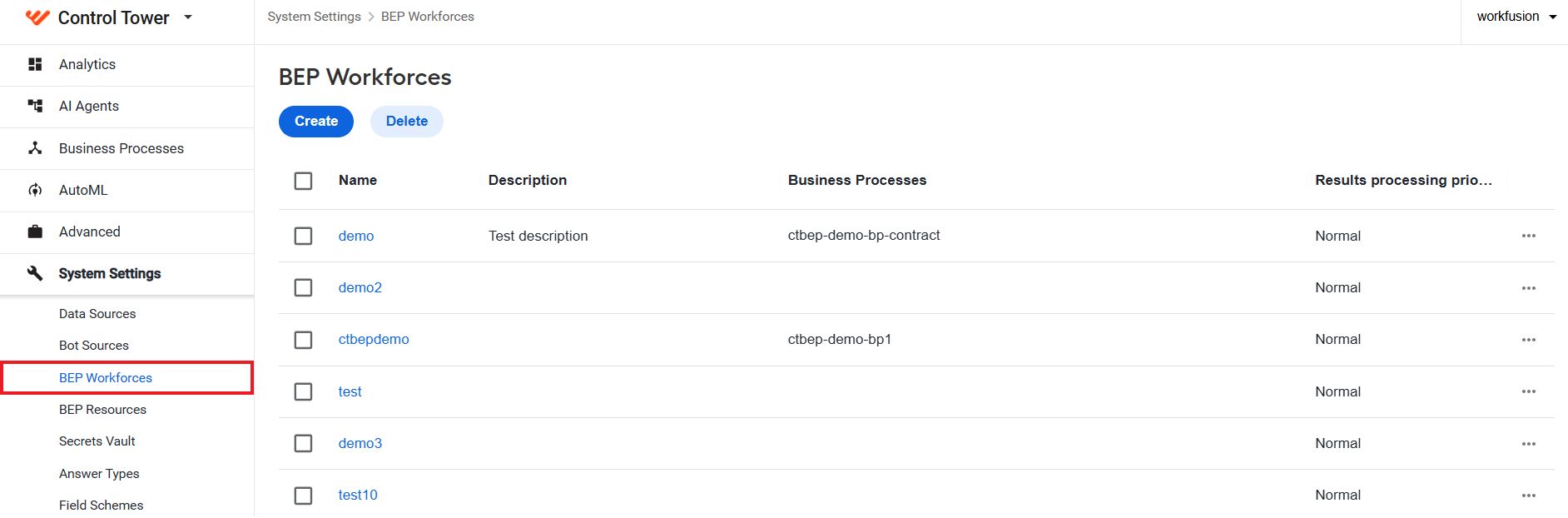
To use the BEP Workforces page, make sure you have the Task/Business Process Actions (TASK_BP_ACTIONS) and Manage Campaigns (MANAGE_CAMPAIGNS) permissions. For details, see the Manage Control Tower roles and permissions.
Create BEP workforce
To create a workforce, follow the steps below:
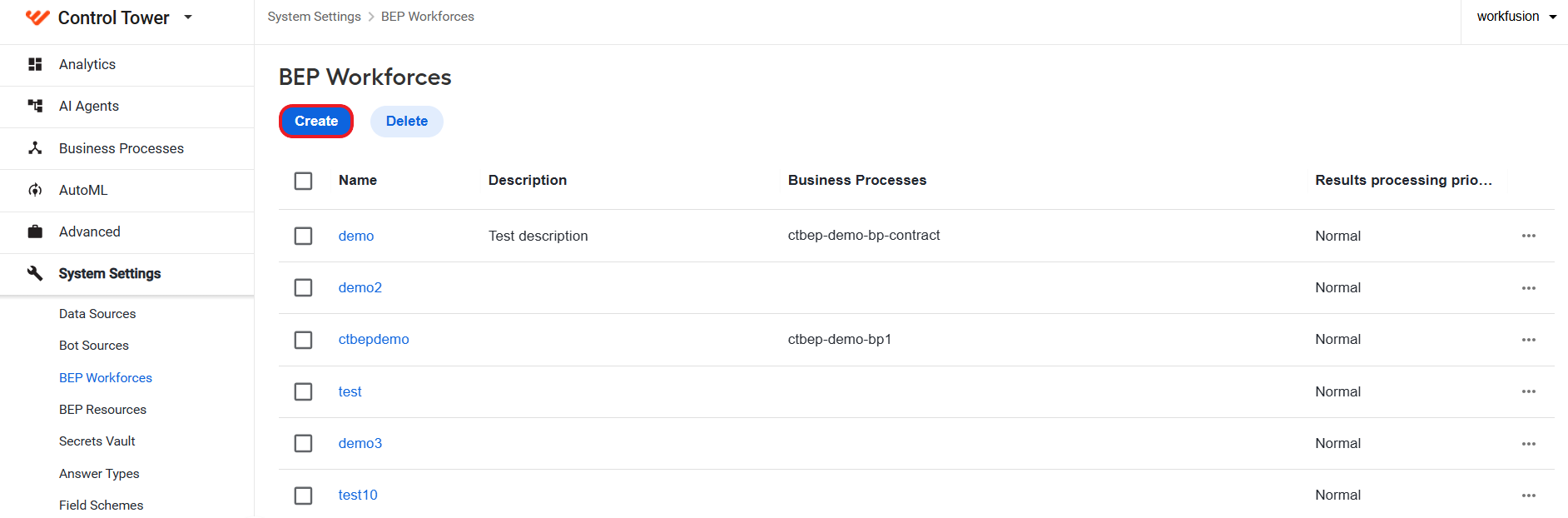
On the BEP Workforces page, click the Create button.
In the New BEP workforce popup, specify a name and description (if needed) for the created workforce.
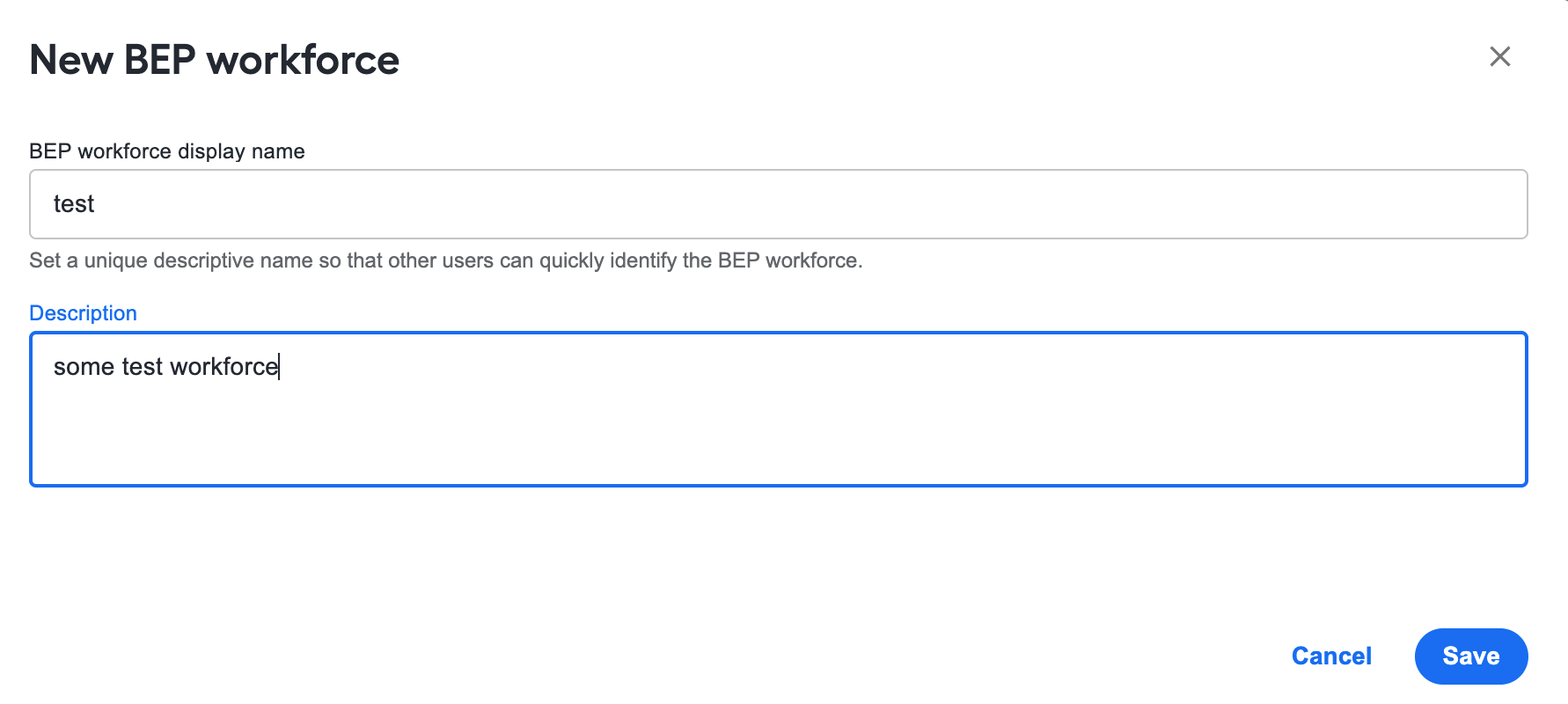
Click the Save button. After the BEP workforce is created, it becomes visible on the BEP Workforces page.
The workforce name you set in the popup will be propagated to all stages of reserving dedicated worker pools. Thus, the name is subject to validation and should comply with the following requirements:
- Must be unique.
- Contain only alphanumeric symbols.
- Include no special symbols and spaces.
- Should be no longer than 20 symbols; the shorter, the better: you can add all additional information to the Description field.
Add BP definition to BEP workforce
To add a BEP definition to a workforce, follow the steps below:
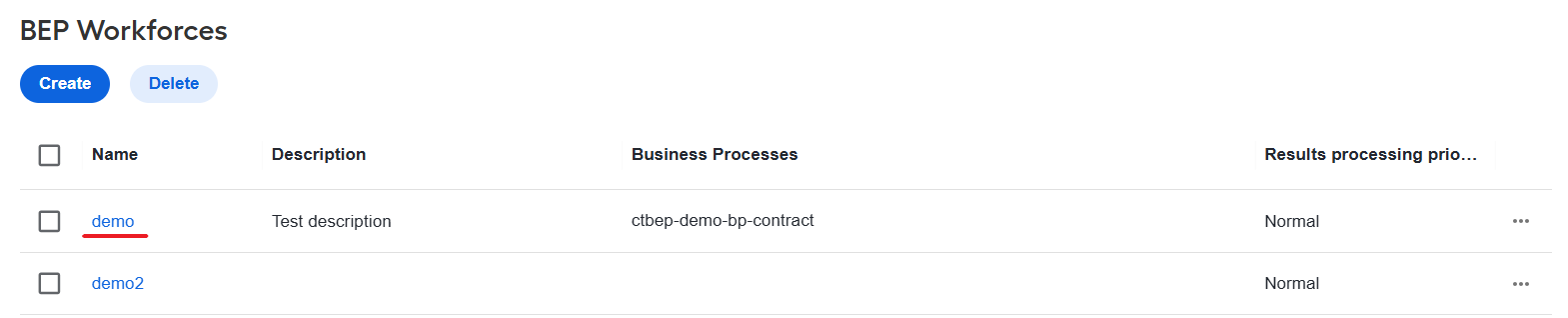
Open the workforce in the list by clicking its name.
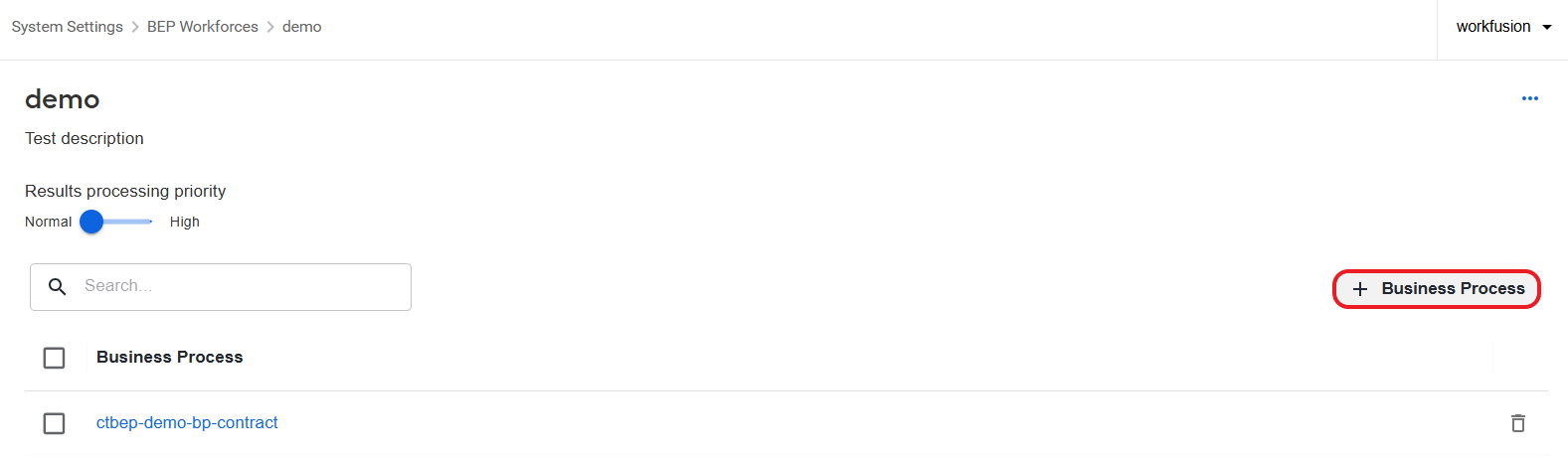
In the workforce details section, click + Business Process.
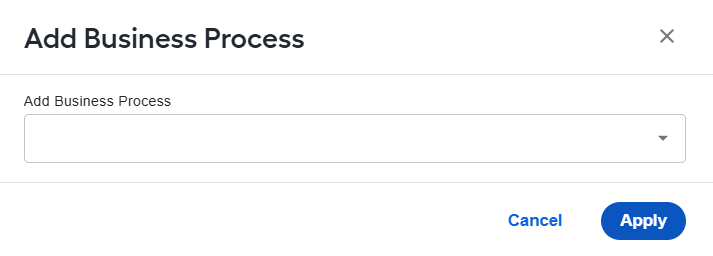
In the displayed popup, choose a BP to add and click Apply. In the list, you will see all available BP definitions that are not linked with any workforce.
Each BP definition can be linked only to one BEP workforce. Different BP definitions can have the same BEP workforce.
- It is not recommended to add BP definitions that have active BP instances running.
- Adding multiple BP definitions to the same workforce can result in sharing the processing capabilities (dedicated worker pools by the workforce) across the BP definitions if the base worker coordinates are the same. It is not recommended to add a lot of BPs to a single workforce.
Remove BP definition from workforce
To remove a BP definition from a workforce, open the workforce where the BP definition is linked and click the delete button next to the definition's name.
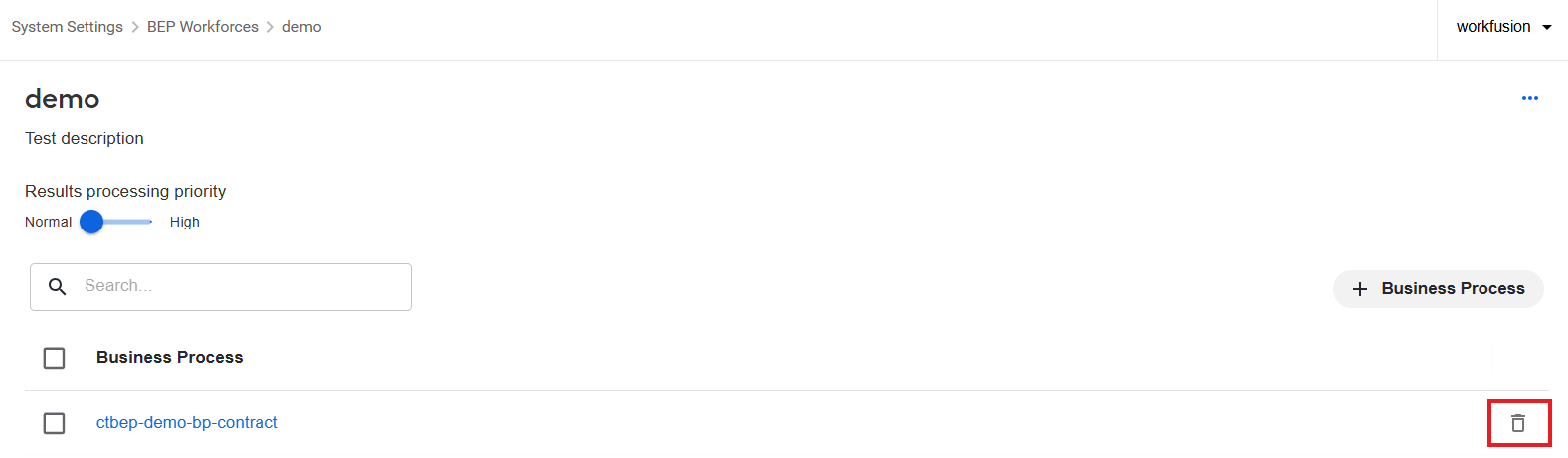
Unlinking is only possible for those BP definitions that do not have active (running) BPs. If your BP definition has running instances, it will not be unlinked from the workforce, and you will get an appropriate error message.
Delete workforce
To completely remove a BEP workforce, open the Actions menu and select Delete. You can do this from the main BEP Workforces screen or directly from a specific workforce details page.
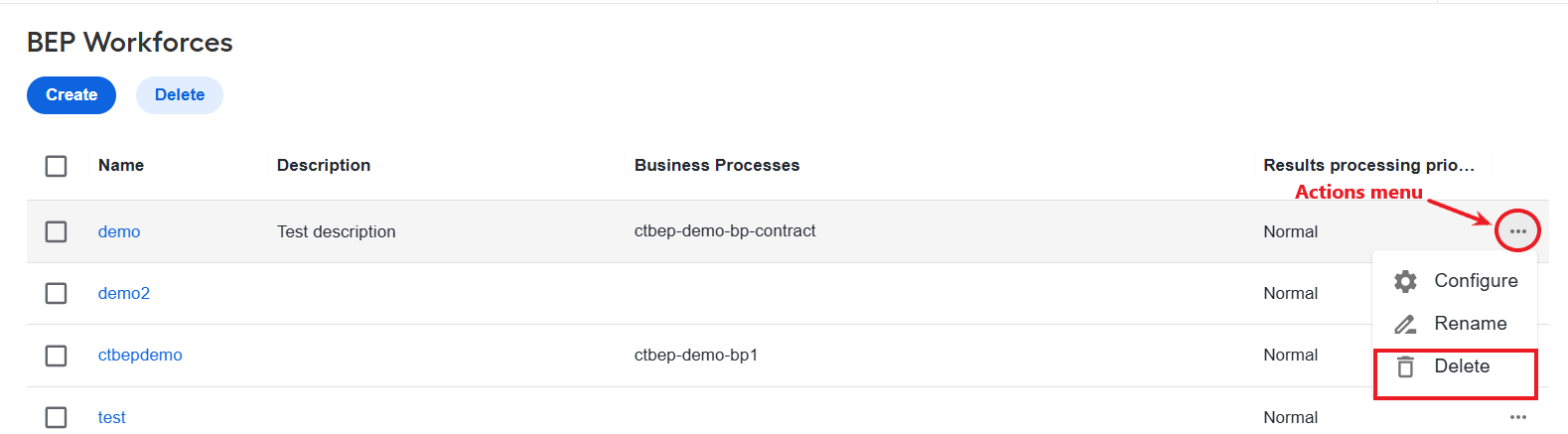
Removing a BEP workforce from the system involves validation to make sure no BP definition with active (running) BPs are linked to the deleted workforce.