Configure AI Agent
A crucial aspect of installation and further support is implementing an AI Agent so that you can change any setting outside of the implementation code without recompiling, updating, or re-deploying your AI Agent. Typically, this is achieved by making your configuration external to the source code.
The AI Agent configuration is a set of parameters that can change over time, depending on the environment or client. Starting from the platform version 10.2.5, the configuration is stored and managed by Control Tower. ODF 2 provides tools to access this configuration and supports the pre-10.2.5 approach of keeping the configuration in Data Stores.
Configuration overview
You can define the configuration form layout. After this, the UI is used to configure an AI Agent. Control Tower keeps form values as a JSON object and makes this object accessible to each Bot Task of the AI Agent BP.
ODF 2 provides service classes to access this JSON conveniently.
Backward compatibility
In previous releases, ODF 2 relied on storing the configuration in uc[UC_CODE]_config[UC_DATA_MODEL_VERSION] configuration Data Store. The com.workfusion.odf2.core.settings.Configuration service was used to access it. For an AI Agent implemented with this approach, nothing will change after migration to version 10.2.5. A new implementation of com.workfusion.odf2.core.settings.Configuration will still look for configuration values inside the Data Store if these values are not present in the JSON object provided by Control Tower. In this way, you are not required to immediately migrate the configuration to the new approach.
Configuration APIs
Configuration interface
Fully compatible with the legacy Data Store-based configuration, the com.workfusion.odf2.core.settings.Configuration interface offers the following methods:
public Optional<String> getProperty(String name);

public String getRequiredProperty(String name);

public Optional<String> getProperty(OdfConfigurationItem item);

public String getRequiredProperty(OdfConfigurationItem item);
The most flexible is the Optional<String> getProperty(String name) method that retrieves a configuration value by name if it can be found, and returns empty Optional otherwise.
String getRequiredProperty(String name) is a shortcut that raises an exception if a configuration property cannot be found.
Methods that deal with the OdfConfigurationItem parameter are mostly intended to be used by ODF 2 services. OdfConfigurationItem is an enum type that lists standard properties that ODF 2 uses (such as OCR bucket name and OCR cache parameters).
Like all services in ODF 2, the Configuration instance can be injected into the Bot Task constructor.
@Inject
public MyTask(Configuration configuration){ ... }
The injected instance de facto will be a com.workfusion.odf2.core.settings.CombinedConfiguration instance that looks for configuration items in a Configuration Data JSON object and after not having found anything, in a configuration Data Store.
JsonBasedConfiguration class
If compatibility with a legacy configuration is not required, you can inject the com.workfusion.odf2.core.settings.JsonBasedConfiguration service. It uses a JSON-based configuration only, and on the top of the methods defined in com.workfusion.odf2.core.settings.Configuration, offers several new ones:
<T> Optional<T> getProperty(String name, Class<T> valueClass);

<T> T getRequiredProperty(String name, Class<T> valueClass);

<T> List<T> getArrayProperty(String name, Class<T> valueClass);
These methods take advantage of features offered by storing settings in Configuration Data JSON object. New getProperty and getRequiredProperty methods try to deserialize a value of the configuration property as an object of the provided class. getArrayProperty does the same for the properties of an array type.
For example, let's assume Configuration Data looks like this:
{
  "search_engines": [
    { "name": "google", "url": "google.com"},
    { "name": "bing", "url": "bing.com"}
  ],
  "preferred_engine": { "name": "bing", "url": "bing.com"},
  "return_first_results": 20
}
Then, you can access the data in the following way:
// assuming also we have such class somewhere in a data model
class SearchEngine {
    private String name;
    private String url;

    // constructor, getters and setters are omitted for brevity
}

@BotTask
class MyTask {

    @Inject
    public MyTask(JsonBasedConfiguration configuration) {
        SearchEngine preferredEngine = configuration.getRequiredProperty("preferred_engine", SearchEngine.class);

        List<SearchEngine> engines = configuration.getArrayProperty("search_engines", SearchEngine.class);

        int resultsCount = configuration.getProperty("return_first_results", Integer.class).orElse(10); // deserialization to other java.lang types is also possible

        String preferredEngineName = configuration.getRequiredProperty("preferred_engine.name");
    }

}
View configuration example
Now, you are all set to read any configuration point value stored in the configuration Data Store. Below is a sample Bot Task that uses the configuration to store an RPA application URL and an alias for Secrets Vault.
Store all credentials and other security-related data securely. In Work.AI, the proper component for the purpose is Secrets Vault used to keep the credentials for accessing the application. The example below provides the best practice to leverage the AI Agent configuration with Secrets Vault.
Your Bot Task code where you use configuration values is as follows:
package com.example.intake.task;

import javax.inject.Inject;
import com.workfusion.bot.service.SecureEntryDTO;
import com.workfusion.odf2.core.settings.Configuration;
import com.workfusion.odf2.core.webharvest.service.vault.SecretsVaultService;
import org.slf4j.Logger;
import com.workfusion.odf2.compiler.BotTask;
import com.workfusion.odf2.core.task.generic.GenericTask;
import com.workfusion.odf2.core.task.rpa.RpaDriver;
import com.workfusion.odf2.core.task.rpa.RpaFactory;
import com.workfusion.odf2.core.task.rpa.RpaRunner;
import static com.workfusion.rpa.helpers.RPA.$;
import static com.workfusion.rpa.helpers.RPA.open;
import static com.workfusion.rpa.helpers.UiSelectors.byXpath;

@BotTask(requireRpa=true)
public class RPASampleTask implements GenericTask {
     public static final String APP_URL = "app.invoiceplain.url";
     public static final String APP_CREDENTIALS_ALIAS = "app.invoiceplain.credentials.alias";
     private final Logger logger;
     private final RpaRunner runner;
     private final Configuration configuration;
     private final SecretsVaultService secretsVault;

    @Inject
    public RPASampleTask(RpaFactory rpaFactory, Logger logger, Configuration configuration, SecretsVaultService secretsVault) {
        this.logger = logger;
        this.configuration = configuration;
        this.secretsVault = secretsVault;

        runner = rpaFactory.builder(RpaDriver.CHROME)
                .closeOnCompletion(true)
                .maximizeOnStartup(true)
                .startInPrivate(true)
                .capability("cleanSession", true)
                .build();
    }

    @Override
    public void run() {
        logger.info("Hello World");
        SecureEntryDTO credentials = secretsVault.getEntry(configuration.getRequiredProperty(APP_CREDENTIALS_ALIAS));

        runner.execute(driver -> {
            open(configuration.getRequiredProperty(APP_URL));
            $("#email").sendKeys(credentials.getKey());
             $("#password").sendKeys(credentials.getValue());
             $(byXpath("//input[@type='submit']")).click();
        });
    }
}
To test, use the following Bot Task JUnit test:
{
  "app": {
    "invoiceplain": {
      "url": "https://train-invoiceplane.workfusion.com",
      "credentials": {
        "alias": "ipalias"
      }
    }
  }
}
package com.example.intake.task;

import com.workfusion.odf.test.launch.BotTaskUnit;
import com.workfusion.odf2.core.orm.model.internal.ConfigEntity;
import com.workfusion.odf2.junit.OrmSupport;
import org.junit.jupiter.api.BeforeEach;
import org.junit.jupiter.api.DisplayName;
import org.junit.jupiter.api.Test;
import com.workfusion.odf.test.junit.IacDeveloperJUnitConfig;
import com.workfusion.odf2.junit.BotTaskFactory;
import java.util.ArrayList;
import java.util.Collection;
import static org.assertj.core.api.Assertions.assertThatCode;

@IacDeveloperJUnitConfig
class RpaTaskTest {

    @BeforeEach
    void setUp(OrmSupport ormSupport) {
        ormSupport.createTables(ConfigEntity.class);
    }

    @Test
    @DisplayName("should run RPA to open and log in into InvoicePlane app in Chrome")
    void shouldRunRPAService(BotTaskFactory botTaskFactory) {

        // given
        BotTaskUnit rpaDriverTask = botTaskFactory
                .fromClass(RPASampleTask.class)
                // provide credentials directly in the test code or via the properties file
                .withSecureEntries(cfg -> cfg.withEntry("ipalias", "wf-robot@mail.com", "BotsRock4ever!"))
                .withDigitalWorkerConfigurationJson(
                        "{" +
                        "  \"app\": {" +
                        "    \"invoiceplain\": {" +
                        "      \"url\": \"https://train-invoiceplane.workfusion.com\"," +
                        "      \"credentials\": {" +
                        "        \"alias\": \"ipalias\"" +
                        "      }" +
                        "    }" +
                        "  }" +
                        "}");

        // then
        assertThatCode(rpaDriverTask::buildAndRun).doesNotThrowAnyException();

    }
}
Execute Bot Task in Control Tower
Before you execute the above example in Control Tower, perform a few preparation steps:
In Secrets Vault, create an
ipaliasitem to securely keep the credentials for https://train-invoiceplane.workfusion.com: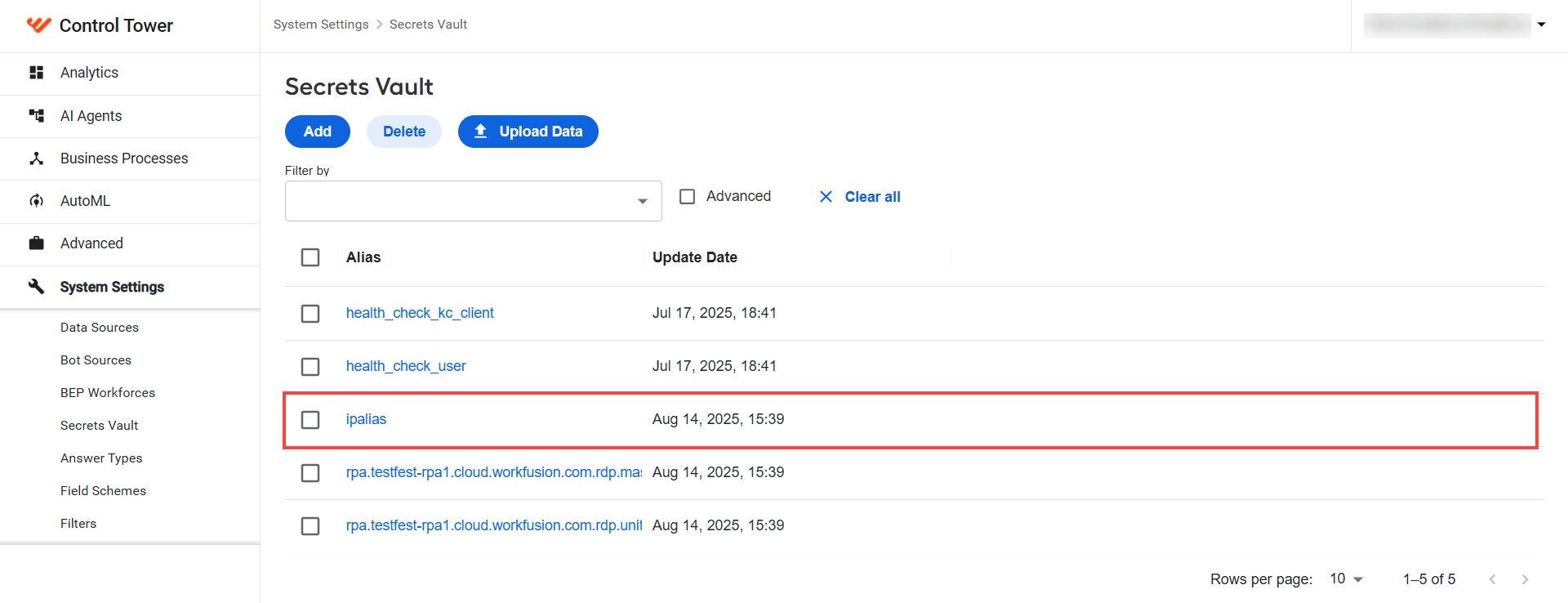
Create a
configuration.jsonfile in your bundle module, near themeta-info.json. Put the following code into it:{
"display": "form",
"components": [
{
"label": "URL",
"tableView": true,
"key": "app.invoiceplane.url",
"type": "textfield",
"input": true,
"defaultValue": "https://train-invoiceplane.workfusion.com"
},
{
"label": "Alias",
"tableView": true,
"key": "app.invoiceplane.credentials.alias",
"type": "textfield",
"input": true,
"defaultValue": "ipalias"
}
]
}This code configures a form that produces the same JSON that was used in a test before.
Deploy your project to Control Tower.
Configure the AI Agent using provided form.
At this point, you should have the r-p-a-sample Bot Task available in Control Tower. Drag and drop this Bot Task into your Business Process and execute it for testing purposes.