Administer Data Stores
The Data Store module is a web interface for managing database (DB) tables in the Work.AI platform. A field scheme defines the Data Store table structure and the column data format.
You can use Data Stores to keep lookup tables for multi-value Answer options, store Business Process (BP) results, maintain global variables, and run queries from Bot Configurations.
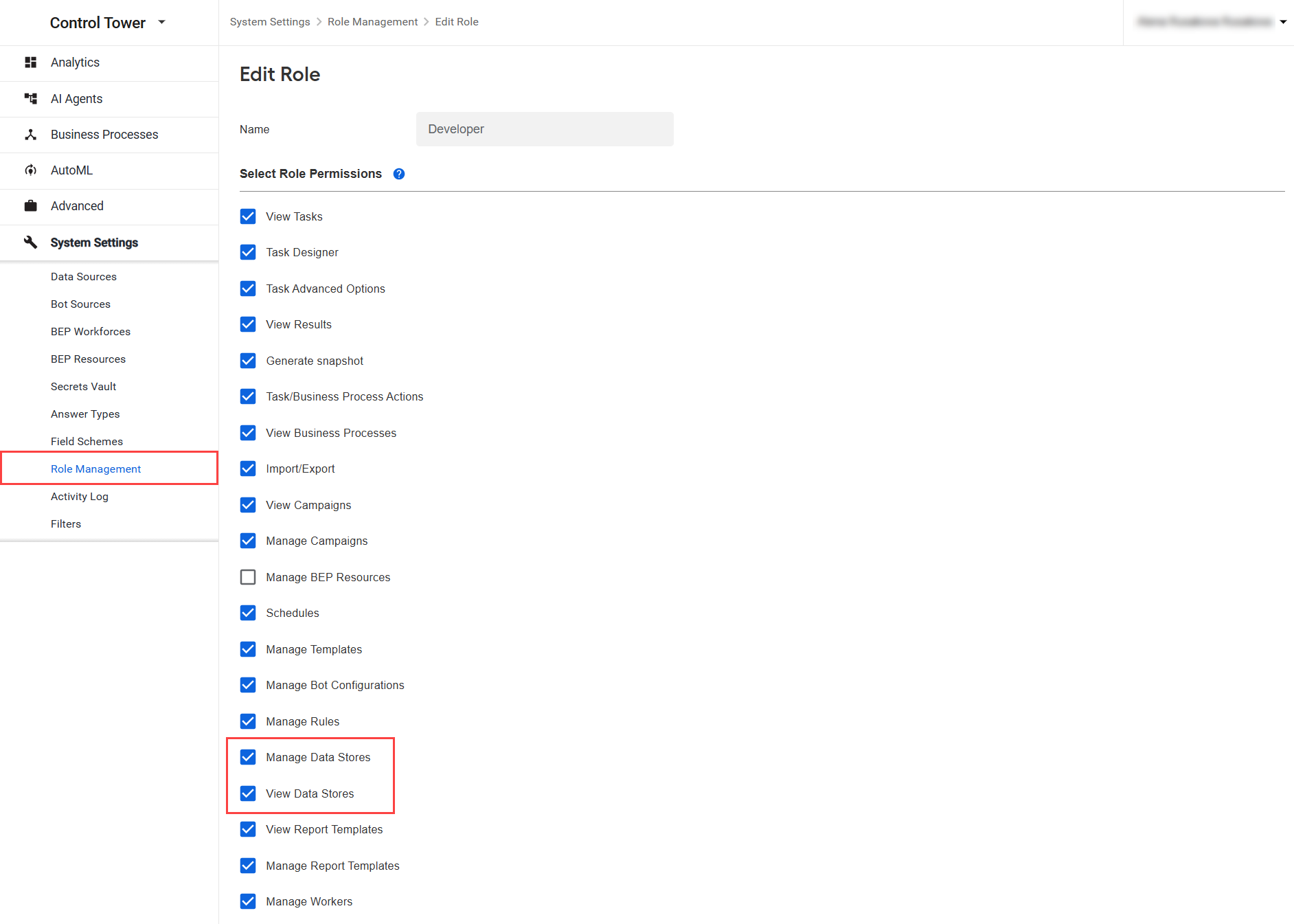
To interact with Data Stores, configure the following permissions:
Go to System Settings > Role Management and select the user to modify their permissions.
On the Edit Role screen, make sure the Manage Data Stores and View Data Stores permissions are selected. Then, click Save.
Manage Data Store
To start managing Data Stores, go to Advanced > Data Stores.
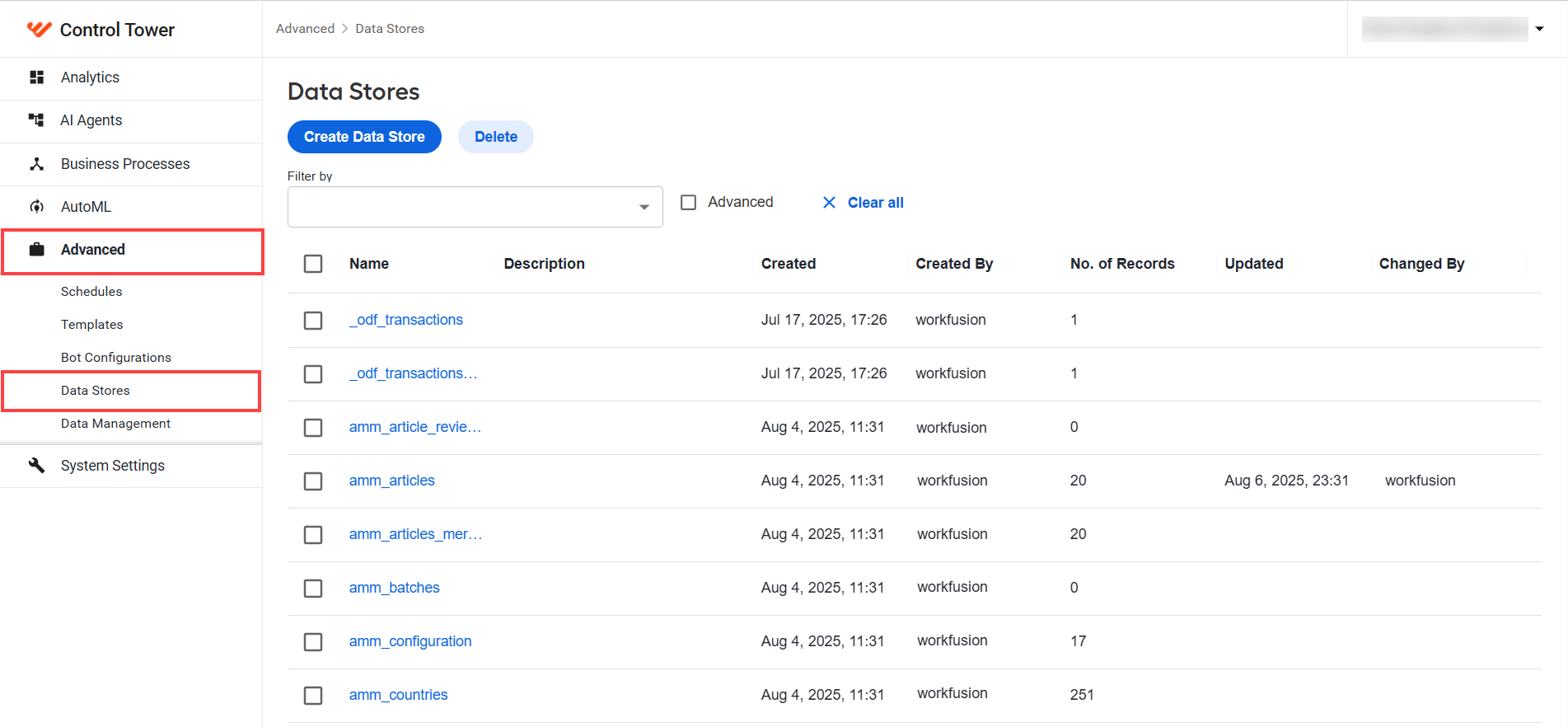
You can perform the following operations:
- View Data Stores and filter them by column values. Set the columns to display in the grid.
- Add Data Stores.
- Edit Data Stores.
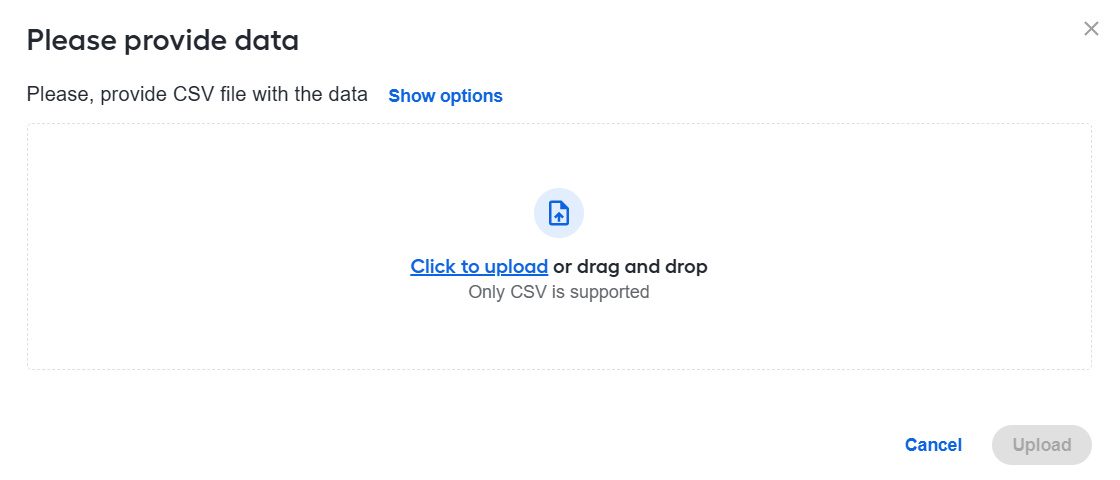
- Upload a file. If the column names in the new file match the Data Store columns, all new records are appended to the Data Store. Otherwise, map the columns from the file to the Data Store.
- Delete Data Stores.
Apply filters
For quick navigation through the Data Stores, apply either of the following filter types:
Predefined filters Data Stores by preset filters.
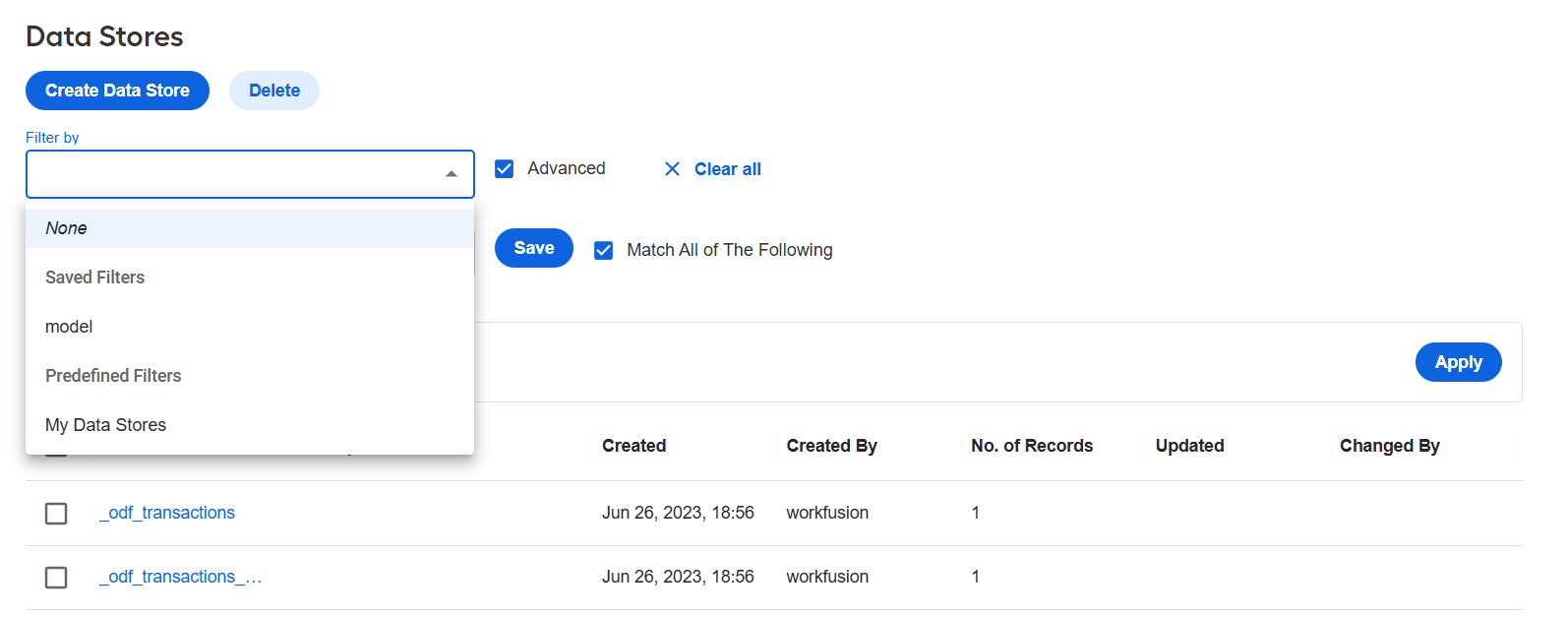
Advanced lets you set custom filtering criteria.
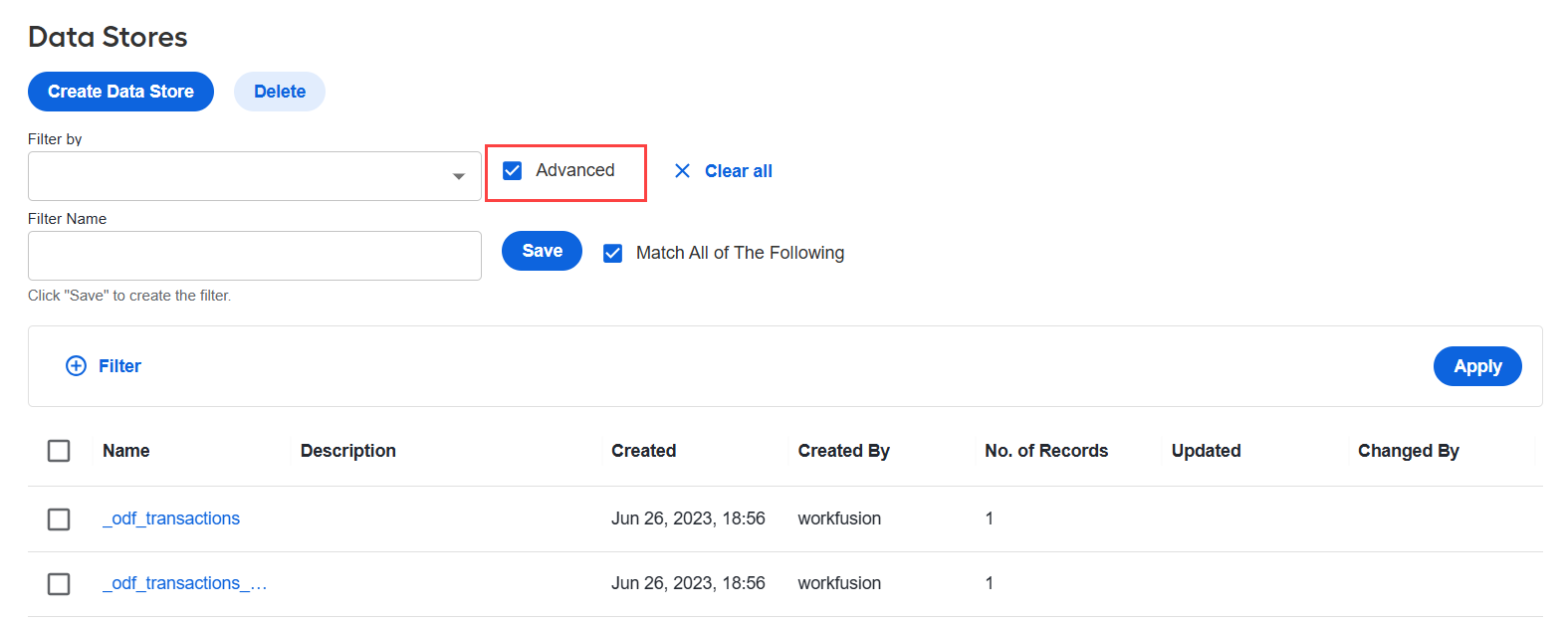
To apply the advanced filter, follow the steps below:
Select the Advanced checkbox next to the Filter by field. The filter builder expands below.
Click Filter.
In the Column drop-down, select a column name. In the Operator drop-down, select an operator. In the Value field, select one or more values. The selected values are displayed as chips. To remove a value, click the x on its chip.
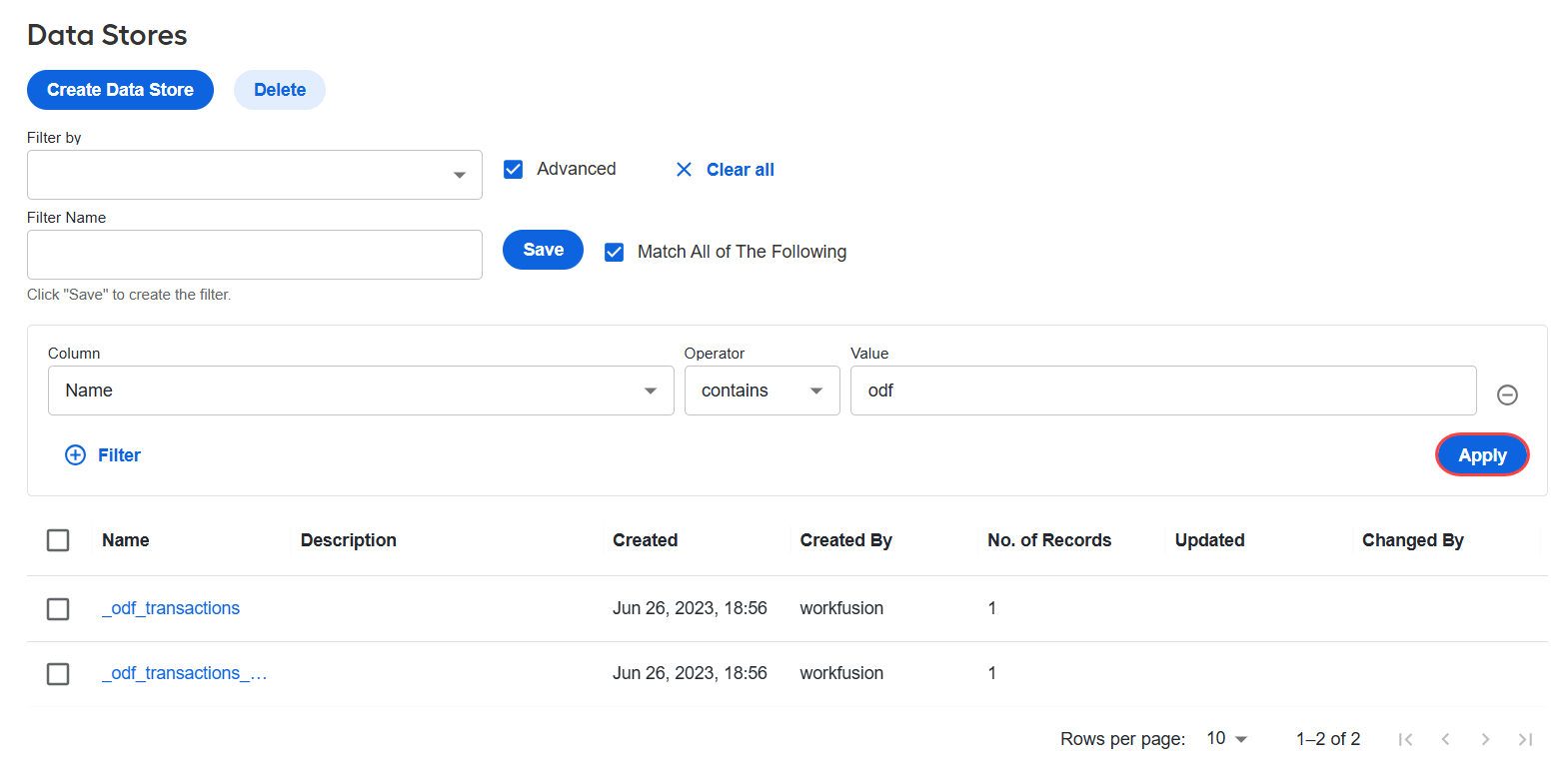
To add another condition, click Filter. To delete a condition you no longer need, click the - icon at the end of its row.
(Optional) Select the Match all parameters checkbox if all conditions must match.
Click Apply. The grid refreshes and displays the filtered records.
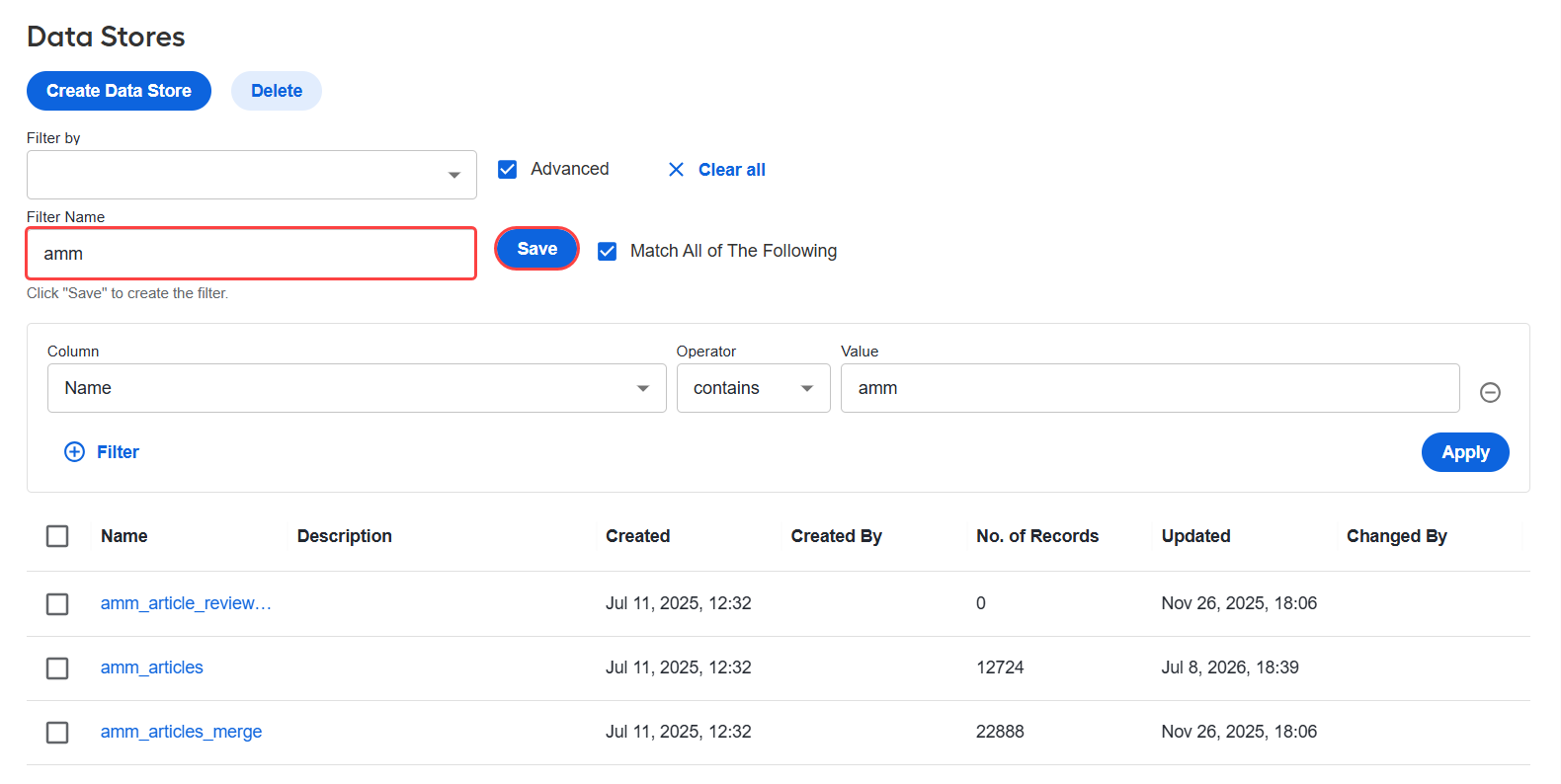
To reuse the filter, enter its name in the Filter Name field and click Save. The saved filter becomes available in the Filter by dropdown.
Create Data Store
To create a Data Store, follow the steps below:
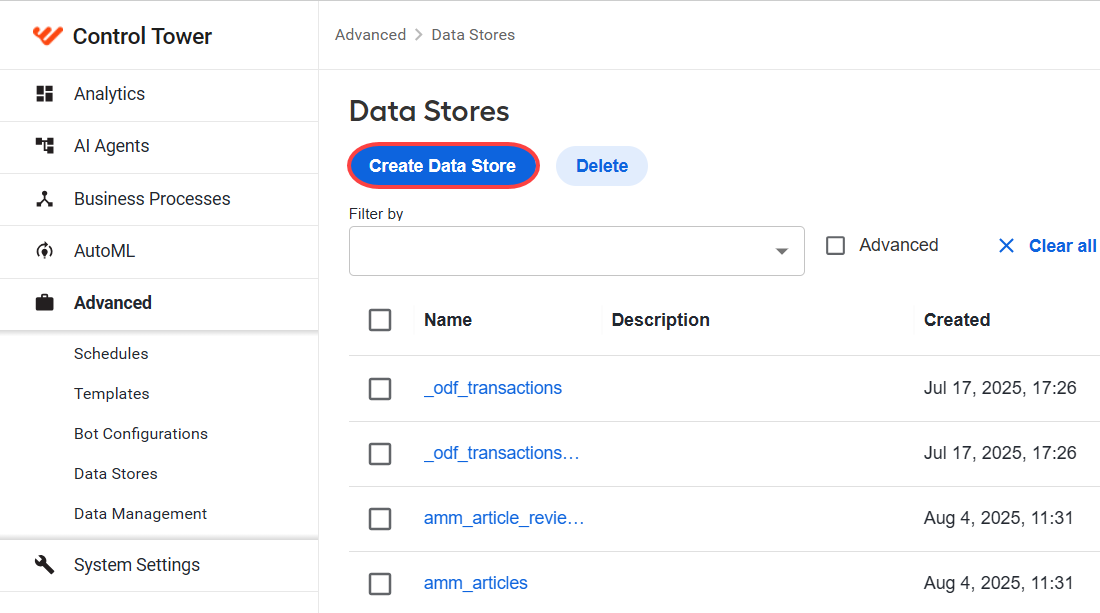
Click the Create Data Store button.
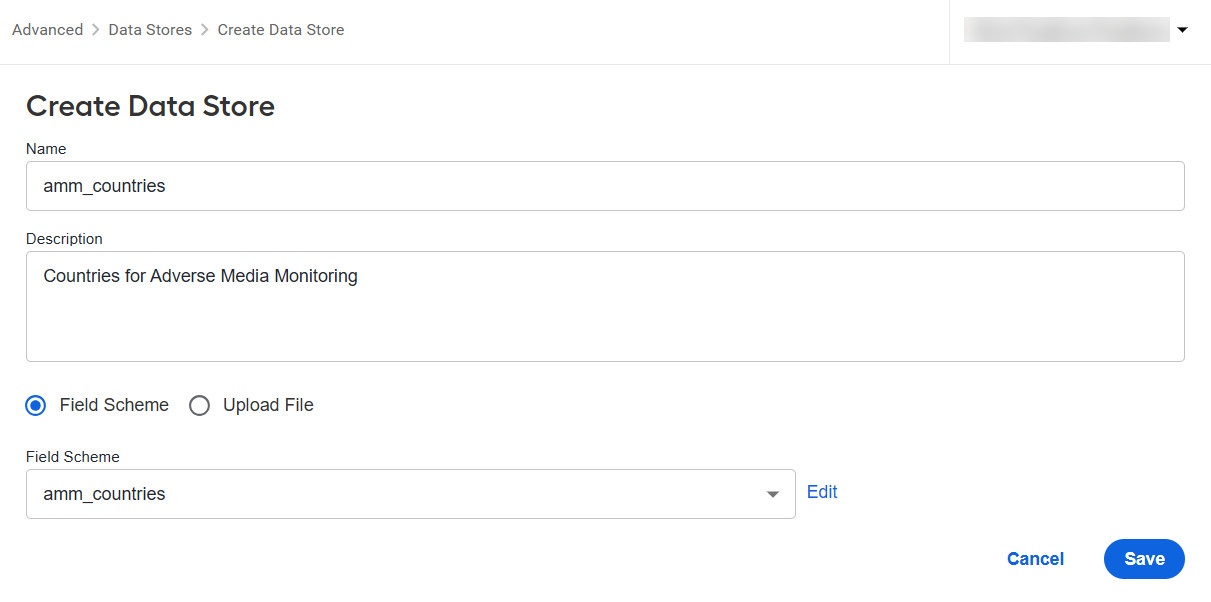
Enter a unique name and a description in the Name and Description fields. Names can contain alphanumeric characters, underscores, and spaces.
To define the Data Store structure, select one of the following options:
- In the Field Scheme drop-down list, select a field scheme.
- Select Upload File, click Upload Data, and add your CSV file. The first row must contain the column headers. Note that column names cannot contain spaces.
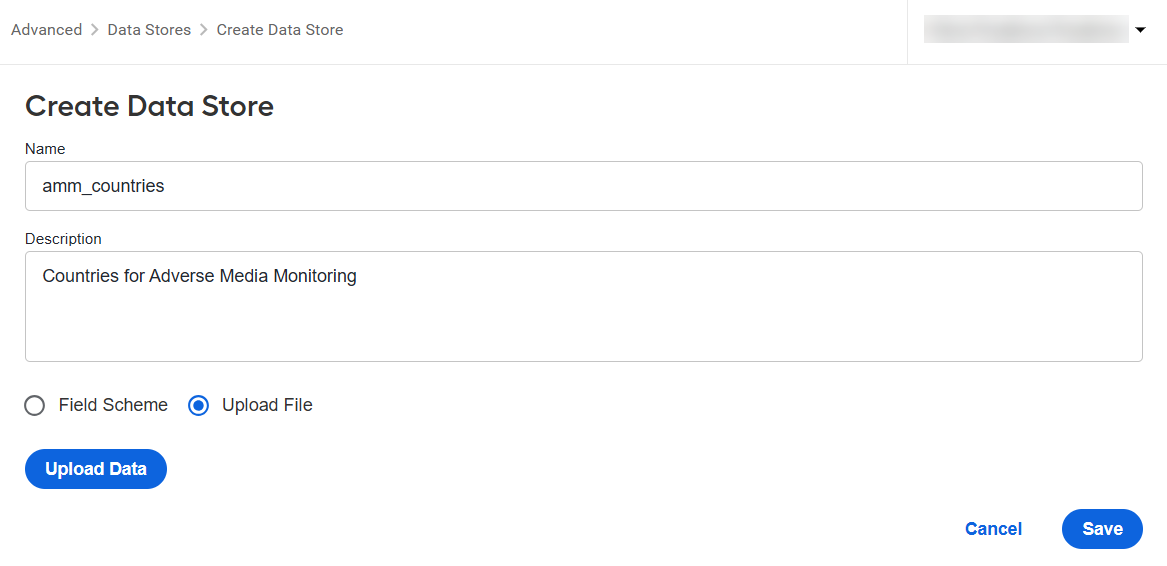
For a Data Store created from a file, an appropriate field scheme is added automatically.
Click Save.
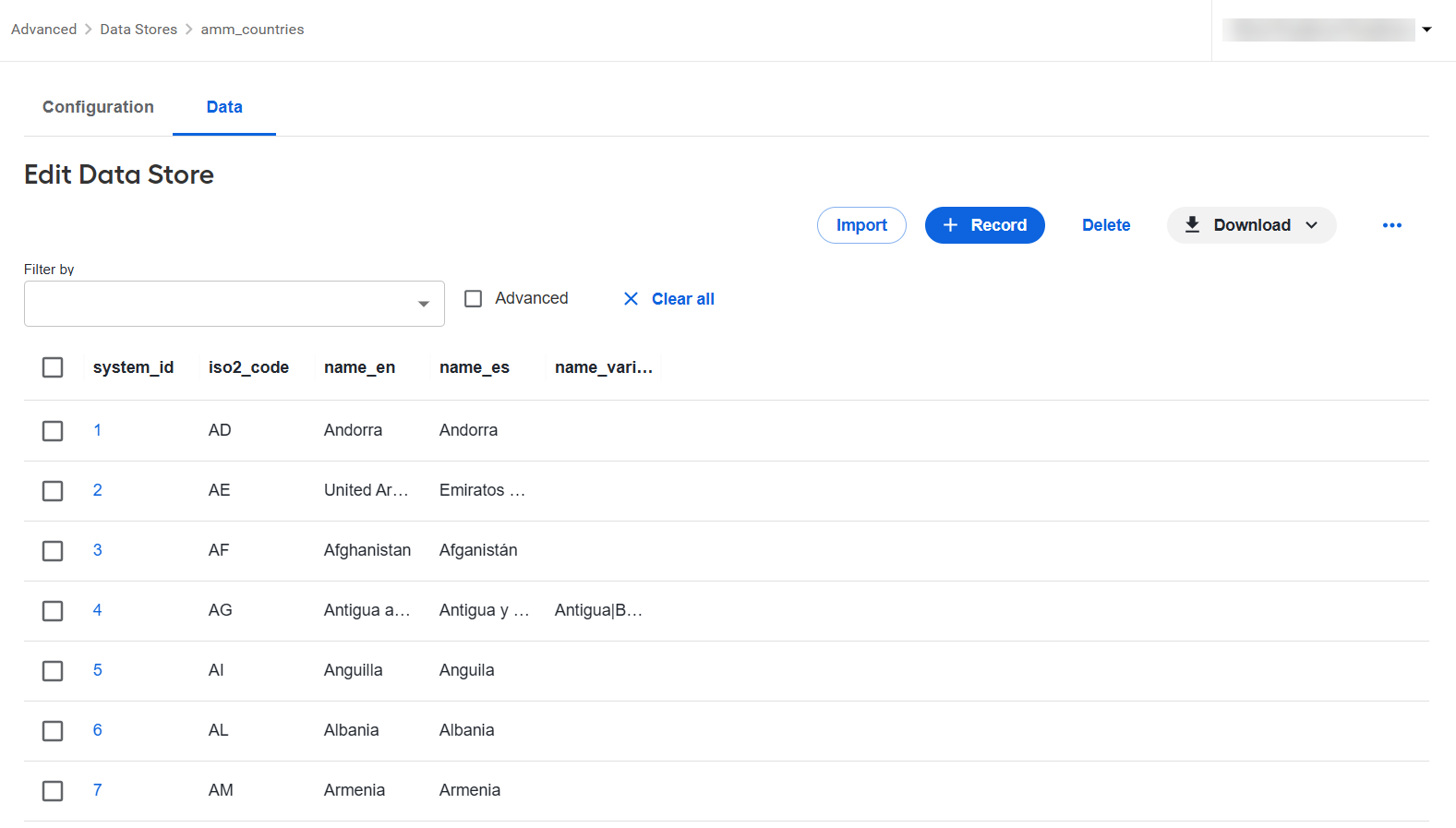
Edit Data Store
To edit an existing Data Store, click its name in the grid.
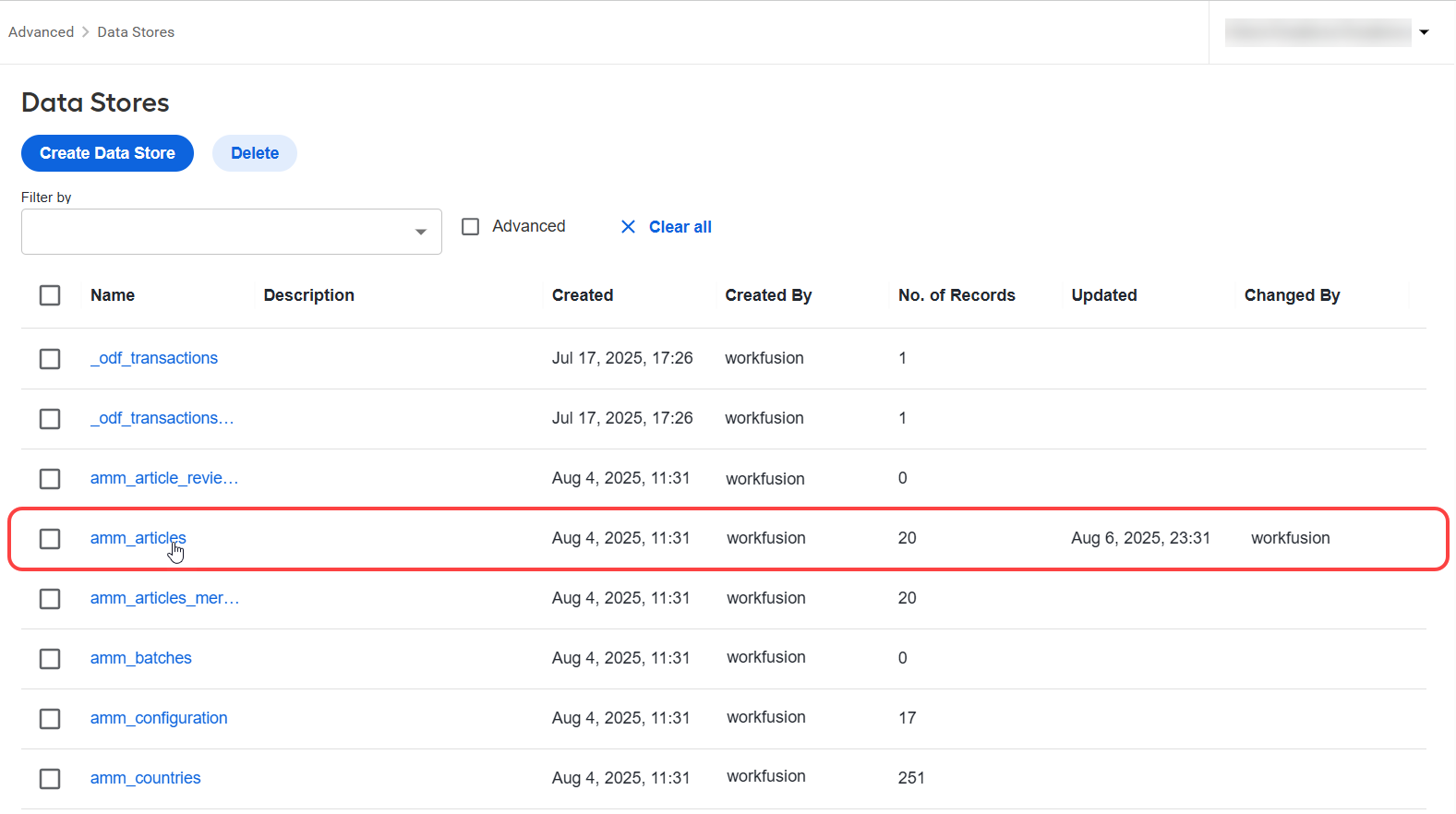
On the Configuration tab, you can modify the following data:
- Name
- Description
- Field scheme
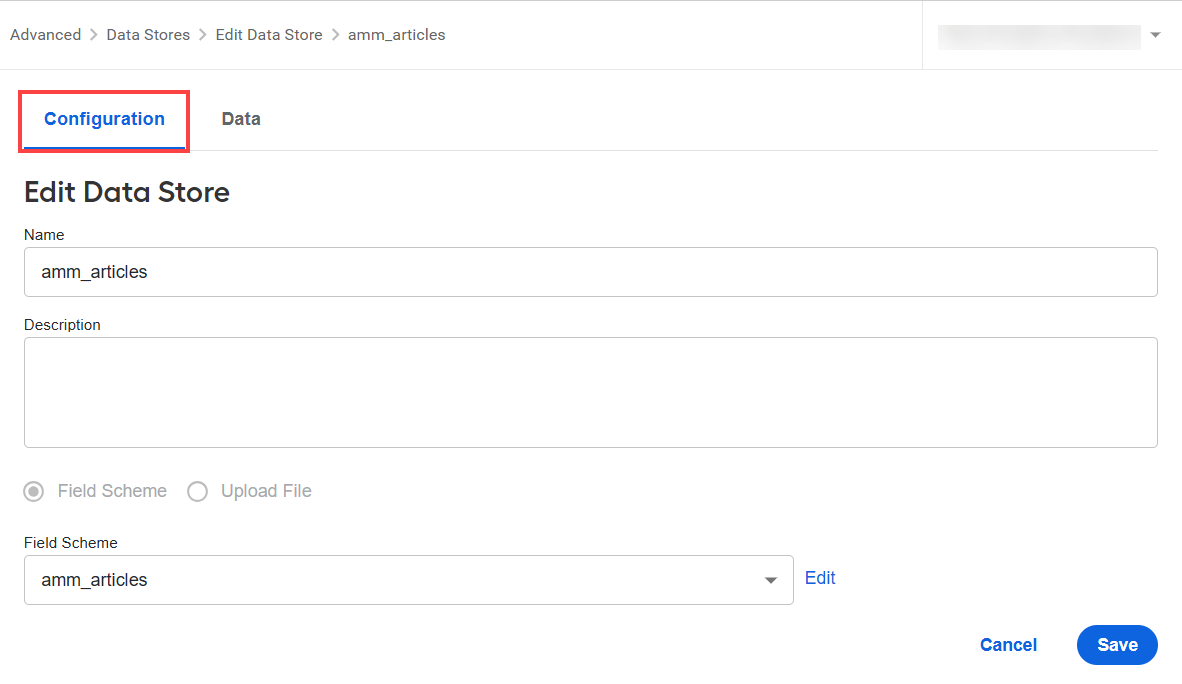
On the Data tab, you can perform the following actions:
Import. Upload a new CSV file with the data.
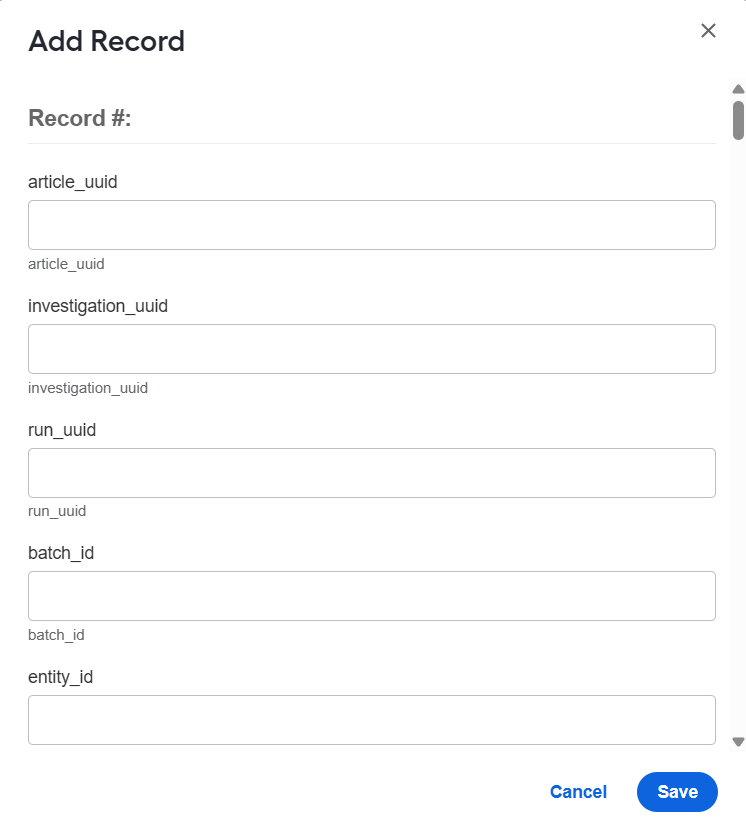
Record. Add new records manually, one by one.
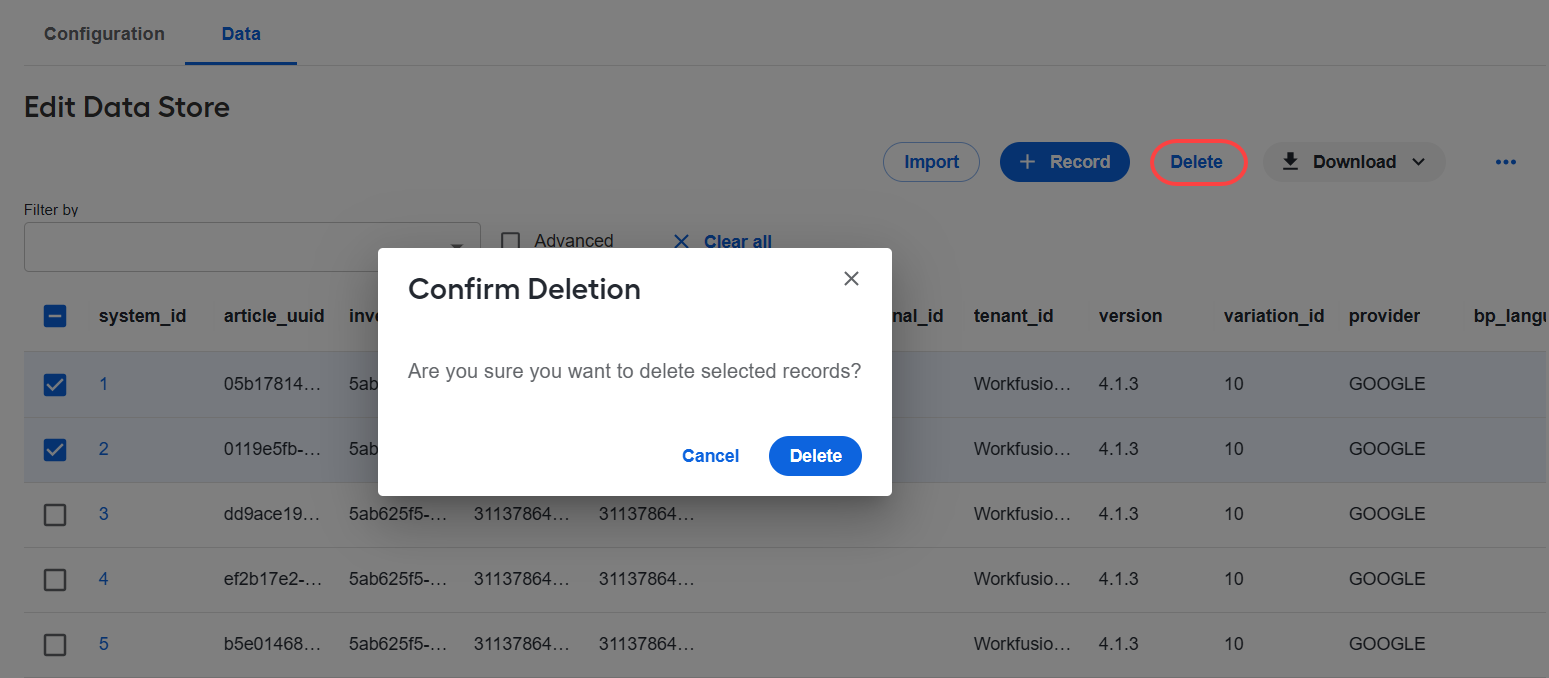
Delete. Select records and delete them from the Data Store. In the Confirm Deletion pop-up, click Delete.
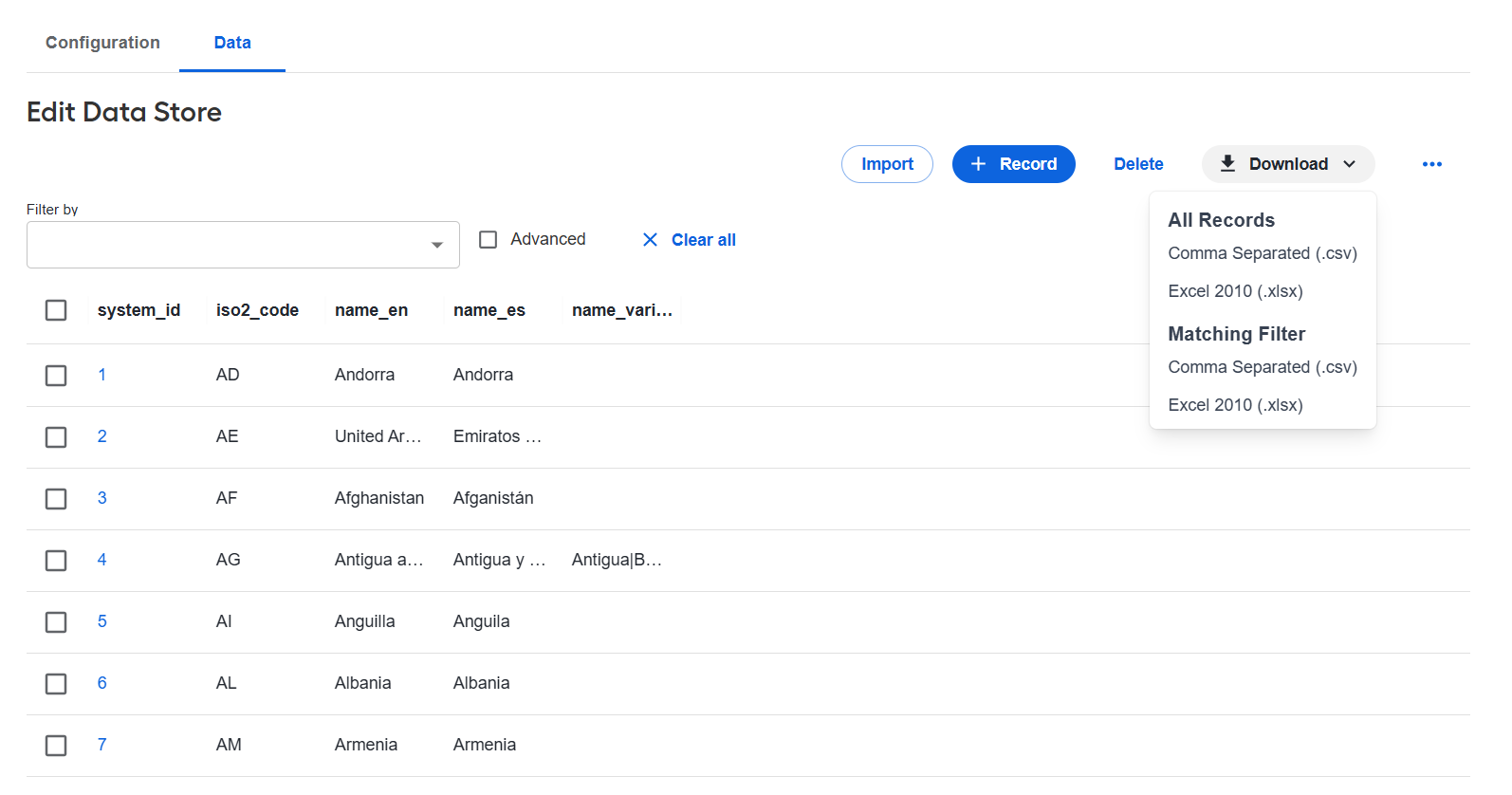
Download. Select the data format (Comma Separated for CSV or Excel 2010 for XLSX) and download the data file. You can then populate the downloaded file with the columns you need.
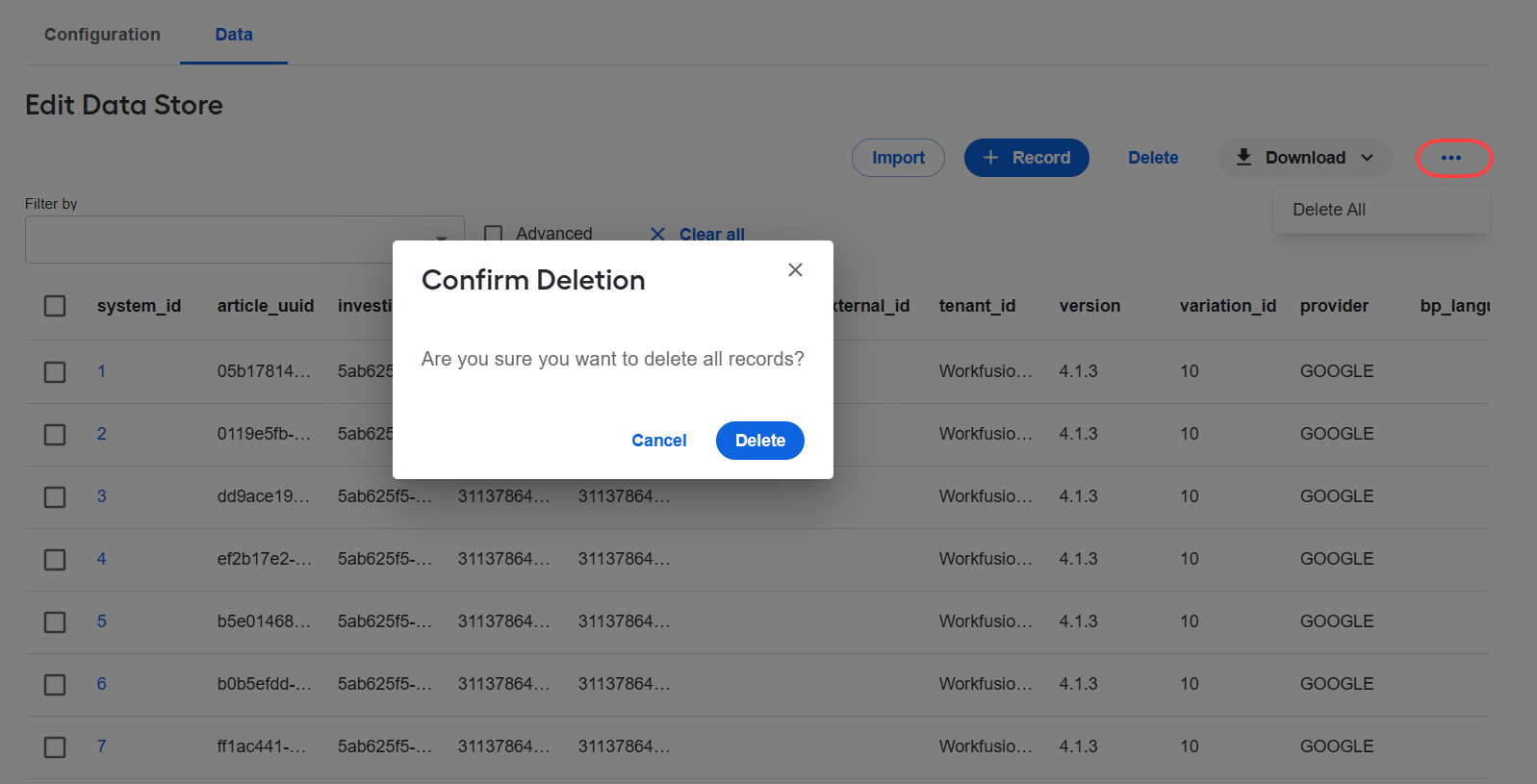
Delete all. Click the three-dot menu and select Delete all to delete all records. In the Confirm Deletion pop-up, click Delete.
Delete Data Store
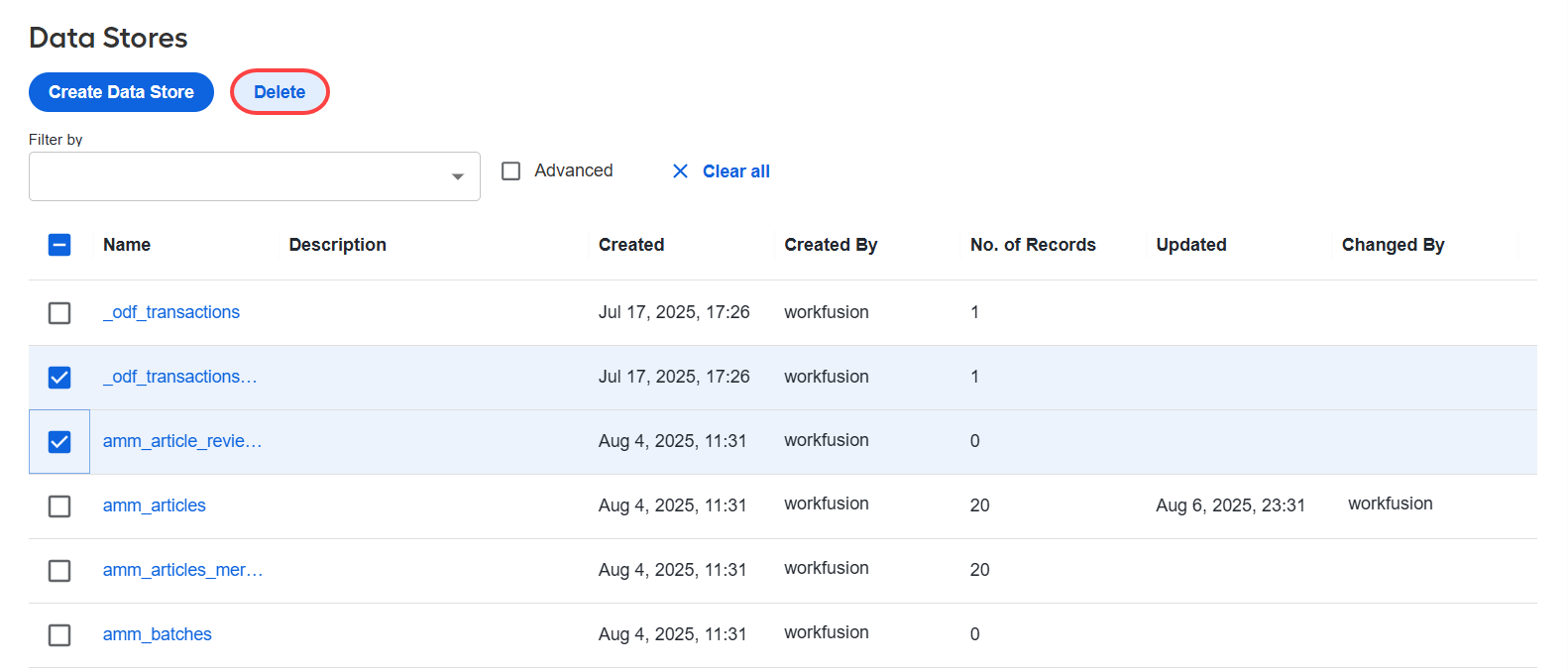
To delete several Data Stores at once, follow the steps below:
Select the Data Stores in the grid and click Delete.
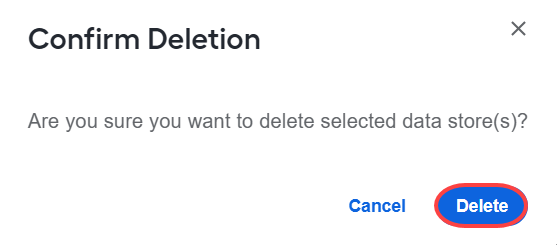
Confirm the deletion by clicking Delete.
Use Data Store
Answers
You can use a Data Store to create a reusable lookup list for task Answers. To use a predefined list in Answers, add a Data Store with two columns:
- id: a unique identifier
- name: a label to show in the drop-down list
You can use records from a Data Store for the following Answer Types:
Select the Autocomplete checkbox and choose an item from the Options list.
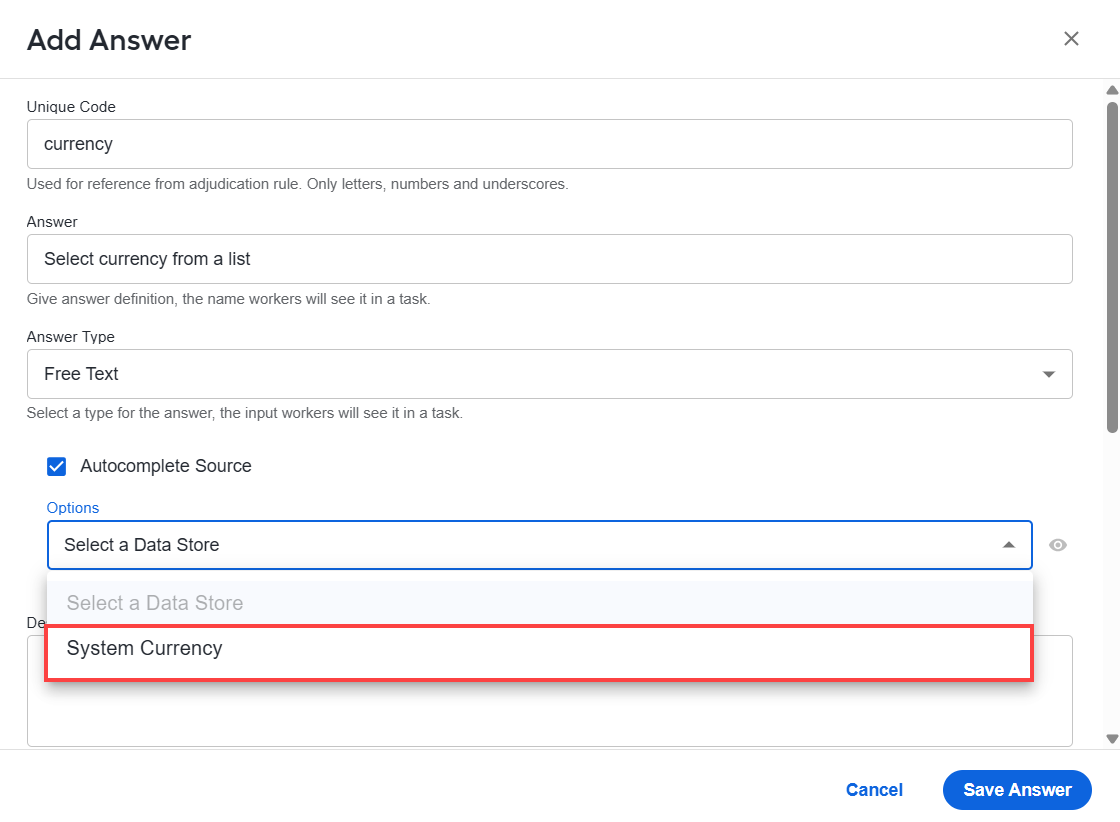
All currencies used as an answer for the Currency Answer Type are stored in a system Data Store called System Currency. In this Data Store, the currency code represents the currency id, and name contains the currency code and the currency name.
The names appear in the drop-down list where you select a currency when processing a task.
Business Processes
To load the final BP results to a Data Store automatically, select the Copy results to Data Store checkbox. This way, you don't have to generate a BP snapshot and store it on your local computer or in the cloud.
If a BP uses Data Stores in its steps, you can include these Data Stores in the package during the export procedure and then create them in another Control Tower after you import the package.
Global variables
Global variables store common values used in different BPs, so you don't have to hard-code these values in Bot Tasks. In particular, global variables can store the following information:
- URLs of services, such as an OCR REST service or a web app login page
- Parameters, for instance, the minimal DPI for document recognition or the output file extension
- Modes, for example, test or production
- Strings, such as names, messages, and translations
- Timings, such as schedules and timeouts
All global variables are stored in a single Data Store named Global Variables. You can use their values in the var-global plugin.
Access global variables
To access global variables, go to Advanced > Data Stores > Global Variables.
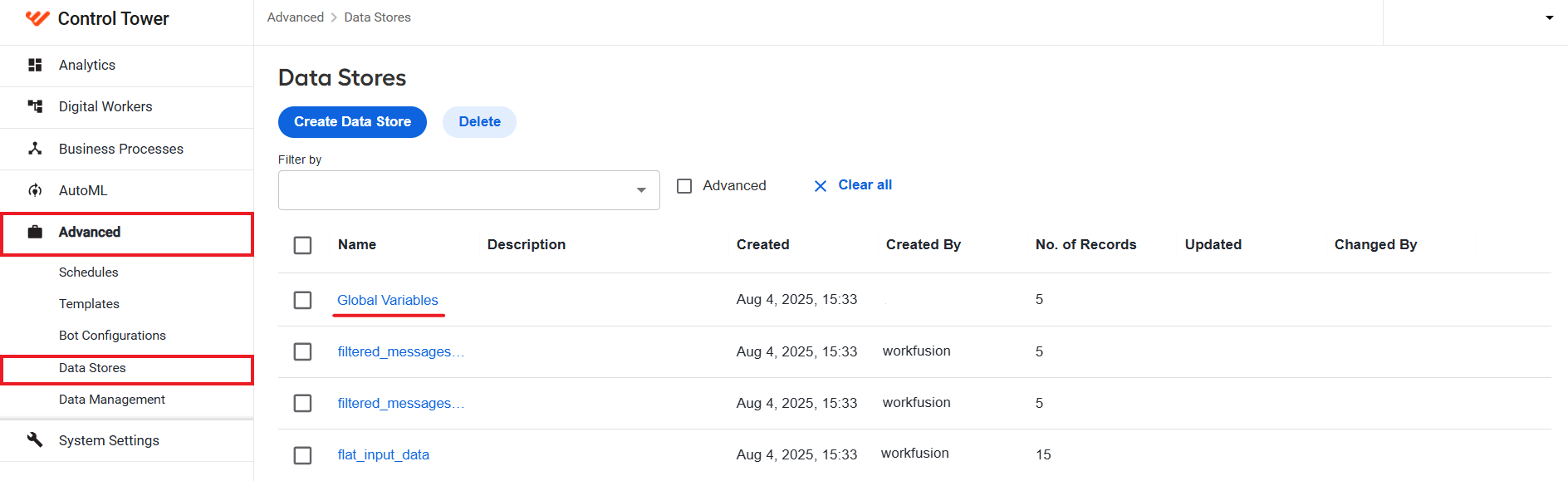
The Global Variables Data Store is available by default and cannot be deleted.
In the Global Variables Data Store, the variable names correspond to the column headers, and the values are taken from the first row. If the Data Store contains other rows, they are ignored.
Create and use global variables
You can create and use global variables from a BP on the Workflow tab, without creating Data Stores manually or adding columns to the field scheme.
To create a global variable, follow the steps below:
On the Workflow tab, insert the
<var-global>plugin with a meaningfulnameattribute into a bot step, for instance, as shown below:<export include-original-data="true">
<single-column name="OCR">
<var-global name="ocr_rest_url"/>
</single-column>
<single-column name="VDS">
<var-global name="vds_params"/>
</single-column>
<single-column name="Timeouts">
<var-global name="rpa_timeouts"/>
</single-column>
</export>tipTo name a global variable, use only lowercase alphanumeric characters and underscores, for example,
ocr_parameters.Save the bot step configuration. The following warning appears: "Global variables used in Step_Name bot step are missing N values."
Click the warning. Alternatively, go to the Run tab, click the Advanced Options button, and open the Global Variables tab.
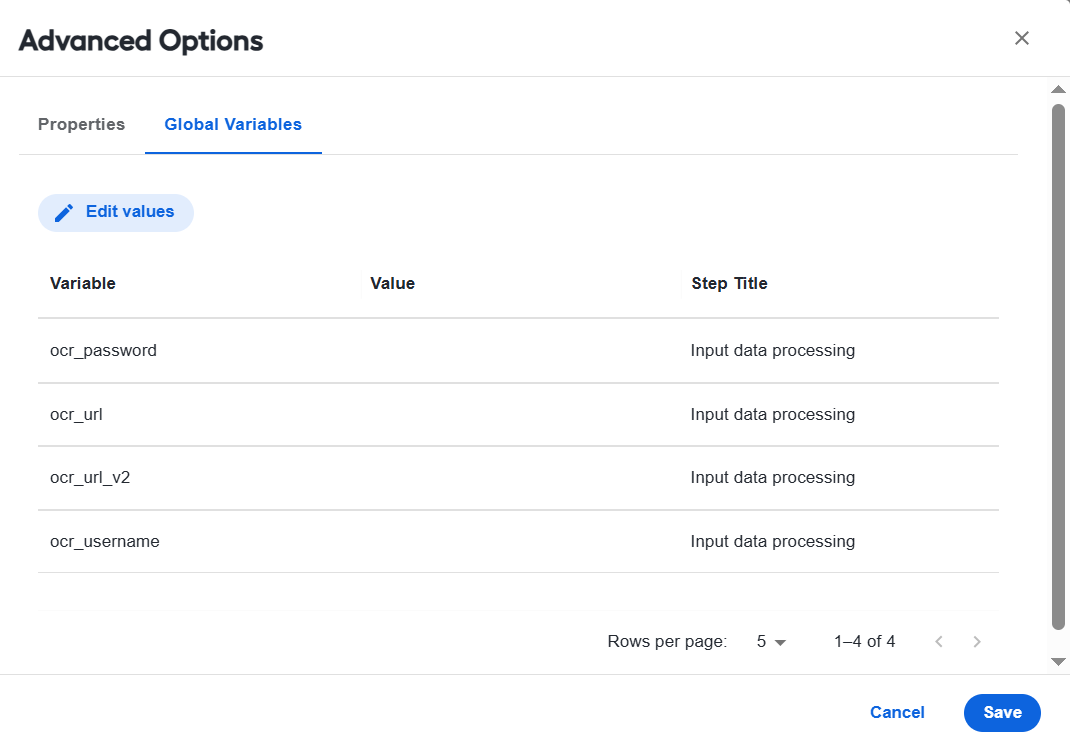
Click the Edit values button. The Global Variables Data Store opens in edit mode.
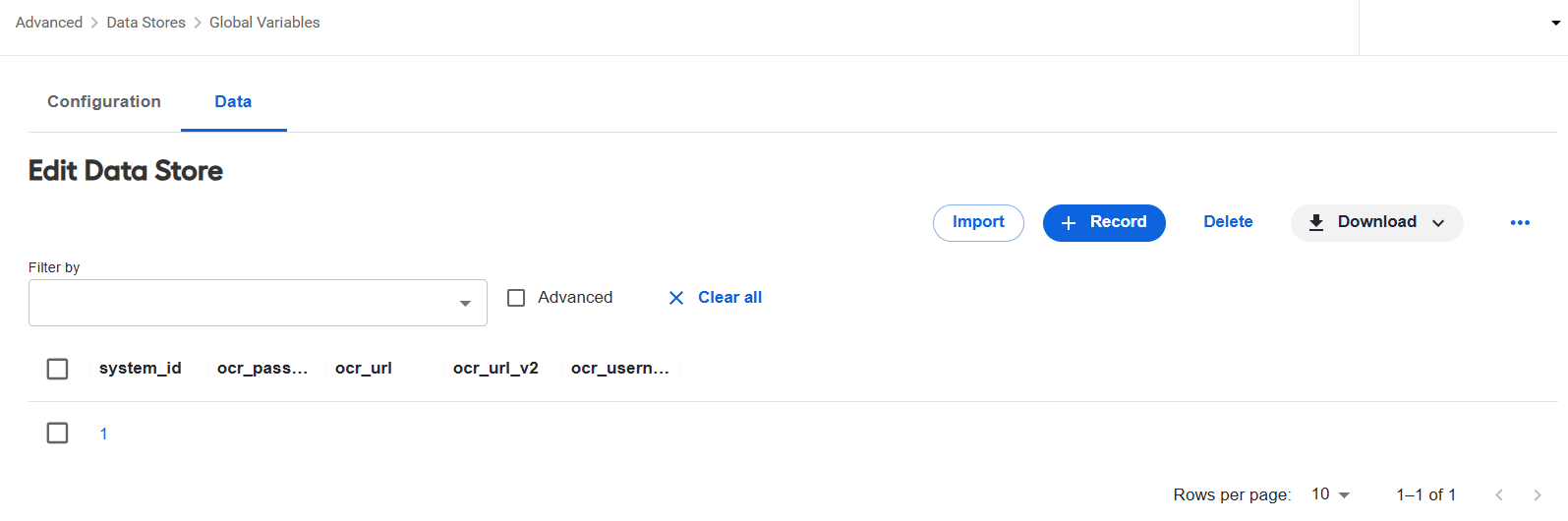
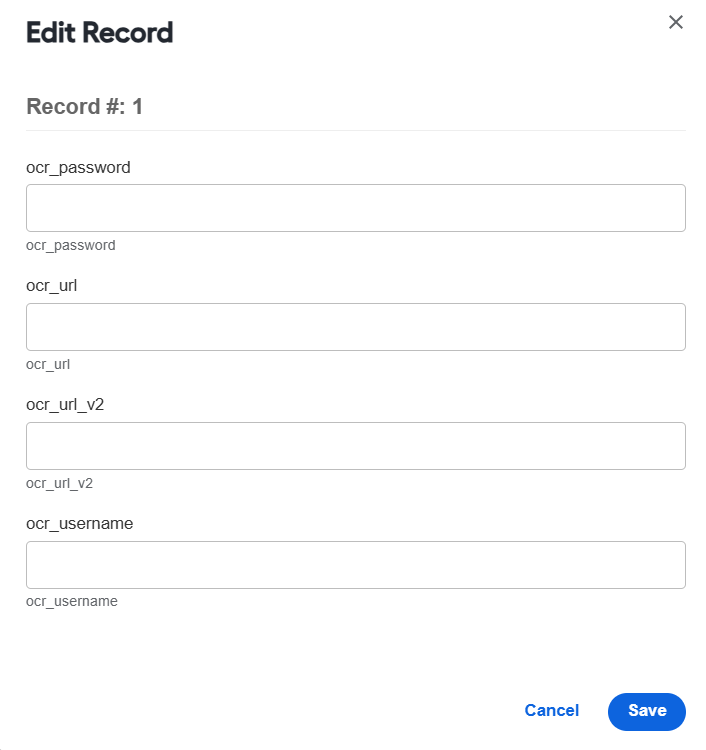
Click the corresponding record. In the Edit record window, set the values for all the variables that are missing them and click Save. Then, click Save on the Global Variables Data Store page.
Return to the Global Variables tab and click the Refresh button.
Click Save.
Once global variables are set in Data Stores > Global Variables, you can use them in the bot steps of other BPs.
Manual Tasks
You can develop a custom Manual Task that uses Data Store API calls from JavaScript. In such Manual Tasks, you must create a set of Data Store queries. For more details, refer to Add allowed Data Store query.
Optimize Data Store performance
The Data Store functionality is implemented using a relational database. To optimize performance for large amounts of data, consider using indexes.
There are two ways to manage Data Store indexes:
- Set up indexes within the Bot Task code. See the examples in Data Store plugins.
- Contact your Operations team to create an index in MSSQL with the given table and index details.
Also, see the article about data purging.
Audit Data Store
You can track all actions with Data Stores in the ds.data_store_audit table in the DB. The table contains information about the operation type, the Data Store where the operation occurred, the number of affected records, when and by whom the action was performed, and related comments.
The following operations are logged in the table:
CREATE_DATASTOREDELETE_DATASTOREMODIFY_DATASTOREINSERT_ROWMODIFY_ROWDELETE_ROWDELETE_COLUMN
Only operations performed via API are logged in the table.
For troubleshooting tips, refer to the following support guides: