View Business Process results
The Results tab displays the output of a Business Process (BP) run. It becomes available as soon as the BP starts, whether manually or according to a schedule.
The tab contains two areas:
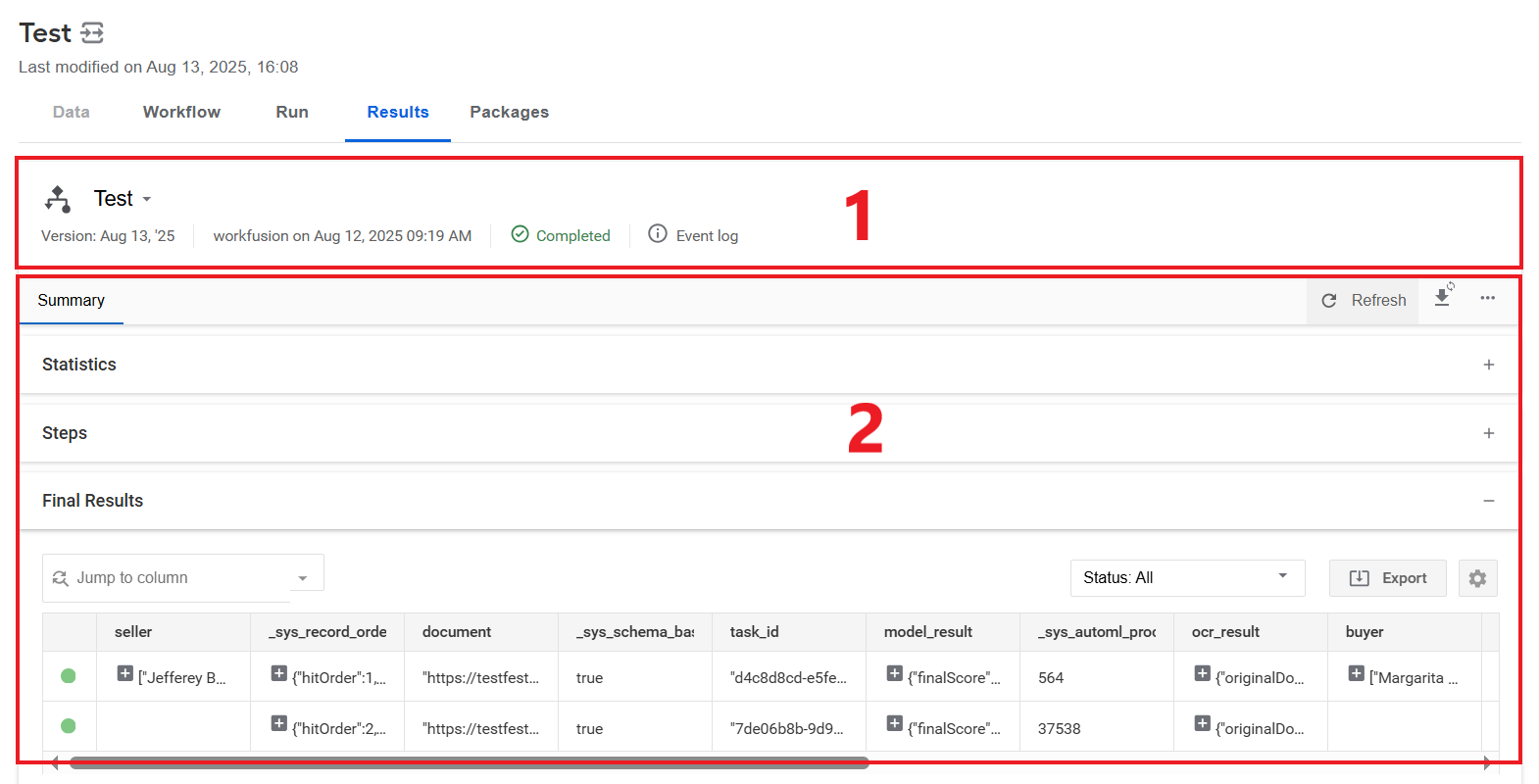
The appearance of some sections within the tab can differ, depending on user permissions and licenses.
Information header

The information header comprises the following elements:
Instance menu
The drop-down menu provides information about the BP structure. Choose an individual BP element from the tree structure to display the associated Results tab.
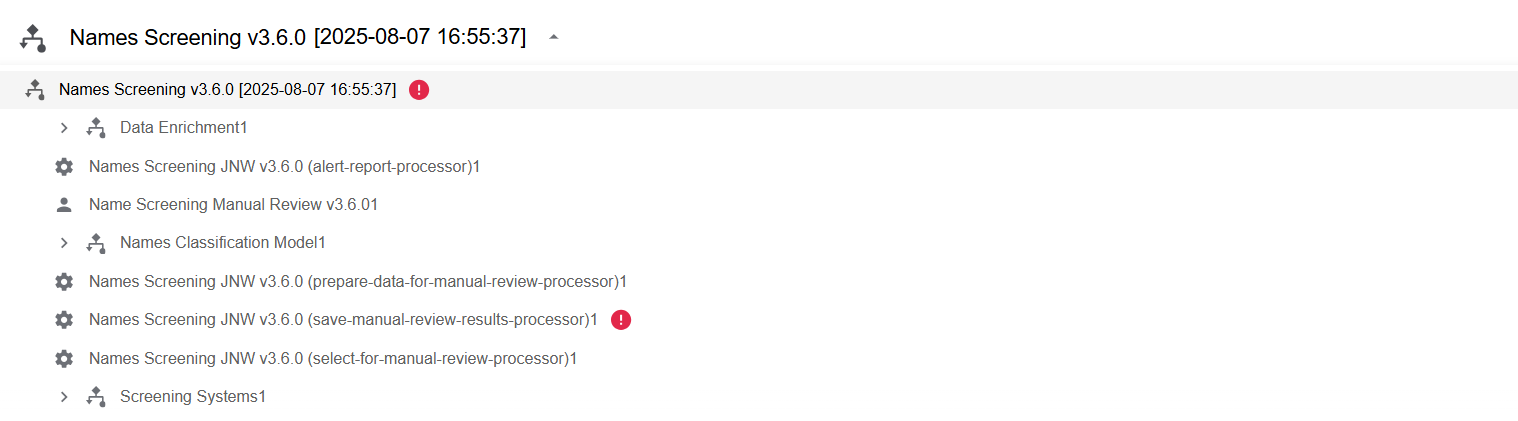
The elements are displayed in the order of execution. The icon to the left of the instance name denotes its type or status:
Icon Description 
BP or sub-process 
Bot Task 
Manual Task 
Step execution failed with error 
Button to expand sub-processes Instance metadata

Instance metadata comprises the following:
- Version
- Author and creation date
- Execution status
- Event log
The exact layout depends on the selected instance type and user licenses. To open the full event log, click the Event log icon. For more information on the event log, read View logs and repair Business Processes.
Tab view
The tabs available depend on the element selected from the Instance menu:
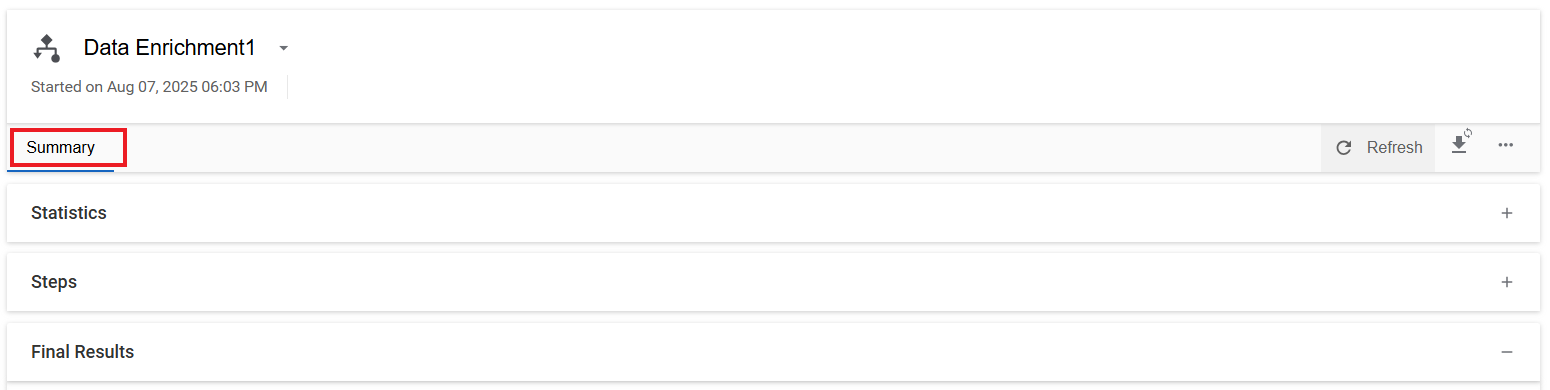
For sub-processes, Bot Tasks, and BPs with only Bot Tasks, only the Summary tab is available.
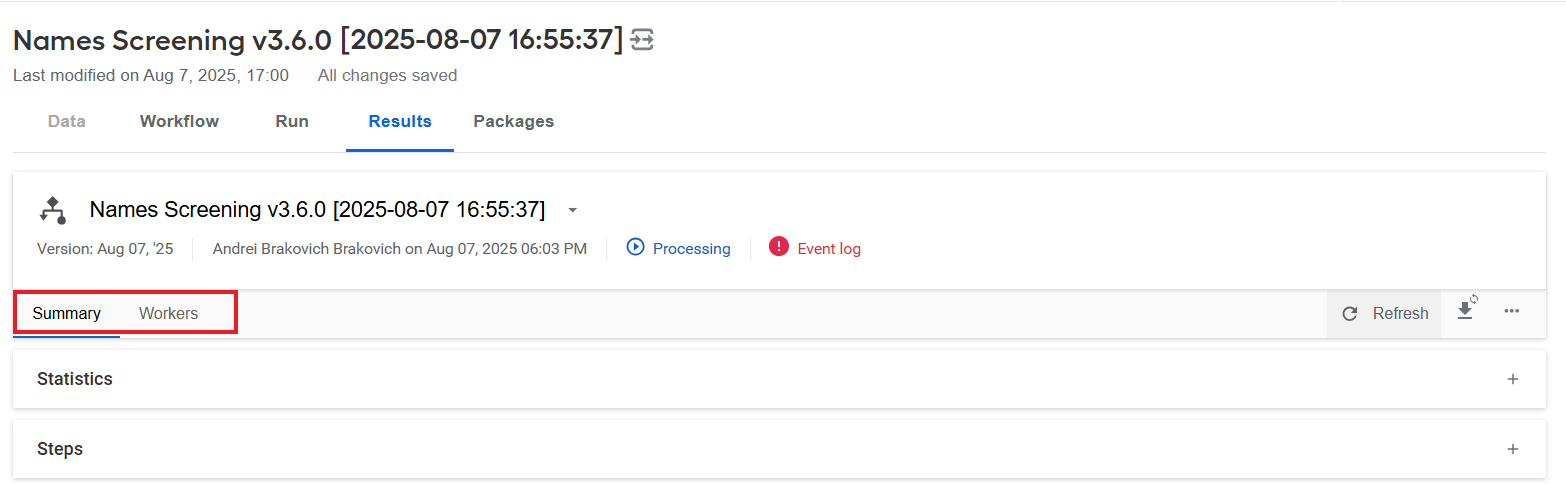
For sub-processes or BPs with both Bot and Manual Tasks, the Summary and Workers tabs are available.
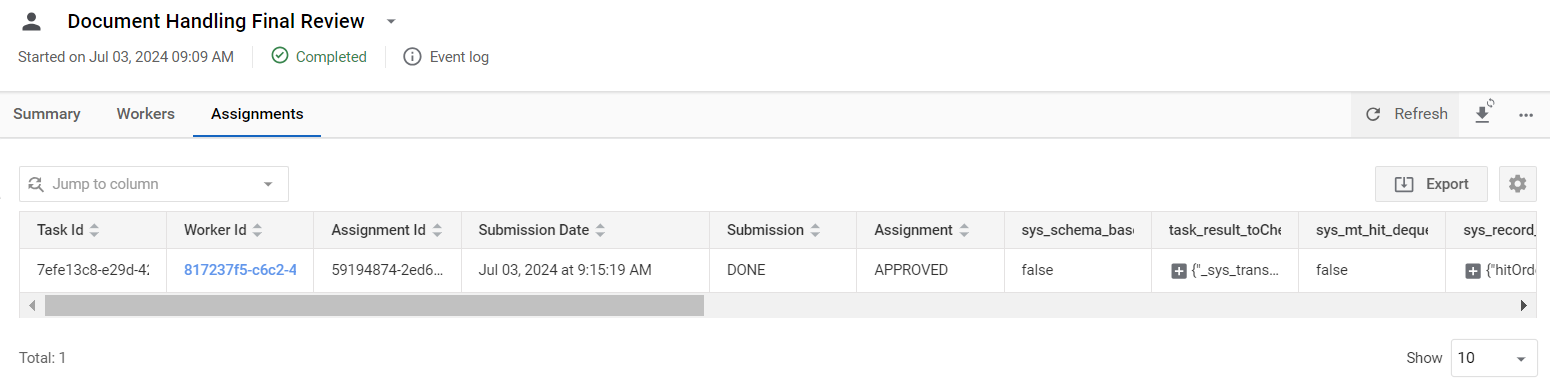
For Manual Tasks, available tabs are Summary, Workers, Assignments.
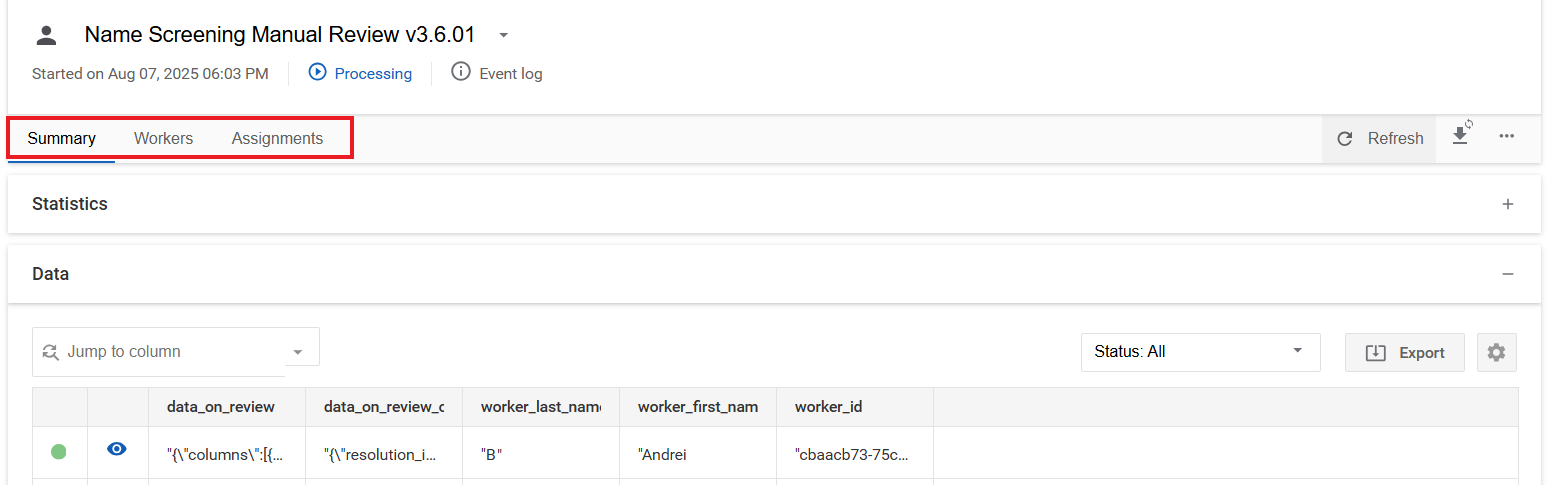
Select one of the tabs to view specific information.
Summary
The Summary tab comprises up to three blocks:
Statistics. The block is shown for any instance type. Its appearance depends on the type of the selected instance.
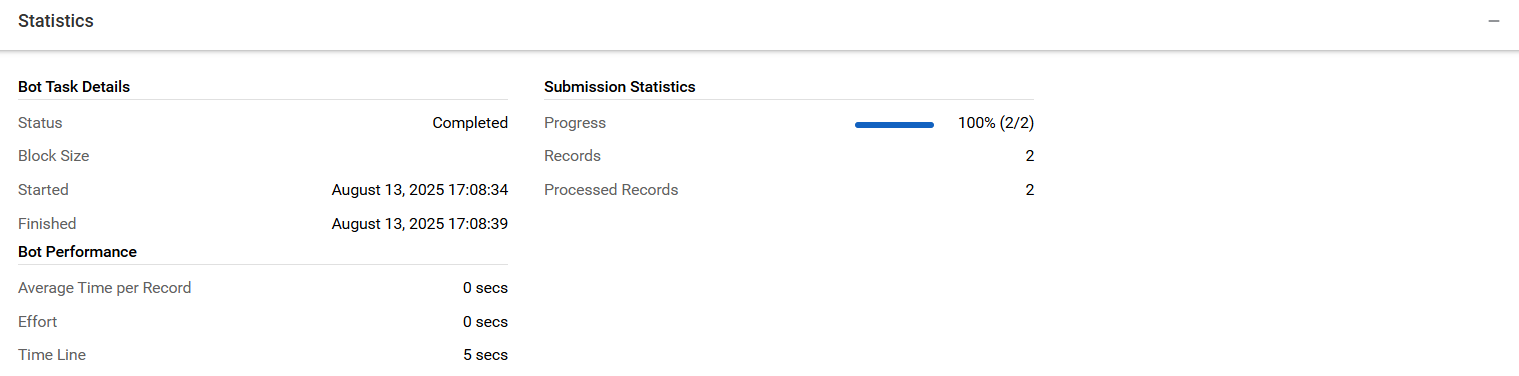
Sample statistics block for a Bot Task:
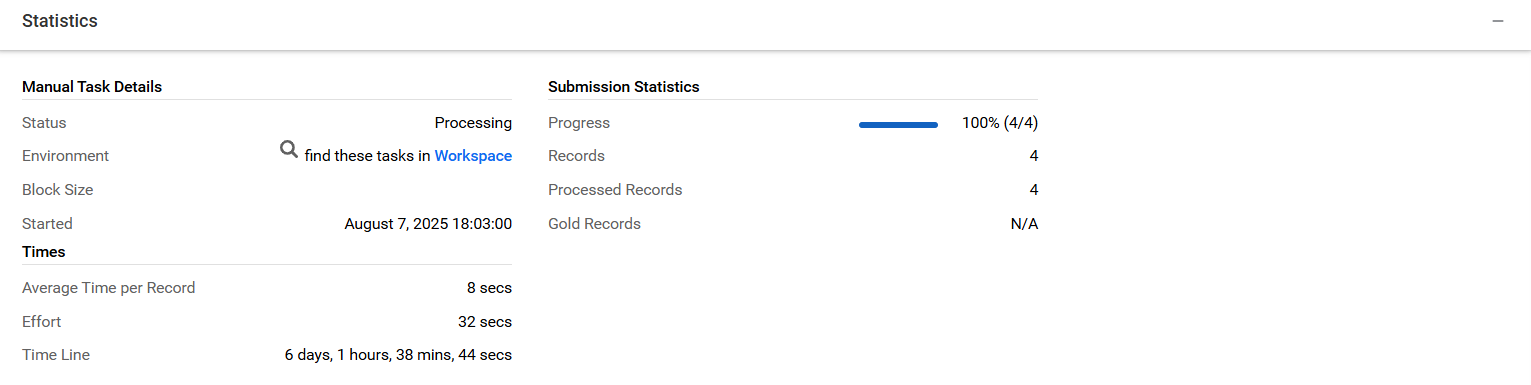
Sample statistics block for a Manual Task:
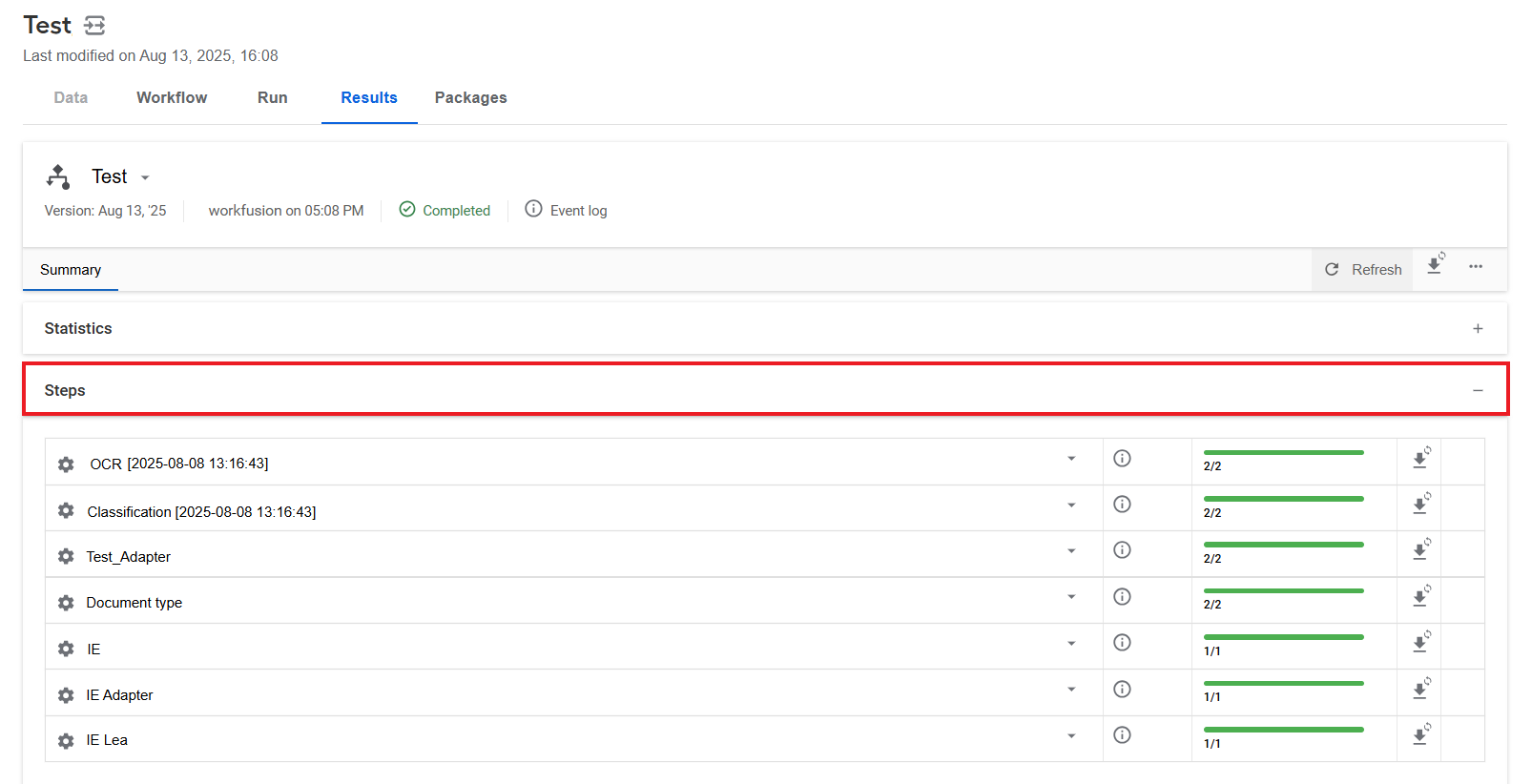
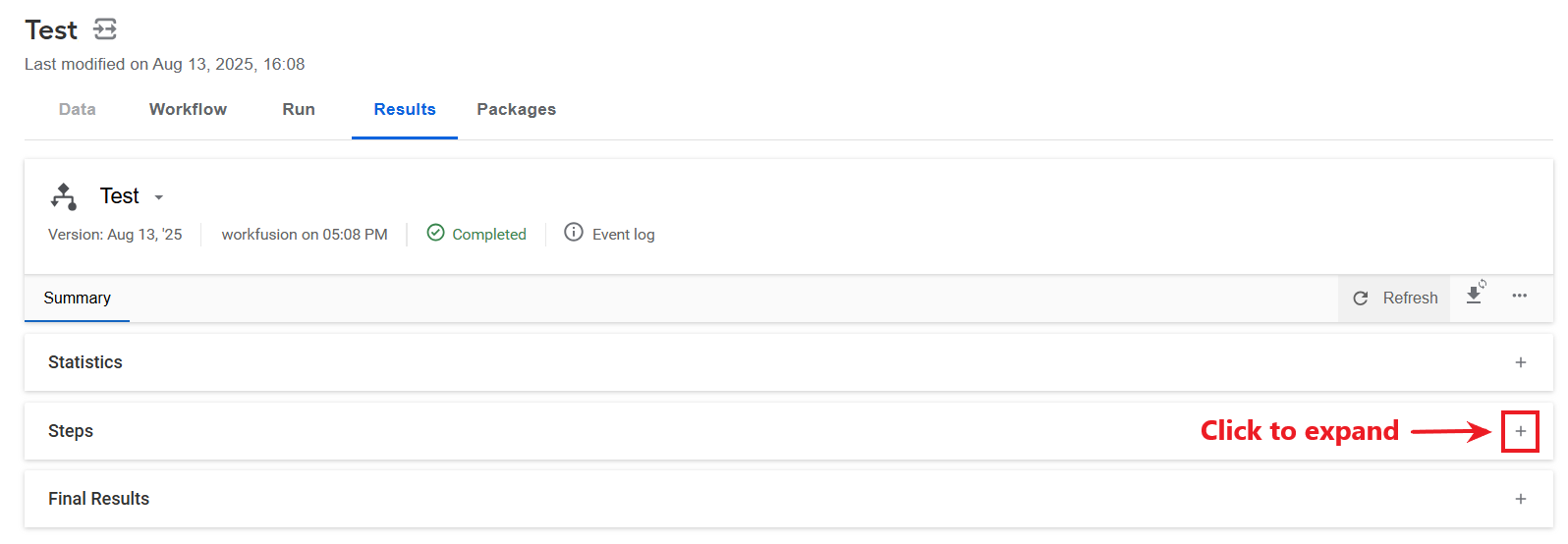
Steps. The block is displayed for compound instances, such as BPs and sub-processes. It shows the instance structure and provides actions for viewing statistics and the full event log, generating a snapshot, and performing other supported operations. The available actions depend on the instance type and license.
Data or Final results. You see either Data or Final results, depending on the instance type you selected.
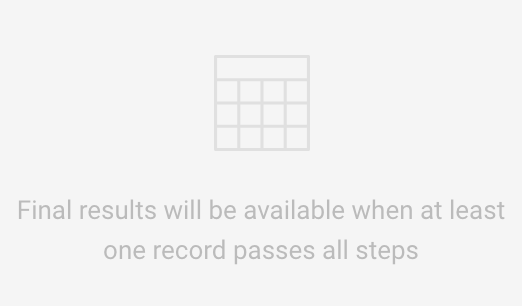
The Final results block is displayed for a BP, provided at least one record passed through all its steps. This block shows each record in a selected instance.

If no record has passed through the BP yet, you see the following message:
The Data block is displayed for Manual or Bot Tasks.

To filter, sort, navigate, configure, or export table data, use the table tools.
To expand a block, click anywhere in its area or the plus (+) sign.
Assignments
The Assignments tab displays answers associated with the selected Manual Task.
Actions
On the Results tab, the following actions are available:
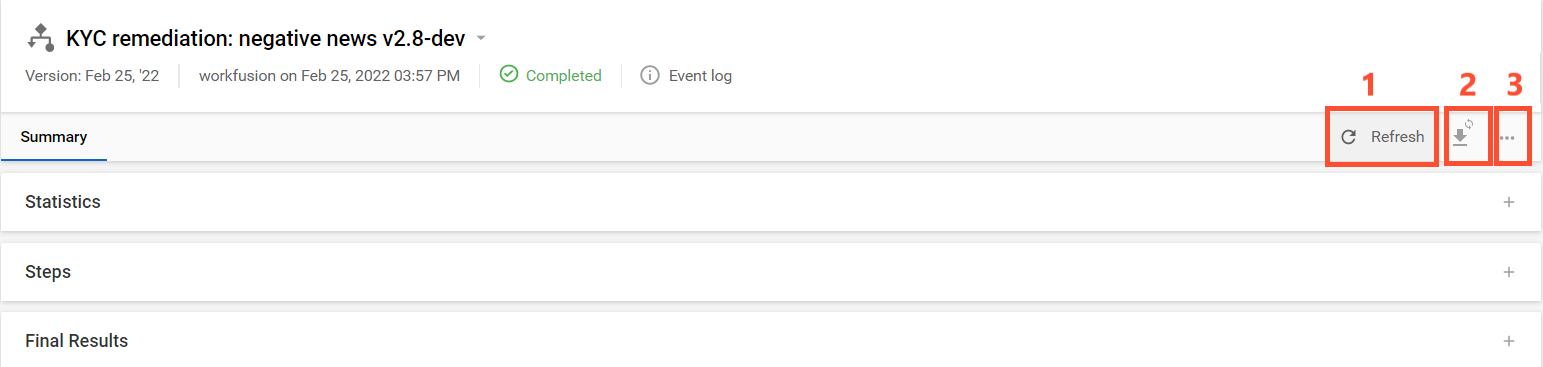
Click to update all information on the Results tab (information header, expanded blocks, tables).
Click to generate and download snapshots of the selected instance.
Click to open a list of actions. These actions are related to the overall BP, not only the selected instance.
Depending on the execution status of the BP, the list can include the following actions:
Copy
Pause
Resume
Stop
Repair
Download original data
Delete
Table tools
Table tools are available for all tables on the Results tab:
Data
Final results
Assignments
The available tools depend on the selected table and the BP result data.
BPs completed before upgrading to Work.AI 10.3.3 continue to use the existing results view without filtering and sorting controls.
Filter results
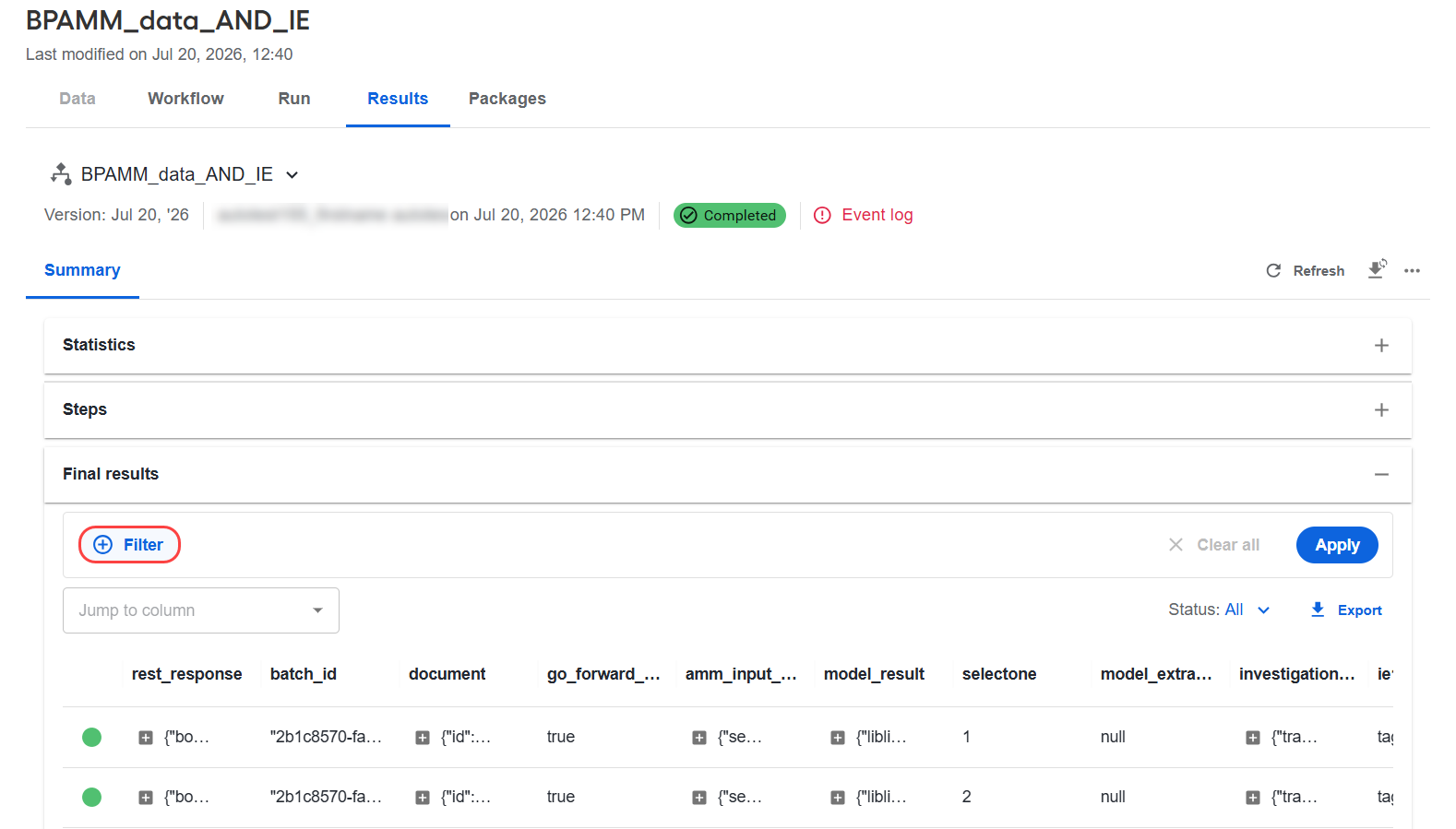
To filter records in Final results or a step-level Data table, complete the following steps:
Click Filter.
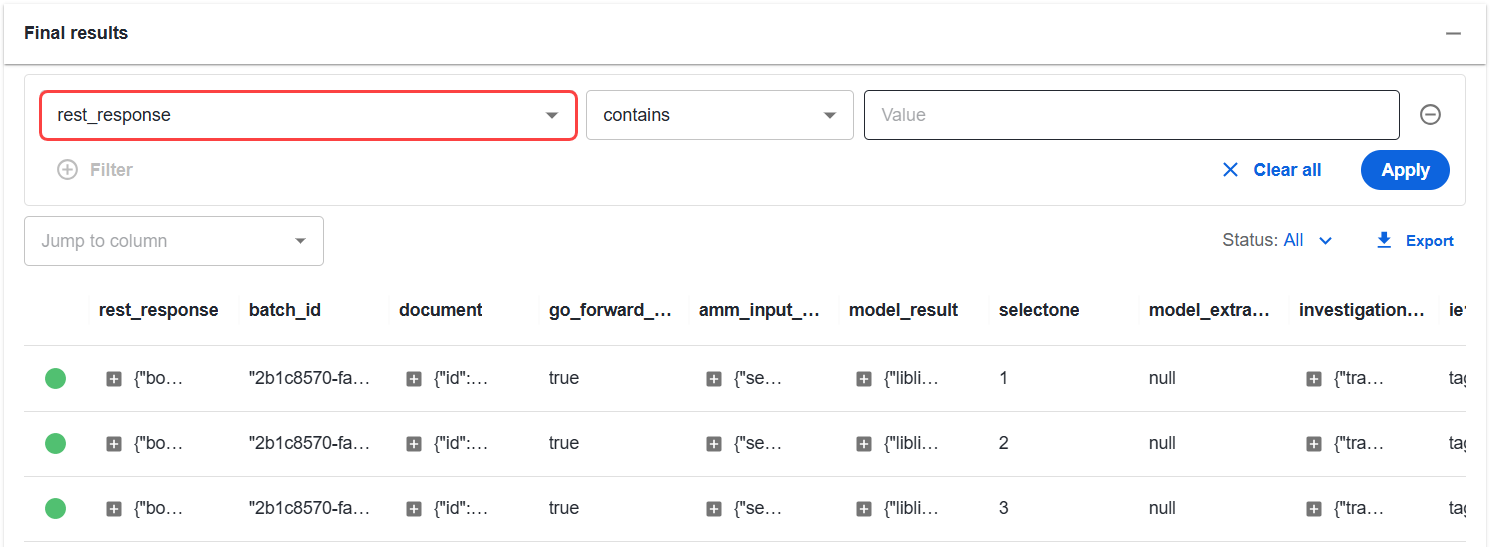
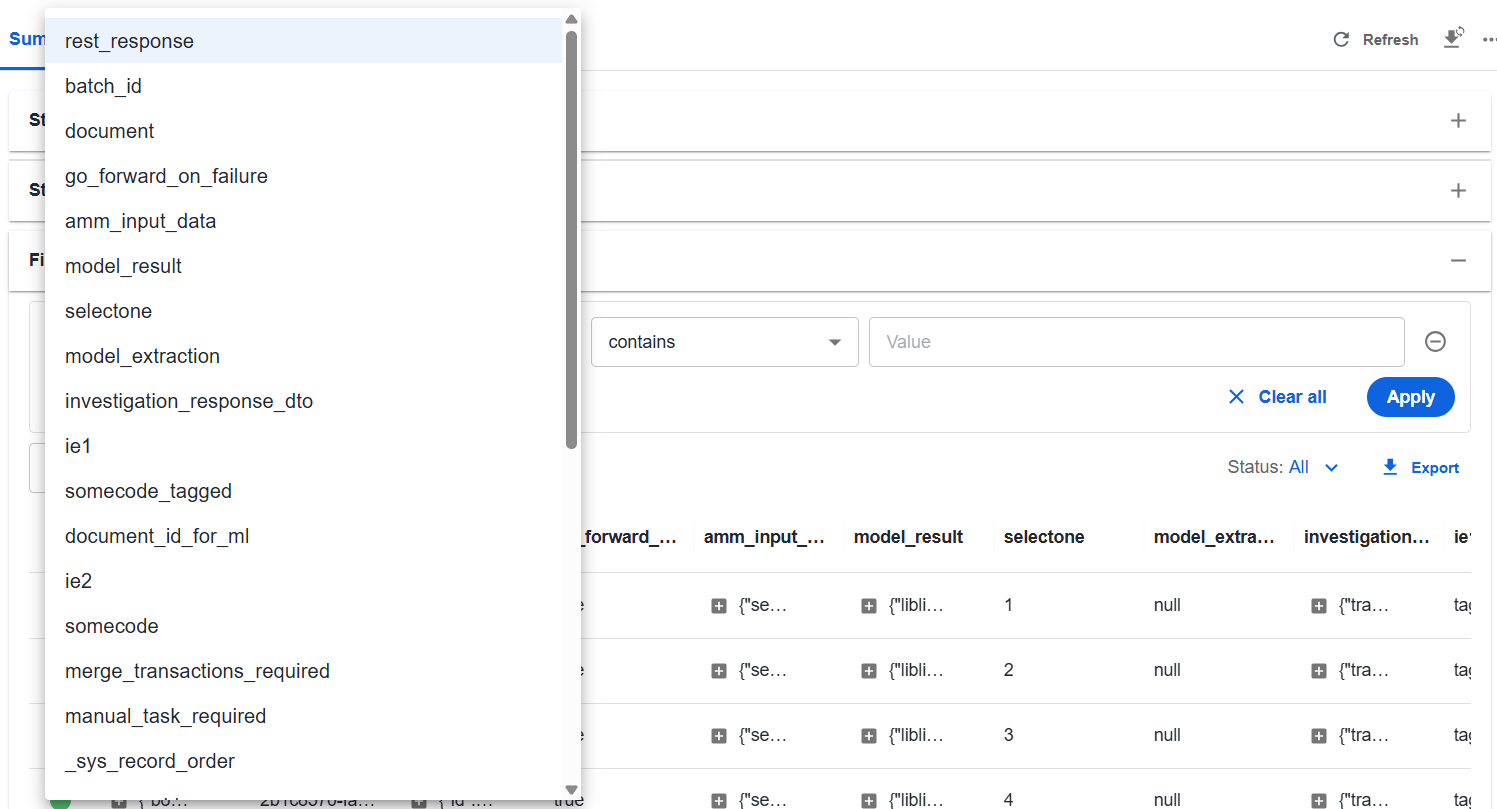
Select a column from the first drop-down list.
The list contains columns available in the current results table. The available columns depend on the BP output fields.
Select a filter operator and enter the value to search for.
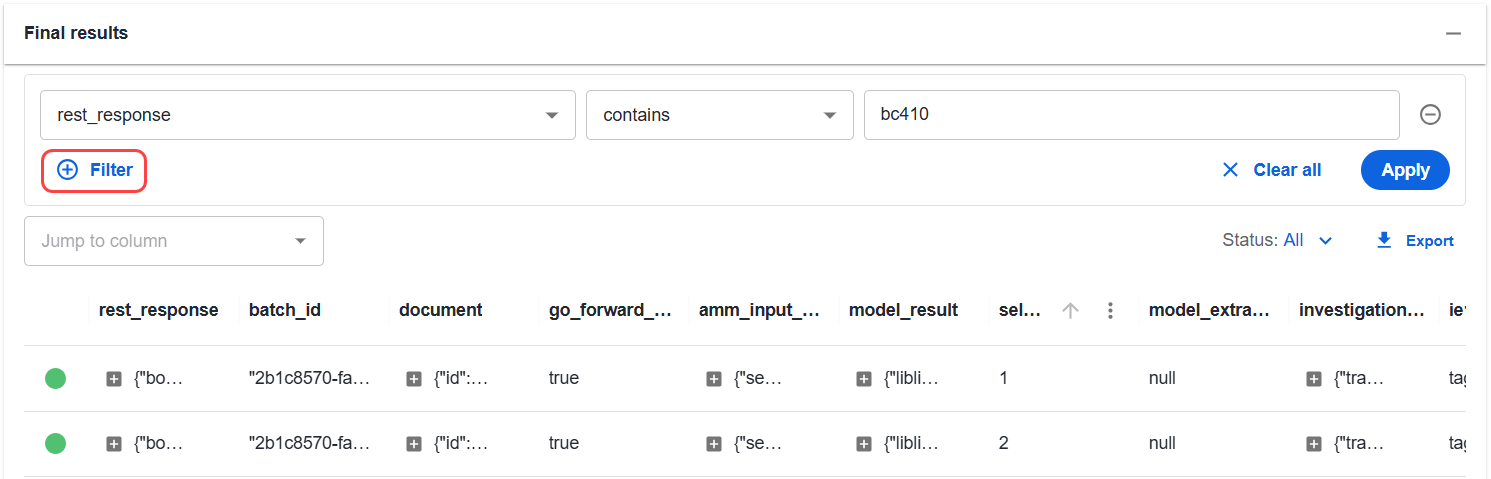
To add another condition, click Filter and configure the additional condition.
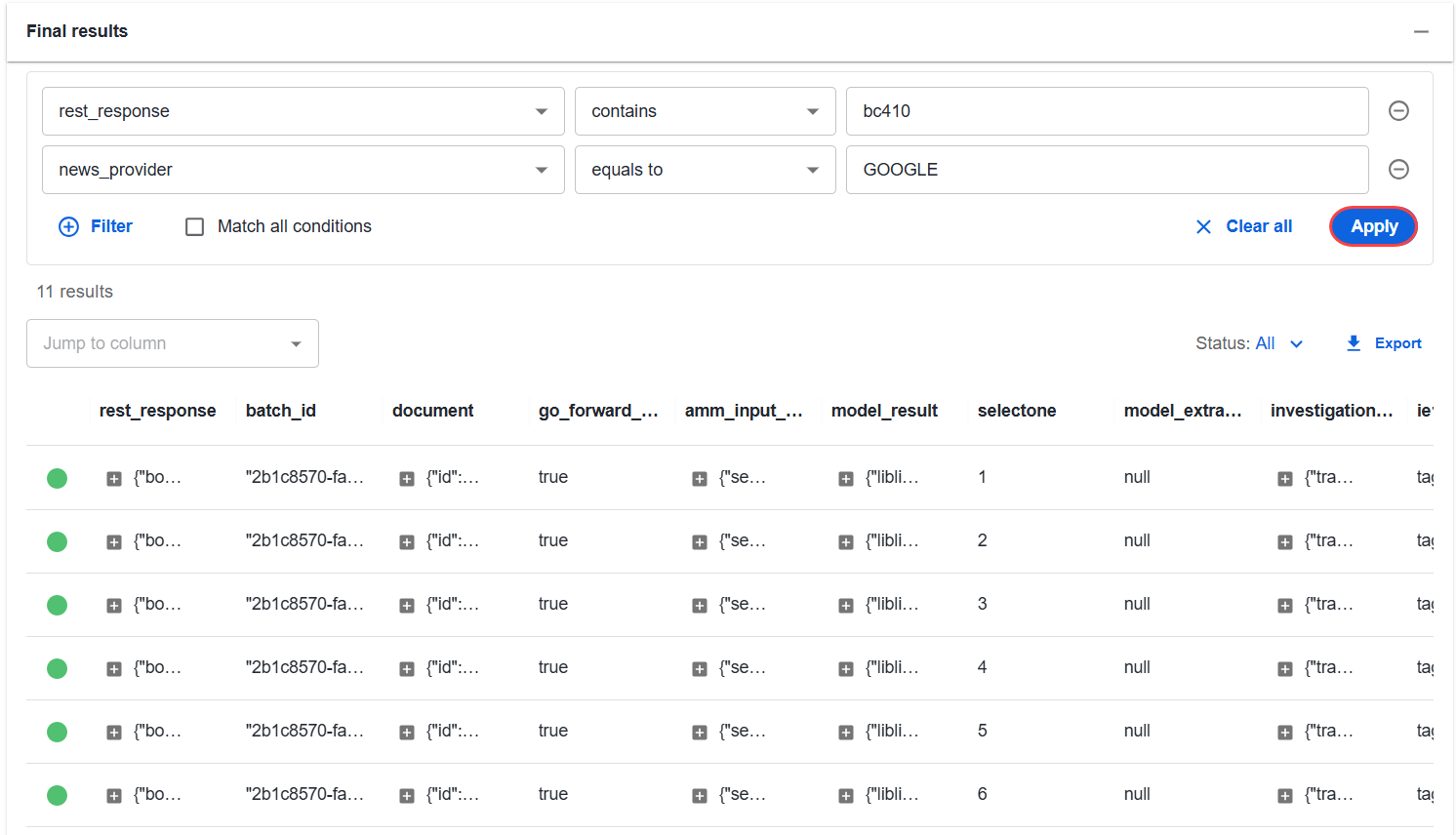
If you configure multiple conditions, select Match all conditions to display only records that meet every condition.
Click Apply. The table displays records that match the configured conditions.
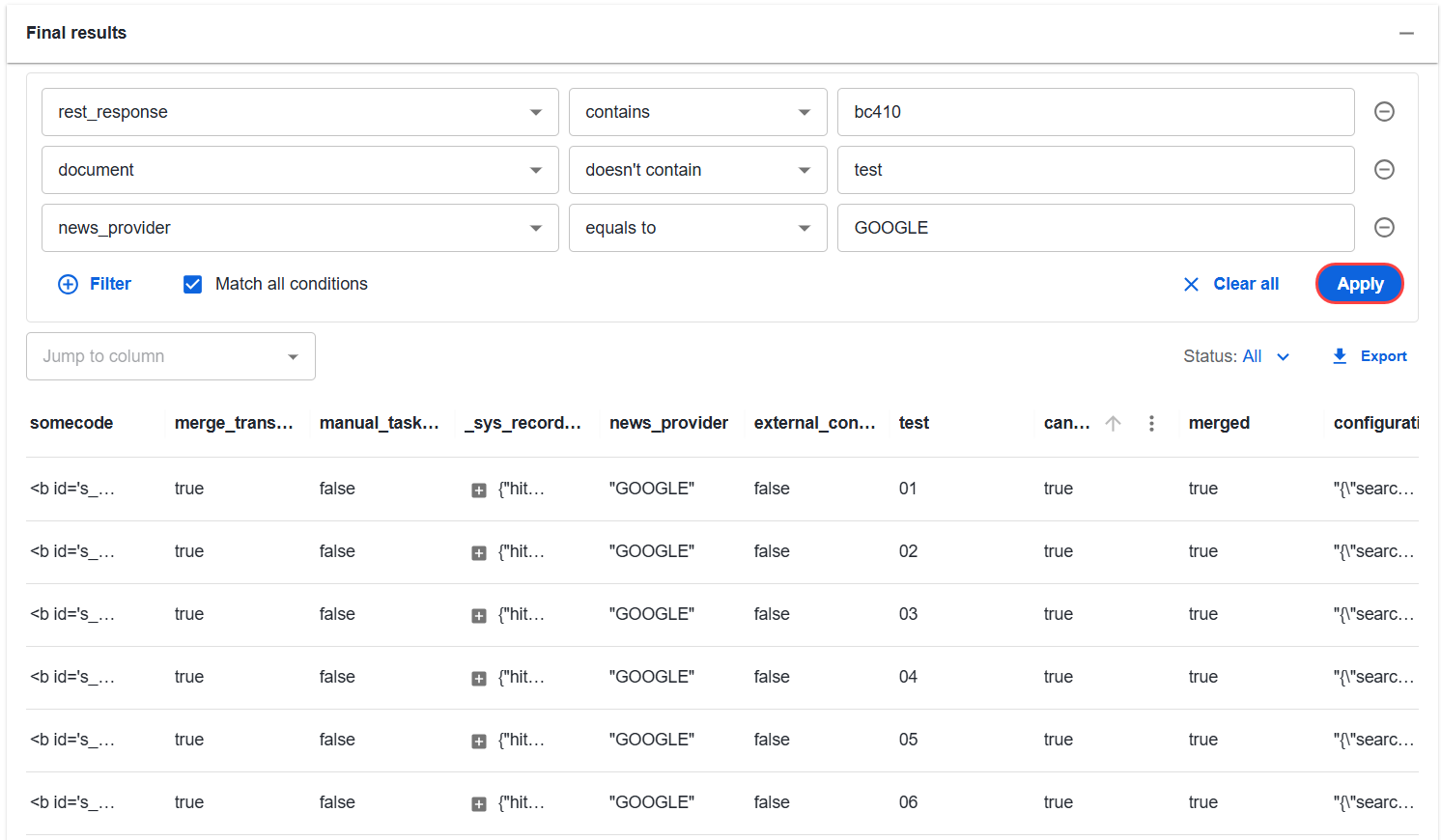
To remove an individual condition, click the minus icon next to it. To remove all conditions, click Clear all.
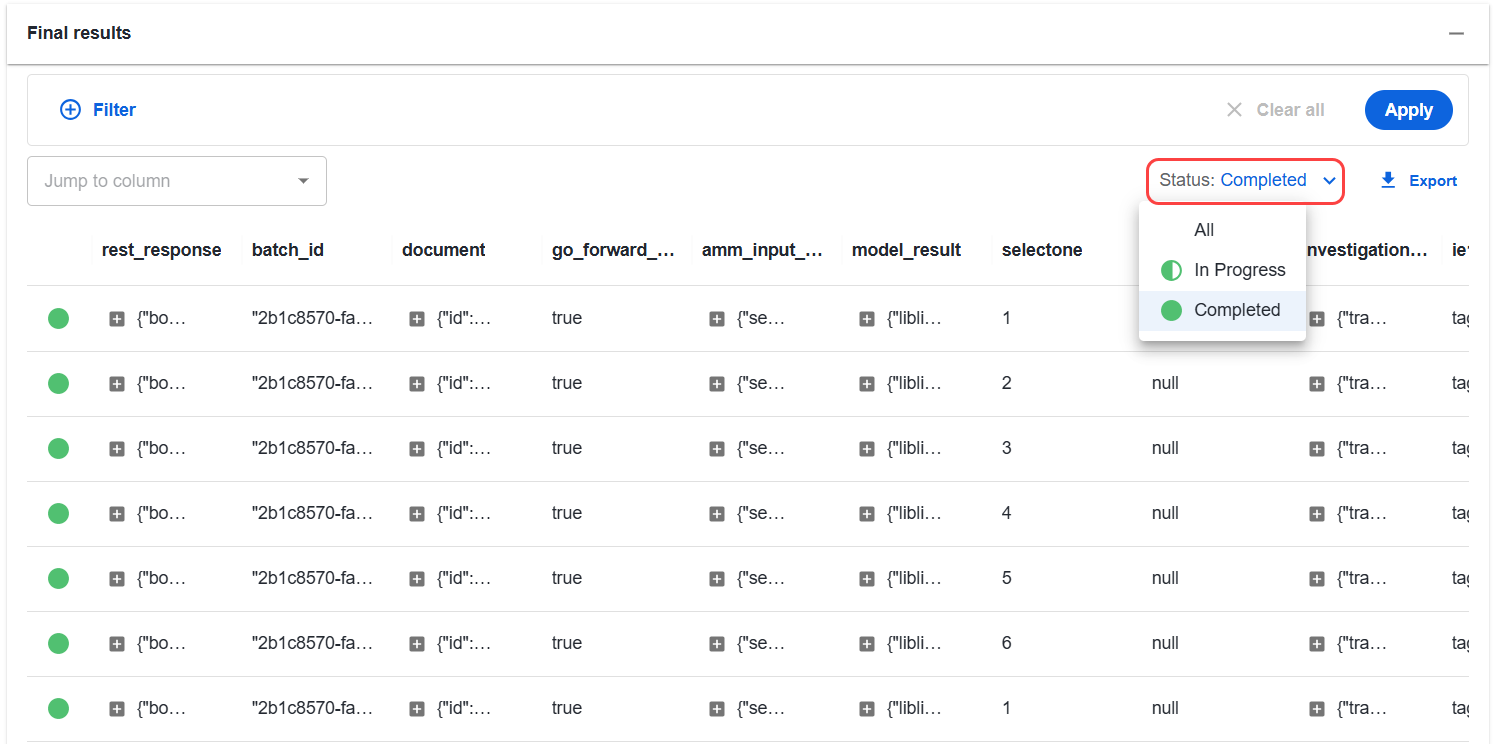
Filter results by status
Use the Status drop-down list to display records with a specific processing status:
All
In Progress
Completed
Sort results
Click a column heading to sort the table by that column. The arrow next to the column name indicates the current sorting direction.
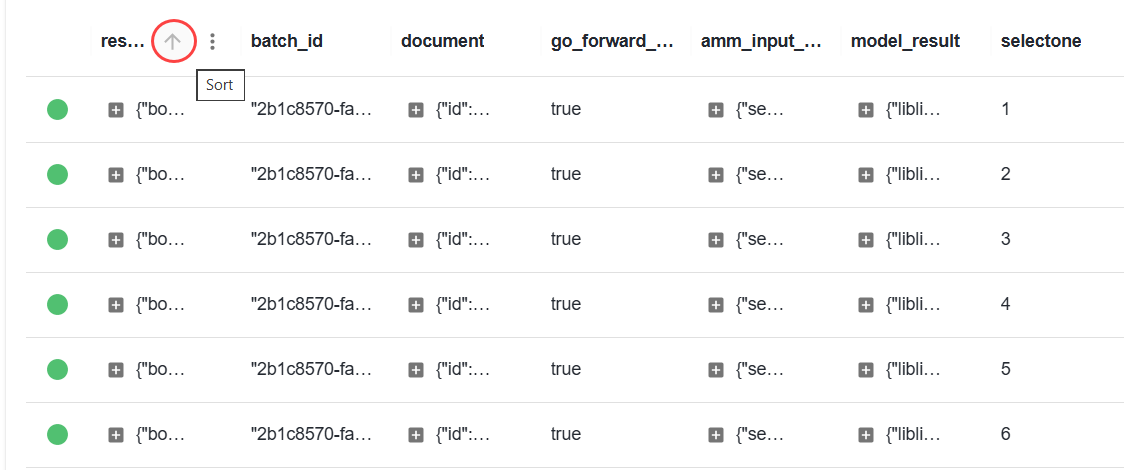
Click the heading again to reverse the sorting direction.
You can also click the three-dot menu next to the required column and choose one of the available sorting options:
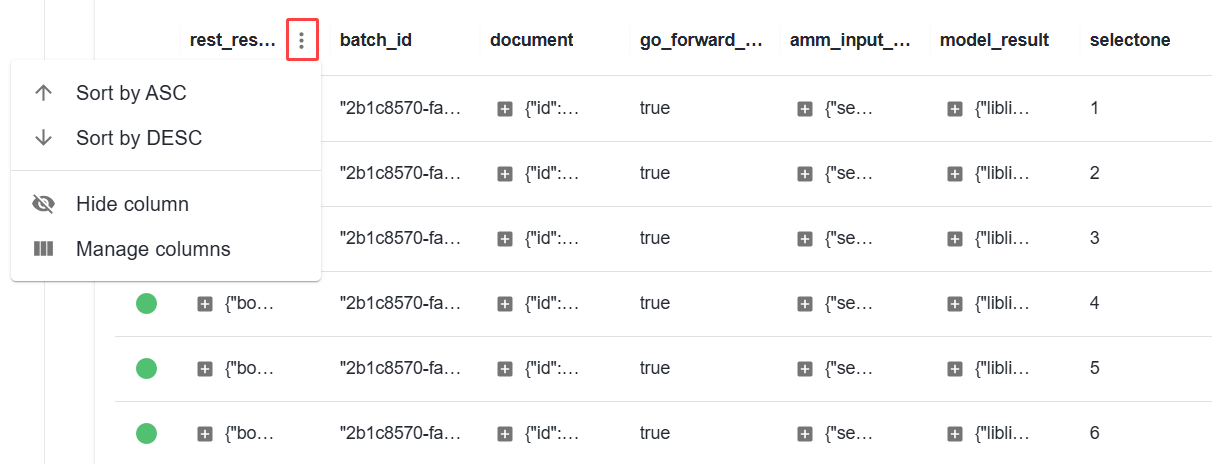
Sort by ASC: sorts the column in ascending order. To remove the sorting, click the three-dot menu again and select Unsort.
Sort by DESC: Sorts the column in descending order. To remove the sorting, click the three-dot menu again and select Unsort.
Hide column: hides the selected column. To display it again, use the Manage columns option.
Manage columns: lets you show or hide the table columns.
Navigate results
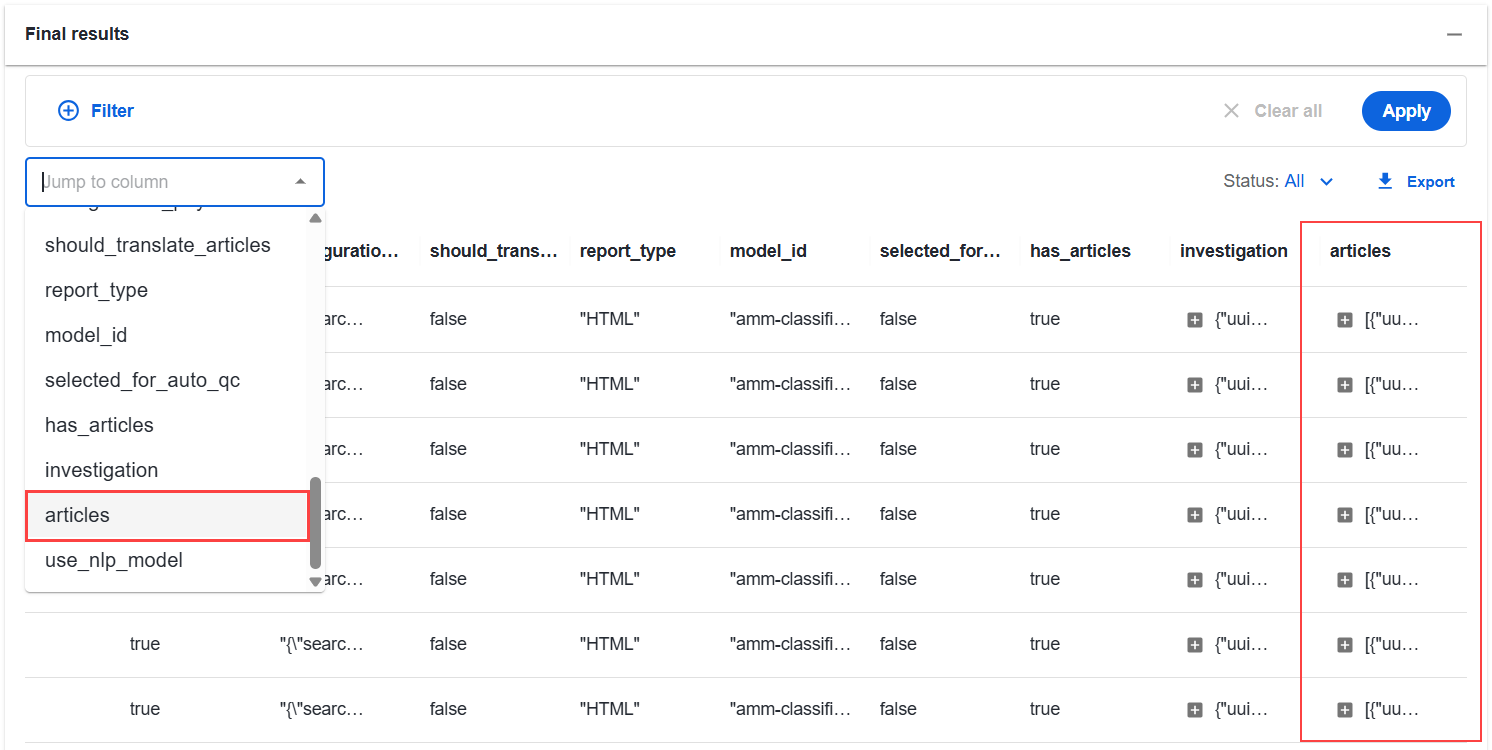
Use the Jump to column drop-down list to navigate directly to a specific table column.
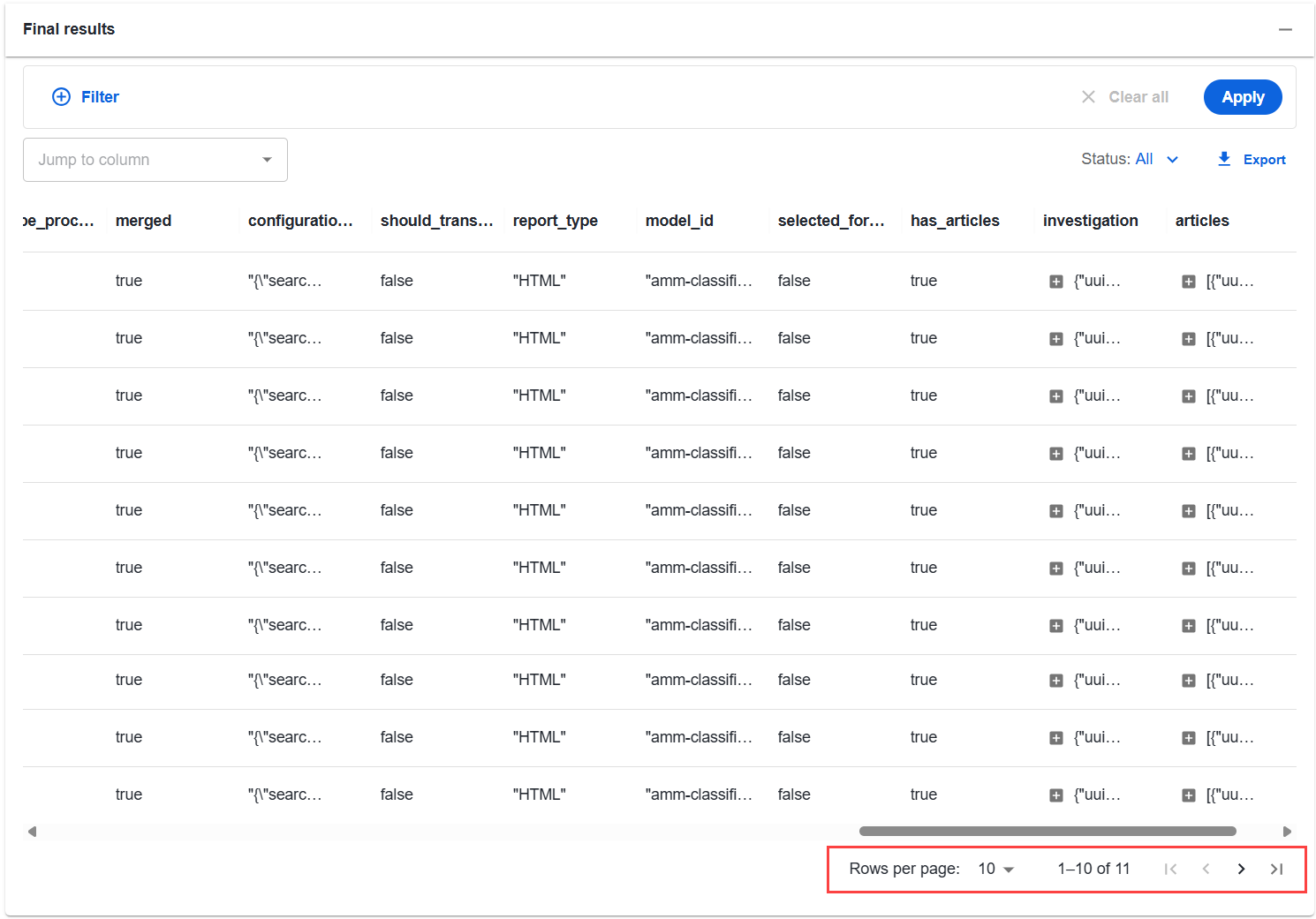
Use the pagination controls at the bottom of the table to move between result pages or change the number of records displayed on a page.
Export results
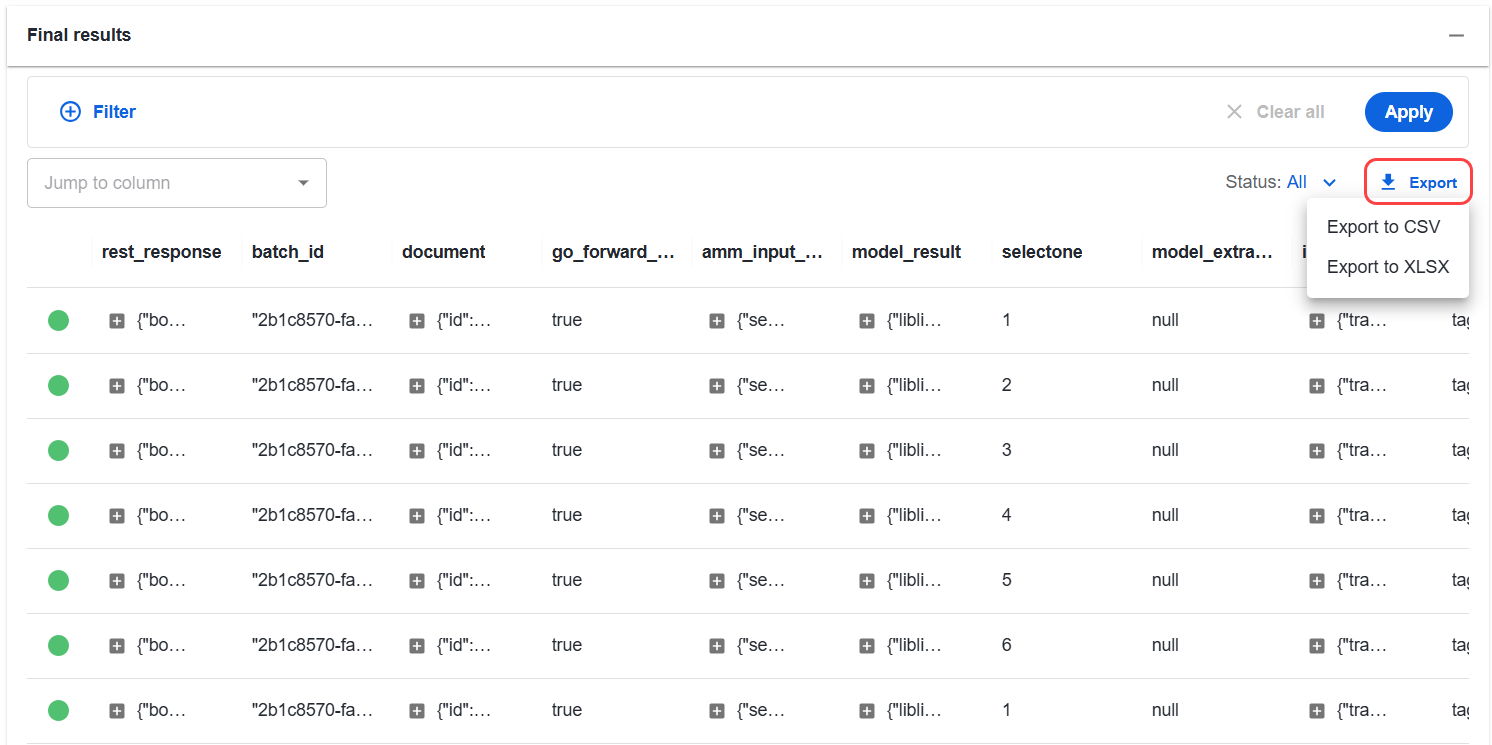
You can export data from Final results or an individual BP step. The exported data respects the filters and sorting applied to the table.
To export table data, click Export and select CSV or XLSX.
For information about configuring filtering, sorting, pagination, and export limits, refer to Configure Business Process result operations.