
How to extend timeout for script execution
By default, the maximum timeout for script execution in WorkFusion Studio is 300 seconds (5 minutes). It doesn't mean if your script will work for 5 minutes only. It means that the script will wait for the next step for 5 minutes, and in case nothing is executed, the script fails with the exception.
Example
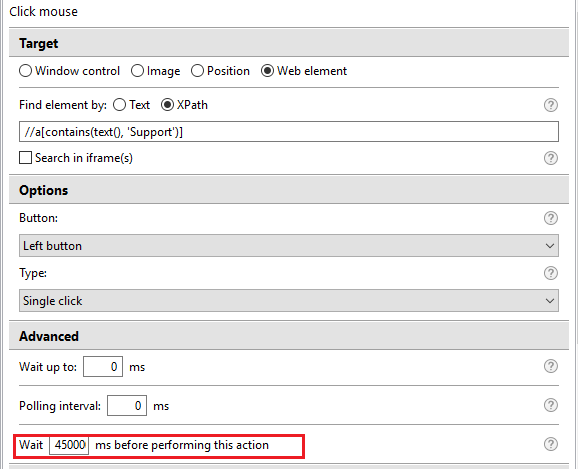
For example, we have a process with the Mouse Click action, which is supposed to wait 450,000 ms before executing. If we add the timeout in Wait X ms before performing this action, the script will fail with the exception as soon the specified time is over: "Caused by: org.openqa.selenium.WebDriverException: Session [uid] was terminated due to TIMEOUT Command duration or timeout: 0 milliseconds."
Steps
To extend the default timeout, follow the steps below.
- Exit Intelligent Automation Cloud Business and make sure all the processes are closed.
- Go to the %INSTALL_DIR%\RPA\rpa-grid\ folder (by default, C:\IntelligentAutomationCloud\RPA\rpa-grid).
- Find the hub.json file. For Windows Server, you also need to change server_hub.json.
- Change the
timeoutparameter to the desired value. Note that this value is in seconds.
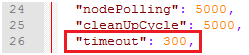
- Save the file and start the application.
note
Mind that after the update to a newer version or uninstall/fresh install, hub.json and server_hub.json will be removed and created once again with the custom value to be replaced by the default one equal to 300 seconds.