
Installation best practice
Preconditions
Before installing Intelligent Automation Cloud Business, make sure that:
- Your PC meets system requirements.
note
Note that free RAM mentioned in the system requirements is not the total amount of RAM.
- Ports 15100, 15110, 15280 are opened for external usage inside your network, while ports 15410-15423, 15444, 15580, 15306 are closed to any external interaction.
- Port 8200 should be opened for incoming connections from local machines.
- Make sure that none of these ports are used or blocked by other applications.
- All unnecessary applications are closed to free up memory usage, if possible.
Installation procedure
tip
Follow instructions in Intelligent Automation Cloud Business installation. Run the installation file As administrator.
note
To create multiple users, view instructions here.
Results
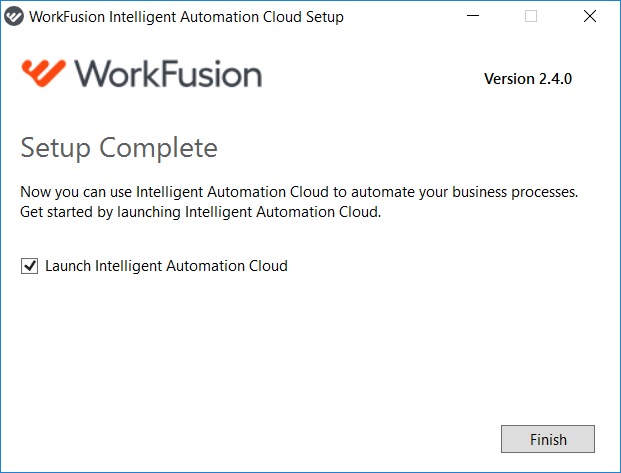
In case of a successful installation, you should see the following message.
If you have any issues during the installation process, do as follows.
- Check our installation troubleshooting guide. Find the issue you have faced and follow the instruction to fix it.
- If it didn't help, collect the following information:
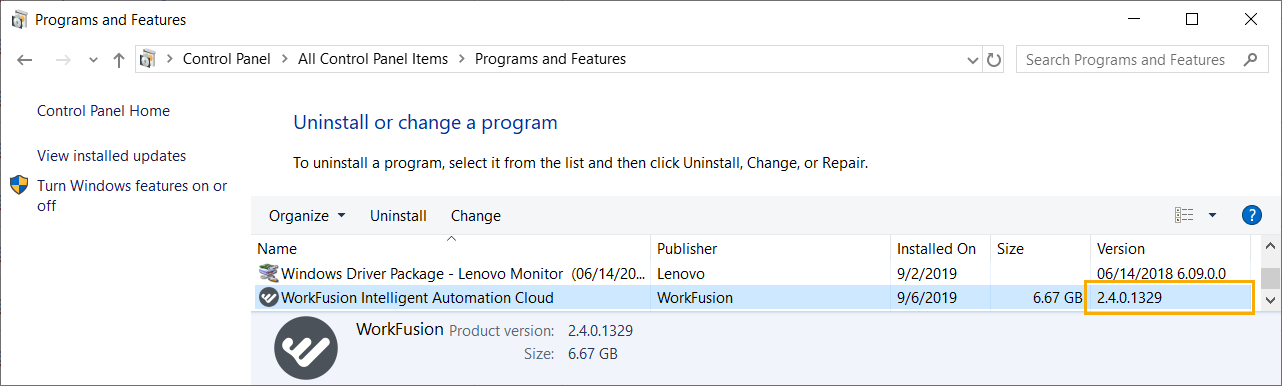
- Intelligent Automation Cloud Business version and installation type (go to Control Panel > All Control Panel Items > Programs and Features)
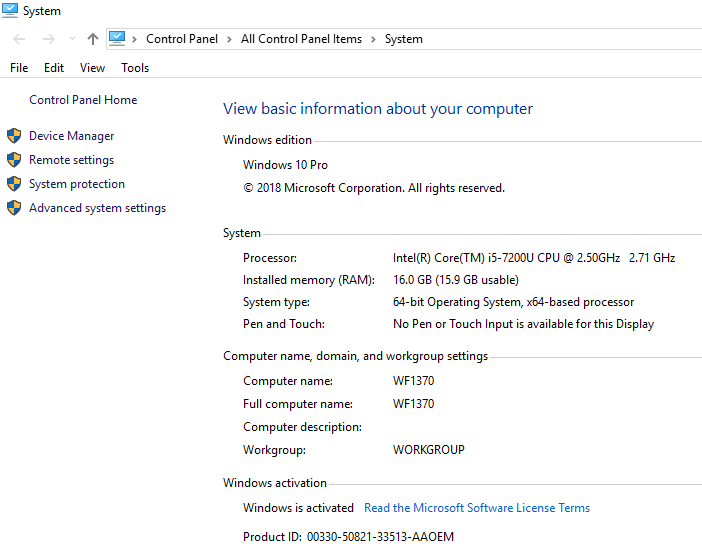
- screenshot of your system properties
- screenshot of the error you get
- installation logs as described in the Installation logs article
- Intelligent Automation Cloud Business version and installation type (go to Control Panel > All Control Panel Items > Programs and Features)
- Send this information to our customer service with the issue description.