
How to send logs
tip
Intelligent Automation Cloud Business logs contain information about events and messages produced by Intelligent Automation Cloud components, and a short list of the system properties, such as OS version, CPU type, and RAM size.
caution
No sensitive information is collected and included.
It's safe to log a support ticket in WorkFusion Service Desk and add your attachments.
Installation logs
If installation failed and you see any exception after it, and your PC meets our system requirements, perform the following steps.
- Go to the C:\Users\%user_name%\AppData\Local\Temp folder.
- Find all the files that start with "WorkFusion_Intelligent_Automation_Cloud_" and have .log extension. For example:
- WorkFusion_Intelligent_Automation_Cloud_20190905113212.log
- WorkFusion_Intelligent_Automation_Cloud_20190907113252_001_WorkFusionControlTower.log
- WorkFusion_Intelligent_Automation_Cloud_20190907113252_<any_symbols>.log

- Create a .zip archive with these files.
- Attach this archive and description of your issues to your Service Desk ticket.
Components logs
note
Valid up to version 2.3.0
If one of the server components is not working properly after a successful installation, and your PC meets System requirements, complete the following steps.
caution
Mind that the tray menu and Platform Monitor are deprecated since version 2.3.0.
- Open Platform Monitor > Command Board from the tray menu, or type http://localhost:15100/commands in the browser address line.
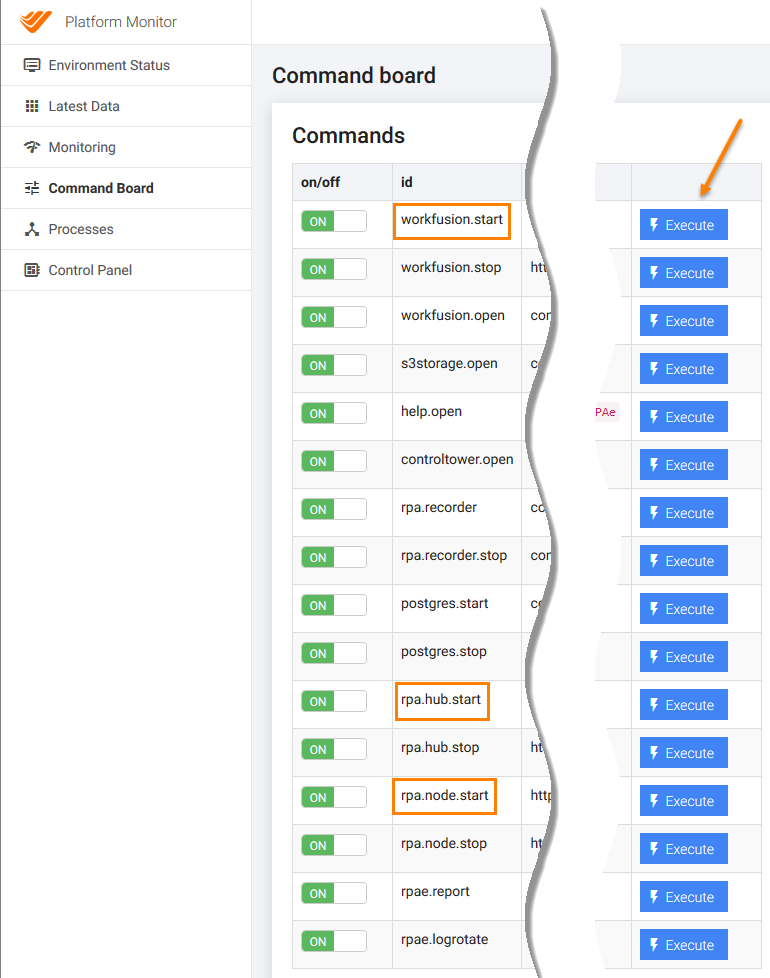
- Click the Execute button opposite to the required command (command which starts a failed/unavailable component).
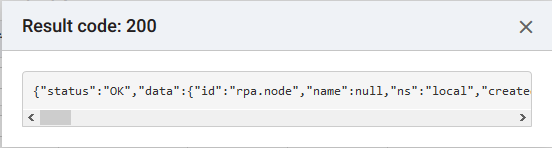
- Copy the response text and attach it to your Service Desk ticket.
WorkFusion Studio logs
- Go to %install_dir%\Studio\logs (the default path is C:\IntelligentAutomationCloud\Studio\logs).
- Create a .zip archive of the folder contents.
- Attach this archive and description of your issues to your Service Desk ticket.
RPA Hub and Node logs
- Go to %install_dir%\RPA\logs (the default path is C:\IntelligentAutomationCloud\RPA\logs).
- Create a .zip archive of the folder contents.
- Attach this archive and description of your issues to your Service Desk ticket.
Control Tower logs
- Go to %install_dir%\Workfusion\tomcat\logs (the default path is C:\IntelligentAutomationCloud\Workfusion\tomcat\logs).
- Create a .zip archive of the folder contents.
- Go to the %install_dir%\Workfusion\tomcat folder (the default path is C:\IntelligentAutomationCloud\Workfusion\tomcat) and find the file named tomcat.txt.
- Attach this archive and the tomcat.txt file with the description of your issues to your Service Desk ticket.
Agent logs
note
Valid since version 2.3.0
- Go to %install_dir%\Agent\logs (the default path is C:\IntelligentAutomationCloud\Agent\logs).
- Create a .zip archive of the folder contents.
- Attach this archive and description of your issues to your Service Desk ticket.