Evaluate historical data
Evelyn has an out-of-the-box solution to validate the model's performance and quality on the client's historical data. A pre-built connector reads the client's report files from a screening system and sends the data to the NSS Business Process (BP) for model evaluation. The report file resulting from the BP execution is saved in MinIO S3 for further data and model decision analysis.
Requirements
Mind the following considerations when working with the historical data evaluation solution:
The input file with historical data should be in the CSV structured format.
The report columns can have any names.
The NSS column mapper file should be completed before the BP is started.
A historical data input file row represents full alert information: customer (input) data, hit data, and (optionally) human resolution on the hit.
Workflow details
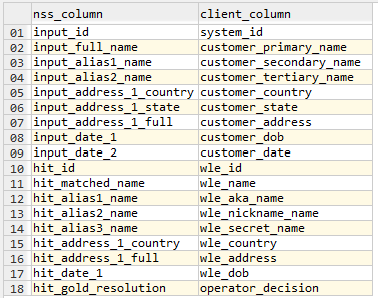
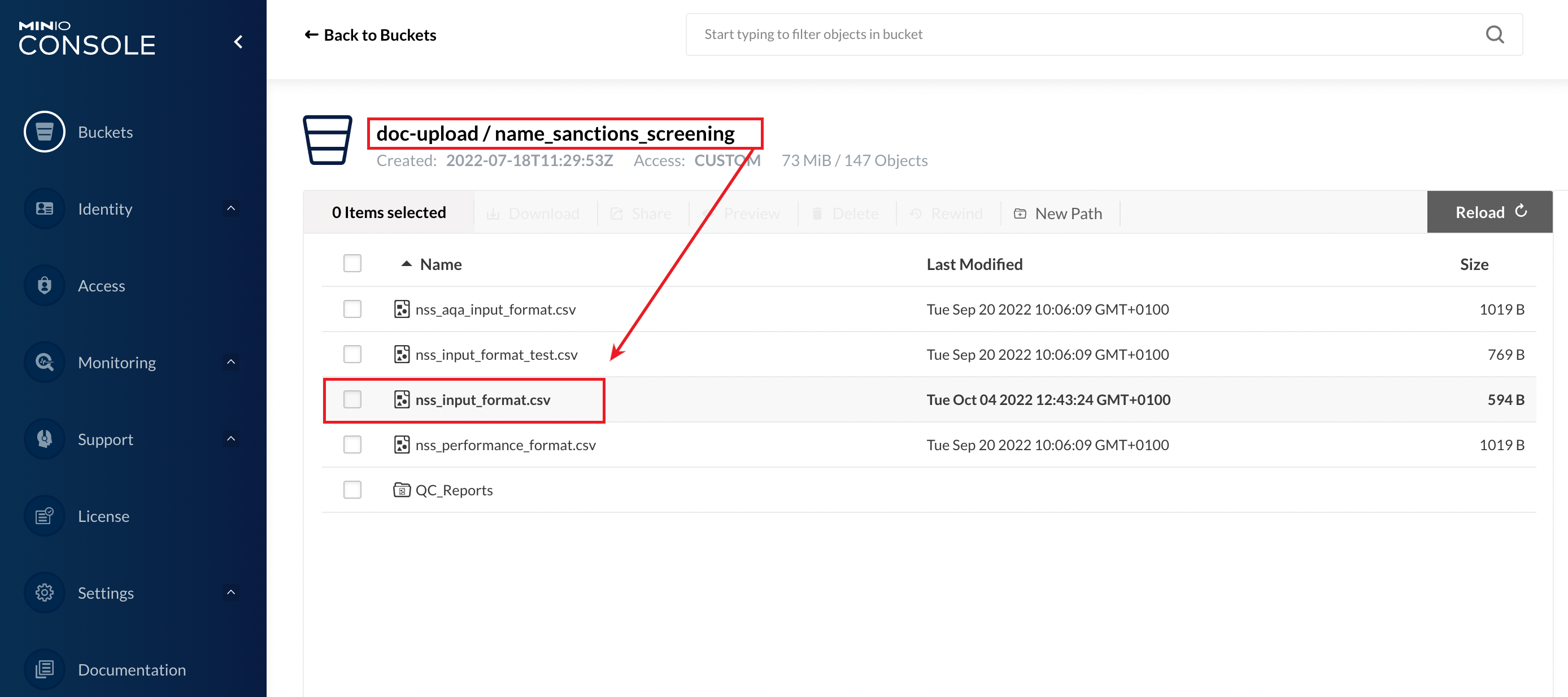
Evelyn includes a template format file you should use to map your historical data columns with the NSS standard format. Before running the NSS BP, fill the file with actual column names and update it in MinIO S3. The format file location is doc-upload/name_sanctions_screening/nss_input_format.csv.
Knowing the mapping between the historical data file and the NSS standard format, the NSS BP transforms the original data into a format understandable for NSS and sends it for model evaluation.
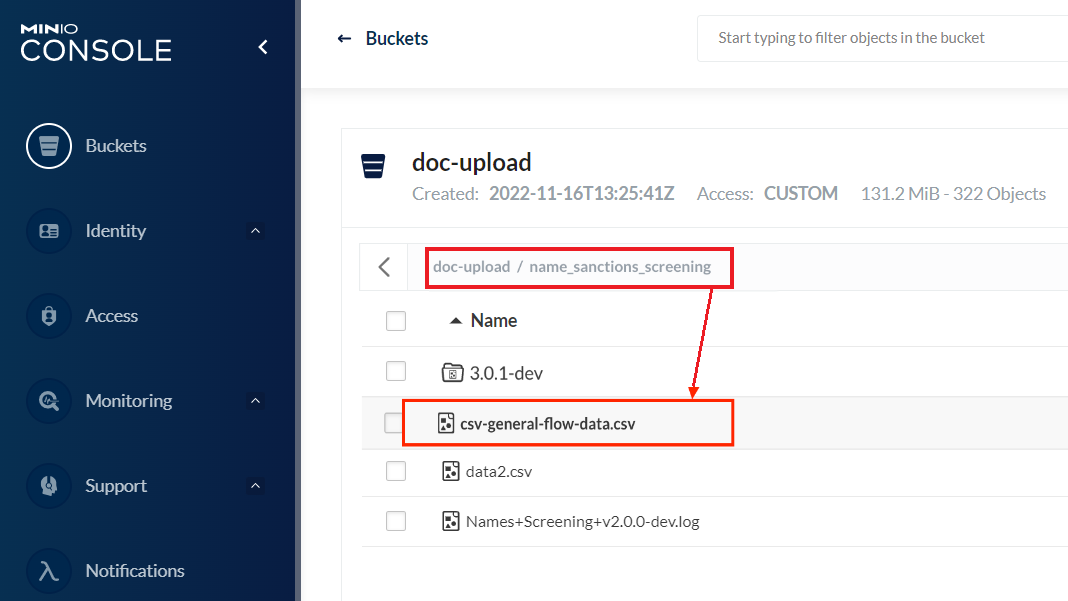
Your task is to provide a historical data file in the CSV format and upload it to MinIO S3 as shown below.
Usage instructions
To use the historical data evaluation feature, follow the steps below:
Download the input format file from MinIO S3:
doc-upload/name_sanctions_screening/nss_input_format.csv.Map the historical data file columns and the standard NSS input format. To do that, update the input format file downloaded in Step 1 with the client column names.
Upload the input format file back to MinIO S3.
Make sure that the original historical data file is in the CSV format and has flat structured data.
Upload the historical data file to MinIO S3 to any folder of your choice.
Configure Evelyn to work with the historical data provider. For details, see Install and configure.
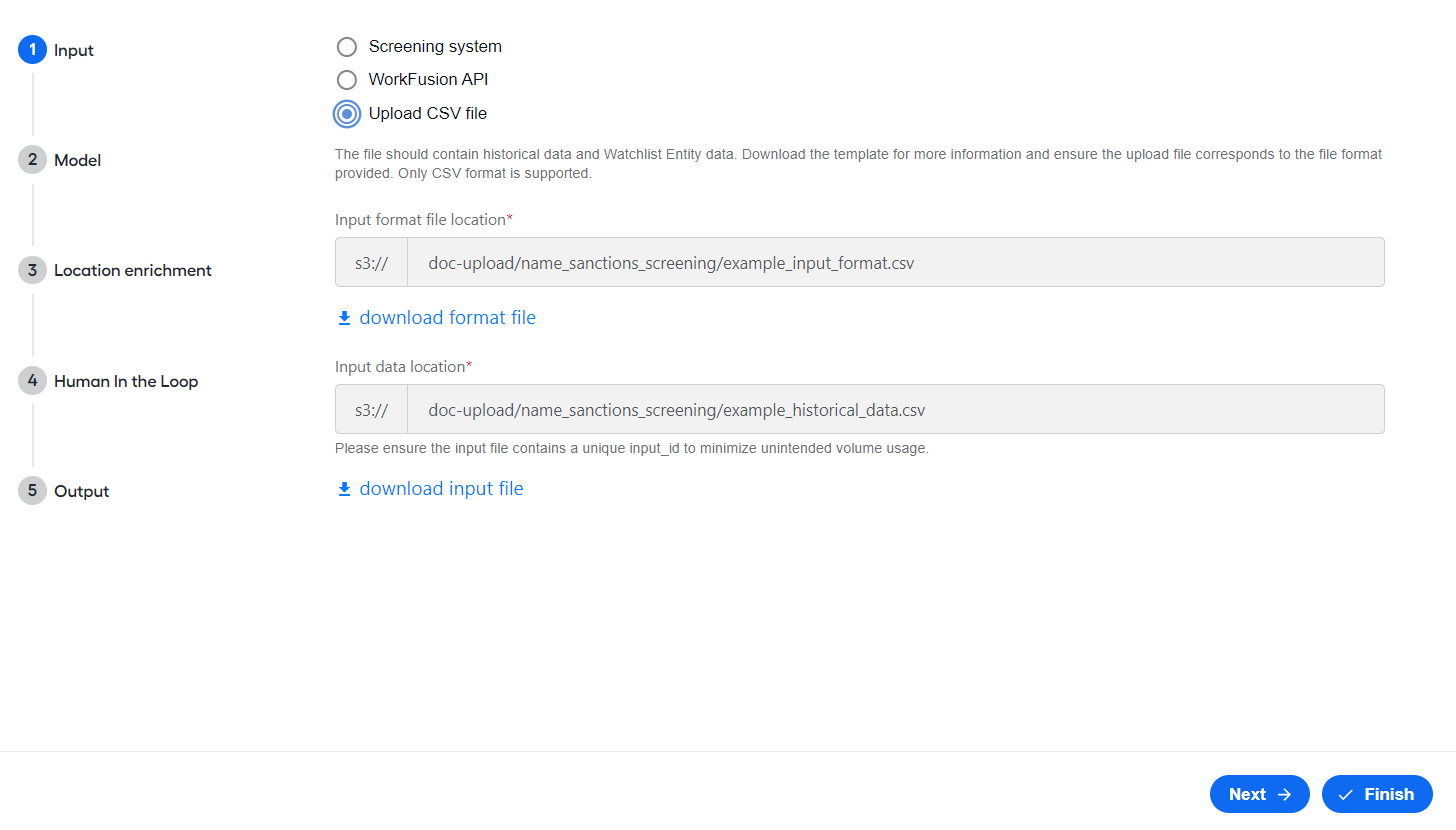
As you set Input data location on the Input step, you can specify one of the following:
The path to the file, in which case the BP processes only the specific file.
Example: If you specify
s3://doc-upload/name_sanctions_screening/csv-general-flow-data.csv, Evelyn processes thecsv-general-flow-data.csvfile.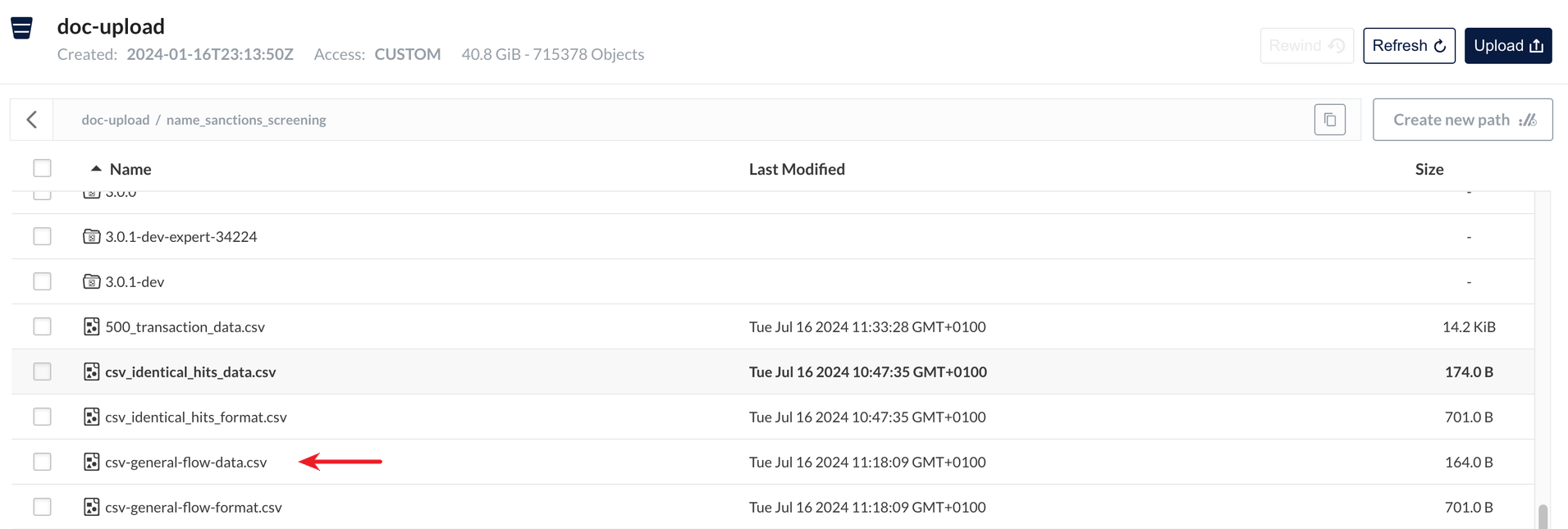
The path to the bucket or folder, in which case the BP takes all existing CSV files under the bucket or folder. The files are processed in parallel, and only one consolidated QC report is generated.
Example: If you set
s3://doc-upload/name_sanctions_screening/data/, Evelyn processes all CSV files in thedatafolder and CSV files from thedata_octoberfolder.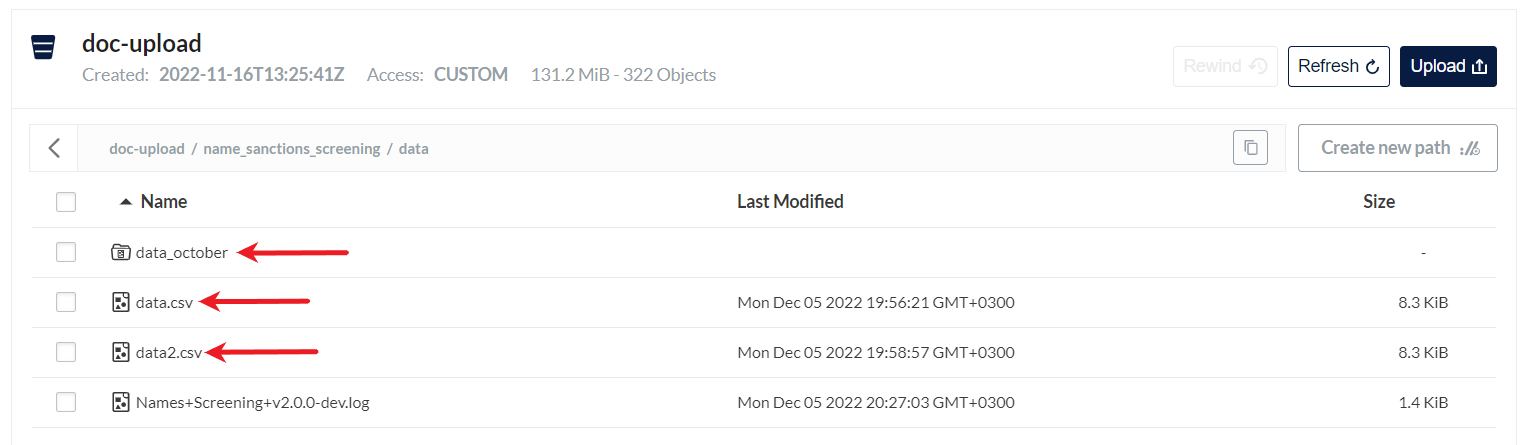
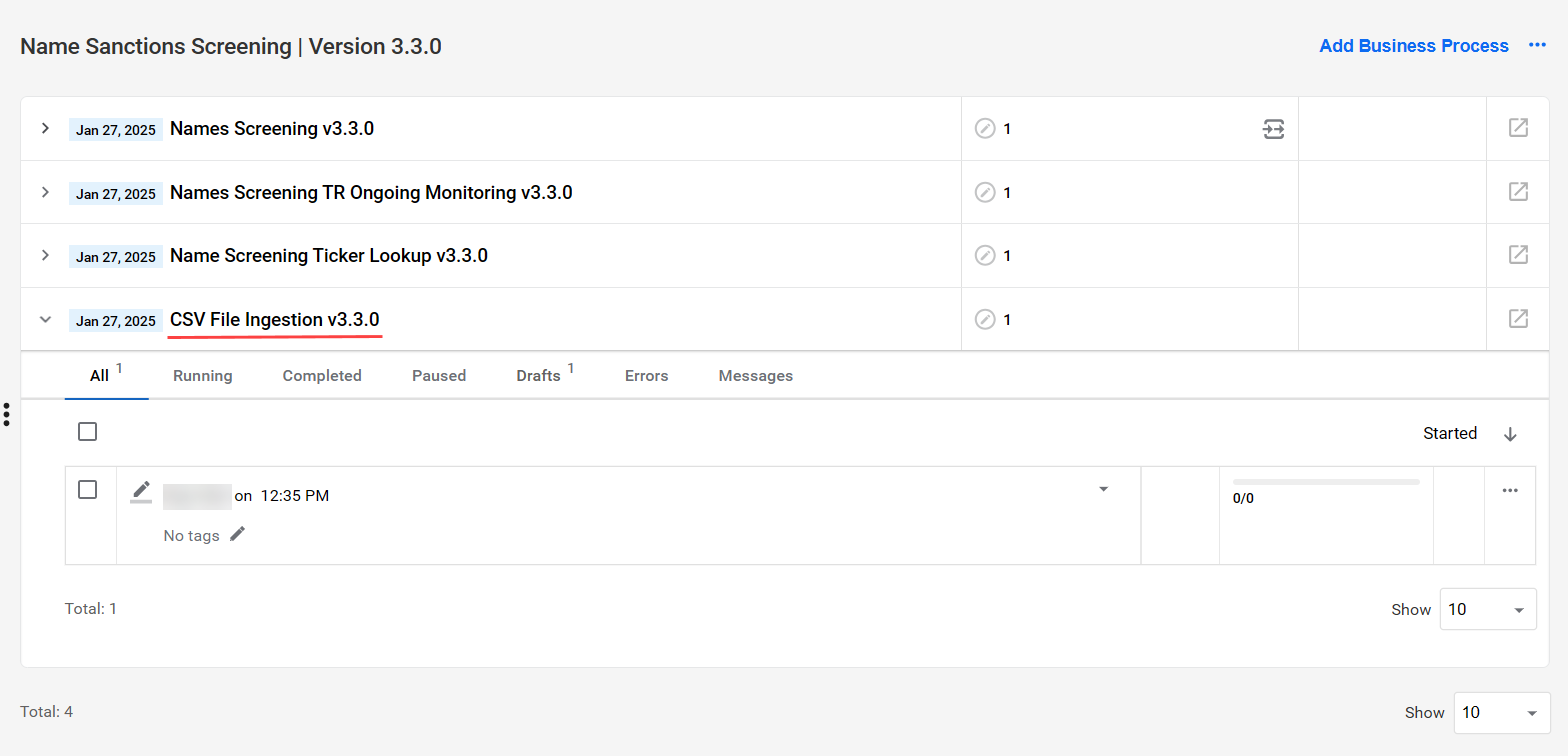
On the Digital Workers page, in the Name Sanctions Screening group, click the required BP variation and open the CSV File Ingestion BP.
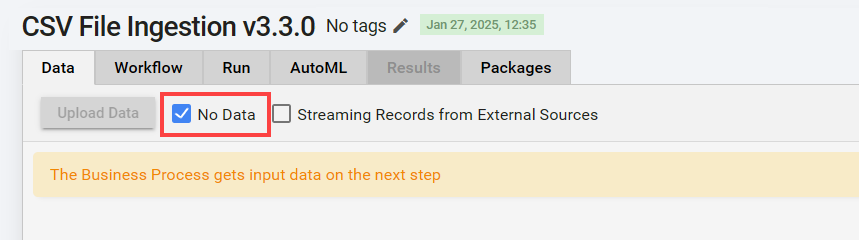
On the Data tab, select No Data.
On the Workflow tab, update a signal ID in the asynchronous NSS-main-BP sub-process if needed.
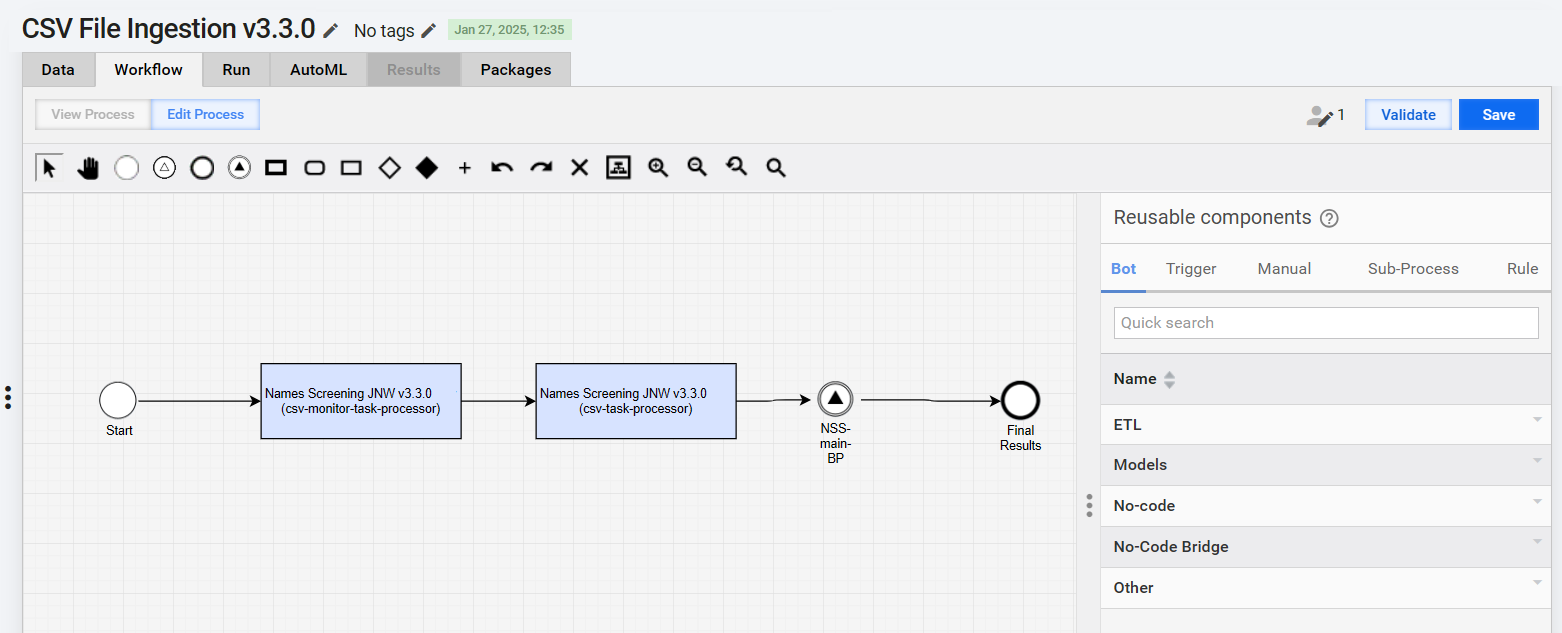
Go to the Run tab and start the BP.
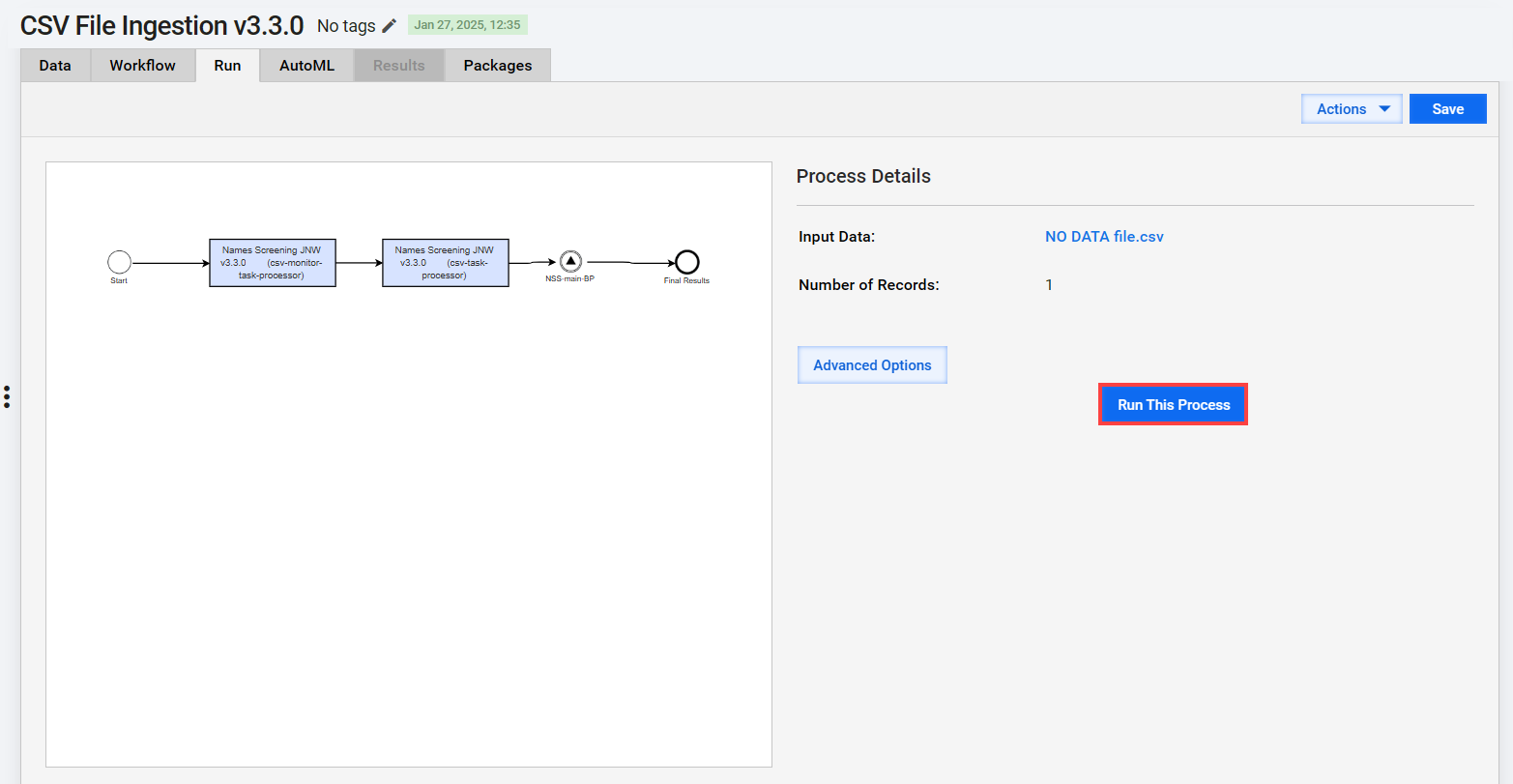
Sample data preparation
The section details a sample flow to prepare data for the NSS BP execution:
Once the client's historical data file is received for PoC evaluation, upload it to MinIO S3. See a sample historical data file for reference.
This file contains all required information for the NSS BP execution:
Alert ID in column A
Customer information (input data) in columns from B to I
Hit information in columns from J to Q
Manual review decision in column R

Prepare the NSS format file and upload it to MinIO S3. Ensure the following requirements are met:
- The format file must include all columns that need to be parsed and read from the input file.
nss_columnshould contain only expected Evelyn NSS values. These values must match the Field column entries from the Input record data or Watchlist entity data tables.- The
client_columnvalues must match the column names used in the input data file. Each line in the format file should correspond one-to-one with a column in the input file.
Refer to the sample file for guidance. A typical NSS format file can look like this: