
Troubleshoot Business Process failure
The document describes the standard methodology of how the Support team recommends troubleshooting a Business Process (BP) in case of its failure.
The methodology contains several steps to be completed in the order described below. As a result, you will be able to locate your issue and find detailed instructions on how to resolve it (in described cases) by yourself.
The general investigation sequence is as follows:
Locate the issue within your Business Process
- Find the step where the issue occurred.
- Check that the input data of the Business Process or the step is valid:
- The file format (CSV, XML) is correct.
- Data files contain no empty fields.
- All links are valid and accessible.
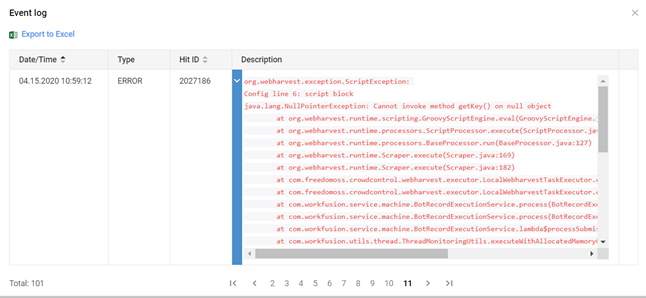
- In your BP, go to the Results tab, select the failed step from the drop-down list, and click the exclamation mark to view the event log.
- In the event log, find the first exception using pagination (pay attention to the type of the "ERROR" log level) and check its stack trace as shown below.
caution
If you don't see any stack trace information in the event logs, make sure your custom logging does not overwrite or hide the original exception.
note
Since the event log table has a content size limit, you can find the full stack trace of the exception in webharvest-config.log located on the APP server: INSTALL_DIR/workfusion/logs/.
Find the root cause of the located BP exception
To find the root cause of the located BP exception, complete all or any of the below investigations.
Investigate script block issues
If the issue comes from the <script> block, you might see the following exception in the event log:
Exception
org.webharvest.exception.ScriptException:
Config line 6: script block
java.lang.NullPointerException: Cannot invoke method getKey() on null object
       at org.webharvest.runtime.scripting.GroovyScriptEngine.eval(GroovyScriptEngine.java:138)
        …
Caused by: java.lang.NullPointerException: Cannot invoke method getKey() on null object
       at org.codehaus.groovy.runtime.NullObject.invokeMethod(NullObject.java:91)
       at org.codehaus.groovy.vmplugin.v7.IndyGuardsFiltersAndSignatures.invokeGroovyObjectInvoker(IndyGuardsFiltersAndSignatures.java:164)
       at org.codehaus.groovy.vmplugin.v7.IndyInterface.selectMethod(IndyInterface.java:237)
       at Script1_genScript_29.run(Script1_genScript_29.groovy:11)
       at groovy.lang.GroovyShell.evaluate(GroovyShell.java:444)
Investigation steps
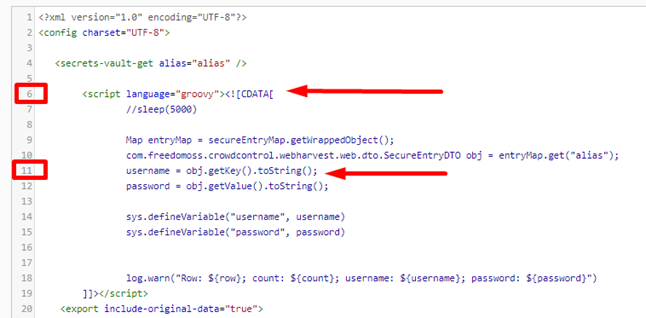
Option 1. Sometimes, you can easily locate the root cause of the issue right in the <script> block of the Bot Config file.
In the example below, the section Caused by: java.lang.NullPointerException: Cannot invoke method getKey() on null object comprises the line: at Script1_genScript_29.run(Script1_genScript_29.groovy:11), which points to the exact line in the Bot Config where the issue comes from.
Option 2. In case you cannot locate the issue right in the <script> block of the Bot Config file, do as follows:
- Add additional logs to the code.
- Re-run the Business Process. To find out the exact place (method, class, config file, and so on) where the exception occurred, analyze the general issues logs. Refer to the Troubleshoot Business Process issues guide, if needed.
- Ask your internal development team to verify and correct (if needed).
Investigate RPA code issues
These include issues related to <robotics-flow> and nested plugins.
Be aware that the driver.quit() and taskkill methods can affect the correct Node state, leading to Business Process failure. Thus, check your code before going further.
The most common issues with the RPA component are issues with Nodes and Hubs on the RPA server machine. Below, you can see an example of the most general exception from the Business Process event log:
Exception
org.webharvest.exception.PluginException: [urn:uuid:<your_BP_uuid>] robotics-flow executePlugin exception: [nodeId=null] RPA Router/Nub should return node id
Investigation steps
Check that the configuration of the Internet Explorer browser is in accordance with the Configure Internet Explorer guide.
Check that the Java Applets settings are in compliance with the Configure Java applets guide.
Check the compatibility of the browser and driver versions. If necessary, update the drivers as described in the Update Chrome and Firefox drivers guide.
Perform the RPA Manager API Health check executed from the APP server exactly at the same moment when the issue occurred. You can find an example of the command below (also, this query can be executed directly in a browser):
curl -v https://<your_server_name>/rpa-manager/api/healthcheck | python -m json.toolAnalyze the JSON output and find errors and warnings. Identify if any RPA Hub and RPA Node are not responding or not available.
If you find any issues at the previous step, restart the required RPA Hub or Node.
If you found no issues in the JSON output, return to the Business Process step corresponding to the
<robotics-flow>code. Check if a specific quota or custom capabilities are used (for v9.x).Check your Bot Source (thread count) settings and make sure that they are set for the required BP steps.
Refer to the Troubleshoot Business Process issues guide to read about the most frequent issues and possible solutions.
If all settings are configured properly, but the issue persists, check RPA issues logs and configuration. Analyze them and find the exceptions, warnings, or changes related to the issue. For convenience, use the timestamp field.
Investigate OCR issues
The section contains issues related to Optical Character Recognition (OCR) sub-process in a Business Process.
Investigation steps
To check OCR services and the OCR server are up and running, execute the following command:
wfmanager status ocr2rest && wfmanager status ocr2workerVia OCR API, check the
volumeRemainingpages parameter. Make sure it is enough for processing the current document batch. See examples:Locally on the OCR server:
curl -s http://localhost:9002/api/v1/cloud/activeLicense | python -m json.toolUsing the OCR URL:
curl -s https://<your_OCR_server_name>/api/v1/cloud/activeLicense | python -m json.tool
If the pages count is less than needed, submit a ticket to http://support.workfusion.com using the template from the Activate OCR license guide.
To check the statistics of the currently processing documents, execute one of the below commands:
Locally:
curl -s http://localhost:9002/api/v1/cloud/summaryUsing the OCR URL:
curl -s https://<your_OCR_server_name>/api/v1/cloud/summary
If some tasks are in the
PROCESSINGFAILEDstatus, the documents are not processed, and further investigation is required.Find the document that caused the exception.
- Make sure it is not encrypted or protected as such a document will not be processed via OCR.
- Check the DPI parameter according to the OCR optimization instructions.
- Check that the
export_formatandcontent_typeparameters are populated correctly. For more details, refer to Common OCR parameters. - Check that the language settings are correct.
Check that the doc-upload S3 bucket and your custom bucket for saving OCR-ed documents have the required Read-Write permissions. If they have other permissions, change to Read-Write.
If the above settings are correct, check event logs and OCR API call statuses received in your code. If there are no exceptions in the event log, add logging to your code to check the value of the response for the
/submitImageand/processDocumentAPI requests. It should look like this:<log level="WARN"><template>submitImageResponse ${submitImage}</template></log> <log level="WARN"><template>processDocumentResponse ${processDocument}</template></log>If a response contains an exception, such as
400 bad requestor500 Internal Server Error, check the following:- The link or path to the document is correct.
- The API request type is
POST. - The OCR credentials are correct.
- The OCR URL has the appropriate format like https://<your_OCR_server_name>/api/v1/cloud or http://localhost:9002/api/v1/cloud.
If a response contains an exception, such as
401 error, check that the OCR credentials are correct. For more details, refer to Perform Tagging Over Document.If you get the
Full authentication is required to access this resourcemessage in the response, add an Authorization header for all API OCR requests. See the example below:Get a variable with the encoded credentials:
<var-def name="basicAuth"> <script language="groovy" return="basicAuth"></script> </var-def>Add it as the
http-headerparameter to the HTTP-request, as shown below:<http-header name="Authorization"><template>${basicAuth}</template></http-header>
If there is no response or the API request is successfully sent in the previous step, check that the
taskIdcolumn from the previous step output is not empty.If
taskIdis empty, check the response content and thetaskIdvariable value from the previous step using the code below:<log level="WARN"><template>taskId ${taskId}</template></log>If
taskIdis not empty, check thestatusResponsecontent from the OCR request in the current step by addinglog:<log level="WARN"><template>response ${statusResponse}</template></log>
Investigate environment infrastructure issues
To make sure your environment is up and running, check logs. For additional information, see Aggregate and view logs.
For more information about the symptoms and elimination of the infrastructure issues, refer to the Troubleshoot infrastructure.
Investigate issues related to possible product bugs
If you complete all the above steps and don't find the root cause of the issue, it might be a product bug. In this case, follow the below procedure.
Investigation steps
Find the last run when the Business Process was executed successfully without the issue.
Check if any changes were made after the last successful run:
- System or infrastructure updates or changes
- OS, browser, or driver updates
- Certificate update
- Bot code changes
- Access or permission changes, and so on
Describe the steps to reproduce.
caution
Note that these steps should be reproduced and tested, at least in two different environments—for example, PROD and UAT.
Create a report analyzing the reproduction of the issue in different environments. Describe the differences across the environments and compare the results.
Find specific exceptions in the logs related to the issue that occurred outside of the custom class code.
Check whether the issue is reproduced on your side once or multiple times.
Create a separate Business Process or Bot Config based on the steps to reproduce the issue for testing purposes.
Collect general issues logs and logs related to a specific component, for example, RPA or Manual Tasks. For details, see Aggregate and view logs.
tip
Do not forget to provide a version file for both environments. See the RPA issue logs.
What to do if you completed all the above steps and did not fix the issue
- Make sure you have checked all possible solutions provided in the guide.
- Collect all required information according to the instructions above.
- Submit a ticket to http://support.workfusion.com with all the information collected at the steps above and follow further instructions from the Support team.