
Troubleshoot Control Tower issues
Unexpected results after Crowd deletion
Expand to learn more
Scenario 1
The steps below describe Scenario 1 how the issue can occur:
Go to Workers > Workforces > Manage Crowds.
Create a Crowd.
Assign a Qualification to it.
Remove the Crowd.
note
At the step, there is no check that the Crowd has an assigned Qualification.
Refresh the page and open Manage Crowds again.
You can see the actual number of Crowds in the list is not the same as shown in Manage Crowds (No).
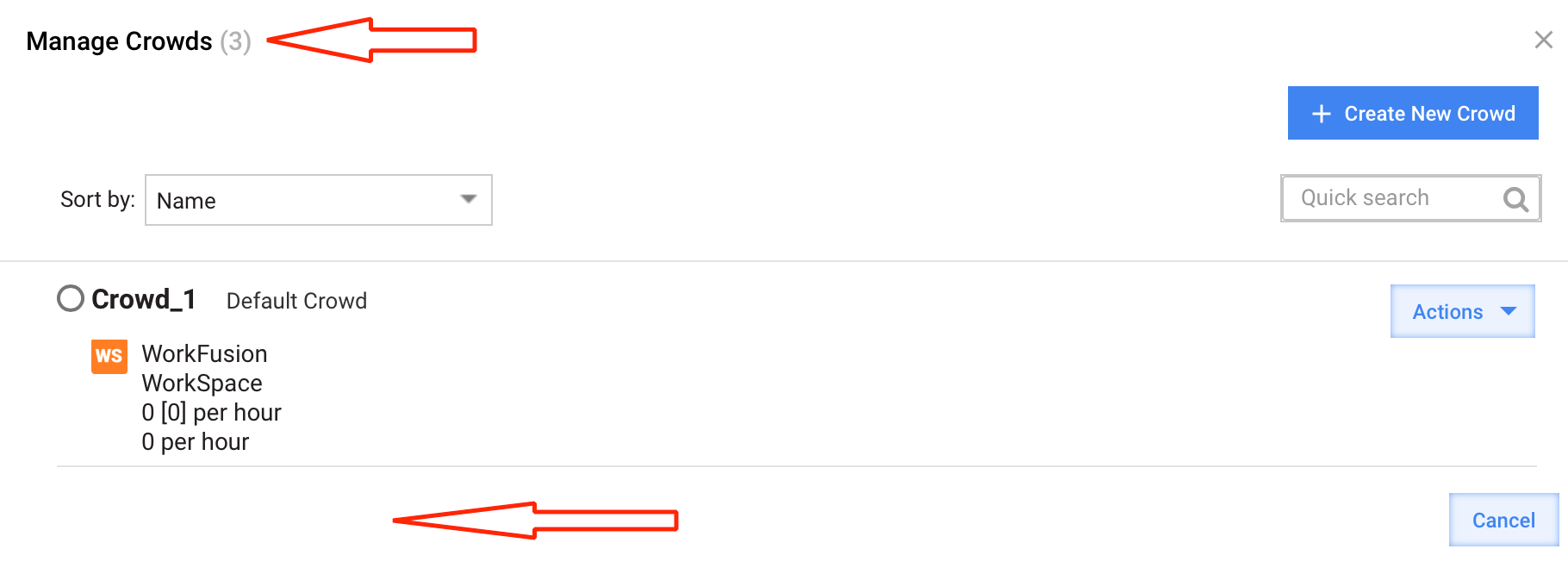
Connect to the wfdb database.
mysql> SELECT name, CAST(deleted AS UNSIGNED) AS deleted FROM Crowd;
+-----------------------+---------+
| name                  | deleted |
+-----------------------+---------+
| Local Workspace Crowd |       0 |
| test_crowd2           |       1 | <<<<<
+-----------------------+---------+
In the case of deleted=1, the Crowd is not visible in the UI, so update its value directly in the table.
Scenario 2
The steps below describe Scenario 2 how the issue can occur:
Go to the Qualification assigned to the already deleted Crowd.
Try to remove it. The following error is shown:
Can not remove qualification: TestQualification1. It is used in crowds: [test_crowd2]
Resolution
To resolve the issue, follow the instruction below:
In the MySQL DB, check the status of the required Crowd.
SELECT name, CAST(deleted AS UNSIGNED) AS deleted FROM Crowd;
+-----------------------+---------+
| name                  | deleted |
+-----------------------+---------+
| Local Workspace Crowd |       0 |
| test_crowd2           |       1 |
+-----------------------+---------+
In the Crowd table, update the deleted field.
update Crowd SET deleted=b'0' where name="test_crowd2";Note that the step is applicable for v9.x only. Skip for v10.x.
Go to Manage Crowds. The affected Crowd should be present in the list. Unassign a qualification from this Crowd.
Remove the Crowd. The Qualification should be removed without issues.
LDAP/AD authentifications do not work with + or % symbol in passwords of Control Tower users
Expand to learn more
Symptoms
When an LDAP/AD user tries to log in on the Control Tower web UI, you can observe the following error:
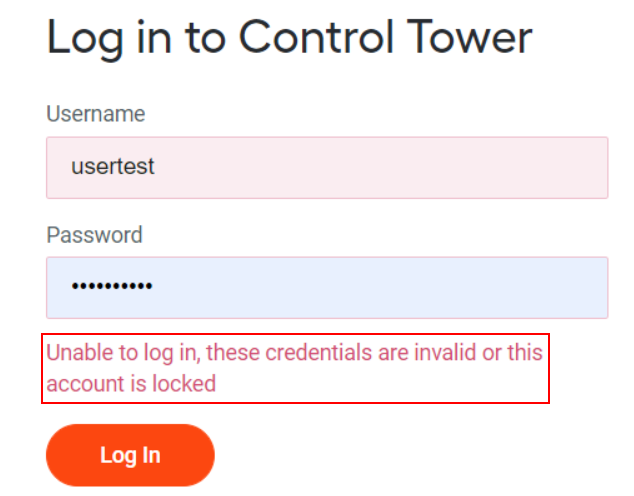
The Control Tower user account is not locked or disabled, but there is a "+" or "%" symbol in the password.
Resolution
When setting passwords, make sure they are strong enough and meet the following requirements:
# - must be used standard English symbols
# - must be no shorter than 6 symbols and not longer than 20 symbols;
# - must contain at least one uppercase character [A-Z]
# - must contain at least one lowercase character [a-z]
# - must contain at least one numeric character [0-9]
# - must contain at least one of the following special symbols unless limitations are explicitly described in comments: @#^*():,.}[]<>/
# - must NOT contain the following symbols: ;\"!?&'{$|`%
# - must NOT contain spaces
The "+" and "%" symbols are out of the special symbol list allowed in the passwords of Control Tower users. The complete list of allowed symbols is as follows:
@#^*(),.;}[]<>/
It is mentioned in the $INSTALL_DIR/wf_installer/config.yml file located on the APP server. The Control Tower default user credentials used for login into the Control Tower UI from a browser:
wf_username: 'workfusion'
wf_password: '**********' # Allowed special symbols: @#^*(),.;}[]<>/
These restrictions were changed in Intelligent Automation Cloud Enterprise v10.1.6 and further versions:
For
mssql_dm_passandmssql_rapi_passpasswords, permitted symbols are as follows:%^#*@/\`+-=_&$()[]:,.;!?Forbidden symbols:
{}'<>"|For all other application passwords, permitted symbols are as follows:
%^#*@/\|`+-=_<>&$(){}[]:,.;!?Forbidden symbols:
" '
Managing session timeouts in Control Tower
Expand to learn more
As a Control Tower user, you can face situations when an application session gets invalidated. To mitigate the issue, increase the session timeout using the following setting:
| Setting | Explanation | Default value | Where to configure |
|---|---|---|---|
| session-timeout | Tomcat terminates sessions using a background thread. By default, the thread checks for expiring sessions every minute. Once session-timeout defined in web.xml is hit, the session is invalidated, and all new requests require authentication. | 30 minutes | You can define the setting on the server where Control Tower is running via the following path: /opt/workfusion/workfusion/conf/web.xml. |
Increase session timeout
The instructions below apply when you face one of the following issues:
- You are uploading a heavy bundle from the UI or Postman, and the request gets timed out.
- You are performing any actions in the UI, and the session gets invalidated.
To address the issues, follow the recommendations below:
Log in to the required Control Tower instance via SSH.
In
/opt/workfusion/workfusion/conf/web.xml, increase the<session-timeout>tag to the desired value:<session-config> <tracking-mode>COOKIE</tracking-mode> <session-timeout>60</session-timeout> </session-config>To apply the change, restart Control Tower with the
wfamanger restart workfusioncommand.