
Install components
Prerequisites
- Workfusion IA Cloud Enterprise Edition installer is uploaded and extracted on the first APP server.
- The hosts.yml file is properly configured with all DNS names required for installation.
- The open ports are specified in ports.yml.
- The config.yml file is properly configured.
Prepare variables
Prepare environment variables before installation.
Connect to the installation server via SSH and run the following commands as <linux_installation_user>:
Change directory to PACKAGE_DIR (where the installer was extracted earlier, for example, INSTALL_DIR/wf_installer):
$ cd PACKAGE_DIRPrepare the environment variables:
$ export ANSIBLE_PRIVATE_KEY_FILE="</path_to_ssh_key>"   # Path to SSH key for connection to all Linux servers as <linux_installation_user>
$ export ANSIBLE_REMOTE_USER="<linux_installation_user>" # <linux_installation_user> provided in config.yml
$ export ANSIBLE_VAULT_PASS="<ansible_vault_password>"   # Password for decryption of config.yml. If you don't set this variable, you'll be prompted for password during setup.
Prepare MS SQL Server
To prepare the MS SQL server, on the APP server, run the following commands as <linux_installation_user>:
$ ./install.sh precheck mssql   # Checks that MSSQL credentials are set correctly in config.yml, Database exists, wf_dba_user exists and has db_owner role
$ ./install.sh configure mssql  # Creates all required schemas in Workfusion DB, creates and maps DB users to provided MSSQL logins, and assigns correct user permissions per schemas
Install components
On the APP server, run the following commands as <linux_installation_user> to install all components of the Intelligent Automation Cloud Enterprise Edition. Note that before the setup, all DNS names for servers must be defined in hosts.yml. Otherwise, installation of an unspecified server will be skipped.
$ ./install.sh preinstall full  # Prepares all Enterprise Edition servers for installation
$ ./install.sh install full     # Performs actual Enterprise Edition installation
$ ./install.sh check full       # Verifies that installation completed successfully
At this point the installation is completed.
If the installation fails on some step, see the troubleshooting guide.
important
If <linux_installation_user> requires a password for the sudo privileges, add '--ask-become-pass' to the end of the command.
- If <linux_installation_user> requires a password for the SSH authentication to other servers, add
'--ask-pass'to the end of the command.
$ ./install.sh <action> <component> --ask-become-pass
$ ./install.sh <action> <component> --ask-pass
$ ./install.sh <action> <component> --ask-become-pass --ask-pass
Perform post-installation check
Once the installation is completed, check WorkFusion Platform with Business Process (BP) and Manual Task. OCR must be activated.
To import and run the health check Business process with the provided options, on the APP server, run the following command as <linux_installation_user>:
$ ./install.sh check app -e test_ml=true -e test_ocr=true -e test_rpa=true -e test_ie=true -e test_chrome=true -e test_desktop=true

# Options description
# test_ml=true      # Tests Machine Learning
# test_rpa=true     # Tests RPA server(s)
# test_ocr=true     # Tests OCR server(s). OCR must be ACTIVATED if you add this option
# test_ie=true      # Tests Internet Explorer browser (IE must be installed on RPA server(s))
# test_chrome=true  # Tests Chrome browser on RPA server(s) (Chrome must be installed on RPA server(s))
# test_desktop=true # Tests Desktop driver on RPA server(s)
Advanced installation options
Skip particular server
If you do not require to install some particular server, you may skip it. Examples:
$ ./install.sh preinstall full -e skip_rpa=true -e skip_ocr=true -e skip_bi=true
$ ./install.sh install full -e skip_rpa=true -e skip_ocr=true -e skip_bi=true
$ ./install.sh check full -e skip_rpa=true -e skip_ocr=true -e skip_bi=true

# Options description
# skip_rpa=true        # skips RPA server(s) installation (this component is optional for Workfusion Enterprise Edition)
# skip_ocr=true        # skips OCR server(s) installation (this component is optional for Workfusion Enterprise Edition)
# skip_bi=true         # skips BI (Analytics) server(s) installation (this component is optional for Workfusion Enterprise Edition)
# skip_lb=true         # skips installation of haproxy service on APP server (can be used ONLY if haproxy is already installed)
# skip_bep_agent=true  # skips BEP AGENT server(s) installation (can be used ONLY if bep-agent is already installed, for example, when rerunning installation)
# skip_bep_master=true # skips BEP MASTER server(s) installation (can be used ONLY if bep-master is already installed, for example, when rerunning installation)
# skip_app=true        # skips APP server(s) installation (can be used ONLY if app server is already installed, for example, when rerunning installation)
Install particular servers
When deploying servers one by one, remember to follow the installation order.
Install Haproxy to the APP server
To install HAProxy, run the following commands:
$ ./install.sh preinstall lb
$ ./install.sh install lb
Install INT components
To install the INT servers, run the following commands:
$ ./install.sh preinstall int
$ ./install.sh install int
$ ./install.sh check int
Install BEP Master components
To install the BEP Master servers, run the following commands:
$ ./install.sh preinstall bep-master
$ ./install.sh install bep-master
$ ./install.sh check bep-master
Install BEP Agent components
To install the BEP Agent servers, run the following commands:
$ ./install.sh preinstall bep-agent
$ ./install.sh install bep-agent
$ ./install.sh check bep-agent
Install APP components
To install the APP servers, run the following commands:
$ ./install.sh preinstall app
$ ./install.sh install app
$ ./install.sh check app
Install RPA components
To install the RPA servers, run the following commands:
$ ./install.sh preinstall rpa
$ ./install.sh install rpa
Install OCR components
To install the OCR servers, run the following commands:
# OCR (linux) server(s) installation. When ocr_platform is set to 'linux' in config.yml and <ocr_hostnames> is defined in hosts.yml
$ ./install.sh preinstall ocr
$ ./install.sh install ocr
$ ./install.sh check ocr

# OR

# OCR (Windows) server(s) installation. When ocr_platform is set to 'windows' in config.yml and <ocrwin_hostnames> is defined in hosts.yml
$ ./install.sh preinstall ocrwin
$ ./install.sh install ocrwin
$ ./install.sh check ocrwin
caution
We recommend Linux OCR for Intelligent Automation Cloud Enterprise installation as it enables lower installation footprint configurations in future 10.1.X versions.
Install Analytics components
To install the Analytics servers, run the following commands:
$ ./install.sh preinstall bi
$ ./install.sh install bi
$ ./install.sh check bi

# Analytics desktop installation to BI server (most probably you don't need it. 99% of clients do not need it).
$ ./install.sh install analytics-desktop
Check HA after installation
Once Intelligent Automation Cloud is installed in the HA mode, you can check whether the configuration is correct in Kibana. Kibana's HA Overview dashboard displays the status of all servers for a selected time range.
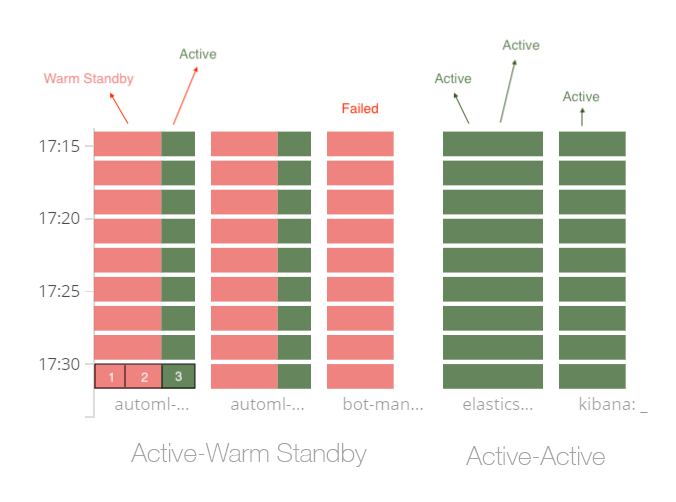
Here,
- Active-Active services must be fully green.
- Active-Warm Standby services must be red and green. The green sector (3) means that the Active server is up and running normally. Two red sectors (1, 2) mean that the emergency servers are working, while the component is installed on them but not running
For more information on health checks, see HA environment monitoring.