
Install OCR Windows server
caution
We recommend Linux OCR for Intelligent Automation Cloud Enterprise installation as it enables lower installation footprint configurations in future 10.1.X versions.
Prepare for installation
Before manual OCR Windows Server installation, you need to
- Initialize secure storage (Secrets Vault).
- Run DB migrations.
- Generate configuration files for copying to OCR Windows Server.
All the commands are run on the Integration server.
To prepare for installation:
Run DB migrations for OCR Windows Server. To populate MSSQL database with required tables in OCR schema, run the following command:
./install.sh migrate ocrwinInitialize Secrets Vault for OCR Windows Server.
./install.sh configure ocrwinGenerate OCR Windows Server config files and OCR certificates to be later copied to OCR Windows Server while installation.
./install.sh generate_conf ocrwinAs soon as generation is complete, go to INSTALL_DIR/distr/win_configs/ocrwin_configs to view the generated files. See the output example below.
ls -la INSTALL_DIR/distr/win_confs/ocrwin_configs
total 24
drwxr-xr-x. 2 wfuser wfuser  100 Jun 13 07:44 .
drwxr-xr-x. 3 wfuser wfuser   28 Jun 13 07:44 ..
-rw-r--r--. 1 wfuser wfuser 2984 Jun 13 07:44 ca.crt
-rw-r--r--. 1 wfuser wfuser 3085 Jun 13 07:44 ocr_config.ini
-rw-r--r--. 1 wfuser wfuser 4835 Jun 13 07:44 ocrwin.crt
-rw-r--r--. 1 wfuser wfuser 1674 Jun 13 07:44 ocrwin.key
-rw-r--r--. 1 wfuser wfuser 2517 Jun 13 07:44 workfusion.p12
Install OCR Windows Server
To install OCR Windows Server:
Extract all files from the OCRInstaller-{version}.zip to any folder on your Windows PC.
Go to INSTALL_DIR/distr/win_configs/ocrwin_configs and copy all the generated config files to the folder with the extracted OCR installer on the Windows machine.
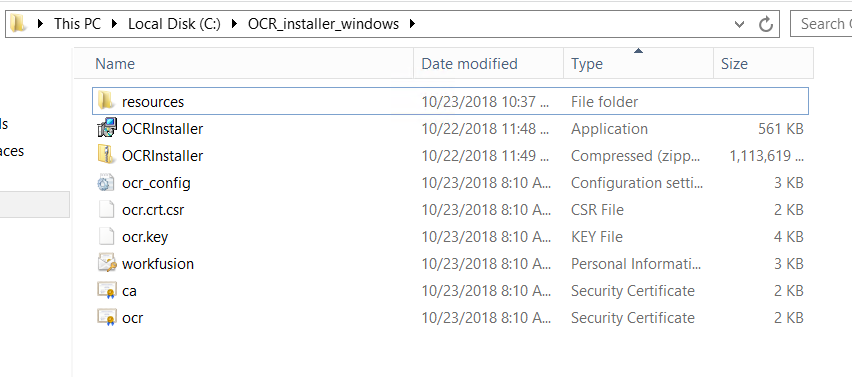
If you use the self-signed certificates, ca.cert must be imported into Local Machine's Certificate TrustStore > the Trusted Root Certificates Authorities section. For more information, see Import Root or Intermediate CA to Store.
Launch OCR Installer. Click Options to specify the installation location.
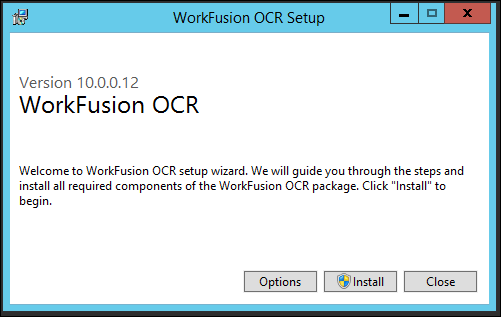
Wait until the installation process is finished.
Restart all services.
Activate OCR License.
Configure Nginx on Windows machines
The section describes using a secure connection between OCR and Workfusion Services.
Skip the step, if the setup does not use TLS encryption.
Configure Windows Firewall
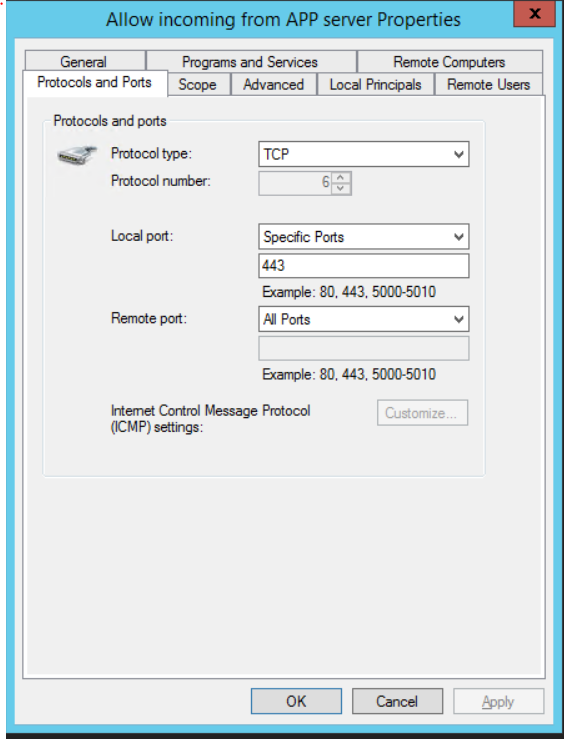
In Windows Firewall, create a new rule. Allow inbound SSL secure connection to applications on the OCR server.
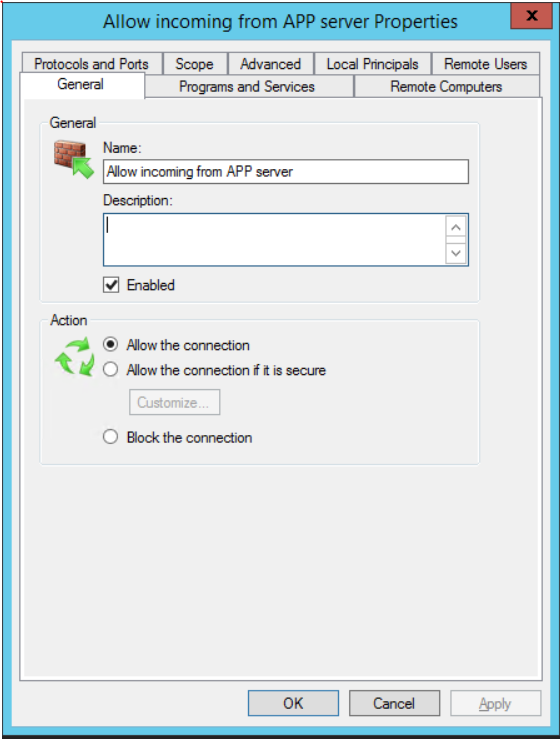
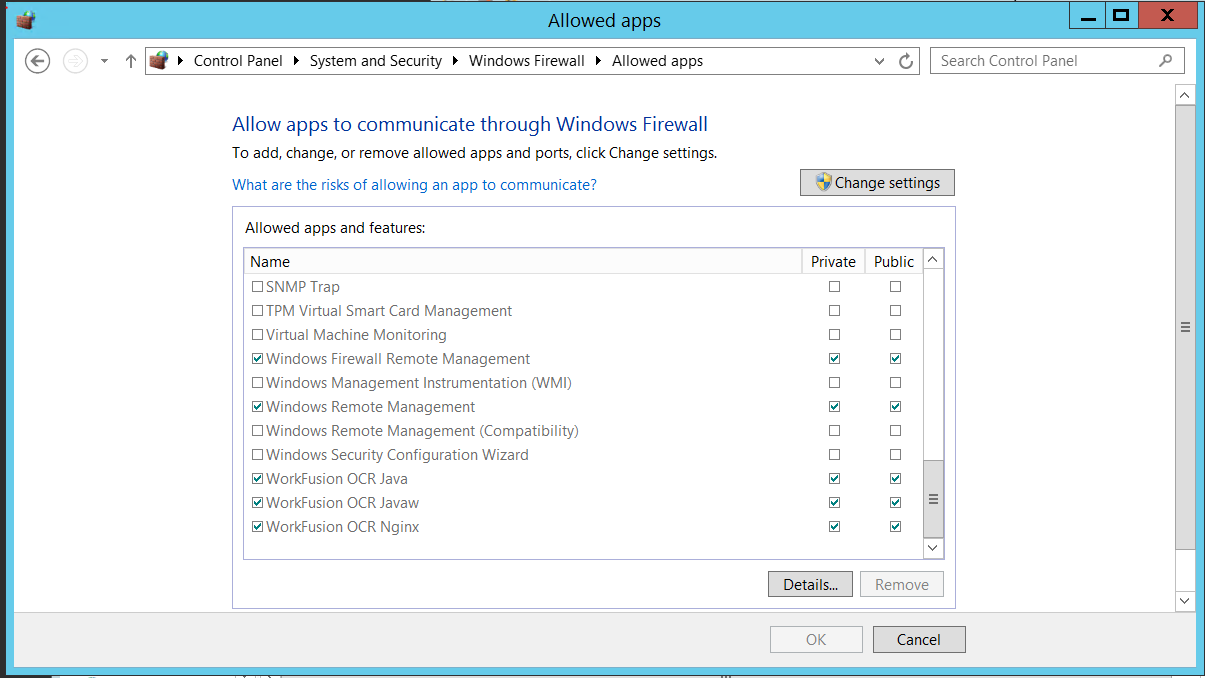
Define the local port 443 to allow the connection.
Scale OCR servers
Primary Server
Install the server as described earlier.
Secondary Server
- Copy the same installer, certificates, and configuration file from the primary serveras to a secondary one.
- On the secondary server, in the ocr_config.ini file, change OCR Server hostnames and
ocr.health.worker.name. - On the secondary server, launch the OCR Installer.