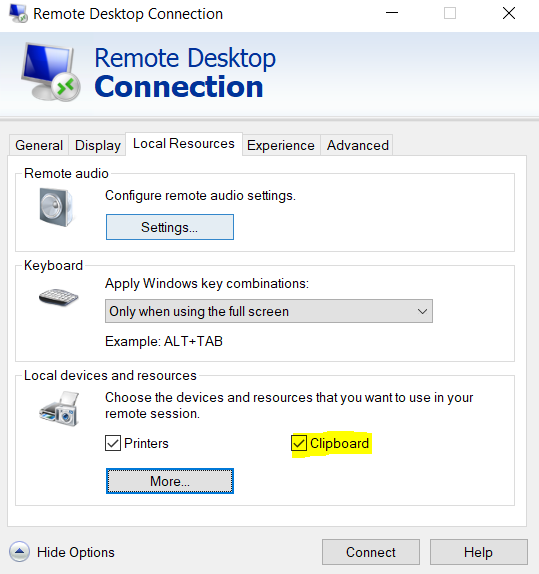
Disable clipboard sharing across RDP sessions
When you run two Business Processes at the same time in two RDP (Remote Desktop Services) sessions, the other session's clipboard passes through both sessions, sharing its content. The clipboard content passed through other RDP sessions can cause a running bot to stop. There are two solutions to address the issue:
Enable policies
Disable the connection settings in RDP
Enable policies
Navigate to Computer Configuration > Policies > Administrative Templates > Windows Components > Remote Desktop Services > Remote Desktop Session Host > Device and Resource Redirection.
Set Do not allow clipboard redirection and Do not allow drive redirection to Enabled.
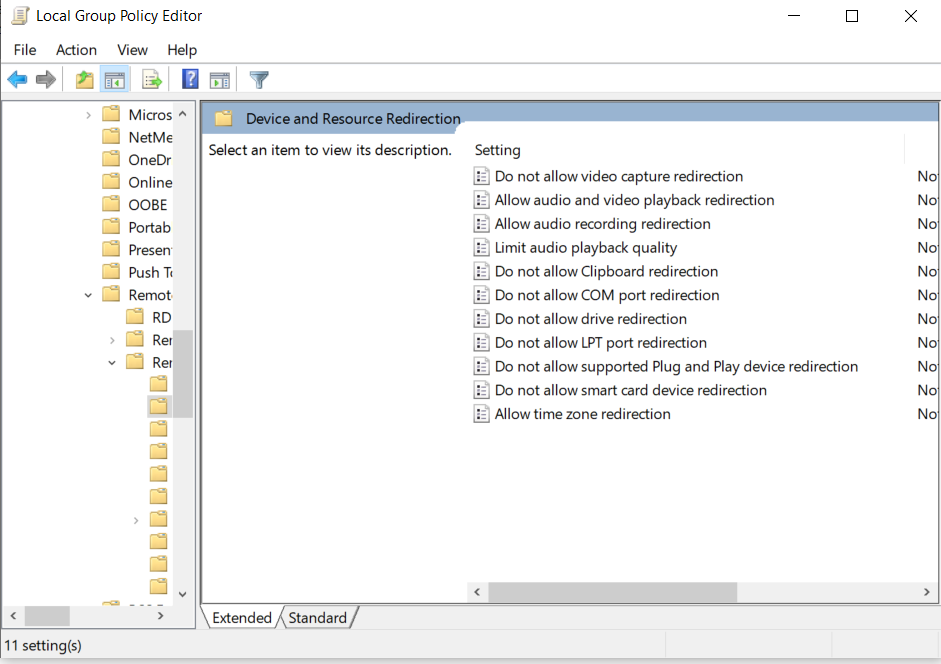
This policy setting specifies whether to prevent the sharing of the clipboard content (clipboard redirection) between a remote computer and a client one during an RDP session.
You can use this setting to prevent users from redirecting clipboard data to or from a remote or local computer. By default, Remote Desktop Services allow clipboard redirection.
If you enable this policy setting, users cannot redirect clipboard data.
Disable connection settings in RDP
Another solution is to disable the connection settings in RDP.