
Email Fetch Connector
The Email Fetch Connector is an ODF 2-based library that provides a UI-configurable solution for receiving emails from supported email services and preparing them for further processing.
Currently, the Connector supports email services compatible with Microsoft Graph API (modern Outlook) and EWS API (old Outlook versions).
Connector performance
When working with Email Fetch Connector, you may expect to handle up to 3,000 emails per hour with SLA no more than 190 seconds per email.
| Batch size | Emails/hour | Seconds per batch | Seconds per email |
|---|---|---|---|
| 10 | 2700 | 13 | 1.3 |
| 100 | 3000 | 120 | 1.2 |
Performance testing details
The numbers are obtained during an experiment conducted on a Multi-point HA environment with the following conditions:
- 4,000+ emails are added to the Inbox folder before execution.
- A single Business Process with the Email Fetch Connector is started (no parallel fetching).
- The MS email server with Graph API is used for fetching.
- The batch processing time is adjusted from 10 to 100 emails.
- A pool interval is less than the batch processing time.
The best throughput is obtained with the maximum batch size of 100 emails. With this batch size, the batch processing time is about 80-90 seconds per batch. Additional time (about 10-30 seconds) is spent by the export plugin and the Monitor Loop Rule that had to process 100 hits batch during each fetch component run.
Thus, the Email Fetch Connector can provide a throughput of up to 3,000 emails per hour fetched and be ready for further processing by other Business Process tasks.
Taking into account that the subsequent emails may arrive just after the current batch processing starts and expecting no more than 100 emails to arrive during the time of 100 email batch processing, you can expect the following SLA: no more than Batch_Processing_Time * 2 + Hit_processing_overhead =~ 190 sec.
If more than 100 emails arrive during the current batch processing, everything exceeding 100 emails is addressed in subsequent loops. Therefore, the last email's processing time increases in TOTAL_QUANTITY_IN_INBOX/100 times.
Integrate Email Fetch Connector
The Email Fetch Connector, in a nutshell, is a Maven dependency that comes together with a couple of additional resources:
odf2-email-fetch-model.xml: a Liquibase migration file that contains all required Data Store schemas for the Connectorcomponent-configuration.json: a built-in configuration schema for your Digital Worker
To add the Email Fetch Connector to an ODF 2-based project, follow the steps below:
Declare the Email Fetch Connector Maven dependency in a BCB module of your project:
<dependency>
    <groupId>com.workfusion.odf2</groupId>
    <artifactId>odf2-email-fetch</artifactId>
    <version>...</version>
</dependency>
Make sure that
assembly.xmlof your BCB module includes the required Connector's resources:<dependencySet> <outputDirectory>/</outputDirectory> <unpack>true</unpack> <unpackOptions> <includes> <include>configs/main/*.xml</include> <!-- Include liquibase migrations --> <include>migration-templates/*.xml</include> <!-- Include 'component-configuration.json' --> <include>**/component-configuration.json</include> </includes> </unpackOptions> </dependencySet>assembly.xml example
<assembly xmlns="http://maven.apache.org/plugins/maven-assembly-plugin/assembly/1.1.2"
        xmlns:xsi="http://www.w3.org/2001/XMLSchema-instance"
        xsi:schemaLocation="http://maven.apache.org/plugins/maven-assembly-plugin/assembly/1.1.2 http://maven.apache.org/xsd/assembly-1.1.2.xsd">
    <id>bcb</id>
    <formats>
        <format>jar</format>
    </formats>
    <includeBaseDirectory>false</includeBaseDirectory>
    <dependencySets>
        <dependencySet>
            <outputDirectory>/</outputDirectory>
            <unpack>true</unpack>
            <includes>
                <include>${artifact}</include>
            </includes>
        </dependencySet>
        <dependencySet>
            <outputDirectory>/lib</outputDirectory>
            <unpack>false</unpack>
            <excludes>
                <exclude>${artifact}</exclude>
            </excludes>
        </dependencySet>
        <dependencySet>
            <outputDirectory>/</outputDirectory>
            <unpack>true</unpack>
            <unpackOptions>
                <includes>
                    <include>configs/main/*.xml</include>

                    <!-- Include liquibase migrations -->
                    <include>migration-templates/*.xml</include>
                    <!-- Include 'component-configuration.json' -->
                    <include>**/component-configuration.json</include>
                </includes>
            </unpackOptions>
        </dependencySet>
    </dependencySets>
</assembly>
Build your project with the
mvn clean installcommand. This is required to generate the resulting BCB's JAR together with theodf2-email-fetch-model.xmlandcomponent-configuration.jsonfiles inside the JAR archive.Navigate to the package module of your project and execute the
mvn bundle:copy-builtin-resourcesgoal.
The goal copies the Connector's resources into your package module's src/main/resources folder. Also, it applies the Digital Worker code and version of the current project to the copied resources for you to use immediately without any additional changes.
note
Usually, you have to apply the above changes only once when integrating the Email Fetch Connector with your project. Since the bundle:copy-builtin-resources goal creates new files in the src folder, add these files to VCS.
Let's examine what changes in a typical ODF 2 project are completed.
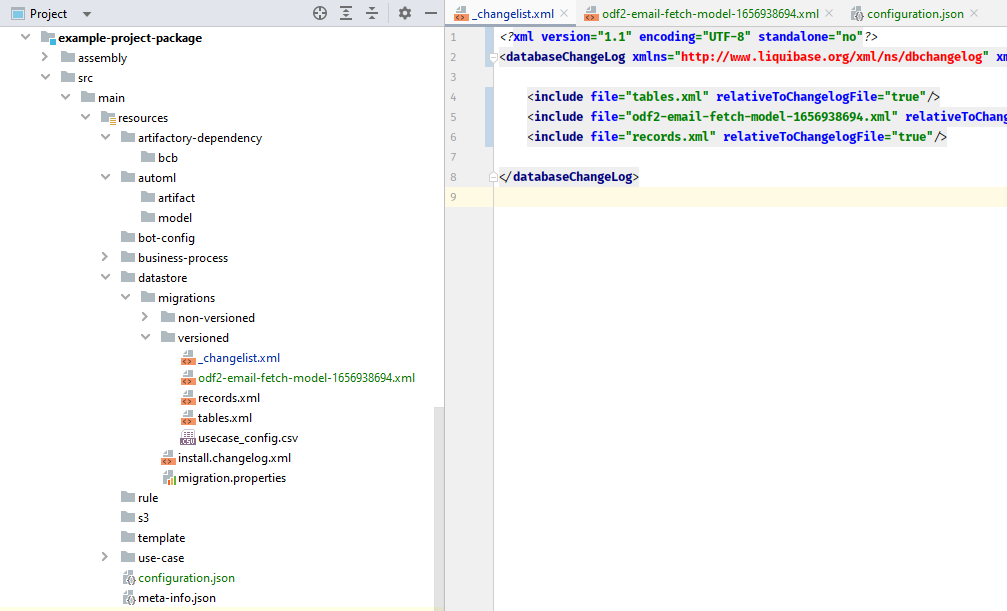
odf2-email-fetch-model-1656938694.xmlin thedatastore/migrations/versionedfolder contains all required Data Store schemas for the Email Fetch Connector. It is already templated according to the project's Digital Worker code and version and registered inside_changelist.xmlas a separate<include>.configuration.jsonin theresourcesfolder is a copy ofcomponent-configuration.json. If your project already hasconfiguration.json, you might need to deal with merge conflicts.
Merge Connector configurations
When the bundle:copy-builtin-resources goal is called, it causes adding the Connector's configuration to the configuration.json file in the target bundle module. If the bundle doesn't contain configuration.json before the goal execution, the Connector's configuration is copied to the bundle resources as-is. If the configuration.json file is already present in the target bundle, the bundle:copy-builtin-resources goal tries to merge the Connector's configuration into the existing configuration.json file. In this case, the Connector's configuration is wrapped into a panel element during the merge process.
If the existing configuration and the Connector's configuration have duplicated keys, the merging process fails with an error. When this happens, a detailed error message containing the duplicated keys information is printed to the console:
[INFO] --- bundle-maven-plugin:10.2.5.17:copy-builtin-resources (default-cli) @ example-project-package ---
[ERROR] Element key 'schedule' provided by configuration of com.example:example-project-bcb:1.0 already exists
[ERROR] Element key 'well-1' provided by configuration of com.example:example-project-bcb:1.0 already exists
[INFO] ------------------------------------------------------------------------
[INFO] BUILD FAILURE
[INFO] ------------------------------------------------------------------------
[INFO] Total time:  1.602 s
[INFO] Finished at: 2022-07-04T18:28:24+03:00
[INFO] ------------------------------------------------------------------------
[ERROR] Failed to execute goal com.workfusion.odf:bundle-maven-plugin:10.2.5.17:copy-builtin-resources (default-cli) on project example-project-package: Configurations contains duplicated key - remove duplications before applying new components configuration. -> [Help 1]
If you see the above error during the bundle:copy-builtin-resources execution, manually replace all the duplicated keys inside the existing configuration.json file with new unique keys. When all duplicated keys are eliminated, execute the bundle:copy-builtin-resources goal again to finish the Email Fetch Connector integration.
Solution Catalog
The Email Fetch Connector is available in the Solution Catalog. To find it, go to Control Tower > Digital Workers > Solution Catalog > the Connectors tab and select Email Fetch Connector.
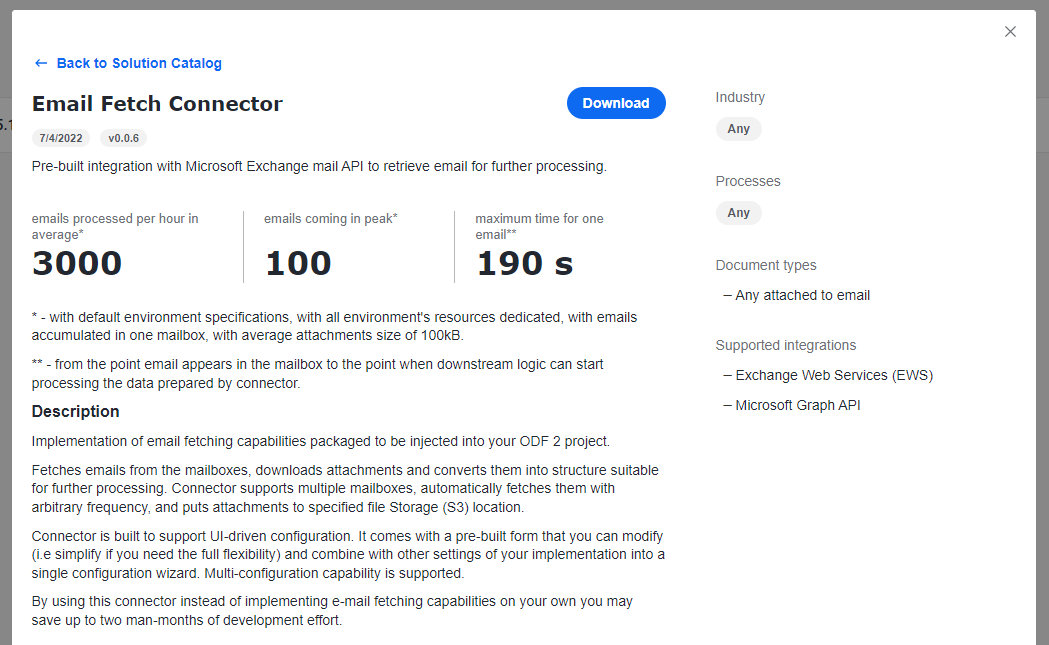
Although you can download a ZIP archive directly from the Solution Catalog, treat the Email Fetch Connector as a regular Maven dependency. Follow the steps above from the Integrate Email Fetch Connector section to integrate it with your project.
Third-party dependencies
The Email Fetch Connector is distributed as a regular Maven JAR dependency. The artifact and its third-party transitive dependencies are stored in the WorkFusion repository at https://repository.workfusion.com.
If you work with a project created from the ODF 2 Archetype, it already contains all required repository settings. In all other cases, make sure to add the WorkFusion repository to your Maven project as shown below:
<repositories>
  <repository>
    <id>wf-dependencies</id>
    <url>https://repository.workfusion.com/content/repositories/wf-dependencies/</url>
  </repository>
</repositories>

<pluginRepositories>
  <pluginRepository>
    <id>wf-dependencies</id>
    <url>https://repository.workfusion.com/content/repositories/wf-dependencies/</url>
  </pluginRepository>
</pluginRepositories>
You also need to add the corresponding credentials to the Maven's settings.xml file:
<servers>
  <!-- Nexus Credentials for Maven to download WF dependencies -->
  <server>
    <id>wf-dependencies</id>
    <username>odf-user</username>
    <password>Workfusion!5</password>
  </server>
</servers>
note
For on-premises installations, set up repositories according to your environment. Make sure that the required dependencies are installed to your Nexus according to this guide.
To ensure everything is set up correctly, build a project with the mvn clean package command. The build downloads all the required dependencies to the local Maven repository.
Bot Tasks
The Email Fetch Connector provides three Bot Tasks to an implementation project:
- com.workfusion.odf2.modules.email.task.UseAllMailboxesTask
- com.workfusion.odf2.modules.email.task.MonitorMailboxTask
- com.workfusion.odf2.modules.email.task.EmailErrorProcessingTask
You must add the tasks to your Business Process in a specific order:
- UseAllMailboxesTask gets a list of mailboxes from the Connector's configuration. This task must go first.
- MonitorMailboxTask fetches emails according to the given configuration. Add the task after UseAllMailboxesTask.
- After the MonitorMailboxTask task, add a particular Monitor Loop Rule. The Rule is described in the documentation on Monitor Tasks.
- After the Rule, add EmailErrorProcessingTask. The task handles any errors that occur inside the Monitor Task.
See how the tasks are combined inside a Business Process:
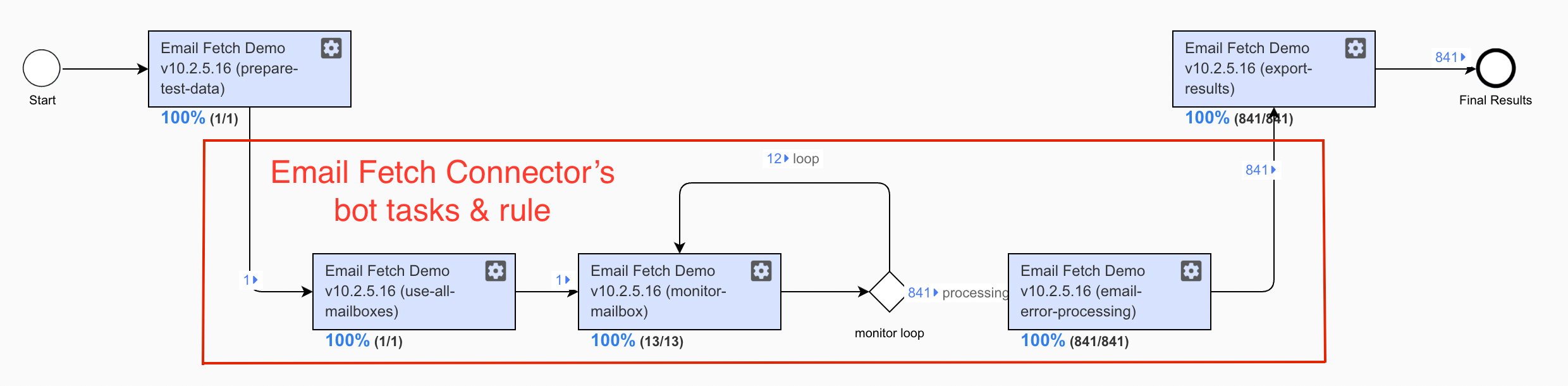
After the EmailErrorProcessingTask, you can put any other tasks related to a Digital Worker you are working on.
The Email Fetch Connector and MonitorMailboxTask make sure that a corresponding entity is created for each fetched email inside a Data Store and linked to the current Transaction. Therefore, a typical processing task may look as follows:
@BotTask
@Requires({EmailFetchModule.class, TransactionModule.class})
public class EmailProcessingTask implements AdHocTask {

    private final CurrentTransaction currentTransaction;
    private final EmailRepository emailRepository;

    @Inject
    public EmailProcessingTask(CurrentTransaction currentTransaction, EmailRepository emailRepository) {
        this.currentTransaction = currentTransaction;
        this.emailRepository = emailRepository;
    }

    @Override
    public TaskRunnerOutput run(TaskInput taskInput) {
        final List<Email> emails = emailRepository.findByTransactionId(currentTransaction.getRequiredId());

        // email processing logic goes here

        return taskInput.asResult();
    }

}
UseAllMailboxesTask
The task reads a list of mailboxes from the Configuration Data JSON and configures some internal settings for MonitorMailboxTask in Data Stores. Then, it emits a record per mailbox, making Control Tower process all mailboxes in parallel.
MonitorMailboxTask
According to a schedule from the Configuration Data JSON, the task activates regularly and does all the work related to fetching emails from the corresponding mailbox. For each processed email, it sends Transaction. In case of error, it stores error details in Data Stores and sends Transaction marked as an error.
The fetching algorithm performs the following actions:
- The algorithm fetches all available read and unread messages from the Inbox folder. In case of any errors, for example, if the connection takes more time than expected, the task throws
com.workfusion.odf2.modules.email.exception.EmailFetchExceptionwith a relevant error message. - After the messages are fetched, the algorithm processes one message at a time. If an error occurs for one of the messages, all unprocessed messages are aborted to prevent error propagation. For each processed message,
Transactionis created. Transaction' is marked as erroneous if an error occurs during message processing.
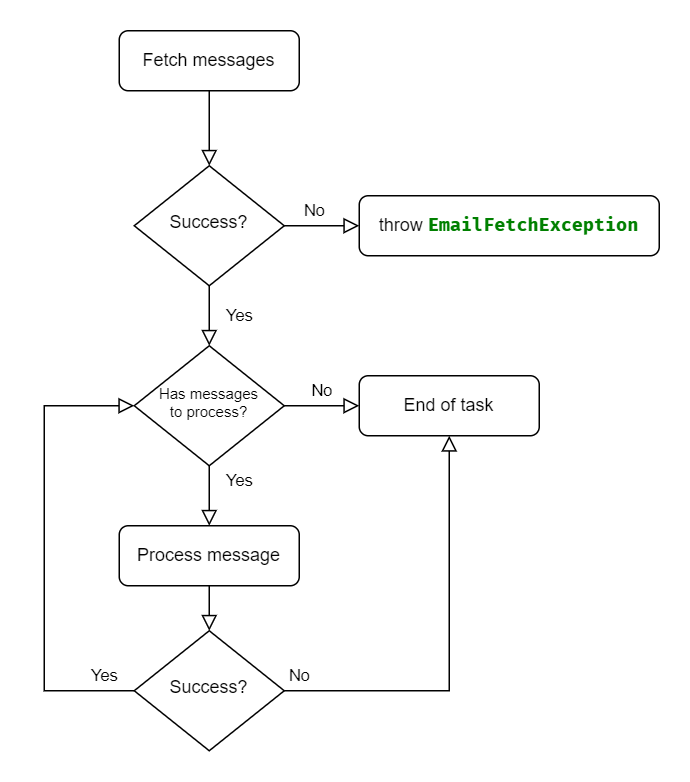
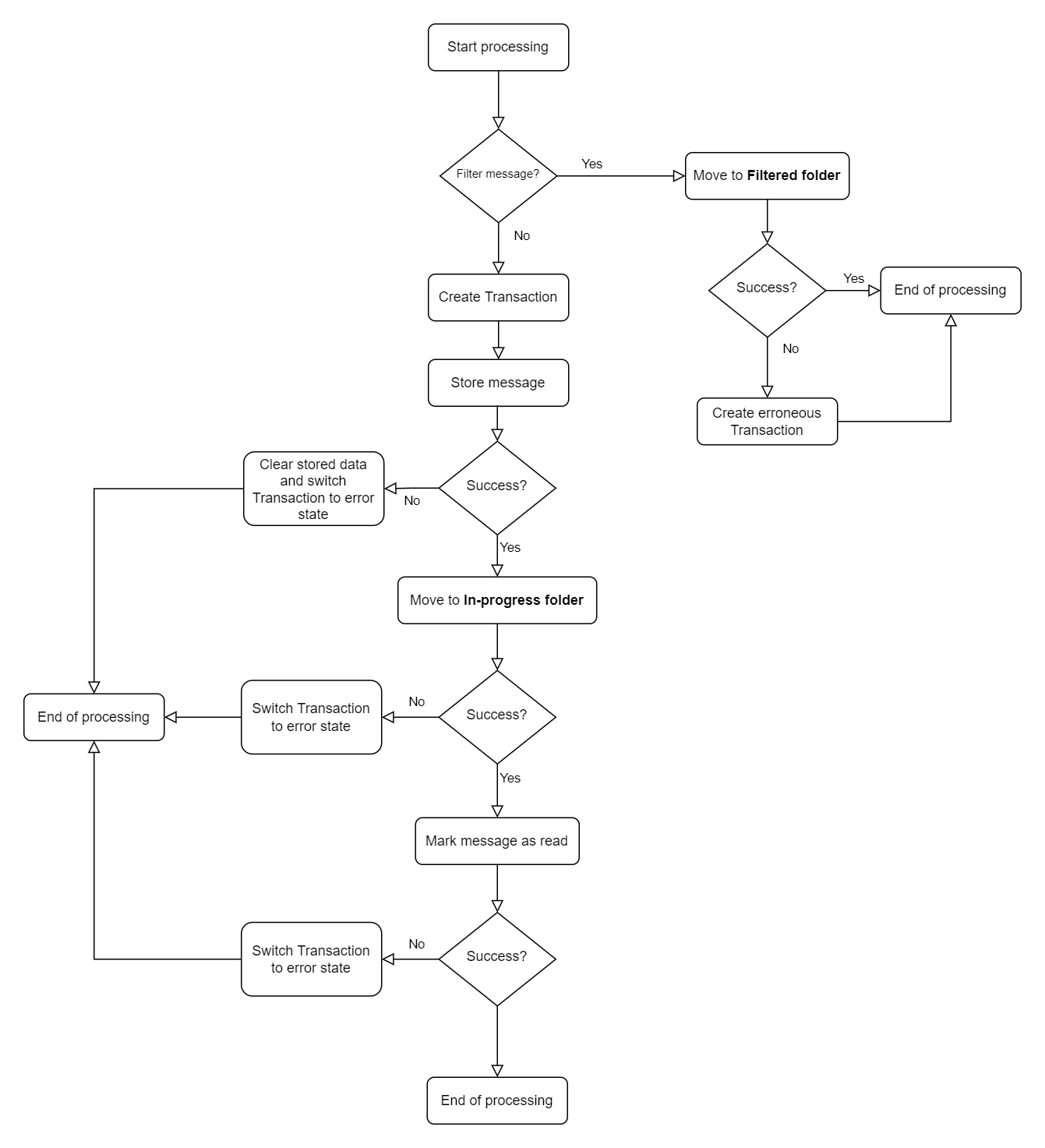
The message processing algorithm works through each message consequentially. It moves a message to the In-progress folder and marks it as read. For each message, Transaction and Email entities are created in a Data Store. The message copy with attachments is stored on the S3 service.
The processing algorithm performs the following actions:
- Defines whether a message is to be filtered. By default, no messages are filtered. To filter a specific message, override the
boolean filterEmailMessage(OdfEmailMessage message)method and define filtering rules. When rules are enabled, a message is moved to the Filtered folder. If a message is successfully moved to the Filtered folder,Transactionis not created, meaning no subsequent message handling is required. In case of an error,Transactionis created with theHAS_ERRORstatus. - Creates
Transactionand relatedEmailentities inside a Data Store. The message copy with attachments is stored on the S3 service. If an error occurs at this stage, all stored data is deleted from the Data Store and S3 service, andTransactionis marked as erroneous. - Moves a message to the In-progress folder. In case of an error,
Transactionacquires theHAS_ERRORstatus, and the relatedEmailErrorEntitywith error details is created. - Marks a message as read. In case of an error,
Transactionis switched to theHAS_ERRORstatus, and relatedEmailErrorEntitywith error details is created.
note
Each erroneous Transaction is created with the corresponding EmailErrorEntity. This entity contains comprehensive information about the error, its severity, and the context of its appearance.
It would be best if you implemented error handling of exceptional cases judiciously. Not all errors require immediate action. For example, when an error occurs during the "mark as read" operation, no data is lost, and in most cases, a Business Process can continue working without adjustments. However, the failed operation indicates something is wrong and requires proper attention.
Custom filtering of emails
To define the custom Java logic that disables further processing of emails, extend MonitorMailboxTask and use a descendant task in your Business Process instead. The MonitorMailboxTask.filterEmailMessage() method must be overridden to contain the custom filtering logic.
Storing of fetched emails
Each successful Transaction sent by MonitorMailboxTask has an com.workfusion.odf2.modules.email.model.Email entity tied to it. You can access it via corresponding com.workfusion.odf2.modules.email.repository.EmailRepository.
if (currentTransaction.isPresent()) {
    final List<Email> emails = emailRepository.findByTransactionId(currentTransaction.getRequiredId());
}
The Email entity contains all the details of a message that the email service can provide. The message in the eml format is stored in an S3 bucket configured in the Configuration Data JSON. You can access the link to the eml file via the Email.getEmlFileName() method.
The Email entity also lists all email message attachments. Access this list with the Email.getAttachments() method.
The Attachment entity contains attachment attributes and a link to the attachment file stored in an S3 bucket.
To access files stored in S3 buckets, use com.workfusion.odf2.service.s3.S3Service. For more details, refer to the corresponding documentation section.
EmailErrorProcessingTask
The task raises an exception of the com.workfusion.odf2.modules.email.exception.EmailProcessingException type for every erroneous Transaction it encounters. After that, the exception is handled by the mechanism described in the documentation on exception handling.
Set up configuration form
The Email Fetch Component provides the configuration form out of the box. Therefore, you can configure a Digital Worker based on the Email Fetch component from the Control Tower's interface.
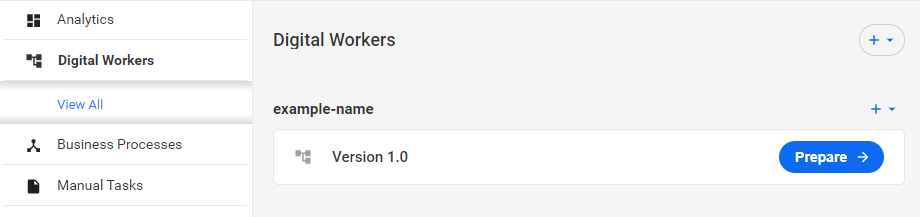
Once you upload a bundle with the Email Fetch component to Control Tower, go to the Digital Workers page and click Prepare next to your Digital Worker's name:
The Email Fetch component configuration form opens:
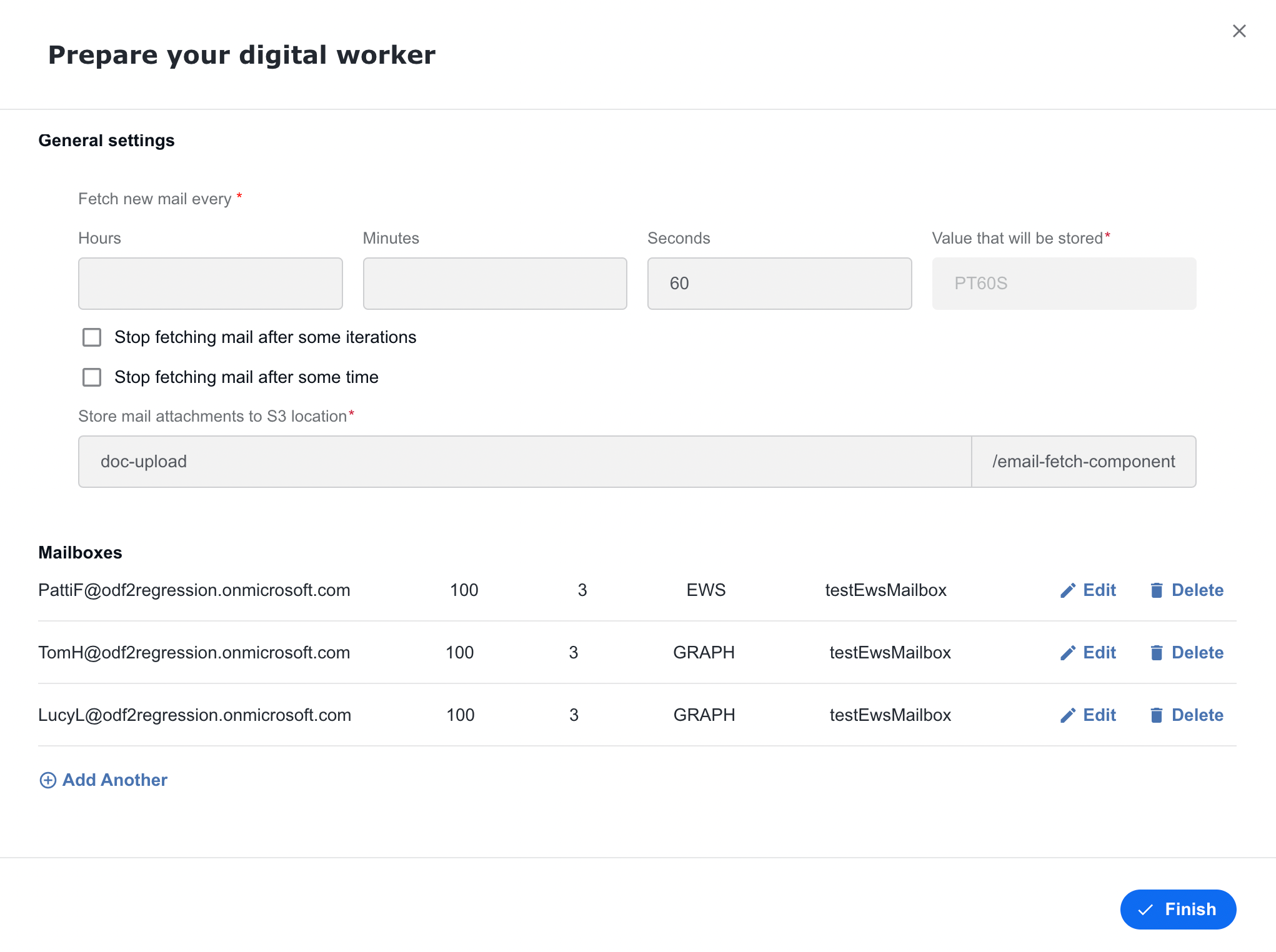
General settings
The general settings are as follows:
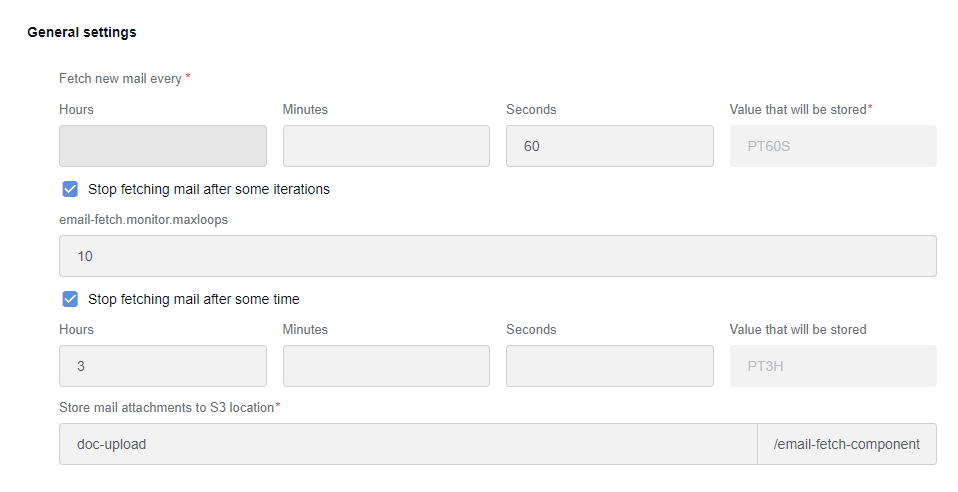
- Fetch new mail every: the interval between consequent polls to mailboxes.
- Stop fetching mail after some iterations: after the specified number of polls, the Monitor Task stops. A zero value means unlimited polls.
- Stop fetching mail after some time: after the specified time elapsed from the moment of the first run, the Monitor Task stops. An empty value means that the running time is unlimited.
- Store mail attachments to S3 location: S3 location where mail attachments are stored.
Email settings
The email settings are as follows:
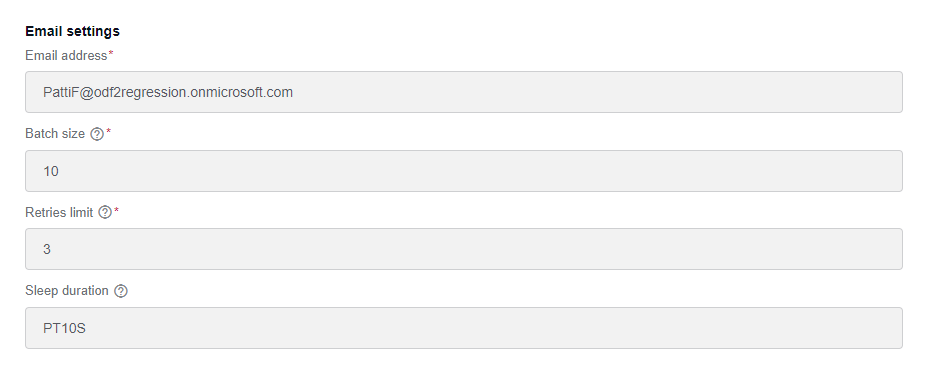
- Email address: an email address to be polled.
- Batch size: each request to the mailbox reads no more than the specified amount of messages.
- Retries limit: number of attempts to perform any mailbox operation before an exception is raised.
- Sleep duration: time to wait between attempts. Stored in the ISO-8601 duration format. For usage examples, see the documentation for the java.time.Duration.parse() method.
Mail API settings
Configure mail API to be used to poll emails from a mailbox. You can select Graph or EWS API.
The Graph API settings are as follows:
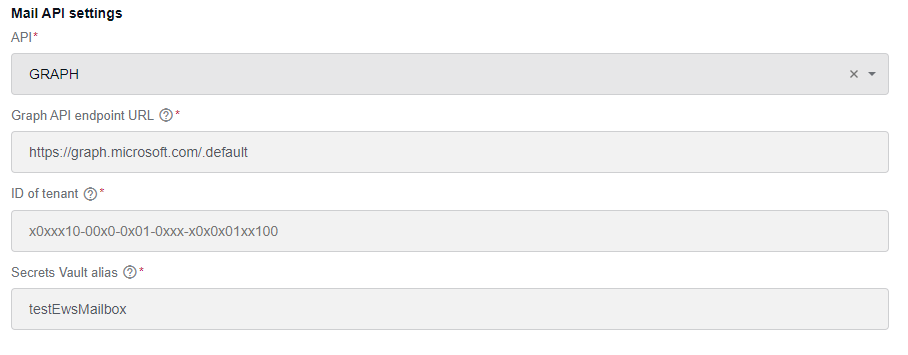
- API: GRAPH.
- Graph API endpoint URL: a Graph API endpoint URL to connect to. By default, it is https://graph.microsoft.com/.default.
- ID of tenant: an ID of the tenant where your application resides.
- Secrets Vault alias: an alias of a Secrets Vault entry that stores credentials to use for the mailbox. The "key" part is used as Client ID and the "value" as Client Secret.
The EWS API settings are as follows:
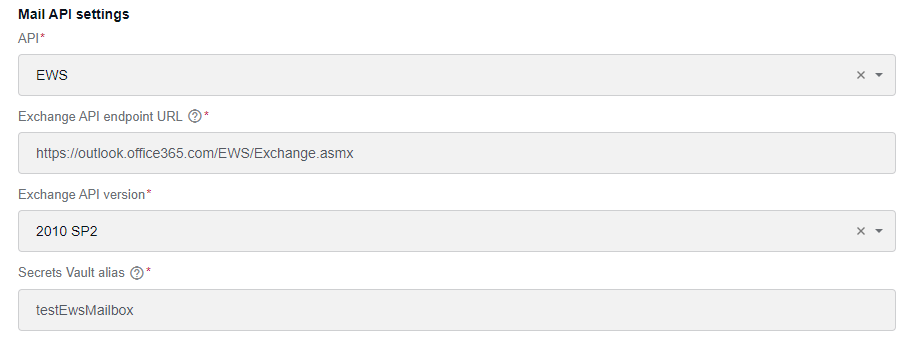
- API: EWS.
- Exchange API endpoint URL: the current EWS service URL to connect to. By default, it is https://outlook.office365.com/EWS/Exchange.asmx.
- Exchange API version: an exchange API version to be used. It can be one of the following:
Exchange2007_SP1Exchange2010Exchange2010_SP1Exchange2010_SP2
- Secrets Vault alias: an alias of a Secrets Vault entry that stores credentials to use for the mailbox. Only the credentials "value" is used, as the username is already known and part of a mailbox address.
Folder settings
The folder settings are as follows:
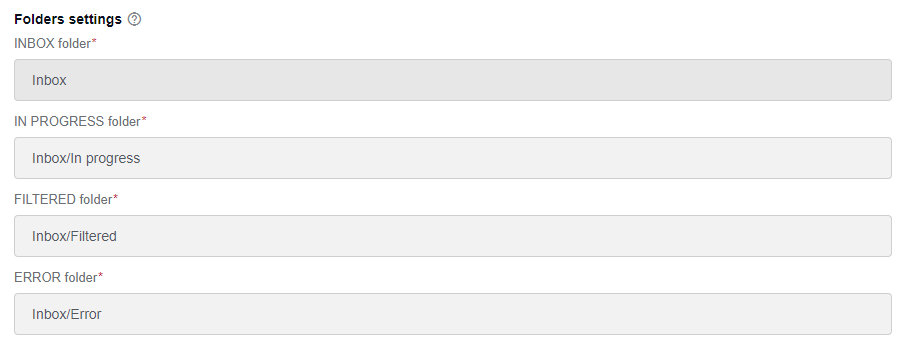
- INBOX folder: the name of the mailbox folder from which new emails are fetched. Use the
/symbol to define hierarchical folder names. - IN PROGRESS folder: the name of the mailbox folder to which processed emails are moved. Use the
/symbol to define hierarchical folder names. - FILTERED folder: the name of the mailbox folder to which mails are moved if they are rejected from further processing by a filter defined in the MonitorMailboxTask descendant. Use the
/symbol to define hierarchical folder names. - ERROR folder: the name of the mailbox folder to which emails are moved if some unrecoverable error occurs during fetching or parsing. Use the
/symbol to define hierarchical folder names.
Configuration JSON structure
The Email Fetch component expects the configuration JSON to contain the following structure (shown with example values):
{
  "email-fetch": {
    "s3bucket": "some-bucket",
    "monitor": {
      "pollingInterval": "PT3S",
      "maxLoops": 3,
      "maxRunningTime": "PT5S"
    },
    "mailboxes": [
      {
        "address": "a@mail.com",
        "mailApi": "EWS",
        "ewsEndpoint": "https://outlook.office365.com/EWS/Exchange.asmx",
        "ewsExchangeVersion": "Exchange2010_SP2",
        "authenticationAlias": "testEwsMailbox",
        "batchSize": 10,
        "maxRetries": 3,
        "sleepDuration": "PT5S",
        "inboxFolder": "Inbox",
        "inProgressFolder": "Inbox/In Progress",
        "errorFolder": "Inbox/Error",
        "filteredFolder": "Inbox/Filtered"
      },
      {
        "address": "b@mail.com",
        "mailApi": "GRAPH",
        "graphEndpoint": "https://graph.microsoft.com/.default",
        "graphTenantId": "c2ab66bd-4506-4222-8fea-eabbfc15d9ad",
        "authenticationAlias": "testGraphApp",
        "batchSize": 10,
        "maxRetries": 3,
        "sleepDuration": "PT5S",
        "inboxFolder": "Inbox",
        "inProgressFolder": "Inbox/In Progress",
        "errorFolder": "Inbox/Error",
        "filteredFolder": "Inbox/Filtered"
      }
    ]
  }
}
email-fetch.s3bucketcontains the bucket's name used to store email data.email-fetch.monitoris used to configure how often and how long mailboxes are polled for emails.pollingIntervaldefines the amount of time between consequent polls. It must be expressed in the ISO-8601 duration format.maxLoopsdefines the number of polls after which polling ceases. If this parameter is zero or undefined, the number of polls is unlimited.maxRunningTimedefines a period after which polling stops. If this parameter is undefined, the polling time is unlimited. It must be expressed in the ISO-8601 duration format.
email-fetch.mailboxesis an array. Each object inside it describes a mailbox to be polled.addresscontains an email address polled for messages.mailApidefines which API is used to connect to a mailbox. It must contain eitherGRAPHorEWS.graphEndpointdefines an endpoint of the email provider. It must be present ifmailApiisGRAPH. To connect to Office365, its value must be"https://graph.microsoft.com/.default".graphTenantIddefines a tenant to which the mailbox belongs. It must be present ifmailApiisGRAPH.ewsEndpointdefines the email provider endpoint. It must be present ifmailApiisEWS. To connect to Office365, its value must be"https://outlook.office365.com/EWS/Exchange.asmx".ewsExchangeVersiondefines the EWS API version to be used. It must be present ifmailApiisEWS. To connect to Office365, its value must be"Exchange2010_SP2". For other possible values, see themicrosoft.exchange.webservices.data.core.enumeration.misc.ExchangeVersionenum.authenticationAliascontains an alias of a Secret Vault entry that stores the mailbox credentials.batchSizecontains the maximum number of messages to be fetched in a single polling attempt.maxRetriescontains the maximum number of times a polling attempt is retried if some unexpected error occurs.sleepDurationcontains the amount of time between consequent retries. It must be expressed in the ISO-8601 duration format.inboxFoldercontains the name of the mailbox folder from which new emails are fetched. Use the/symbol to define hierarchical folder names.inProgressFoldercontains the name of the mailbox folder to which processed emails are moved. Use the/symbol to define hierarchical folder names.errorFoldercontains the name of the mailbox folder to which emails are moved if some unrecoverable error occurs during fetching or parsing. Use the/symbol to define hierarchical folder names.filteredFoldercontains the name of the mailbox folder to which mails are moved if they are rejected from further processing by a filter defined in MonitorMailboxTask descendant. Use the/symbol to define hierarchical folder names.