
RPA environment setup
Starting with WorkFusion Lumen (June 2018), it is recommended to use RPA Express as development environment for RPA.
Running RPA Express or Business Edition, you already have on your local computer and can proceed with the following components:
- WorkFusion Studio is Eclipse based IDE where you can work in two modes:
- Record fits for SMEs who work with Actions library and Recorder capability. Works for small Use Cases and small teams.
- Code fits developers who design Enterprise solutions and use programming language and IT-project approach to design solution. This probably is your choice.
- Bot Relay – your local RPA cluster with by default 1 Bot Relay and Bot to execute RPA Bots on your local computer.
- Inspector – desktop tool to identify windows applications handlers.
This means you can skip the guide below and use your Business Edition as the development environment.
Requirements
Windows OS (32-bit or 64-bit version) with Administrator access
note
Windows OS 32-bit is not supported by RPA installer. Mind that it is possible to perform manual installation only.
Internet Explorer 10+ browser
At least 1 GB of free space
Java Runtime Environment 8 installed (only for applet automation)
note
If you have Java installed on your system, check whether Java architecture matches Internet Explorer browser architecture (32 or 64 bits).
Otherwise, follow the download link for Java SE Runtime Environment. Download and install Java Runtime Environment with the same architecture as Internet Explorer (32 or 64 bits).
Download and Run RPA Installer
To set up development environment, you need to download version 8.5.2.
The package for manual installation (not recommended) is 8.5.2.
To install RPA, perform the following actions:
Unzip the
RPAInstaller-{version}.zipto your local temp folder and run theRPAInstaller.exefile.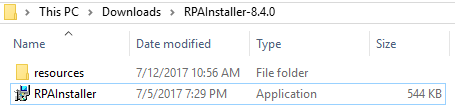
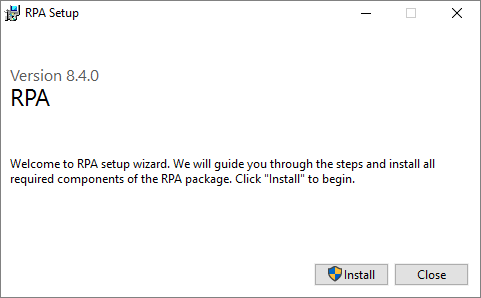
Follow the RPA Installer steps and allow the program to make changes to your device.
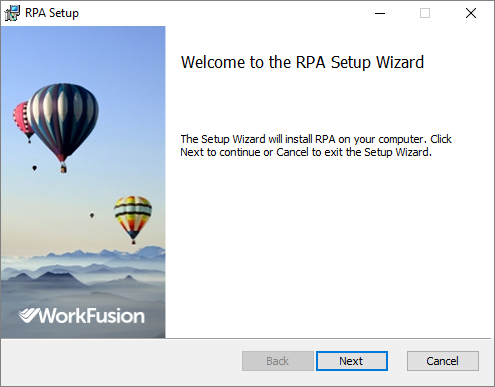
Accept the License Agreement and proceed.
Set the Destination Folder for RPA installation and wait until installation is finished.
Do not select existing folders with sensitive content (
C:/Windows) or root folders (C:/orD:/) because their content will be deleted when you choose to uninstall.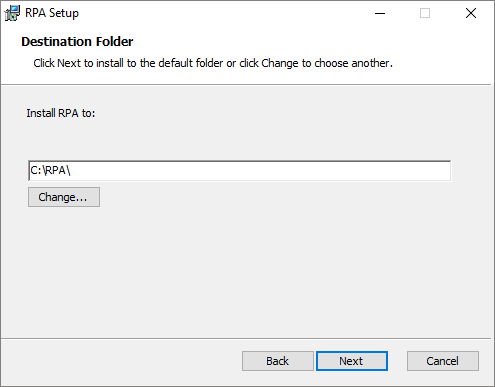
After Installation
For 32-Bit OS Rename Java Folder
Open
C:/RPAfolder. There are two folders with java run-time environment namedjava_x86(used for 32-bit version Windows) andjava(used for 64-bit Windows).In case your OS is 32-bit, rename
javatojava_x64. Afterwards, renamejava_x86tojava. Later, this folder will be used to configure users.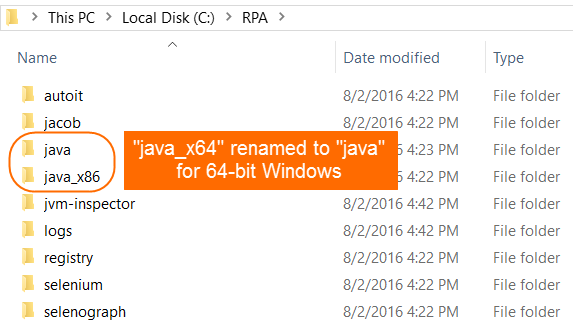
Register Bot Relay
Before making any changes with registering Bot Relay, make sure your Internet Explorer is turned off and no Java processes are running.
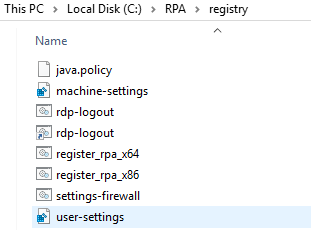
If you have several Windows user accounts on your machine and you are
planning to use RPA on each of them, run user-settings.reg for each user account.
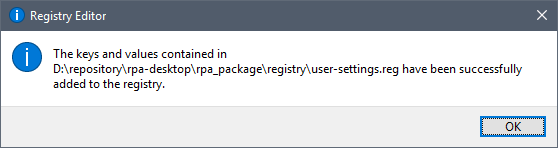
The following popup appears after settings are successfully applied.
tip
If something fails during setup, try to re-run user-settings.reg with Administrator privileges. Also, make sure no antivirus blocks the installation (if so, deactivate your antivirus, run user-settings.reg and launch antivirus again).
Another approach is to launch regedit.exe under Administrator rights, select File > Import, locate and import registry files from the C:/RPA/registry folder.
Check Internet Explorer Settings
To use your IE browser for automation, go through the checklist in Configuring Internet Explorer for RPA.
Configure Java Applet Settings
If you need to automate Java applets, go through the checklist in Configuring Java Applets for RPA.
Configure Bot Relay
You can change Bot Relay default settings by completing the following actions.
Stop RPA Bot(s) and Bot Relay by closing their console windows.
Go to the
C:/RPA/rpa-gridfolder and openhub.jsonornode0.json(or node1, node2, and so on) files in a text editor.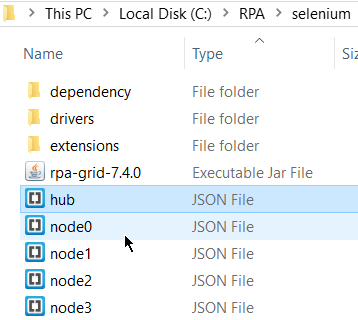
Make the necessary edits.
Save the edited files and run RPA Bot Relay and Bot(s) by launching the appropriate .bat files in
C:/RPA/rpa-grid(start-hub.bat,start-node0.bat).
Start Bot Relay
On successful passing the previous steps, you are able to start Bot Relay.
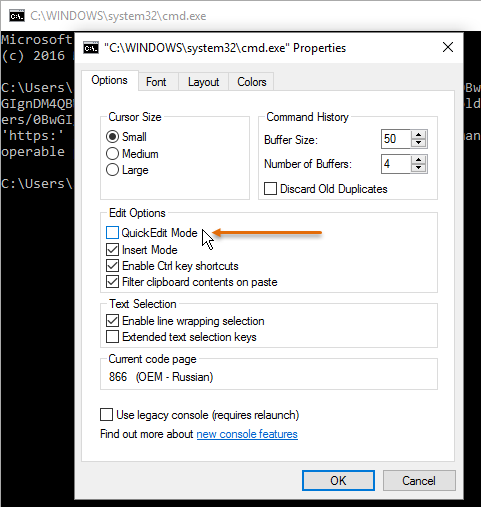
Make sure that the Quick Edit mode is disabled for all users in Windows Command Line (right click > Properties > Options).
Open
C:/RPA/rpa-gridand runstart-hub.bat.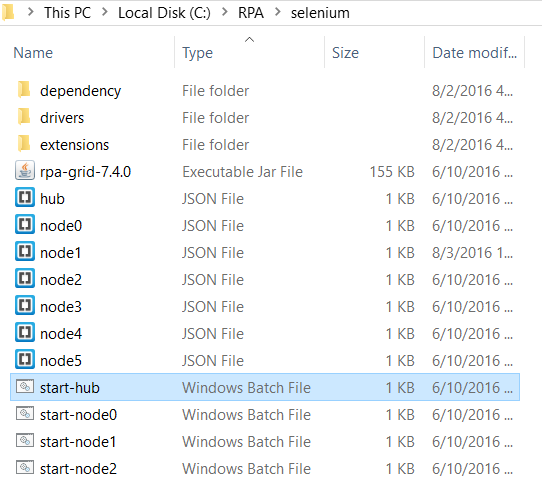
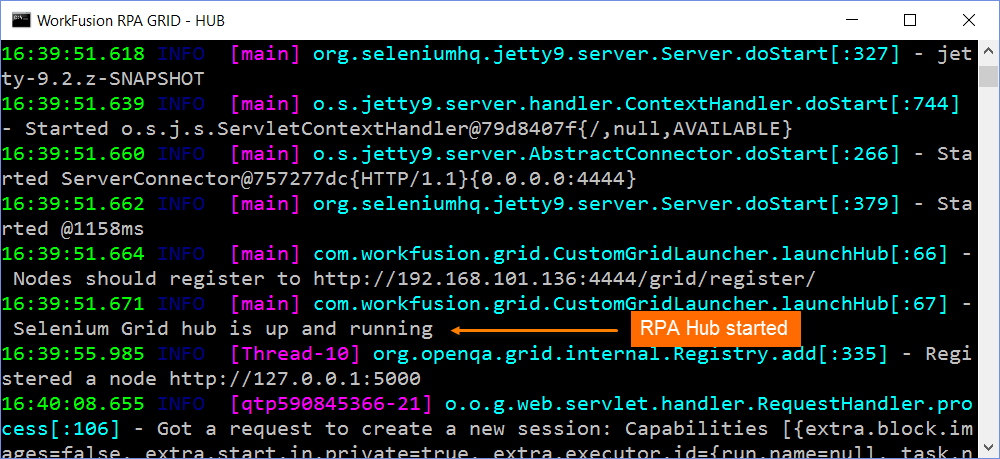
In the opened console screen, check that there are no exceptions and it says "Selenium Grid hub is up and running".
In the same folder (
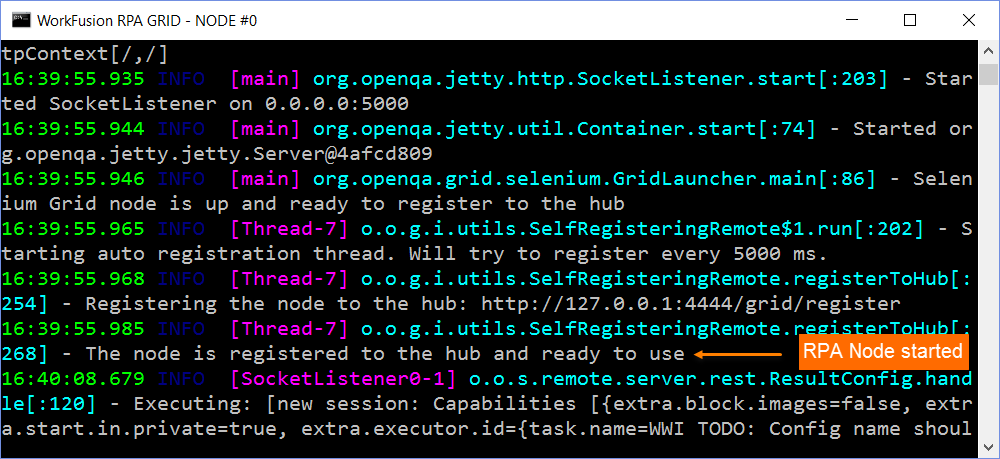
C:/RPA/rpa-grid), runstart-node0.batto start Bot and register it to Bot Relay.In the opened console screen, check that there are no exceptions and it says "The node is registered to the hub and ready to use".
(optional) You can run additional Bots by executing the
start-node1.batand so on.Each Bot must be started under a separate Windows user. For example:
Start Bot Relay as user1.
Open an RDP connection to localhost under user2 and start RPA Bot1.
Open an RDP connection to localhost under user3 and start RPA Bot2.
These RDP connections should always be active for Bot Relay correct functioning.
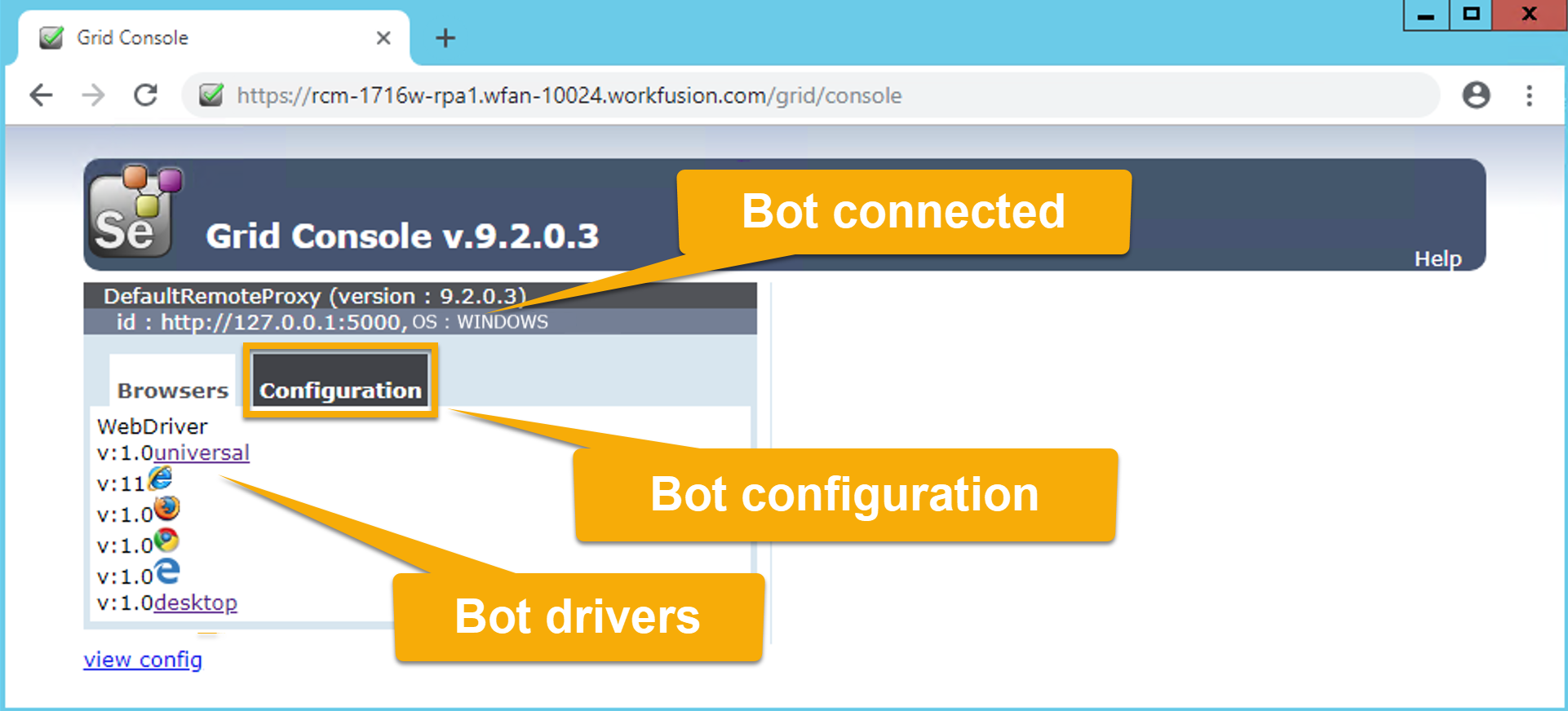
To check that Bot Relay works, for example, Bots are available on Bot Relay and WebDrivers exist on the connected Bots, open the following link in your browser: https://rpa.example.com/grid/console The Grid Console screen with configured WebDrivers looks as follows.
Run RPA configs from WorkFusion Studio
As soon as Bot Relay is configured, you can test it by executing RPA scripts from our bot-samples.zip package in WorkFusion Studio.
Start WorkFusion Studio.
Create a new WorkFusion Project.
Create a Configuration file and paste the code from one of the example package files.
Create a new Run configuration (Run > Run Configurations) with WorkFusion Machine Config type.
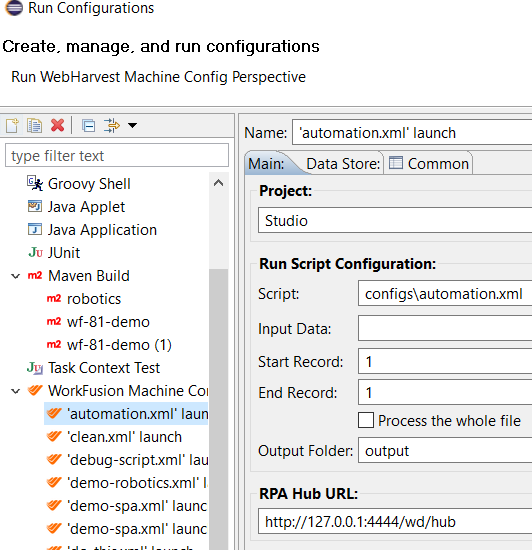
Check the Bot Relay URL option: http://127.0.0.1:4444/wd/hub.
Click the Run button. If all modules are configured properly, a browser or a desktop application will be opened and managed by Bot Relay.
Bot Relay and Bot Logs
When your RPA script is being executed, watch the Bot Relay and Bot consoles. The following screenshot displays successful actions and an error.
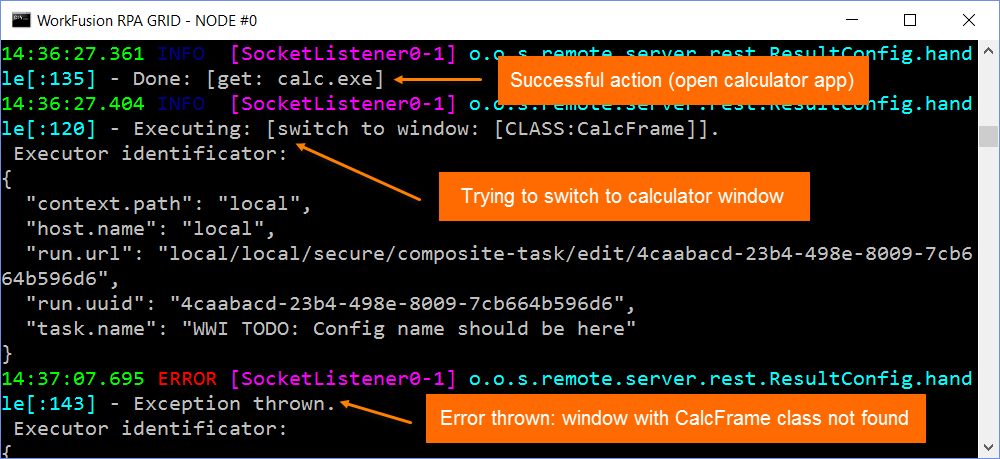
The error could be caused by:
- Incorrect RPA script (window selector or timeout).
- Incorrect RPA Bot setup – see the Configure Bot Relay section.
- Desktop application failure, and so on.
In most cases, you need to restart RPA Bot or RPA Bot Relay (close console and open the appropriate batch file again), modify the script code, or modify the Bot Relay and Bot setup.