View and manage workers and worker data in Control Tower
View all workers
In Control Tower, to view and manage workers and their data, navigate to Workers > View All.
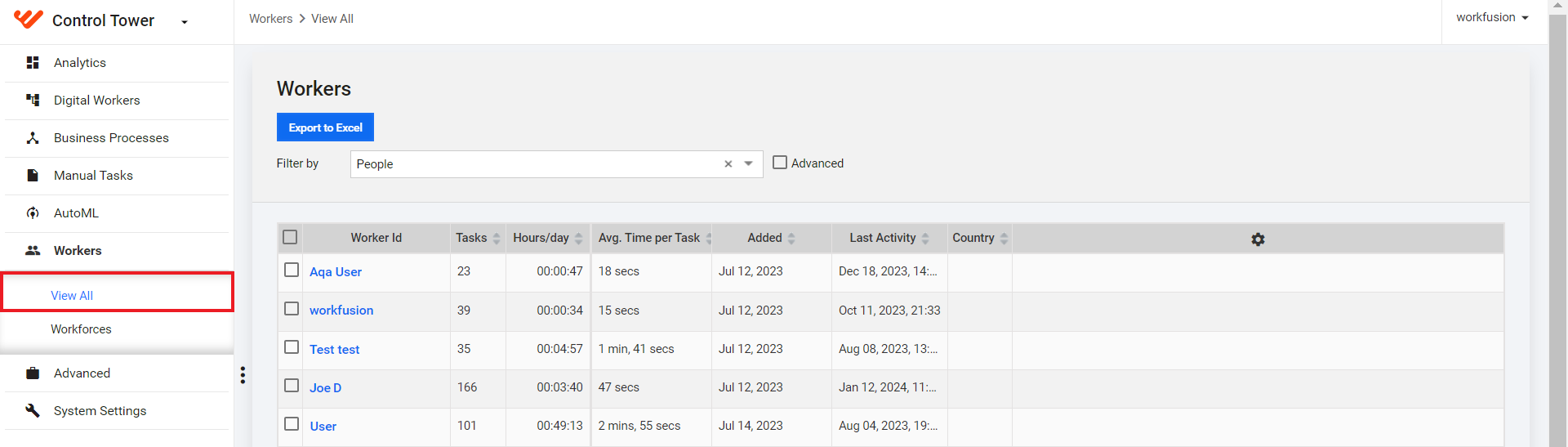
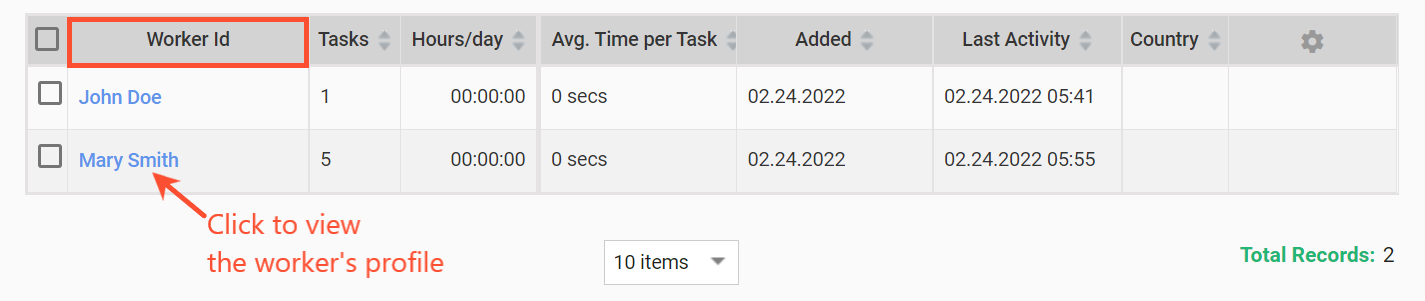
The grid on the Workers page contains all workers who have submitted tasks or sent feedback on a task, including bots. It has horizontal scrolling, and you can manage the number of displayed columns by clicking the cogwheel in the top right corner.
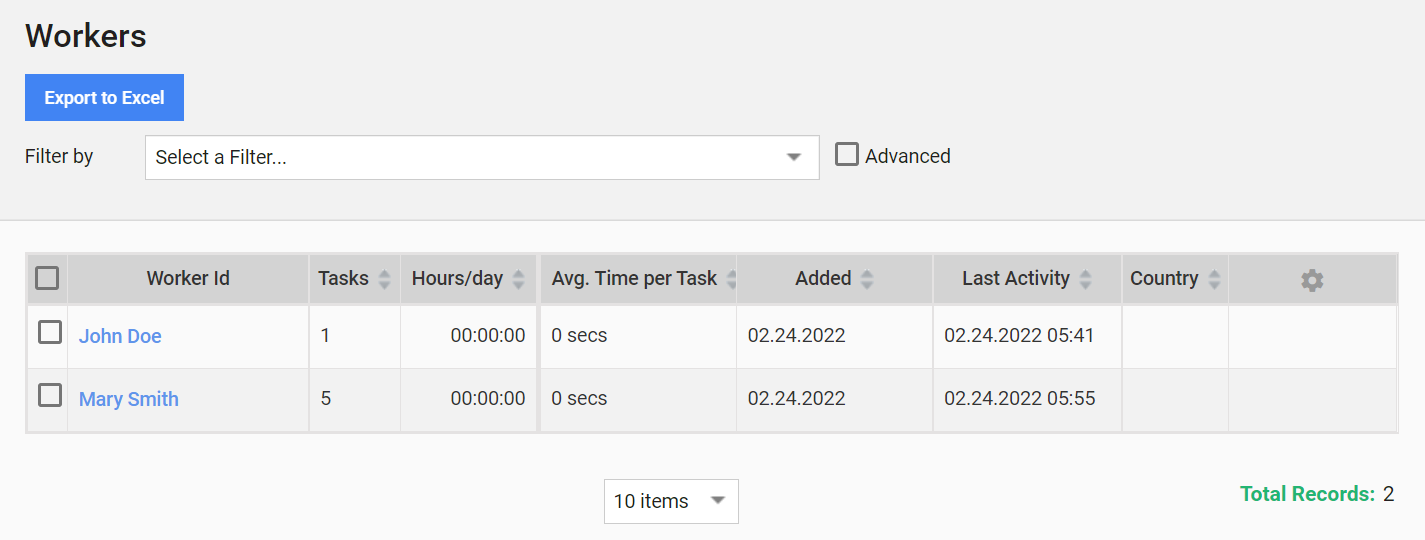
Worker grid details
The grid can contain the following information arranged in columns:
| Column heading | Description |
|---|---|
| Worker Id | System-generated unique identification number assigned to each worker. |
| Tasks | The total number of tasks completed by the worker. |
| Hours/day | Total hours and days spent by the worker on tasks. |
| Avg. Time per Task | The average time the worker spends per task. |
| Added | The date and time when the worker was added to the system. |
| Last Activity | The date of the last recorded worker action, for instance, submission or feedback. |
| Country | The country of origin associated with the worker. |
You can manage the grid data in the following way:
To narrow down the number of workers displayed in the grid, apply filters.
To export the list of workers to an Excel spreadsheet, click the Export to Excel button. To perform bulk export, select one or more checkboxes next to the Worker Id column before clicking the button.
Filters
You can apply the predefined filters by selecting them in the Filter by drop-down box or create a custom advanced filter.
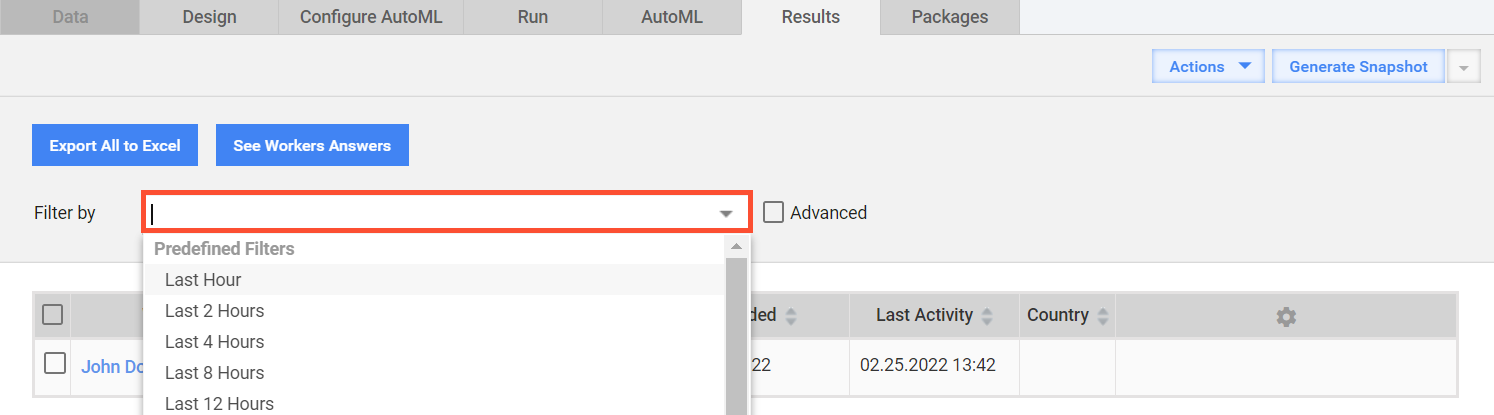
To create and apply a custom filter, follow the steps:
Select the Advanced checkbox. A filter panel appears on the screen.
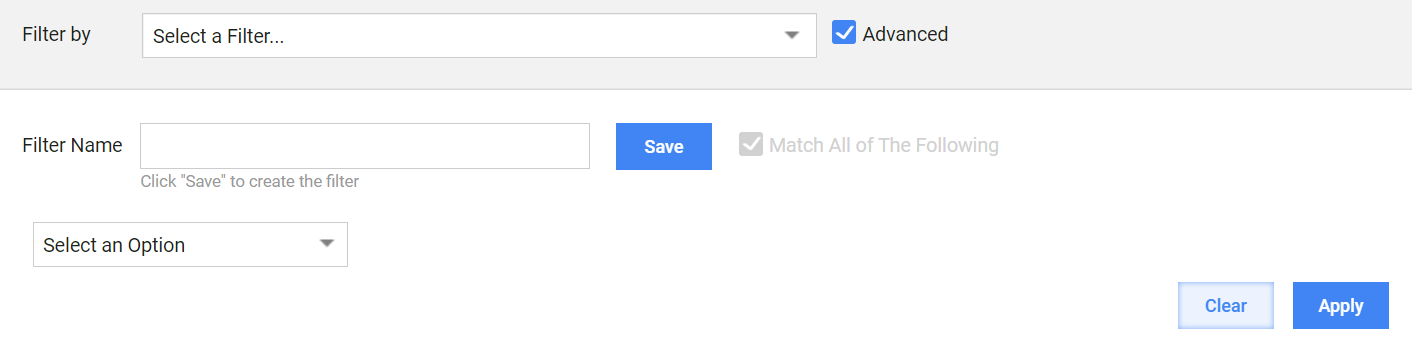
In the Select an Option drop-down box, choose a filtering condition.
Select a logical operator (equals to, contains, less than, and so on) for each selected filtering conditions.

To add more conditions, click the + button.
Enter a value for each selected filtering condition.
Click the Apply button.
To save the filter and make it reusable, fill in the Filter Name field and click the Save button. The saved filter appears in the Filter by drop-down list.
Manage worker profile
To view a worker profile, go to the Worker Id column and click a record with the required name.
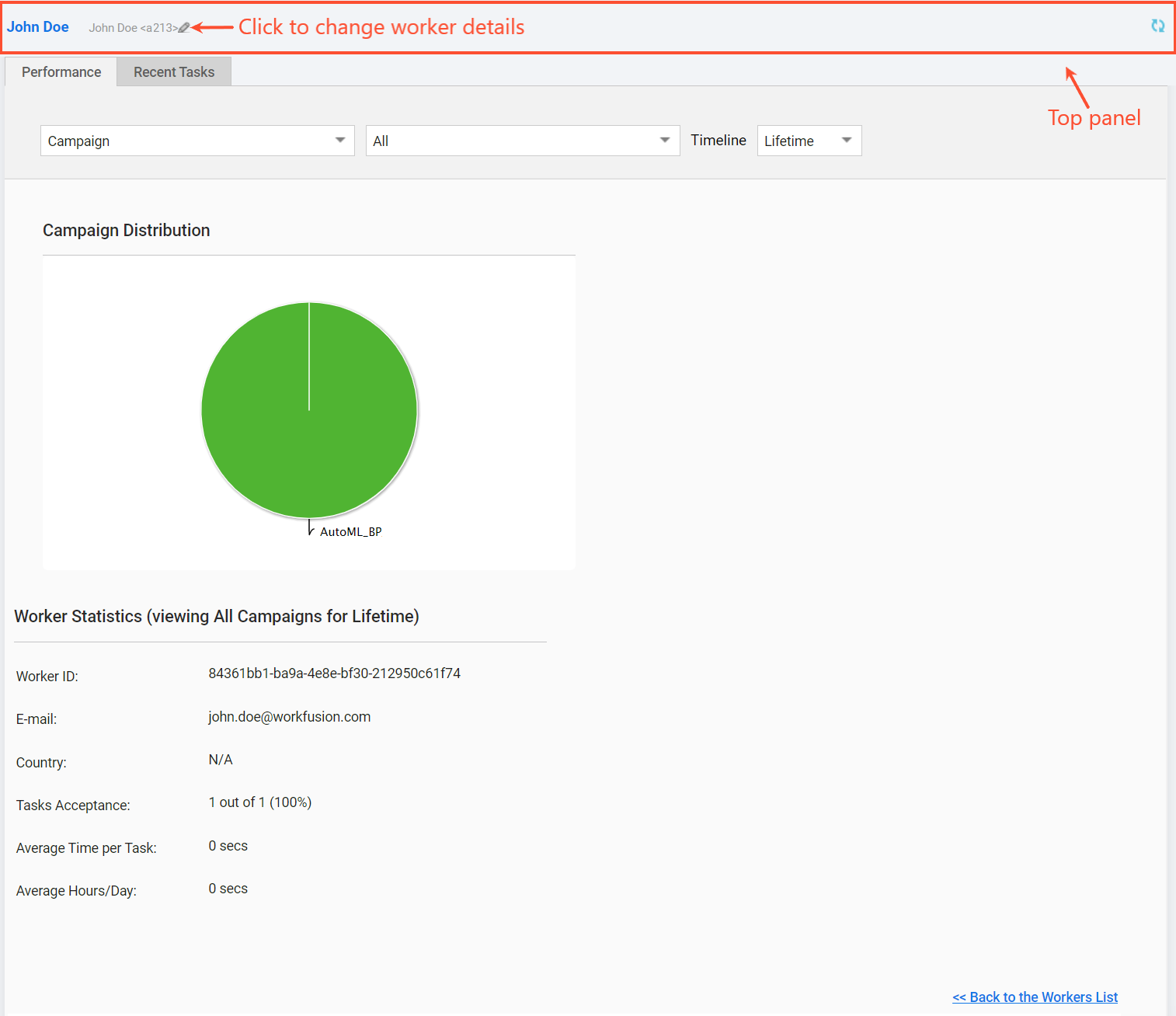
The screen displays the Worker Profile page for the particular record. The top panel can contain the worker's ID, name, and comments or notes. To modify any of the details, hover over the worker's name and click the pencil icon.
Alternatively, you can navigate to a worker profile from the Workers > Results in a specific Manual Task.
Performance
The Performance tab contains overall worker statistics displayed in tables and pie charts. You can filter the data by the following parameters:
- Campaign: a Manual Task, Business Process (BP), Operation
- All or a particular Manual Task, BP, Operation
- Timeline: a period to display data
Charts
In the chart area on the Performance tab, you can see a number of charts:
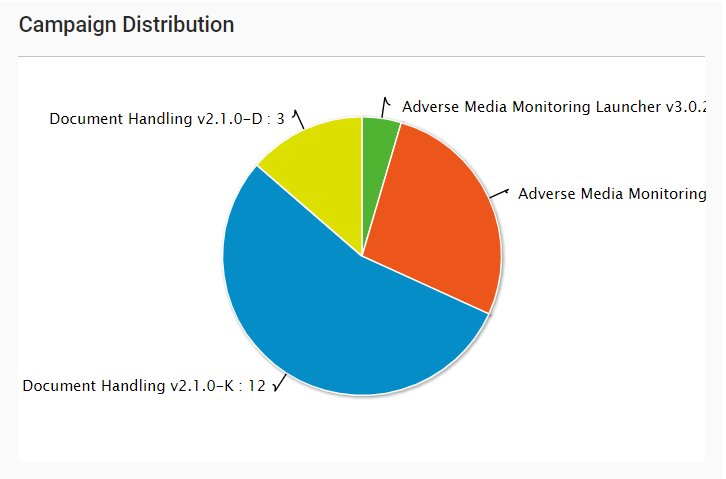
Campaign Distribution: displays how many tasks a particular worker submitted in a Campaign (Manual Task or BP). Among other factors, this allows you to identify the preferred type of tasks for the worker.
Time Distribution

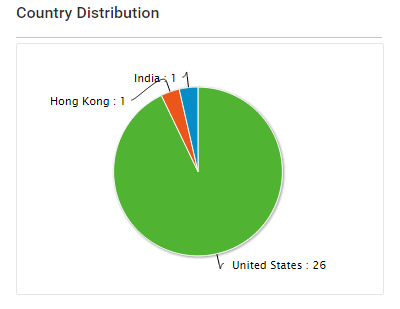
Country Distribution
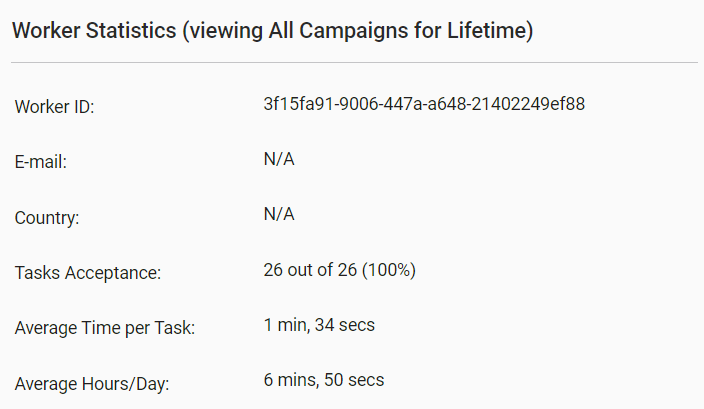
Worker statistics
Below the Chart area is the grid containing key parameters calculated based on the worker's activity.
Recent Tasks
The Recent Tasks tab provides information about the tasks completed by a specific worker.
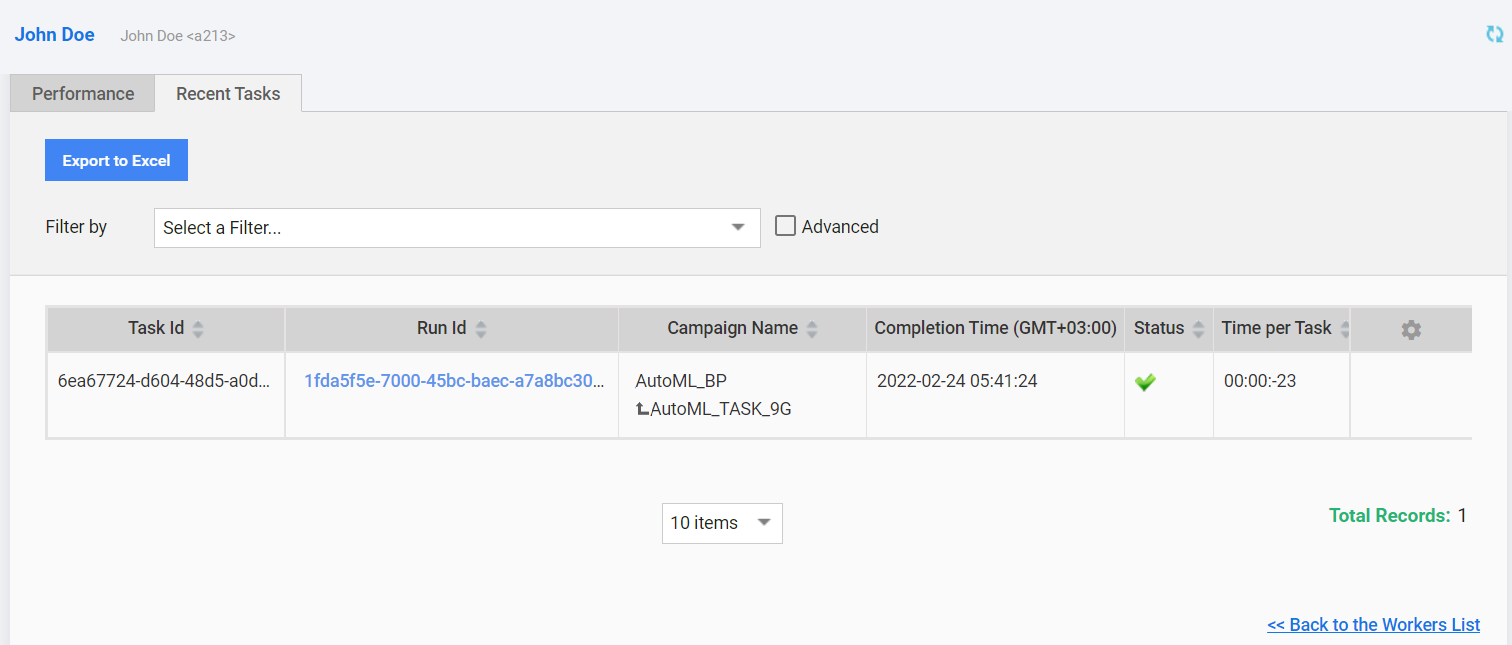
On the tab, you can perform the following actions:
- Export to Excel
- Filter the tasks
- Navigate to a specific run by clicking Run Id
View worker results for Manual Tasks
After you post Manual Tasks, workers start accepting and completing them. To monitor statistics and manage the workers participating in a task, open the Manual Task and navigate to Workers > Results.
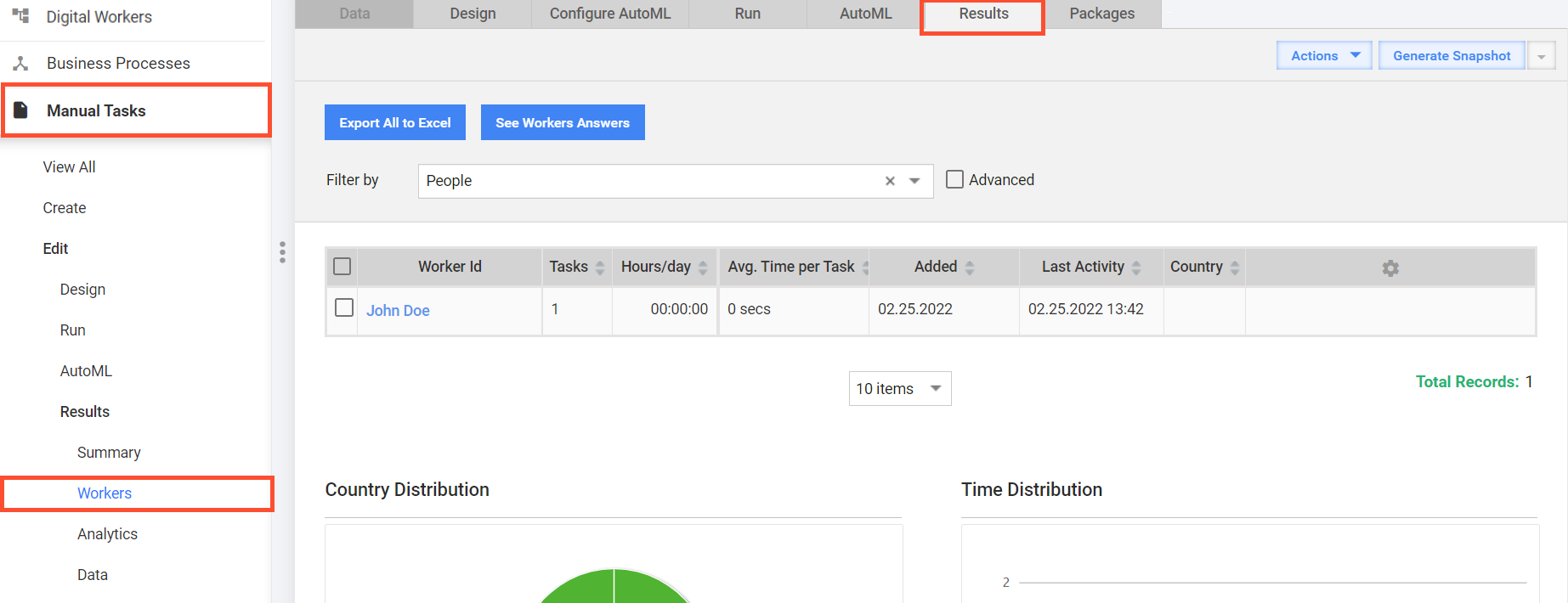
The Workers grid has horizontal scrolling, and you can manage the number of displayed columns by clicking the cogwheel in the top right corner.

To narrow down the number of workers displayed in the grid, apply filters.
To navigate to the worker profile, click the username. For details, refer to the Manage worker profile section above.
To export the worker grid data to an Excel spreadsheet, click the Export to Excel button. To perform bulk export, select one or more checkboxes next to the Worker Id column before clicking the button.