Create and manage Operations
Operations are templates from which you can create the following:
- Manual Tasks: contribute predefined questions, answers, instructions, and sample input files. For details, refer to the Create Manual Task topic.
- Bot Tasks: provide a baseline configuration code. For details, refer to the Bot Task Operations section.
- Business Processes: describe a basic workflow. For details, refer to the Create Business Process topic.
When using Operations, mind the important considerations below:
- When you create a task or a Business Process from an Operation, all its properties are copied.
- When you edit a task, the changes do not affect the underlying Operation.
- When you edit an Operation, the changes do not affect the tasks or Business Processes created from the Operation.
Manage Operations
Work.AI offers a range of out-of-the-box (OOTB) Operations. Alternatively, you can create them on your own.
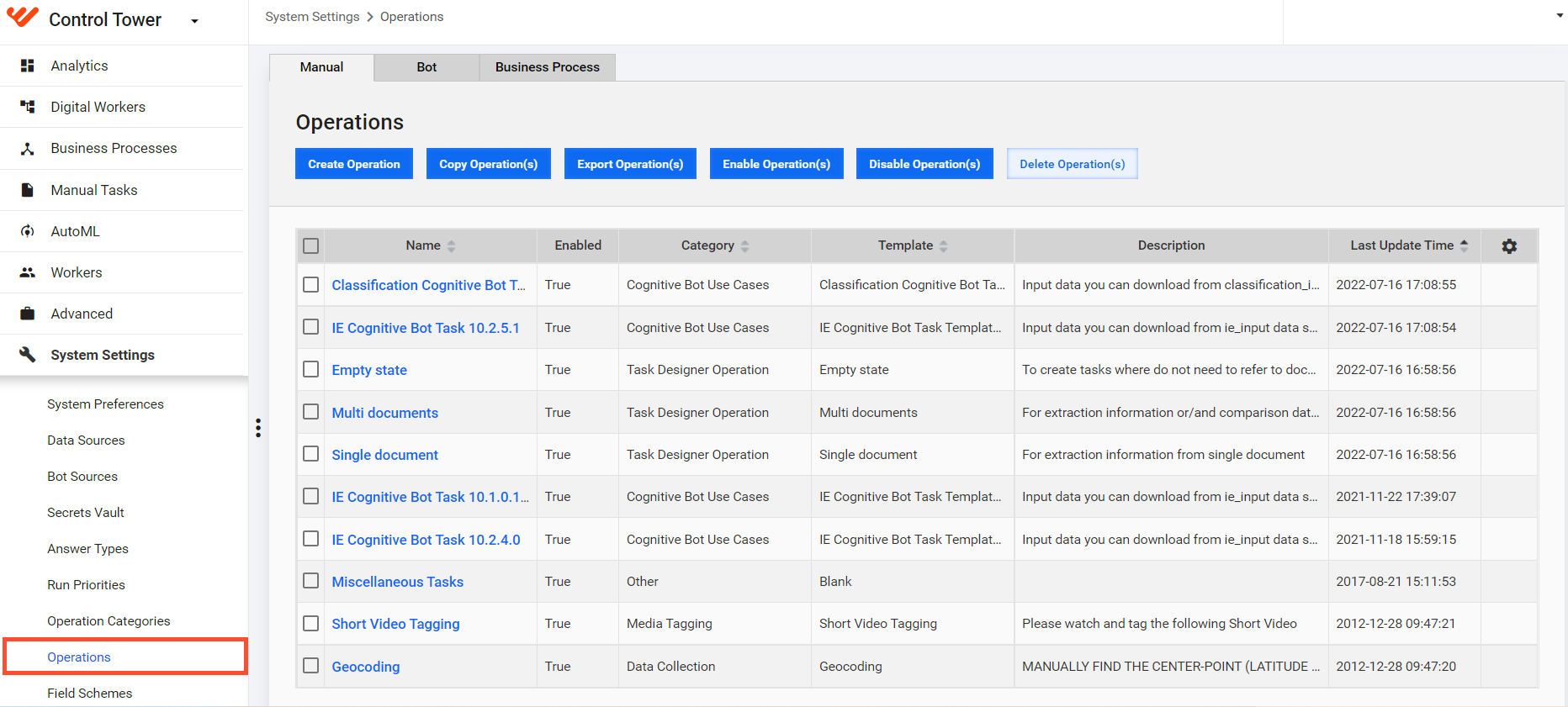
All available Operations, both OOTB and the ones created by users, are listed on the Operations page. To access the page, go to System Settings > Operations.
Create Operation
Via the Operations page, you can create the following:
Alternatively, you can create Operations from existing Manual Tasks as described in the Design Manual Task in legacy Task Designer mode topic.
Manual Task Operations
To create a Manual Task Operation, go to the Manual tab and click the Create Operation button. This opens the Create Operation page:
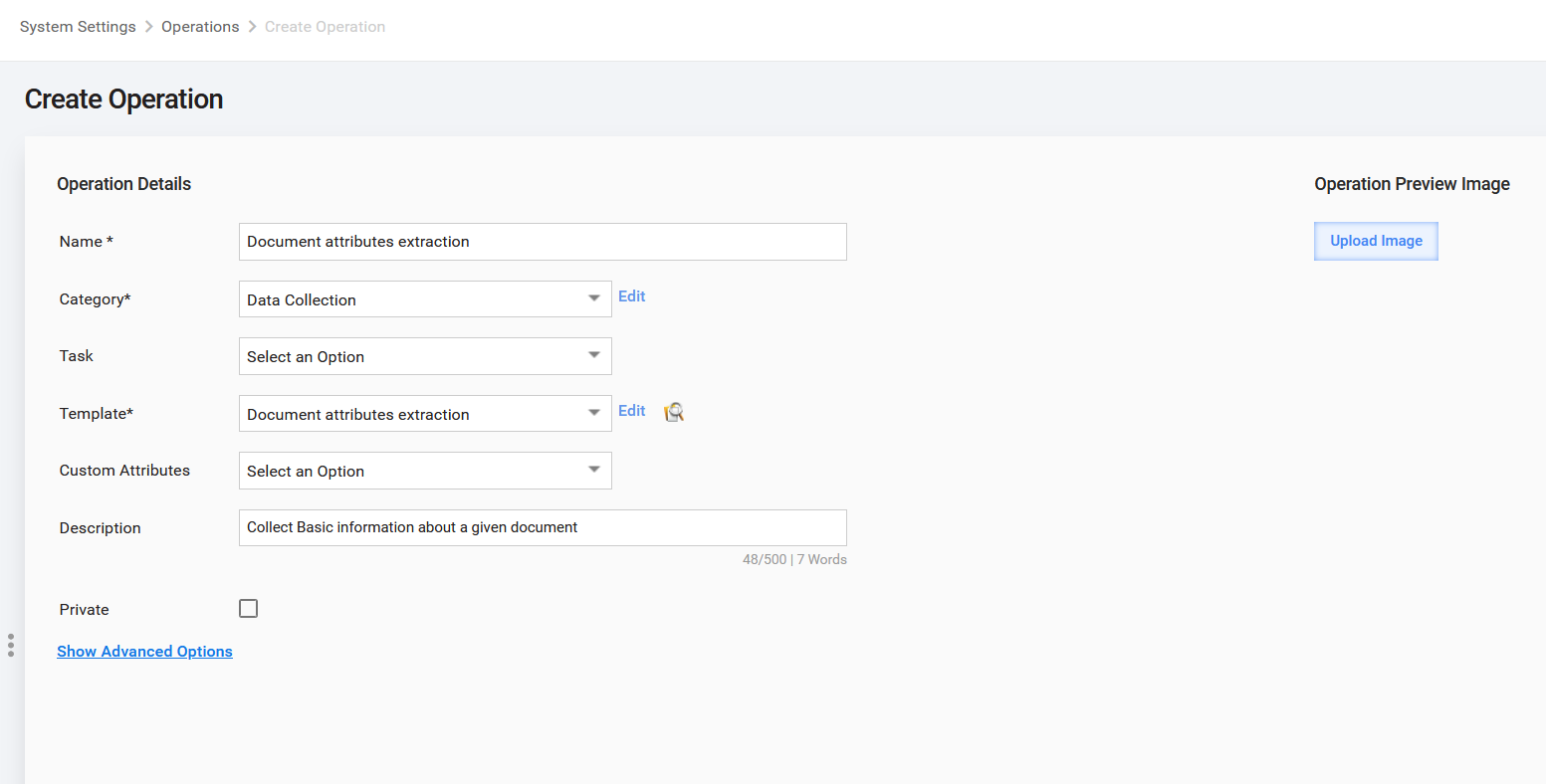
On the page, fill in the fields based on the instructions in the table below:
| Field | Action |
|---|---|
| Name | Specify a unique Operation name. |
| Category | Select a Category that fits your Operation. To change the selected Category, click the Edit link. |
| Task | Select a task to be the source for the Operation. After you select the task, a template loads automatically. To preview or edit the template, click the Edit link. |
| Custom Attributes | See Manage custom attributes. |
| Description | Enter common information about the Operation. |
| Private | If unchecked, WorkSpace workers will see the Operation in the assignment list (DEPRECATED). |
| Preview Image | Upload an image to distinguish the Operation from others and give the user initial information about the look of the task. |
| Advanced Options | Click the link to display the task options and Task Designer. It is recommended to create Operations from tested tasks only and avoid editing the Operation's Advanced Options. |
Bot Task Operations
To create a Bot Task Operation, go to the Bot tab and click the Create Operation button. This opens the Create Operation page:
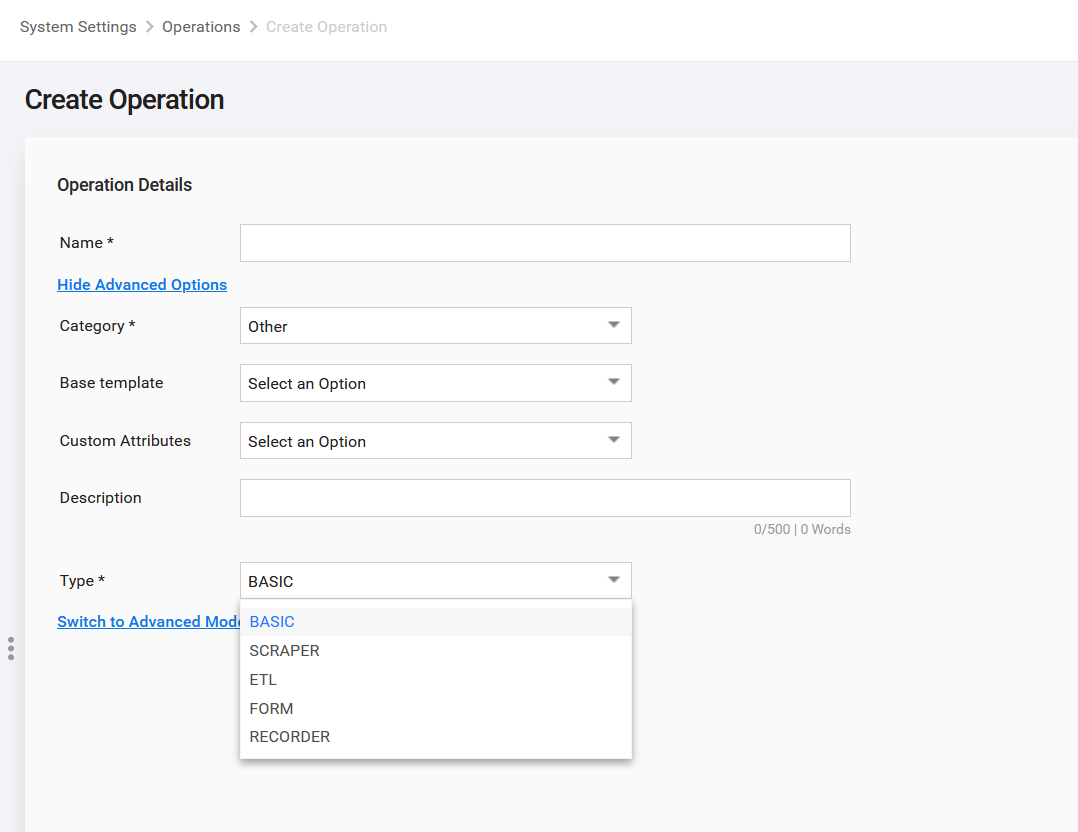
On the page, fill in the fields as instructed in the Create Bot Operation topic.
Business Process Operations
To create a BP Operation, go to the Business Process tab and click the Create Operation button. This opens the Create Operation page:
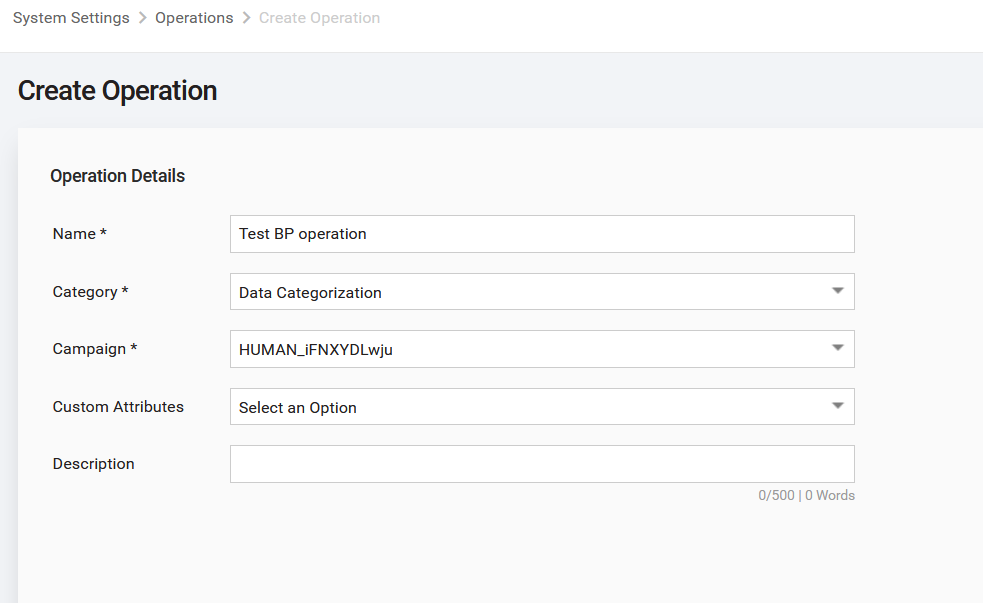
On the page, fill in the fields based on the instructions in the table below:
| Field | Action |
|---|---|
| Name | Specify a unique Operation name. |
| Category | Select a Category that fits your Operation. |
| Campaign | Select a Business Process to be the source for the Operation. After you select the Business Process, you can preview or edit it by clicking the Edit link. |
| Custom Attributes | See Manage custom attributes. |
| Description | Specify common information about the Operation. |
| Preview Image | Upload an image to distinguish the Operation from others and give the user initial information about the look of the task. |
Edit Operation
To edit an Operation, go to a proper tab (Manual, Bot, or Business Process), click the Operation in the list, and make required changes.
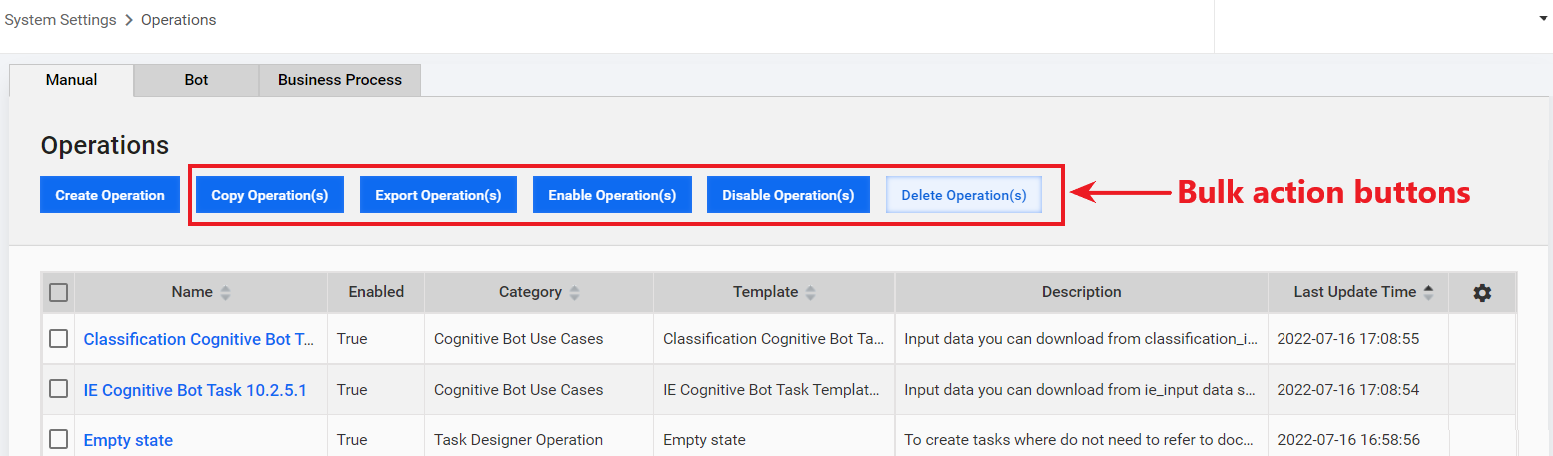
Perform bulk actions
In addition to creating or editing, on the Operations page, you can also perform the following bulk actions with Operations:
- Delete
- Copy
- Export and import in the XML format
- Enable and disable
To perform any of the actions, select one or more checkboxes in the Operations list and click appropriate buttons.
Manage Operation Categories
Each Operation must belong to a Category. To manage Categories, go to System Settings > Operation Categories.
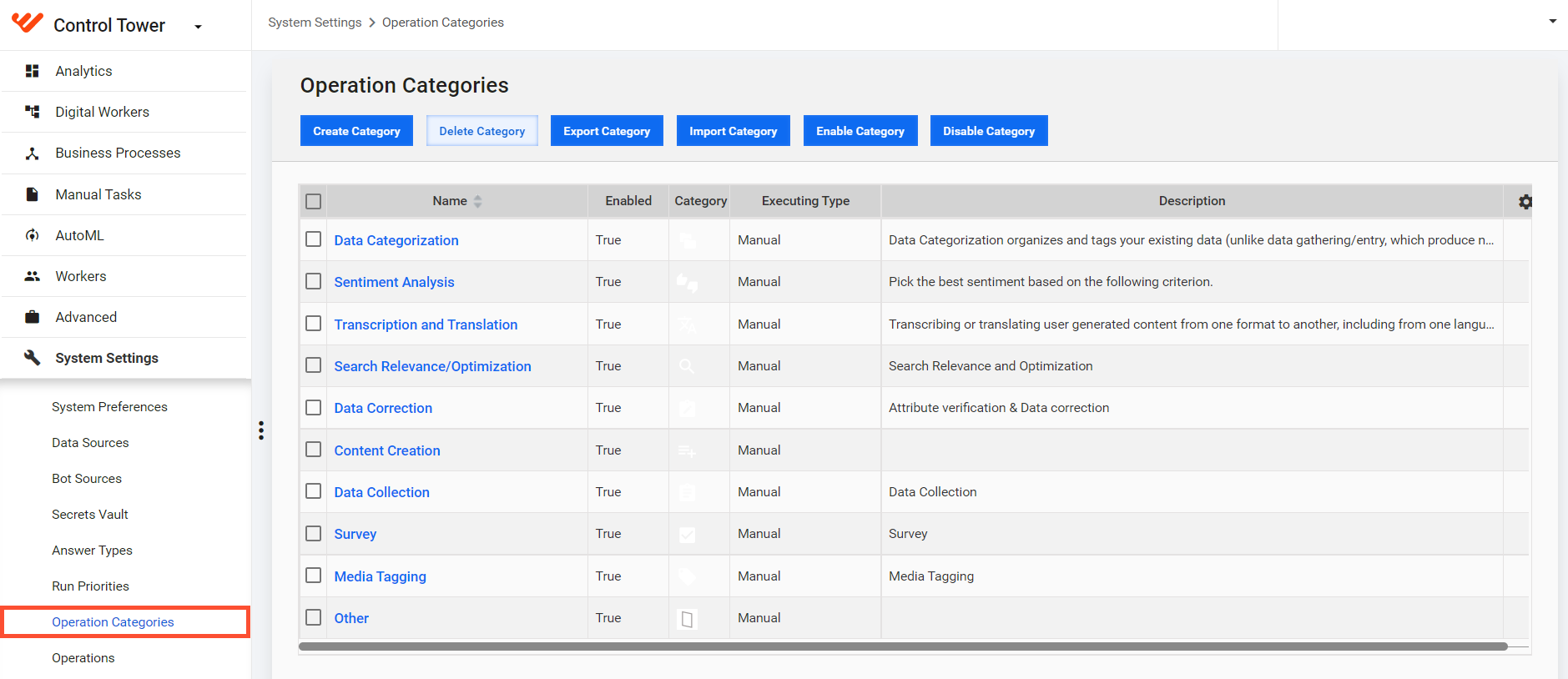
Create or edit Operation Category
To create an Operation Category, click Create Category.
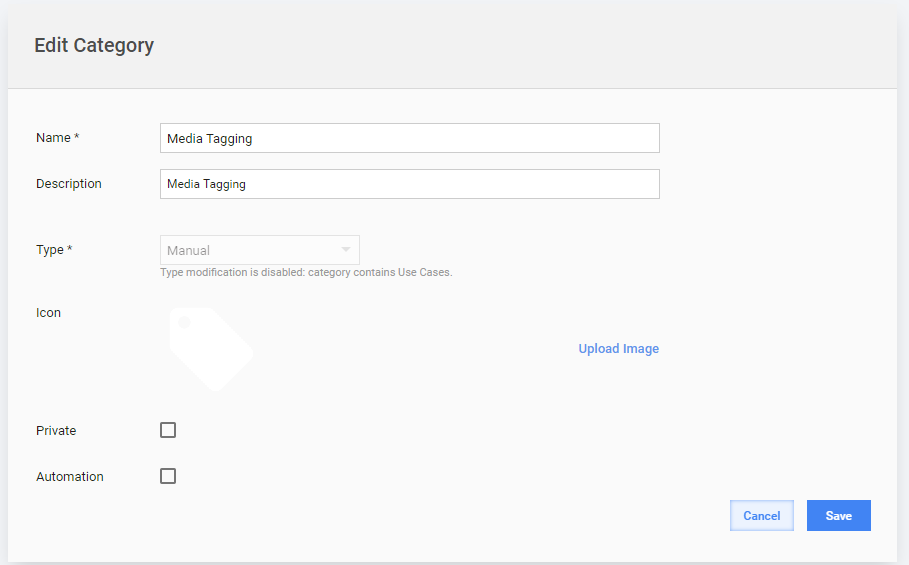
On the displayed page, fill in the fields based on the instructions in the table below:
| Field | Action |
|---|---|
| Name | Specify a unique Category name. |
| Description | Enter common information about Category items. |
| Type | (Manual or Bot) Type modification is disabled if the Category already contains some Operations. |
| Icon | Upload an icon to distinguish the Category from others. |
| Private | If unchecked, WorkSpace workers see the Category on the Tasks page (DEPRECATED). |
To edit a Category, click it in the list and change the settings as required.
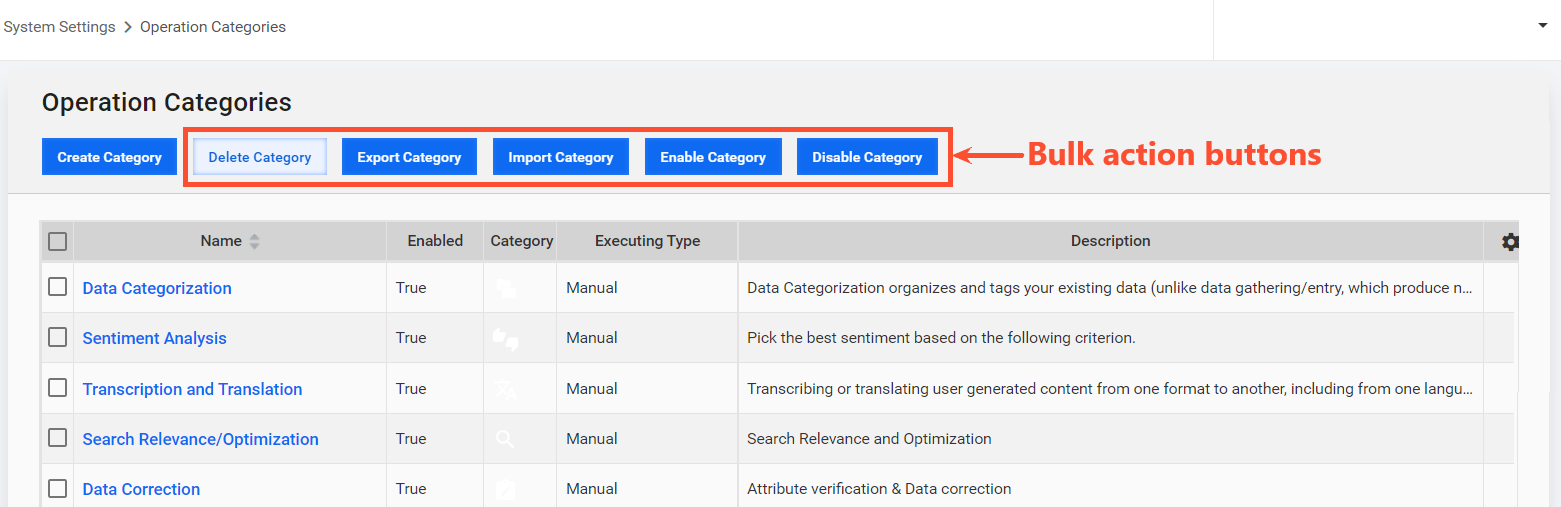
Perform bulk actions
In addition to creating or editing, on the Operation Categories page, you can perform the following bulk actions with a Category:
- Delete
- Export and import in the XML format
- Enable and disable
To perform any of the actions, select one or more checkboxes in the Operation Category list and click appropriate buttons.