Group records by unique column
The article describes setting up a Manual Task with denormalized input data using the unique column name functionality.
This information can be useful, for example, when you want workers to provide a "True/False" answer, but each question will have different answer options (variants). Moreover, each task can have a different number of answer options.
Prepare initial input file
In the following example, a worker should pick up a match action with tool.
| seq | action | tool |
|---|---|---|
| 1 | Hit Nail | Shovel |
| 2 | Hit Nail | Rake |
| 3 | Hit Nail | Saw |
| 4 | Hit Nail | Hammer |
| 5 | Hit Nail | Hose |
| 6 | Cut lawn | Edger |
| 7 | Cut lawn | Rake |
| 8 | Cut lawn | Mower |
| 9 | Cut lawn | Hammer |
| 10 | Cut lawn | Screwdriver |
The Manual Task should look like this:
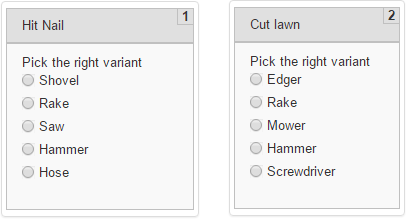
The initial file has ten records, but you need only two records with five different answer options. To implement the task using the standard column-answer mapping, create a new task for each record, which is not the right approach.
Therefore, you need to:
Group (merge) records by the action column.
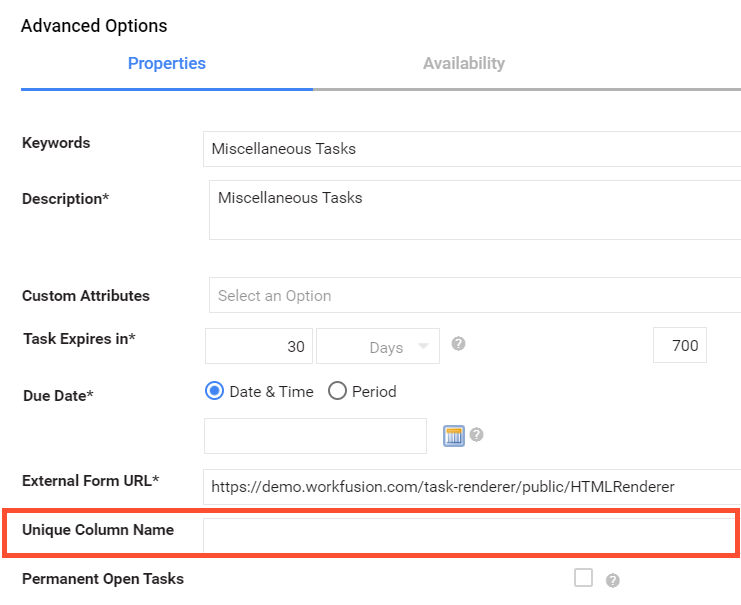
- In a selected Manual Task, go to Edit > Run > Advanced Options > Properties.
- Enter the appropriate column name into the Unique Column Name field.
 .
.On the Design tab, add an Answer with the Check one type. Depending on your task, the Answer type can be Check Multi, Select One, Select Multi, and so on.
Edit the task code to load the Answer options from the tool column. To do this, you need basic CSS, HTML, and JavaScript (jQuery) knowledge.
View file after grouping
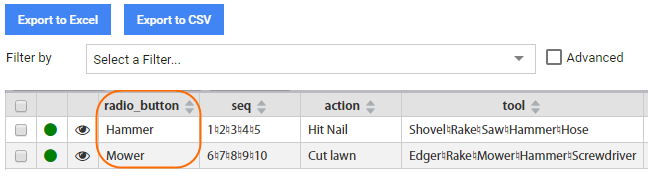
Records are merged by the Unique Column. The strings are concatenated using the following delimiter:
♮ - music natural sign (U+266E)
Some text editors can incorrectly display this symbol. Do not forget to use the UTF-8 encoding.
| seq | action | tool |
|---|---|---|
| 1♮2♮3♮4♮5 | Hit Nail | Shovel♮Rake♮Saw♮Hammer♮Hose |
| 6♮7♮8♮9♮10 | Cut lawn | Edger♮Rake♮Mower♮Hammer♮Screwdriver |
Design task
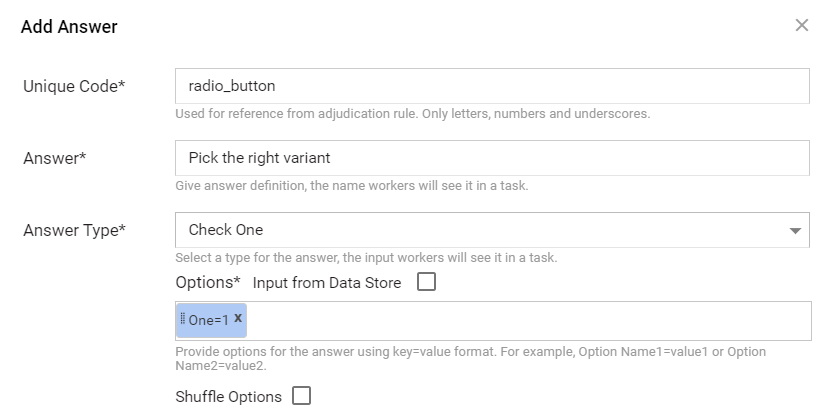
Add a new Answer with the Check One type and one option (for example, "One=1").
The option is needed as a prototype for copying and is removed with JavaScript on the next step.
Edit task code
To load the string from the tool column to Answer options, write the following JS code:
 function splitter(initialString) {
    var variants = initialString.split("♮");
    var id = $("input[name*='radio']").attr("name");
    var hidden = $("input.check-one-hidden[name=" + id + "]");
    var etalon = $(".cc-label").clone(true, true);
    $(".cc-label").remove();
    for (i = 0; i < variants.length; i++) {
      var temp = etalon.clone(true, true);
        temp.find('[value=1]')
            .attr("value", variants[i])
            .attr("text", variants[i])
            .attr("name", id);
        temp.find(".hotkey-text").text(variants[i]);
      $(hidden).before(temp);
    }
}
window.onload = splitter("${questions[0].data.tool}");
Algorithm
Split the string into an array (variants) using the (♮) delimiter.
Copy the Answer ID into the (id) variable.
Clone and remove the Answer option.
Paste new Answer options with appropriate name, text, and value attributes.
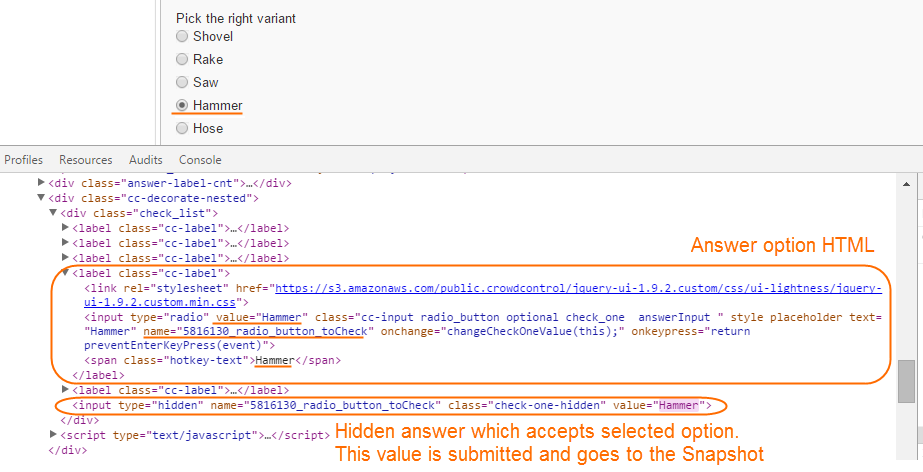
Run task
To start testing, run the task. The merged records will be correctly displayed only after the Run Task action.
Results