Set roles and permissions for Superset Analytics
To manage the access to Superset dashboards and related components, use standard Control Tower roles and permissions. To view or change the Superset-related permissions in Control Tower, navigate to System setting > Role management.
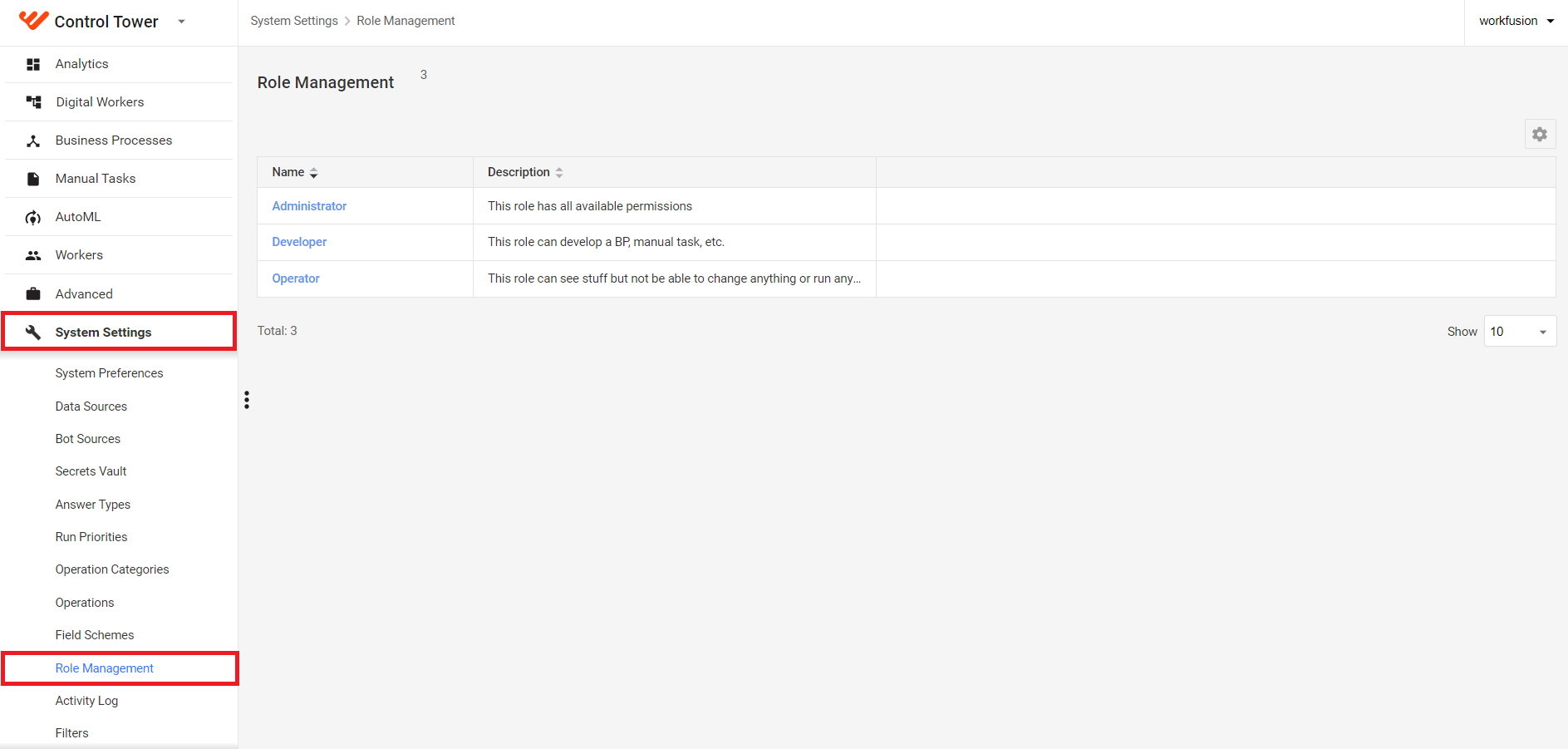
On the page, the following roles are available out of the box with the default scope of permissions as detailed below:
- Admin users have full access with the ability to modify permissions of other roles.
- Developer users can do almost everything, except importing dashboards and changing permissions.
- Operator users have read-only permissions by default. It means they can only view dashboards but cannot modify or create them or their components.
For more information about the default permissions associated with the roles and instructions to change them, see Change access permissions in Control Tower.
Configure Keycloak roles
The above default Control Tower roles are configured and inherited from the wf-control-tower client in the WorkFusion's Keycloak-based user management system.
When a user logs in for the first time, Superset communicates with Keycloak. If the person is valid and matches Keycloak's access settings, he or she gets access to Superset dashboards and related analytics data. At that, the scope of their access depends on the permissions set for particular roles via Control Tower.
To create a custom role in addition to the existing default ones, follow the steps below:
Custom roles can be created by Administrator users only and for on-premise installations only.
Log in to the WorkFusion's user management system (Keycloak). On the main menu, in the Configure group, click Clients.
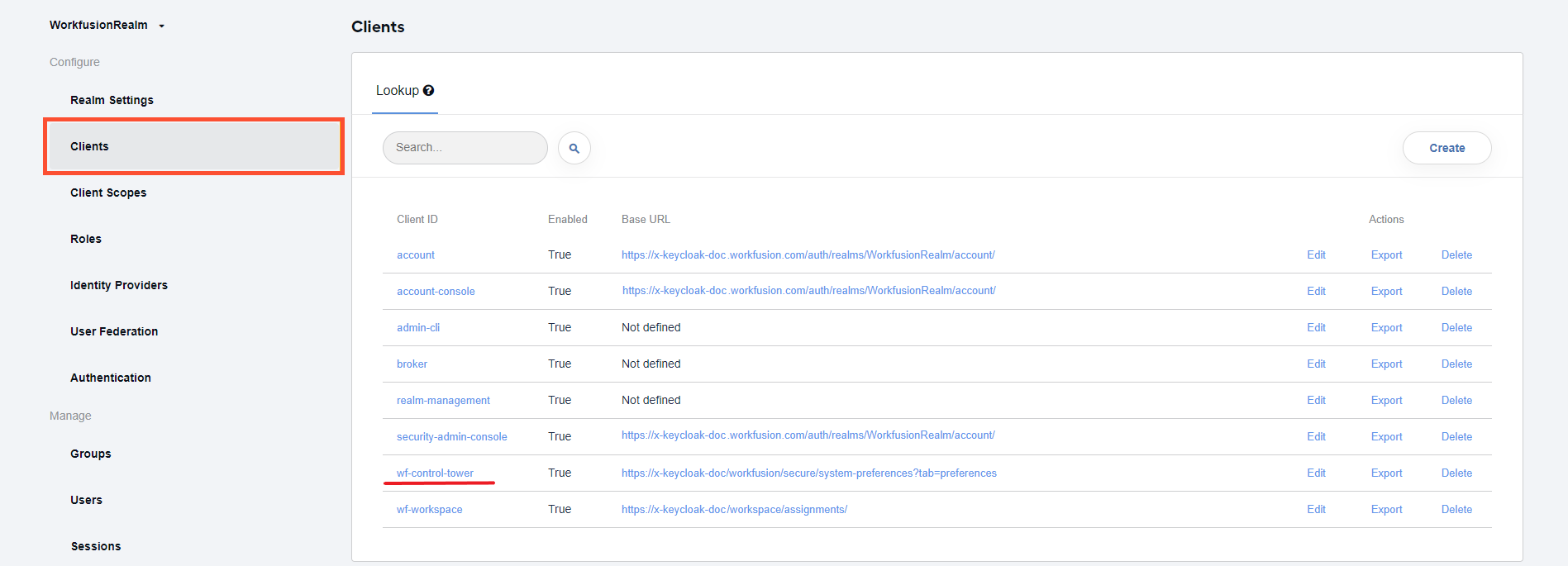
In the displayed list, click the wf-control-tower client. The client window appears.
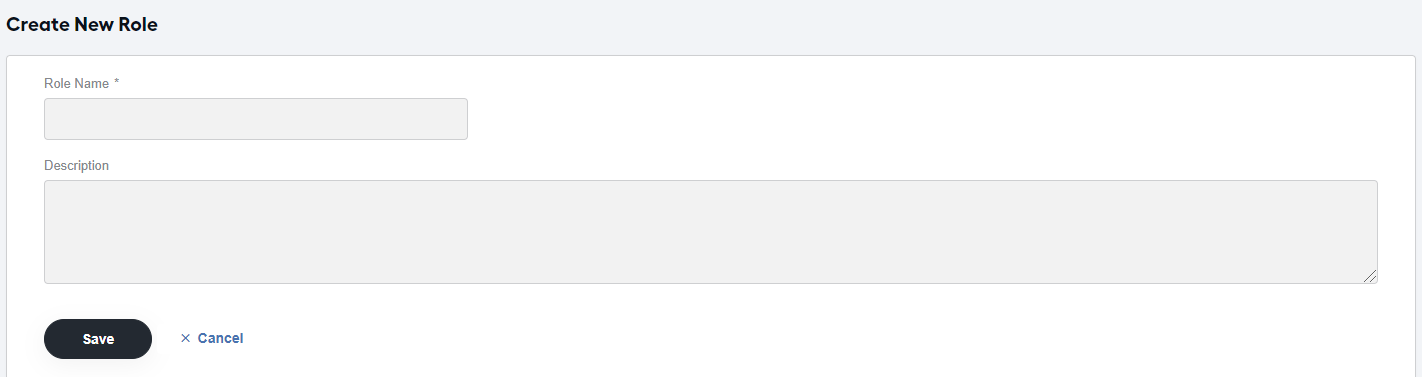
Go to the Roles tab, click Create New Role.
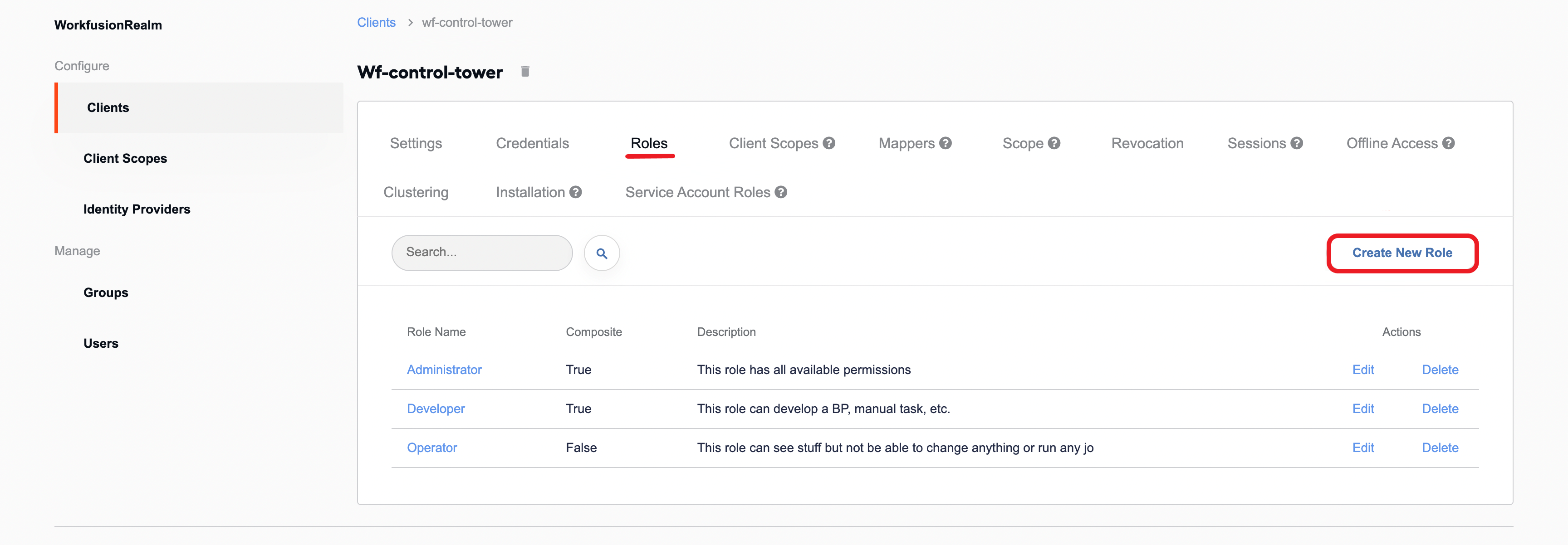
Fill in the fields and click Save.
To map users to the new custom role, follow the instruction.
Once a custom role is created in Keycloak, it appears in Control Tower on the Role Management page. Your next step is to assign the Analytics permissions to it and save the setup.
Change access permissions in Control Tower
Control Tower features the following permissions you can use to allow or restrict access to Analytics:
Alerts & reports allows you to view, configure, and receive alerts and reports based on the data from Superset-based analytics.
Analytics Read-only enables you to view Superset-based dashboards and related data, subject to any access-restricting filters. However, users with only this permission cannot create or modify dashboards and their components.
Edit Dashboards allows you to create and modify Superset-based dashboards, but not charts, datasets, or queries.
Edit Charts, Datasets & Queries allows you to create and modify components for Superset-based dashboards, such as charts, datasets, and queries.
Import Dashboards allows you to import Superset-based dashboards as well as their components.
For default permission setups associated with default roles, see the default permissions table.
To change access permissions for a particular role, follow the instructions in the Manage Control Tower roles and permissions guide.
Changing Superset-related permissions is only available for Admin role users.
Fine-grain Superset access with filters
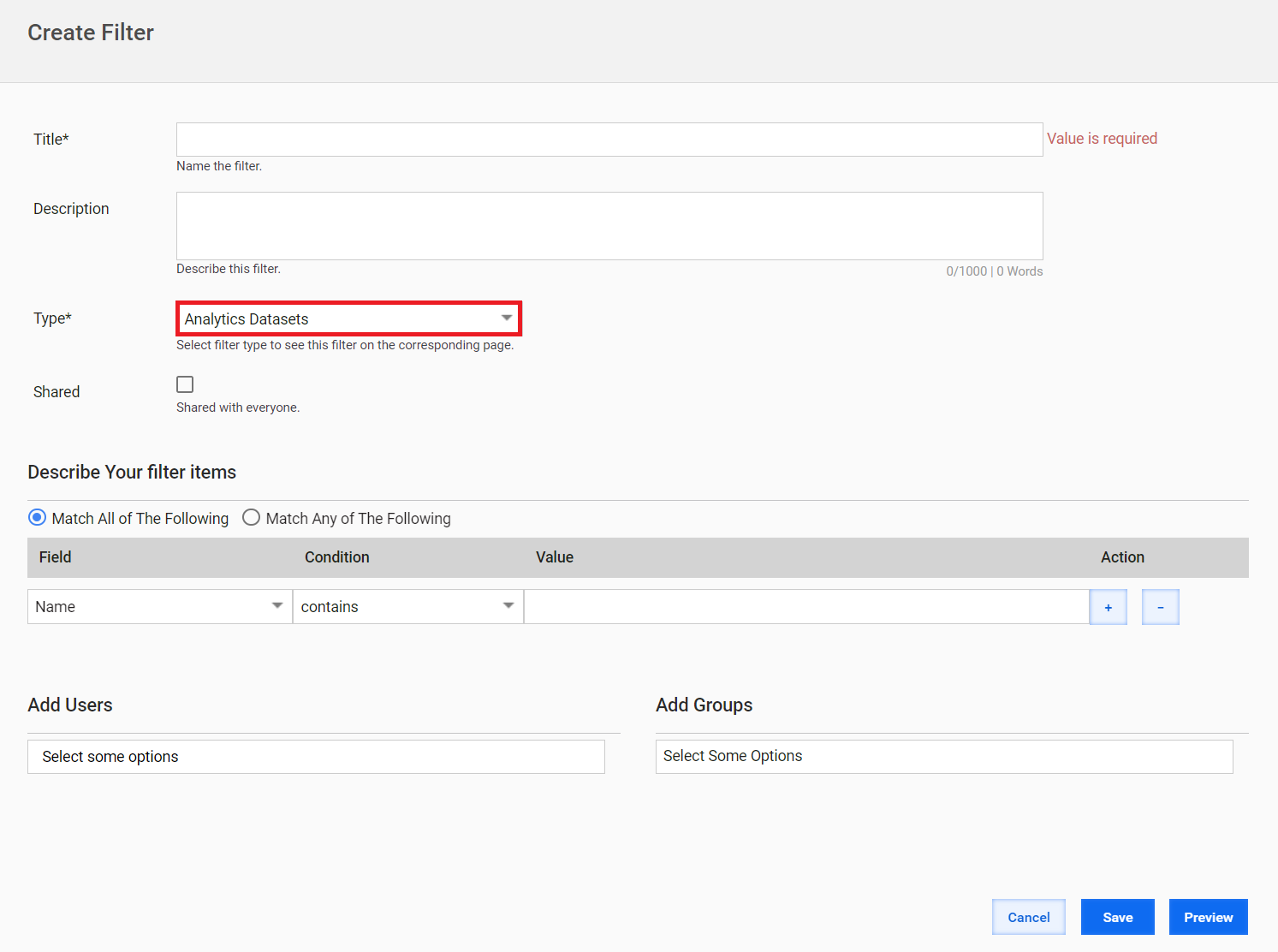
In Control Tower, you can create and apply filters to allow or restrict access to specific dashboards or analytics data for certain users or groups. With the filters, you can also flexibly change these access settings at runtime.
To access the filtering functionality, navigate to System Settings > Filters.
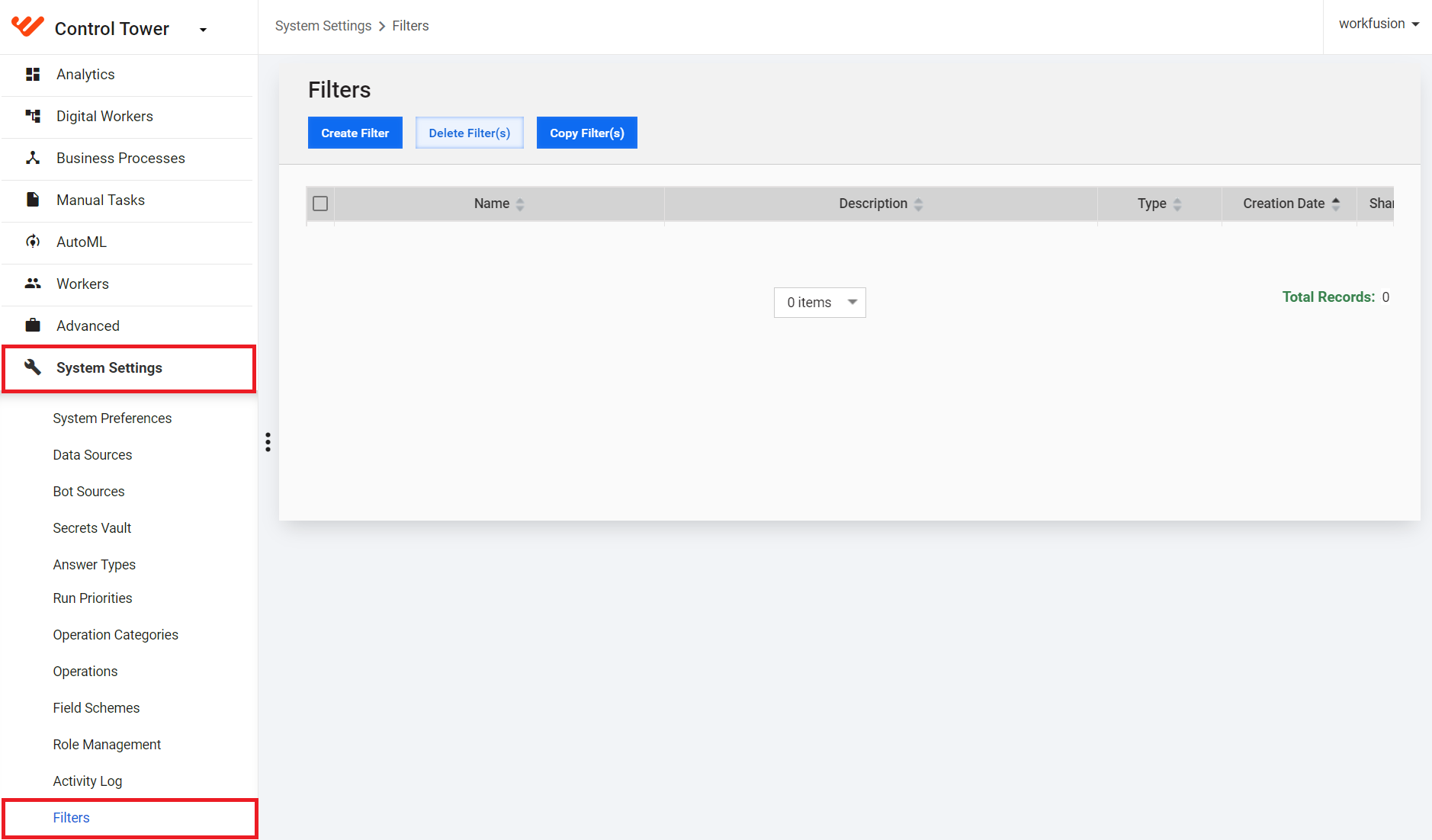
For instructions to create and assign a filter, refer to Set up filters for collaborative work.
The filtering functionality supports the following scenarios of how you can restrict or allow access to certain dashboards or analytics data:
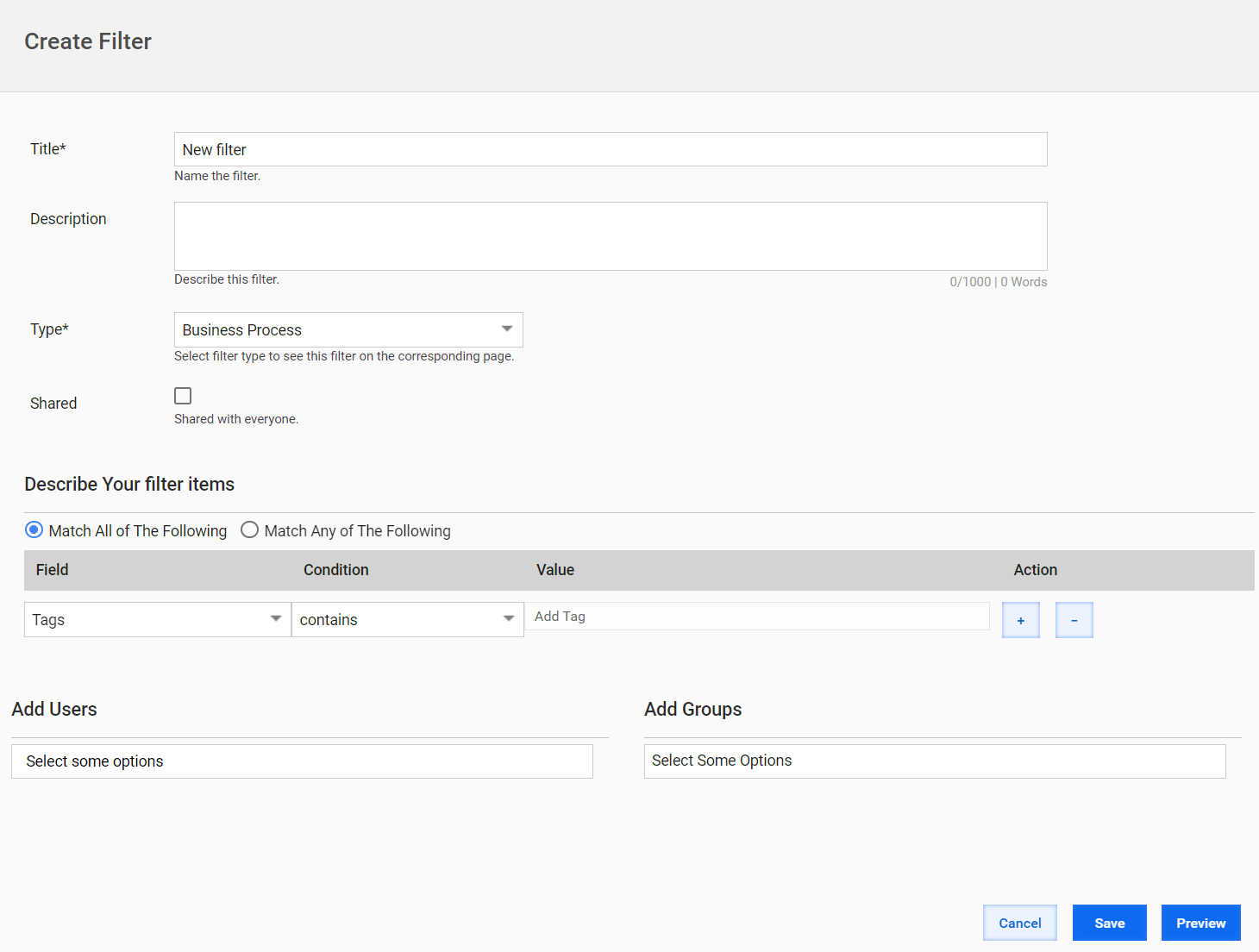
Restrict or allow access to a particular Business Process to a specific user or group. As a result, the user or group will not see the data related to the Business Process in the dashboard.
To implement the scenario, create a filter, setting the Type field to Business Process, and describe required conditions.
Restrict access to a specific dashboard for a particular user or group. As a result, the user or group will not have access to the dashboard.
To implement the scenario, create a filter, setting the Type to one of the following:
Dashboards to restrict access to specific dashboards.
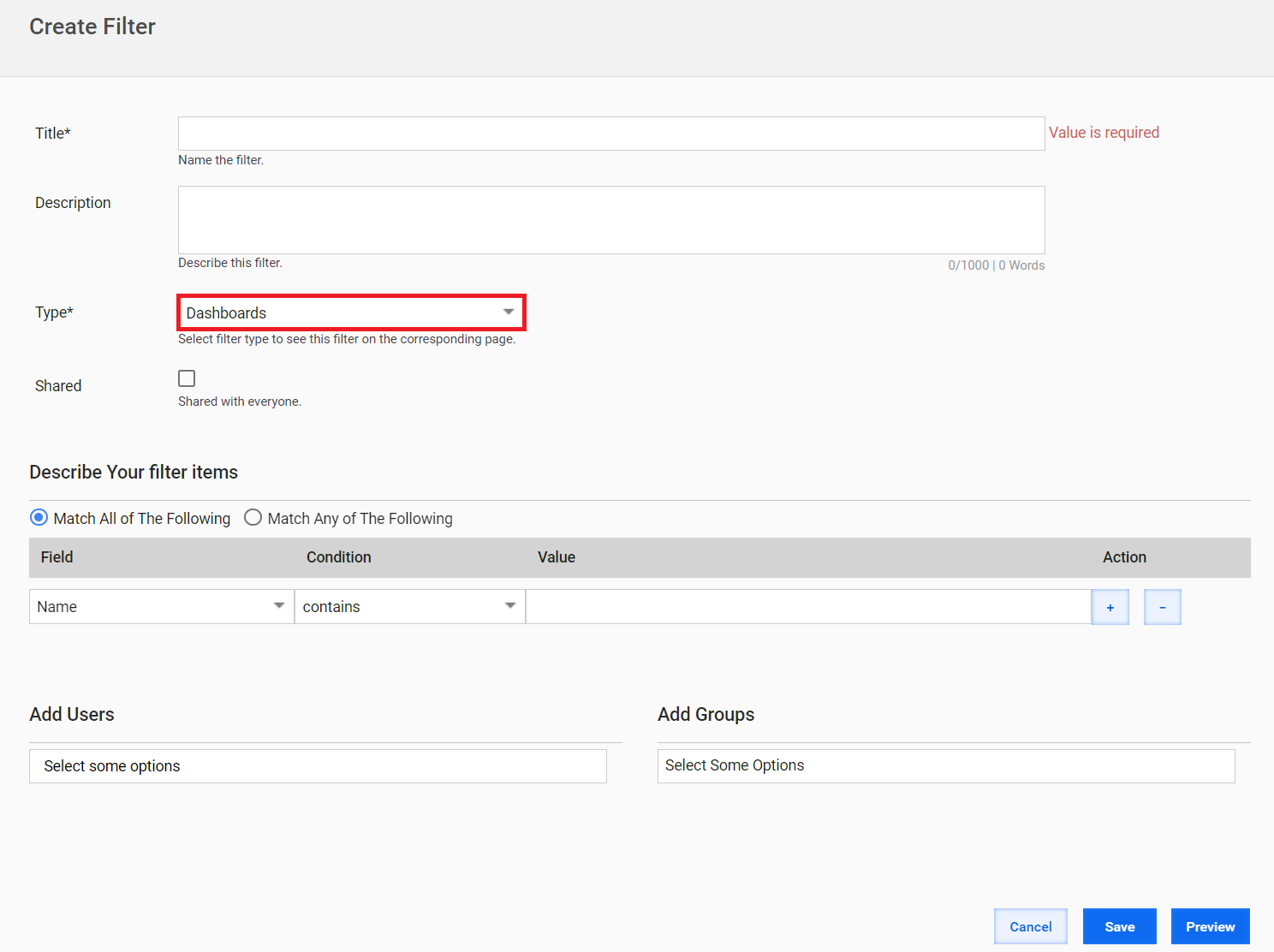
Analytics Datasets to restrict access to specific data across dashboards.