Manage Control Tower roles and permissions
In Control Tower, the Role Management page lists all roles available for the application users and allows managing associated permissions.
Assign permissions
The list of roles on the Role Management page is based on that of the wf-control-tower client in Keycloak. To assign permissions to the roles, follow the steps below:
Go to System Settings > Role Management and click a role.
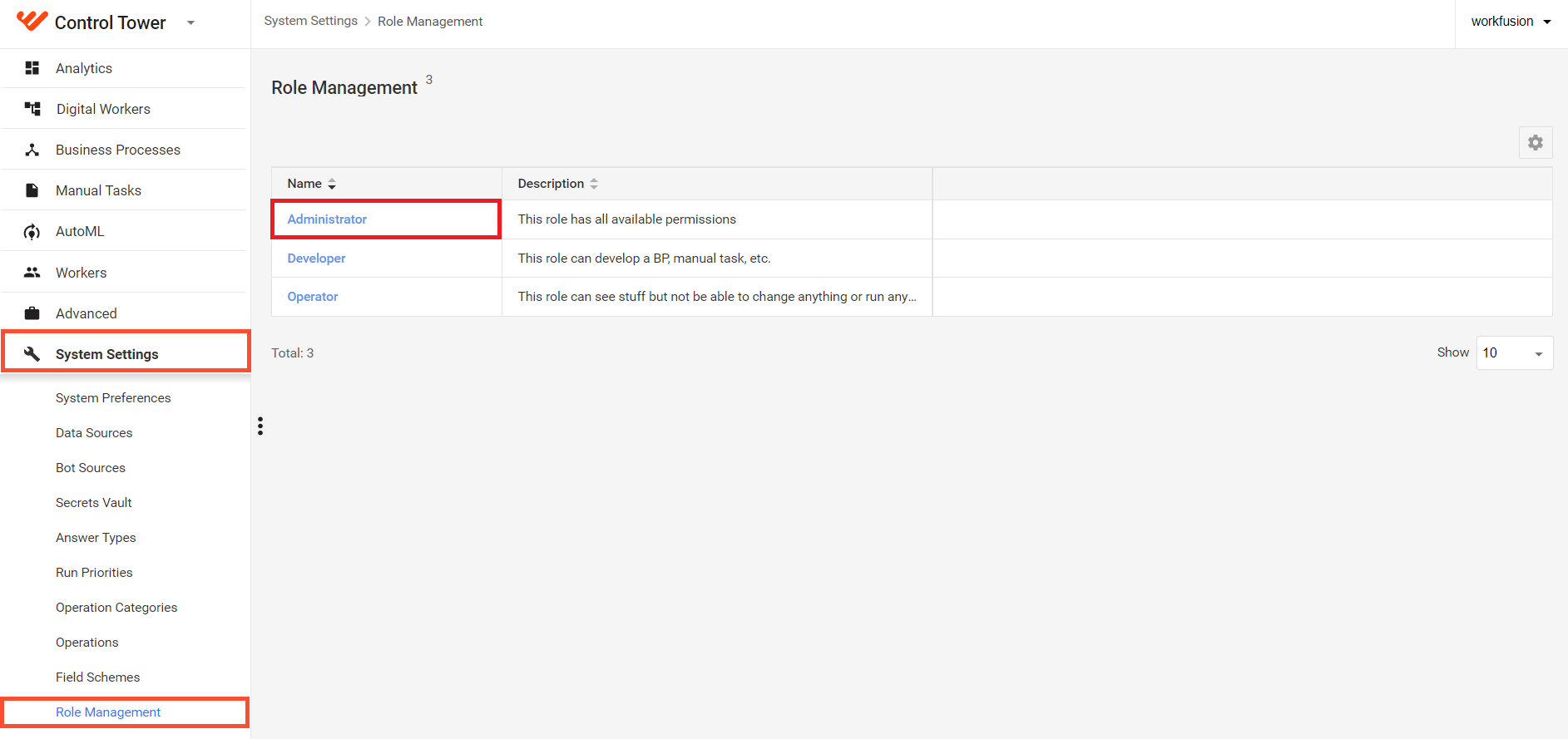
In the Select Role Permissions section, select the permission checkboxes required for the role.
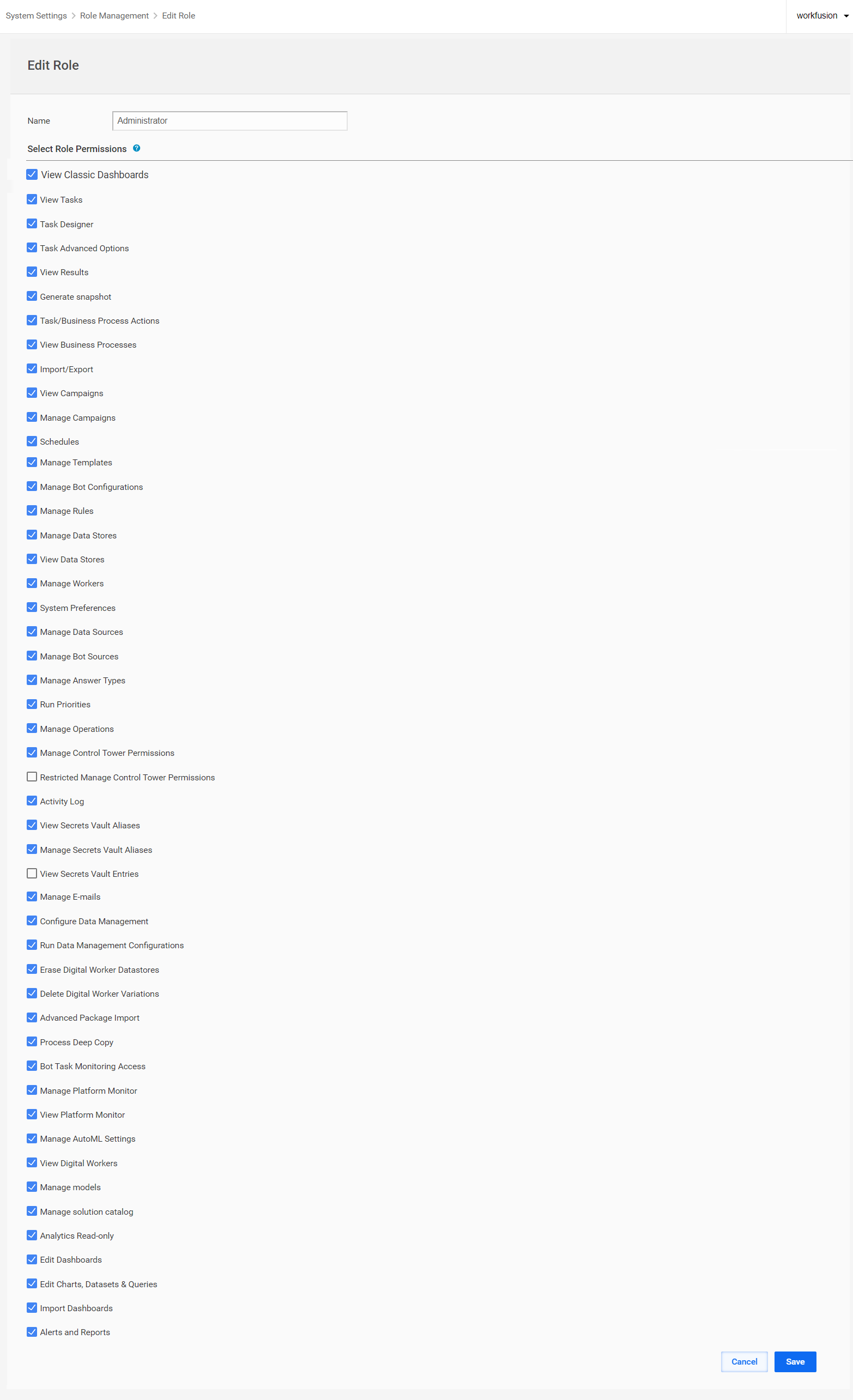
Click Save to save the changes.
Explore default role permissions
| Permissions/Roles | Administrator | Developer | Operator |
|---|---|---|---|
| View Classic Dashboards | |||
| View Tasks | ✓ | ✓ | ✓ |
| Task Designer | ✓ | ✓ | |
| Task Advanced Options | ✓ | ✓ | |
| View Results | ✓ | ✓ | ✓ |
| Generate snapshot | ✓ | ✓ | ✓ |
| Task/Business Process Actions | ✓ | ✓ | ✓ |
| View Business Processes | ✓ | ✓ | ✓ |
| Import/Export | ✓ | ✓ | |
| View Campaigns | ✓ | ✓ | ✓ |
| Manage Campaigns | ✓ | ✓ | |
| Schedules | ✓ | ✓ | ✓ |
| Manage Templates | ✓ | ✓ | |
| Manage Bot Configurations | ✓ | ✓ | |
| Manage Rules | ✓ | ✓ | |
| Manage Data Stores | ✓ | ✓ | |
| View Data Stores | ✓ | ✓ | ✓ |
| Manage Workers | ✓ | ✓ | ✓ |
| System Preferences | ✓ | ||
| Manage Data Sources | ✓ | ✓ | ✓ |
| Manage Bot Sources | ✓ | ✓ | |
| Manage Answer Types | ✓ | ✓ | |
| Run Priorities | ✓ | ✓ | ✓ |
| Manage Operations | ✓ | ✓ | |
| Manage Control Tower Permissions | ✓ | ||
| Restricted Manage Control Tower permissions | |||
| Activity Log | ✓ | ||
| View Secrets Vault Aliases | ✓ | ✓ | ✓ |
| Manage Secrets Vault Aliases | ✓ | ||
| View Secrets Vault Entries | |||
| Manage E-mails | ✓ | ||
| Run Data Management Configurations | ✓ | ||
| Configure Data Management | ✓ | ✓ | |
| Erase Digital Worker Datastores | |||
| Delete Digital Worker variations | ✓ | ✓ | |
| Advanced Package Import | ✓ | ✓ | |
| Process Deep Copy | ✓ | ✓ | |
| Bot Task Monitoring Access | ✓ | ✓ | |
| Manage Platform Monitor | ✓ | ✓ | |
| View Platform Monitor | ✓ | ✓ | ✓ |
| Manage AutoML Settings | ✓ | ✓ | |
| View Digital Workers | ✓ | ✓ | |
| Manage Retrainings (obsolete) | ✓ | ✓ | |
| Manage models | ✓ | ✓ | |
| Manage solution catalog | ✓ | ✓ | |
| Analytics Read-only | ✓ | ✓ | ✓ |
| Edit Dashboards | ✓ | ✓ | |
| Edit Charts, Datasets & Queries | ✓ | ✓ | |
| Import Dashboards | ✓ | ||
| Alerts & Reports | ✓ |
Study permission descriptions
View Classic Dashboards
Obsolete starting from Work.AI v10.2.9.
View Tasks
The permission allows you to view all created Manual Tasks (MT). To access the task list, go to the main Control Tower menu and select Manual Tasks > View All Tasks.
Location:
- Manual Tasks
- Business Processes
Relative paths:
/tasks/task/edit/{UUID}/task/new
Task Designer
The permission allows you to view, edit, and create Manual Tasks and Business Processes (BP).
Location:
- Manual Tasks
- Business Processes
Relative paths:
/task/.../business-process/.../question/.../questions
Task Advanced Options
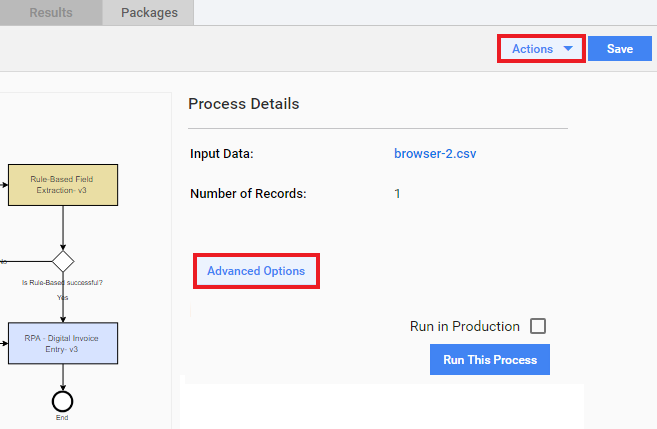
The permission allows you to modify the advanced options of a Manual Task.
View Results
The permission allows you to view MT or BP run results:
| Manual Task results | Business Process results |
|---|---|
Location:
- Manual Tasks
- Business Processes
Relative paths:
task/edit/{uuid}?actTab=RESULTS/...business-process/edit/{uuid}?actTab=RESULTS/...
Generate Snapshot
The permission allows you to generate snapshots for a non-draft BP instance.
Task/Business Process Actions
The permission allows you to copy, pause, stop, resume, delete tasks and BPs using the Actions menu.
Location:
- Manual Tasks
- Business Processes
View Business Processes
The permission allows you to view all created Business Processes. For that, open the main Control Tower menu and select Business Processes > View All.
Location: Business Processes
Relative path: /business-processes
Import/Export
The permission allows you to import and export BP and task runs, Operations, packages, templates, and so on. Without the permission, users cannot see the import and export functionality on Control Tower pages and view the Packages tabs for Manual Tasks or BPs.
Location: All pages
Relative paths:
/templates/questions/rules/rules-templates/operation-categories/operations
View Campaigns
The permission allows you to view Campaigns.
Manage Campaigns
The permission allows you to manage Campaigns.
Schedules
The permission allows you to start Manual Tasks and BPs according to a schedule.
Location: Advanced
Relative path: /schedules
Manage Templates
The permission allows you to create, edit, copy, and delete Templates. Templates enable reusing objects within the Work.AI platform. Manual Tasks, BPs, and rules are based on Templates.
Location: Advanced
Relative path: /templates
Manage Bot Configurations
The permission allows you to create, edit, copy, and delete Bot Configs (Bot Tasks).
Location: Advanced
Relative path: /bot-configs
Manage Rules
The permission allows you to create, edit, delete, and copy rules and rule templates.
Location: Advanced
Relative paths:
/rules/rules-templates
Manage Data Stores
The permission allows you to create, edit, delete, and export Data Stores, Field Schemes, and training sets.
The Data Stores module is a web interface for managing DB tables. You can use Data Stores to keep lookup tables for multi-value Answer options, to save BP results, and make queries from Bot Configs and Rules.
Location:
- Business Processes
- System Settings
Relative paths:
/data-stores/training-sets/field-schemes
View Data Stores
The permission allows you to only access, view, and download Data Stores. However, you cannot delete or update them via Control Tower or API.
Location:
- Business Processes
- System Settings
Relative paths:
/data-stores/training-sets
Manage Workers
The permission allows you to view and manage human-in-the-loop workers.
Location: Workers
Relative paths:
/workers/workforces
System Preferences
The System Preferences page contains the Control Tower instance parameters:
The User Settings tab is available for any user.
Location: System Settings
Relative paths:
/account/filters
Manage Data Sources
Data Source is a mechanism that provides input data and configuration for your BPs and tasks. This input format is best suited for those Operations where data resides on an external source, such as SFTP Server.
Location: System Settings
Relative path: /data-sources
Manage Bot Sources
The permission allows you to manage Bot Sources.
Manage Answer Types
The Answer Types screen allows you to create and manage Answer Types within Work.AI. Answer Types are used when designing legacy Manual Tasks, setting up ETL Bots, and creating Field Schemes.
Location: System Settings
Relative path: /answer-types
Run Priorities
The permission allows you to create, edit, and delete run priorities for Manual Tasks.
Location: System Settings
Relative path: /run-priorities
Manage Operations
Operations serve as the basis for both tasks and BPs. They describe the workflow of a particular Business Process, which makes it possible to use them as templates to create Manual or Bot Tasks.
Location: System Settings
Relative paths:
/operation-categories/operations
Manage Control Tower permissions
The permission allows you to manage all permissions for all user roles in Control Tower.
The permission does not allow you to edit user emails.
Location: System Settings
Restricted Manage Control Tower permissions
The option allows you to manage CT permissions for all roles, except for the ones you have as a grantee of access rights.
Location: System Settings
Activity Log
The permission allows you to use the Activity Log module.
Location: System Settings
Relative path: /activity-log
View Secrets Vault Aliases
The permission allows you to view aliases in Secrets Vault and use them in Business Processes.
Location: System Settings
Relative path: /secrets-vault
Manage Secrets Vault Aliases
The permission allows to view aliases, create, update, and delete records in Secrets Vault.
Location: System Settings
Relative path: /secrets-vault
View Secrets Vault Entries
This permission is available with the Manage Secrets Vault Aliases permission only. It provides access to view all entries in Secrets Vault if no filters are assigned to a user.
Location: System Settings
Relative path: /secrets-vault
Manage E-mails
The permission allows you to edit user emails while creating or editing a user profile.
Location: System Settings
Relative path: /users
Run Data Management Configurations
The permission allows executing data management configurations and viewing their list together with the status and execution information. By default, the permission is enabled for the Developer and Admin roles.
Location: Advanced
Relative path: /data-management
Configure Data Management
The permission allows creating, updating, and deleting in addition to viewing and executing data management configurations. By default, the permission is enabled only for the Admin role.
Location: Advanced
Relative path: /data-management
Erase Digital Worker Datastores
The permission allows you to apply the drop-data-stores operation in Maven and call the associated API endpoint to delete the entire AI Digital Worker Data Model. The dropping of the whole Data Model is dangerous and is recommended for use only in development environments. For details, read Manage Data Model with Liquibase.
By default, the permission is disabled for all roles.
Delete Digital Worker Variations
The permission lets you delete AI Digital Worker variations via the Control Tower user interface or dedicated API endpoints. For more information, refer to Manage AI Agent Variations.
Advanced Package Import
The permission allows you to overwrite process versions with significant differences (steps added, deleted, or substituted). See Migrate Business Processes and Manual Tasks.
Location:
- Manual Tasks
- Business Processes
Relative paths:
/business-processes/tasks
Process Deep Copy
The Deep Copy option creates a completely unlinked process instance where all steps are separated from the ones in the source BP. See Copy Business Process.
Location: Business Processes
Bot Task Monitoring Access
The permission allows you to access and monitor the following:
- Bot Tasks in execution, grouped by Bot Sources
- Records in execution and submitted but not started Records
- Thread dumps for Bot Tasks filtered by process UUID
- Bot Source metrics, such as active record threads, record queue size, executed record total
Location: REST API
Relative paths:
/api/v1/monitoring/bots/sources/api/v1/monitoring/bots/sources/{source-name}/api/v1/monitoring/bots/thread-dumps/api/v1/monitoring/bots/thread-dumps?businessProcessUuid={bp-uuid}
Manage Platform Monitor
The permission makes it possible to manage Platform Monitor objects, such as bots.
Relative path: /v1/jwt/redirect
View Platform Monitor
The permission makes it possible to access Platform Monitor and view its objects, such as bots.
Manage AutoML Settings
The permission allows you to view the Configure AutoML tab and configuration settings for Manual Task automation.
Location: deprecated starting from 10.2.9.
View Digital Workers
The permission allows you to view AI Digital Workers.
Location: Digital Workers
Manage Retrainings
The permission allows you to manage AutoML model retraining. The model retraining feature is obsolete starting from v10.2.9.
Location: AutoML
Manage models
The permission allows you to view the AutoML menu and interact with its items to manage models, pipelines, experiments, tests, and datasets.
Location: AutoML
Manage solution catalog
The permission gives you access to the Solution catalog from where you can install and configure AI Digital Workers. When the permission is enabled, you can see the Solution catalog button in the Control Tower UI.
By default, the permission is enabled for the Admin and Developer roles.
Location: Digital Workers
Analytics Read-only
The permission enables you to view Superset-based dashboards and related data, subject to any access-restricting filters. However, users with only this permission cannot create or modify dashboards and their components.
By default, the permission is enabled for all roles: Admin, Developer, and Operator.
Location: Analytics
Edit Dashboards
The permission allows you to create and modify Superset-based dashboards, but not charts, datasets, or queries.
By default, the permission is enabled for the Developer and Admin roles.
Location: Analytics
Edit Charts, Datasets & Queries
The permission allows you to create and modify components for Superset-based dashboards, such as charts, datasets, and queries.
By default, the permission is enabled for the Developer and Admin roles.
Location: Analytics
Import Dashboards
The permission allows you to import Superset-based dashboards as well as their components.
By default, the permission is enabled for the Admin role only.
Location: Analytics
Alerts and Reports
The permission allows you to view, configure, and receive alerts and reports based on the data from Superset-based analytics.
By default, the permission is enabled for the Admin role only.
Location: Analytics
Mind permission restrictions
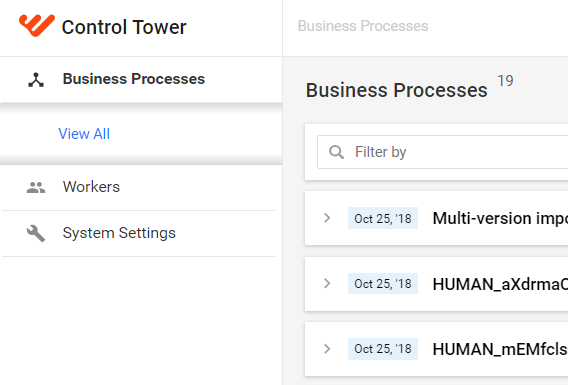
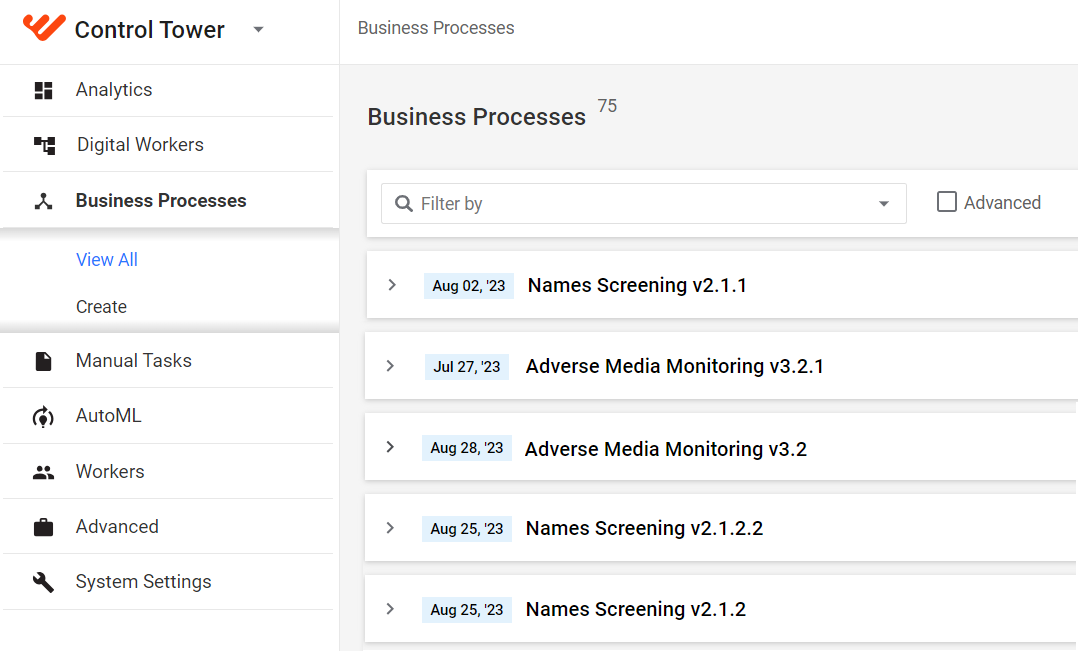
When a user has a role without appropriate permissions, the following restrictions can be applied in the user interface:
Main menu items are not displayed
Restricted permissions
All permissions
Action buttons or links are not displayed
Restricted permissions
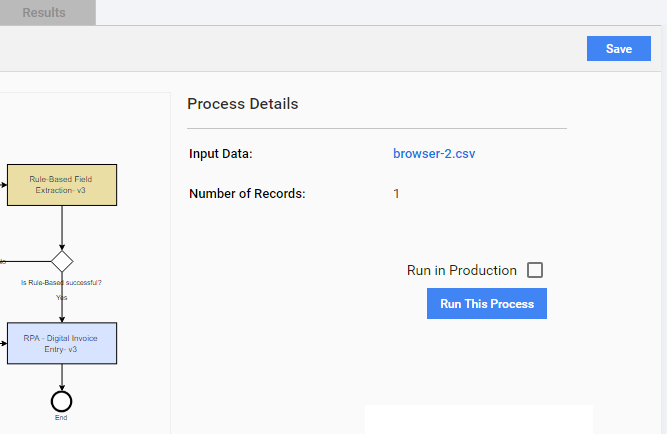
All permissions
Access Restricted message when trying to open a direct URL
Explore known issues
It is impossible to delete a role assigned only to a group. No messages appear after the Delete Confirmation operation.