Explore multi-process AI Agent design
Data flow
Similar to ODF 1, ODF 2 is also based on the concept of Transactions—a set of related data assemblies. No matter data variations in any specific AI Agent, a Transaction represents some entity that enters the automated workflow and needs to be processed. Processing is done by Business Processes—essentially conveyor belts that sequentially move Transactions through workstations that are Bot Tasks. Once put onto the conveyor, the Transaction travels through it until the end.
To continue the metaphor of an assembly line, you can have multiple conveyors, each dedicated to a different group of tasks, and a robot that constantly looks for free Transactions to put on the belt for each conveyor. This robot is a particular Bot Task called a Monitor Task. It makes decisions based on a label you put onto each Transaction—a Transaction Status. Any Bot Task that works with the Transaction can change the Transaction Status anytime.
If the Transaction reaches the end of the Business Process (BP), and no Monitor Task claims it to put into another belt, it stays in the Data Store.
Monitor Tasks
A Monitor Task is a particular Bot Task to put at the beginning of a BP. Once a BP starts, the Monitor Task regularly wakes up. Each time it wakes up, it can pass some Transactions to the next steps of its BP. These Transactions can be found in the Data Store by their Statuses or freshly created from some external data. That's how all the data appears in the system in the first place.
To achieve this, you can use a couple of tricks. One is that all users should be aware that on each run, a Monitor Task emits not only Transactions (if any) but also a particular loop record. After each Monitor Task, there must be a Rule that redirects this record to the Monitor Task itself so the Monitor can run again. A loop record can be easily recognized by the _sys_repeat column with the true value.

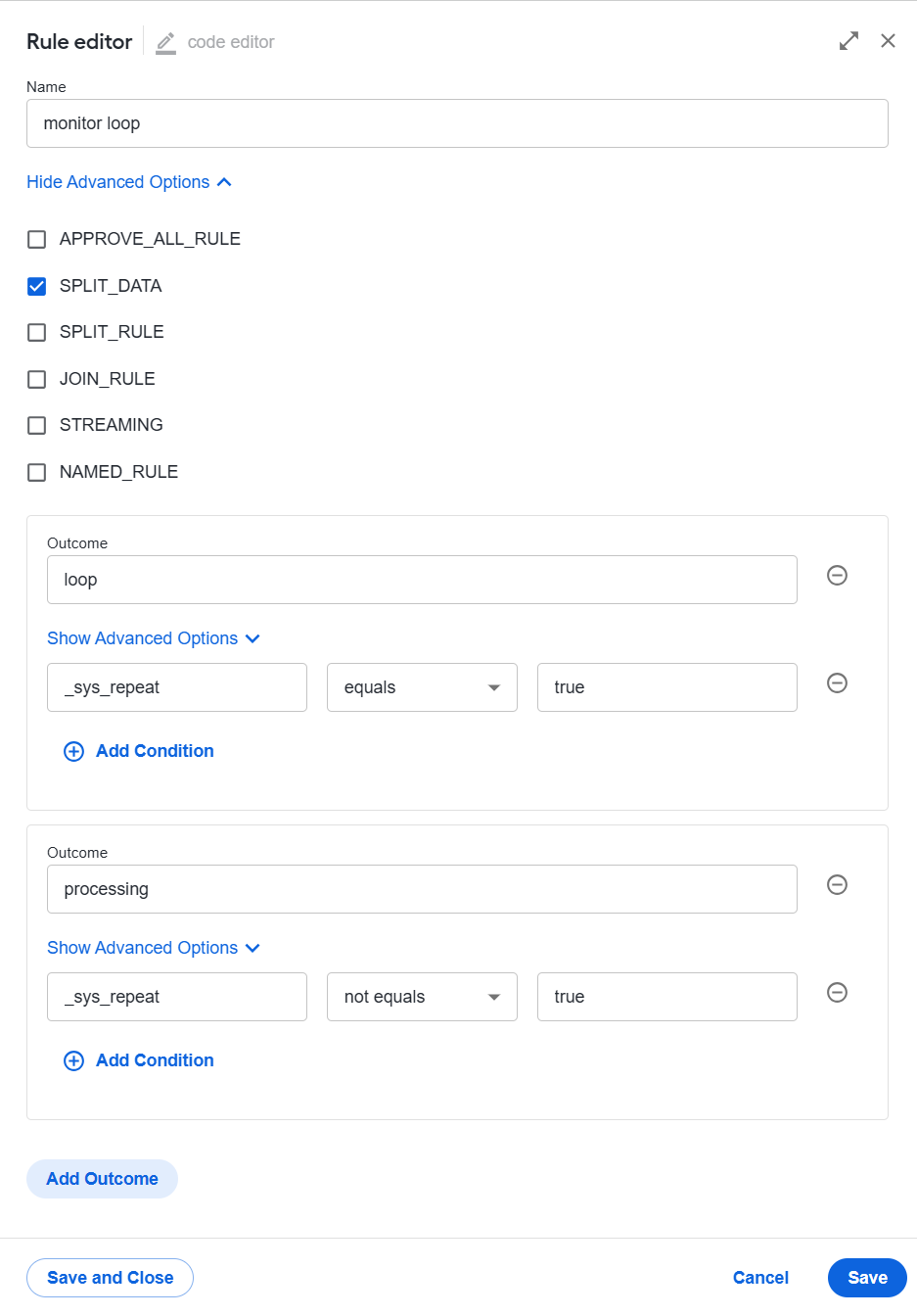
See further implementation details in the ODF 2 sources, starting with the AbstractMonitorTaskRunner class.
Configure monitor
Monitors can be configured via JSON configuration. For each class of a Monitor Task, there can be an object in the "monitors" array at the root of the configuration object. If no such object is provided for a Task, it uses default configuration values.
{
  "monitors": [
    {
      "monitorClass": "EmailMonitorTask",
      "pollingInterval": "PT1M",
      "sleepTime": "PT15S",
      "maxLoops": 5,
      "maxRunningTime":"P1D"
    },
    {
      "monitorClass": "SomeOtherTask",
      "pollingInterval": "PT30S",
      "sleepTime": "PT5S"
    }
  ]
}
Configuration object for any given MonitorTask is expected to have the following fields:
monitorClassis the name of a Java class that represents a Monitor, for example,EmailMonitorTask.pollingIntervaldefines the time a Monitor Task leaves between consequent polls for data. By default, the interval is equal to 60 seconds.sleepTimedefines an interval, after which the Monitor wakes and checks ifpollingIntervalis elapsed. This interval cannot be less than 60 seconds because of the Control Tower limitation. By default, it is equal to 1/4 of thepollingInterval.maxLoopsis the number of polls after which the Monitor stops working. By default, the number of polls is unlimited.maxRunningTimedefines a period after which the Monitor finishes execution. By default, the Monitor execution time is unlimited.
A Configuration object must have the monitorClass field; all other fields are optional. If the optional field is missing, the default value will be used.
A Configuration object should not contain any other fields. The whole object is ignored if an unexpected field is encountered, and the default configuration is used instead.
Specify the pollingInterval, sleepTime, and maxRunningTime parameters in the ISO-8601 duration format.
For example, "P1D" means one day, and "PT1H30M10S" means one hour, 30 minutes, and 10 seconds.
Find the state of each running Monitor Task instance in the monitor Data Store. You can stop any monitor manually by setting a stopped
field of the corresponding record to "1".
monitor Data Store
<createTable tableName="uc_some_usecase_monitor_v0">
    <column defaultValueComputed="NEWID()" name="uuid" type="NVARCHAR(36)">
        <constraints nullable="false" unique="true"/>
    </column>
    <column name="monitor_id" type="NVARCHAR(256)">
        <constraints nullable="false" unique="true"/>
    </column>
    <column name="creation_time" type="NVARCHAR(256)"/>
    <column name="completed_loops" type="INT"/>
    <column name="last_polling_time" type="NVARCHAR(256)"/>
    <column name="stopped" type="int"/>
</createTable>
The best practice for configuring monitors is to provide records for the monitor_configuration Data Store in database migrations. However, you can also do it manually.
The image shows a record in the Data Store configuring a monitor with the EmailMonitorTask Java class. Fill the uuid field with any generated UUID as a database key. You can use this online tool.
Other fields refer to the parameters mentioned above. A monitor with this configuration tries to wake up every minute (sleep_time) and checks if 3 minutes have passed since the latest poll for data (polling_interval). It continues to run for 8 hours from its first wake-up (max_running_time) or until it has polled for data 500 times (max_loops), whatever happens first. The time interval format used is ISO-8601. Check for more samples here.
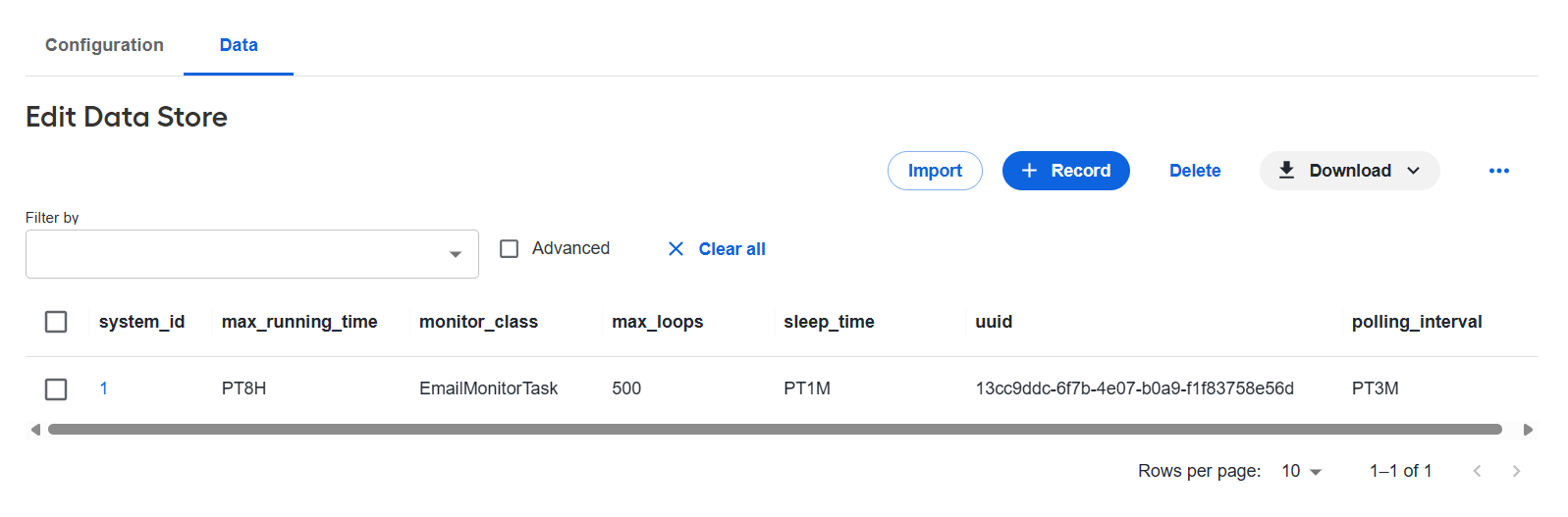
See further implementation details in the ODF 2 sources, starting with the Monitor, MonitorConfigurationEntity, and MonitorEntity classes.
Finalizers
A Finalizer Task is a particular task to stand at the end of a BP and change the status of each Transaction that reaches it.
Out-of-the-box cross-process lifecycle
The ODF 2 Multi-process layer offers many pre-packaged tasks designed with a specific lifecycle in mind. It is not mandatory to conform, but it is a good practice to start implementation in some default way.
Business Processes
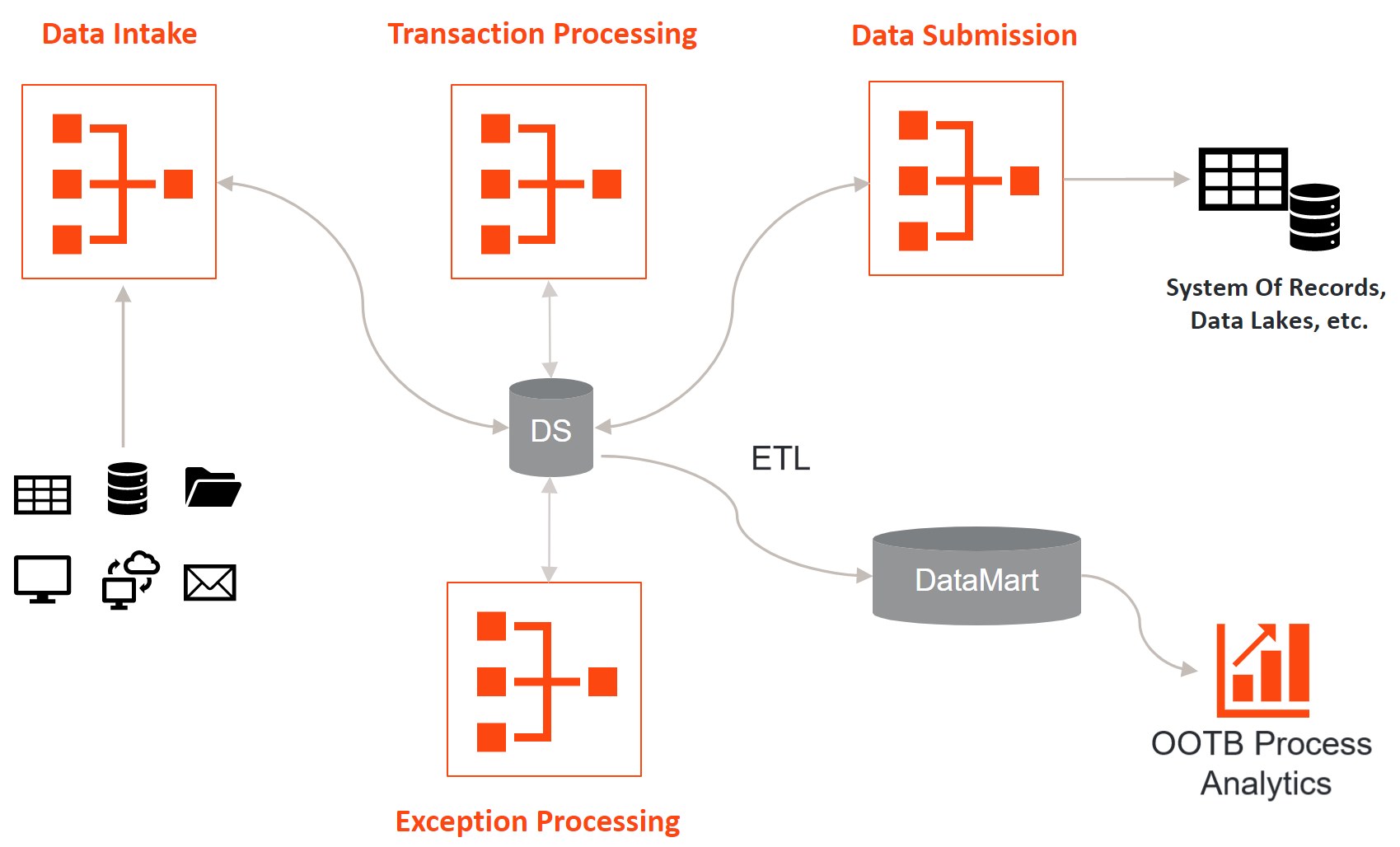
The multi-process AI Agent implementation design provided by the ODF 2 Example project consists of four BPs:
- Intake BP takes data from external sources, validates and sanitizes it, and otherwise prepares it to be processed.
- Processing BP processes prepared data.
- Submission BP is responsible for aggregating results, creating reports, and submitting them to some other systems.
- Error Processing BP handles exceptional cases raised by other BPs.
Transaction statuses
Default implementation expects a transaction to have one of the following statuses:
INTAKE_IN_PROGRESSINTAKE_COMPLETEDPROCESSING_IN_PROGRESSPROCESSING_COMPLETEDSUBMISSION_IN_PROGRESSCOMPLETEDABORTED
Each ?_IN_PROGRESS status means that the corresponding BP is currently processing the Transaction. Each ?_COMPLETED status means the Transaction reached the end of the corresponding BP. Only Transactions in the COMPLETED status and related objects are captured in Analytics. COMPLETED and ABORTED are Transaction's terminal statuses. Transactions with these statuses cannot be modified.
Interaction of Business Processes
According to the default flow, BPs are arranged in a certain way:
- Intake Monitor polls some external data source, for example, an email account, a search engine, or a database. When it finds some data, it creates new Transactions with the
INTAKE_IN_PROGRESSstate and passes them further into Intake BP.
When the Transaction reaches the Intake finalizer, its status is set to
INTAKE_COMPLETED.Processing Monitor polls the transaction Data Store for Transactions with the
INTAKE_COMPLETEDstatus. Found Transactions are changed toPROCESSING_IN_PROGRESSand passed further into Processing BP.
When the Transaction reaches the Processing finalizer, its status is set to
PROCESSING_COMPLETED.Submission Monitor polls the transaction Data Store for Transactions with the
PROCESSING_COMPLETEDstatus. Found Transactions are changed toSUBMISSION_IN_PROGRESSand passed further into Submission BP.
When the Transaction reaches the Submission finalizer, its status is set to
COMPLETED.
With the help of Monitors and Finalizers, the Transaction can flow linearly between multiple BPs. Now, the error handling is a bit more complex.
All the out-of-the-box Task Runners are written with error handling in mind. When an exception is raised in a Transaction-related operation, its details are stored in ErrorEntity; the Transaction status is changed to HAS_ERROR. Now, all Task Runners, including Finalizers, process only Transactions with expected status (for example, Transactions designed for Intake BP process only INTAKE_IN_PROGRESS transactions) and specifically ignore Transactions with the HAS_ERROR or ERROR_IN_PROGRESS statuses. That means that when an exception is raised, an erroneous Transaction is passed to the end of its current BP without any changes to it or its related entities.
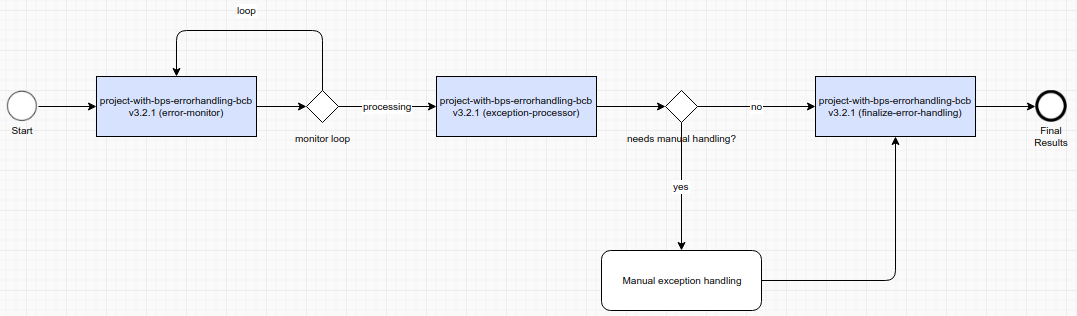
Error Monitor specifically looks for HAS_ERROR Transactions. It finds them and passes them down to Error Handling BP. It is the only case when the Transaction can be processed by two BPs simultaneously because it can take some time to reach the end of the BP it was originally in, and Error Monitor can find it faster. And that is why Transactions with error-related statuses must not be processed in any way because they can already be processed by Error Handling Tasks.
Error Handling BP is expected to analyze an error and try some form of error recovery, for example, asking human operators what to do with the help of a Manual Task. In any case, an erroneous Transaction never returns to the standard data flow. At the end of the BP, its status is set to ABORTED. Error Handling BP is free to create a new Transaction with any applicable status and assign any entities from the aborted one to be processed again. Look into error handling fundamentals to see how to tweak this behavior or what alternatives you have.
Writing Monitor Task
The simplest Monitor Task based on abstractions provided by ODF 2 looks like this:
@BotTask
public class ProcessingMonitorTask implements TransactionMonitorTask {

    @Override
    public TransactionStatus getStatusToMonitor() {
        return TransactionStatus.INTAKE_COMPLETED;
    }

    @Override
    public TransactionStatus getStatusToSet() {
        return TransactionStatus.PROCESSING_IN_PROGRESS;
    }

}
This real Monitor for Processing BP searches for INTAKE_COMPLETED Transactions and changes their status to PROCESSING_IN_PROGRESS. All technical stuff is hidden inside the TransactionMonitorTaskRunner and AbstractMonitorTaskRunner classes.
You don't need to write this class as the framework already provides it. However, if you want to design your flow, create your analog of the TransactionMonitorTask interface and the corresponding runner.
Writing input Monitor Task
Monitors for Intake BP are much more enjoyable. ODF 2 has zero knowledge of how you will gather input data. Instead, it provides an interface to be implemented in the AI Agent code.
public interface InputMonitorTask<T extends InputEntity> extends MonitorTask {

    @Override
    default Class<? extends OdfTaskRunner<?>> getRunnerClass() {
        return InputMonitorTaskRunner.class;
    }

    Collection<T> queryInputEntities();

    void saveInputEntity(T input);

}
As you can see, there are two methods to implement:
queryInputEntities()contains logic to retrieve data from an external source.saveInputEntity()exists because ODF 2 doesn't know whatInputEntityimplementation is used inside an AI Agent and therefore has no knowledge of which repository to use.
The interface implementation can look like this:
@BotTask
public class EmailMonitorTask implements InputMonitorTask<Email> {

    private final EmailRepository emailRepository;
    private final AttachmentRepository attachmentRepository;
    private final EmailService emailService;

    @Inject
    public EmailMonitorTask(EmailRepository emailRepository, AttachmentRepository attachmentRepository, EmailService emailService) {
        this.emailRepository = emailRepository;
        this.attachmentRepository = attachmentRepository;
        this.emailService = emailService;
    }

    @Override
    public Collection<Email> queryInputEntities() {
        return emailService.readEmails();
    }

    @Override
    public void saveInputEntity(Email email) {
        emailRepository.create(email);
        attachmentRepository.createAll(email.getAttachments());
    }
}
Because this isn't a point, the data retrieval logic is hidden inside some AI Agent-specific EmailService. The point is that for each returned Email, a new Transaction is started by InputMonitorTaskRunner. And when it is persisted, the runner calls saveInputEntity() to persist the corresponding Email.
Scheduling Business Process execution
With Monitor Tasks available in the AI Agent developer's toolbox, it is logical to keep BPs running for a long time. You can either start a BP manually and stop it manually. However, instead of manual management, a good practice is scheduling BP execution at regular intervals and configuring monitors accordingly. For example, if you want to run your BP 24/7 and the BP can run for 12 hours non-stop, schedule the BP to run each 12 hours, and set up your monitors to run no longer than 11 hours and 59 minutes.
For more details on BP scheduling, see Schedule Business Process.
If you have several BPs working together, like in the case of default implementation, stagger their schedules so that monitors don't run simultaneously. For example, if you have four default BPs and decide to run monitors once in 10 minutes, arrange schedules so that Intake BP starts at, for example, 12:00:00, Processing BP—at 12:02:30, Submission BP—at 12:05:00, and Error Handling BP—at 12:07:30.