Add no-code Rate Limiter step
The no-code Rate Limiter bot step enables you to control the number of records passing through the step within a specific time frame. This is particularly beneficial for implementing rate-limiting at a granular level, such as per AI Agent, reducing the impact on resources when two AI Agents are running in a single environment.
Additionally, using the Rate Limiter decreases the number of utilized BEP Workers. As a result, you can integrate the Rate Limiter step into multiple Business Processes (BPs) that need to run in parallel without competing for resources.
To prevent performance issues, you can also use the Bot Source functionality.
Add Rate Limiter to Business Process flow
To add the Rate Limiter bot step to your BP, do as follows:
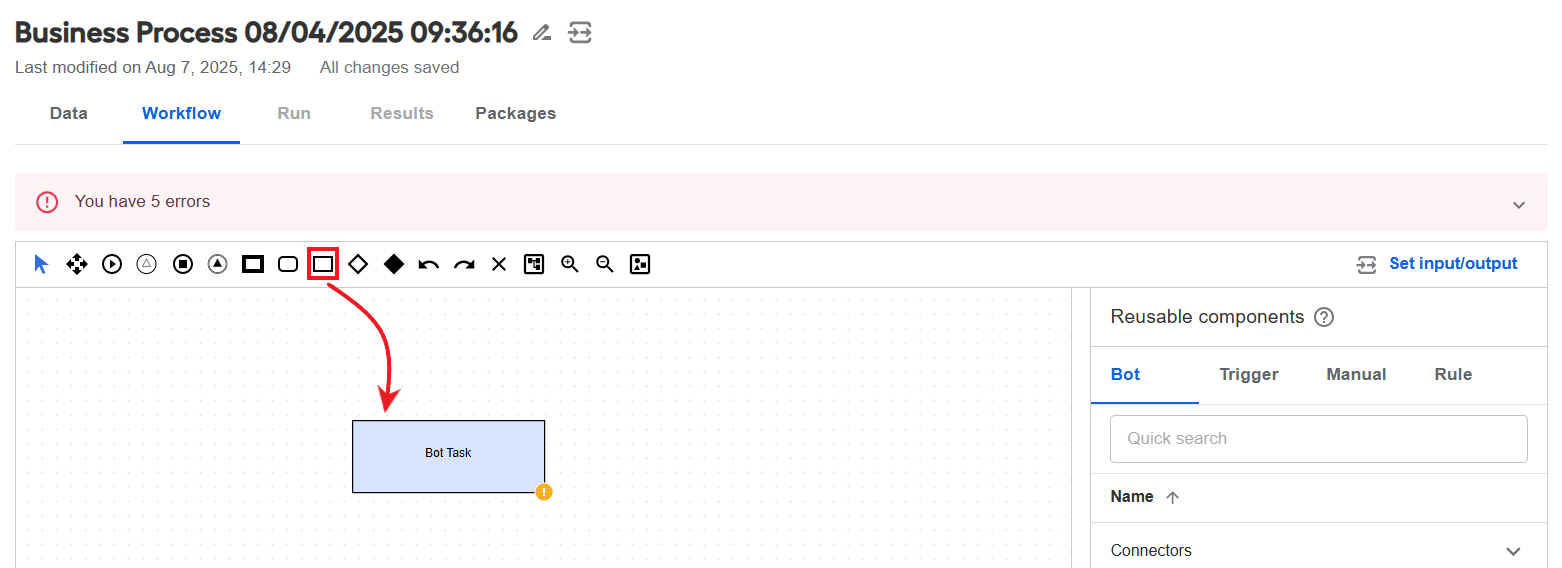
On the Workflow tab of the BP, drag the Bot Task element from the toolbar onto the canvas. A blank task is created.
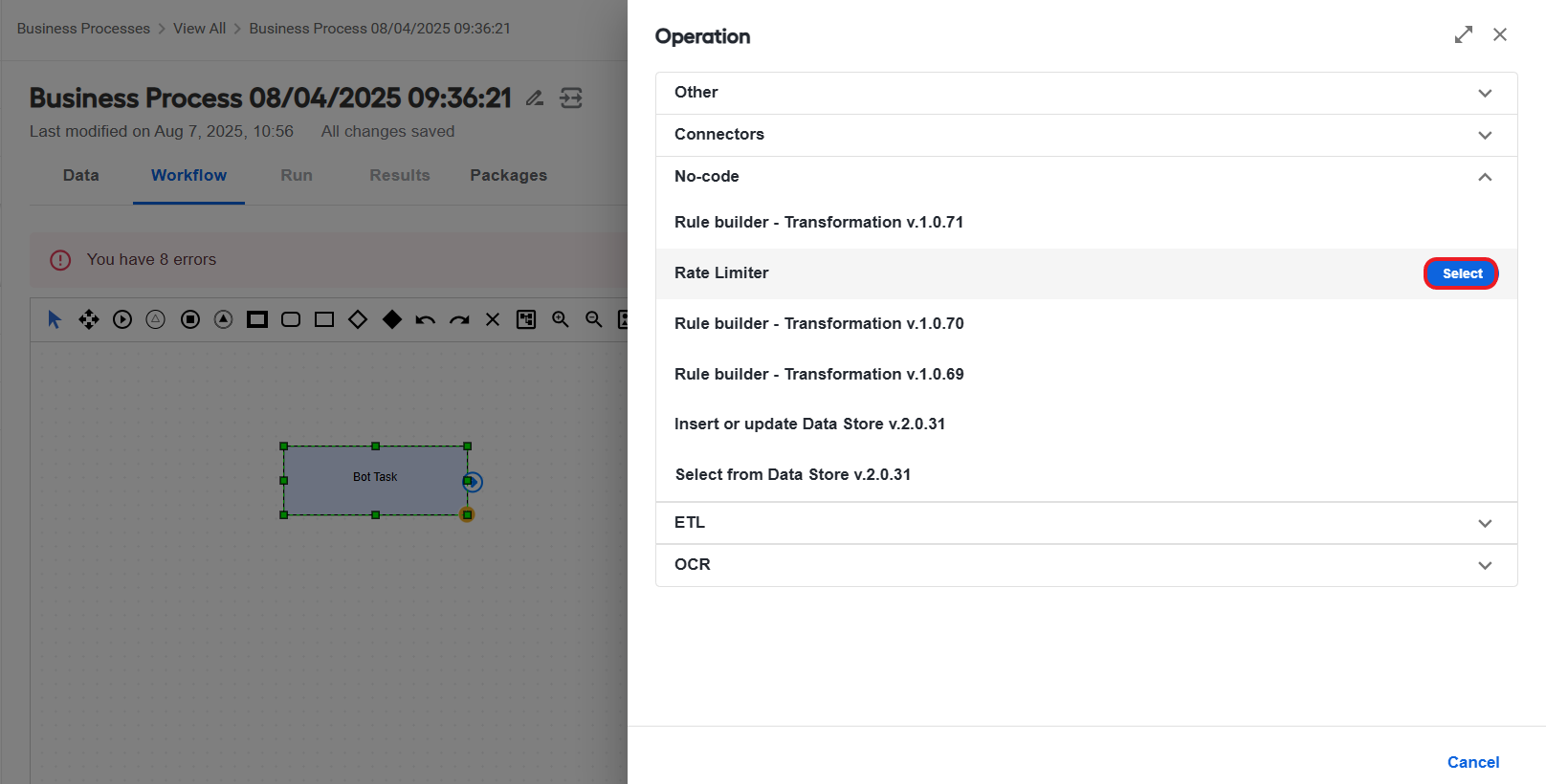
Double-click the bot step. On the Operation side panel, expand No-code and click Select next to the Rate Limiter operation.
Once you choose the Operation, the Bot step configuration panel opens.
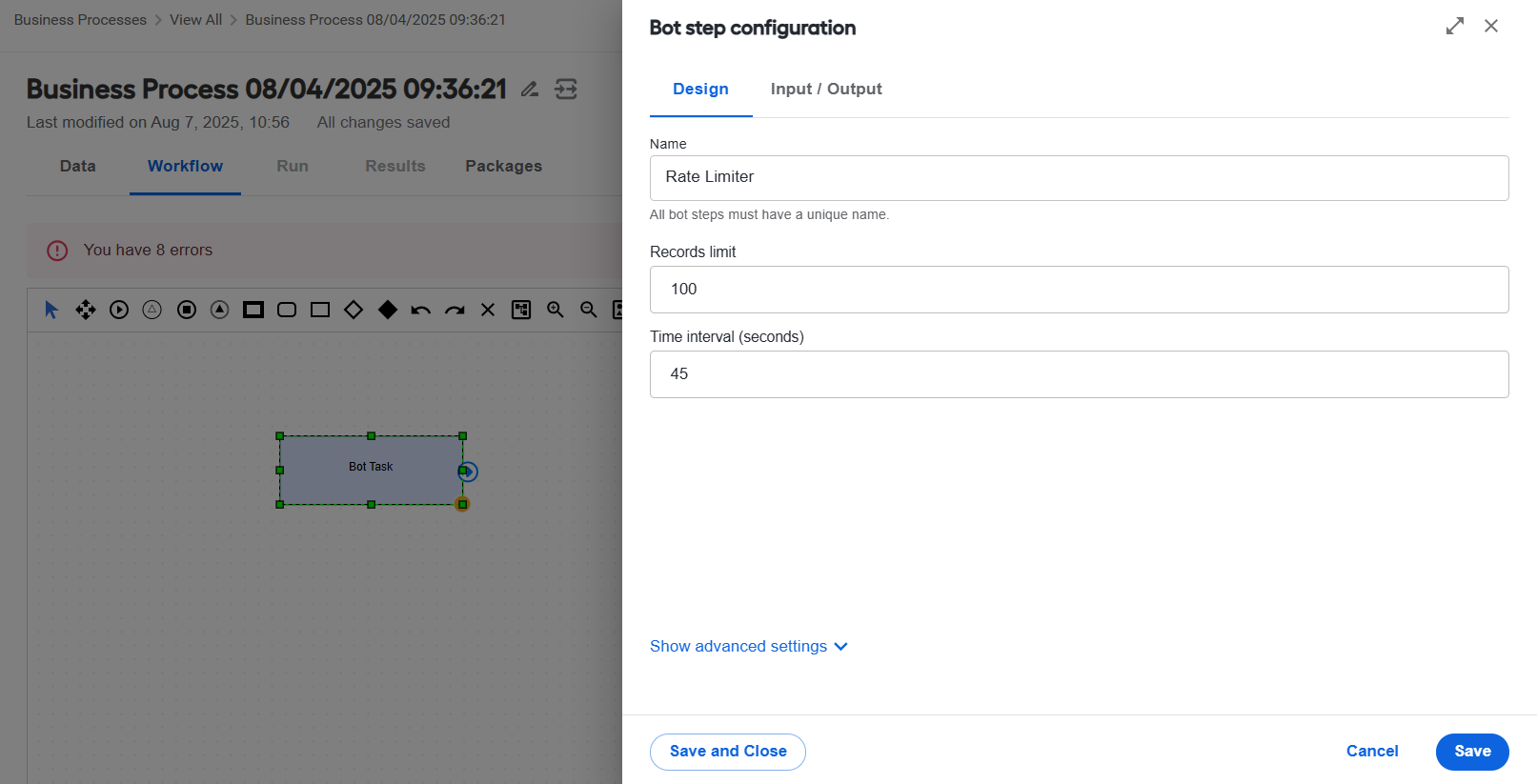
On the Design tab, in the Name field, enter a name for the step.
In the Records limit field, specify the maximum number of records that can be passed within the configured timeframe (the default value is 100).
infoThe configured number of records might not always be processed exactly as specified because performance depends on the number of other steps executing concurrently on the cluster. Also, refer to View configuration recommendations.
In the Time interval field, define the time period required for processing the specified number of records.
Click Save and Close to save the step configuration.
View configuration recommendations
When configuring the Rate Limiter step, balancing the records limit and time interval configurations is essential to achieve optimal performance and efficient resource utilization. The following general recommendations apply:
Smoother load distribution and stable throughput. Configurations with lower intervals and fewer input records result in smoother load distribution and provide stable BEP Worker and throughput performance. For example, setting the Rate Limiter to process a limited number of records per second helps eliminate spikes in resource usage. However, this can lead to slightly longer execution times for high-volume BPs like Name Sanction Screening (NSS) or Payment Sanction Screening (PSS).
Execution time considerations. Adjusting the intervals and record limits can affect overall execution time and resource spikes, for example:
Configurations with moderate record limits and longer intervals result in predictable execution times and steadier resource usage.
Configurations with shorter intervals and fewer records eliminate resource spikes while maintaining similar execution times.
To determine an optimal Rate Limiter configuration, start with moderate settings and monitor resource usage, response times, and execution durations. Fine-tune the parameters based on your BP's requirements and the acceptable trade-offs between throughput and cluster resource stability.