Define allowed Data Store queries
By default, WorkFusion security blocks all Data Store (DS) API calls from Manual Tasks, except Allowed Data Store Queries. Therefore, if you develop a custom Manual Task that uses DS API calls from JavaScript, you must create such allowed queries.
Create allowed Data Store query
To create an allowed DS query, follow the steps below:
Open the Manual Task that uses DS API calls and navigate to the Design tab.
Click Allowed Data Store Queries.
Click Create Query or select an existing query name.
In the popup that appears, configure the parameters for your DS query:
- In the Name field, enter a unique name.
- In the Data Store drop-down menu, select an existing DS. You can click the eye icon to open the selected DS in a new browser tab.
- In the Query text area, enter a valid query.
Click Save.
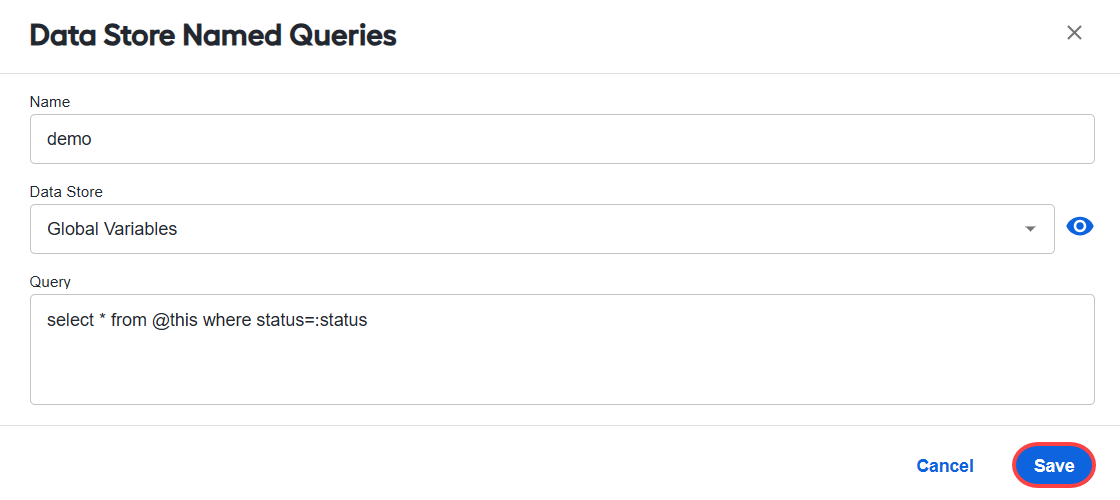
Allowed queries do not need to return any data. However, you can use OUTPUT to return results. See an example query below:
INSERT INTO @this (ID, document)
OUTPUT Inserted.ID
VALUES (:id, : document);
Use allowed DS query in Manual Task code
The DS API call has the following URL pattern:
/workfusion/public/v2/datastores/executeNamedQuery?queryName=demo&nativeId=hitId¶meters={status:"COMPLETED"}
Where:
queryNameis the name of your allowed DS query.nativeIdishitIdof the task.parametersis a JSON representation of an object containing dynamic query parameters.
To allow the use of DS queries, add the following JavaScript code snippet at the bottom of your Manual Task code:
<script type="text/javascript">
    var hitId= $("input[name=hitId]").val();
    $.ajax({
        dataType: "json",
        type: "get",
        url: "/workfusion/public/v2/datastores/executeNamedQuery",
        data: {
            queryName: 'demo',
            nativeId: hitId,
            parameters: JSON.stringify({
                status: "COMPLETED",
            })
        },
        success: function (resp) { console.log(resp); },
        error: function (resp) { console.log("error", resp); }
    })
</script>
You can access the result of the AJAX request using one of the following methods:
- Task Preview > External URL: the link appears for the tasks that are not in the Draft state, meaning they must have already been run.
- In Workspace, when you accepted the respective task.
For troubleshooting tips, refer to the following support guides: