Generate ODF 2 project
Maven archetypes are templates that let you quickly generate projects from a predefined set of core files. The guide describes how to use the ODF 2 Simple Archetype to generate a new project.
Before generating a project, make sure your environment is prepared. For instructions, see Prepare environment for archetype generation.
Generate project from command line
The command line is the recommended way to generate a new ODF 2 project.
While Eclipse and IntelliJ IDEA support generating Maven projects from archetypes, they do not support some Maven features used by ODF 2. For this reason, we recommend generating the project using the command line.
Maven provides two ways to generate a project using the command line:
- interactive mode
- non-interactive mode
Use interactive mode
To use the interactive mode, perform the following actions:
Run the
archetype:generategoal with the GAV coordinates of the ODF 2 Simple Archetype:mvn archetype:generate -DarchetypeGroupId="com.workfusion.odf2" -DarchetypeArtifactId="simple-archetype" -DarchetypeVersion="X.X.X.X"Maven uses the following properties to identify the archetype:
archetypeGroupId=com.workfusion.odf2: group ID of the ODF 2 Simple ArchetypearchetypeArtifactId=simple-archetype: artifact ID of the ODF 2 Simple ArchetypearchetypeVersion=X.X.X.X: version of the ODF 2 Simple Archetype (always equal to the ODF 2 version; see the compatibility matrix)
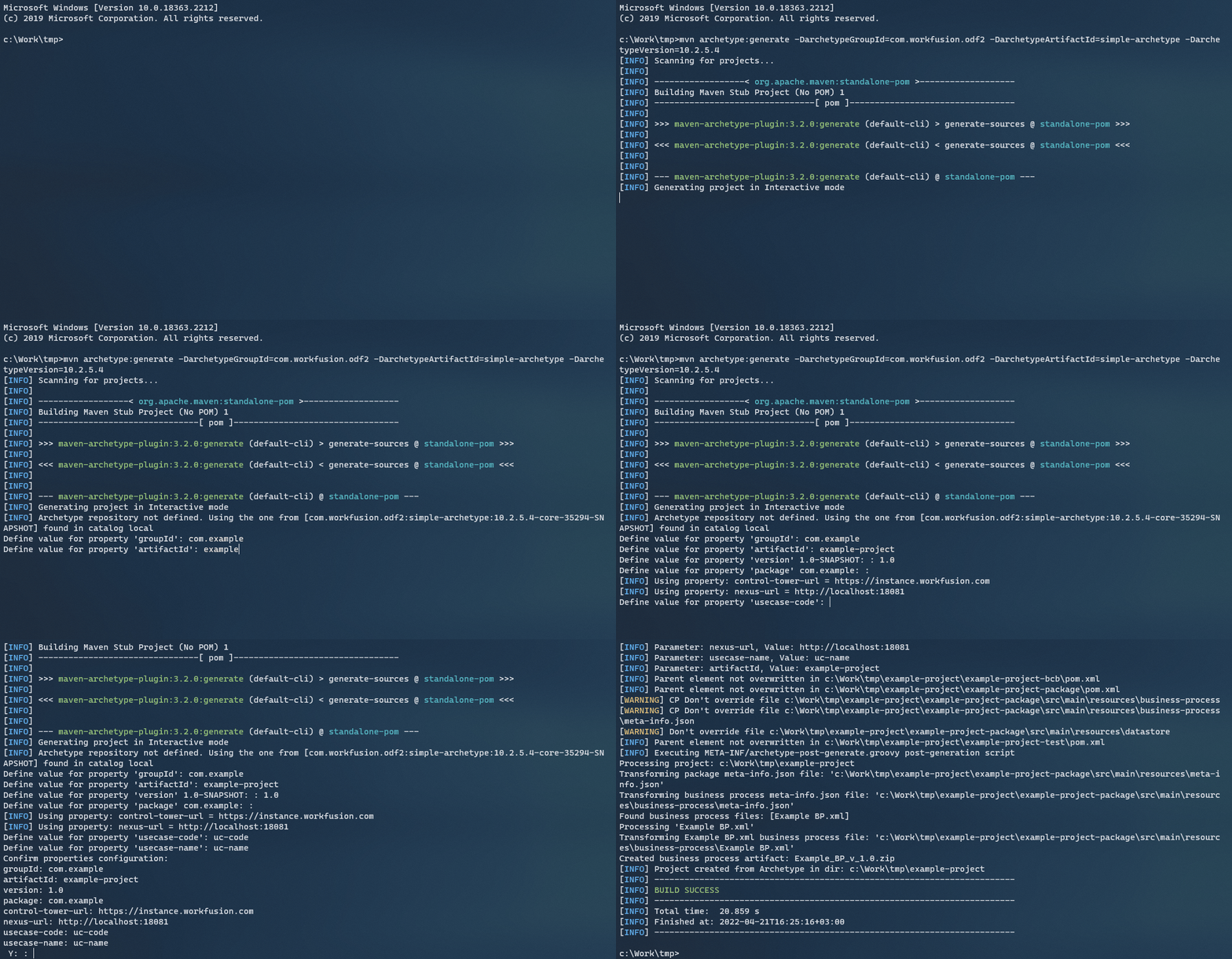
After running the command, specify the following properties:
groupId: the unique group ID for your project. The group ID should follow standard Java package naming. This means it starts with a reversed domain name you control, for example,com.mycompany.mylob.artifactId: the project name without version. Use lowercase letters and no special characters. The property determines:- the folder name where the project is generated
- the prefix of all generated modules (for example,
invoices-bcb,invoices-package,invoices-test) - the names of generated JARs
version: the Maven version of your project. Follow simple versioning patterns like1,5.3, or8.4.5. AvoidSNAPSHOTor date-based versions. The value is also used to define the AI Agent version.package: the base Java package for the project. By default, Maven suggests using the same value asgroupId. Define it likecom.mycompany.mylob.usecase-code: the AI Agent code to be associated with the project. It is used as a technical identifier of the AI Agent, for example, in Data Store names for this AI Agent. Use lowercase Latin characters without spaces, for example,inv,star, orkmk.usecase-name: a human-readable display name of the AI Agent (up to 32 characters). Use uppercase and lowercase Latin characters, digits, and spaces, for example,KYC Latin America.
There are two optional properties with predefined values. You can modify them later in
pom.xml:control-tower-url: URL of the remote Control Tower instance used for testing. The default value is<https://instance.workfusion.com>.nexus-url: URL of the Nexus server. The default value is<http://localhost:18081>(from the local Work.AI Developer).
Once all properties are set, Maven asks for confirmation—either yes or no.
- Type
Yfor Maven to generate a project. - Type
Nto return to the configuration.
Most values (such as version, usecase-code, and usecase-name) can be changed later in your IDE because they are defined in pom.xml.
Values used for generating modules or Java packages require refactoring, so double-check them before confirming.
If naming is incorrect, it is recommended to re-generate the project.
Use non-interactive mode
The second option is non-interactive mode, where all properties are specified directly in the command:
mvn archetype:generate -DarchetypeGroupId="com.workfusion.odf2" -DarchetypeArtifactId="simple-archetype" -DarchetypeVersion="X.X.X.X" -DgroupId="com.example" -DartifactId="example-project" -Dversion="1.0" -Dpackage="com.example" -Dusecase-code="uc-code" -Dusecase-name="uc-name" -Dcontrol-tower-url="https://instance.workfusion.com" -DinteractiveMode=false
As with the interactive mode, the archetype version matches the ODF 2 version. For more details, refer to the compatibility matrix.
The interactiveMode=false property disabes the interactive mode. In this case, Maven doesn not ask anything and starts generating a project straight away. Before doing that, Maven prints all resolved parameters to the console:
[INFO] ----------------------------------------------------------------------------
[INFO] Using the following parameters for creating a project from Archetype: simple-archetype:X.X.X.X
[INFO] ----------------------------------------------------------------------------
[INFO] Parameter: groupId, Value: com.example
[INFO] Parameter: artifactId, Value: example-project
[INFO] Parameter: version, Value: 1.0
[INFO] Parameter: package, Value: com.example
[INFO] Parameter: packageInPathFormat, Value: com/example
[INFO] Parameter: package, Value: com.example
[INFO] Parameter: version, Value: 1.0
[INFO] Parameter: usecase-code, Value: uc-code
[INFO] Parameter: groupId, Value: com.example
[INFO] Parameter: control-tower-url, Value: https://instance.workfusion.com
[INFO] Parameter: nexus-url, Value: http://localhost:18081
[INFO] Parameter: artifactId, Value: example-project
[INFO] Parameter: usecase-name, Value: uc-name