Generate ODF 2 project
Maven archetypes are templates enabling to create projects based on a set of core files quickly. The article contains information on the ODF 2 Simple Archetype.
To generate a Maven project from the command line, you must have Java 1.8 and Maven 3.X installed. The preparation steps are as follows:
- Download and install the latest Azul JDK 8.x. To verify availability from the command line, use the
java -versioncommand. - Download and install the latest Maven 3.X. To verify availability from the command line, use the
mvn -versioncommand.
Configure the Maven's settings.xml file located in the C:\Users\[USER_NAME]\.m2 folder. If you have already installed Work.AI Developer, the file should have been updated automatically. Otherwise, make sure it contains the following configuration:
  <servers>
    <!-- Nexus Credentials for Maven to download WF dependencies to build project. Read only permissions are needed for this user -->
    <server>
      <id>wf-dependencies</id>
      <username>odf-user</username>
      <password>Workfusion!5</password>
    </server>
  </servers>

  <profiles>
    <profile>
      <id>wf-repo</id>
      <repositories>
        <repository>
          <id>wf-dependencies</id>
          <url>https://repository.workfusion.com/content/groups/dependencies</url>
        </repository>
        <repository>
          <id>wf-archetypes</id>
          <url>https://repository.workfusion.com/content/repositories/archetypes</url>
        </repository>
      </repositories>
    </profile>
  </profiles>

  <activeProfiles>
    <activeProfile>wf-repo</activeProfile>
  </activeProfiles>
If you don't have the .m2 folder and settings.xml, create it manually in the C:/Users/[USER_NAME] folder.
If you use custom Nexus—not https://repository.workfusion.com—your default settings.xml file should look like this:
Click to see settings.xml
  <servers>
    <!-- Nexus Credentials for Maven to download WF dependencies to build project. Read only permissions are needed for this user -->
    <server>
      <id>wf-dependencies</id>
      <username>odf-user</username>
      <password>*****</password>
    </server>
  </servers>

  <profiles>
    <profile>
      <id>wf-repo</id>
      <repositories>
        <repository>
          <id>wf-dependencies</id>
          <!-- URL to nexus with dependencies, like https://repository.workfusion.com/content/repositories/wf-dependencies -->
          <url>dependenciesUrl</url>
        </repository>
        <repository>
          <id>wf-archetypes</id>
          <!-- URL to nexus with archetypes, like https://repository.workfusion.com/content/repositories/archetypes -->
          <url>archetypesUrl</url>
        </repository>
      </repositories>
    </profile>
  </profiles>

  <activeProfiles>
    <activeProfile>wf-repo</activeProfile>
  </activeProfiles>
Generate project from command line
The command line is the default way to create an ODF 2 project.
There are also standard Eclipse and IDEA ways to generate the Maven project from archetype. Both these approaches do not support some currently used Maven features. So we recommend creating a project using the command line.
Maven provides two ways of generating new projects from the command line—using either interactive or non-interactive modes.
Use interactive mode
In the interactive mode, perform the following actions:
Start with a simple
archetype:generategoal including GAV coordinates:mvn archetype:generate -DarchetypeGroupId="com.workfusion.odf2" -DarchetypeArtifactId="simple-archetype" -DarchetypeVersion="X.X.X.X"There are the following entities for Maven to understand which archetype to use:
archetypeGroupId=com.workfusion.odf2: group ID of the ODF 2 Simple ArchetypearchetypeArtifactId=simple-archetype: artifact ID of the ODF 2 Simple ArchetypearchetypeVersion=X.X.X.X: version of the ODF 2 Simple Archetype
The archetype version equals to the ODF 2 version. For more details, refer to the compatibility matrix page.
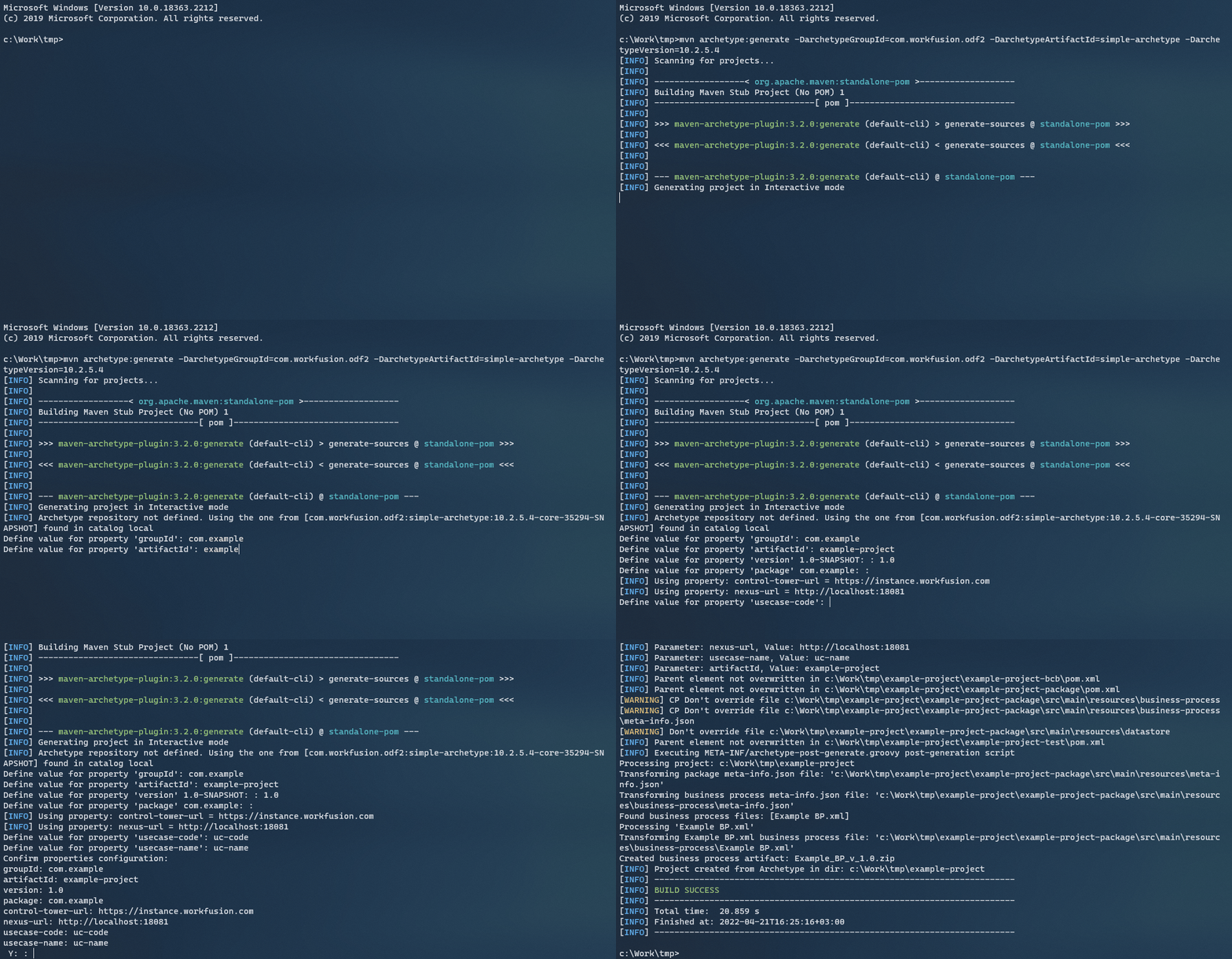
When you perform the command, specify the following properties:
groupId: group ID that uniquely identifies your project across all projects. The group ID should follow Java's package name rules. This means it starts with a reversed domain name you control, for example,com.mycompany.mylob.artifactId: name of the JAR without a version in Maven archetypes. If you create it, you can choose any name you want with lowercase letters and no strange symbols. In our case,artifactIdis used to name the folder where your project is generated. Also, it is used as a prefix in the names of all generated modules. For example, ifartifactIdis set toinvoices, the following modules are generated:invoices-bcbinvoices-packageinvoices-test
Finally,
artifactIdis used to name the JARs built by Maven for each of these modules.version: Maven's version of the project to be created. Do not use SNAPSHOT or dates in it. Follow simple versioning patterns like1,5.3,8.4.5. The Mavenversionis used to define an AI Agent version.package: Java package to be used in the project; by default, Maven suggests the same value as specified ingroupId. It is used as a package path (split by points) in your project. Define it likecom.mycompany.mylob.usecase-code: AI Agent code to be associated with the project. It is used as a technical ID of the AI Agent, for example, as a part of the name for each Data Store created for this AI Agent. Use only Latin lowercase symbols without spaces, for example,inv,star,kmk, and so on.usecase-name: AI Agent name to be associated with the project and used as a human-readable name. Use upper and lower case Latin symbols, spaces, and digits—this is essentially a string for representation. Keep it relatively short (up to 32 characters) to avoid breaking markup on the UI, for example,KYC Latin America.
Also, there are two optional properties with predefined values. You can modify these values any time later within the created project:
control-tower-url: URL of the remote Control Tower instance where the AI Agent is deployed for testing. The default value is https://instance.workfusion.com. You can easily change it inpom.xmllater.nexus-url: URL of the Nexus server. The default value is http://localhost:18081 that is the Nexus server from the local Work.AI Developer. You can easily change it inpom.xmllater.
As soon as all properties are set, Maven asks for confirmation—either
yesorno.- If all looks good, type
Yfor Maven to start building a project. - If something is set incorrectly and you want to get back to the configuration, type
Nto get back to the properties setup.
- If all looks good, type
You can change the described above values in IDE once the project is generated. Some values are easy to change (like version, usecase-code, usecase-name) as they are defined in pom.xml. Some are used to generate project modules and Java packages, so that the change will require some refactoring in IDE.
To avoid changing right after the project start, make sure to understand the usage of parameters. In case of wrong naming, it is easier to quickly re-generate a project with correct values.
Use non-interactive mode
The second option is to use the non-interactive mode. In this case, specify all required properties together with the archetype:generate goal.
mvn archetype:generate -DarchetypeGroupId="com.workfusion.odf2" -DarchetypeArtifactId="simple-archetype" -DarchetypeVersion="X.X.X.X" -DgroupId="com.example" -DartifactId="example-project" -Dversion="1.0" -Dpackage="com.example" -Dusecase-code="uc-code" -Dusecase-name="uc-name" -Dcontrol-tower-url="https://instance.workfusion.com" -DinteractiveMode=false
The archetype version equals to the ODF 2 version. For more details, refer to the compatibility matrix page.
You can see all the properties from the example above in one line. The interactiveMode=false property sets off the interactive mode. In this case, Maven doesn't ask anything and starts building a project straight away. Before doing that, Maven prompts all parameters and values to be used to the console:
[INFO] ----------------------------------------------------------------------------
[INFO] Using the following parameters for creating a project from Archetype: simple-archetype:X.X.X.X
[INFO] ----------------------------------------------------------------------------
[INFO] Parameter: groupId, Value: com.example
[INFO] Parameter: artifactId, Value: example-project
[INFO] Parameter: version, Value: 1.0
[INFO] Parameter: package, Value: com.example
[INFO] Parameter: packageInPathFormat, Value: com/example
[INFO] Parameter: package, Value: com.example
[INFO] Parameter: version, Value: 1.0
[INFO] Parameter: usecase-code, Value: uc-code
[INFO] Parameter: groupId, Value: com.example
[INFO] Parameter: control-tower-url, Value: https://instance.workfusion.com
[INFO] Parameter: nexus-url, Value: http://localhost:18081
[INFO] Parameter: artifactId, Value: example-project
[INFO] Parameter: usecase-name, Value: uc-name