Build code with RPA
The article explains different solution approaches to building code and focuses on simplified RPA API.
Page Object model
After creating a project inside the BCB module, you find several out-of-the-box examples built with Java and Groovy. You can benefit from them in terms of methods and approaches to building your personal code solutions.
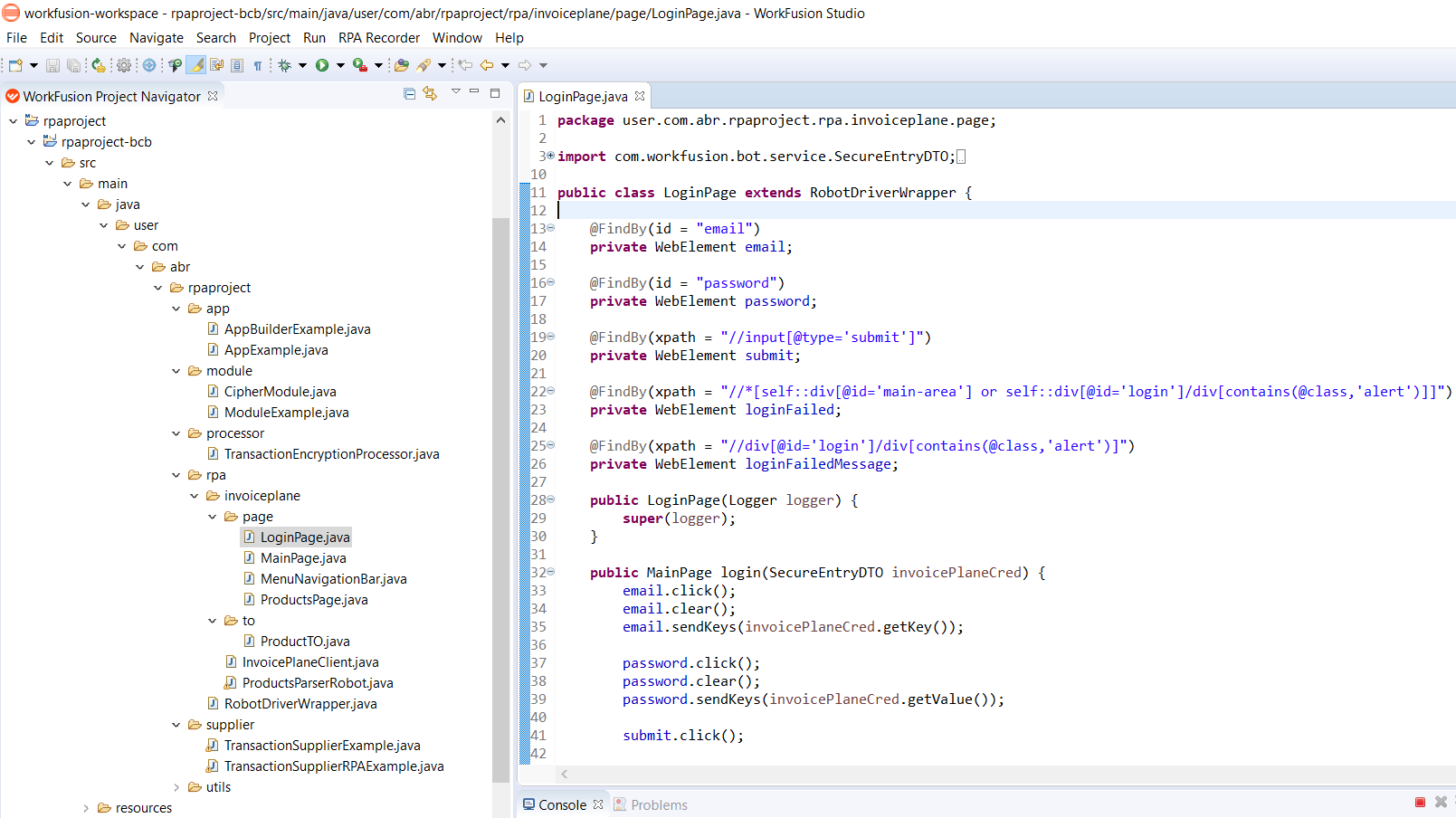
One approach is to use Page Objects. A Page Object model is an object design pattern in Selenium where web pages are represented as classes and various page elements are defined as class variables. Such decomposition of interactions with pages is a good practice for large automation projects. See the example in the rpa.invoiceplane.page package in Eclipse IDE, for instance, the LoginPage class.
Simplified RPA API
A straightforward approach to code an RPA script is to use simplified RPA API directly in the task class. The available static RPA class is a collection of static methods. See the example of its usage in IDEA IDE:
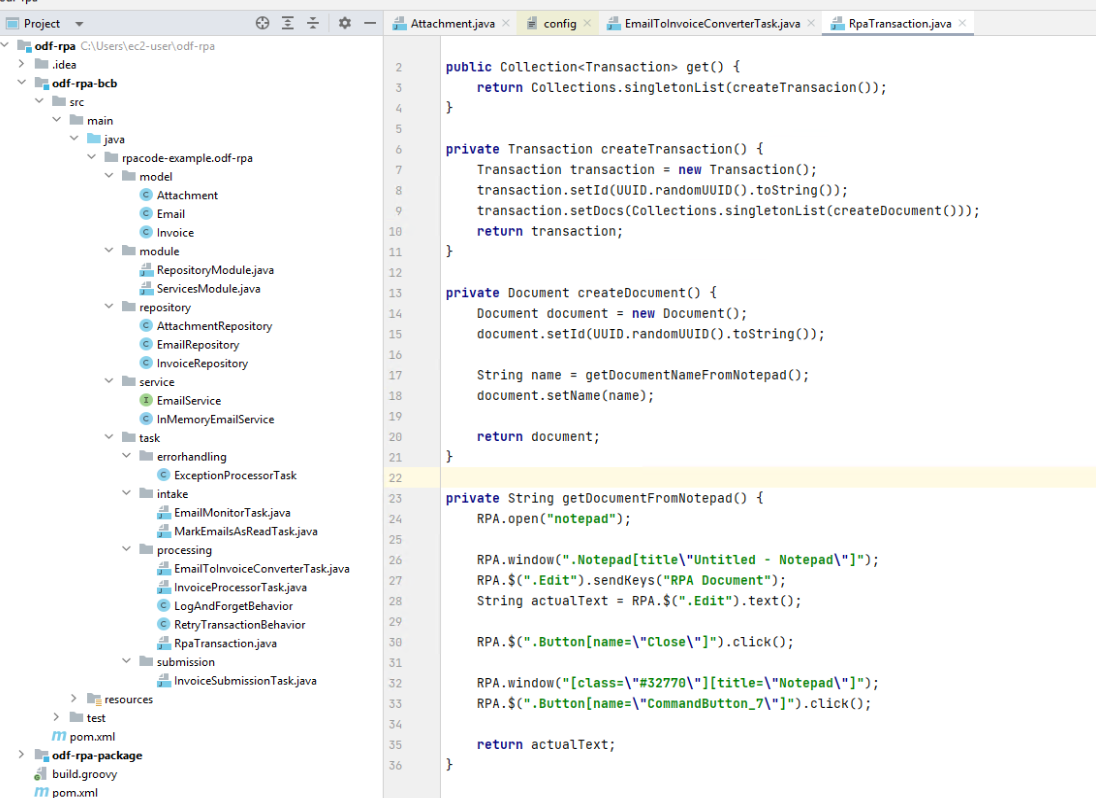
- On line 24, you open the Notepad application.
- On line 26, you switch to a particular Notepad window.
- On line 27, you use a dollar sign
$. It's the analog of jQuery (the JavaScript library) and represents the search function.$(".Edit")means you search for theEditattribute and typeRPA Document. If you use Notepad, in the Edit field, enter the main text. - The following code lines close the document.
private String getDocumentFromNotepad() {
    RPA.open("notepad");
    RPA.window(".Notepad[title\"Untitled - Notepad\"]");
    RPA.$(".Edit").sendKeys("RPA Document");
    String actualText = RPA.$(".Edit").text();
    RPA.$(".Button[name=\"Close\"]").click();
    RPA.window("[class=\"#32770\"][title=\"Notepad\"]");
    RPA.$(".Button[name=\"CommandButton_7\"]").click();
    return actualText;
}
You can perform all the above manipulations using the RPA class as shown in the example below:
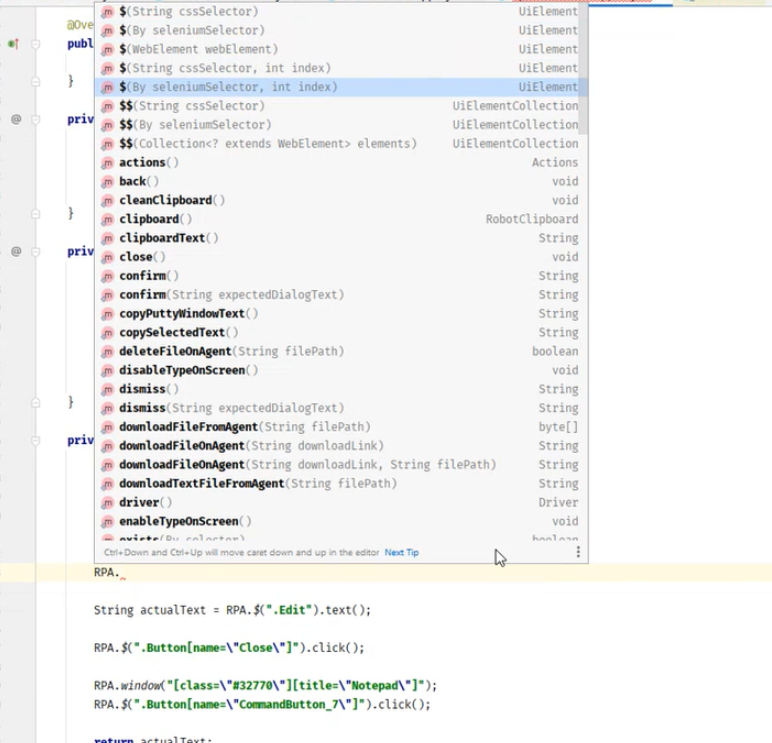
After typing an RPA class, IDE automatically suggests adding numerous methods and using them in your code.
See the example of a Bot Task that uses configuration to store RPA application URL and alias for Secrets Vault where the credentials are kept:
package com.example.intake.task;

import javax.inject.Inject;
import com.workfusion.bot.service.SecureEntryDTO;
import com.workfusion.odf2.core.settings.Configuration;
import com.workfusion.odf2.core.webharvest.service.vault.SecretsVaultService;
import org.slf4j.Logger;
import com.workfusion.odf2.compiler.BotTask;
import com.workfusion.odf2.core.task.generic.GenericTask;
import com.workfusion.odf2.core.task.rpa.RpaDriver;
import com.workfusion.odf2.core.task.rpa.RpaFactory;
import com.workfusion.odf2.core.task.rpa.RpaRunner;
import static com.workfusion.rpa.helpers.RPA.$;
import static com.workfusion.rpa.helpers.RPA.open;
import static com.workfusion.rpa.helpers.UiSelectors.byXpath;

@BotTask(requireRpa=true)
public class RPASampleTask implements GenericTask {

    public static final String APP_URL = "app.invoiceplain.url";
    public static final String APP_CREDENTIALS_ALIAS = "app.invoiceplain.credentials.alias";
    private final Logger logger;
    private final RpaRunner runner;
    private final Configuration configuration;
    private final SecretsVaultService secretsVault;

    @Inject
    public RPASampleTask(RpaFactory rpaFactory, Logger logger, Configuration configuration, SecretsVaultService secretsVault) {
        this.logger = logger;
        this.configuration = configuration;
        this.secretsVault = secretsVault;

        runner = rpaFactory.builder(RpaDriver.CHROME)
                .closeOnCompletion(true)
                .maximizeOnStartup(true)
                .startInPrivate(true)
                .capability("cleanSession", true)
                .build();
    }

    @Override
    public void run() {
        logger.info("Hello World");
        SecureEntryDTO credentials = secretsVault.getEntry(configuration.getRequiredProperty(APP_CREDENTIALS_ALIAS));

        runner.execute(driver -> {
            open(configuration.getRequiredProperty(APP_URL));
            $("#email").sendKeys(credentials.getKey());
            $("#password").sendKeys(credentials.getValue());
            $(byXpath("//input[@type='submit']")).click();
        });
    }
}
The Bot Task JUnit to test this looks as follows:
package com.example.intake.task;

import com.workfusion.odf.test.launch.BotTaskUnit;
import com.workfusion.odf2.core.orm.model.internal.ConfigEntity;
import com.workfusion.odf2.junit.OrmSupport;
import org.junit.jupiter.api.BeforeEach;
import org.junit.jupiter.api.DisplayName;
import org.junit.jupiter.api.Test;
import com.workfusion.odf.test.junit.IacDeveloperJUnitConfig;
import com.workfusion.odf2.junit.BotTaskFactory;
import java.util.ArrayList;
import java.util.Collection;
import static org.assertj.core.api.Assertions.assertThatCode;

@IacDeveloperJUnitConfig
class RpaTaskTest {

    @BeforeEach
    void setUp(OrmSupport ormSupport) {
        ormSupport.createTables(ConfigEntity.class);
        Collection<ConfigEntity> cfg = new ArrayList<ConfigEntity>() {{
            add(new ConfigEntity("app.invoiceplain.url", "https://train-invoiceplane.workfusion.com"));
            add(new ConfigEntity("app.invoiceplain.credentials.alias", "ipalias"));
        }};
        ormSupport.getConfigRepository().createAll(cfg);
    }

    @Test
    @DisplayName("should run RPA to open WF DOC in Chrome")
    void shouldRunRPAService(BotTaskFactory botTaskFactory) {

        // given
        BotTaskUnit rpaDriverTask = botTaskFactory
                .fromClass(RPASampleTask.class)
                .withSecureEntries(cfg -> cfg.withEntry("ipalias", "wf-robot@mail.com", "BotsRock4ever!"));

        // then
        assertThatCode(rpaDriverTask::buildAndRun).doesNotThrowAnyException();

    }
}
Make sure you learn WorkFusion-provided com.workfusion.rpa.helpers.RPA: