Configure RPA video recording
The screen capturing feature allows recording videos of actions currently performed on each Bot Unit screen. The functionality is used by IT Operations, RPA Developers, and Automation Engineers for troubleshooting purposes.
Analyzing the Java exceptions may prove insufficient for understanding the root cause of RPA automation failures. The possibility of tracking the running Business Processes by watching videos from screen capturing can be extremely valuable in troubleshooting and reproducing the issues.
Check prerequisites
Hardware requirements
For hardware requirements, refer to Requirements | RPA server.
Disk space requirements
One default-length recording of 1 hour takes up around 180 MB. Rounding this up to 200 MB per hour gives one unit around 4.8 GB of space per day. Thus, the disk space requirements are as follows:
| Number of bots | Recordings size per day |
|---|---|
| 2 | ~15 GB |
| 5 | ~30 GB |
| 10 | ~55 GB |
S3 bucket requirements
The S3 bucket size requirements are the same as the disk space requirements. The default rotation period for the S3 bucket container is three days.
View technical details
Video recording tool: the most popular open-source tool FFmpeg used to capture, encode, or decode video and audio files.
Video codec: the VP8 codec, an open-source codec developed by Google under the Creative Commons Attribution 3.0 license used to compress output video files containing the screen capturing to be saved as quickly and as efficiently as possible.
Video container: the WebM container that works out of the box on Windows machines and web browsers. The development of the format is sponsored by Google. The corresponding software is distributed under a BSD License.
Video input device: a free open-source Windows screen capture virtual device used as input for DirectShow. See more information on DirectShow on the official website.
Configure RPA Video Recorder
You can customize the RPA Video Recorder tool by changing the following command in the bot-agent-master.yml and bot-agent-unit.yml files:
java -Dunit.log.dir=../bot-agent/logs/master -Droot.path=${environment.recordings.root.dir} -Drecording.deps.path=%recording.deps.path% -jar rpa-video-recorder.jar -source master -fr 6 -br 384K -cpu-used 5 -length ${video.recording.length}
The parameters are as follows:
-source: the source of the tool execution (masterorunitx).-fr: the frame rate (FPS). The default value is 6.-br: the video bitrate. The default value is 384K.-cpu-used: allows for CPU usage customization. The higher the-cpu-usedvalue is, the less CPU is utilized. The CPU utilization is calculated using the formula: (100*(16-cpu-used)/16)%. The-cpu-usedvalid values are between 0 and 15. The default value is 5.-length: the length of one video file in seconds. The screencast is performed constantly and split into file chunks. The default value is 3600 (1 hour).
To change the length of video file chunks, set a new value for the video.recording.length parameter in bot-agent-master.yml and units_recordings.yml. units_recordings.yml is a new config file common for all units and is located in {RPA-INSTALL-DIR}/bot-agent/conf/units.
The Java OPTS are as follows:
-Dunit.log.dir: the log file directory.-Droot.path: the root path for the video file storage; can be relative or absolute. To change the root path, modify theenvironment.recordings.root.dirvalue in theenvironment.ymlfile.-Drecording.deps.path: the path containing the FFmpeg and FFprobe binaries. The path is set by the installer. If the location of the binaries changes, adjust the value manually.
By default, Agents check for new files to upload every minute. To configure the S3 upload interval value, add the following property to the environment.yml file:
environment.s3.upload.interval: 100000 # interval of uploads milliseconds
Configure file storage
Set up S3 bucket
You can enable or disable recordings for a particular Bot Unit and Bot Master session. Video files of a user-defined length (default of one hour) are uploaded to the S3 storage and deleted from the RPA server.
For this feature, RPA requires a separate S3 bucket called rpa-video-recordings.
Consider disk space
The required disk size depends on the number of units per server, RPA servers, and video settings, such as bitrate and framerate.
Using the default settings, one default-length recording of one hour takes up about 180 MB. Rounding this up to 200 MB per hour gives around 4.8 GB a day of space per user session.
To calculate the total space needed for one day for one server, use the following formula: DS = 4.8 GB * N + 4.8 GB, where:
Nis the number of units per server.- Additional 4.8 GB is for the Master session recording.
Multiply DS by the number of RPA servers with the recording feature enabled and the number of days you intend to store the files.
Keep the bucket on a separate disk to ensure that a high disk usage will not affect other components' operations.
Limit S3 bucket size
To configure the S3 bucket size limit, change the following parameter in ZooKeeper:
/config/bot-agent/video.recordings.bucket.size.quota.mb
The default value of the parameter is 20,480 MB.
To change the video.recordings.bucket.size.quota.mb parameter value, see the Change settings in ZooKeeper section.
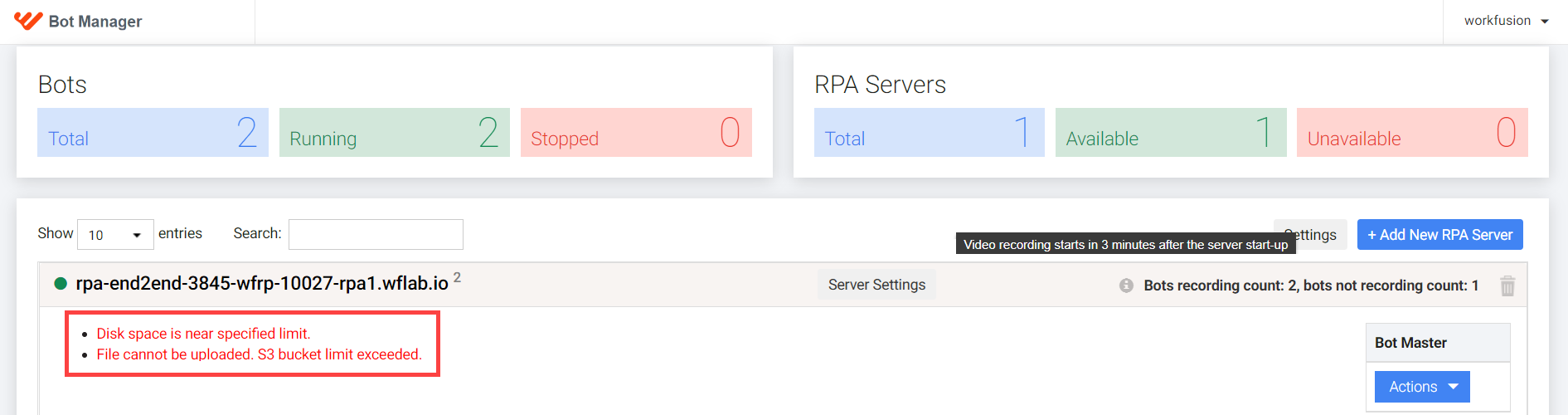
If your S3 bucket is full, videos are not uploaded to S3 and stay on an RPA machine. The "File cannot be uploaded. S3 bucket {size of bucket} mb limit exceeded." message appears in the bot-agent.log and unit-bot-agentX.log files.
Remember to restart WFSvc on each RPA server.
If the size limit for a video folder on S3 is exceeded, you can see a corresponding alert.
Configure disk space limit
As video recording consumes much memory, use a service on the Bot Agent side to monitor free disk space and stop recording if free space exceeds a certain threshold.
To configure this functionality, use the following ZooKeeper values:
| Node | Default value | Description |
|---|---|---|
/config/bot-agent/rpa.recording.space.check.interval | 25600 | Threshold to notify about lack of space (MB) |
/config/bot-agent/rpa.recording.space.check.notify | 10240 | Threshold to stop all active recordings (MB) |
/config/bot-agent/rpa.recording.space.check.stop | 300000 | Interval between memory checks (ms) |
If the free space of the
recordings.root.dirfolder's disk fails below the notification threshold, the following debug log appears in thebot-agent.logandunit-bot-agentX.logfiles, and a notification is sent to Bot Manager. The log message is "Disk space is near specified limit."If the free space falls even further below the stop threshold, all recorders under each user are stopped, and the following error log message appears in the
bot-agent.logandunit-bot-agentX.logfiles, and a notification is sent to Bot Manager. The log message is "Disk space is not enough to continue recording. All recorders will be stopped."
After video recording is stopped by the service, a new recording will not start until you manually restart it in the Bot Manager UI. If you did not clear the space before a restart, recordings are stopped again after a specified timeout.
Specify number of upload attempts
When several video upload attempts to a dedicated S3 bucket fail, the following notification is displayed in Bot Manager: "Could not upload video to S3 after several attempts. S3 upload will be stopped."
You cannot view them in Bot Manager, though they remain on the RPA server and can be copied from there. This message usually indicates some problems with connectivity or the S3 Manager service. To learn more about the issue, see the logs of Master Bot Agent or Unit Agents.
Agents will attempt to upload videos again after the time specified in the environment.s3.upload.interval property in environment.yml. Its default value is 100000 ms.
After a successful file upload, the notification with an error disappears from Bot Manager.
You can also specify how many upload attempts will be made before this message appears in Bot Manager. The default value is 5.
To customize, in bot-agent-master.yml for Master Agent and in bot-agent-unit.yml for Bot Units, add the following property:
video:
  recording:
    retries:
      attempts:4
Set up bucket lifecycle policies
To prevent the storage from running out of space, configure file rotation by setting bucket lifecycle policies. To delete files older than three days from a specific bucket, complete the following steps:
On the Master server, open the
lifecycle_policiesfile located at/opt/workfusion/ceph.Edit the file to update the lifecycle policies for the relevant buckets:
# Lifecycle policies for Ceph buckets
# Each line represents a lifecycle policy for a single bucket
# Each line should be in the following format:
# bucket_name max_age_in_hours
rpa-gpo-reports 60
rpa-video-recordings 3
Save the changes.
The default RPA bucket policies are as follows:
rpa-video-recordings: 3 daysrpa-gpo-reports: 60 days
Enable screen capturing
The screen capturing functionality is disabled by default. In ZooKeeper, each Bot Unit and Master have default variables, such as:
/config/bot-agent/recording.{rpa hostname}.master=false/config/bot-agent/recording.{rpa hostname}.unit1=false/config/bot-agent/recording.{rpa hostname}.unitN=false
To enable video recording by default, in ZooKeeper, change these parameters to true:
For VDI installation, modify config/bot-agent/recording.{RPA hostname}.unit1=true.
If you don't have these variables in ZooKeeper, change the following parameters on each RPA machine:
- In
bot-agent-master.yml(bot-agent-nord.ymlfor the VDI installation),recording.enabledtotruefor Bot Master. - In
units_recordings.yml,video.recording.enabledtotruefor Bot Units.
Start video recording
To start a video recording:
Go to Control Tower > Bot Manager:
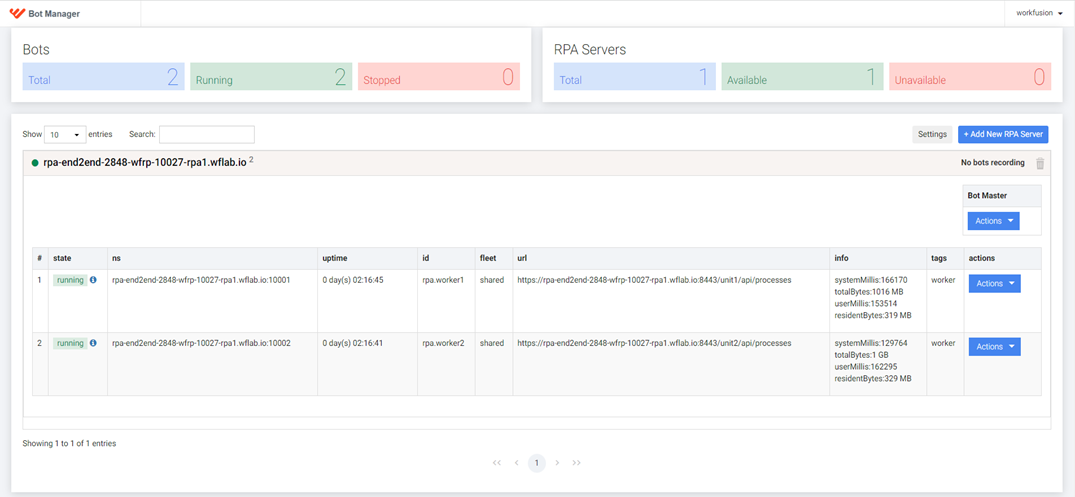
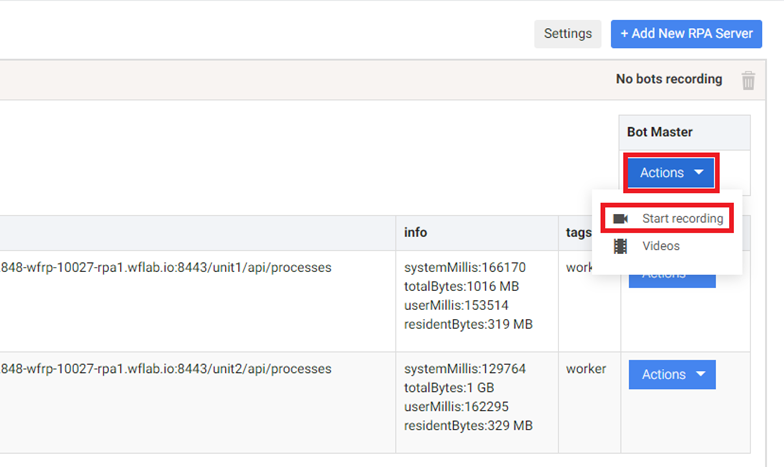
Start the screen capturing on the Bot Master machine:
- Click the Actions button under the Bot Master table and select Start recording:
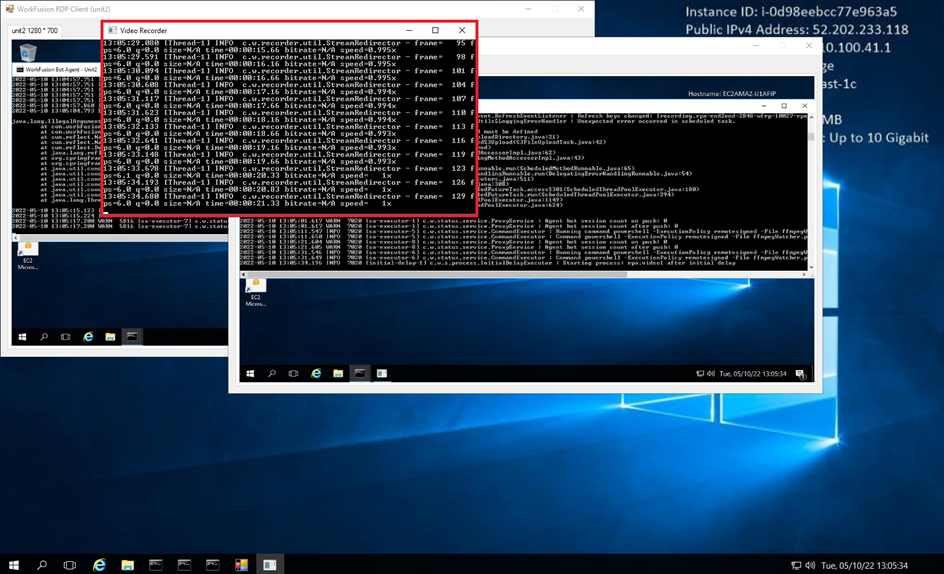
- Connect to Bot Master via RDP and check if the video recording process is displayed:
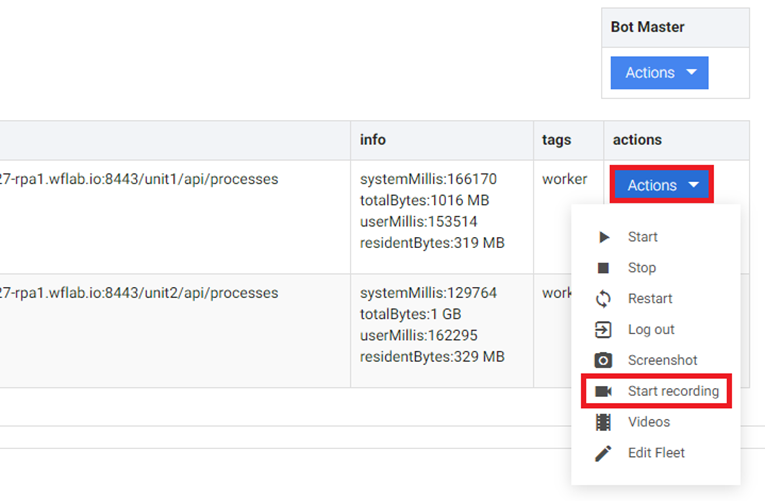
Start the screen capturing independently on each Bot Unit machine:
- Click the Actions button and select Start recording:
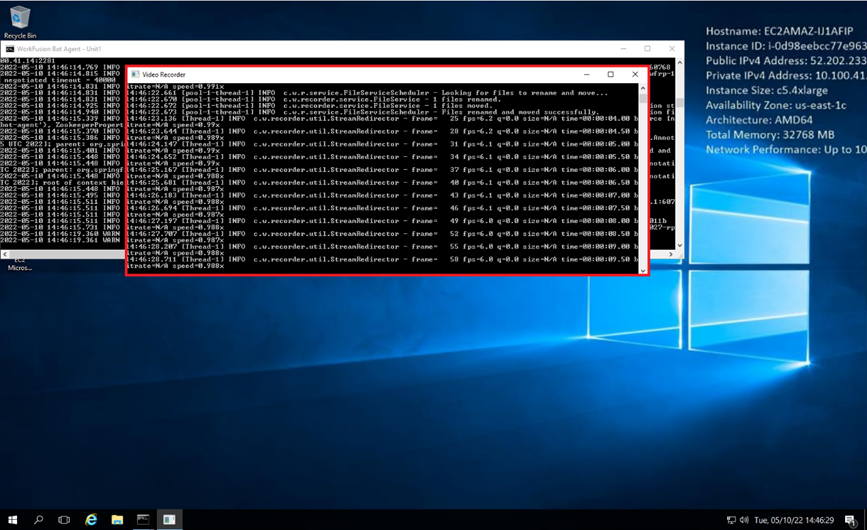
- Connect to your Bot Unit via RDP and check if the video recording process is displayed:
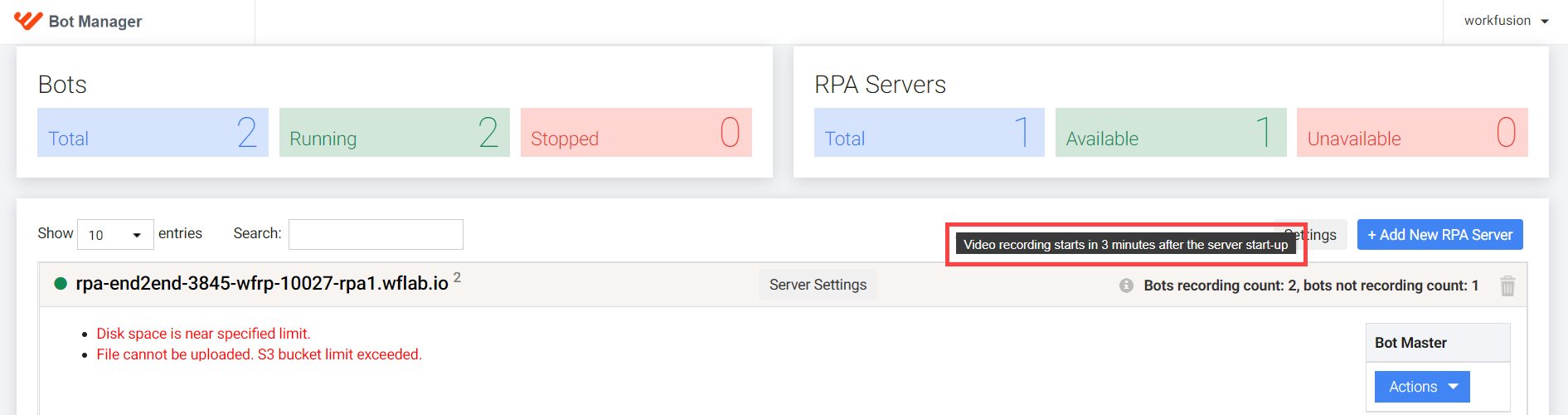
If you start a video during the delay period (3 minutes), you can see the following alert.
Stop video recording
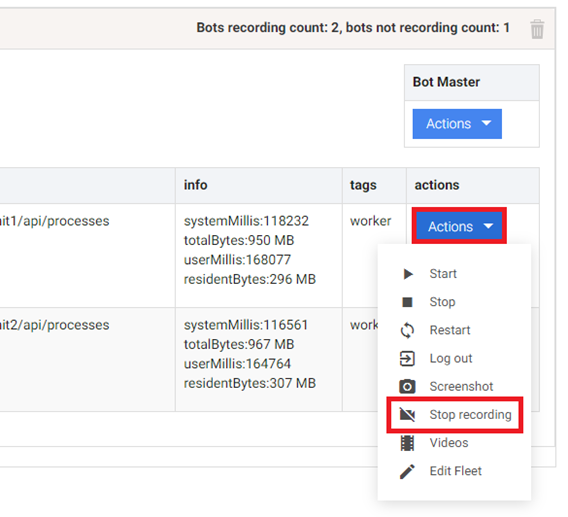
To stop the screen capturing on the Bot Master machine, click the Actions button under the Bot Master table and select Stop recording:
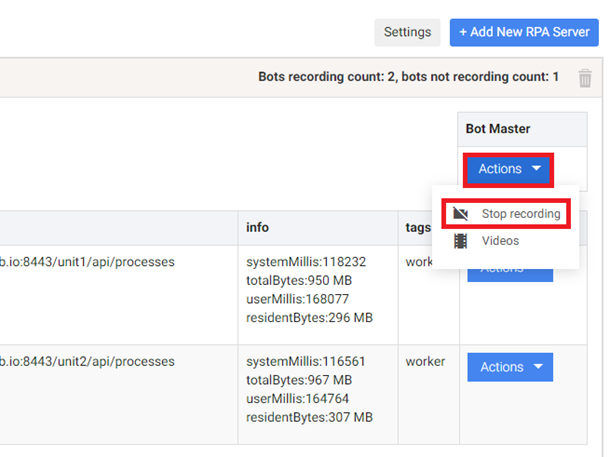
You can also stop the screen capturing independently on each Bot Unit machine. To do it, click the Actions button and select Stop recording:
Configure upload to S3 bucket
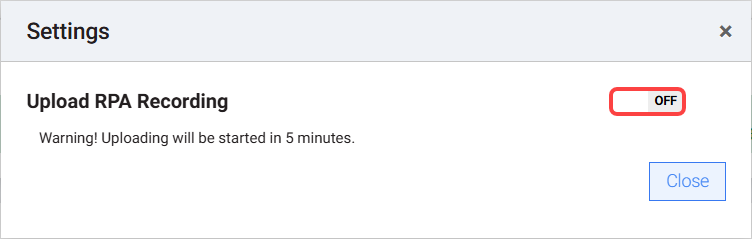
You can view recorded videos in Bot Manager only after they are uploaded to an S3 bucket. The upload takes place automatically if a dedicated bucket is configured. The configuration is optional and must be switched on manually.
You can configure the upload feature manually in several ways:
In ZooKeeper, set the
/config/bot-agent/rpa.upload.recording.s3flag totrue. To change a value in ZooKeeper, see Change settings in ZooKeeper.Go to Settings > Upload RPA Recording and switch the ON toggle.
For configuration details on space limit, see Configure disk space limit.
Check video recording status
The current status of video recording processes is displayed next to the instance name:
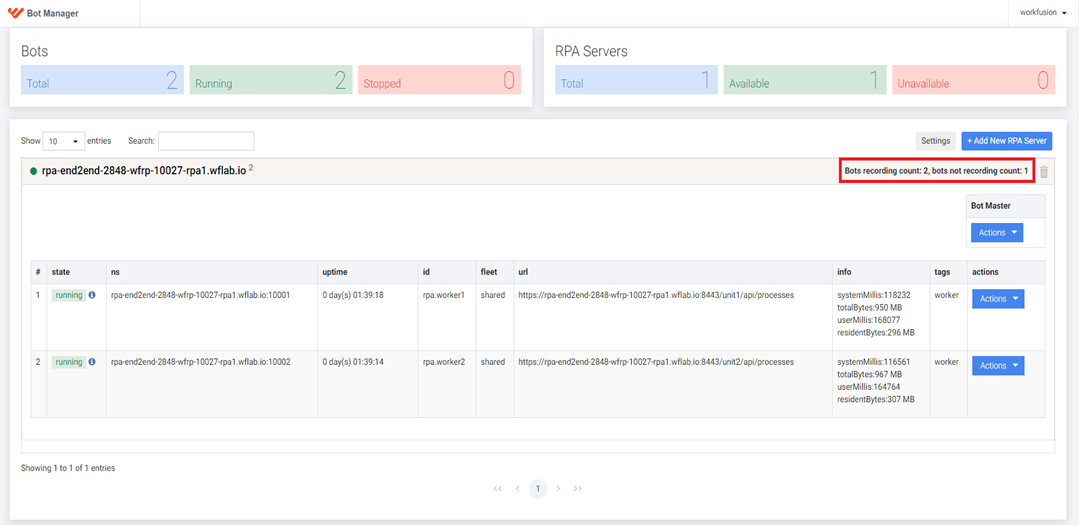
The video recording status label can have three possible values:
- All bots recording
- No bots recording
- Bots recording count: x, bots not recording count: y
Access recorded videos
To access your recorded videos for Bot Master or Bot Units, click the Actions button and select the Videos option:
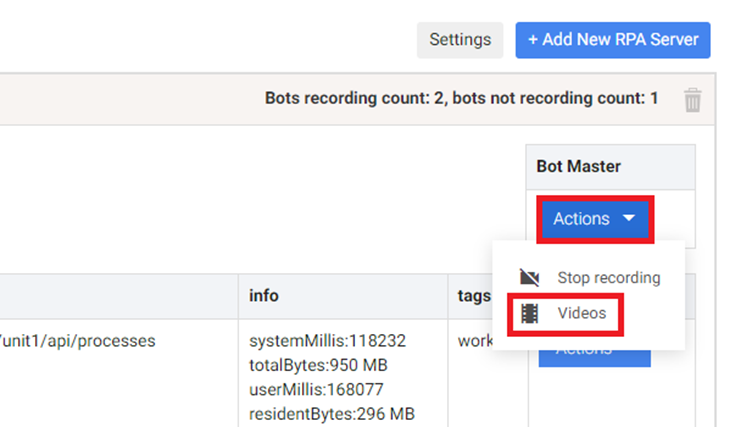
The following popup appears with a list of recordings:
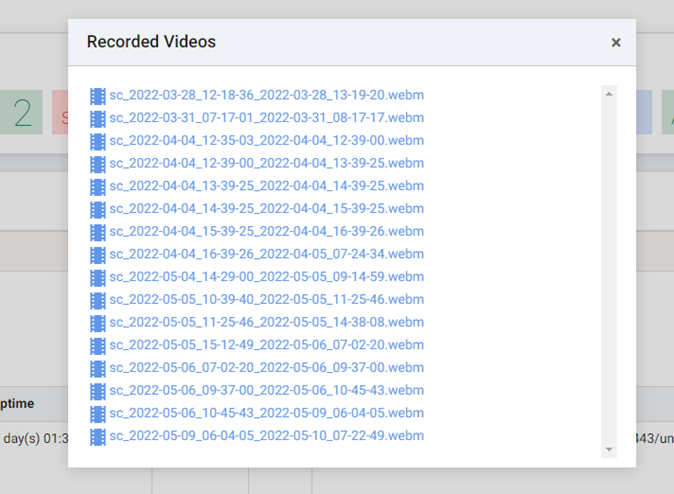
Each link redirects to the appropriate screen capture recording stored in the S3 bucket.
The default locations for video recordings are as follows:
C:/RPA/video: the default location for video recordings.C:/RPA/bot-agent/logs/master/video_recording-yyyy-mm-dd.n.log: the Bot Master default location for video recording logs.C:/RPA/bot-agent/logs/unitx/video_recording-yyyy-mm-dd.n.log: the Bot Unit default location for video recording logs.
To change the log locations, modify the unit.log.dir parameter in the bot-agent-master.yml and units_recordings.yml files.
If you have issues when running RPA Unit processes, see Issues related to poor RPA server performance.