RPA server
The RPA component is installed on one or several Windows-based servers where multiple bots are running. Each bot requires a separate RDP session. The number of the required Bot Units per RPA server depends on the disk size and daily load they must handle.
For example, if you decide to run five bots per RPA machine, you need the RDS license for six users: one for Bot Master and five for Bot Units.
Hardware requirements
Minimum hardware requirements for bots are as follows:
| Server | OS (recommended in bold) | CPU (cores) | RAM (GB) | Disk (GB) | Swap (recommended) |
|---|---|---|---|---|---|
| Enterprise Server (5 bots) |
| 8, 2.8 GHz+ | 16 | 250 | 10 GB |
| VDI Server |
| 4, 2.8 GHz+ | 8 | 150 | 4 GB |
Typical hardware requirements for the RPA server are as follows:
| Number of bots | CPU | RAM | HDD | Swap |
|---|---|---|---|---|
| 2 | 4 cores, 2.8 GHz+ | 8 GB | 100 GB | 4 GB |
| 5 | 8 cores, 2.8 GHz+ | 16 GB | 250 GB | 10 GB |
| 10 | 16 cores, 2.8 GHz+ | 32 GB | 500 GB | 16 GB |
Recommended hardware requirements for the enabled screen capturing feature are as follows:
| Number of bots | CPU | RAM | HDD | Swap |
|---|---|---|---|---|
| 2 | 5 cores, 2.8 GHz+ | 8 GB | 100 GB | 4 GB |
| 5 | 10 cores, 2.8 GHz+ | 16 GB | 250 GB | 10 GB |
| 10 | 20 cores, 2.8 GHz+ | 32 GB | 500 GB | 16 GB |
The provided data refers to minimum hardware requirements. Adjust the CPU and memory on the server according to your Business Process needs.
Add additional memory if you set a higher value of the -Xmx parameter in the worker.bat file (the default value is 1 GB). You can also add additional memory or CPU if you run applications with high memory or CPU consumption.
RPA server requirements
RPA machines must have the installed business applications required to complete the operational tasks. The RPA component simulates standard business operations by interacting with the graphical user interface (GUI) of these applications.
You must purchase the Microsoft's RDS license in advance to run more than one bot (for example, one Bot Master and one Bot Unit) on one server. For more details, see Activate RDS licensing for multiple bots.
In case of the Enterprise RPA server installation (several bots on one server):
- Each RPA server must have at least two service accounts: a Bot Master and a Bot Unit Windows users. Create the users manually before installing by using Powershell, cmd, or GUI.
- The Bot Master user and Bot Unit users must be members of the Remote Desktop Users and Performance Monitor Users groups on all RPA servers.
- Bot Master and Bot Unit users must have the write permissions for the installation directory so that services can create files in this directory.
In case of the VDI RPA server installation (one bot per one server):
- Each RPA server must have one account: a Bot Master Windows user. Create the user manually before the installation by using Powershell, cmd, or GUI.
- A Bot Master user must be a member of the Remote Desktop Users and Performance Monitor Users groups on all RPA servers.
If a Bot Unit or Bot Master user for any RPA server is taken from Active Directory, log in as this AD user to the RPA server before the installation and check the following:
- Bot Master and Bot Unit users must be members of the Remote Desktop Users and Performance Monitor Users groups on all RPA servers.
- Check that your local PC or Active Directory policies allow you to use saved credentials to log Bot Unit user(s) on the RPA server. For the instruction, the Check policies section.
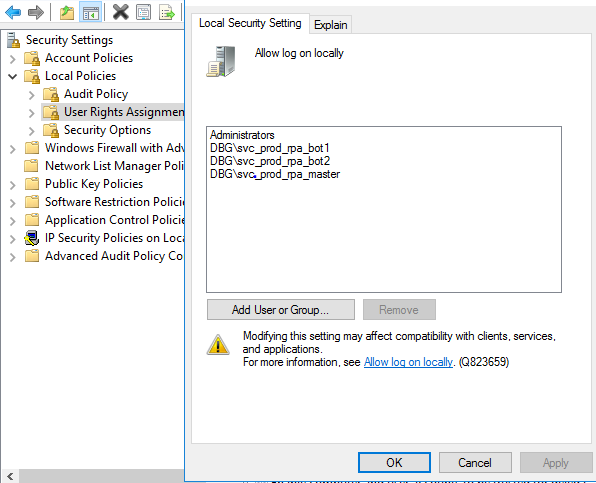
Local login is allowed for all bot users.
You can install RPA server on a VDI host managed by Citrix Virtual App and Desktop environment. In this case, the installation process does not differ from the standard RPA Windows server installation.
During the installation, the Secrets Vault records for all Bot Unit and Bot Master users are created based on the rpa.yml file.
RPA users do not support proxy pass-through traffic. If you have proxy passthrough enabled in your environment, this prevents RPA bots from connecting correctly to Bot Manager.
Check policies
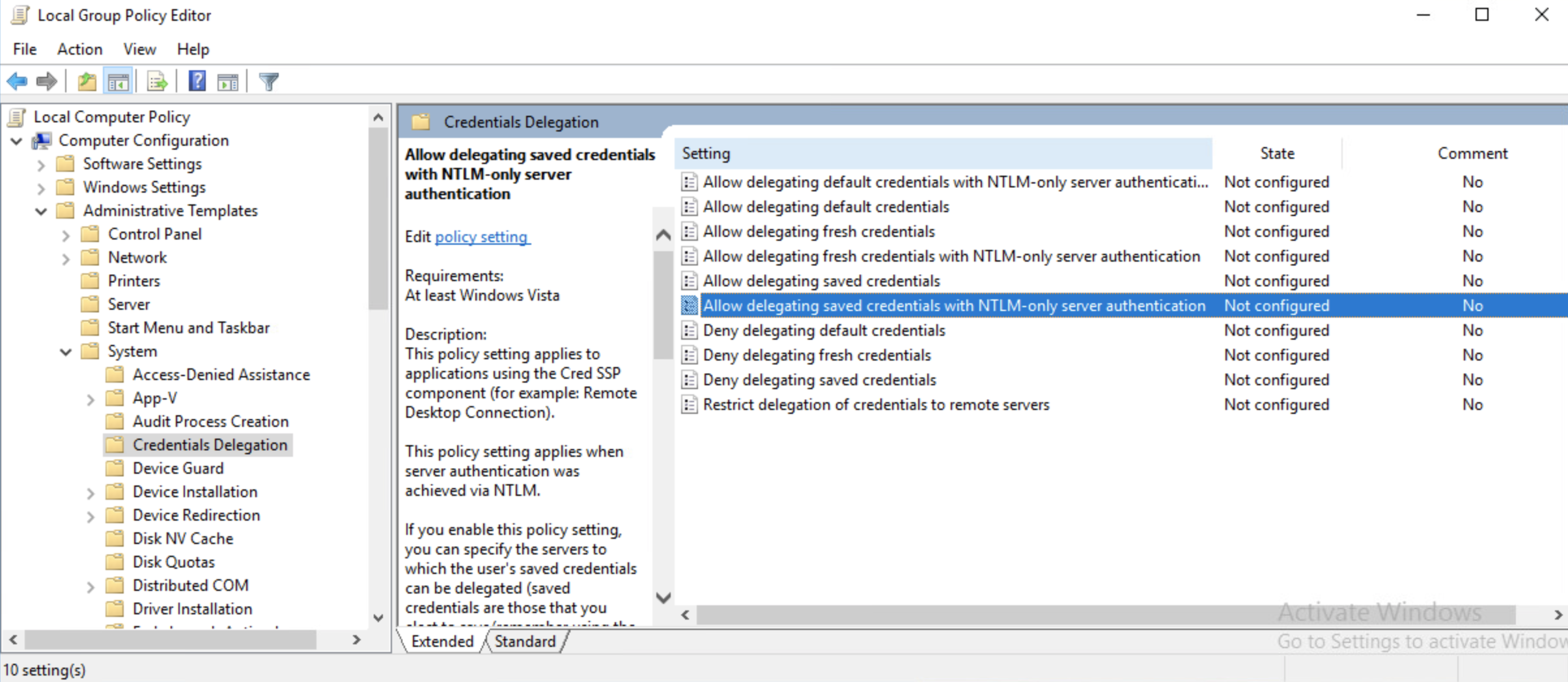
Make sure that the Allow delegating saved credentials with NTLM-only server authentication setting is not distributed via the Active Directory policy:
On the RPA server, run the Local Group Policy Editor.
Press Win + R, type
gpedit.msc, and click OK. The Local Group Policy Editor appears.In the Local Group Policy Editor console, go to the Local Computer Policy section > Computer Configuration > Administrative Templates > System > Credentials Delegation.
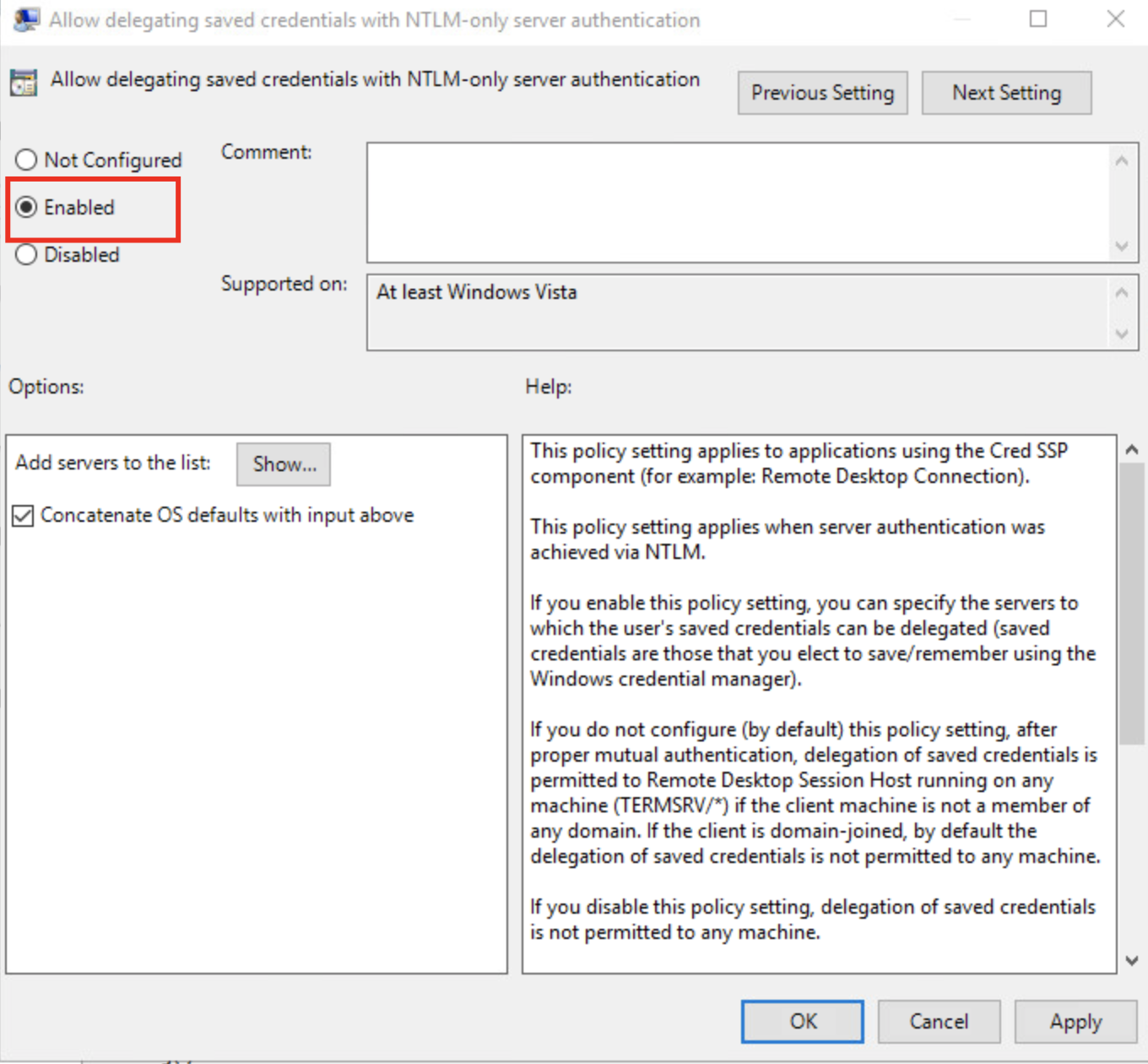
Find the Allow delegating saved credentials with NTLM-only server authentication policy.
Make sure that the Enabled option is selected.
Ensure that the entry
TERMSRV/*is added to the list of allowed servers.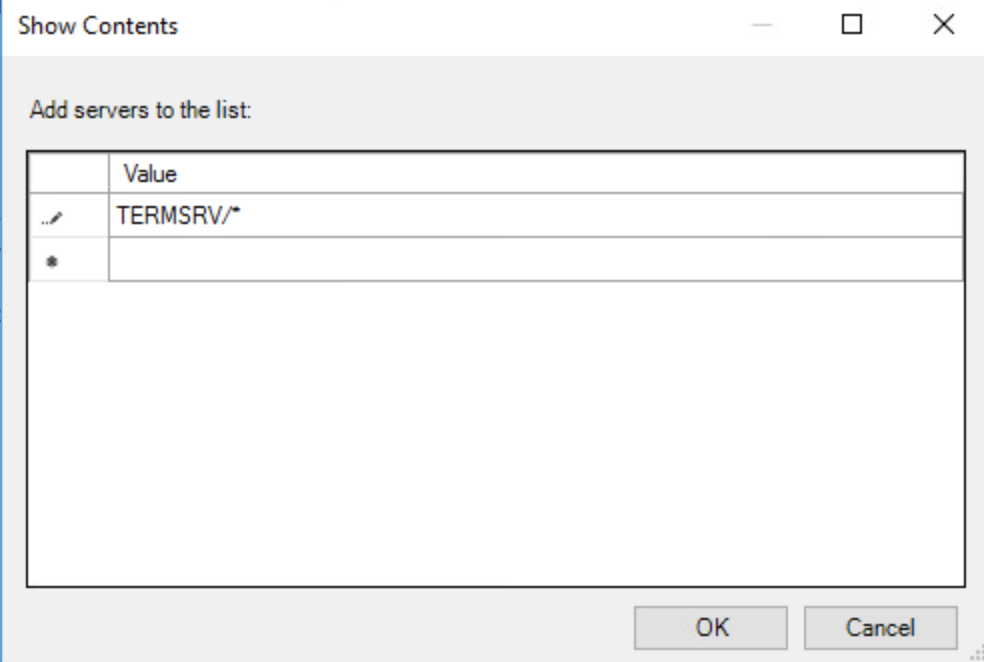 note
noteOther known policies that can prevent autologin from working are as follows:
- Computer Configuration > Administrative Templates > Windows Components > Remote Desktop Services > Remote Desktop Session Host > Security > Always prompt for password upon connection
- Computer Configuration > Administrative Templates > Windows Components > Remote Desktop Services > Remote Desktop Connection Client > Do not allow passwords to be saved
- Computer Configuration > Windows Settings > Security Settings > Local Policies > Security Options > Network access: Do not allow storage of passwords and credentials for network authentication
Check if the settings on the Active Directory side are distributed via this service.
- Basic report:
- Press Win + R, type
rsop.msc, and click OK. The set of policies report is generated and shows effective policies applied to the server. - Check the status of the above-listed policies.
- Press Win + R, type
- Detailed report:
- Press Win, type
cmd, right-click Command prompt, and select Run as administrator. - In the console window, type
gpresult /H c:/report/rsop.HTML. The path is provided as an example. Specify the needed path to a specific location on the server. - Press Enter. After the command runs, browse to your location and open
rsop.html. This document is an exhaustive list of all settings applied from the local and domain policies and points to the winning policy.
- Press Win, type
- Basic report:
Repeat the actions above for each RPA server.
Create RPA users manually
Before installation, you must create the Bot Master and Bot Unit users on each RPA server you plan to deploy and specify the users in the rpa.yml file. See the Specify RPA users instruction.
To create an RPA user on the Windows server:
Connect to the remote Windows server via Remote Desktop or any other software as a user with the Administrator privileges.
Run PowerShell as Administrator.
In PowerShell, run the following commands to create a Bot Master user and add it to the Remote Desktop Users and Performance Monitor Users groups:
net user BotMaster <bot-master-pass> /add
net localgroup "Remote Desktop Users" BotMaster /add
net localgroup "Performance Monitor Users" BotMaster /add
Here,
<bot-master-pass>is the password for the Bot Master user.In PowerShell, run the following commands to create Bot Unit users and add them to the Remote Desktop Users and Performance Monitor Users groups:
net user BotUnit1 <bot-unit-pass> /add
net localgroup "Remote Desktop Users" BotUnit1 /add
net localgroup "Performance Monitor Users" BotUnit1 /add
Here,
<bot-unit-pass>is the password for the Windows Bot Unit user.Log in under each user to activate the accounts.