Upload documents to file storage
Task: upload documents to S3 Manager and generate links for OCR.
Jupiter Notebook: ViewerS3Manager
Input: documents in a folder received from a client
Prerequisites: credentials to the file storage service are specified in the da-pipelines.ini file
To understand the topic better, read also about Resources Manager features and prerequisite configuration.
Jupiter Notebook documents allow you to do the following:
Change file names or keep the initial ones.
Flatten the path to files and work with all files in a root folder.
Create a designated folder in S3 Manager and copy the files there.
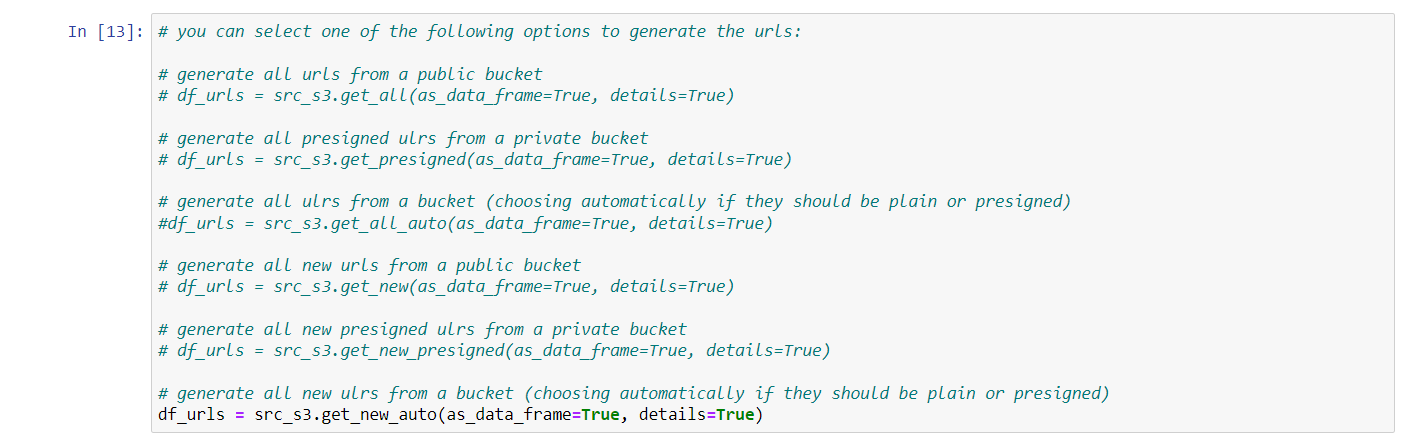
Generate links to all files in a bucket folder or just newly added to S3 Manager.
Preparing dataframe
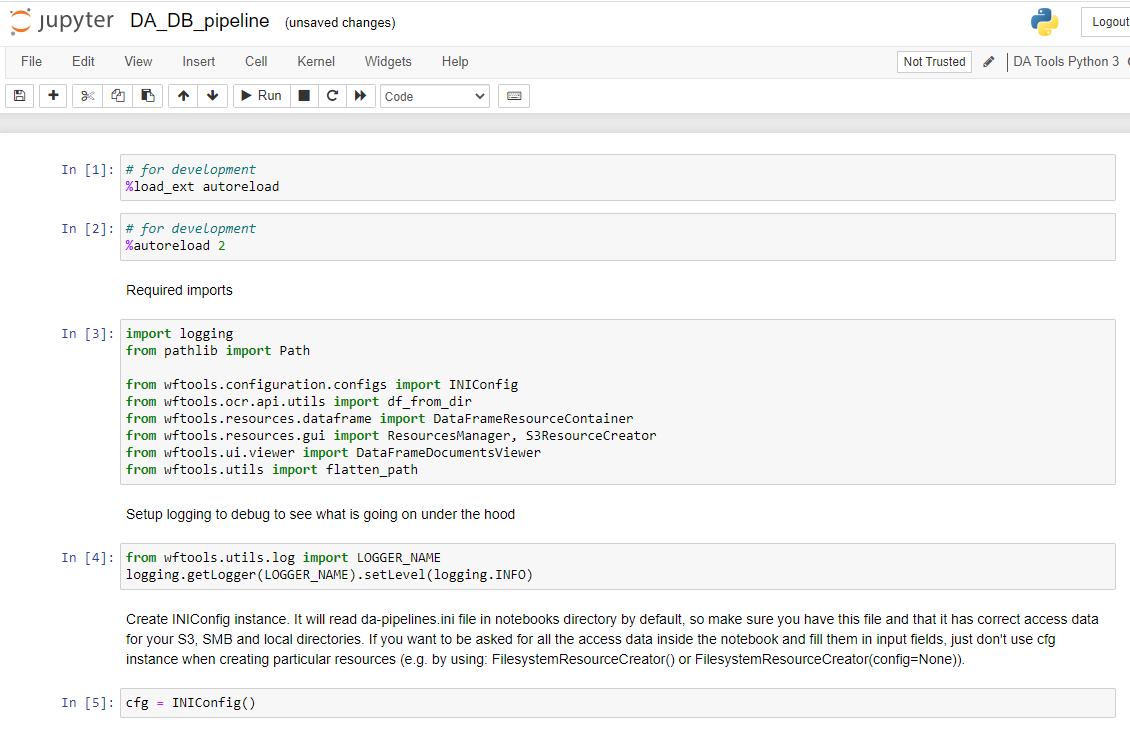
Launch all the dependencies and prerequisites
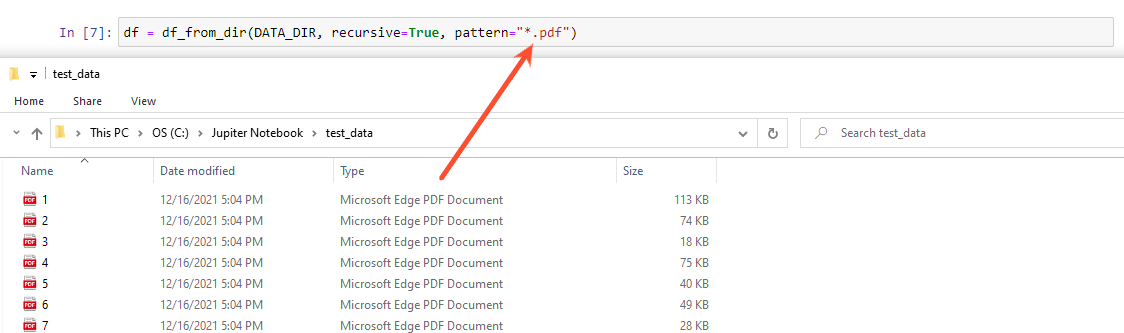
Specify the path to the folder where documents are stored. If you have a number of sub-folders and need to review all the documents in them, specify the root folder. As a result, inside the root folder, all the files matching the pattern are selected for the dataframe.

Check that the pattern matches the file formats or adjust it if necessary.
When a dataframe is created from selected files, you can rename the files or leave the original names. You need to choose one option and uncomment it. While you are running a cell, uncomment other options.
Options for file names are as follows:
Hash-based: hash is generated for the file name, and the original name is removed.
Hash path: the original file name is kept with a hash added to the file name.
Full path: the file name includes the original name and the entire path to the file.
In the example below, the second option is selected, and the rest are commented.

If you don’t need to review files, you can skip Viewer and go directly to the Resources Manager steps.
Resource Manager steps
The following steps establish a connection with the file storage service, make it public if needed, and create a container to select the files inside it and copy them to the S3 bucket. To have these steps successfully completed, make sure that the credentials to S3 Manager are specified in the config file.
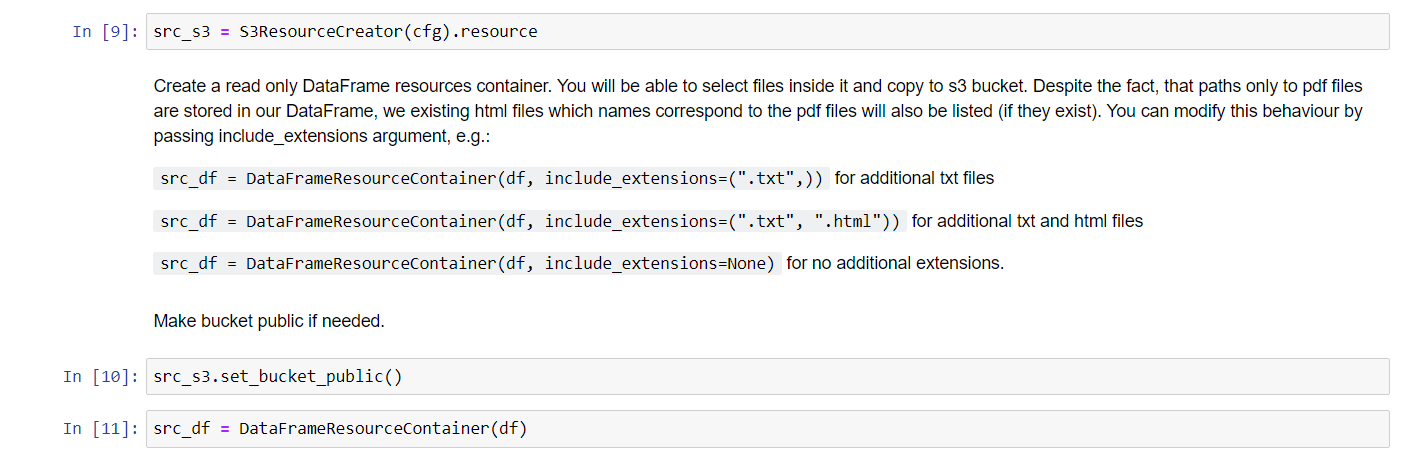
Open the Resources Manager to upload the files. You will have two windows opened, one with a list of all files and folders on S3 and another with the dataframe.
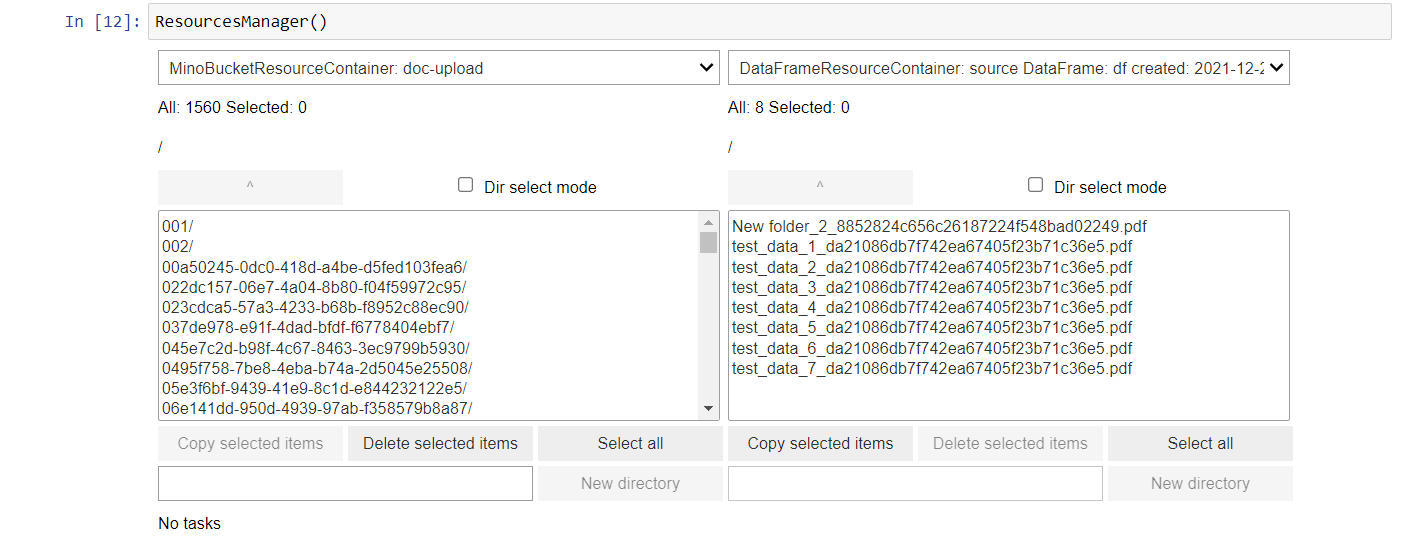
Select all or particular files from the dataframe and copy them to S3. You can also create a new folder on S3 and copy files there.
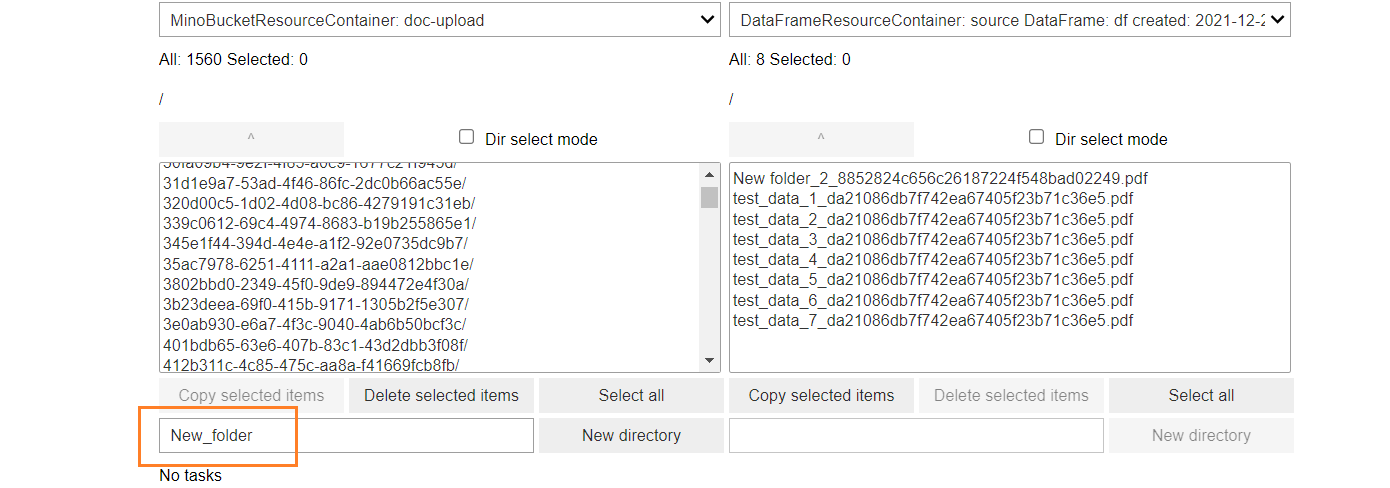
To create a new folder, start typing the name in the input string. The New directory button becomes active. Click it to add the directory.
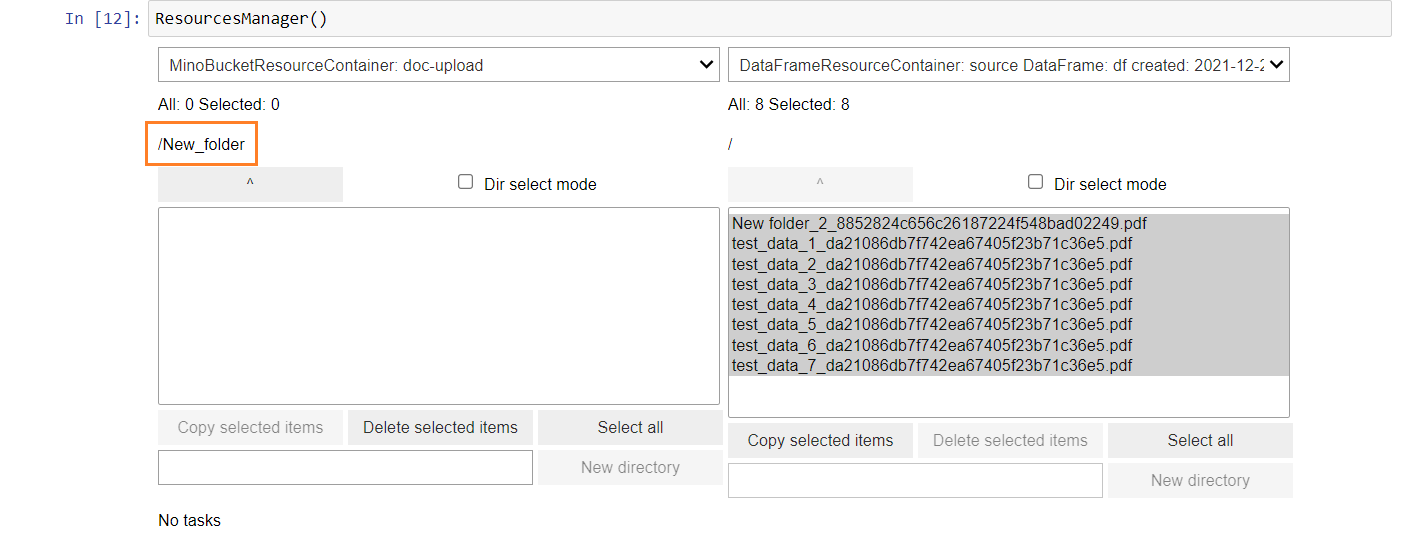
Select the folder from the list, open it, and move the selected files there.
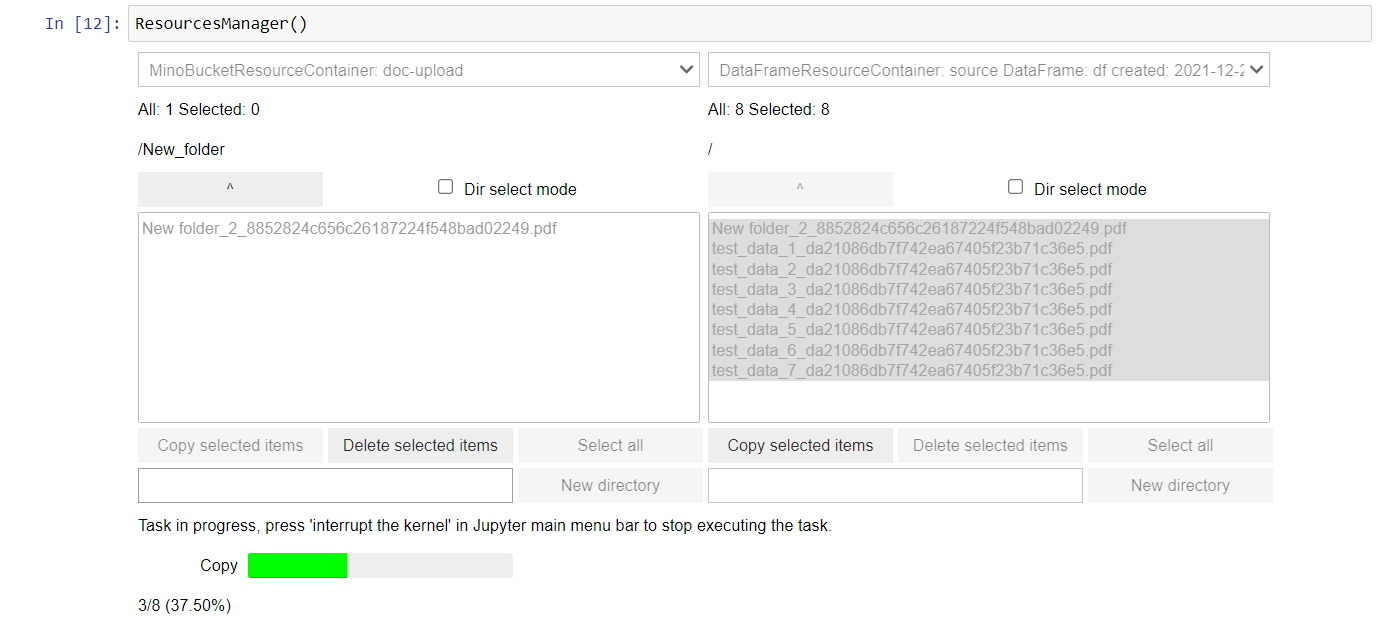
The copying process starts, and a progress bar is displayed to indicate the completion percentage.
Generate URLs.