Labeling and validation
Goal: Get labeled dataset of high quality
Input: Manual Task, batches of documents
Output: Reviewed data categorized by groups based on the type of inconsistency found.
When there are at least some batches labeled, a Data Analyst can proceed with data validation. There are two common ways to validate data.
- Validate in the browser mode.
- Validate via creating a new Manual Task.
Let's see each approach in detail.
Validate in browser mode
As an output of labeling stage, the Data Analyst gets a CSV in which labeled text is presented as XML content. To use this method of validation, it's necessary first to convert labeled XML content into links to HTML files. For this purpose, the Save tagged content to s3 Business Process can be used.
Generate links
Input: A snapshot from a Manual Task with a column with labeled text (XML, HTML). The column name should be tagged_text.
Output: CSV with column doc_page_xml_link that contains links to labeled documents on S3.
Download a Business Process to import to Control Tower.
As a preliminary step to validation by opening links, it's possible to look through data values.
In an Excel file, create a filter for all the required fields and check whether there are empty cells or suspicious values that cannot be the value of this particular field. We can check it because the format and expected content for every field is known, so if anything is incorrect, it is easy to identify and mark them as incorrect without even opening the labeled document itself. Most common examples:
- The name of the field is
company_namebut the data value is California, which is the characteristic of state and not the name of the company. - Some odd information was labeled: for example, the field
company_namedata value is “Corporate Name: Fitness-And-You, Inc.”. - Required fields include blank cells (no data values); inspect separately to define the reason for information missing: bad OCR or inattentiveness during labeling (should be re-labeled).
However, to validate consistency and completeness of labeling, and to guarantee the right text chunk was labeled, open each and every document to avoid cases like this. For example, the data value for the field invoice_number is "2574635", but if we open a document we'll see that "2574635" belongs to Reg.No and not to Invoice Number. The same problem can be with dates when there are some of them in the document (order date, delivery date, and so on) and only context allows us to check it's the right labeling.
The following macros can be used to speed up the process of opening links. Select a range of links and run it.
Sub links_opening()
On Error Resume Next
For Each cell In Selection.SpecialCells(xlCellTypeVisible)
    ThisWorkbook.FollowHyperlink cell

Next cell
End Sub
This method of validation can be used when the speed of labeling is high or you have to deal with already-labeled large amount of data; it allows easier and faster processing of large-volume datasets and defines incorrect records that will be corrected or removed if the size of the dataset allows.
Combine all the batches that are ready for validation in one file to generate links to the labeled content not to run this BP for each batch.
Categorize mistakes
As it's impossible to correct labeling mistakes during validation in browser mode, WorkFusion recommends assigning each record a particular category based on the inconsistencies found: "Correct", "Bad OCR" and "Re-tag". Look through the points below to understand how to categorize different types of mistakes. Such categorization will allow us to be aware of the quantity and quality of documents which can be used in the training and test set.
Good
Absolutely correct and consistently labeled documents, in which no values are missed and everything labeled correctly; OCR is good.
For test only
Corner cases (Bad OCR, Rare Template) - documents, which are not eligible for training, but which exist in real life documents' flow and can be processed (at least partially).
These are documents for which data-values for ALL THE FIELDS presented in the original document (except handwritten) are correct, but:
- They belong to rare template, there are less than 10 such documents and they significantly differ from the others (so the Model will not be able to be trained well on such a small number of examples).
- Or after OCR there are some issues: values with OCR mistakes, broken structure (so field can be labeled only with "Append selected to" option), context of fields has BAD OCR, and so on.
For training only
Positions of presented labels are correct and labels are complete, but some labels are missed (usually due to OCR issue).
Also documents with wrong data-values or tag missed due to tagging mistake can be used for training, but only if there is no time or capacity for re-labeling. Normally it is better to re-tag such documents.
Re-tag
Document contains some issues with both data-values and labels, but it still can become "Good", "For training" or "For test" after re-labeling.
Good document but some values weren't labeled though presented in the document.
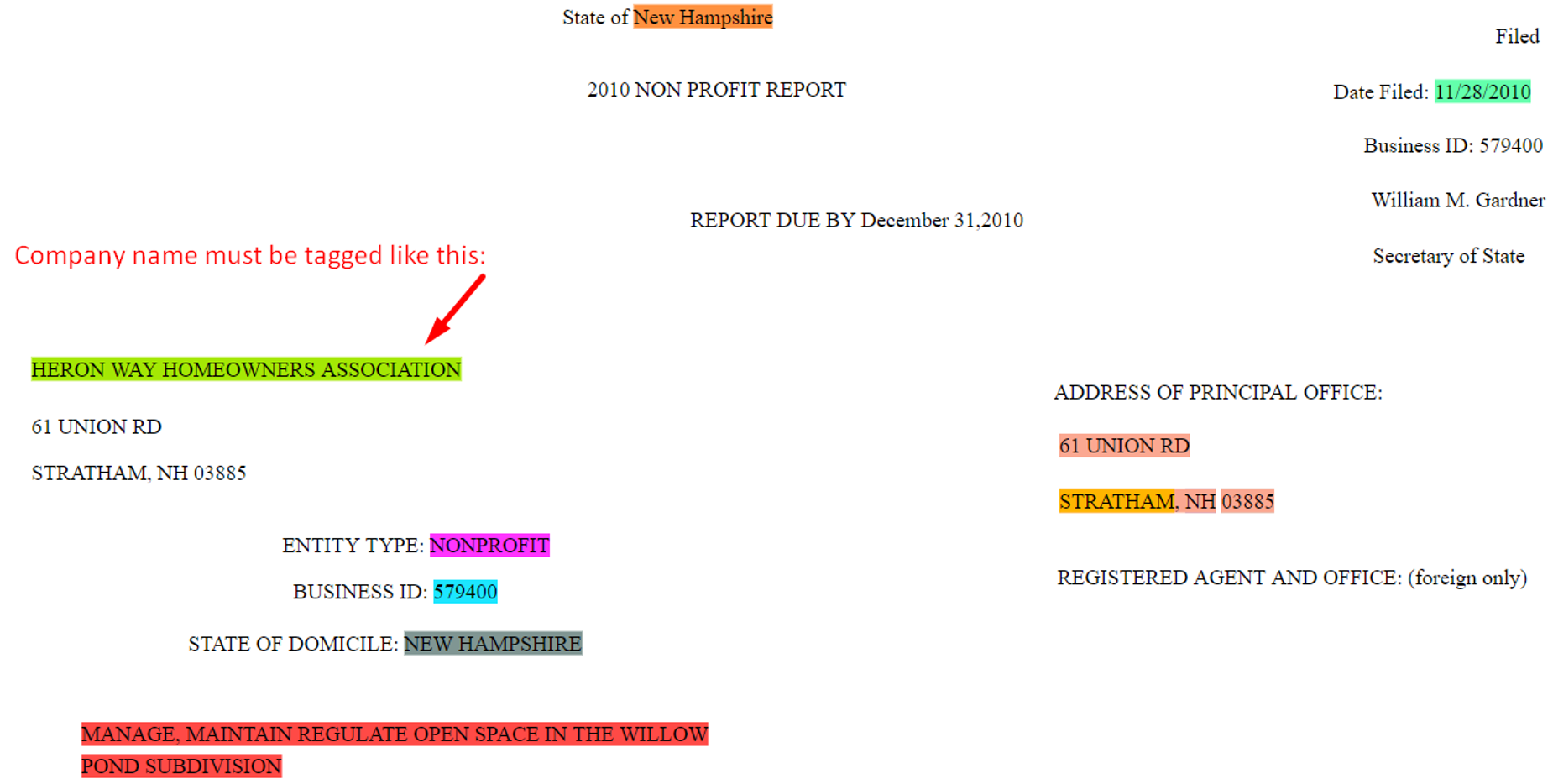
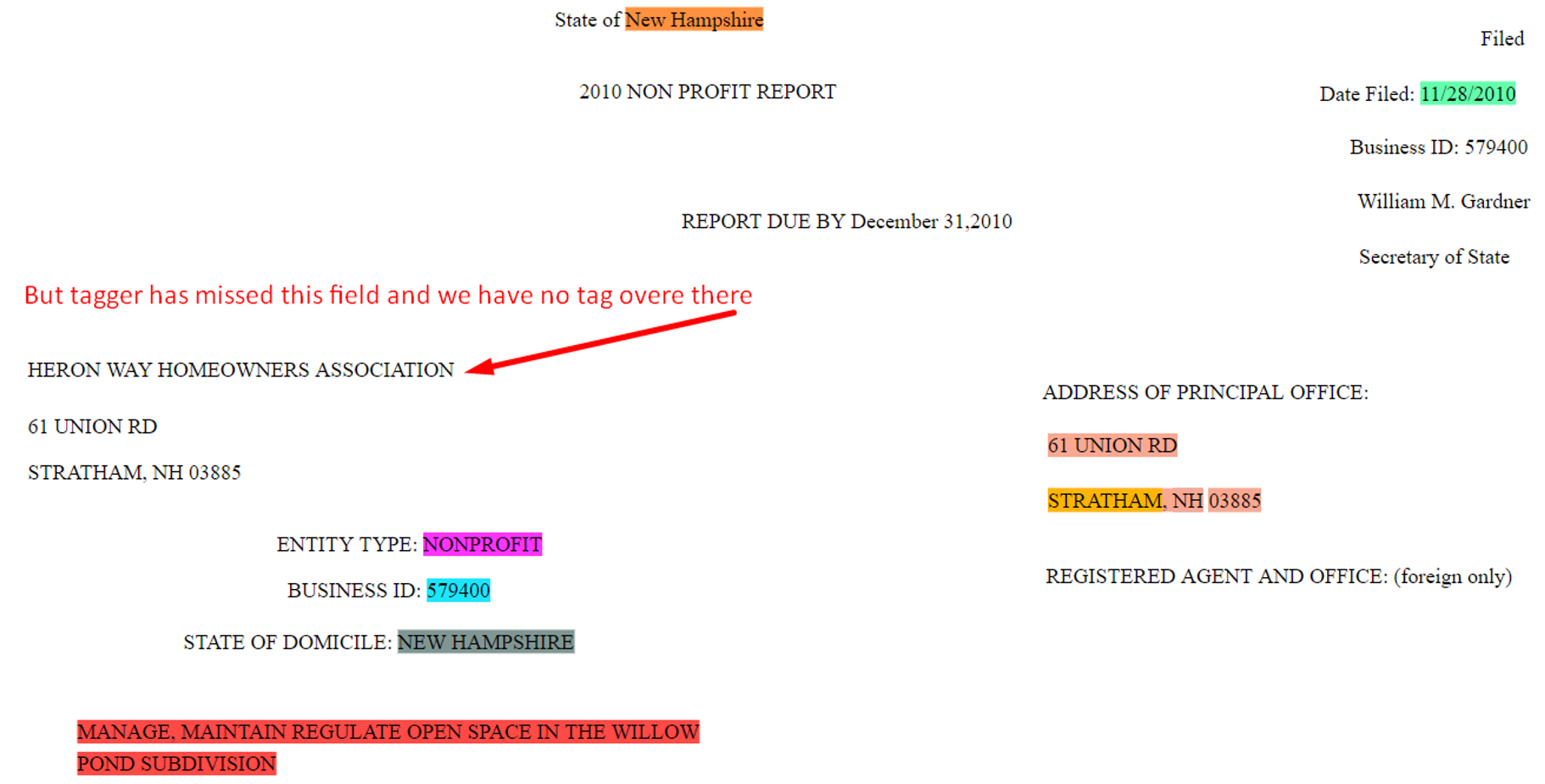
Complete and correct labeling with good OCR around the labeled values, but field is labeled in wrong place in different documents (inconstancy)
Value labeled from different locations across one template.
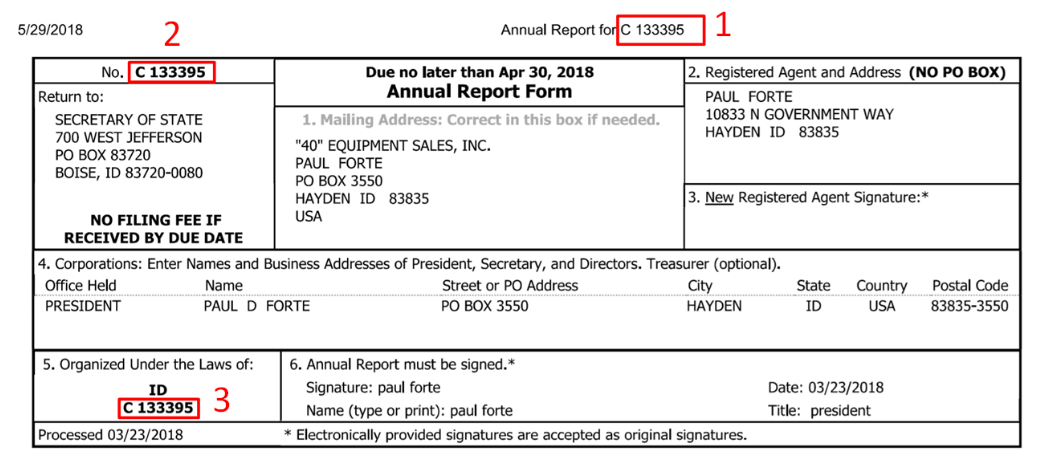
Documents which are labeled incorrectly, i.e. at least one of the following.
Not completely:
- Tampa Consultancy Solutions Ltd.
- Tampa Consultancy Solutions Ltd.
Wrong value was labeled: Reg.No. 27638217 labeled as
client_id.Wrong label assigned to the value: __angelina.bell@csn.com__ labeled as
requester_soeid.Not all values of one field were labeled (for group fields):
Item Price Total Lenovo A350 456.90 456.90 HP 5389F 345.67 345.67 Dell 351 244.88 244.88 Invoice Total 1 047.54 Bad OCR was labeled:
Bank Account SWIFT Please remit your payment to "H1rA~@Lt1." B~40)ndg"! Reos Sth. 89OA~]c
Changed data value
Labeled string for product is "ALUMINIZED" so the data value should also be "ALUMINIZED", not "AL" or "Aluminium".
Exclude
None of the above mentioned.
Document has some considerable issue, so it is inappropriate neither for training or test sets. Usually it is documents with really bad original quality or with considerable OCR issue.
For example:
- There is some serious OCR problems for all fields, nothing is recognized correctly.
- Totally corrupted structure of document.
- There are only handwritten fields in the document.
Enable category dropdown
So as not to require typing a name every time, a drop-down function is recommended.
Create an Excel copy of your CSV to keep all the formatting.
Create a new spreadsheet, and insert categories.
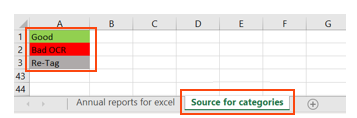
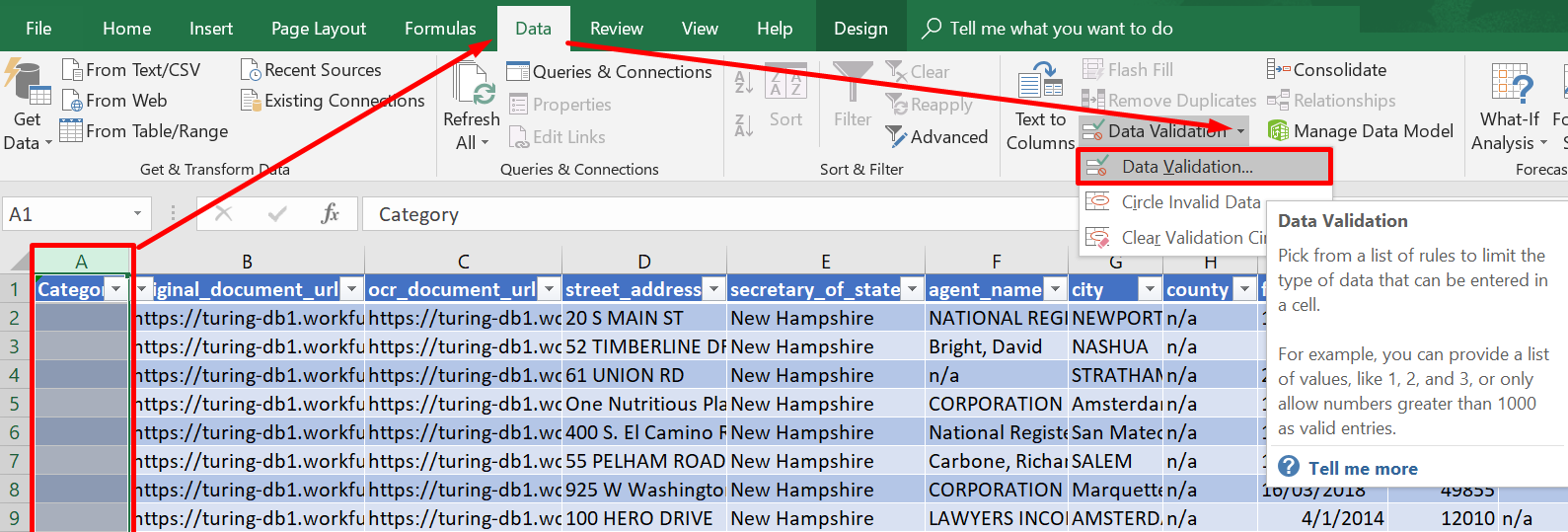
Select the range for which you want to set a drop-down list, click the Data tab, and then Data Validation.
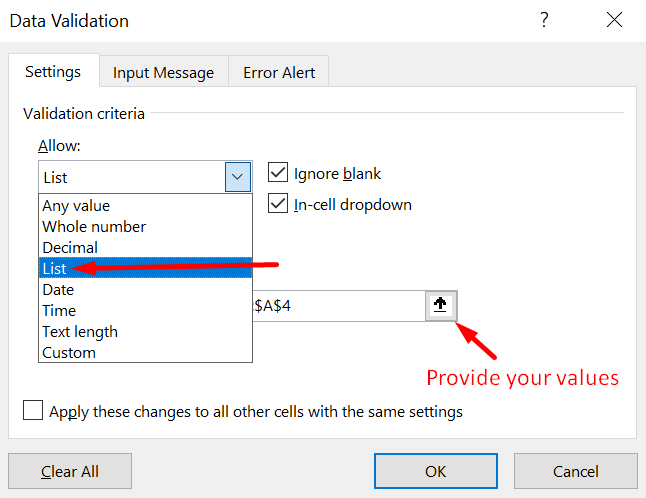
Select List option from the Allow: field, and then specify your range of possible values.
View additional information
Irrespective of the validation method, meet the following criteria:
- All required fields are labeled. Make sure the n/a option is soundly chosen and no value is missed due to inattentiveness, except for the cases when it's totally corrupted by OCR.
- If a value is present in a document, it is labeled. Otherwise, missed fields will be represented poorly, and such documents are re-labeled or the dataset size is increased.
- Fields are labeled from the same location across the entire dataset. If more than one option for labeling for the same field is found in the same template, see how often this happens. If three times out of 200 documents,
supplier_nameis labeled in some other place, it’s better to exclude such documents. - Pay attention to document layouts as well. Note that, due to OCR, the layouts of one vendor can be multiplied, for example, because of the table structure broken and so on. Such layouts and poorly represented layouts (fewer than 10 for a vendor), should be increased, if possible.
- The label covers the entire value.
- The data value was not changed manually. For example, if the labeled string for a product is
ALUMINIZED, then the data value should also beALUMINIZED, notALorAluminium. - There is no labeling of corrupted values which cannot be restored.
- The Append selected to option was used correctly. If you are not sure, just try to select a desired value. If no extra information (except for the required text chunk) gets into your selection, there is no appended parts.
If the final number of good documents is not enough, it is highly recommended to correct the "Re-Tag" category.