OCR analysis and tuning
Goal: achieve acceptable OCR configuration and get an understanding of the final OCR quality.
Input: original documents
Output:
- Efficient OCR configuration with all documents recognized with an acceptable final quality
- Final report to the Delivery Manager on the OCR quality and all risks identified (if any)
OCR overview
OCR (Optical Character Recognition) means electronic conversion of typed, handwritten, or printed texts into machine-encoded ones, whether from a scanned document, a photo of a document, or from subtitle text superimposed on an image (for example, from a television broadcast).
Out of the box, WorkFusion offers a number of OCR engines: ABBYY, Azure AI Document Intelligence, Google Vision, Paddle OCR, or UIPath. However, it's a chargeable service, and each page is paid for.
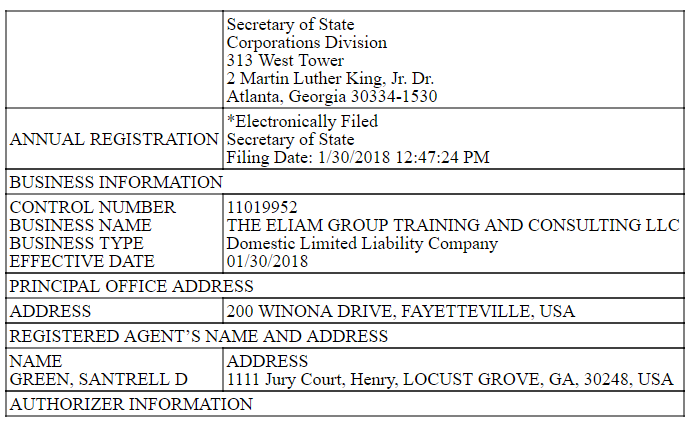
Typically, the OCR result looks like this:
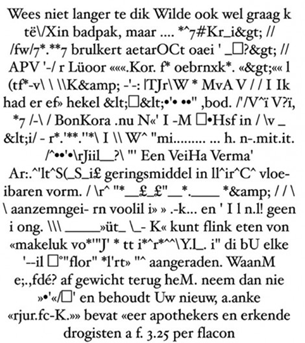
However, the following result is also possible:
OCR quality factors
Such a discrepancy in the OCR output is justified because the quality of the final document is affected by both internal and external factors.
Internal factors are as follows:
- Export format (usually XML)
- Document language (the license must support the language parameter)
- Brightness
- Scanning resolution (DPI)
- Contrast
- Convert to black and white
- Correct orientation
- Discard color image (true, false), and so on
The major external factor is the initial document quality.
Below are examples of the factors that have the greatest influence on the OCR quality.
Resolution (low, high)
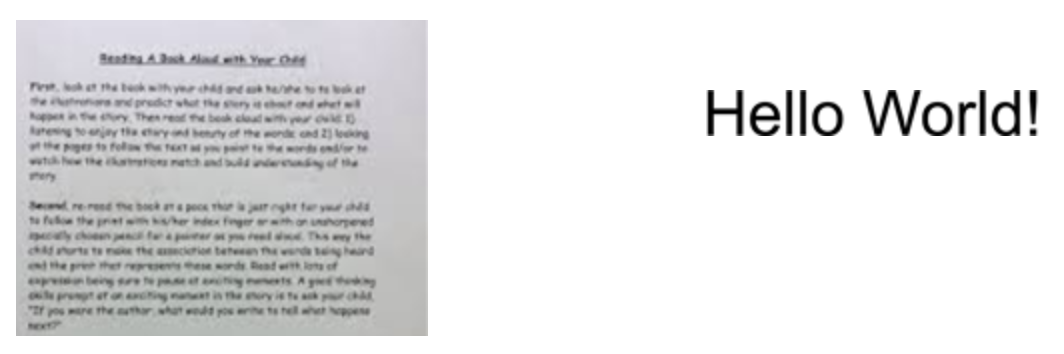
Font size

Print quality (fax, newspaper)
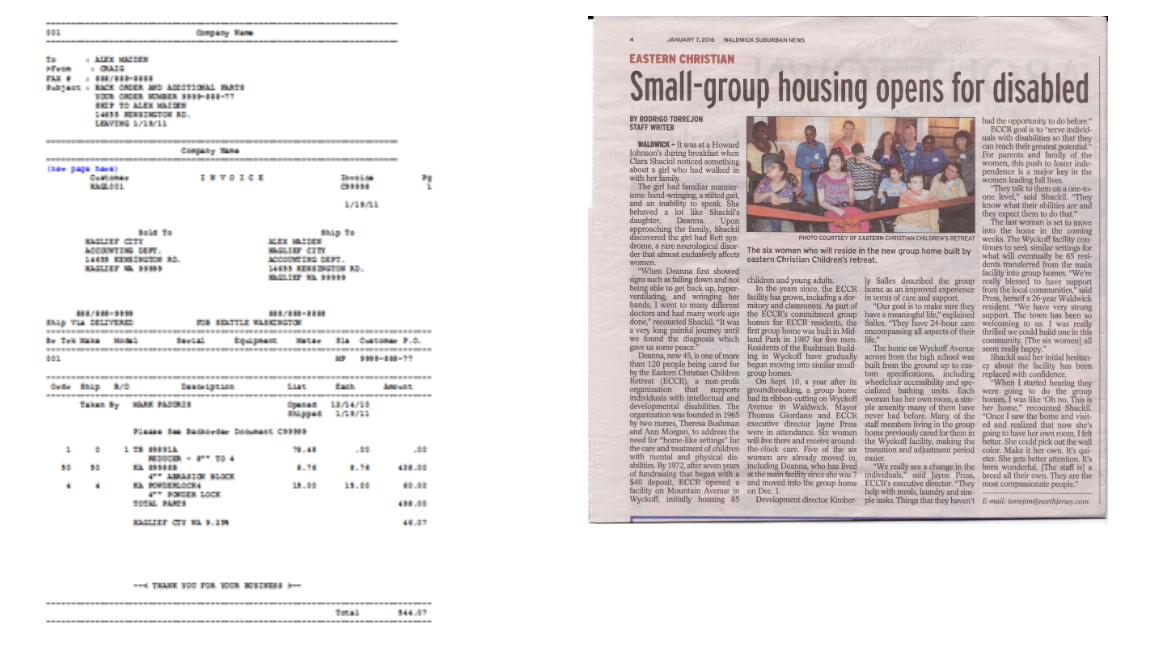
Position on the page
If a page is too skewed, it might severely impact the OCR quality.
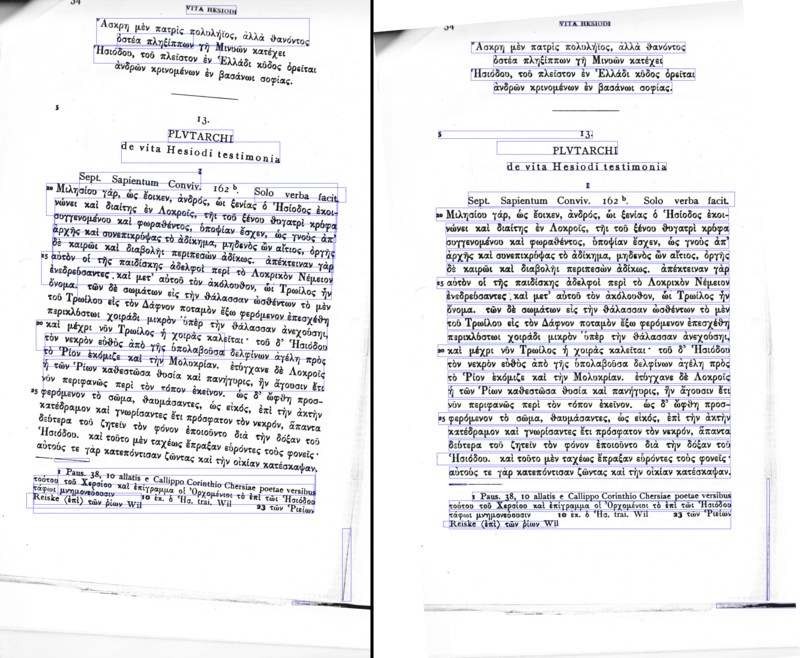
Noise in document
Noise like shadows, lines, and dots left from previous copying or scanning.
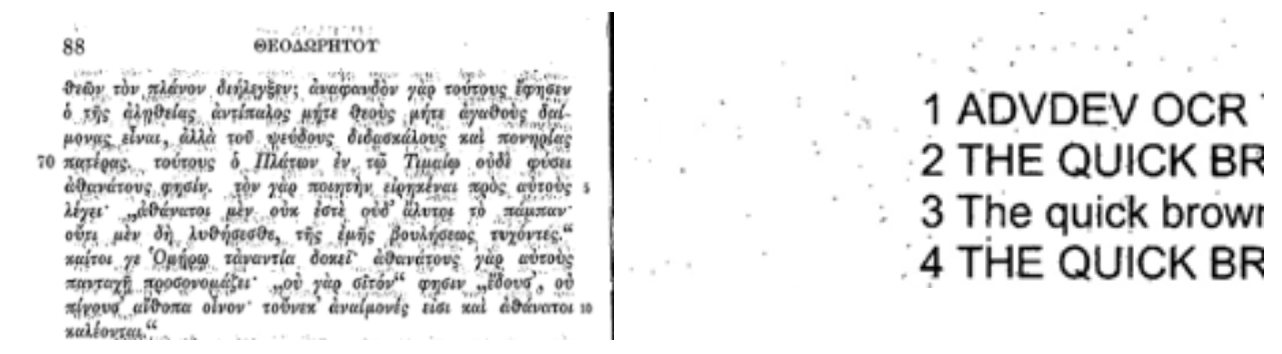
Handwritten text
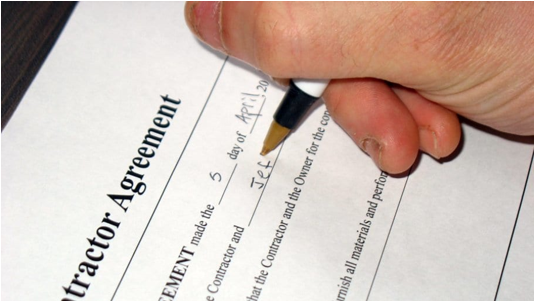
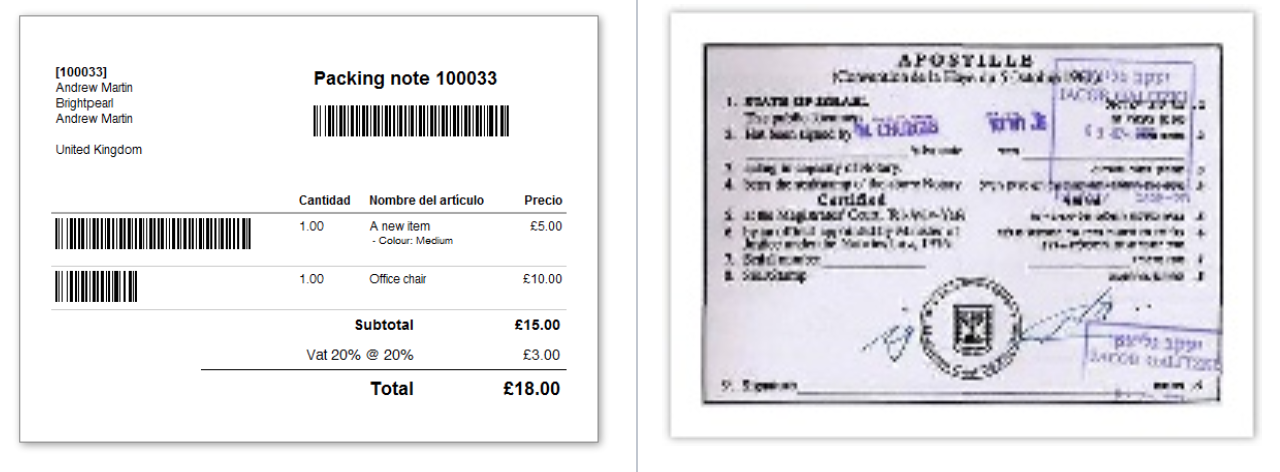
Logos, stamps, barcodes, watermarks
Crumpled sheets, stains
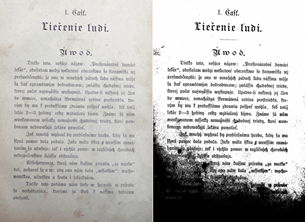
Recommendations
It is recommended to use documents with high readability without visible defects and noise with the initial quality of ~300 dpi. If these requirements are met, the documents after OCR look adequate and can be processed by machine learning (ML) models.
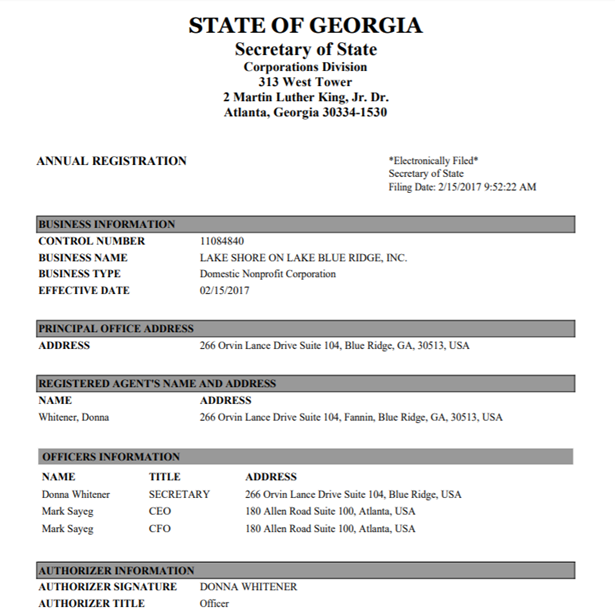
The image above has good resolution, optimal font size and style, no noise, and other defects, and thus will be well recognized.
It's necessary to understand that the result of the entire project directly depends on the OCR quality. Unacceptable OCR quality (for instance, missed and corrupted fields, corrupted structures, and so on) can be the most serious reason for bad ML model results from both training and testing.
If the success criteria stated in the statement of work (SOW) is 90% accuracy and the current OCR quality is below 90%, it is highly probable that the final result will not meet the project requirements. Being one of the initial stages, OCR sets up the maximum quality standard for the project. All the rest of the stages might bring additional mistakes, which will only decrease the overall quality of ML results.
Assessing OCR quality
Before sending all available datasets to OCR, it is necessary to make sure that current OCR settings are sufficient to ensure the required quality of the dataset after OCR.
To assess the OCR quality, it's recommended to prepare a sample set. Here, two variants are possible:
- If a customer provided a dataset already sorted by some criteria (supplier, issuer, secretary of state, and so on), choose 10% from each group and OCR them.
- If documents were not sorted, randomly choose 10% of the dataset and OCR them.
Be prepared that, after OCR, a document will differ from the original, especially documents with complex structures (tables), font styles, stamp, logos, and so on.
Analyzing initial OCR results
To know what level of OCR quality you have, it's necessary to look through each document from the sample group (10 %) and fill in the report. The report should have links to the document (original and OCR) and an assessment of OCR quality:
Acceptable: each field and the context around it is recognized, mistakes can be corrected by post-processing and don't create any difficulties for extraction due to missing, incorrect, or unrecognizable values and strange context.
Unacceptable: after OCR, at least, one field cannot be restored with post-processing, the structure is corrupted, or the context around the field is not recognizable.
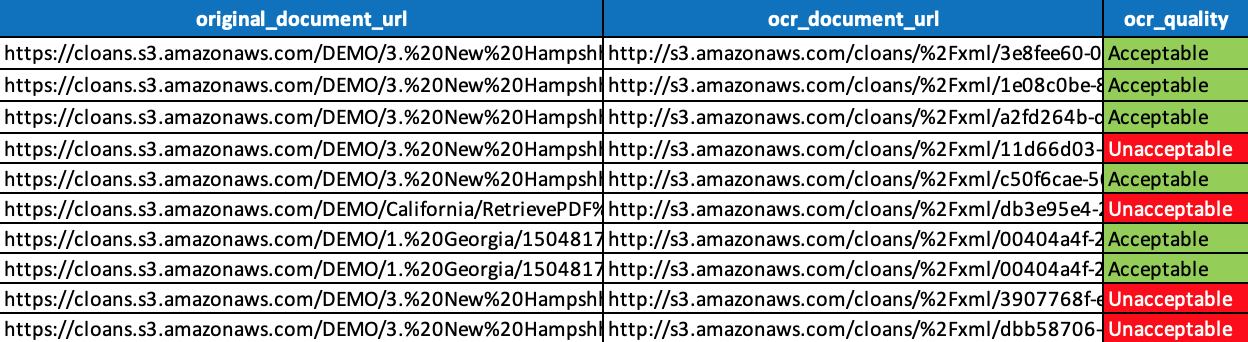
Count the percentage of Acceptable quality assessments. If it is higher than the success criteria stated in the statement of works, no tuning is needed. If not, additional analysis and adjustments are required.
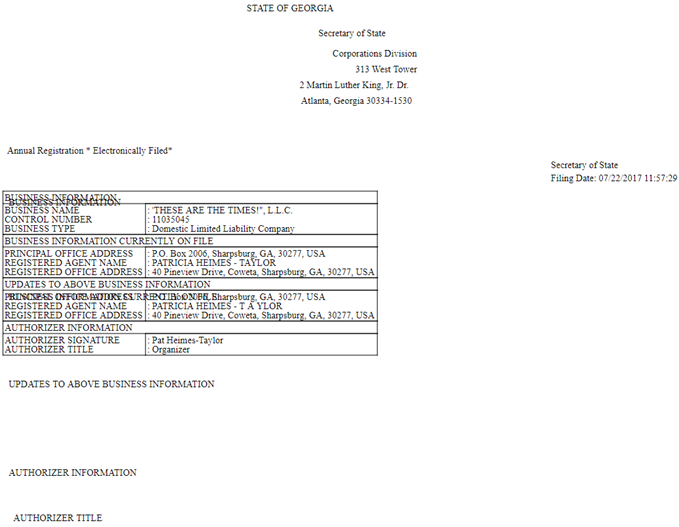
During analysis of the OCR output, you might notice that OCR documents might not only differ from originals, but also documents of the same original template might have different layouts after conversion.
A layout is a group of documents that have a similar structure after OCRing. Before OCRing, they're considered original documents.
Below are two documents with the same template and the same fields and rows. However, after OCR, they have different layouts.
Layout 1
Layout 2
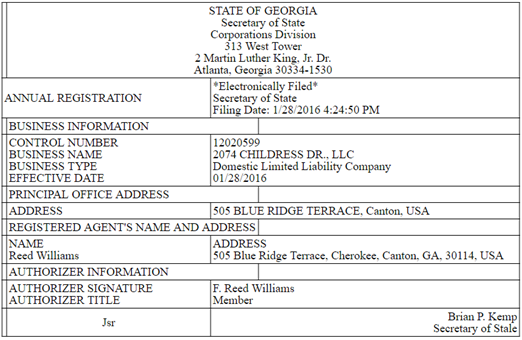
These differences in layouts for the same template should also be taken into account when preparing batches for labeling.
You task is to look through original documents with the Unacceptable quality after OCRing and try to define the problems that might be causing low character recognition quality.
Tuning OCR
You can try different combinations of OCR parameters to get the best possible output quality, for example:
- Change the language.
- Straighten text lines. Uneven text lines are automatically detected in images and straightened without correcting trapezoid distortions.
- Adjust the image resolution. The best resolution for images is determined automatically and adjusted as necessary.
- Convert to black and white. Color images are converted to black-and-white ones, which reduces the size of the resulting OCR project and speeds up OCRing. However, the conversion is not recommended for photos, magazine pages, and text in Chinese, Japanese, or Korean.
- Remove color marks. Any color stamps and marks made in ink are detected and removed to facilitate the recognition of the text obscured by such marks. This option is designed for scanned documents with dark text printed on a white background. Do not select this option for digital photos and documents with color backgrounds.
- Adjust contrast.
- Adjust brightness.
ABBYY OCR suggestions
Below are ABBYY's suggestions on the most common OCR problems.
Characters are too thin and sketchy
- Lower the brightness to make the image darker.
- Use the grayscale scanning mode. Brightness is adjusted automatically in this mode.
Characters are thick and stuck together
- Increase the brightness to make the image lighter.
- Use the grayscale scanning mode. Brightness is adjusted automatically in this mode.
Scanning resolution
For the best recognition results, vertical and horizontal resolutions must be the same:
- 300 dpi for typical text printed in fonts of 10pt or more
- 400–600 dpi for texts with the font size of 9pt or smaller
Setting the resolution too high (over 600 dpi) slows down OCR. Increasing the resolution beyond this point does not improve the OCR result substantially. It should be adjusted.
Setting an extremely low resolution (less than 150 dpi) affects the OCR quality adversely. It should be adjusted.
If an image has a non-standard resolution, it should be adjusted. Some faxes, for example, have a resolution of 204 x 96 dpi.
A color image includes different colors, which adds the possibility to remove RGB color channels prior to processing, thus decreasing the document noise and providing a way to stabilize the image before applying the grayscale conversion.
After OCR, the tuning quality should be assessed again. Just like during the initial assessment, take another 10% sample of the dataset (different from the first one) and validate each record by filling in the report. Evaluate the volume of good-quality documents.
Try different combinations of OCR parameters to get the best possible result.
If the quality of an initial document is not enough for the model to meet the SOW requirements despite any OCR configurations, communicate it to the customer as a potential risk. Such documents should be replaced with better ones or processed separately with lower success criteria.