Post-processing
Post-processing is the final stage of the AutoML SDK pipeline that takes place after model training. Post-processing modifies the trained model output to fit the customer requirements by applying pre-defined rules, in rare cases, based on a separate machine learning (ML) model.
Overview
Generally, post-processing handles such field value modifications as adding, removing, changing (80% of cases), and grouping.
Example: a post-processor can change the date format from 11.07.2023 to the standard US format 07/11/2023.
import java.time.LocalDate;
import java.time.format.DateTimeFormatter;
import java.util.Locale;
import java.util.Optional;

import com.workfusion.vds.sdk.api.nlp.annotation.OnInit;
import com.workfusion.vds.sdk.api.nlp.model.Field;
import com.workfusion.vds.sdk.api.nlp.model.IeDocument;
import com.workfusion.vds.sdk.api.nlp.processing.ProcessingException;
import com.workfusion.vds.sdk.api.nlp.processing.Processor;

public class DatePostProcessor implements Processor<IeDocument> {

    private DateTimeFormatter inputDateFormatter;

    private DateTimeFormatter outputDateFormatter;

    @OnInit
    public void init() {
        // initialize formatter inside onInit method to prevent serialization issues
        inputDateFormatter = DateTimeFormatter.ofPattern("dd.MM.yyyy", Locale.ENGLISH);
        outputDateFormatter = DateTimeFormatter.ofPattern("MM/dd/yy");
    }

    @Override
    public void process(IeDocument document) throws ProcessingException {
        // find field for code 'date'
        Optional<Field> fieldOptional = document.findField("date");
        if (fieldOptional.isPresent()) {
            Field field = fieldOptional.get();
            LocalDate date = LocalDate.parse(field.getValue(), inputDateFormatter);
            field.setValue((date).format(outputDateFormatter));
        }
    }
}
In AutoML SDK, post-processors have a number of implementations depending on the problem being solved.
All fields of a post-processor must be serializable, although the post-processor does not have to implement the serializable interface. Keep in mind that lambdas are not serializable by default.
If you cannot avoid using non-serializable fields for some reason, you can do the following trick:
- Define a field and keep it
null. - Initialize the field in the
@OnInitmethod. - Do not initialize the field in a constructor.
Post-processor using non-serializable date formatter
Your post-processor converts dates from one format to another with help of DateTimeFormatter that is not serializable. The correct initialization of the post-processor is as follows:
public class DatePostProcessor implements Processor<IeDocument> {

    private DateTimeFormatter dateTimeFormatter;

    @OnInit
    public void init() {
        dateTimeFormatter = DateTimeFormatter.ofPattern("dd/MM/yyyy");
    }

    /* The Post-processor implementation goes here */
}
Post-processor using lambda
Let's say you have a bunch of common normalization functions grouped into the PostProcessingFunctions class. In your post-processor, you want to refer to one of the functions using a lambda. Then, to avoid issues with serialization, the code should look as follows:
public class MyPostProcessor implements Processor {

    private Normalizer normalizer;

    @OnInit
    public void init() {
        normalizer = PostProcessingFunctions::removeLegalEndings;
    }

    /* The Post-processor implementation goes here */
}
Normalization
Normalization is the process of changing the extracted values to a certain format. The extracted values may include:
- Numbers: 1k > 1000
- Dates: 11.07.2018 > 07/11/2018
- Prices: 100 > 100.00
- Currencies: \$ > USD
- Addresses: NY Brooklyn 02356 Ralph Ave. > 02356 Ralph Ave. Brooklyn NY
- Organizations: WF or Workfusion Systems > WorkFusion
The following normalizer converts the date format to the ISO standard YYYY-MM-DD.
OcrDateNormalizer normalizer = new OcrDateNormalizer();
normalizer.normalize("11 Jul 18") => "2018-07-11";
normalizer.normalize("07/31/2015") => "2015-07-31";
For more normalization examples, refer to Post-processing examples.
API basics
Normalizers are not standalone components and thus should be used within a post-processor instance.
All normalizers implement the Normalizer interface and have a normalize() method that takes a string as a parameter and returns a normalized representation of the string. For normalizing numbers, use the NumberNormalizer interface with a normalize(String text, String numberFormat) method. Refer to the Java numberFormat documentation for details.
Normalizers follow these rules:
- Return
nullfor a null string - Return
empty stringfor an empty string - Return the original string if errors occur during normalization
Here's an example of a post-processor that normalizes the price value from $1,234,56 to 1234.56.
import java.util.Optional;

import com.workfusion.vds.sdk.api.nlp.model.Field;
import com.workfusion.vds.sdk.api.nlp.model.IeDocument;
import com.workfusion.vds.sdk.api.nlp.processing.ProcessingException;
import com.workfusion.vds.sdk.api.nlp.processing.Processor;
import com.workfusion.vds.sdk.nlp.component.processing.normalization.OcrAmountNormalizer;

public class AmountPostProcessor implements Processor<IeDocument> {

    public void process(IeDocument document) throws ProcessingException {
        Optional<Field> amount = document.findField("invoice_amount");
        if (amount.isPresent()) {
            Field amountField = amount.get();
            String value = amountField.getValue();
            OcrAmountNormalizer amountNormalizer = new OcrAmountNormalizer();
            amountField.setValue(amountNormalizer.normalize(value));
        }
    }
}
For the full list of AutoML SDK out-of-the-box (OOTB) normalizers and details, see Javadocs.
OCR error correction
Processed documents are generally scanned original invoices, checks, and so on. During document processing, OCR may introduce errors due to damaged documents and low quality of scans. Post-processing steps in to either fix the incorrect value or remove it.
Fixing value
For example, OCR output might contain the same recognition error in all documents. Post-processing can fix incorrect values by introducing a rule, usually, a RegEx replacing one character with another.
The following example shows an implementation of a post-processor for replacing G to 6, B to 8, O to 0 in zip codes.
import java.util.Optional;

import com.workfusion.vds.sdk.api.nlp.model.Field;
import com.workfusion.vds.sdk.api.nlp.model.IeDocument;
import com.workfusion.vds.sdk.api.nlp.processing.ProcessingException;
import com.workfusion.vds.sdk.api.nlp.processing.Processor;

public class ZipPostProcessor implements Processor<IeDocument> {

    public void process(IeDocument document) throws ProcessingException {
        Optional<Field> zipCode = document.findField("zip_code");
        if (zipCode.isPresent()) {
            Field zipCodeField = zipCode.get();
            String value = zipCodeField.getValue();
            String correctedValue = value.toUpperCase()
                .replaceAll("G", "6")
                .replaceAll("B", "8")
                .replaceAll("O", "0");
            zipCodeField.setValue(correctedValue);
        }
    }
}
Use the approach if the probability of positive correction is high enough for your case. In many cases, the probability threshold is calculated based on the results of model training.
Consider the following example:
- Comparing model training results (a tagged value against a data value) shows that the
Gcharacter is replaced with6in 98% of cases. This might be considered as a high positive correction probability and thus can be used in a post-processor to fix OCR errors. - In other cases, model training results might show that the
Bcharacter is replaced with8in 55% of cases and with6in 45% of cases. This is quite a low probability level and should not be used in a post-processor.
Depending on the use case requirements, it is generally recommended that values with a low to a medium level of positive correction probability should be skipped or removed by the post-processor.
Removing value
Sometimes, OCR might introduce a recognition error in 50% of cases while the other 50% are correct. If it's impossible to fix a field value, then post-processing can remove it.
Validation
When extracting bank card numbers, IBANs, Zip Codes, CUSIPs, it’s crucial to check them to make sure extracted values are valid. In case an extracted value is not valid, it’s usually removed.
For more information about CUSIP validation, refer to the CUSIP documentation.
The following example validates the credit card number. Validation criteria: all characters are digits.
import java.util.Collection;

import com.workfusion.vds.sdk.api.nlp.model.Field;
import com.workfusion.vds.sdk.api.nlp.model.IeDocument;
import com.workfusion.vds.sdk.api.nlp.processing.ProcessingException;
import com.workfusion.vds.sdk.api.nlp.processing.Processor;

public class CreditCardPostProcessor implements Processor<IeDocument> {

   private static final String FIELD_NAME = "credit_card";

   @Override
   public void process(IeDocument document) throws ProcessingException {
       Collection<Field> fields = document.findFields(FIELD_NAME);
       fields.forEach(field -> {
           String value = field.getValue();
           if (!value.chars().allMatch(Character::isDigit)) {
               document.remove(field);
           }
       });
   }

}
Mapping to reference data
A post-processor can extract additional data not contained in the original document using the reference data. For example, an employer’s name and surname can help extract their unique company ID. Having extracted only a zip code, you can map it to the city and then extract this information even though it’s not initially present in the document. Reference data can be taken from a database, an API request, a local dictionary, and so on.
For the following example to work, provide a CSV dictionary zipcodes.csv file and then put it into Classpath. Each record in the dictionary contains three columns, where the first column is a city name and the next two represent a range of zip codes, for example:
- Huntsville, 35801, 35816
- Anchorage, 99501, 99524
- And so on
import java.io.File;
import java.nio.file.Paths;
import java.util.List;
import java.util.Optional;

import org.apache.commons.lang3.math.NumberUtils;

import com.google.common.collect.Range;
import com.google.common.collect.RangeMap;
import com.google.common.collect.TreeRangeMap;
import com.workfusion.vds.sdk.api.nlp.annotation.OnInit;
import com.workfusion.vds.sdk.api.nlp.model.Field;
import com.workfusion.vds.sdk.api.nlp.model.IeDocument;
import com.workfusion.vds.sdk.api.nlp.processing.ProcessingException;
import com.workfusion.vds.sdk.api.nlp.processing.Processor;
import com.workfusion.vds.sdk.nlp.component.dictionary.CsvDictionaryProvider;

public class ZipToCityPostProcessor implements Processor<IeDocument> {

    private RangeMap<Integer, String> zipToCities;

    @OnInit
    public void init() {
        try {
            // read zip dictionary from classpath
            File file = Paths.get(this.getClass().getResource("zipcodes.csv").toURI()).toFile();
            // use csv reader from components to read this file
            CsvDictionaryProvider provider = new CsvDictionaryProvider(file);
            List<List<String>> records = provider.getDictionary();
            // create guava range map based on file records to store zip->city relations
            zipToCities = TreeRangeMap.create();
            // fill this map
            records.forEach(record -> {
                String city = record.get(0);
                Integer beginZip = Integer.valueOf(record.get(1));
                Integer endZip = Integer.valueOf(record.get(1));
                zipToCities.put(Range.closed(beginZip, endZip), city);
            });
        } catch (Exception e) {
            throw new ProcessingException(e);
        }

    }

    @Override
    public void process(IeDocument document) throws ProcessingException {
        Optional<Field> zipCode = document.findField("zip_code");
        if (zipCode.isPresent()) {
            Field zipCodeField = zipCode.get();
            String value = zipCodeField.getValue();
            Integer zipCodeValue = NumberUtils.toInt(value, 0);
            String city = zipToCities.get(zipCodeValue);
            if (city != null) {
                // add new field for city, does not set begin and end because positions in text are not exists
                document.add(Field.descriptor()
                        .setName("city")
                        .setValue(city)
                        .setScore(zipCodeField.getScore()));
            }

        }
    }
}
Transformation
Transformation represents simple procedures like trimming, lower and upper case, capitalization, removing punctuation, special characters, and so on.
Example: LONDON, ENGLAND can be transformed into London, England
The following code snippet replaces all fields of the ADDRESS type with normalized letter case values using out-of-the-box post-processors: NormalizerProcessor and TextNormalizer.
import java.util.ArrayList;
import java.util.List;

import com.workfusion.vds.nlp.model.configuration.DefaultConfigurationContext;
import com.workfusion.vds.sdk.api.hypermodel.annotation.Named;
import com.workfusion.vds.sdk.api.nlp.configuration.FieldInfo;
import com.workfusion.vds.sdk.api.nlp.normalization.Normalizer;
import com.workfusion.vds.sdk.api.nlp.processing.Processor;
import com.workfusion.vds.sdk.nlp.component.processing.NormalizerProcessor;
import com.workfusion.vds.sdk.nlp.component.processing.normalization.TextNormalizer;
import com.workfusion.vds.sdk.nlp.component.util.FieldInfoUtils;

@Named("basePostProcessors")
    public List<Processor> getPostProcessors(DefaultConfigurationContext configurationContext) {
        List<Processor> processors = new ArrayList<>();
        List<FieldInfo> allFieldCodes = FieldInfoUtils.getAllChildren(configurationContext.getField());
        allFieldCodes.forEach(field -> {
            switch (field.getType()) {
                case ADDRESS:
                    // make only first letter capital, for example, mInsk->Minsk
                    Normalizer normalizer = TextNormalizer.builder()
                            .lowerCase()
                            .capitalize()
                            .build();
                    processors.add(new NormalizerProcessor(field.getCode(), normalizer));
            }
        });

        return processors;
}
Grouping
A model can extract multiple field values of the same type (for example, Currency, Quantity, and Price) that should be joined into a group according to their logical connection. For example, you might need to group Product Name, Amount, and Price. Field values can be grouped based on their position in a document or words in a sentence based on a table line or based on some underlying custom logic.
Words
Field values grouped based on their position in a sentence:
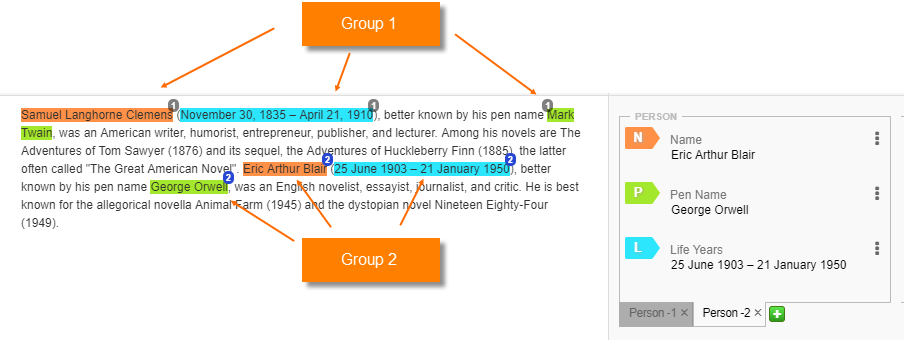
Table cells
Field values grouped based on a line in a table:
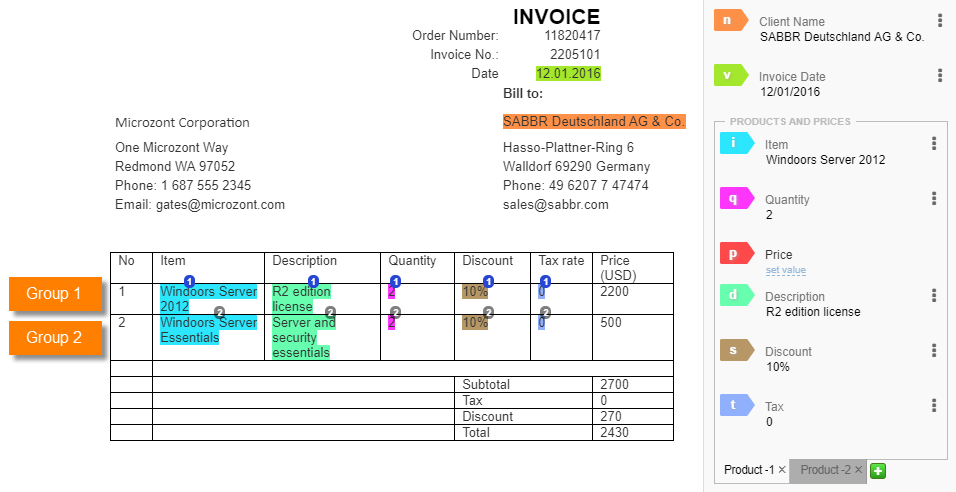
The group number information is saved in the tabnumber attribute of an appropriate tag. This attribute is then used in Control Tower to display tabs with grouped fields as in the previous example (Product-1 and Product-2 tabs).
The tabnumber attribute starts with zero (0) and is incremented by one (1) with each subsequent field group.
For more information, refer to the Post-processing examples topic and the AutoML SDK API documentation.