Information Extraction
Information Extraction (IE) is a special answer type used for extracting structured content from raw unstructured text. It displays input data as non-editable text where you can select text chunks and tag them.
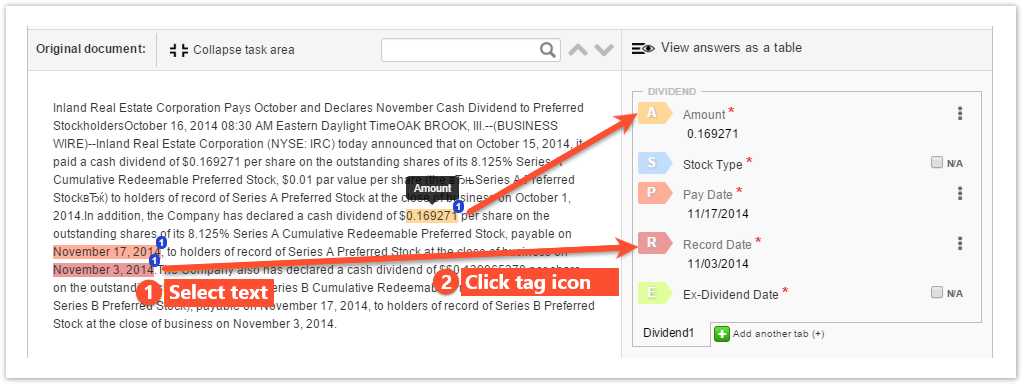
Information Extraction results are utilized by machine learning.
To learn more about answer types for Manual Tasks, read the following guide.
Execute IE tasks
To execute an Information Extraction task, follow the instruction below:
- Read the task Instructions and review all tags from the side panel.
- Start reading and analyzing the text sentence by sentence.
- When you see a text chunk that corresponds to one of the tags, do as follows:
- Select the text chunk.
- Click the corresponding colored tag icon with a letter or press the corresponding keyboard key (hotkey). Your selection is highlighted in the same color as the tag has.
- Repeat Steps 2 and 3 till the text ends.
- Review the results and submit the task.
Optionally, you can perform the following actions with tagged items:
- Edit a tagged item by clicking the pencil icon. The option is helpful when you see a misprint or incomplete info.
- Delete a tagged item by clicking the (x) icon.
- Scroll to a tag by clicking the magnifier icon.
Create IE answer
To create an IE answer, open the Design tab in a Manual Task and add an answer.
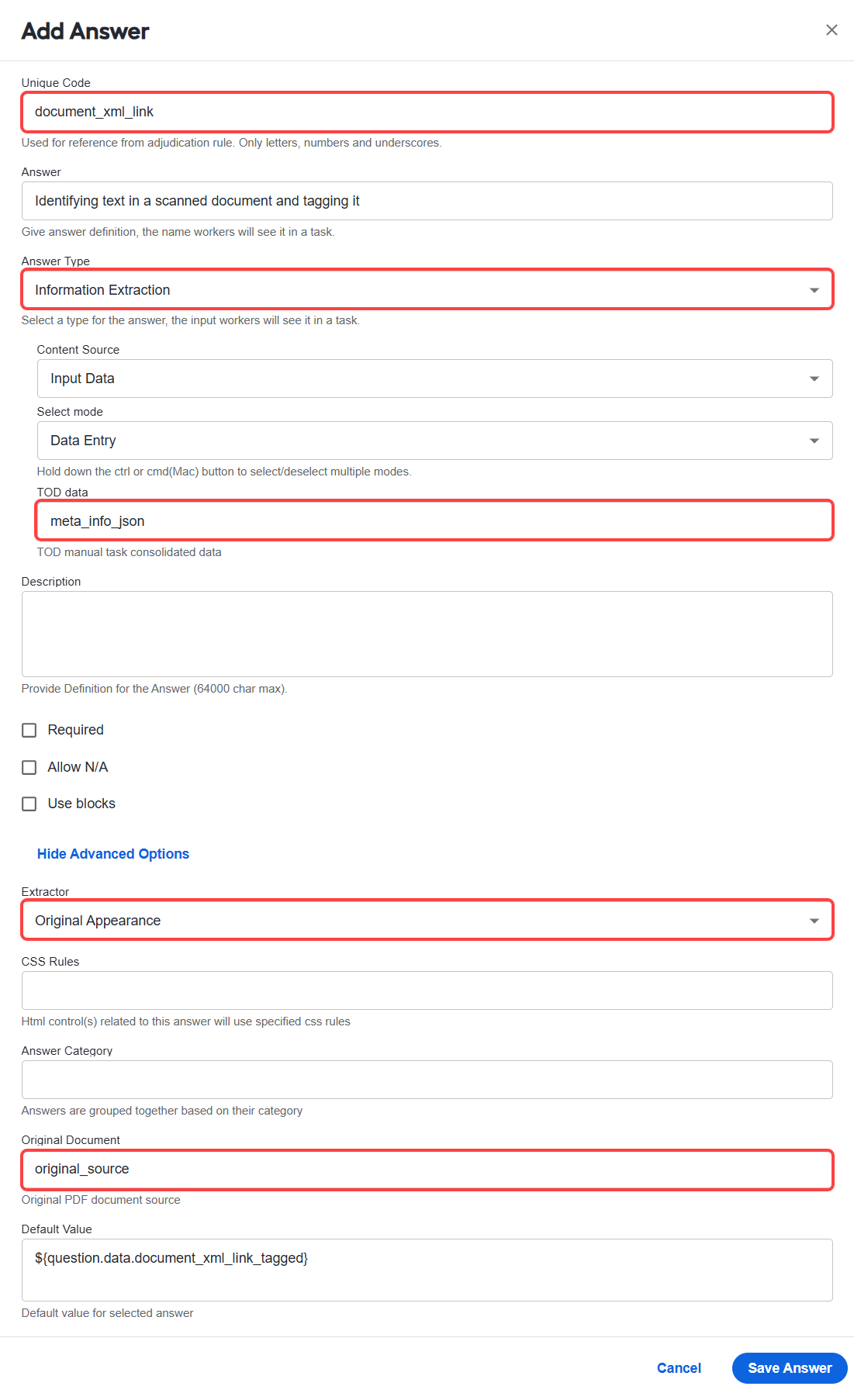
On the Add Answer page, configure the settings as described below:
The Unique Code field for Information Extraction must contain a column name from the CSV input data file. The mapped column can contain raw text or a link to a webpage (http or https). For Extract to work, the IE unique code should be document_xml_link (default) or mapped to a column containing XML or a link to XML.
It is recommended to store text data files (HTML, XML, or TXT) in an S3 bucket. Subsequently, you can generate a list of URLs and include it in the CSV input data file.
Set the Answer Type to Information Extraction.
Select the Content Source:
- Input Data: the answer text is loaded from the input data file column mapped to this answer.
- Answer Code: a worker should enter a valid URL in the corresponding URL-Answer field and click the Load Content button in the IE answer text field.
Supported IE answer source formats: TXT, XML, HTML
For the TOD (Enriched) mode, the TOD data field must contain the meta_info_json value (default) or column with JSON from OCR. For non-TOD IE tasks, the TOD data field must be left empty.
(Optional) Select the Use blocks checkbox if you want workers to tag several blocks with a similar structure (for example, tables) in a document. For a full description, read the IE with blocks section.
In the Advanced Options area, select Extractor.
IE answers use the boilerpipe library to retrieve and filter the content when it gets URL as input. Select the boilerpipe's extractor for filtering the content. To learn more about the boilerpipe library, follow the link.
For IE answers, use the Original Appearance extractor. With the option, you preserve the structure and all tags of the original document.
The Default value setting must be always the same as the Unique Code value plus the _tagged suffix, for example: ${question.data['news_link_tagged']}.
Perform mapping to input file
The IE answer must be mapped to an input file column. There are two ways to do this:
- Name the column the same as the corresponding IE Answer Code.
- Map any column by clicking the column header and selecting a corresponding IE Answer Code.
Add sub-answers (tags)
An IE answer must include one or several tags or tag groups. Each tag group includes one or more tags. Tags and tag groups correspond to sub-answers in the IE answer.
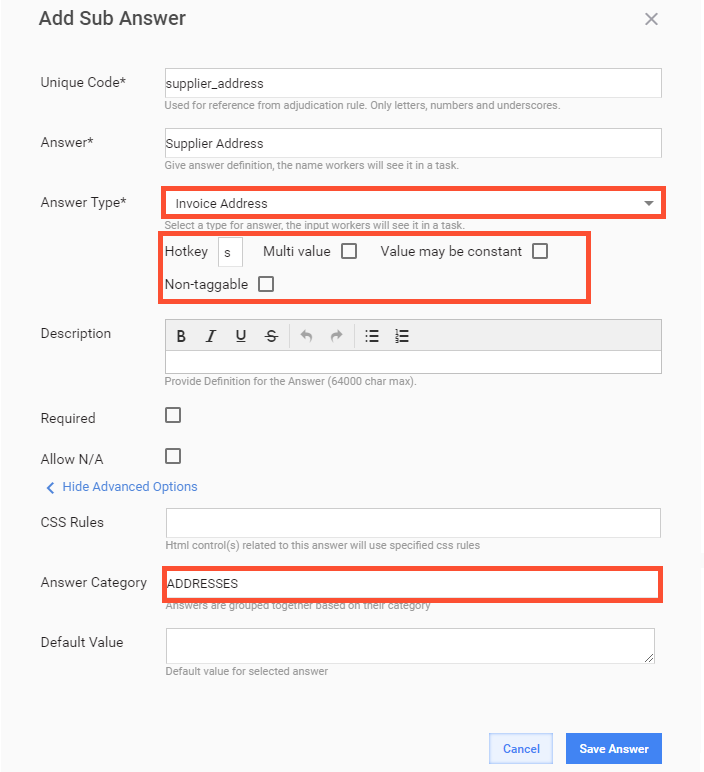
For IE sub-answers, you can set the following:
- Answer Type
- Hotkeys and a number of tagging options
- Answer Category
The answer hierarchy is IE answer > Tag group > Tag or IE sub-answer > Tag, as displayed on the figure below with corresponding answer types:
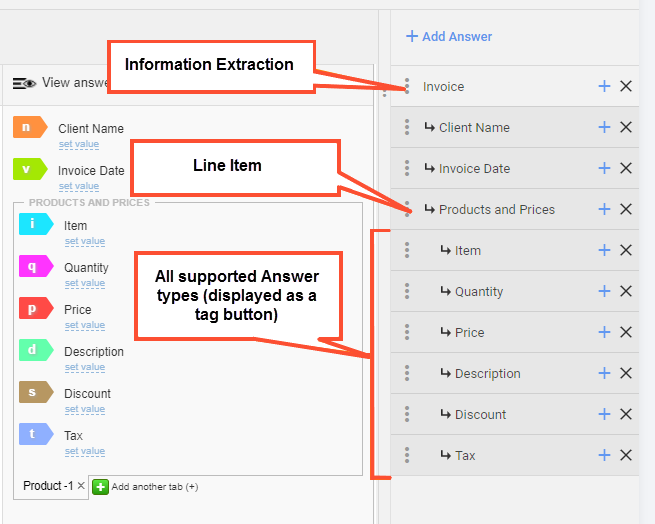
Available answer types
Available anwer types are as follows:
- Currency: a drop-down box to set the currency or override the values from a Data Store, for instance, USD—US Dollar.
- Date: any field that is a full date or a part of a date, such as day, year, month. The field features an option to set the format.
- E-Mail: an input field for entering an email address in the username@domain_name format.
- Number: an input field used to enter integers and floats.
- Person Name: a free-text format field accepting any value. The field has the Check one and Select one options. It can be used for tagging names and surnames.
- Company Name: any field that is a full name of a company in any language. It has the Check one and Select one options.
- Text: a field supporting the free-text format. It has the Check one and Select one options. No NERs are applied and only default FEs are used.
- Line Item: any field that is a group.
Unique identifiers
The answer type options support the free-text format and accept any value. Spaces are deleted automatically. The options to set tags are as follows:
- Identifier: a custom identifier used to tag any unique identifier (invoice number, account number, and so on)
- CUSIP: a field to enter a CUSIP identifier with built-in validation (9 characters).
- IBAN: a field to enter an IBAN identifier with built-in validation (34 alphanumerical characters, validation by two control digits).
- SWIFT: a field to enter a SWIFT identifier with built-in validation (8 or 11 alphanumerical characters).
- UPC Code: a field to enter an UPC Code with built-in validation (12 numeric digits).
Address
The answer type includes the following options to set tags:
- Address Line: free text, for instance, 795 E DRAGRAM.
- City: free text, for instance, TUCSON.
- State/Province: free text, for instance, AZ.
- ZIP/Postal Code: any field that is a ZIP code, any format of any country. The option supports free text, for instance, 85705.
- Country: a drop-down list of countries to select.
- Full Address: free text.
Hotkeys and other tagging options
The Hotkey box makes it possible to specify a unique character to set a keyboard key for quick text tagging. The tag color is assigned automatically.
If you skip the parameter, the corresponding tag button is shown without a hotkey assigned to it:

Next to the Hotkey box, you can set the following tagging options:
Multi value: select the checkbox to allow workers to tag multiple text chunks with the same tag.
Value may be constant: use the parameter to make it possible to use one tagged text chunk for all tag groups.
Non-taggable: select the checkbox if you don't want the answer to have a tag button. Instead the answer item can be used for providing additional information about tagged documents.

Answer category
The Answer Category setting is used to visually group a number of tags. The feature is helpful when an IE answer has many Sub answers: you can set the same category for related sub-answers to improve navigation and search.
You can expand or collapse categories while tagging.
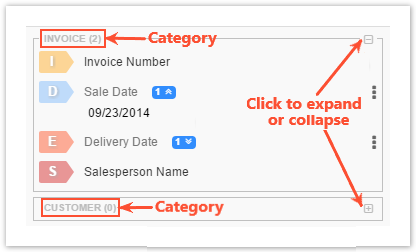
When setting sub-answers, make sure to check the Allow N/A option because some information can be missing in a source text.
View result data
IE answers record the following columns to an output CSV file:
- Tagged text.
- A column for each sub-answer. Multi-value answers are recorded into one cell with a pipe delimiter.
- Tag group answers are recorded as JSON to a separate column.
View IE answer features
Tag groups
Often, workers have to tag repeatable information blocks together with static values, for example, bank transaction reports, bio information, dividend research, and so on.
For the purpose, the Line Item answer type was introduced. It is displayed as a multi-tab panel where each tab corresponds to a particular tag group and contains associated sub-answers.
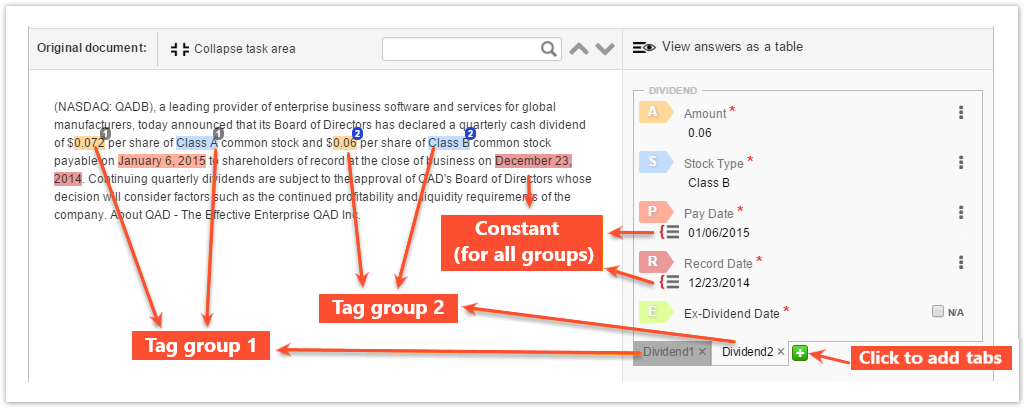
Note that you can use only one instance of the answer type.
Create tag group
To create a tag group, follow the steps below:
Add a new sub-answer to the created IE answer.
On the Add Sub Answer page, set Answer Type to Line Item. In the Options parameter, define tab names.

Add tags as sub-answers to the create Line Item. Select the Value may be constant checkbox to allow using one tagged text chunk for all tag groups (tabs).
Use IE answers with tag groups
Below is the sequence of steps to work with tag groups while tagging a text:
- Select text and label it like in an ordinary Information Extraction answer.
- When all tags for the first group are set, create a new tab by clicking the plus icon.
- Select text and label it for other groups.
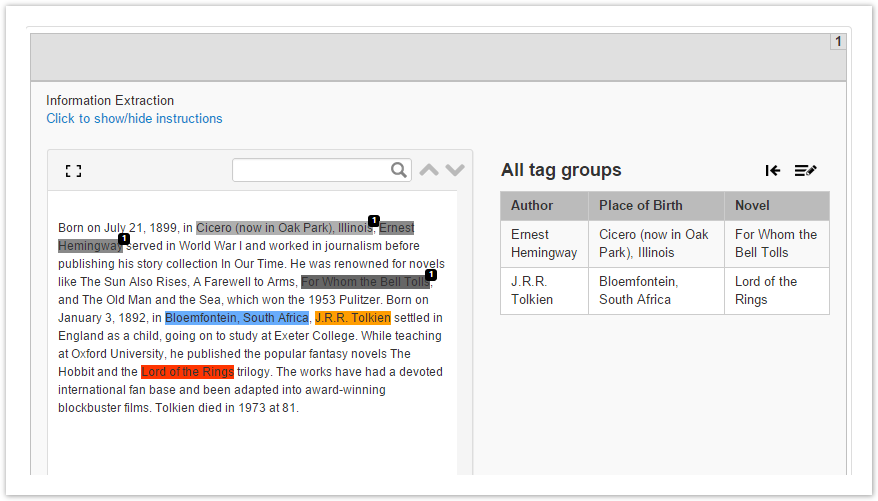
You can switch between tabs or delete them. The latest tab deletion can be undone. Text selections from inactive groups are highlighted with gray and have a group number label.
Modify tags
When it is necessary to modify or edit a pre-recognized tag, select the tag to make it appear on the right panel, where you can quickly edit or remove it. You can select a tag in one of these ways:
Right-click a tag.
Press Ctrl (or Cmd for Mac) and left-click one or more tags.
noteHolding Ctrl (or Cmd) and clicking an already selected tag clears the selection.
Press Ctrl (or Cmd for Mac) and drag to spread the selection area over as many tags as you want to select.
Right-click an existing tag and choose one of the Expand Selection options from the displayed context menu:
- Rest of the column to select all tags below the selected tag till the end of the column
- Same tags in Column to select all tags of the same type in the column below the selected tag
Once you selected one or more tags, they appear on the right. All other tags disappear. To remove the selection from tags and show the entire list of them again, click anywhere in the document or the Clear Selection button.
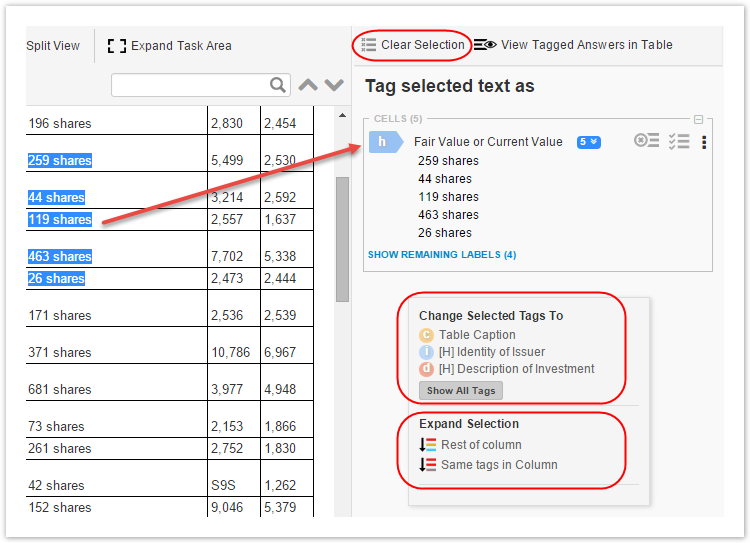
Perform bulk change of tag type
If you have a number of tags selected, you can re-tag all of them with a new type by clicking the respective type in the Change Selected Tags To section of the context menu at the bottom of the right panel.
Click Show All Tags to see the entire list of available tag types.
View IE with blocks
Some documents have repeatable sections with the same structure, for example, a set of tables. You can tag each section with a separate IE answer block.
Each block has its own set of rows (tag groups) that can be added dynamically.
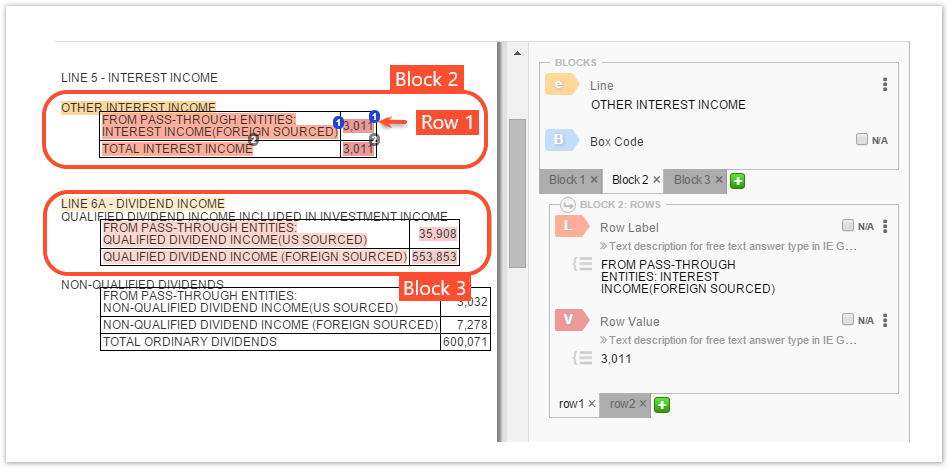
To enable the feature, select the Use blocks checkbox in the root IE answer. After the feature is enabled, the following rules are applied:
- Sub-answers become tags within a block.
- Tag groups (in the screenshot above, row1, row2, rowN...) are created inside each block as sub-tabs, meaning each block gets its own set of tag groups.
- The blocks and groups inside them are added or removed dynamically. You can switch between them by clicking appropriate tabs.
Example:
In the screenshot above, the Line and Box Code tags describe a block (a separate table). Block 2 is selected. The block has two rows ("row1" and "row2") representing tag groups.
Perform auto correction
Auto corrections are available in the following cases:
When a worker selects only a part of a word, number, or phrase, WorkFusion engine analyses the entry and automatically suggests corrections depending on the context.
WorkFusion engine detects mistakes in the workers' selection and proposes corrections.
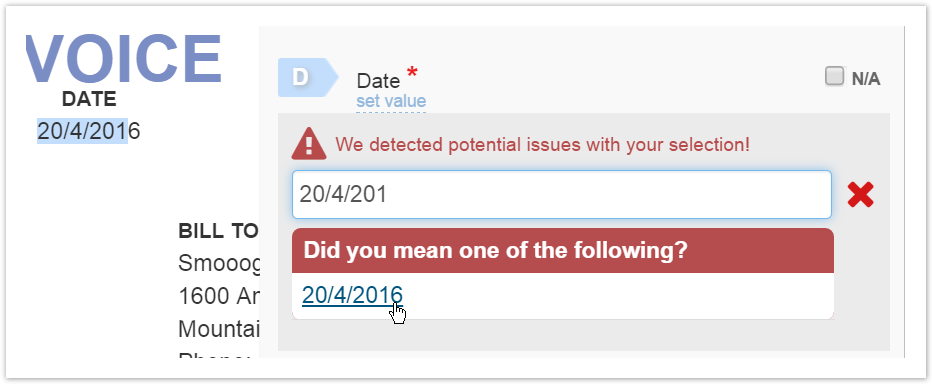
Supported correctors are as follows:
- Whitespace
- Punctuation
- Word Margin
- Sentence Splitter
- Named Entity Recognition. To enable the corrector, add a sub-answer with the Free Text type to an existing IE answer and set Specify type = Reason, Organization, or Location.
All correctors are disabled when an IE task uses the Online Learning feature (tag auto suggestions). In this case, correctors are provided by the selected ML model.
View results table
You can view all tagged text chunks in a convenient table format.
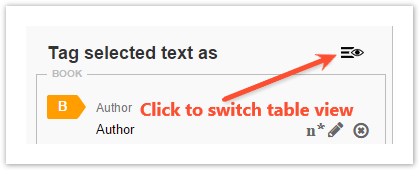
When you click a table row, an appropriate tag group is highlighted. You can optionally enable a full-screen view for the table to see all columns without scrolling.
Preview original document
Workers can preview original documents to make sure that the extracted text is valid or to view original graphics, formatting, and so on. This preview is available for PDF files.
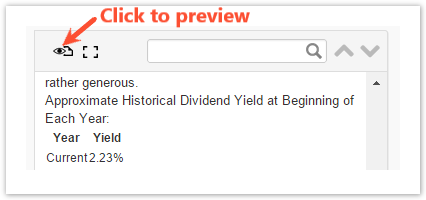
To enable the preview function, provide links to PDF files in the respective column of the input data file.
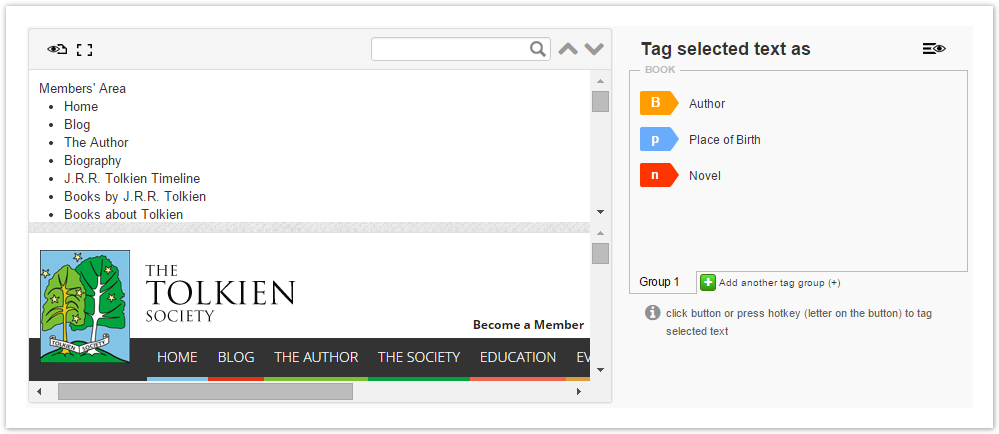
The original document is displayed in the bottom panel. You can drag the splitter bar to resize the document preview.
Use full-screen view
While working with big text chunks or long sentences, it is a wise idea to utilize all available space on the page.
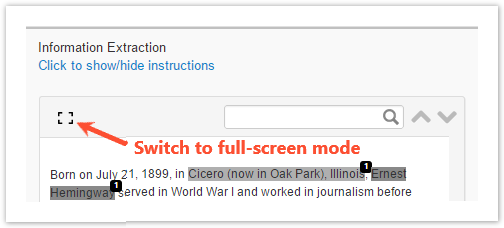
You can enable the full-screen mode if needed and disable it anytime.
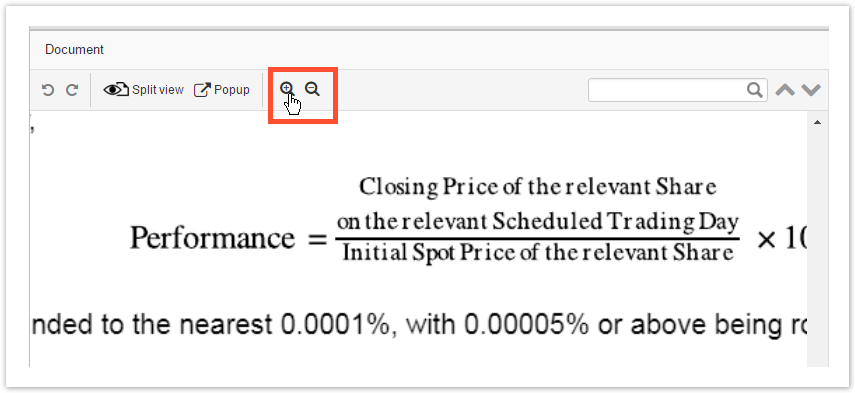
Zoom document
Some documents can contain text with different font height. IE answers provide the functionality to zoom in and out the source document.
You can zoom in if the font is too small or zoom out to see the whole page structure.
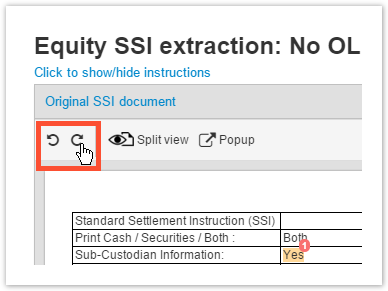
Undo or redo actions
User can undo or redo any changes made in IE answers—adding or removing tags, accepting or rejecting auto suggestions, marking N/A or constant, and so on.
Users can also use the common keyboard shortcuts:
- Undo: CTRL + Z
- Redo: CTRL + SHIFT + Z
Set tag value
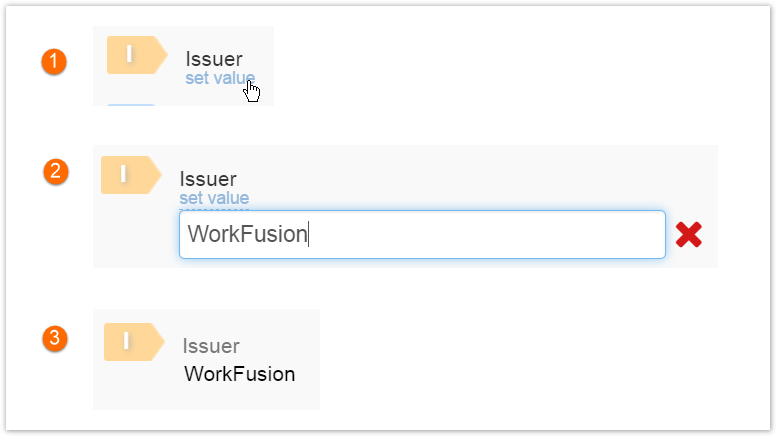
You can set a tag value without selecting a text chunk and clicking a tag button. The feature is useful when you tag a low-quality document with OCR errors and you don't want to train a machine learning model on faulty data.
To apply the feature, click the set value link under an appropriate tag name and enter your tag value.
View advanced features
Restore modes
Two modes are supported for IE answer restoring:
- Tagged text first:
Restore.MODE_TAGGED_TEXT_FIRST - Sub-answers default values first:
Restore.MODE_DEFAULT_VALUE_FIRST
Restore.MODE_TAGGED_TEXT_FIRST is the default mode:
- If the answer value is in the tagged text, the default value is ignored.
- Otherwise, use the default value if available.
Restore.MODE_DEFAULT_VALUE_FIRST is the optional mode:
- If both tagged and default values are provided, use the tag and the default value as data-value.
- If only the default value is provided, use it without the tag.
- If the tagged value is provided, but there is no default value, use the tagged one with the tag.
To enable a restore mode, add the following code to a Manual Task template:
Expand to see code block
<script type="text/javascript">
    $(function(){
        var originalOnTextContainerLoad = ExtractionAnswerController.prototype.onTextContainerLoad;
        ExtractionAnswerController.prototype.onTextContainerLoad = function() {
          Restore.restoreMode = Restore.MODE_DEFAULT_VALUE_FIRST;
          originalOnTextContainerLoad.apply(this, arguments);
        };
    })
</script>
Switch tab on cell click
By default, the tab switches to the exact one where information from this row is found or closes one to it. You can turn off the behavior by adding the following code to a Manual Task template.
Expand to see code block
<script type="text/javascript">
    $(function(){
       AnswerGroupManager.switchTabOnCellClick = false;
    });
</script>
Disable suggestions
Expand to see code block
<script type="text/javascript">
   $(function(){
       var originalOnTextContainerLoad = ExtractionAnswerController.prototype.onTextContainerLoad;
       ExtractionAnswerController.prototype.onTextContainerLoad = function() {
         this.showSuggestions = false;
         originalOnTextContainerLoad.apply(this, arguments);
       };
   })
</script>
Disable suggested tag functionality
Put the script before the </@hit> tag.
Expand to see code block
<script type="text/javascript">
    $(function(){
        if (typeof SuggestedTags !== 'undefined') {
            SuggestedTags.threshold = 0;
            var originalSuggestedTagsInitModule = SuggestedTags.initModule;
            SuggestedTags.initModule = function() {
                SuggestedTags.threshold = 0;
                originalSuggestedTagsInitModule.apply(this, arguments);
            };
        }
    })
</script>
Change supported formats for date converter
For example, add custom date formats at the beginning of the array.
Expand to see code block
<script type="text/javascript">
    $(function(){
        const customDateFormats = [
          "dd/MM/yyyy",
          "dd/MM/yy"
        ];
        var originalOnTextContainerLoad = ExtractionAnswerController.prototype.onTextContainerLoad;
        ExtractionAnswerController.prototype.onTextContainerLoad = function() {
            var originalGetParsedValue = DateConverter.prototype.getParsedValue;
            DateConverter.prototype.getParsedValue = function() {
                var supportedFormats = this.supportedFormats;
                if (supportedFormats.indexOf(customDateFormats[0]) !== 0) {
                    this.supportedFormats.unshift.apply(supportedFormats, customDateFormats);
                }
                return originalGetParsedValue.apply(this, arguments);
            }
            originalOnTextContainerLoad.apply(this, arguments);
        }
    });
</script>
Dynamically make IE sub-answer not required
A controller is an answer controller that is not required.
Answers.getTaggingControllers() returns an array with all controllers.
Expand to see code block
<script type="text/javascript">
    function makeControllerNotRequired(controller) {
        controller.required = false;
        controller.valid = true;
        controller.answerView.$hiddenIeField.removeClass('required');
        controller.title.$container.find('.required').css('visibility', 'hidden');
    }
</script>
Extend submit button logic
Expand to see code block
<script type="text/javascript">
    $(function(){
        var submitButton = $('.submit-btn')[0];
        if (submitButton) {
            var originalSubmitAction = submitButton.onclick;
            submitButton.onclick = function() {
                // some custom logic
                originalSubmitAction.apply(this, arguments);
            };
        }
    })
</script>
Add custom validator for Free Text field
Sometimes, there is a requirement for free text input to match a specific pattern. In this example, the requirement is to validate the test with the regular expression: ^\d+(?:(?:\s*,\s*|-)\d+)*$.
Correct text example: 12-15,3
Incorrect: 12-,3
Expand to see code block
<script type="text/javascript">
    /*
      Custom validator implementation
    */
    // this is the name of the field to be validated
    var TARGET_ANSWER_CODE = "field_to_be_validate";

    // the validator function to be applied when the "set value" button was used
    var customRegexpFieldValidator = function(){
        // "this" = controller.answerWrapper
        var fieldValue = this.$answerInput.val();
        // check if the value matches your condition
        var isValid = validatePageRange(fieldValue);
        if(!isValid){
            // if the value is not valid, display a warning message
            this.$warning.find(".sub-ie-warning-selected-type").text("page range");
            this.$warning.find(".sub-ie-warning-selected-text").text("Example: 10-12,3");
            this.$warning.show();
            return false;
        }else{
            // if the value is valid, hide a message. This covers the case when a user corrected the value.
            this.$warning.hide();
            return true;
        }
    }

    // validation logic
    validatePageRange = function(fieldValue){
        return (fieldValue.match(/^\d+(?:(?:\s*,\s*|-)\d+)*$/) !== null);
    }

    // apply validation
    var applyCustomValidator = function(controller){
        // this covers "set value" case
        controller.answerWrapper.validateInputs = customRegexpFieldValidator;
        // this is to cover the validation when the standard tagging logic is used
        controller.converter = new PageRangeConverter();
    }

    /* This needed for tagging support*/
    function PageRangeConverter(){BaseConverter.apply(this);}
    PageRangeConverter.prototype = Object.create(BaseConverter.prototype);
    PageRangeConverter.prototype.convert = function (str) {return str;}

    PageRangeConverter.prototype.validate = function (str) {
        return validatePageRange(str);
    };
    /* end tagging support */

    // execute the logic when the document is ready
    $(function(){
        //override the validator for the required field
        // ON_RESTORE_TAGGED_TEXT_COMPLETE event is fired after the "Loading..." message disappears.
        Application.subscribe(Events.Restore.ON_RESTORE_TAGGED_TEXT_COMPLETE, function(){
             Answers.getTaggingControllersByTag(TARGET_ANSWER_CODE).forEach(function(controller){
                 applyCustomValidator(controller);
             })
        });

        // Uncomment this code if you use an old version of IE and the ON_RESTORE_TAGGED_TEXT_COMPLETE action does not work
        // Wait till the initialization is complete and wait 500 ms before applying the custom validator
        //setTimeout(function(){
        //    Answers.getTaggingControllersByTag(TARGET_ANSWER_CODE).forEach(function(controller){
        //        applyCustomValidator(controller);
        //    })
        //}, 500);


        // Add support for groups of answers
        // ON_NEW_TABS_INIT_ANSWER_UTILS event is fired when a new Line Item is created
        Application.subscribe(Events.Groups.ON_NEW_TABS_INIT_ANSWER_UTILS, function(event){
            var controllers = event.get('_CONTROLLERS_TO_INIT');
            controllers.forEach(function (controller) {
                if(controller.getAnswerCode() == TARGET_ANSWER_CODE){
                    applyCustomValidator(controller);
                }
            });
        }, this);

    });

</script>