Grid
The Grid Answer Type allows workers to enter answers in a grid with a defined column structure and a dynamic number of rows. This feature is useful when the exact number of answers is unknown.
Task: "Find all events with their parameters (event name, date, time, place, cost) from news articles". Each event corresponds to a new row; columns are named as event parameters: event name, date, time, place, cost.
The Grid Answer can be substituted with another dynamic Answer Type—Correlated Fields.
Set up Grid
To set up the Answer Type, follow the instruction below:
Add a new Answer with the Grid Answer Type.
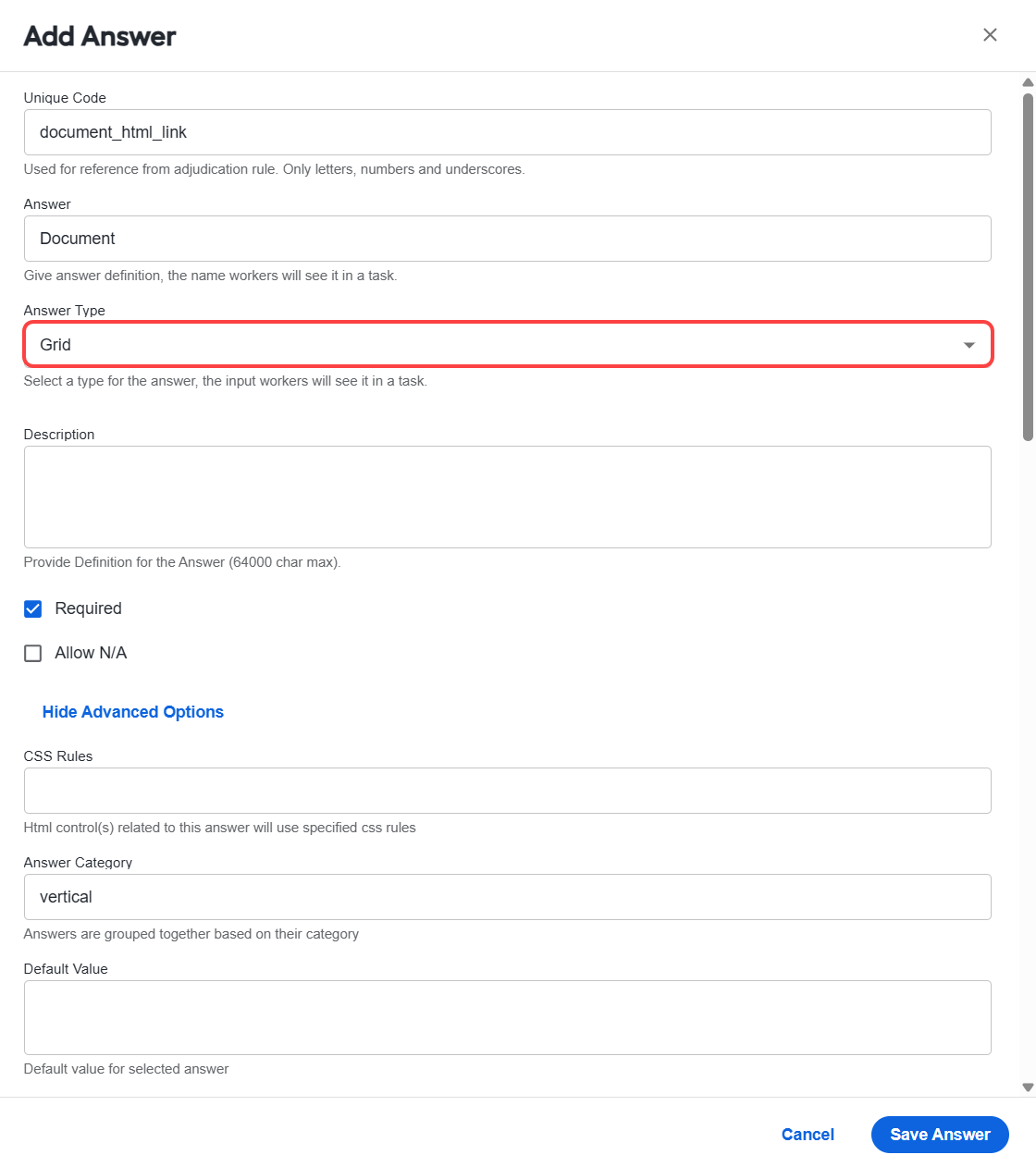
(Optional) You can rotate grid the to display columns as rows by entering vertical in the Answer Category field.
Add sub-answers to the Answer. See the list of supported Answer Types below. These sub-answers will be displayed as grid column headers. The sub-answer descriptions will be shown as a tooltip as you hover over a cell.
The following sub-answers are supported for the Grid Answer Type:
- FREE_TEXT
- MASKED_TEXT
- NUMBER
- SELECT_ONE
- SELECT_MULTI (supported for the Answer Category = Vertical only)
- DATE (normalized to mm/dd/yyyy)
- TIME (normalized to hh:mmtt)
- DAYSOFWEEK (normalized to the two-letter format)
- One Grid Answer Type is possible per Manual Task.
- All empty cells are normalized to Allow N/A on submission. Sub-answers are not submitted.
- If a Grid is restored from a default value, all edited cells are marked with a red triangle in the top right corner.
Use Grid
Click a cell in a corresponding column and enter the answer.
- If you need to pick a date from the calendar, double-click the cell.
- If the row you click is the last one, a new row is appended automatically.
- When you hover over a cell, a tooltip with the answer description is displayed.
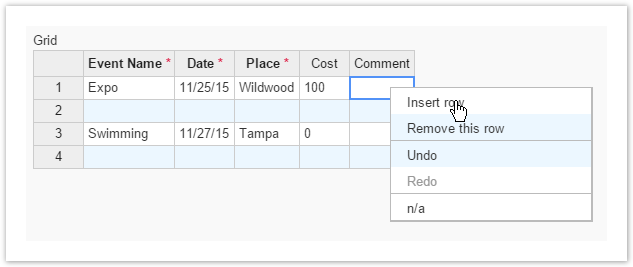
Right-click a cell to open Context Menu where you can choose one of the following options:
- Insert row
- Remove row
- Undo
- Redo
- Allow N/A, if you need to mark a question as Not available
Excel functionality:
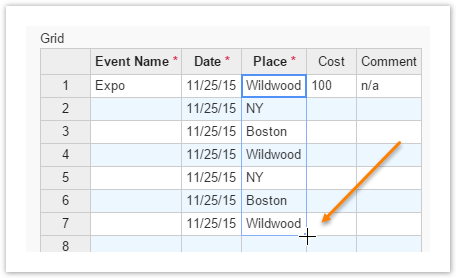
- Fill cells (fill data): select an area, drag the bottom right corner down. As a result, the selected pattern is copied.
- Copy (CTRL + C), cut (CTRL + X), paste (CTRL + V).
- Table navigation using arrow keys, as well as the Home, End, Page Up, Page Down keys.
- Use SHIFT + click (SHIFT + arrow keys) for selection.
View output format
The Grid Answer Type provides an output value in the JSON format and records it in one column:
Grid output example
{
  "grid":[
      {
        "event_name":"Expo",
        "date":"11/25/15",
        "place":"Wildwood",
        "cost":"100",
        "comment":""
      },
      {
        "event_name":"Swimming",
        "date":"11/27/15",
        "place":"Tampa",
        "cost":"0",
        "comment":""
      }
  ]
}