Version AI Agent
Problem context
During an AI Agent lifecycle, there are cases when you need to keep and execute multiple AI Agent versions on a single Control Tower. To support this scenario, you are required to clone every single AI Agent artifact and give it a unique name and version. You can perform such cloning process manually. Mind that it takes a few hours every time and becomes a potential source of human mistakes, thus this work must be automated.
The Asset Bundle has a set of components, such as BCBs and third-party libraries, that contain version information by default. It has also resources to version—Data Stores, S3 resources, Manual Task templates. To change a version, integrate these changes into a Business Process definition manually.
Bundle Versions Maven plugin
To automatically update versions of different Asset Bundle resources, use bundle-versions-maven-plugin developed to simplify versioning of an AI Agent Asset Bundle. The plugin is used to:
- Update the version (if present) in the names of Business Processes and all Bot and Manual Tasks.
- Enable a developer to use different versions of Data Stores for different versions of a Business Process.
- Enable a developer to use different versions of file resources for different versions of a Business Process.
- Automate updating versions and content of Bot and Manual Task processes in the Business Process definition file.
- Automate updating versions and content of the Business Process schema and contracts with mapping for Bot Tasks.
Versions of the following Asset Bundle components are modified:
- CSV Data Store files inside Bundle resources
- Data Store migration files (changesets defined in XML and YAML files)
- S3 files inside Bundle resources
- Manual Task templates inside Bundle resources
- Version information in the
meta-info.jsonfile - Business Process package:
- ZIP package version
- Names of Manual and Bot Tasks that contain version information
- Content of all Bot Tasks provided in BCBs
- Schema, contracts, and mapping of all Bot Tasks
- Links to resources that contain version information—S3 files, templates
- Use semantic versioning. A semantic version number has the following pattern: MAJOR.MINOR.PATCH.
- Increment the MAJOR version when you make incompatible API or functionality changes.
- Increment the MINOR version when you add functionality in a backward-compatible manner.
- Increment the PATCH version when you make backward-compatible bug fixes.
- The plugin takes AI Agent version, code, and name information from the root
pom.xmlfile of a multi-module Maven project. - Versions of BCB modules and the package module in the multi-module Maven project are the same.
- The minimal required Maven version is 3.6.3.
Check prerequisites
The plugin can automatically update version information in filenames. To allow this capability, name the file according to the special convention: filename_v_${package_module_version}.extension.
See the following examples:
src\main\resources\s3\uc_extended_resources_v_1.2.3.zip: a versioned file to be uploaded to S3.src\main\resources\template\macro\uc_macro_template_v_1.2.3-TASK-123: a versioned macro template to be added to the macro templates list.src\main\resources\datastore\uc_custom_datastore_v_2.3.4-RC.csv: a versioned Data Store file.
The _v_ version prefix usage is mandatory. A resource without _v_ before the version in the filename is not updated.
Add to Asset Bundle project
Add the Bundle Versions Maven plugin to the plugins section of the package module.
<plugin>
    <groupId>com.workfusion.odf</groupId>
    <artifactId>bundle-versions-maven-plugin</artifactId>
    <version>0.0.25</version>
</plugin>
Add the plugin configuration to the
<build/>section of the package module.<plugin>
<groupId>com.workfusion.odf</groupId>
<artifactId>bundle-versions-maven-plugin</artifactId>
<executions>
<execution>
<id>versions-update</id>
<phase>prepare-package</phase>
<goals>
<goal>update</goal>
</goals>
</execution>
</executions>
</plugin>Now, the plugin automatically runs before an Asset Bundle is built.
(Optional) To work with versionable resources from the Java code, update the
<build/>section of any BCB module with the maven-jar-plugin configuration.```xml
<plugin>
<groupId>org.apache.maven.plugins</groupId>
<artifactId>maven-jar-plugin</artifactId>
<configuration>
<archive>
<manifest>
<addDefaultImplementationEntries>true</addDefaultImplementationEntries>
<addDefaultSpecificationEntries>true</addDefaultSpecificationEntries>
</manifest>
</archive>
</configuration>
</plugin>
```The config is required to propagate the BCB version using the
MANIFEST.mffile of the built JAR.
Use in Java code
The root pom.xml in a multi-module Maven project must contain properties defining the AI Agent code, name, and version.
<usecase.name>${project.name}</usecase.name>
<usecase.code>UC_V_EX</usecase.code>
<usecase.version>${project.version}</usecase.version>
The BCB module must contain usecase.properties in main/resourses with the following properties:
code=${usecase.code}
name=${usecase.name}
version=${usecase.version}
ODF 2 uses these properties automatically to build table names.
Versioned files have a name that changes depending on the project version defined in pom.xml. Thus, any filename should have a version before usage.
To get version information at runtime:
Inject the
com.workfusion.odf2.core.versioninfo.VersionProviderinstance into a desired place:@BotTask
public class OdfVersionInfoTask implements AdHocTask {
private final VersionProvider versionProvider;
@Inject
public OdfVersionInfoTask(VersionProvider versionProvider) {
this.context = context;
this.httpClient = httpClient;
this.versionProvider = versionProvider;
}
// ...
}Since
VersionProviderbelongs toCoreOdfModule, it does not require any@Requiredmodule's annotation. Mind that there is an obsoletecom.workfusion.odf2.modules.versioninfo.VersionProvider(aware of a different package name) class packed inside theVersionInfoModuleand requires both a corresponding dependency and a mentioned module to be injected. The old class in a different module is kept for backward compatibility only. Consider using the new one from theCoreOdfModuleThe new
VersionProviderimplementation usesusecase.propertiesto obtain the BCB version.To get an AI Agent version, use:
String currentVersion = versionProvider.currentVersion();To get a versioned resource name, use:
String resourceName = versionProvider.getResourceName("uc_resource_name");To get a versioned Data Store name for the old-styled CSV-based Data Stores, use:
String datastoreName = versionProvider.getDatastoreName("uc_ds_name");
Work with migrations
The Data Model version of your project is ultimately defined by the usecase.model-version attribute of the root pom.xml file of your project. When you create a project from the archetype, this value is set to 1. Increase it and run the Bundle Versions Maven plugin to update the file with your migrations.
The operation of updating migration files is performed only if the usecase.model-version value differs from the value of DATA_MODEL_VERSION of the meta-info.json file of your package module. If DATA_MODEL_VERSION is absent in the meta-info.json file, the value of USE_CASE_VERSION is taken for comparison instead.
The plugin supports migrations stored in XML and YAML files. Both types can be used in the same project.
You must define the list of migration files in datastore/migrations/install.changelog.xml.
Note that the plugin replaces the AI Agent code and version only in migrations stored in the versioned subfolder. For any other directory, only the AI Agent code is replaced.
As a result of the operation, for all files listed in datastore/migrations/install.changelog.xml that contain versioned in the path, the Data Model version and AI Agent code are replaced with new values:
- All database tables named according to the
uc_<Use Case code>_<individual name>_v<Data Model version>pattern, for example,uc_UCCODE_demo_transaction_v1, are updated so that the token that corresponds to the Data Model version and the token corresponding to the AI Agent code are changed to new values, for example,uc_UCCODE_demo_transaction_v1>uc_NEWUCCODE_demo_transaction_v2. - All indexes and constraint names containing the AI Agent code and Data Model version are updated so that the token corresponding to the Data Model version and the token that corresponds to the AI Agent code are changed to new values, for example,
index_UCCODE_demo_transaction_uuid_v1>index_NEWUCCODE_demo_transaction_uuid_v2. - All changeset identifiers that start with
<Use Case code>_v<Data Model version from meta-info.json>, for example,UCCODE_v1_chset_0001, are updated so that the token that corresponds to the Data Model version and the token that corresponds to the AI Agent code are changed to new values, for example,UCCODE_v1_chset_0001>NEWUCCODE_v2_chset_0001.
For all other migrations located in sub-directories without versioned in the path, only the AI Agent code is changed:
- All database tables named according to the
uc_<Use Case code>_<individual name>pattern, for example,uc_UCCODE_demo_dictionary, are updated so that the token corresponding to the AI Agent code is changed to a new value, for example,uc_UCCODE_demo_transaction_v1>uc_NEWUCCODE_demo_dictionary. No changes are applied if the code stays the same. - All indexes and constraint names containing the AI Agent code are updated so that the token that corresponds to the AI Agent code is changed to a new value, for example,
index_UCCODE_demo_dictionary_uuid>index_NEWUCCODE_demo_dictionary_uuid. - All changeset identifiers that start with
<Use Case code>, for example,UCCODE_chset_0001, are updated so that the token that corresponds to the AI Agent code is changed to a new value, for example,UCCODE_chset_0001>NEWUCCODE_chset_0001.
In the meta-info.json file of your package module, the DATA_MODEL_VERSION and USE_CASE_CODE attribute values are set to the values of the usecase.model-version and usecase.code attributes of the root pom.xml file in your project.
The requirements for migration files are as follows:
- Migrations stored in YAML files must not contain the
preconditionblocks, as a YAML serializer used in the current version of the plugin does not support this block. The preconditions work fine in XML migrations. - The
xsi:schemaLocationURL must be replaced with full URLs only:xsi:schemaLocation="http://www.liquibase.org/xml/ns/dbchangelog http://www.liquibase.org/xml/ns/dbchangelog/dbchangelog-3.6.xsd". Otherwise, the plugin execution fails with theliquibase.exception.ChangeLogParseExceptionexception.
Work with schema and contracts
The bundle version plugin automatically updates the Business Process schema, Bot Task contracts, and the mapping between internal and external contracts.
To update the Business Process schema, the plugin uses the schema from your source Business Process and the schemas found in the classpath of the package module. If two or more identical schemas exist, the plugin selects the one with the higher version or the first one found if the versions are the same. This situation can occur when both the Business Process schema and an external schema contain the same types with the same version. In such cases, external schemas take priority over the source Business Process schema.
Contracts are updated based on the contracts provided by the worker resources. The plugin replaces the contract contents automatically, using the contract filename to identify the Bot Task in which the contract should be replaced.
The mapping acts as a bridge between the internal and external Bot Task contracts. The plugin tries to adapt your original mapping and external contract to the new Bot Task contract. If the mapping cannot be updated automatically, the plugin replaces both the mapping and the external contract with a standard one generated from the new internal contract.
You can disable the mapping update function with the schema.mapping.update=false plugin flag. In this case, all contracts are replaced with standard ones. If you need to update only the contents of contracts and type versions, disable schema validation using the schema.validate=false plugin flag. This method can be used during the release process to update the version only, without attempting to adapt the mapping.
Update Asset Bundle
To update resource files and a Business Process package, do as follows. Mind to delegate all the commands to CI.
Change the version of all modules in the multi-module project. In the project root directory, run:
mvn versions:set -DnewVersion=${new-project-version} versions:update-child-modules -DgenerateBackupPoms=falseBuild a new version of all project modules and install to local Maven:
```shell
mvn clean install
```
- If the AI Agent version in `usecase.version` differs from the `USE_CASE_VERSION` property in `meta-info.json`, the plugin is called automatically. If the Data Model version in `usecase.model-version` differs from the `DATA_MODEL_VERSION` property in `meta-info.json`, the plugin is called for the Data Model version increase. Otherwise, the version update logic is skipped.
- If the Maven settings file is stored out of the `user-home/.m2` directory, pass the path to the setting using the `org.apache.maven.user-settings` command-line argument:
```shell
mvn -s ${MAVEN_SETTINGS_PATH} -Dorg.apache.maven.user-settings=${MAVEN_SETTINGS_PATH} clean install
```Note that both
-Dorg.apache.maven.user-settingsand key-sarguments are required to update the versions.
To run the plugin manually without building a Bundle, perform the following steps:
Go to the package module directory and call bundle-versions-maven-plugin:
mvn bundle-versions:updateNow, the versions of Data Stores, S3 resources, Manual Task templates,
meta-info.jsonin the package module are updated.Build an Asset Bundle:
mvn clean packageImport the Bundle to the Control Tower instance if needed:
mvn bundle:import
Validate project configuration
There are multiple locations in a project structure or an Asset Bundle that require changes while configuring the versioning plugin. These changes are difficult to track and commonly missed while configuring the plugin. Due to this, there can be build errors and incorrect generation of Asset Bundle resources (a wrong version) when the plugin is integrated with a CI/CD pipeline.
The validation feature goal is to prevent you from making project configuration-related errors, avoid incorrect Asset Bundle deployments, and save time while troubleshooting incorrect deployments.
Perform the following validation processes:
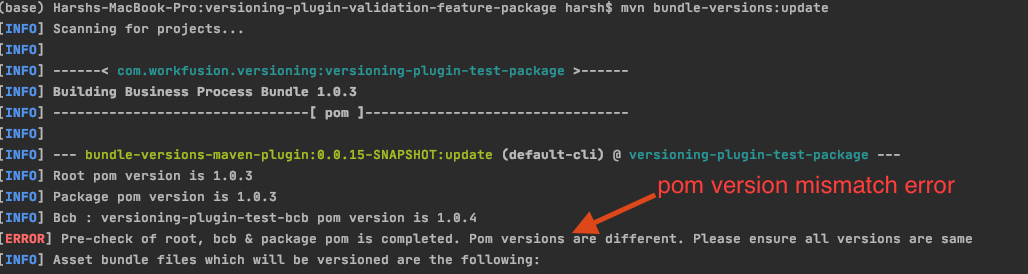
Before applying version updates, check whether BCB, root, and package (the asset folder) POM versions are the same. If they are not identical, you can view the version number of all artifacts and an error message in the console.
Go to
package-module>src>main>resources, and check if the files in the Asset Bundle components follow the file naming convention. Mind that for thebusiness-processdirectory, the zip file doesn't have to follow this convention. The following entities must contain_v_${project.version}in the filename:- **S3**: for example, `model-info_v_1.0.1.json`
- **templates**
- **datastore**: the CSV file should contain `_v_${project.version}`. The version number should contain underscores instead of dots, for example, `test-ds_v_1_0_0.csv`.
The **WARNING** level message is displayed for files not following the convention, while the **INFO** level message—for the ones following it.

Check whether the version number in `_v_${project.version}` matches the one in the package POM file. If it doesn't match, there is the **WARN** message.

Validate the
package.xmlfile. Check the value of the<outputDirectory>and<include>tags inside the<dependencySets>tag. It should have correctgroupId+artifactId+versionfor the BCB delimited by/and:respectively.
If the value inside the
<include>tag is incorrect, the build fails.
Validate the
project.xmlinside the Business Process zip file. Check whether the BCBgroupId:artifactId:versionis present in the value of the<gavc>tags. If it doesn't match, the Bundle import fails.
Version information module
The version information module or VersionInfoModule is used for getting information about the current project version, names or filenames of versioned resources and Data Stores.
Add the module to your application instance and provide the current class for access to the module classloader:
modules.add(new VersionInfoModule(this.getClass()));
Use the module in your components to extend your resource names with a version suffix:
@Inject
public YourComponent(VersionProvider versionProvider) {
String currentVersion = versionProvider.currentVersion(); // currentVersion = "1.2.3"
String datastoreNameWithVersion = versionProvider.getDatastoreName("my_datastore"); // datastoreNameWithVersion = "my_datastore_v_1.2.3"
String resourceFileNameWithVersion = versionProvider.getResourceFileName("my_library.jar"); // resourceFileNameWithVersion = my_library_v_1.2.3.jar
}
The version information is available for built JARs only. In unit tests, an empty string is provided.
Bundle versioning tutorial
To better understand the concept of versioning Asset Bundle components, upload the tutorial project that imitates a real AI Agent project with reduced business logic. Its main target is to show the concept of versioning Asset Bundle components.
Project structure
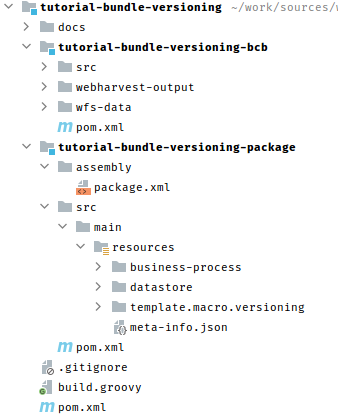
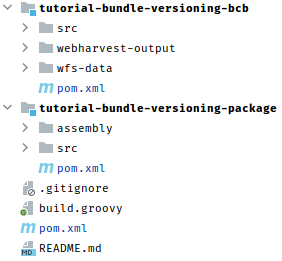
The multi-module Maven project contains:
tutorial-bundle-versioning-bcb: a BCB Maven module.tutorial-bundle-versioning-package: an Asset Bundle module with resources.
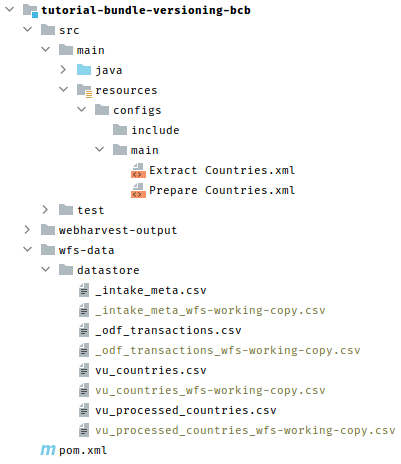
tutorial-bundle-versioning-bcb
The root pom.xml file contains properties that define the AI Agent name, code, and version. By default, the name and the version are taken from the ${project.name} and ${project.version} Maven variables:
<usecase.name>${project.name}</usecase.name>
<usecase.code>UC_V_EX</usecase.code>
<usecase.version>${project.version}</usecase.version>
The BCB module contains two Bot Tasks. In the imported Business Process, the BCB Bot Task names include the version from pom.xml automatically. Data Stores in this module are used for local execution from IDE or tests only, so there is no need to use versions.
pom.xml contains a dependency to com.workfusion.odf:version-info:
<dependency>
<groupId>com.workfusion.odf</groupId>
<artifactId>version-info</artifactId>
</dependency>
This library provides a feather module for extending CSV-based Data Store names and resource filenames with the version at runtime.
The module reads version information from MANIFEST.mf of the built JAR file. Thus, you must provide this information. For these purposes, maven-jar-plugin is reconfigured in the BCB module:
<plugin>
<groupId>org.apache.maven.plugins</groupId>
<artifactId>maven-jar-plugin</artifactId>
<configuration>
<archive>
<manifest>
<addDefaultImplementationEntries>true</addDefaultImplementationEntries>
<addDefaultSpecificationEntries>true</addDefaultSpecificationEntries>
</manifest>
</archive>
</configuration>
</plugin>
For more details, refer to Version information module.
tutorial-bundle-versioning-package
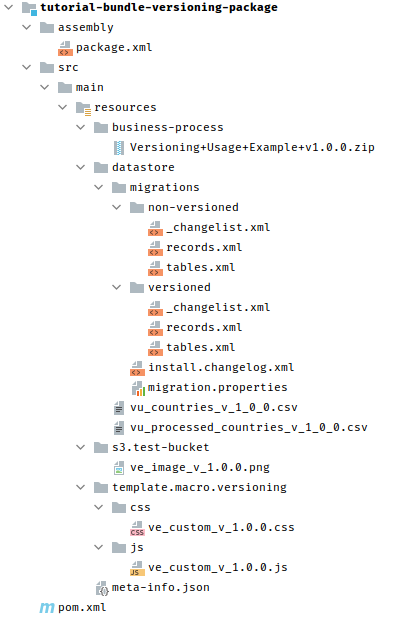
This is a representation module containing files for building an Asset Bundle zip. The package module contains all resources to be versioned:
Versioning+Usage+Example+v1.0.0.zip: Business Process packagevu_countries_v_1_0_0.csvandvu_processed_countries_v_1_0_0.csv: Data Storestables.xmlandrecords.xmlin thedatastore\migrations\versionedfolder: Data Stores migrationsve_custom_v_1.0.0.cssandve_custom_v_1.0.0.js: macro template resourcesve_image_v_1.0.0.png: S3 resourcesmeta-info.json: meta-information containing the AI Agent name, code, version, and task change time
Basic configuration
Package
tutorial-bundle-versioning-package/pom.xml contains the bundle-versions-maven-plugin definition configured to change versions before an Asset Bundle zip file is built:
<plugin>
    <groupId>com.workfusion.odf</groupId>
    <artifactId>bundle-versions-maven-plugin</artifactId>
    <executions>
        <execution>
            <id>versions-update</id>
            <phase>prepare-package</phase>
            <goals>
                 <goal>update</goal>
            </goals>
        </execution>
    </executions>
</plugin>
The configuration calls the update goal of bundle-versions-maven-plugin on the Maven build prepare-package phase.
This plugin logic is called only if the <usecase.version> property value of the root pom.xml differs from the USE_CASE_VERSION field value in meta-info.json. Otherwise, the plugin logic is skipped.
Files
The plugin can automatically update version information in filenames. To allow this capability, name the file according to the following convention: filename_v_${package_module_version}.extension. In the example, these are vu_countries_v_1_0_0.csv and ve_custom_v_1.0.0.css.
Rewrite the access to the files from the Java code to using the version-info module:
String datastoreName = versionProvider.getDatastoreName("vu_countries");
String s3ImageName = versionProvider.getResourceFileName("ve_image.png");
The _v_ prefix before the version is used to define whether the element is required for versioning. If you want to skip versioning for some element, remove _v_ from its name. It can help in case of using a Data Store as a static dictionary or for cross-version analytics data.
The Business Process zip package—Versioning+Usage+Example+v1.0.0.zip for the case—is renamed automatically even without the _v_ version prefix.
Business Process package zip and usecase.xml
You can use macro templates or other files in a Manual Task to appear in business-process.zip/project.xml. To allow the versioning plugin to change the version in links to files, use its versioned names while developing a Manual Task.
For the specified case, the Manual Task content includes two lines for importing CSS and JS files. Mind that both links are versioned:
...
<@form>
...
  <style><#include "versioning/css/ve_custom_v_1.0.0.css" parse=false/></style>
  <script><#include "versioning/js/ve_custom_v_1.0.0.js" parse=false/></script>
</@form>
...
Filenames to be updated must be identical in resources and in business-process.zip/project.xml. Otherwise, in the Business Project structure, there are no links required for the update.
Migrations
This project contains Data Store migrations, and the plugin updates the AI Agent code and version in all table names, foreign key names, and changeset IDs in versioned migration configurations.
The datastore/migrations/versioned/_changelist.xml contains two changelog files:
tables.xml: to create or update tables.records.xml: to create records.
The table name in the changeset contains the AI Agent code at the beginning and version with the _v prefix at the end: uc_UC_V_EX_demo_transaction_v1_0_0.
The changeset ID contains the AI Agent code and version with the _v prefix at the beginning, for example: UCCODE_v1_0_1_0001. If the code or version is skipped or differs from the existing in meta-info.json, it is added automatically to the changeset ID. For more information, refer to Work with migrations.
Update versions in project
Before you start updating versions, mind that:
- The versioning plugin works based on information from
pom.xmlfiles. Thus, before calling the plugin, make sure that all versions intutorial-bundle-versioning-package/pom.xmlare correct. - The versions of all modules in the multi-module project are equal.
- The Maven version is 3.6.3 or higher.
For more details, see the restrictions.
The plugin makes changes directly in the tutorial-bundle-versioning-package/src/main/resources folder. Thus, call the plugin first before the package phase.
To update resource files and a Business Process package, do as follows. For more details, refer to Update Asset Bundle.
Change the version of all modules in the multi-module project. In the root directory of the project, run:
mvn versions:set -DnewVersion=1.0.1-TEST-0 versions:update-child-modules -DgenerateBackupPoms=falseThis call contains three parameters:
versions:update-child-modulescalls an additional goal that applies changes in all child modules.-DnewVersion=1.0.1-TEST-0defines what version to apply to the project.-DgenerateBackupPoms=falsetells that no backuppom.xmlfiles are required.
POM files are affected with this script only—they are highlighted in blue.
If the version was changed on the previous step and the version in
pom.xmldiffers from the version inmeta-info.json, execute this command in the project root to install a BCB to a local Maven repository:mvn clean installAs a result, all modules are built, and resource versions are changed in the package module.
Build the project and call bundle-versions-maven-plugin to change the versions of the Asset Bundle resources. You can execute all commands manually.
Go to the
tutorial-bundle-versioning-packagedirectory.cd tutorial-bundle-versioning-packageUpdate the Asset Bundle resources versions using bundle-versions-maven-plugin.
mvn bundle-versions:updatePrepare the Asset Bundle zip file.
mvn clean package
After you update, your project has the following changes:
- The AI Agent name, code, and version are added to
meta-info.json. - The BCB module is copied to the
user_home/.m2/repositorylocal Maven repository by default. - All versions are updated in
tutorial-bundle-versioning-package. - The Asset Bundle is built.
Initial package Updated package 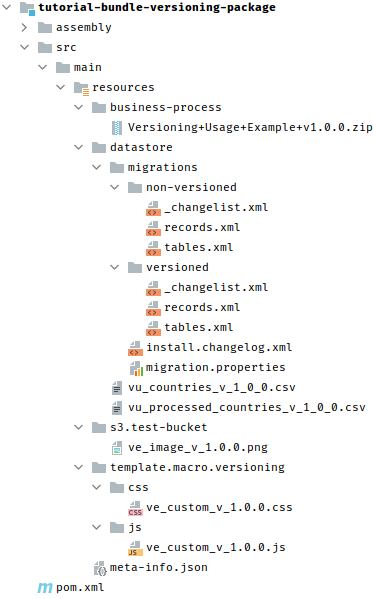
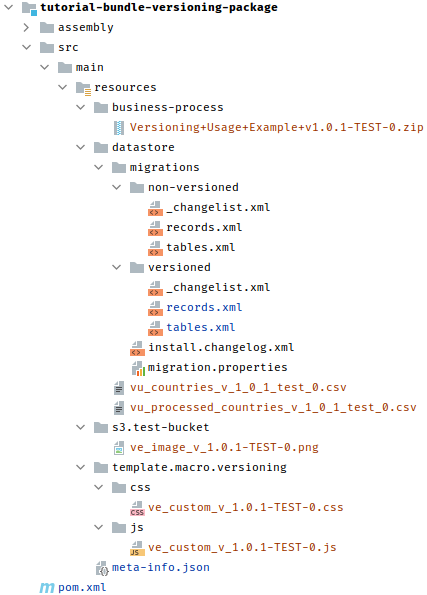
You can download the updated package with the applied changes.
Import your Asset Bundle to Control Tower. Mind that https://odf-1014-wfaw-10061-workfusion-lb1.workfusion.com/workfusion/ isn't available, so change to the existing or local one:
cd tutorial-bundle-versioning-package/
mvn bundle:import -Premote
Schema and contract update configuration
The bundle version plugin provides two flags for configuring the schema, contracts and display updates:
schema.validateenables or disables the basic update features for schemas and contracts.schema.mapping.updateenables or disables the mapping update mechanism.
Both flags are set to `true` by default
These two flags define three possible options of the update behavior:
schema.validate=trueandschema.mapping.update=true: the default behavior. The plugin updates the Business Process mapping and contract and attempts to adapt the contract mapping. If the mapping cannot be updated, the external contract and mapping are replaced with the default ones generated from the new contract. This configuration is best suited for the development process.schema.validate=trueandschema.mapping.update=false: the Business Process schema is updated. Both contracts and mapping are replaced with standard ones.schema.validate=falseandschema.mapping.update=true(orschema.mapping.update=false): best suited for the release process. In this case, the Business Process schema and Bot Task contract are updated, while the external contract and mapping only have their type versions updated; the structure remains unchanged. This configuration helps detect bugs when the contract has changed but the Business Process content has not been adapted accordingly.
Check changes
To check, go to Control Tower and view the changes in the imported Business Process.
| Control Tower entity | Initial | Updated |
|---|---|---|
| Business Process title |  |  |
| Business Process diagram |  |  |
| Manual Task | 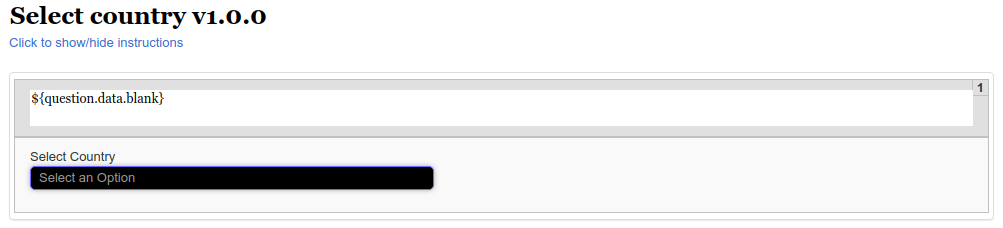 | 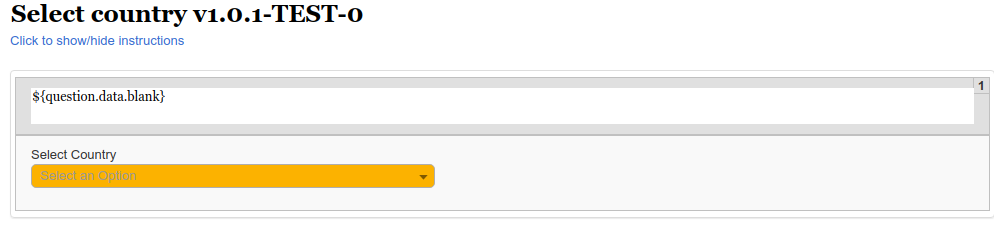 |
| Manual Task popup defined in the JS file |  |  |
Potential problems and troubleshooting
Plugin execution
Starting from version 0.0.15 of the plugin, you must include the plugin in the whole project build. Configure to start it automatically as described in the Add to Asset Bundle section. The plugin logic is executed only while building a project from the root.
Configuring and naming versioned components
In case any component version is not updated after you apply the plugin, check if its name and content meet the requirements described in the Validate project configuration section. The section also contains a description of potential component configuration issues.
Project dependencies
All project components configured in Maven must be versioned using standard Maven tools, for example, maven-versions-plugin.
The best example is a BCB. A BCB version isn't updated with bundle-versions-maven-plugin. You should call the mvn versions:set -DnewVersion=${version} goal. The plugin updates only the Asset Bundle module resources within your project.
Assembly configuration
All versioned content in the assembly plugin configuration—package.xml by default—isn't versioned automatically. For example, if you add a third-party BCB into package.xml, use a Maven property to define its version and path. Otherwise, it is just a static dependency, and its version is not changed dynamically.
Correct
<outputDirectory>artifactory-dependency/bcb/com/example/usecase/demo/usecase-demo-bcb/${uc.version}</outputDirectory>
Incorrect
<outputDirectory>artifactory-dependency/bcb/com/example/usecase/demo/usecase-demo-bcb/1.0.0</outputDirectory>
Liquibase migration versioning
Sometimes, after a new version was applied to an Asset Bundle, the import process can fail on migration import. It means that some migrations weren't updated properly.
In this case, check if all versioned tables are described in the files listed in the sub-folders of datastore/migrations with the versioned folder in the path. Otherwise, the plugin ignores them for the updated version. The AI Agent code (in case of its change) is updated for all migrations.
If a changeset ID or a table name was not updated, before applying the plugin logic, check if the changeset is named according to the conventions and contains the correct AI Agent code and version. For the conventions, refer to the Work with migrations section.
The xsi:schemaLocation URL must contain full URLs only: xsi:schemaLocation="http://www.liquibase.org/xml/ns/dbchangelog http://www.liquibase.org/xml/ns/dbchangelog/dbchangelog-3.6.xsd".
Otherwise, the plugin execution fails with an error.
Migrations in YAML files must not contain preconditions. With the current version of the plugin, all changesets containing preconditions will be corrupted. If you want to use preconditions, define such changesets in XML.
Rollback plugin-related changes
If you use the plugin locally and something goes wrong, roll back the changes using Git. To simplify the process, before applying the updates, ensure there are no uncommitted changes in the codebase. To view the changes made by the plugin, use the Git diff viewer.
Manual Task versioning restrictions
Avoid using the same instance of a Manual Task twice or more as the versioning plugin corrupts a Business Process definition. The improvement requires manual work.
If a case requires using the same Manual Tasks, use the links to the same task and rules.