Manage and assign realm and client roles
WorkFusion User Management features two levels of roles:
Realm-level in a global namespace shared by all clients.
Client-level in a namespace dedicated to a specific client (for example, wf-control-tower, wf-kibana).
Additionally, there's the composite role type when a role has one or more subsidiary roles associated with it.
Client-level roles
Client roles are applicable to a particular client. They are essential for accessing the resources of specific WorkFusion applications.
The WorkFusion User Management UI features preconfigured roles for its default clients:
realm-management
The roles for the realm-management client in the table below define user permissions to modify the settings of the WorkFusion User Management UI.
| Role | Description |
|---|---|
| view-clients | Allows viewing the list of existing clients and their configurations. To use the view-clients permissions, users must also be assigned the manage-clients role. |
| manage-clients | Allows creating and modifying client configurations. |
| query-clients | Allows viewing the list of clients, but not any particular client. |
| wf-manage-client-roles-only | Allows creating, modifying, and deleting client-level roles. It doesn’t allow any operations with clients directly. Likewise, it doesn’t provide permission to modify or delete the client roles a grantee may have. To modify an own client role, the grantee also needs to have the manage-clients or manage-realm roles. |
| view-identity-providers | Allows viewing the list of identity providers and their configurations. To see the list of identity providers, users must also be assigned the query-realm or view-realm roles. To see identity provider configurations, users must also be assigned the view-realm or query-realm and query-client roles. |
| manage-identity-providers | Allows creating or updating identity provider configurations. To use the manage-identity-providers permissions, users must also be assigned the view-realm role. |
| query-groups | Allows viewing the list of groups, but not any particular group. |
| wf-manage-groups-only | Allows creating, renaming, moving, and deleting groups. With the role only, grantees can't manage users and modify or delete the groups to which they belong. To modify their own groups, the grantees also need to have the manage-users or manage-realm roles. |
| view-users | Allows viewing the list of users and groups, as well as particular users and groups. With the permission, you can also edit groups. |
| manage-users | Allows creating and modifying users and groups. To exercise the manage-users permissions, users must be also assigned the view-users role. |
| query-users | Allows viewing the list of users, but not any particular user. |
| view-realm | Allows viewing realm configurations, realm-level roles, as well as the list of User Federations and sessions. To see the content of a realm-level role, users must also be assigned the view-users role. To see the content of a session, users must also be assigned the view-clients role. |
| manage-realm | Allows editing realm configurations, realm-level roles, User Federations, and the session list, but not the content of any particular session. To edit the realm-level role content, users must also be assigned the manage-users role. To edit the content of a session, users must also be assigned the manage-clients role. |
| wf-manage-realm-roles-only | Allows creating, modifying, and deleting realm roles. Unlike manage-realm, the role alone is not enough to let grantees modify or delete their own roles. |
wf-control-tower
Roles for the wf-control-tower client define user permissions to access both the Control Tower functionality and specific User Management settings. For the client, there are three preconfigured roles in the WorkFusion User Management UI: Administrator, Developer, and Operator.
Users with the Administrator role have access to the entire Control Tower functionality and can have the following permissions to modify User Management settings:
- realm-management/view-users
- realm-management/manage-identity-providers
- realm-management/query-clients
- realm-management/query-users
- realm-management/manage-clients
- realm-management/manage-users
- realm-management/query-groups
- realm-management/view-identity-providers
- realm-management/view-clients
For permission details, see realm-management.
Users assigned the Developer or Operator roles have access only to specific Control Tower features as described in Manage Control Tower roles and permissions.
For instructions on assigning user roles for the wf-control-tower client, refer to Configure users | Assign role to user.
wf-workspace
Workspace supports three default roles:
- Administrator
- Manager
- Worker
The roles combine with the permissions set in the Workspace app. For details, see Manage Workspace roles and permissions.
wf-kibana
For the wf-kibana client, there is only one preconfigured role—Admin. Users with the role can create, read, update, or delete permissions related to Kibana.
For instructions on assigning user roles, refer to Configure users | Assign role to user.
wf-marathon
The Marathon application supports the following default roles:
view for viewing the Marathon content
manage for managing the Marathon content
wf-bot-manager
The Bot Manager application supports the following default roles:
BM_VIEW_UI allows you to access the Bot Manager application interface only.
BM_EXECUTE_ACTIONS allows you to access both the Bot Manager application interface and API and start or stop processes using the interface tools.
wf-s3-management-be
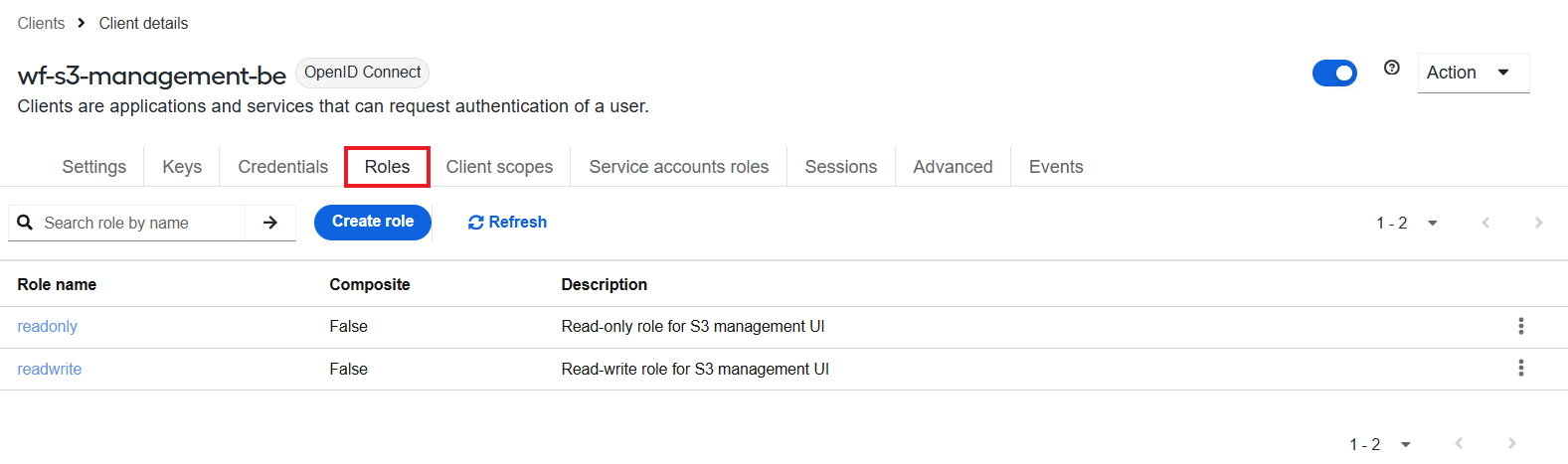
The S3 Manager application features the following default roles:
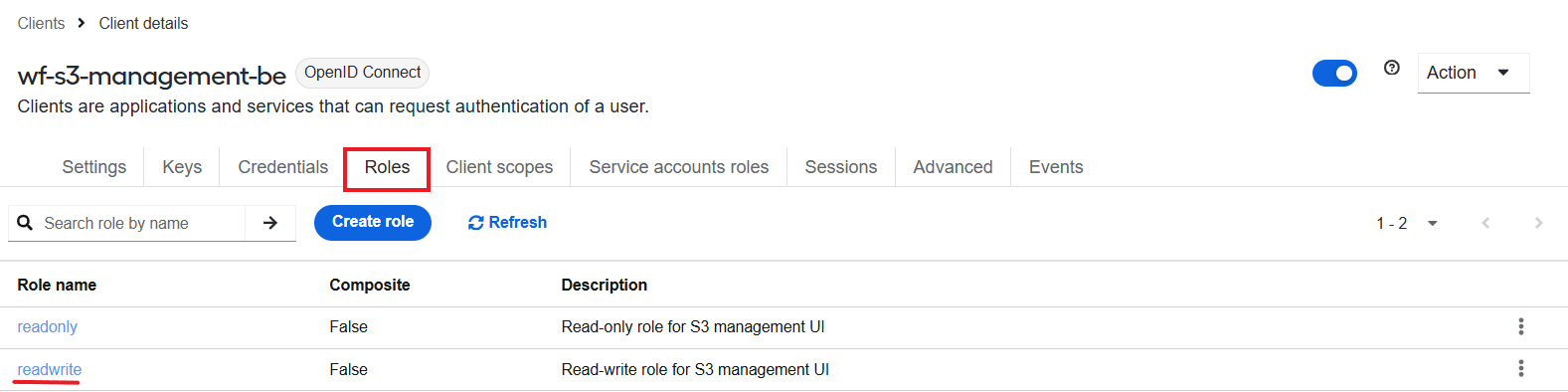
readwrite gives full access to all actions on all S3 buckets.
readonly allows you to only view all S3 buckets.
View client roles
To view the roles preconfigured for a particular client, follow the steps below:
Click Manage realms and select a realm.
On the left menu, click Clients and select a client from the list on the right.
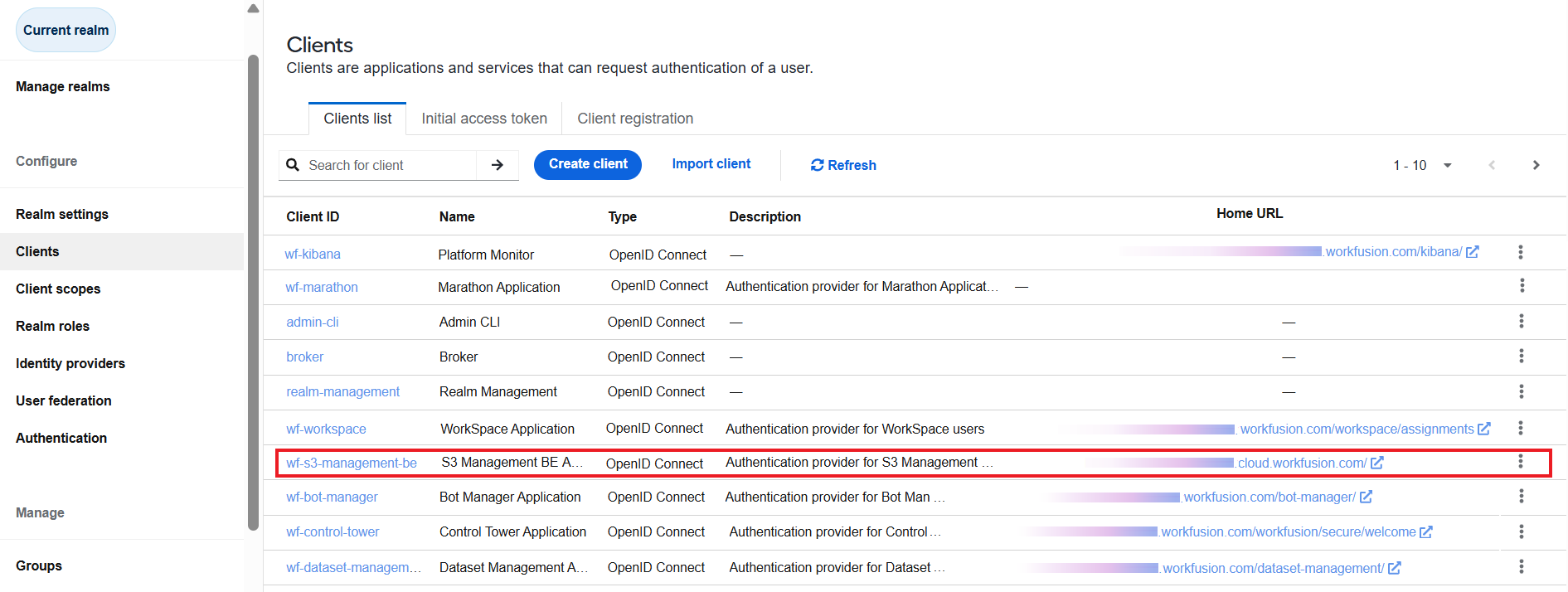
Go to the Roles tab to see the client's preconfigured roles.
Add client roles
To add a client role, follow the instructions:
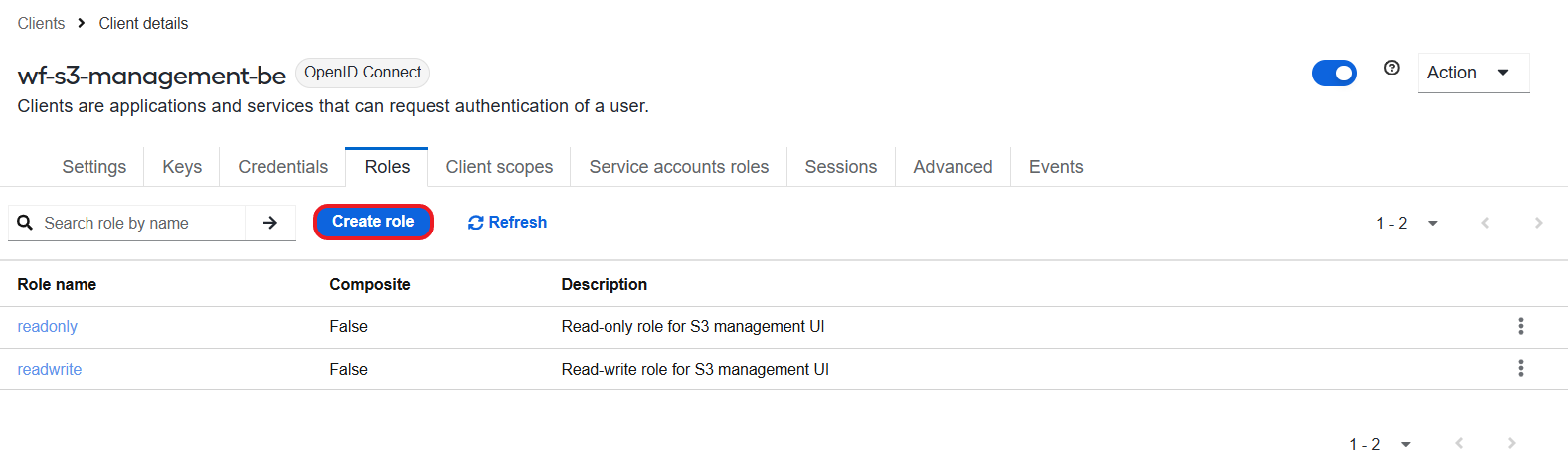
On the Roles tab, click the Create role button.
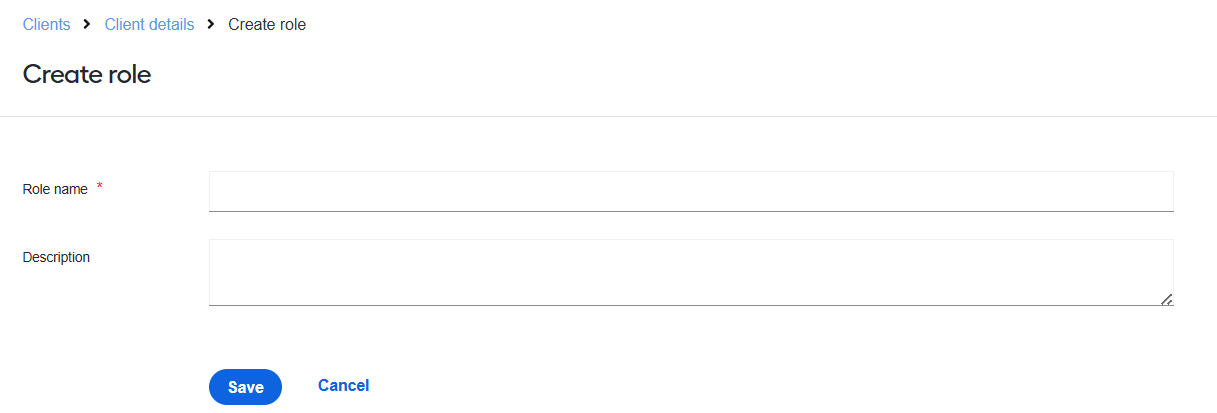
On the Create role page, enter the role name and description and click Save.
As a User Management client, Control Tower can use only the roles preconfigured in Control Tower. Moreover, to access the Control Tower functionality mapped to a particular role, users must first configure role permissions in Control Tower.
To configure the permissions in Control Tower, select System settings > Role Management and choose a role for which you want to set permissions. In the role editing window, check required permissions. For details, refer to Manage Control Tower roles and permissions.
View mapped users
From the client's details page, you can also view users mapped to a particular role:
On the Roles tab of the client's details page, select a client role. In the example below, the readwrite role is selected.
Go to the Users in role tab. Here, you can see a list of users to whom the client role is assigned.
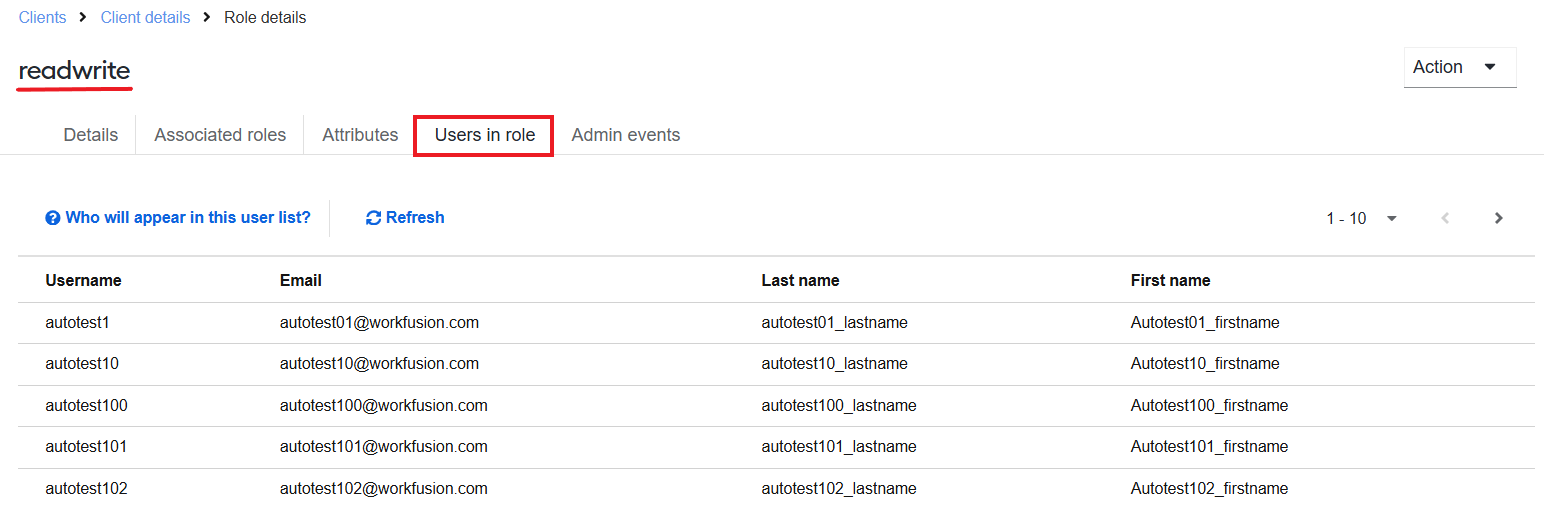
By clicking a username on the list, you can also access the user's settings or role mappings. For details, refer to the Manage users topic.
Realm-level roles
Realm-level roles are applicable to all clients of a particular realm. The WorkFusion User Management UI features preconfigured realm roles, including default ones.
You can also use realm-level roles for aggregation via composite roles, though it is advisable to use groups for this purpose.
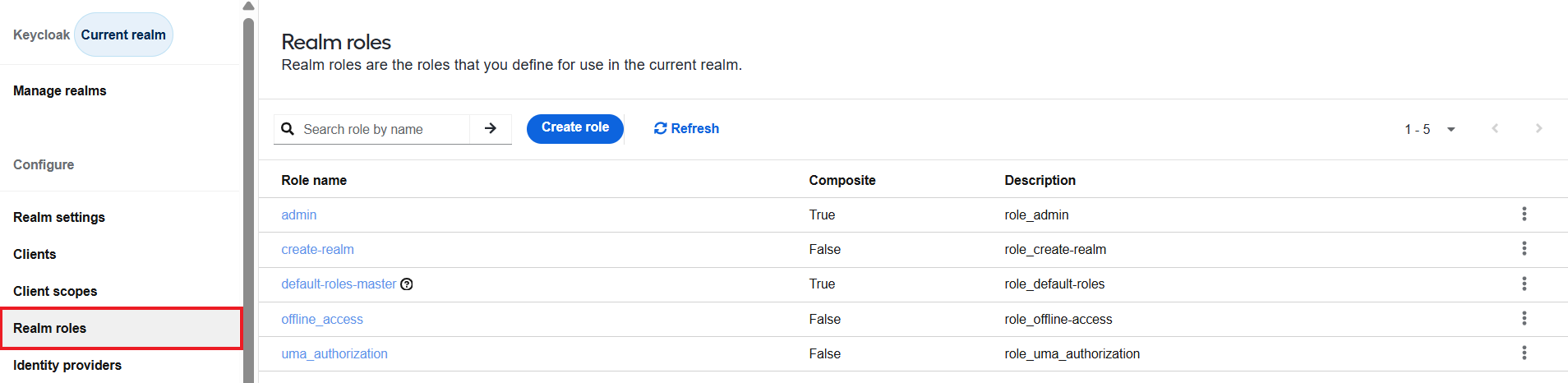
For the master realm, preconfigured roles include the following:
- admin grants administrator rights to manage the settings across realms.
- offline_access permits the realm users to get tokens for offline access.
- uma_authorization enables access to the user management functionality.
- create_realm allows creating realms.
The offline_access and uma_authorization roles are also set as default master realm roles.
For WorkFusionRealm, preconfigured roles are as follows:
- offline_access
- uma_authorization
The same roles are default ones in WorkFusionRealm.
View realm roles
To view available realm roles, make sure you are in the required realm and, in the menu on the left, select Realm roles.
Create realm roles
The available preconfigured roles are enough to work with WorkFusion applications. However, if you need to create a realm-level role, follow the steps below:
Make sure you are in the required realm.
On the left menu, select Realm roles.
Click Create role.
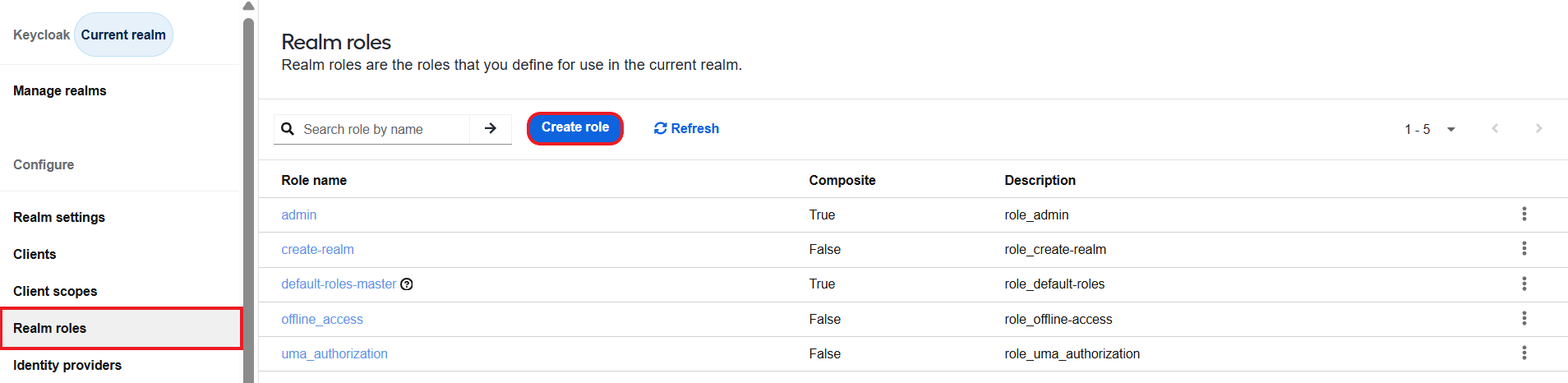
Enter a role name and its description.
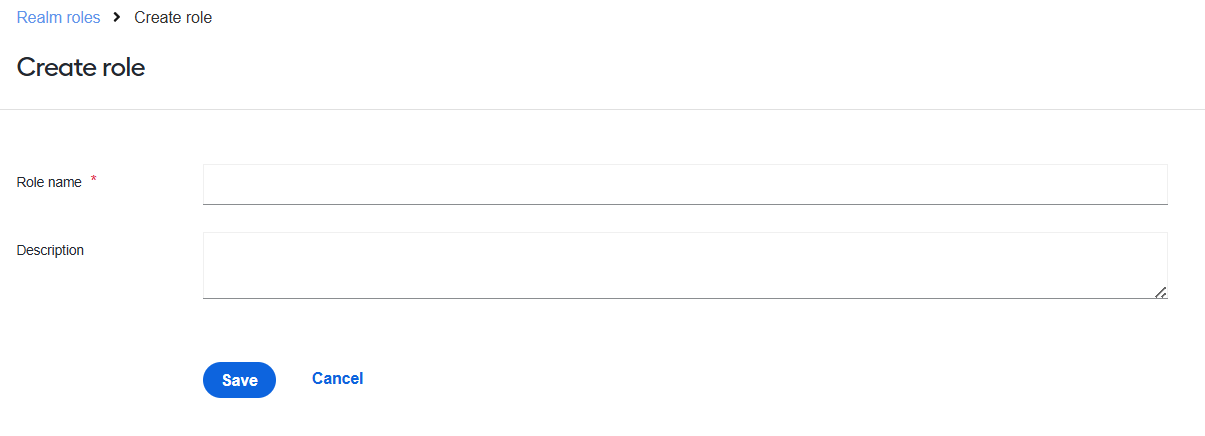
Click Save.
Composite roles
The WorkFusion User Management UI also allows creating composite roles—that's when a regular realm or a client role is associated with one or more additional roles.
When a composite role is assigned to a user, the user gains all the roles of the composite components. The inheritance is recursive, so any composite of the composites also gets inherited.
To turn a regular role into a composite one, follow the instructions below:
Make sure you are in the required realm.
On the left menu, select Clients and then click a particular client in the list.
Go to the Roles tab and select a role you want to make a composite.
Go to the Associated roles tab and add the required realm and client roles to the composite you are creating.
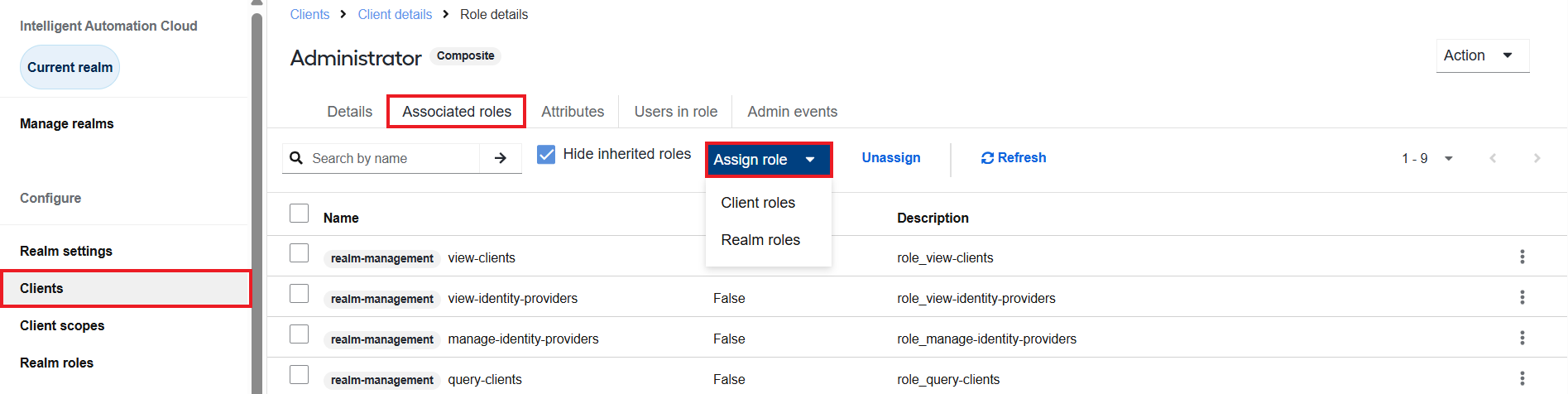
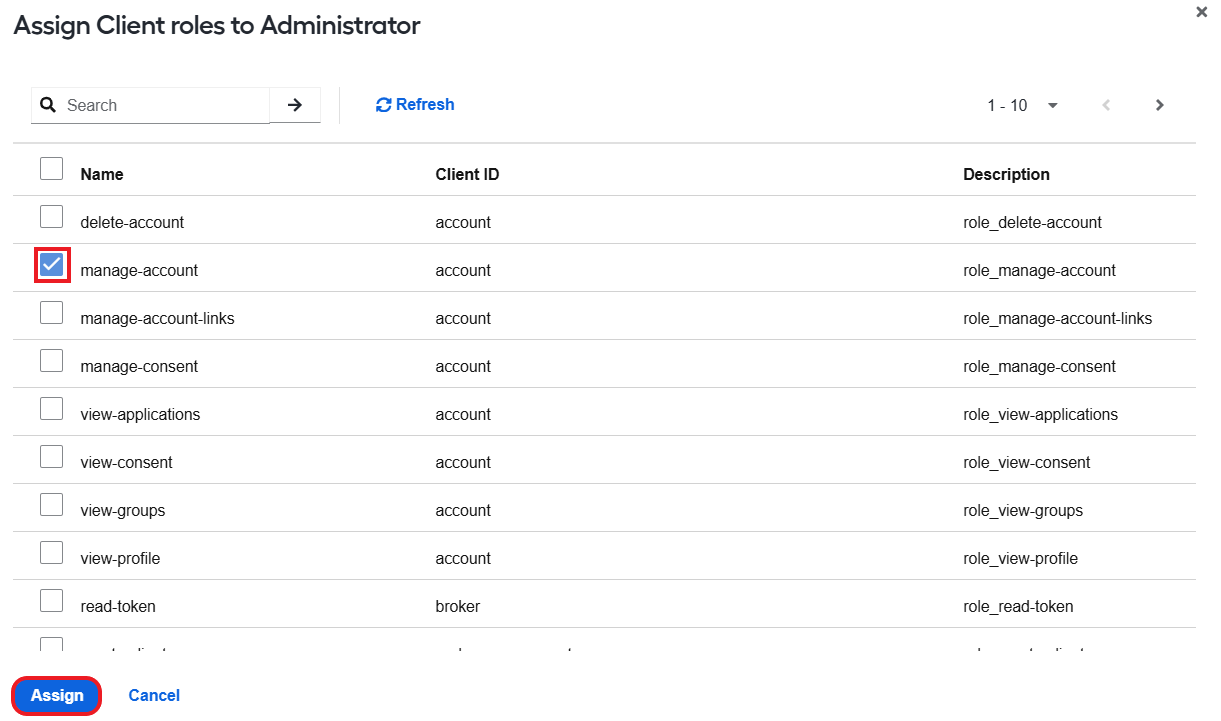
To add an associated client-level role, click Assign role > Client roles, select a role in the list, and click Assign.
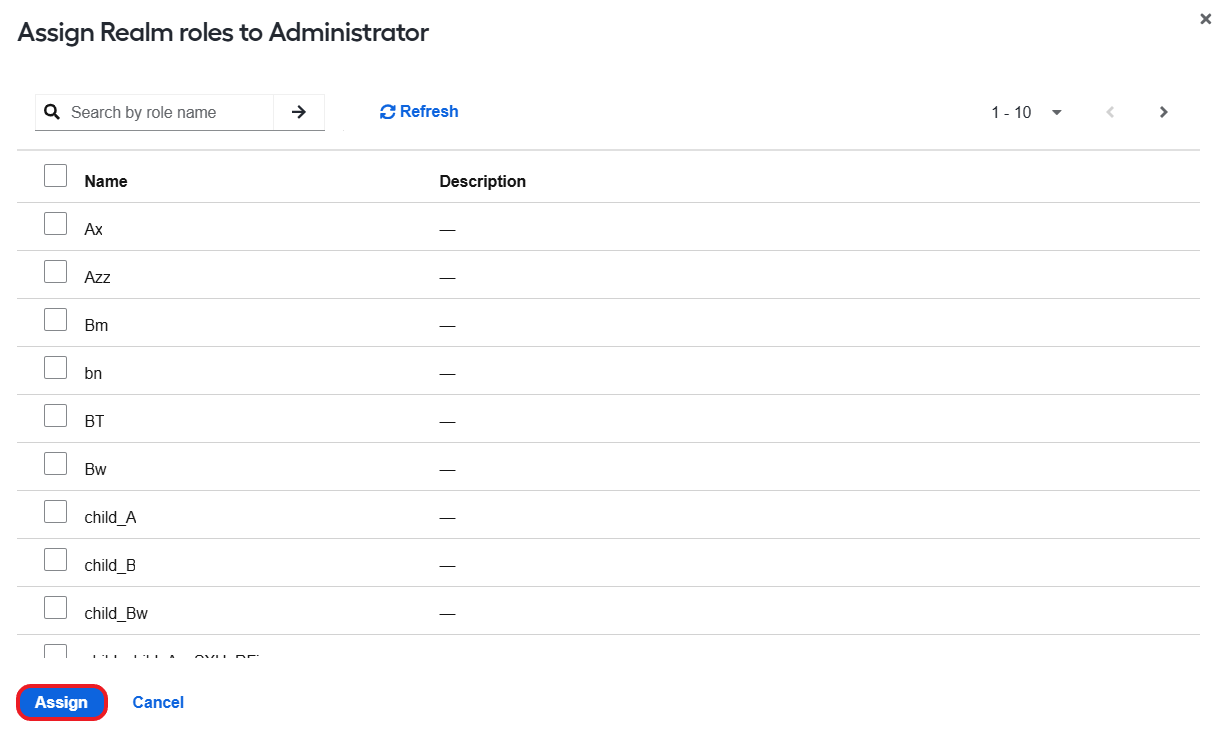
To add an associated realm-level role, click Assign role > Realm roles, select a role in the list, and click Assign.
Role mapping
Role mapping involves assigning roles to individual users or groups of users to enable user management across clients and realms in accordance with the assigned role permissions.
Map roles to individual users
To assign a role to an individual user, complete the following steps:
Make sure you are in the correct realm.
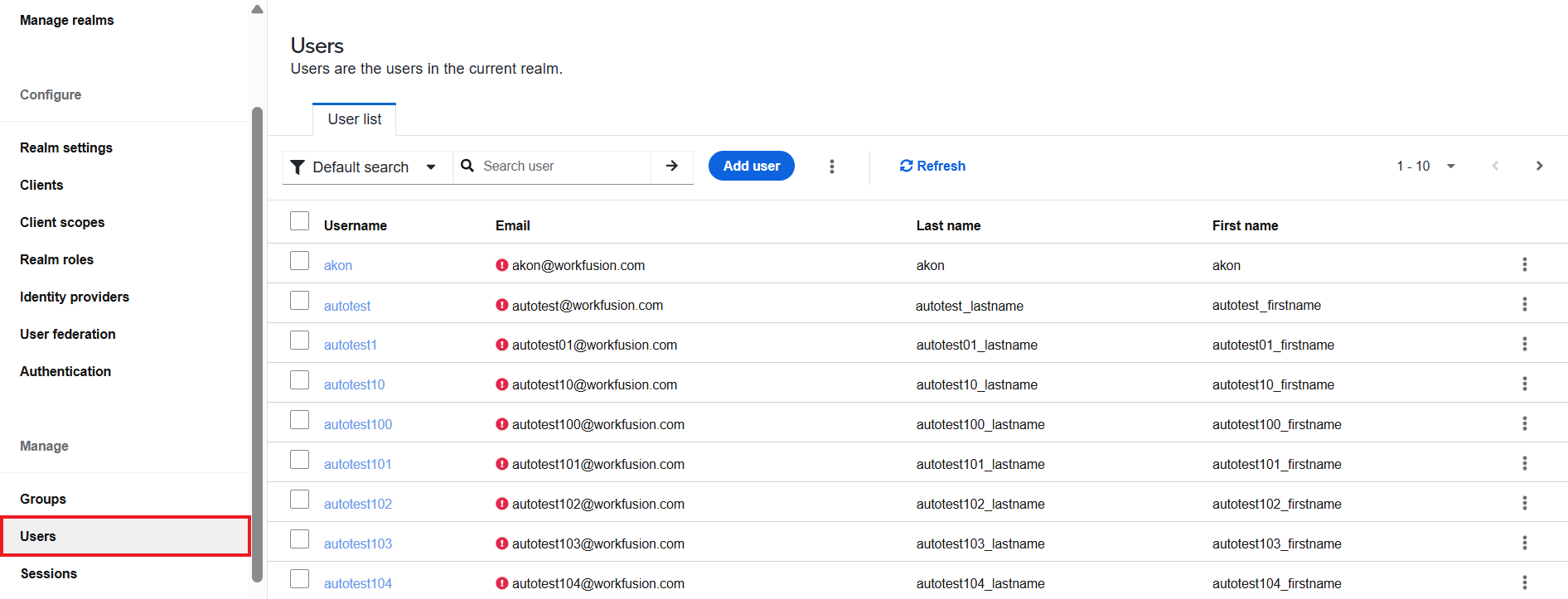
On the left menu, select Users and choose a user from the list.
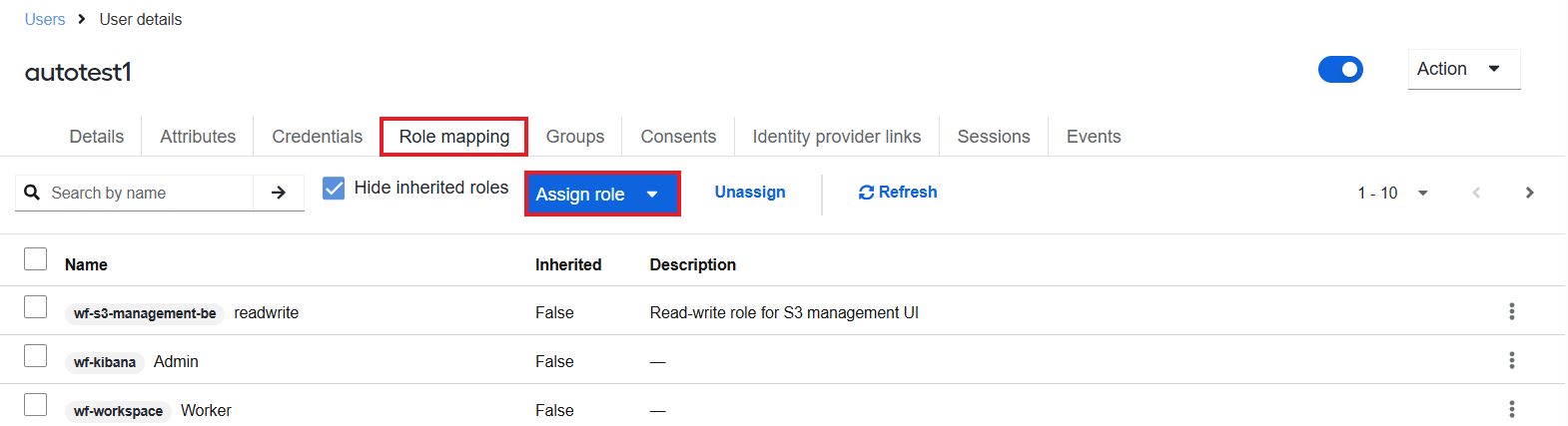
Go to the Role mapping tab, click Assign role, and choose the level of the role you want to set:
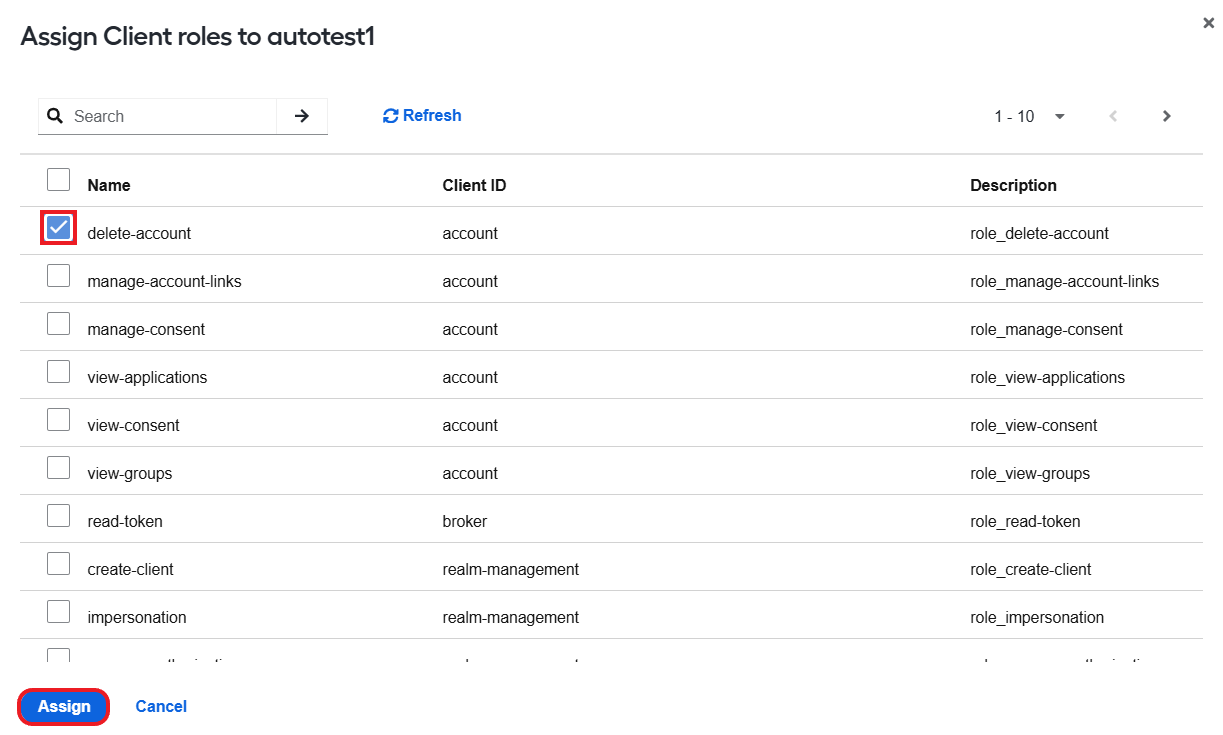
To assign a client-level role to the specific user, choose the Client roles option, select a role in the list, and click Assign. For details on available client-level roles, read the Client-level roles section.
To assign a realm-level role to the specific user, choose the Realm roles option, select a role in the list, and click Assign. For details on available realm roles, read the Realm-level roles section.
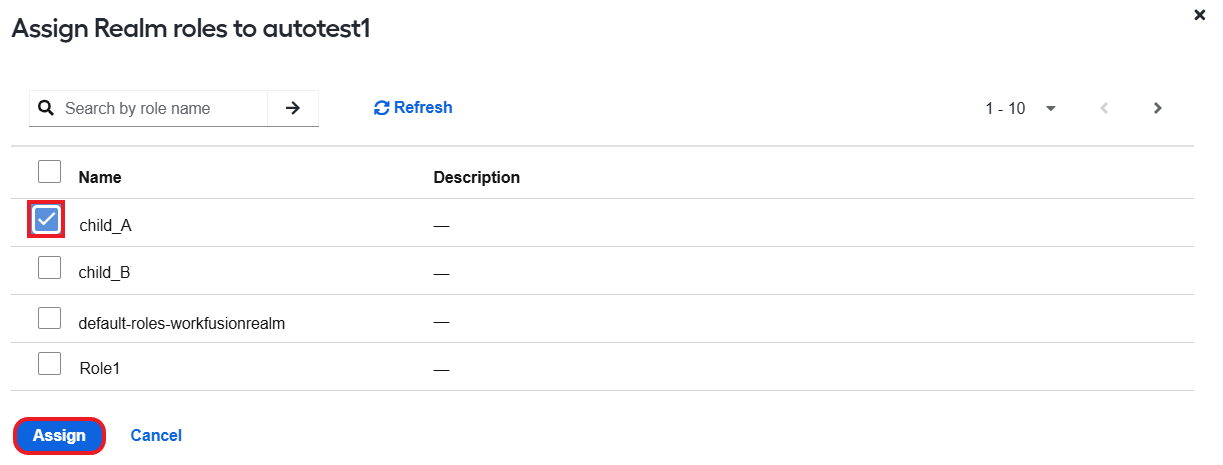
After you complete the steps above, the role and associated permissions are assigned to the selected user only, irrespective of its group membership or any roles assigned to the user under it.
Map roles to groups of users
To assign a role to a group of users within a realm, follow the steps below:
Make sure you are in the correct realm.
On the left menu, select Groups.
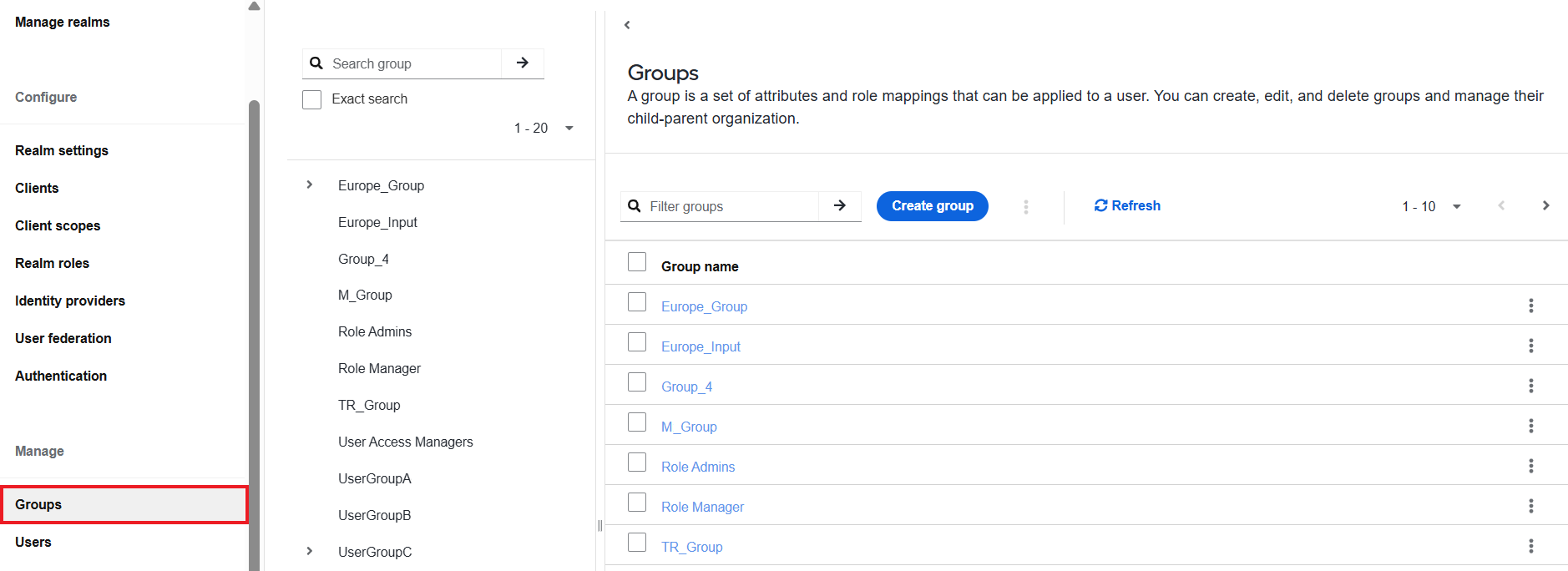
In the list on the right, click a group name.
Go to the Role mapping tab, click Assign role, and choose the level of the role you want to set:
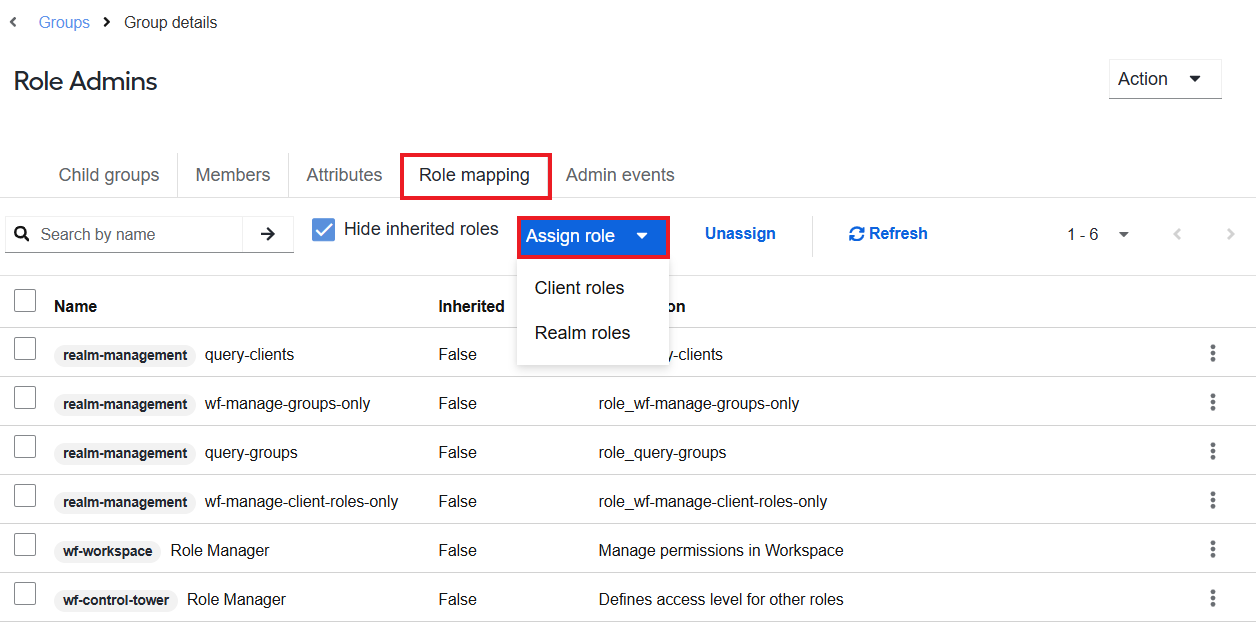
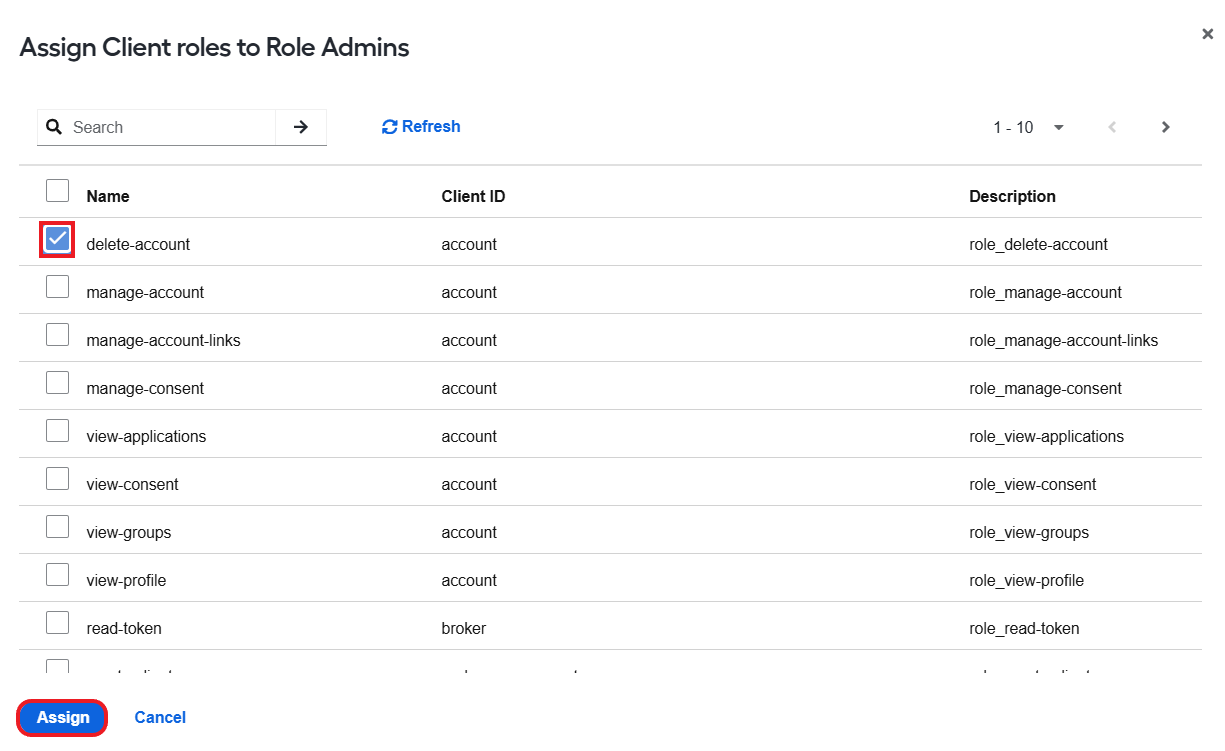
To assign a client-level role to the specific user group, choose the Client roles option, select a role in the list, and click Assign. For details on available client-level roles, read the Client-level roles section.
To assign a realm-level role to the specific user group, choose the Realm roles option, select a role in the list, and click Assign. For details on available realm roles, read the Realm-level roles section.
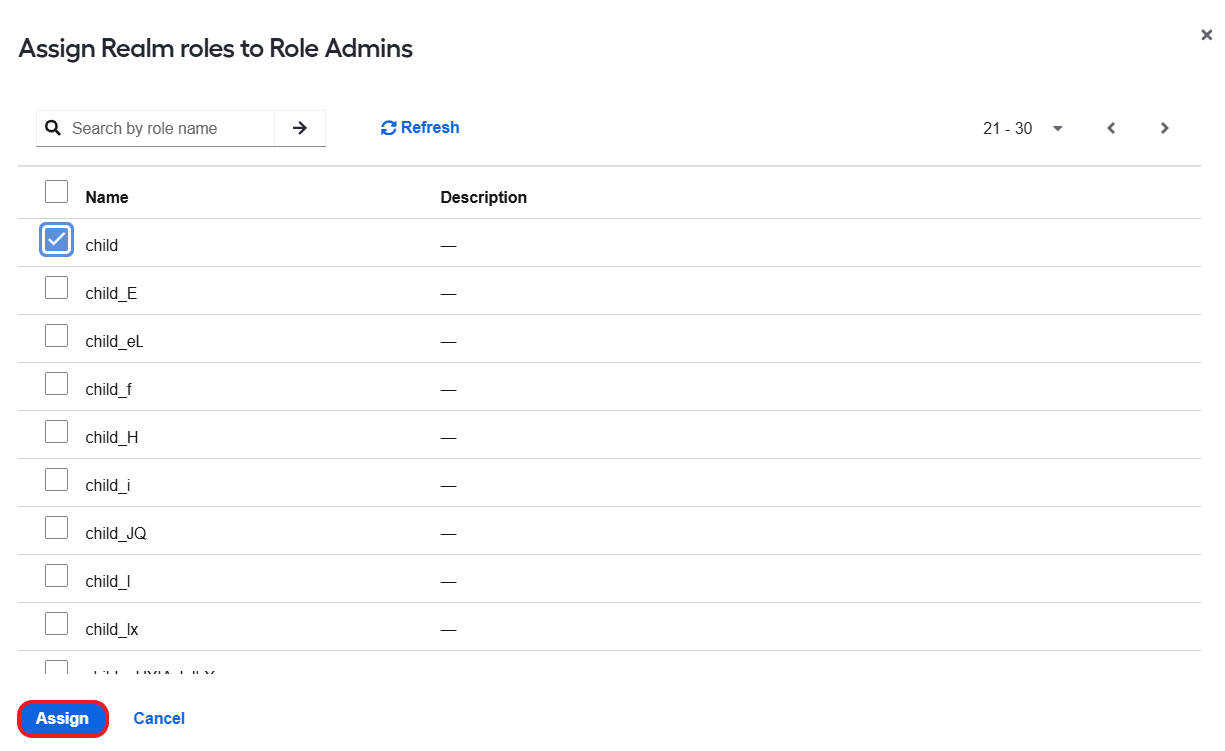
After completing the steps above, the role and associated permissions are assigned to all users in the selected group.