Configure LDAP
User Federation
If you have a user federation provider connected to WorkFusion User Management, be aware that WorkFusion User Management sends multiple requests to the provider to find users. To avoid slowdowns, pick the base root as close to the actual users you want to sync as you can and consider the performance of LDAP queries.
The general recommendation is to apply the user federation feature only when you need it. In some cases, IdP is a better option. For example, for role mapping, you can use the IdP auth response.
WorkFusion User Management enables retrieving user data for identification and authentication (credentials, passwords, and so on) from external storage. By default, it supports LDAP/Active Directory.
The working principle of the feature is as follows:
- As a user attempts to log in to a realm, WorkFusion User Management searches for the user in its internal storage.
- When no match is found, WorkFusion User Management searches for the user in every external user storage configured for the realm until it finally finds the right match.
- Data from the appropriate storage is mapped into a standard user model used by WorkFusion User Management.
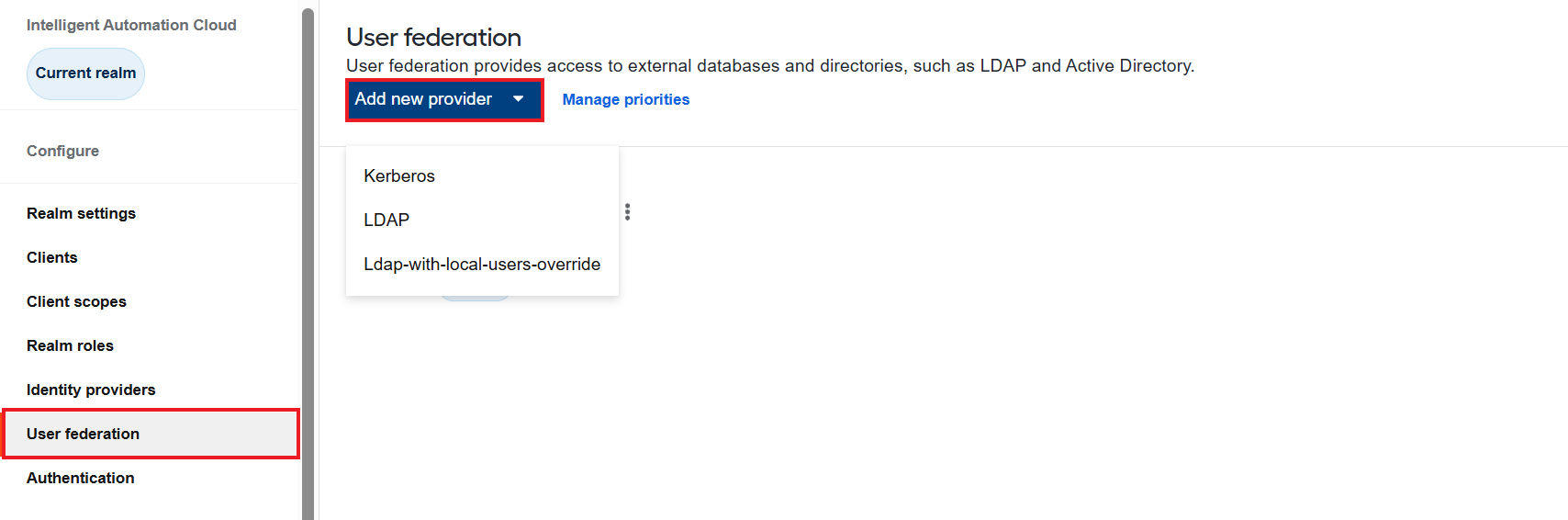
To enable the feature for a specific storage provider, make sure you are in WorkfusionRealm and, on the left menu, click User Federation.
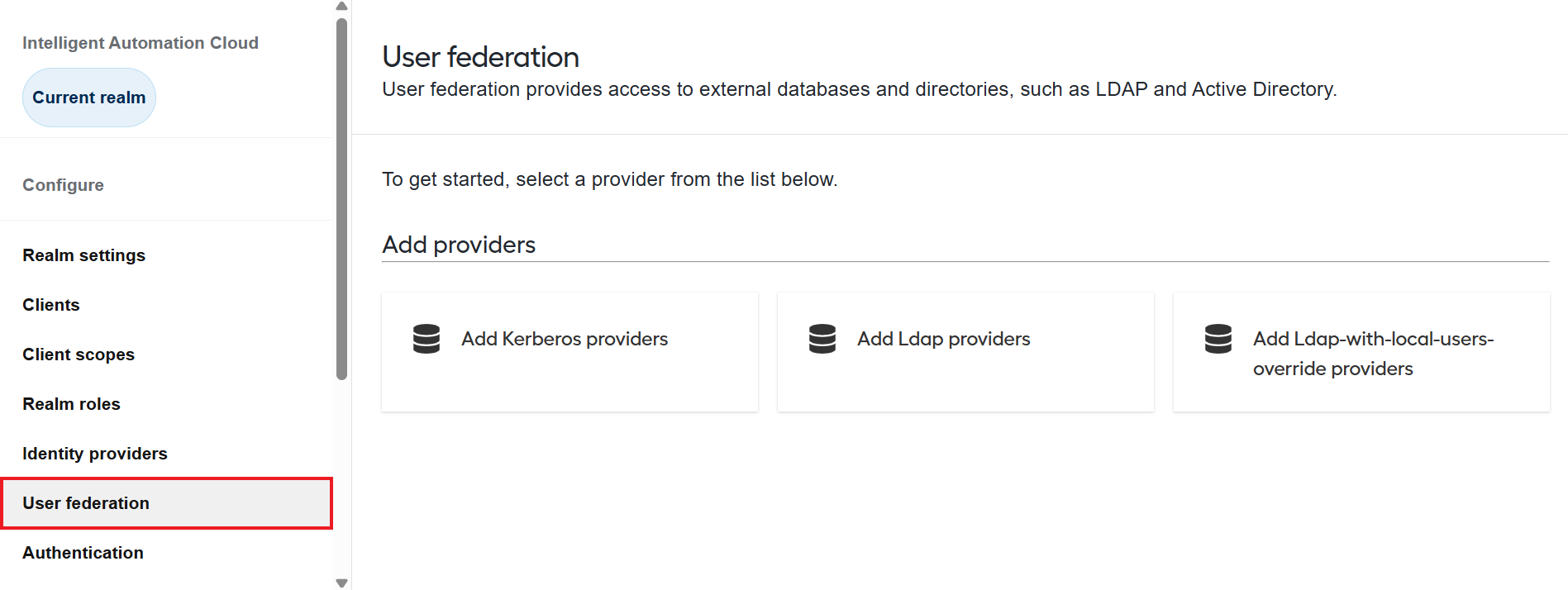
On the right, you can see a page for adding storage providers.
Add and configure LDAP
To add LDAP as an external storage provider, click Add Ldap providers on the User Federation page and configure the settings as described in the subsections below.
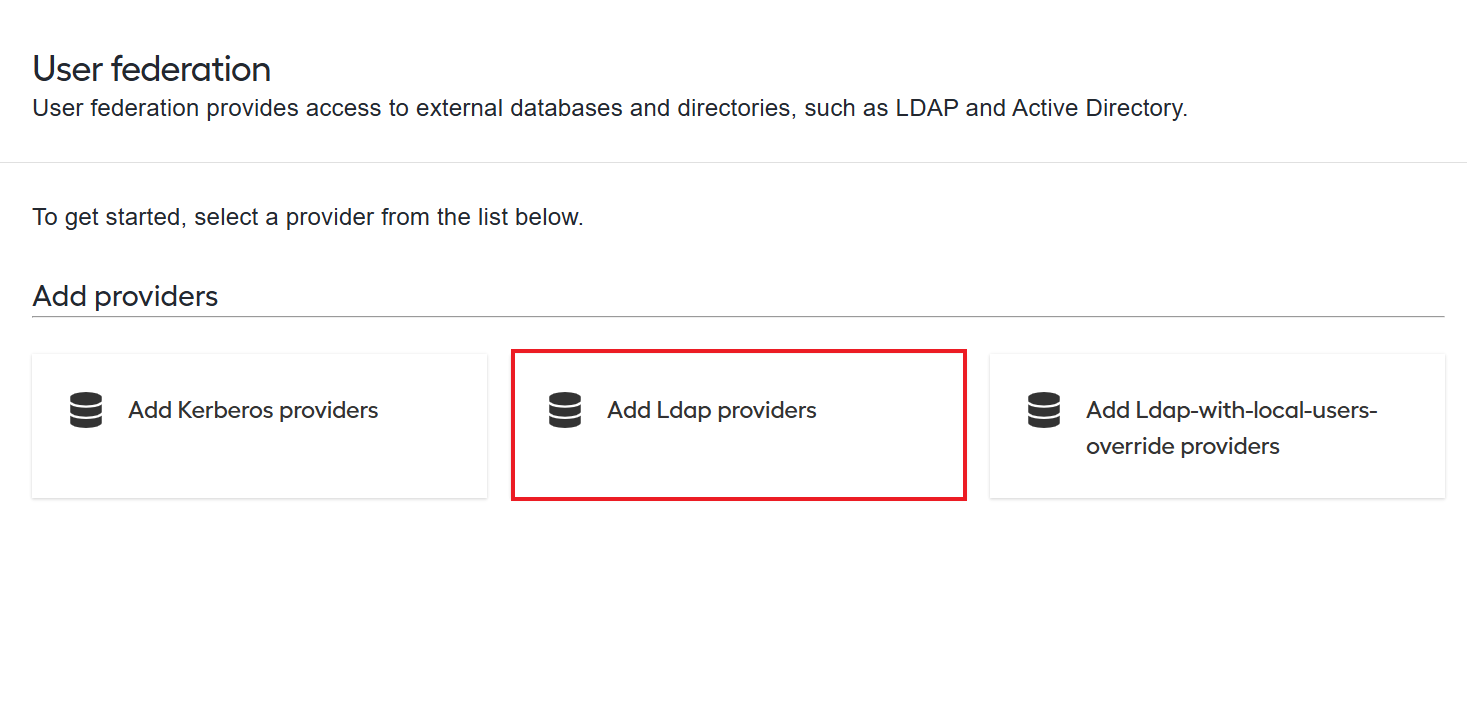
Step 1. General options
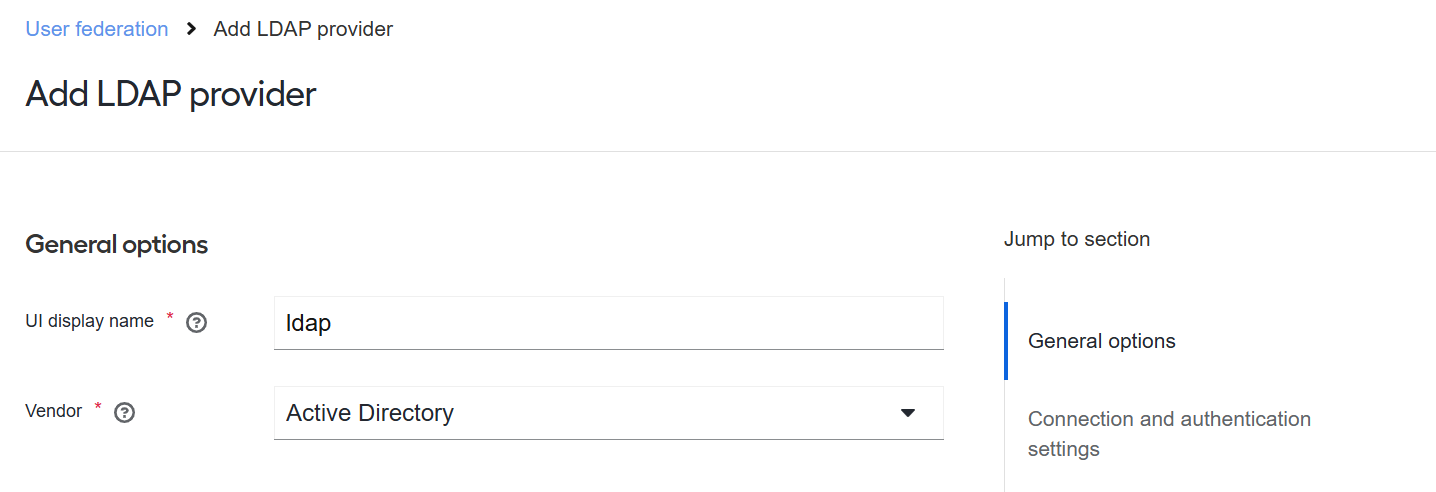
In the UI display name field, type in a custom name for the provider to be displayed on the admin console. For instance, it can be AD for Active Directory.
In the Vendor field, select one of the following options:
- Active Directory, if you plan to connect to Active Directory. This automatically presets several properties on the setting page.
- Other, if you are going to connect to another LDAP (non-AD) provider. This automatically presets several properties on the setting page as well.
Step 2. Connection and authentication settings
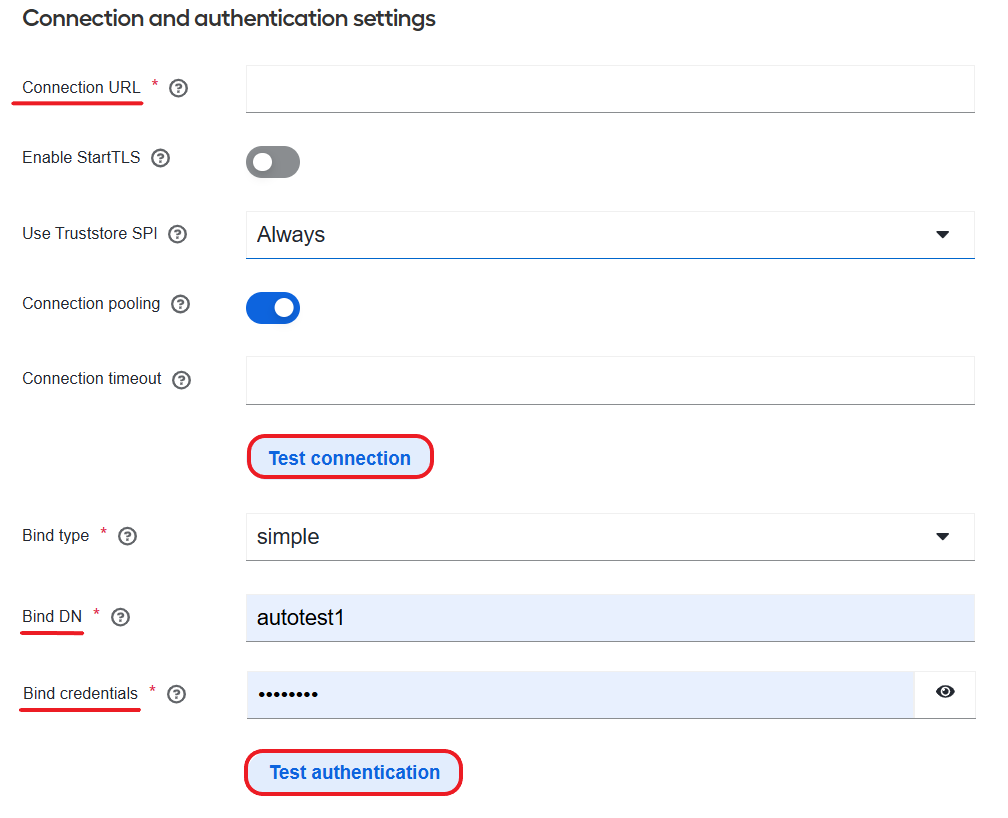
In the Connection URL field, specify the URL to your LDAP server (for example, ldaps://dc1.wflab.io:636). Use LDAPS: //LDAP_HOST:636 for a secure connection or LDAP: //LDAP_HOST:389.
Check whether the connection you set is working by clicking Test connection. If the setting is ok, you see a success message. Otherwise, you get an error message, in which case check the URL is correct and read the WorkFusion User Management (Keycloak) error logs for more information.
In the Bind сredentials field, specify the password for the LDAP admin configured in the Bind DN field. The field can obtain its value from the vault. Use ${vault.ID}.
Check whether the credentials you set are working by clicking Test authentication. In case the authentication is ok, you see a success message. Otherwise, you get an error message, in which case check the credentials are correct and read the WorkFusion User Management (Keycloak) error logs for more information.
Sample configuration for AD:
- Bind Type field: simple
- Bind DN field: DN of the LDAP admin for accessing the LDAP server in the username@wflab.io format
Step 3. LDAP searching and updating
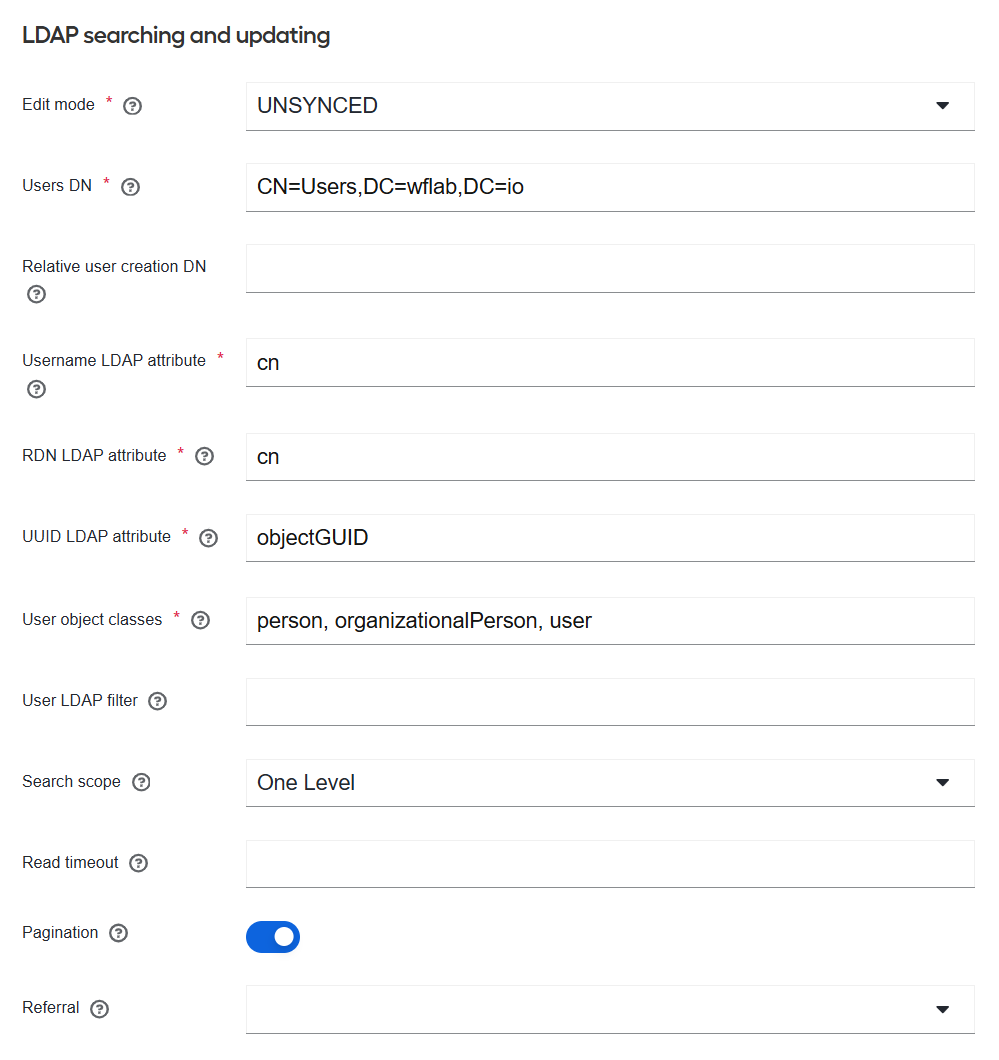
When creating a LDAP provider, avoid updating the Edit mode selection and the Import users toggles (in Synchronization settings) after enabling or disabling them. The updates can mess up the mapping configuration.
In the Edit mode drop-down box, select UNSYNCED. User data is only imported from LDAP to WorkFusion User Management but not synced back to LDAP when the option is selected. Other available options are as follows:
READONLY: any attributes mapped into WorkFusion User Management from LDAP (for example, email, username, first name) are not available for editing. If you attempt to modify the data, WorkFusion User Management returns an error. The policy also disables password updates.
WRITABLE: all attributes mapped into WorkFusion User Management from LDAP (for example, username, passwords) are editable and synchronized with the LDAP storage either automatically or on demand, based on the configured synchronization policy.
In the Users DN field, set the full DN of the LDAP tree where your users are, for example, CN=Users,DC=wflab,DC=io. When setting the DN, pay attention to the following considerations:
Choose Users DN (Distinguishing Name of the LDAP catalog where users are stored) carefully as the number of records in the DN determines the performance of specific actions.
For instance, you can experience significant performance degradation of Control Tower pages if your DN points to a catalog that contains more than 1,500 records. This is due to the fact that when Control Tower queries data for a given user and LDAP starts processing the query, the more users are in the catalog, the slower the processing speed is.
To maintain proper performance, make sure the user DN points to a catalog with as few users as possible. For example, if the Users catalog specified as CN=Users,DC=wflab,DC=io contains 3,000 users, but there is a CN=Internal,CN=Users,DC=wflab,DC=io sub-catalog with only 300 users and only internal users are to use the platform, this is the way to go.
If there are a number of different sub-catalogs, consider configuring multiple User Federations pointing to the same LDAP that are different just in the Users DN attribute.
For example, instead of one User Federation with Users DN specified as CN=Users,DC=wflab,DC=io, create two User Federations with Users DN set as CN=Internal,CN=Users,DC=wflab,DC=io and CN=Authorized_partner,CN=Partners,CN=Users,DC=wflab,DC=io, respectively.
In the Username LDAP attribute field, the default value is set to cn. It stands for the name of the LDAP attribute mapped as the username in WorkFusion User Management.
Adjust the username mapping accordingly if you need to use a different LDAP parameter in the Username LDAP attribute field, for example, sAMAccountName for Microsoft AD. To do that, after you finish the configuration, open the created provider from the list, go to the Mappers tab, select username, and change the LDAP Attribute setting accordingly.
In the User LDAP filter field, specify the LDAP filter string to filter the user list in Users DN to only those you need to import to the WorkFusion User Management database.
You can set the option to filter based on groups or anything else. For instance:
- Use a filter like (mail=*) to include only users with an email address (excludes service account users).
- Use a filter like (memberOf=CN=WFUsers,CN=Users,DC=wflab,DC=io) to include only the members of the LDAPs WFUsers group.
- Use a filter like (memberOf:1.2.840.113556.1.4.1941:=CN=common_group,DC=wflab,DC=io) in a scenario when you have a common parent group to which you dynamically add other groups where members need to be imported to WorkFusion User Management.
Set other parameter values in the section as shown in the sample configurations below.
Sample configuration for AD
- RDN LDAP attribute field: cn
- UUID LDAP attribute field: objectGUID
- User Object Classes field: person, organizationalPerson, user, divided by a comma
- Search Scope field: Subtree, which enables search across the entire tree under configured Users DN
Sample configuration for another LDAP (non-AD) provider
- Username LDAP attribute field: uid
- RDN LDAP attribute field: uid
- UUID LDAP attribute field: entryUUID
For correct mapping on the WorkFusion User Management side, all users to be mapped with the LDAP configuration should have the RDN LDAP attribute field completed.
Step 4. Synchronization settings
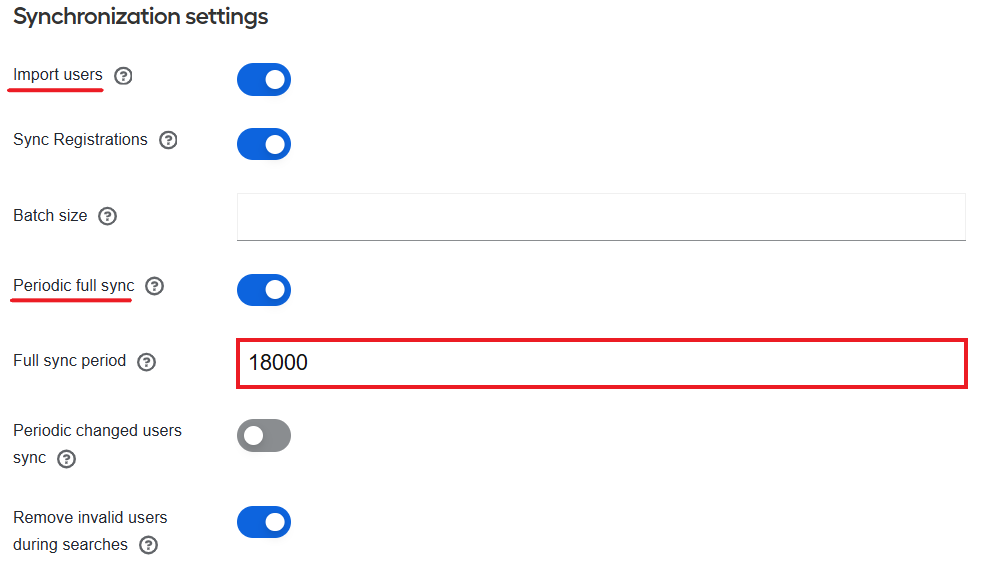
Turn on the Import users toggle to enable importing LDAP users to the local WorkFusion User Management database. Imported users are then synced based on the synchronization policy configured in further steps.
Note that the Import Users toggle should always be on once you switch it.
Turn on the Periodic full sync toggle. This enables full periodic synchronization of LDAP users to WorkFusion User Management, which means that changes made to a user in LDAP are also applied to the user in WorkFusion User Management, for instance:
- If a user is added to Active Directory, they are added to WorkFusion User Management.
- If a user is enabled or disabled in Active Directory, they are enabled or disabled in WorkFusion User Management.
- If a user is removed from Active Directory, they are removed from WorkFusion User Management.
Set the Full sync period to 18000. The synchronization will automatically run every Full sync period.
Step 5. Save and enable configuration
After completing the previous steps, click Save to save the entire configuration. The newly configured LDAP connection appears in the list on the User federation page. To add more providers if needed, click Add new provider and choose an option.
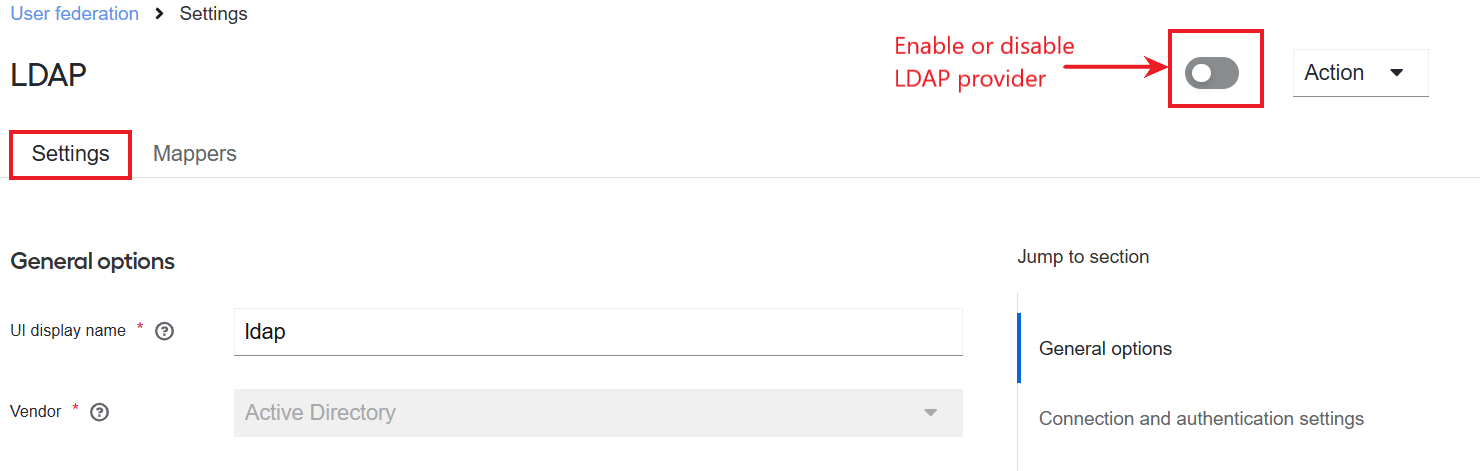
Each newly established LDAP connection is enabled by default. To disable it, click its name in the list and switch off the Enable toggle on the Settings tab.
Step 6. Grant access to WorkFusion User Management clients
To grant access to WorkFusion User Management clients, map the clients' roles to imported users. You can skip the step if you import AD users and their AD groups, provided you can map the AD groups exactly to the client roles in WorkFusion User Management. For details, see the Group mappers and the Configure AD group access to WorkFusion User Management clients sections.
To grant access, follow the instructions:
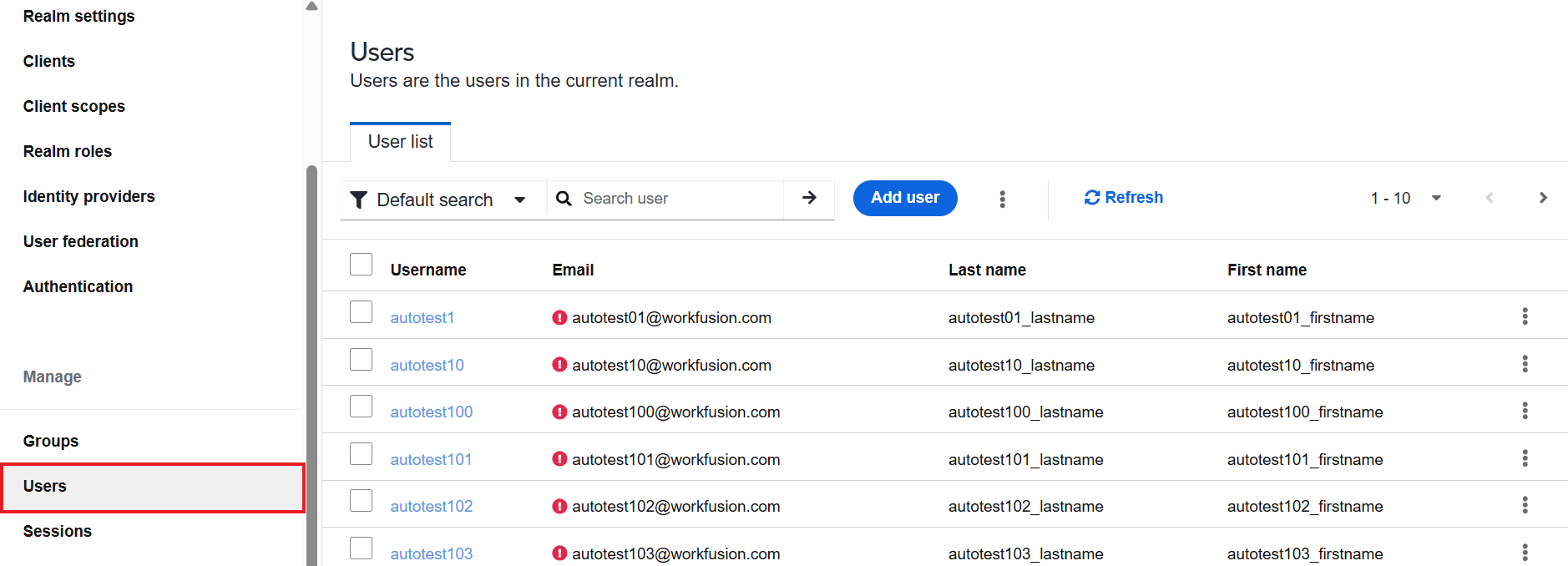
On the left menu, select Users and click a user in the displayed list.
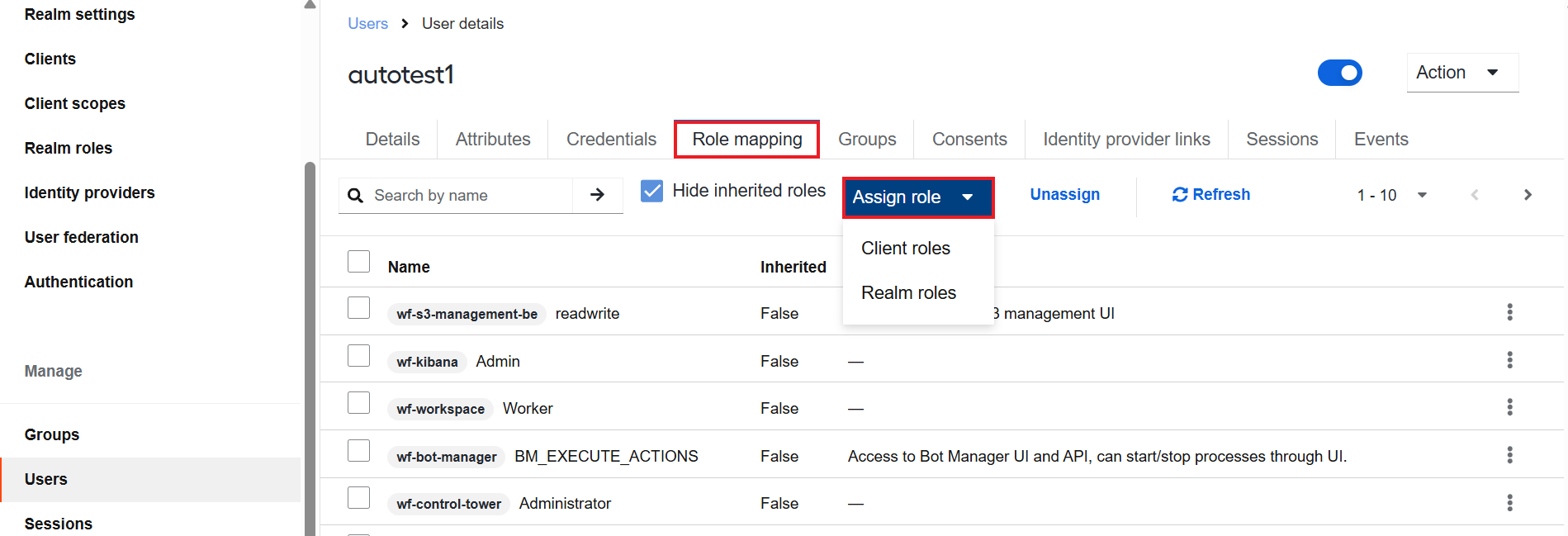
Go to the Role mapping tab, click Assign role, and choose the Client roles option.
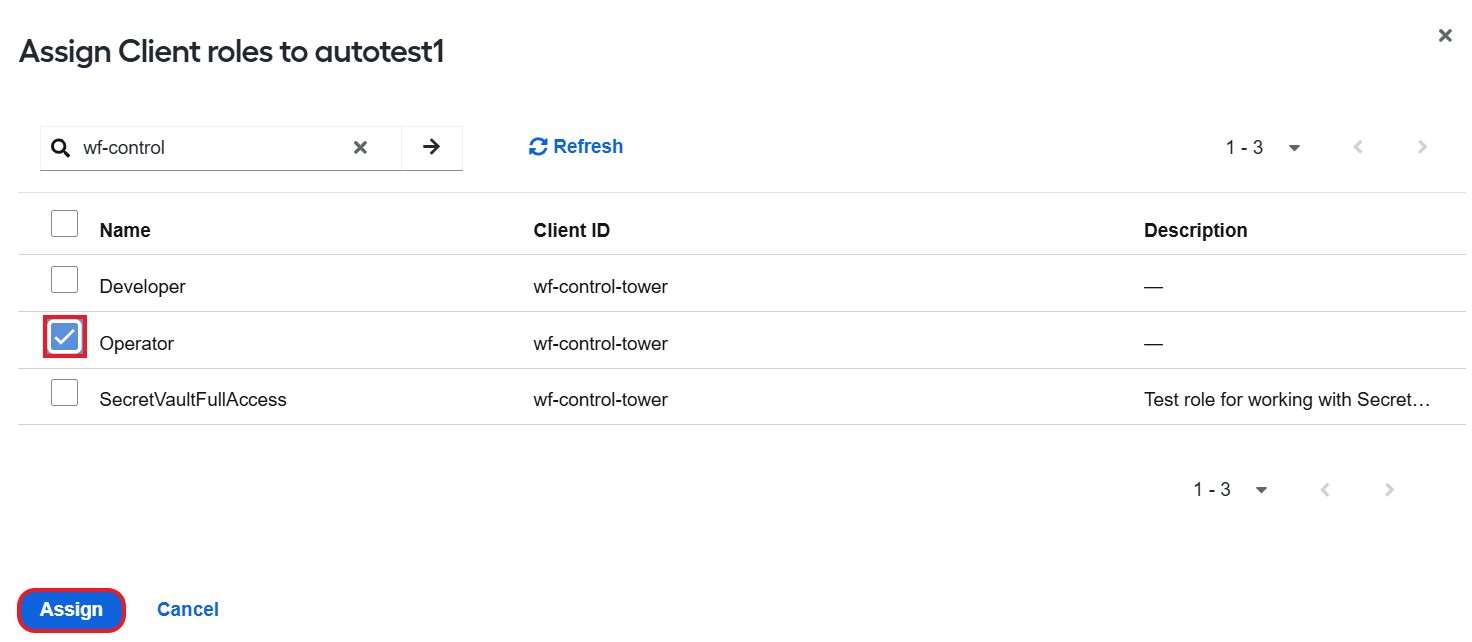
In the displayed window, select the client roles that you want to assign to the user and click Assign.
In 10 minutes (max), the user from WorkFusion User Management is synced with Control Tower or another client. This means the user can log into Control Tower or another client with their credentials from Active Directory.
Configure attribute mappers
After successful LDAP configuration, WorkFusion User Management maps user attributes from LDAP into a standard user model. By default, the mapping covers the following attributes:
| LDAP attribute | Mapped to |
|---|---|
| cn | username |
| last name | lastName |
| first name | firstName |
| whenChanged | modifyTimestamp |
| whenCreated | createTimestamp |
To view the existing attribute mappings, select User Federation on the left menu, click the created LDAP provider name in the list on the right, and go to the Mappers tab.
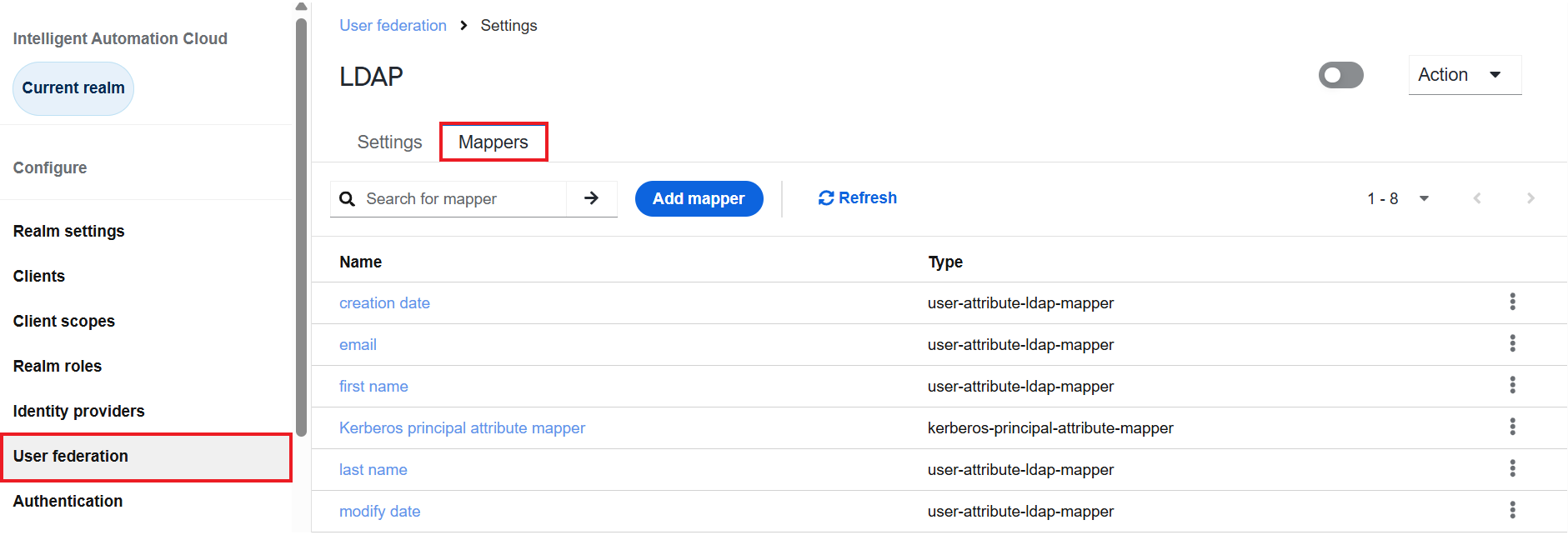
You can also click any mapper on the list to view its configuration page.
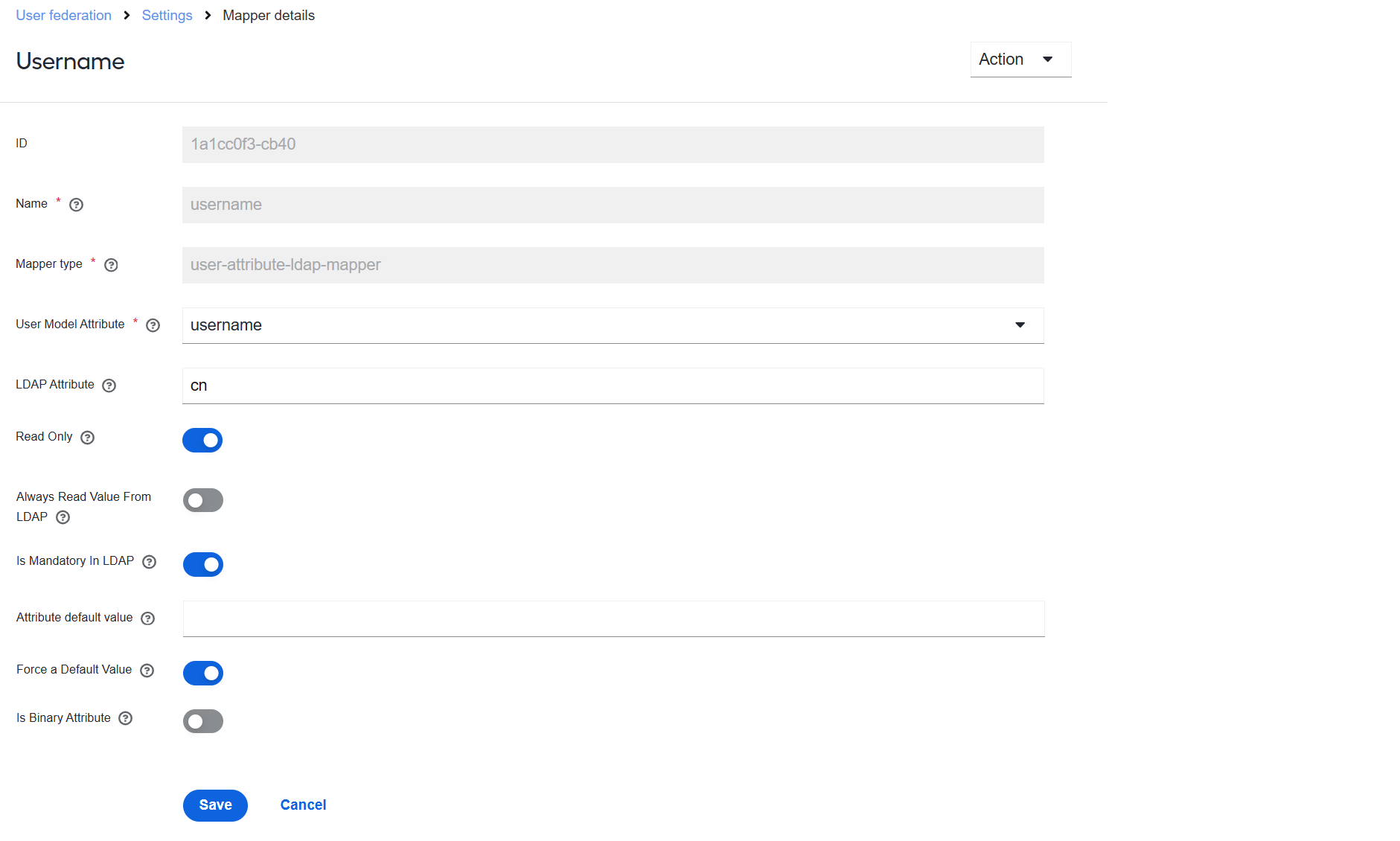
WorkFusion User Management allows creating custom attribute mappers. For more information about LDAP mappers, refer to the official Keycloak documentation.
Group mappers
Group mappers enable importing AD groups to WorkFusion User Management. Below is an example of how you can configure a group mapper:
On the Mappers tab, click Add mapper.
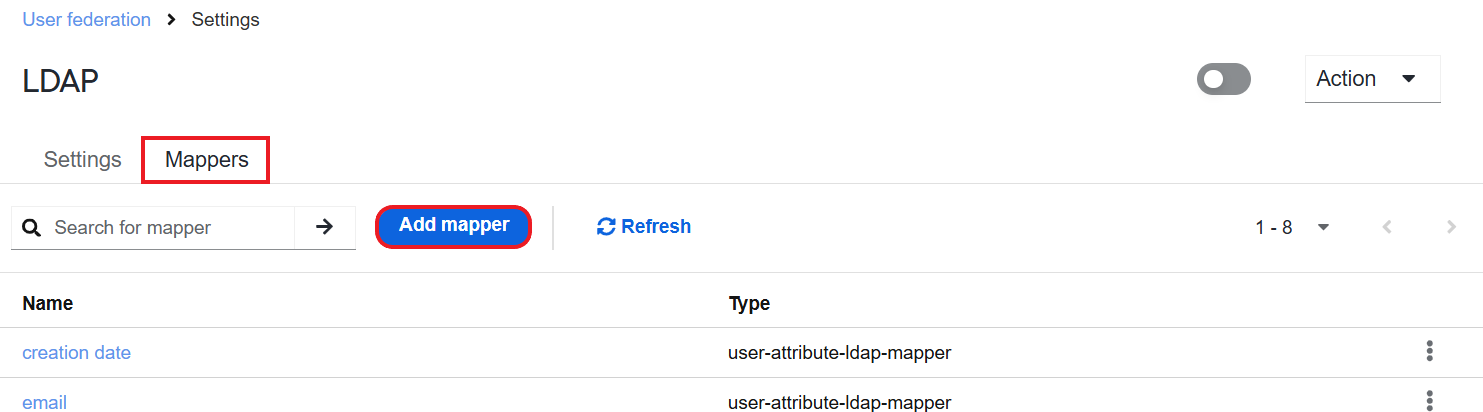
In the Name field, specify a name for the created mapper.
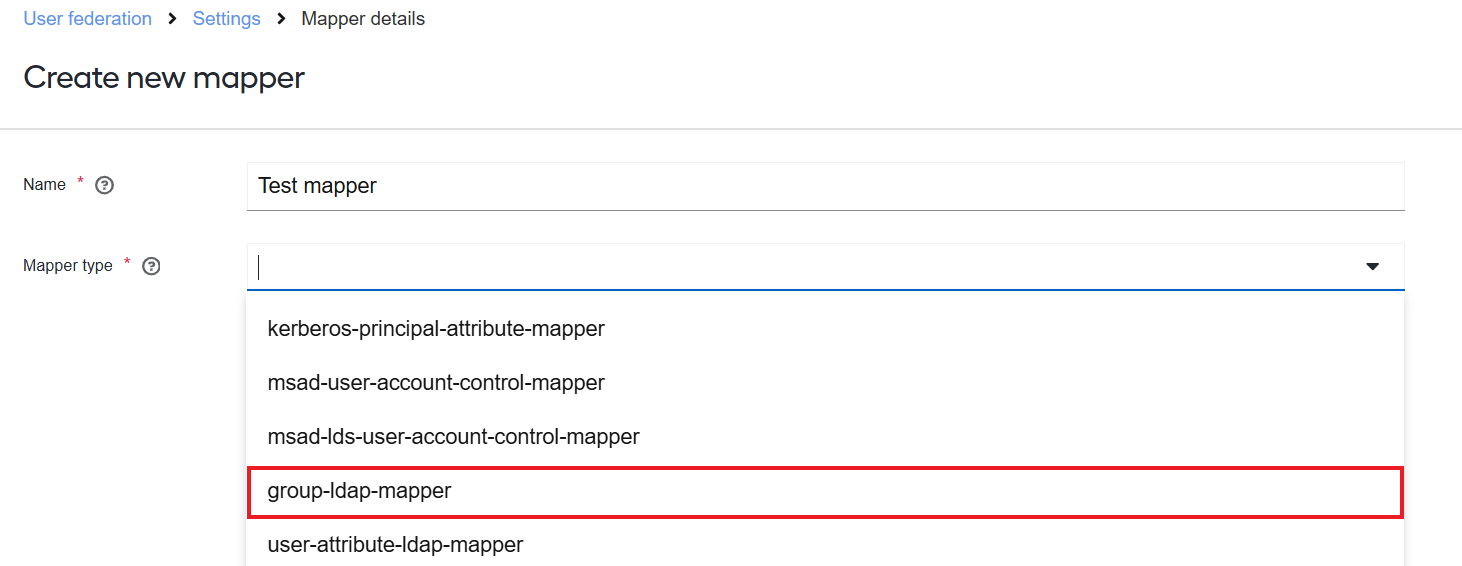
In the Mapper type drop-down box, select group-ldap-mapper.
In the LDAP Groups DN field, specify the full DN of the LDAP tree where your groups are, for example, CN=Users,DC=wflab,DC=io.
In the LDAP Filter field, specify the LDAP filter string to filter the group list in LDAP Groups DN to only those you need to import to the WorkFusion User Management database.
You can set the option to filter based on group names or anything else, for instance:
- Use a filter like (CN=WorkFusion_Group_*) to include all groups with names starting with WorkFusion_Group_.
- Use a filter like (|(CN=WorkFusion_Group_DEV)(CN=WorkFusion_Group_ADM)) to include only groups with specified names.
- Use a filter like (memberOf:1.2.840.113556.1.4.1941:=CN=common_group,dc=wflab,dc=io) in a scenario when you have a common parent group to which you dynamically add other groups to be imported to WorkFusion User Management.
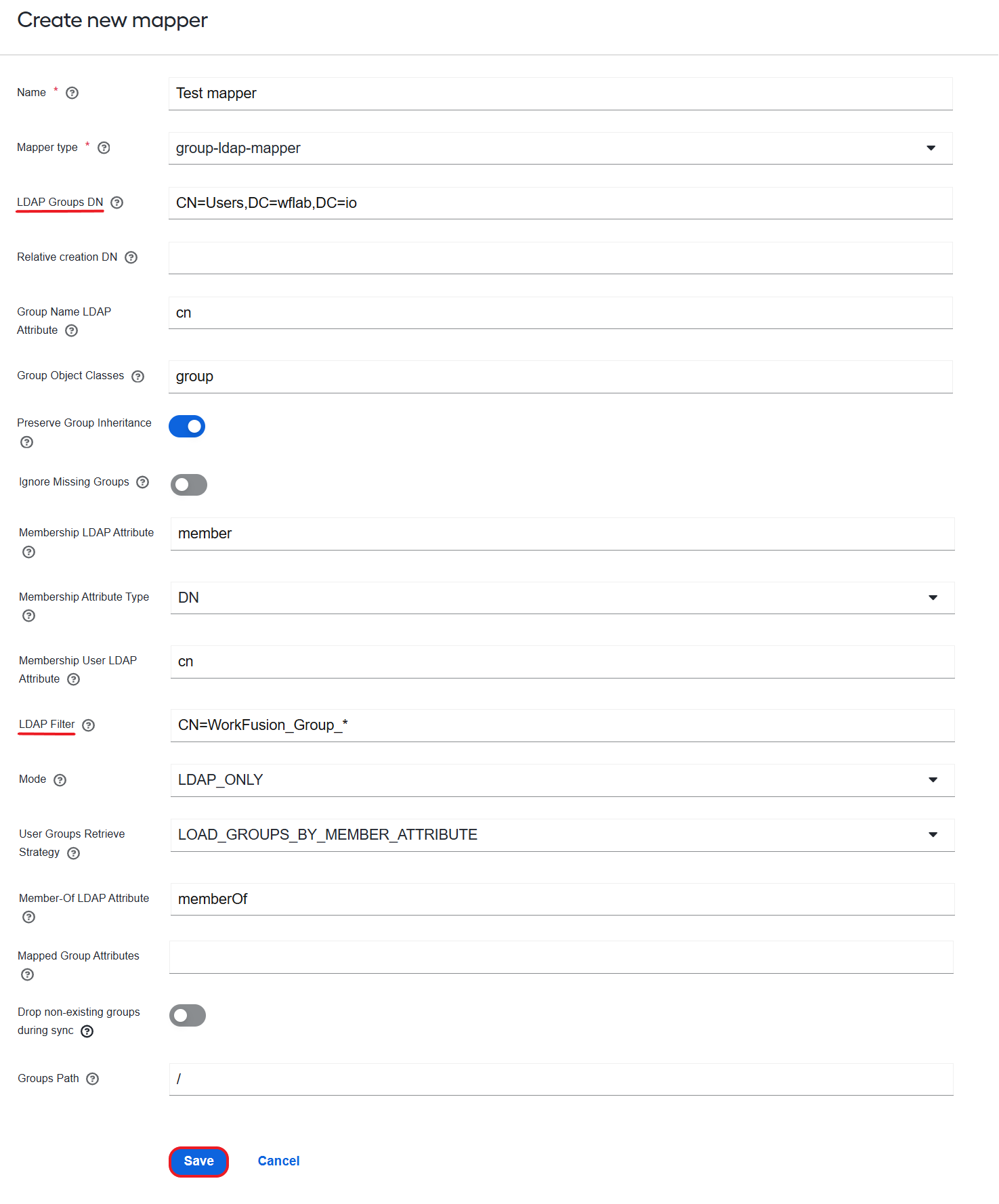
Click Save to save the group mapper configuration.
After the configuration is saved, the following buttons become available:
Sync LDAP Groups To Keycloak
If users are already imported from AD to WorkFusion User Management, clicking Sync LDAP Groups To Keycloak imports all groups from AD to WorkFusion User Management as WorkFusion User Management groups and associates them with respective users.
If users are not imported from AD to WorkFusion User Management yet, their groups with associations can be imported automatically while users are imported.
Sync Keycloak Groups To LDAP
Configure AD group access to WorkFusion User Management clients
After AD groups are imported to WorkFusion User Management, associate them with clients. In this way, you enable access to the clients for all users in an imported AD group.
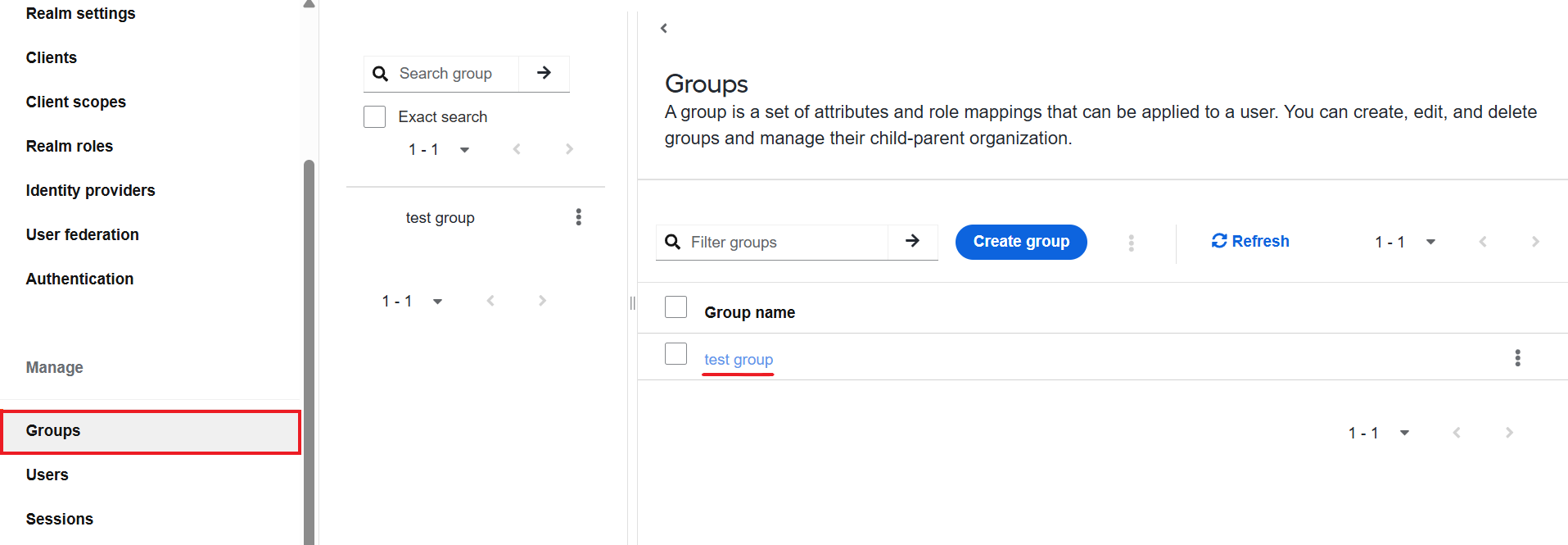
On the left menu, select Groups.
From the list of the groups on the right, click an AD group in the list.
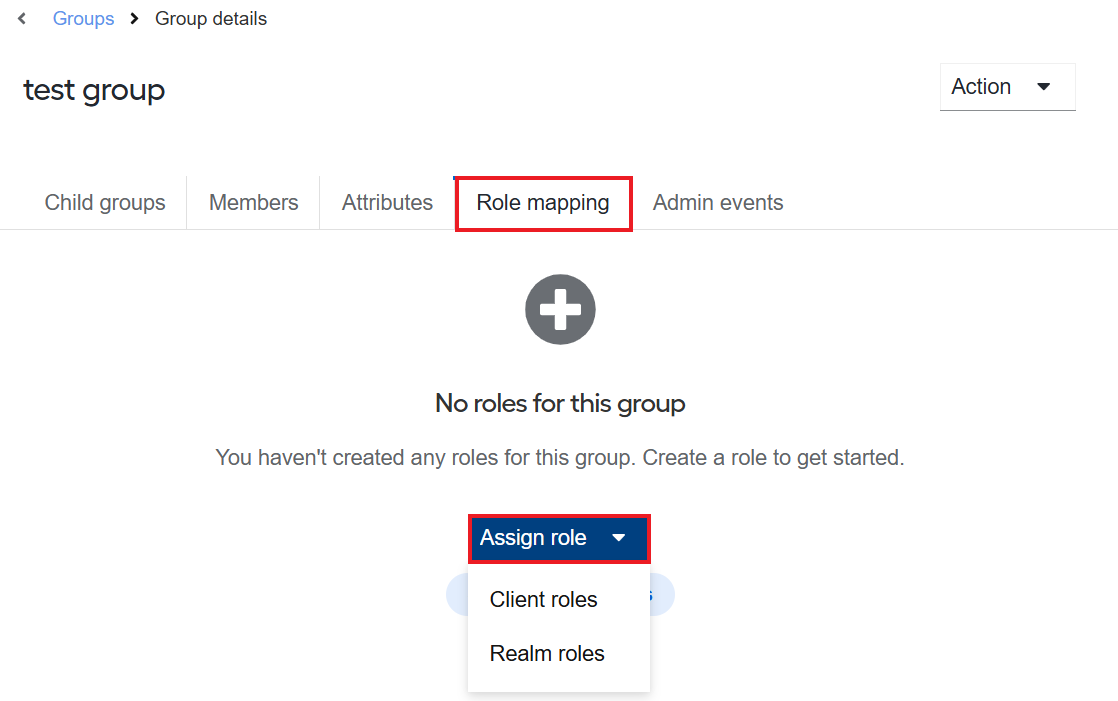
Navigate to the Role mapping tab, click Assign role, and choose Client roles.
Select the roles to be associated with the group and click Assign.
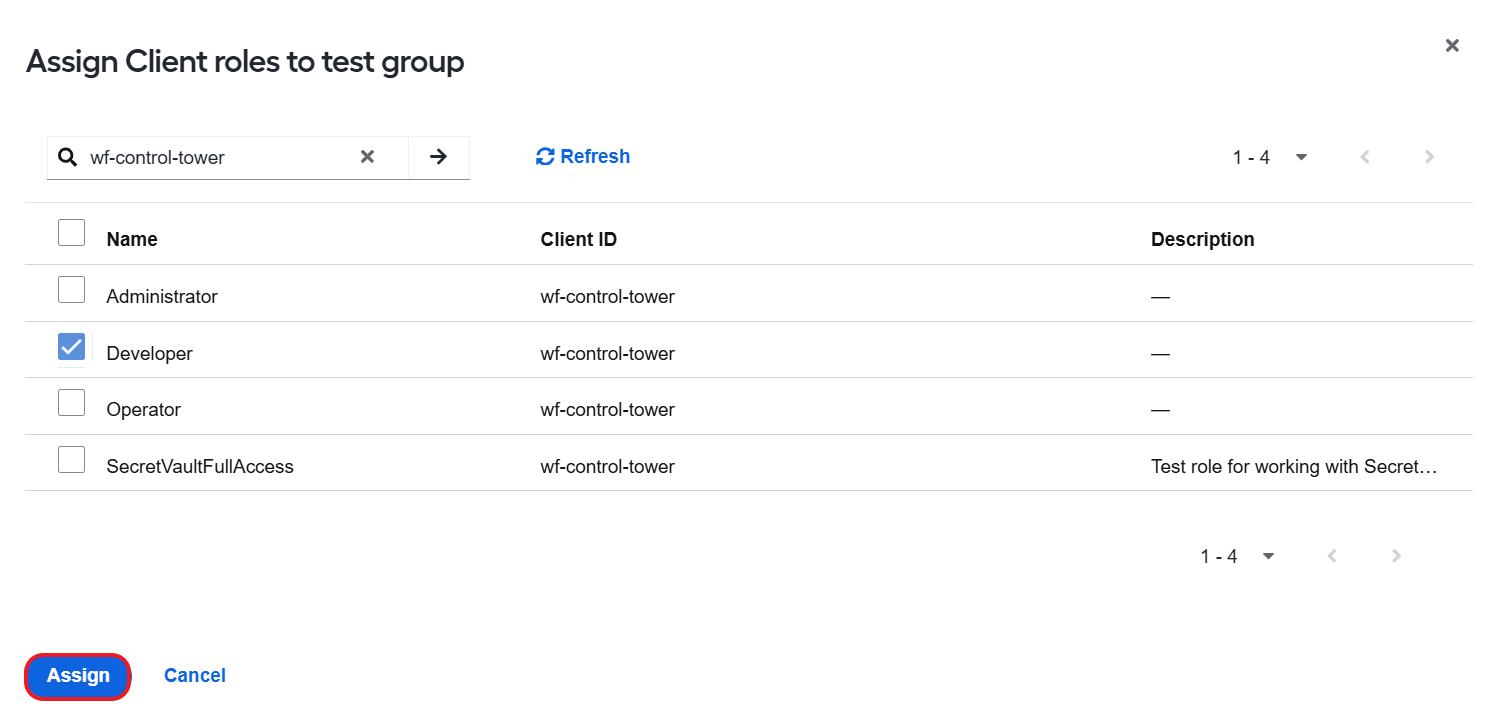
You can configure how often the users in WorkFusion User Management are synced with Control Tower. That means all users within the selected group (in the example, WFUSER) can log into Control Tower with their credentials from Active Directory in the scheduled period.
By default, the synchronization frequency is set to one hour. To change the default value, follow the steps below:
Connect to ZooKeeper with zkCli:
$ cd /opt/workfusion/zookeeper/bin
$ ./zkCli.sh -server {server_name}  # where {server_name} is the ZooKeeper host and port. The default value is 127.0.0.1:2181.
Create the following node with a Cron expression to override the default frequency as described below. If the node already exists, use
setinstead ofcreateto override the value.create /config/control-tower/keycloak.schedule.period "0 0 * ? * *".The sample configuration above sets the synchronization frequency to once an hour.
Restart Control Tower.
It is not recommended to set the frequency to less than one hour as sync performance depends entirely on user fetch performance, which can be affected if underlying providers, such as LDAP, are slow.
Configure LDAP with local user override
The ldap-with-local-users-override provider enables automatic user migration from version to version. It would allow mapping local WorkFusion User Management users with LDAP if LDAP was enabled after user migration under a standard provider.
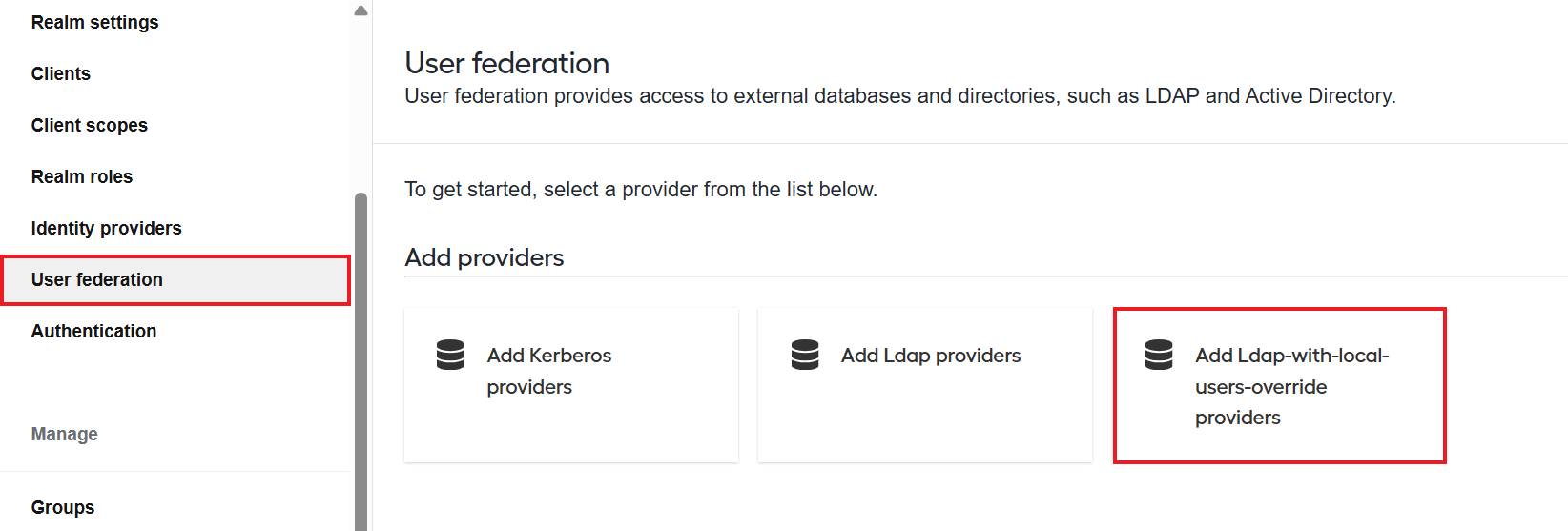
The ldap-with-local-users-override provider merges LDAP users with WorkFusion User Management local ones that have the same username, mapping associated LDAP attributes. The actions are essential because users from previous platform versions migrate to a new version as local WorkFusion User Management users, and it is necessary to connect them with their LDAP representations.
The ldap-with-local-users-override configuration is available only for the workfusion theme.