
Install
Preconditions
- Make sure your computer meets System Requirements.
- Stop your running programs.
- Check if automatic Windows updates are not running at the moment. Otherwise, they should be paused.
- Run the installer as Administrator.
- In case installation includes a Server package, make sure you open ports 15100, 15110, 15280 for external usage inside your network (if you plan to use it on other computers).
- Make sure that ports 15410-15423, 15444, 15580, 15306 are closed to any external interaction.
- Port 8200 should be open for incoming connections from local machines.
important
Mind that to download Intelligent Automation Cloud Business installer, your Firewall should allow to download files from https://rpax-release.s3.amazonaws.com for all programs. There are several installation files with the maximum file size up to 700 MB (the common size is about 2 GB).
warning
While there can be multiple users on a server, only one user is able to run Intelligent Automation Cloud Business at a time.
Installation options
warning
Before installation, make sure your machine meets System Requirements.
Depending on what licensing model you have selected, the installation procedure varies. At the moment, there are two installation options.
Development Workstation - installation of WorkFusion Studio together with OCR and RPA components for developing and testing RPA automation.
Development Workstation and Server - installation of WorkFusion Studio and all server components (Control Tower, WorkSpace, File Storage) to manage multiple bots and running automation unattended at scale.
important
It is recommended to use the second installation option as it provides all the product capabilities in a single batch.
Installation process
Development Workstation and Server
Run IntelligentAutomationCloudInstaller.exe.
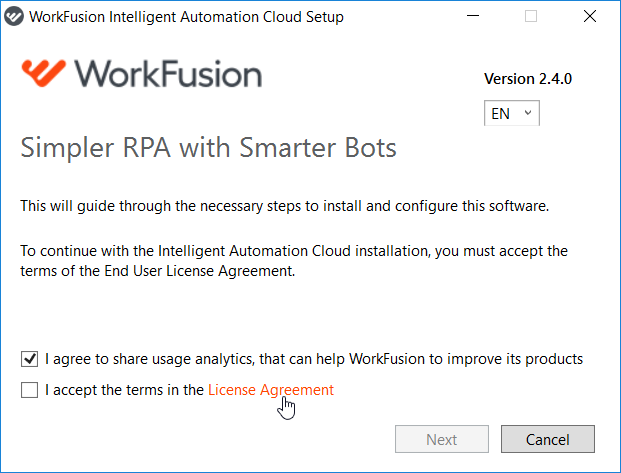
To start installation process, you must accept the License Agreement. Click License Agreement to view it.
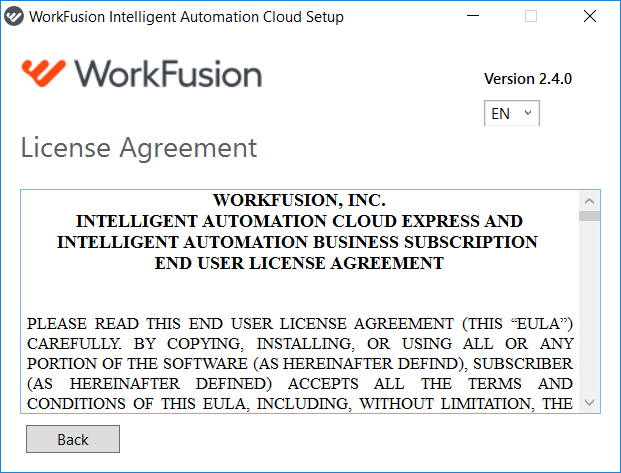
Read the License Agreement carefully. Use the scroll bar or press the page down key.
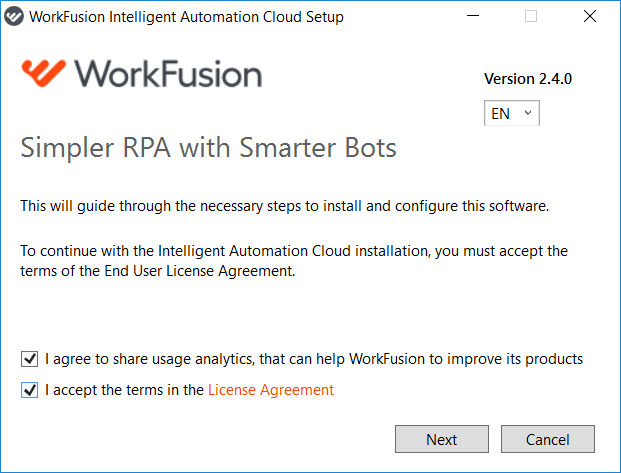
To accept, check I accept the terms in the License Agreement and press Next.
tip
The checkbox I agree to share usage analytics, that can help WorkFusion to improve its products is optional to check.
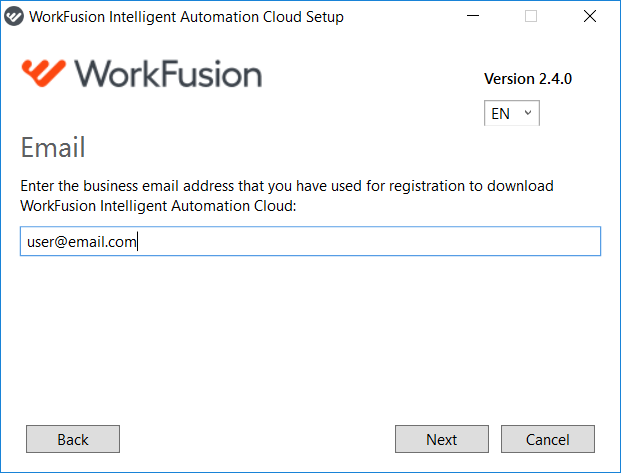
Enter the email you used when registering for WorkFusion Intelligent Automation Cloud.
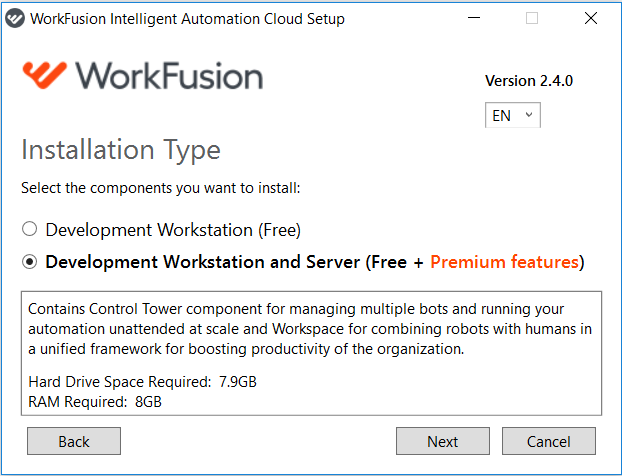
On the Installation Type screen, select Development Workstation and Server and click Next.
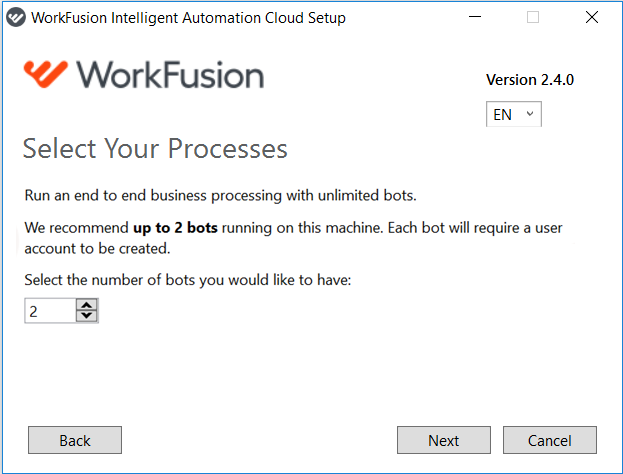
Enter the number of bots to be run on Server. Mind that each bot requires a user account to be created. To select multiple bots, you need:
- Windows Server: 2012, 2012 R2, or 2016
- user account created for each additional bot
- 2 GB of RAM for each additional bot (refer to System Requirements)
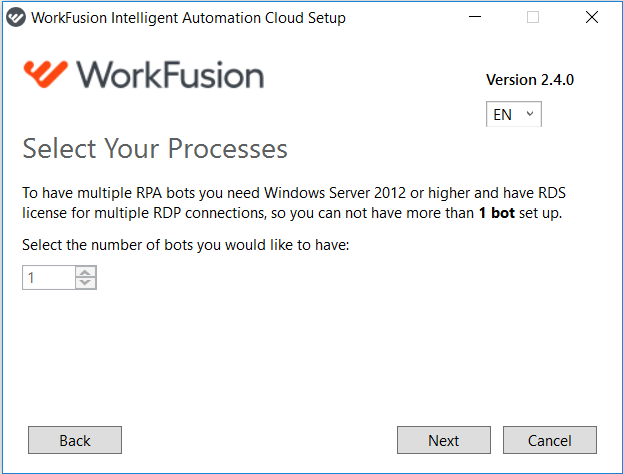
 Mind that if the machine has non-server OS, you can install 1 bot only.
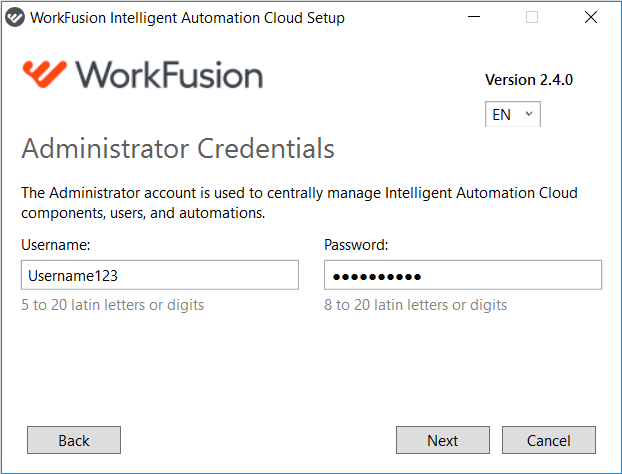
Enter Administrator username and password that will be used to centrally manage Intelligent Automation Cloud components, users, and automations. Click Next to proceed.
note
Pick any username and password at your choice, though observe the following requirements.
- The username should be 5 to 20 characters long and contain Latin letters and digits. Special symbols are not allowed.
- The password should be 8 to 20 characters long and contain Latin letters and digits. Special symbols are not allowed.
warning
The credentials entered at this step are used to log in to Control Tower, WorkSpace, and File Storage.
Set the destination folder for Intelligent Automation Cloud installation and click Install.
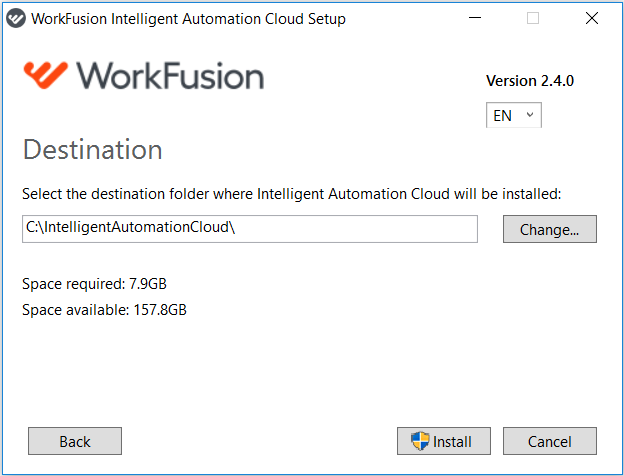
On the User Account Control screen, accept a security prompt by clicking Yes. While installation is performed, you can watch a short intro to get familiar with Intelligent Automation Cloud features. Click on a video thumbnail on the installer screen to open it in your browser.
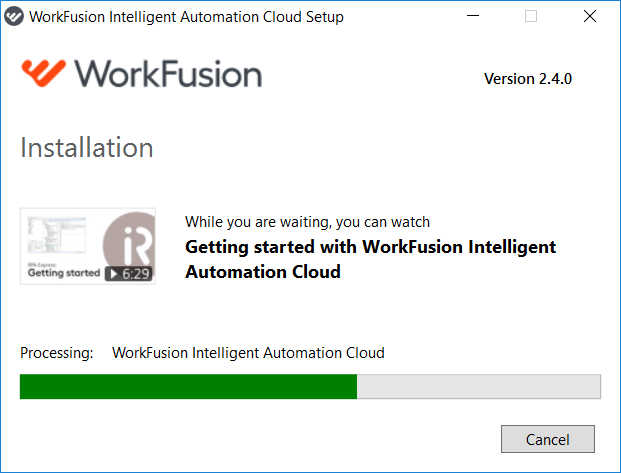
(Optional) Restart Windows as offered by the installer.
RDS licensing activation
During the Development Workstation and Server installation, RDS licensing is activated automatically with a 120-day trial. Depending on the number of bots and the RDS license current state, restart might be required at this stage.
| Case | Condition | Action to take |
|---|---|---|
| Case 1 | > 1 bot installed, RDS license wasn't active previously | To activate the license, Windows should be restarted before Business Edition launch. The installer will offer to reboot the machine |
| Case 2 | > 1 bot installed, RDS license is already active | No additional actions needed as the license is already active |
| Case 3 | 1 bot installed, RDS license wasn't active previously | No additional actions needed as the RDS license is not required |
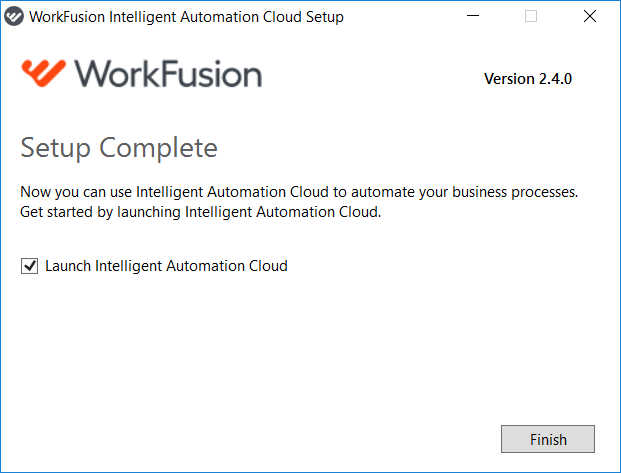
- Wait until the installation is finished and click Finish. To launch Intelligent Automation Cloud Business, click on its icon on your desktop.
Development Workstation
warning
When installing Development Workstation, mind that the installation procedure varies depending on whether you have downloaded a free version or a trial one.
Run IntelligentAutomationCloudInstaller.exe.
To start installation process, accept the License Agreement. Click License Agreement to view it.
Read the License Agreement carefully. Use the scroll bar or press the page down key.
To accept, check I accept the terms in the License Agreement and press Next.
note
The checkbox I agree to share usage analytics, that can help WorkFusion to improve its products is optional to check.
Enter the email you used when registering for WorkFusion Intelligent Automation Cloud.
Select Development Workstation (Free) and click Next to proceed.
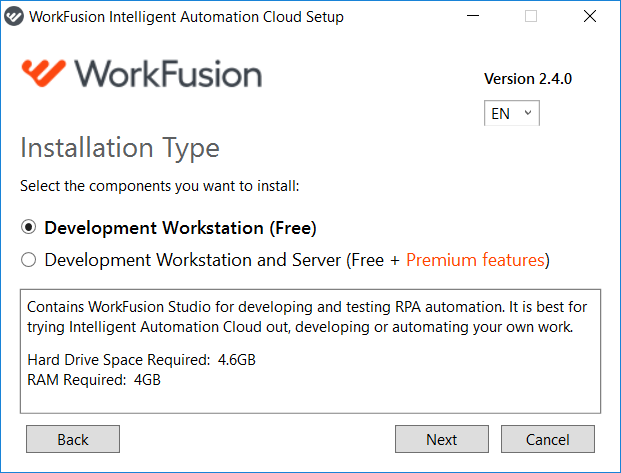
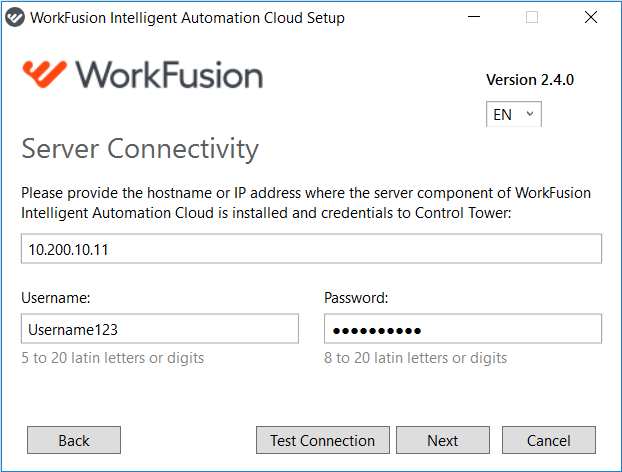
Enter the hostname or IP address of WorkFusion Intelligent Automation Cloud Server and provide the credentials for Control Tower and WorkSpace. Click Next to proceed.
note
The username and password entered at this step should match the credentials created on the server to which the machine connects.
Set the destination folder for Intelligent Automation Cloud installation and click Install.
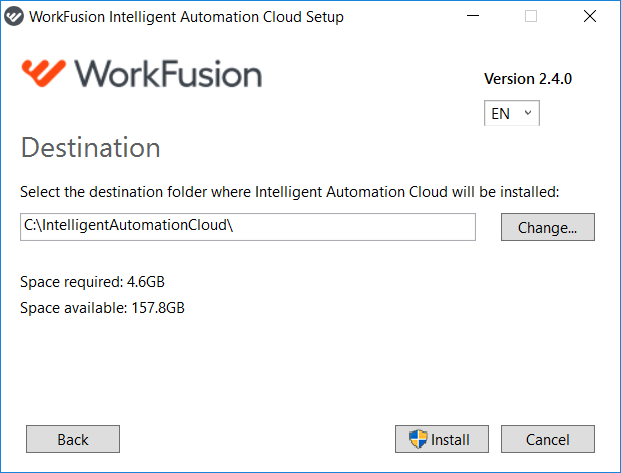
On the User Account Control screen, accept a security prompt by clicking Yes.
The installation process will start. While installation is performed, you can watch a short intro to get familiar with Intelligent Automation Cloud features. Click on a video thumbnail on the installer screen to open it in your browser.Wait until the installation is finished and click Finish. To launch Business Edition, click on its icon on your desktop.
