Reconciliation workflow
Script overview
On the high level the script consists of the following actions.
- Input data and create necessary folders.
- Convert PDFs to .txt files.
- Process data and save results.
- Generate final results using output data.
Let's explore these steps in detail.
Script workflow
Create necessary folders
Description: The group contains three options: create a temporary folder, create a result folder and create a folder with name as the current date.
- Create a temporary folder - we create a folder with a random name, that can be useful when you need to create or save several intermediate files and delete the files after processing the program. In this case, we use a random name, as we must make sure that the folder does not exist, and we will not delete any other files.
- Create a result folder - the option creates a folder with a preselected name and the path to save. You can use this option when you need to create a folder or check whether the folder exists, and in case the folder does not exist, create it. This can be useful if your project first runs on another computer and you are not sure if the folder exists.
- Create a folder with name as the current date - the option can be useful if you use your sample every day or several times a week, because the processing results will be saved in a folder with the date corresponding to the due date for you to easily find the necessary data.
Create folder – Temp (reusabe)
In this part of the sample, a folder with a random name is created. For work, two variables are used:
str_temp_folder_path– the path to the directory where you want to create a temporary folderstr_temp_folder_name– a variable to store a random name
This is just an example. You can use any variable names you like. Below we take a closer look at how it works.
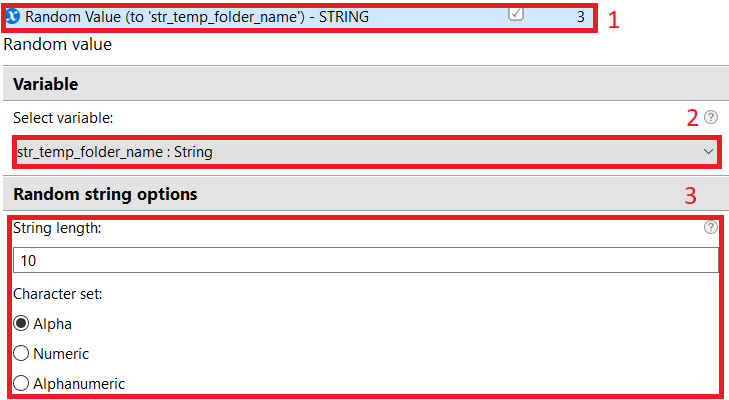
- Action 3 generates a random value for use as a folder name.
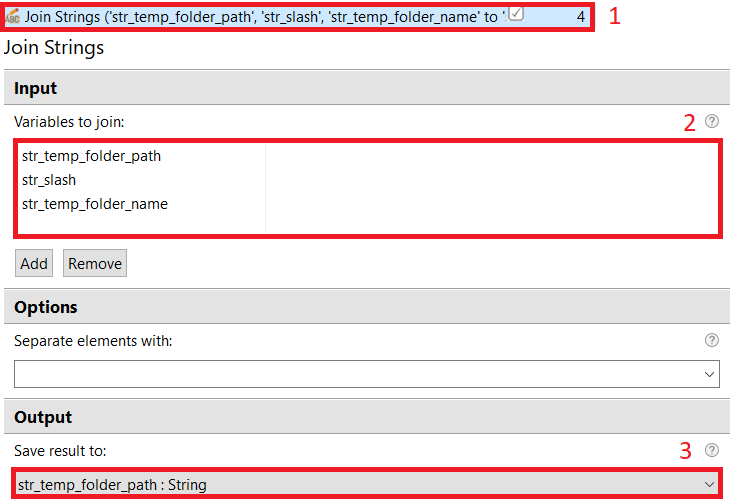
- Action 4 creates the path to a temporary folder, namely, appends the path to the directory in which we want to create the folder, the slash character and the temporary folder name from the variable.
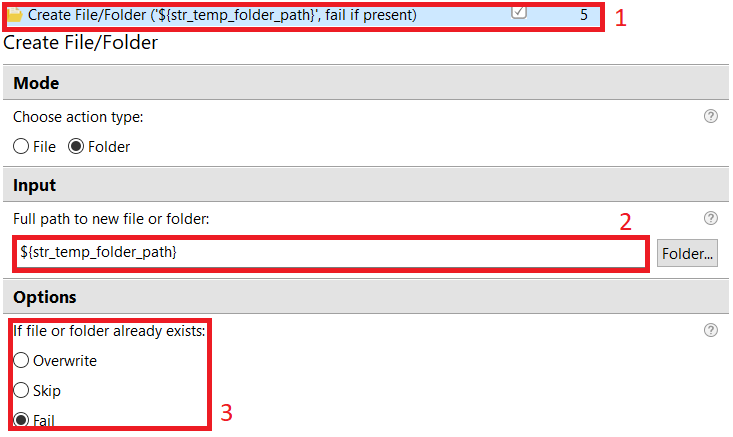
- Action 5 creates a temporary folder.
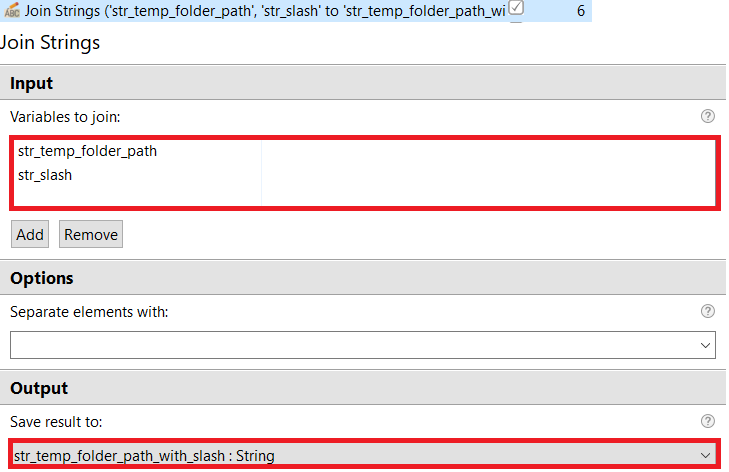
- Action 6 (Optional) creates a new variable with the path to the temporary folder and a slash at the end.

- The Random Value action generates a random String value and stores it in a variable that you select in the drop-down menu (number 2 in the screenshot).
- The action is in the Variables group in Actions library. It can generate String, Boolean, and Number values.
- The field contains all the variables from the Recorder Variables tab. On selecting the DateTime variable, the action generates a simple string value.
- Random String options – on this tab, you can choose the length of the string and the characters the string will consist of:
- Alpha – only letters
- Numeric – only numbers
- Alphanumeric – letters and numbers
- The Join Strings action combines string variables into one. In this case, we create the path to the temporary folder, namely, append the path to the directory in which we want to create the folder, the slash character, and the generated folder name from the previous step.
- Select the action in the Text group in Actions library.
- Add string variables for the union. These variables will be combined, starting with the first one and adding the next line to the end of the previous one from the list.
- Select a string variable to save the action result to. At this stage, save the result to the variable that contained the path to the directory in which we create the folder.
tip
It is a normal practice to save the result of concatenating strings into the variable that was used in the action, if it is no longer needed, since we will not have to create an additional variable.
- The Create File/Folder action creates a folder or a file. In this use case, use this action to create a folder.
- Select the action in the Files and Folders group in Actions library.
- Specify the full path to the folder you want to create. If you want to create the Result folder in the C:\User directory, the path for this field should look like: C:\User\Result
- Select the action to perform if the folder is not created. In this case, use the Fail option, as if the temporary folder is not created, all the following steps cannot work correctly.
- (Optional) The Join String action is not needed, because we simply create a new variable that contains the path to the temporary folder and a slash symbol. The variable will be used for the following actions when we save files to the temporary folder.
- Join a variable with the path to the temporary folder and a slash variable.
- Save the result in a new variable.
Create folder – Result (reusable).
In this part of the sample, create a folder with a preselected name and a path to save. For work, two variables are used:
str_result_path– the path to the directory where you want to create a folder to save the resultstr_result_folder_name– a variable with the result folder name This is just an example. You can use any variable names you like.
Below we take a closer look at how it works.
- Action 8 works like action 4, creates the path to the result folder, namely, appends the path to the directory where we want to create the folder, the slash character, and the result folder name from the variable.
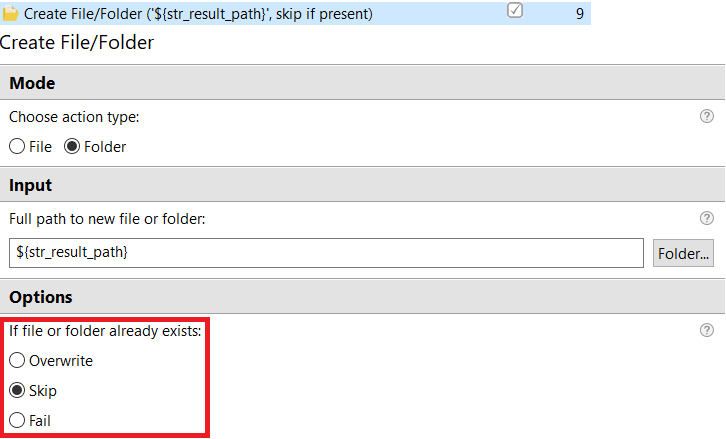
- Action 9 creates a folder in the directory.

The same action (Create File/Folder) is performed as in action 5, but in this case skip creating the folder if it already exists.
Create folder with name as the current date (reusable)
Create a folder with the name as the current date. For work, several variables are used:
str_result_path– the path to the results directory where the folder will be createddate_current– a variable of the DateTime typestr_current_date– a variable to store a line with the current date
This is just an example. You can use any variable names you like. Below we take a closer look at how it works.
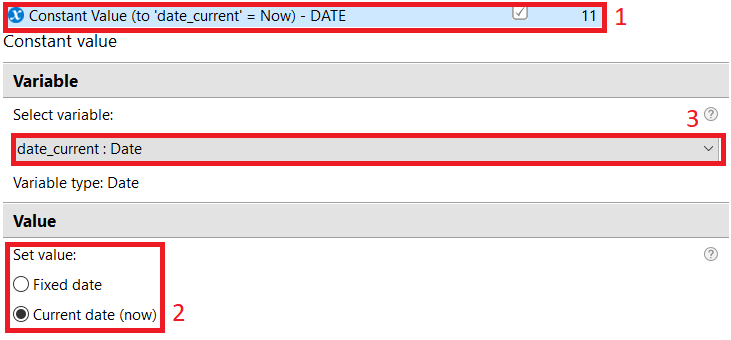
- Action 11 writes the current date to the
date_currentvariable. - Action 12 sets the correct date format and converts the DateTime variable to String.
- Action 13 works like action 4, creates the path to the current folder for saving results, namely, appends the path to the result directory, the slash character, and the line with the current date.
- Action 9 works like action 9, but creates a result folder.

The Constant Value action sets the current date to a variable of the DateTime type, that is necessary to get the String variable with the current date.
- Select Constant Value in the Variables group in Actions Library. You can either set the current date or set the date manually.
- Choose the value to set. In this case, we use the Current Date checkbox.
- Select the variable of the DateTime type from the Recorder Variables tab.
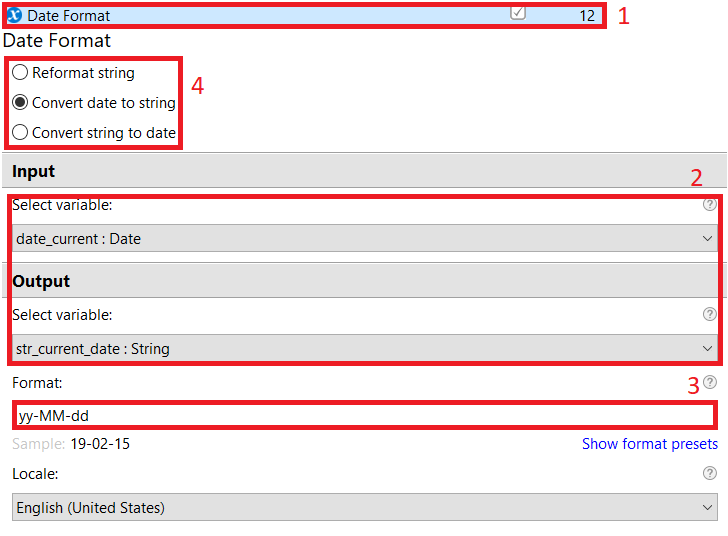
The Date Format action converts the variable of the DateTime type to the String variable and sets the specific format.
- Select Date Format in the Variables group in Actions library. It can set the specific format for the DateTime and String variables, convert from DateTime to String and back.
- Select input and output variables, if you want to convert DateTime to String. Then set DateTime as input and String as output and check Convert date to string (number 4 on the screenshot).
- Specify the format of the result in the output variable. Click Show format presets to see examples.
- These flags are responsible for the action to be performed.
Convert PDF to text
Description: The group can be very useful for your project if you need to process information from a .pdf file (requirement: .pdf files must be in readable format), because in this case we get all the .pdf files from the folder and convert them to .txt files. We use Adobe Reader, as this application retains the original data format after conversion.
Reusable element: Convert a file from .pdf to .txt; the element converts one file.
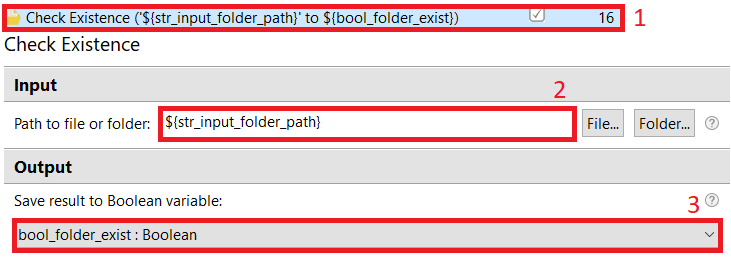
- The Check Existence action verifies that the folder exists. This is a very important step for code reliability, because when you move any files from folder to folder or save the file to a new directory, you need to be sure that the folder has been created.
We also have an alternative, that is the Exception Handling action - the action skips the steps, if something is wrong, but if 100-200 actions are included inside the 'try' part, and you try to save the file in a nonexistent folder, all work will be skipped and you spend a lot of time. It would be more correct to use the Check Existence action, because before starting processing any file or files, you can check the existence of the folder and, if this folder does not exist, create a folder and continue processing the data.
1.  Select the action is in the Files and Folders group in Actions library.
2.  Specify the path to the file or folder that you want to check.
3.  In the drop-down menu, select a Boolean variable to save the test result.
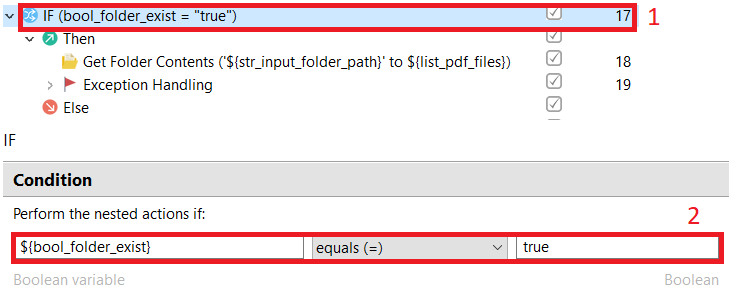
- The IF condition action helps us to implement simple logic. If the expression in the main part returns
true, then we make one group of actions; if it returnsfalse, we make another group of actions. In this case, we check for the presence of a folder with input data, and if this folder was not created, we simply skip the part of the processing. The input folder may be empty, but it must exist.- Select the action in the Conditions group in Actions library.
- Set the field required to create an expression.
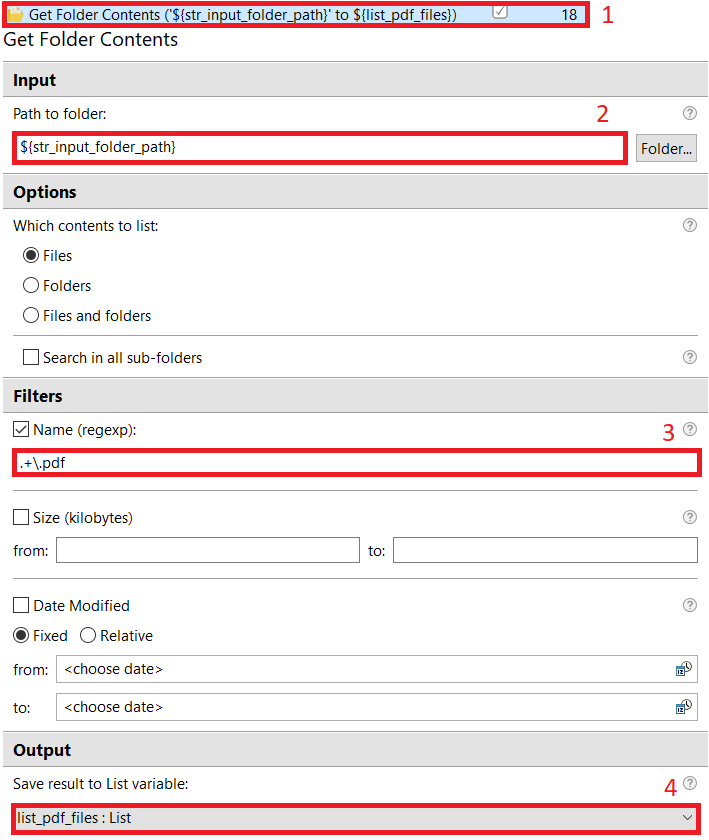
- The Get Folder Contents action allows you to get the path to all .pdf files in a folder and save these paths in the list.
- Select the action in the Files and Folders group in Actions library.
- Specify the path to the folder where we want to get the file paths.
- If you are going to use this action again, set the format of the files for which you want to get the paths.
- In this field, set a List variable to save the result of this action.
- The Exception Handling block of exceptions closes Adobe Reader if something happens to the application. This will allow your program to shut down without errors.
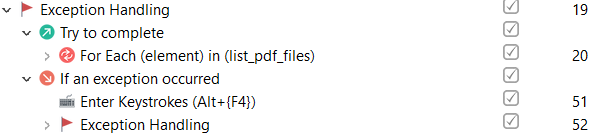
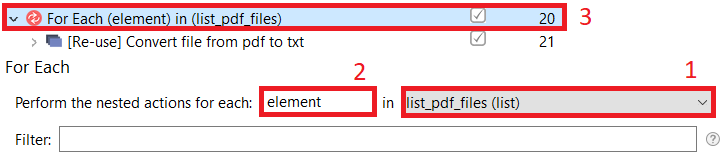
- For Each is a loop performing all the actions inside it for all the items in the list. If we talk about our use case, we process all the files using the file paths from the list.
- Specify the list with the file paths.
- Select a variable that contains the current item in the list.
- Use the For each block with actions to be performed for each item in the list.
Convert file from .pdf to .txt (reusable)
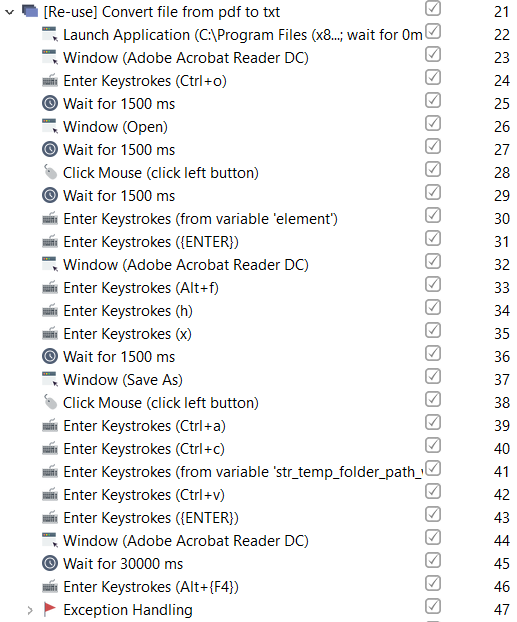
In this part of the sample, we convert a file from .pdf to .txt. For work, two variables are used:
element– the path to the input .pdf filestr_temp_folder_path_with_slash– the path to the temporary directory to save the result of the conversion to
This is just an example. You can use any variable names you prefer. Below, we take a closer look at how it works:
- Actions 22-23 open Adobe Reader and switch to the application window.
- Actions 24-27 open the Open dialog box and switch to it.
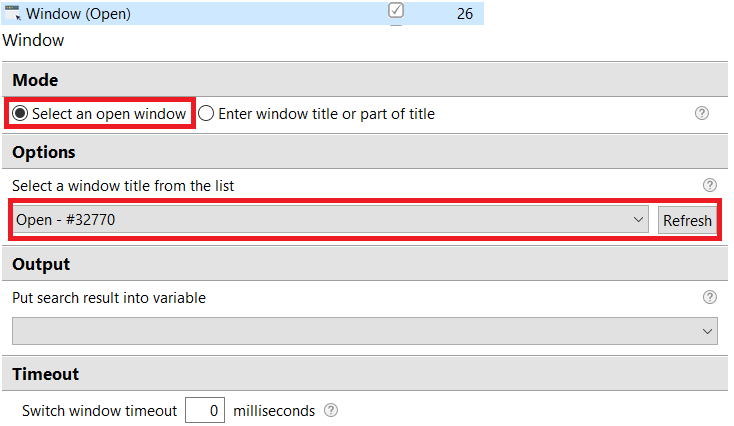
- Actions 28-31 click on the text box to enter the path, enter the path to the .pdf file, and press ENTER.
- Actions 32-35 return to the Adobe Reader window, open the File tab, select Save as Other and Text.
- Actions 36-38 switch to the Save As window and click on the text box to enter the path where we will save the result.
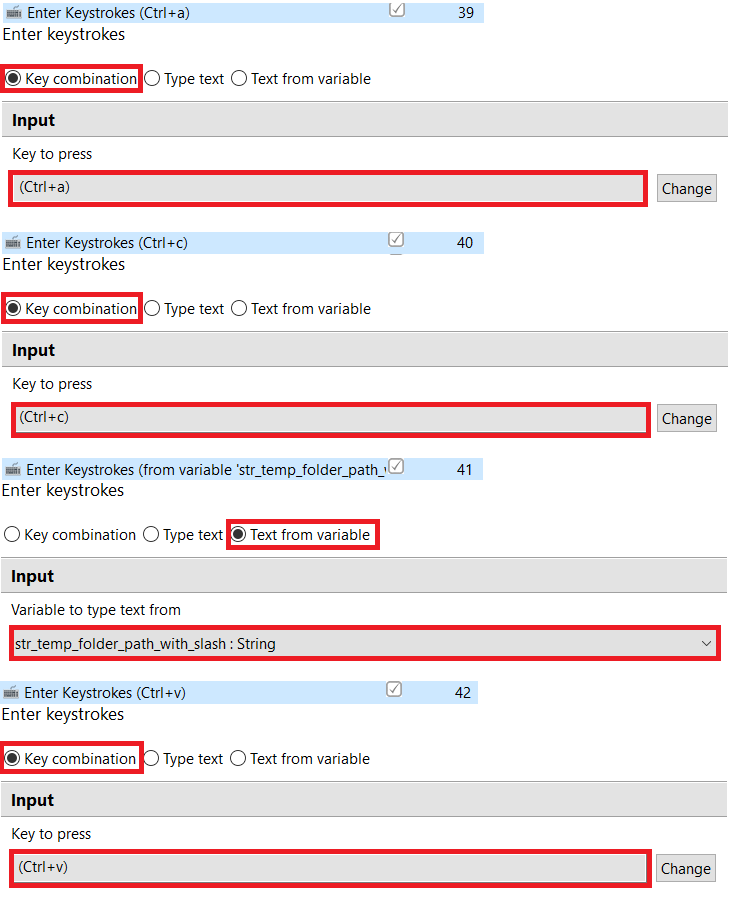
- Actions 39-43 copy the current file name to the clipboard, enter the path to the temporary folder and add the file name to the end, press the ENTER key.
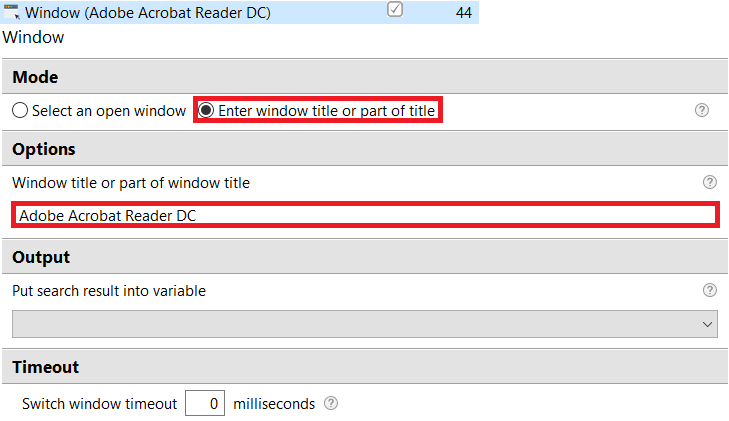
- Actions 44-47 return to the Adobe Reader window, wait for the end of the conversion process, and close the application.
The Launch Application action simply launches the application to which you have specified the path.
- Select the action in the Application group in Actions library.
- In this field, specify the path to the .exe file for the application, or use the cmd command to start the application with certain parameters.

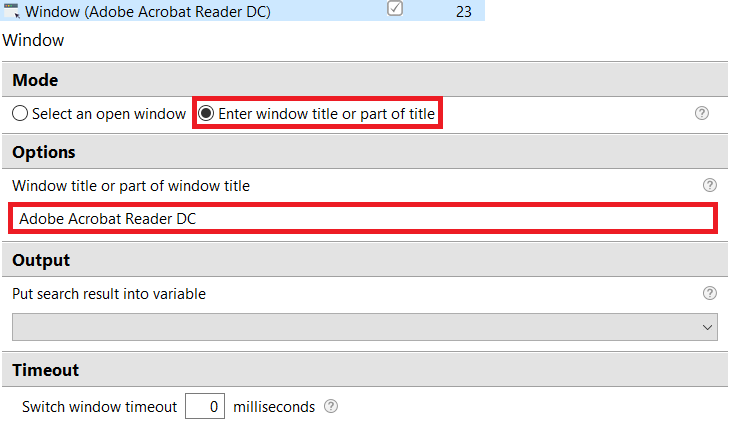
The Window action can switch to an open window using a selector or text that is contained in the window title.
Open the Open dialog box and switch to it
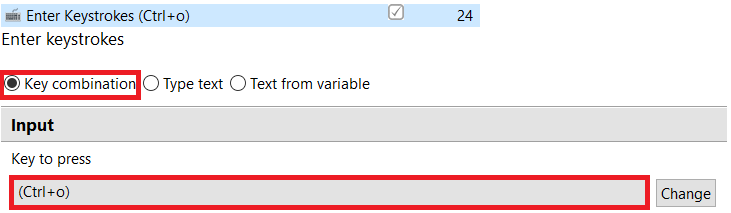
The step includes Enter Keystrokes, Wait, and Window actions.
- Enter Keystrokes – press the hotkey combination to open the Open dialog box.
- Wait – use the action after pressing hotkeys and switching. If your computer has low technical parameters, the PC may not have time to open the window, and the bot will proceed to the next action.

- Window – the action performs the same action as action 23, but switches to the Open dialog box.
Click on the text box to enter the path, enter the path to the .pdf file and press ENTER
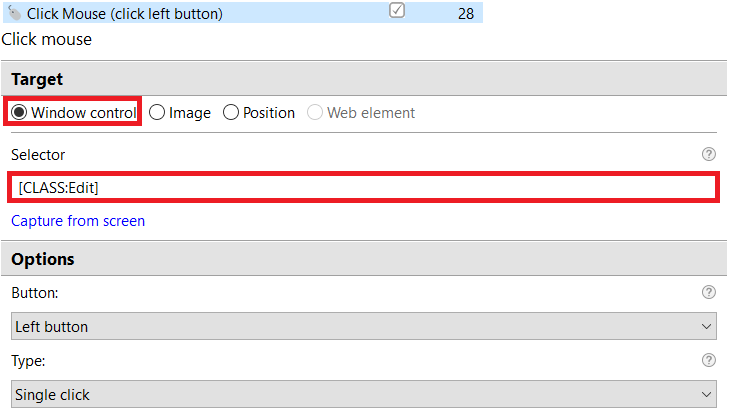
These actions click on the fields to enter the path to the input file and enter this path, on finishing press ENTER.
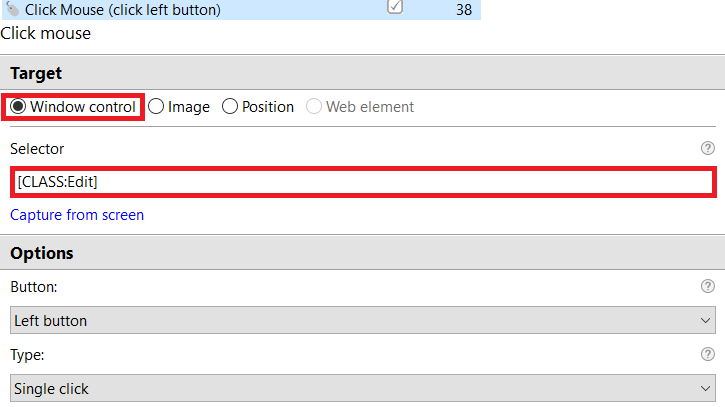
- Click mouse – in this action, use the selector to search for the field on the window and make one click with the left mouse button on that.
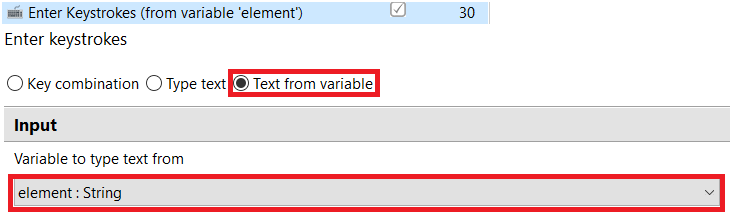
- Enter Keystrokes – enter text from variable with path to input file.
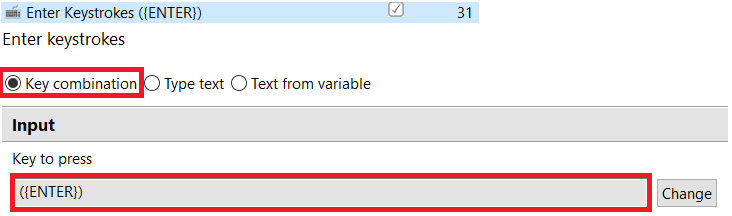
- Enter Keystrokes – press ENTER button.
Return to the Adobe Reader window
Open the File tab, select Save As and Text
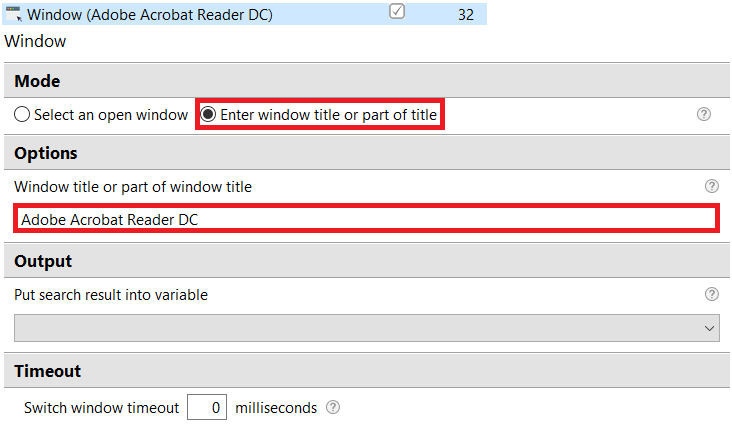
This part of the reused group returns to the Adobe Reader window and goes to File > Save As Other > Text tab.
- Window – go back to Adobe Reader using part of the window title.
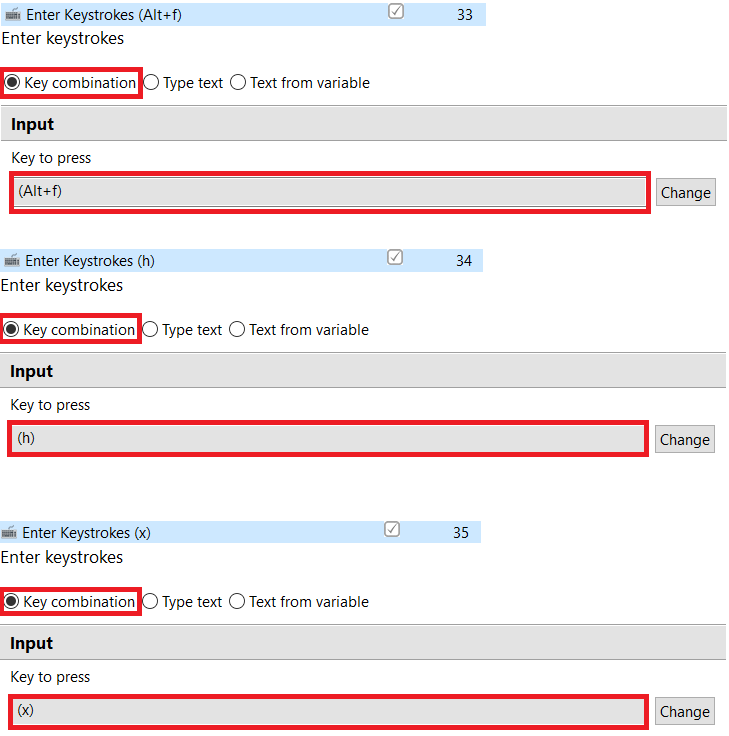
- Enter Keystrokes – press Alt + f to open the File tab, then press h to go to the Save as another option on the File tab. Then press x to set the Text option.
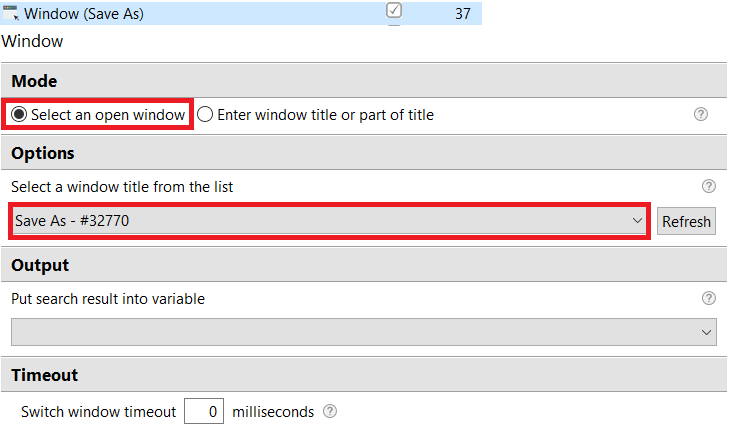
Switch to the Save As window and click on the text box to enter the path where we will save the result
In the beginning, we wait for the Save As dialog box to open, then switch to it, and click on the field to enter the path.
- Window – go to the Save As window using the Select an open window and select this window on the Parameters tab.
- Click mouse – the same action as action 28, since the selectors for these fields in the Open and Save As windows are the same.
Copy the current file name to the clipboard, enter the path to the temporary folder and add the file name to the end, press ENTER.
When we open the Save As dialog box, the path field contains the file name, so we select all the text from this field and save it to the clipboard; after copying, enter the path to the temporary folder with the slash symbol at the end, and using Ctrl + v paste the file name. As a result, we have a path to save the .txt file with the original name to a temporary folder. Then press ENTER.
- Enter Keystrokes – at the beginning we press the Ctrl + a combination for the selected text, after we save this text (file name) in the clipboard and, when all the text has been selected, we begin to enter the path to the temporary folder instead of the file name, and add the file name to the end of the clipboard.
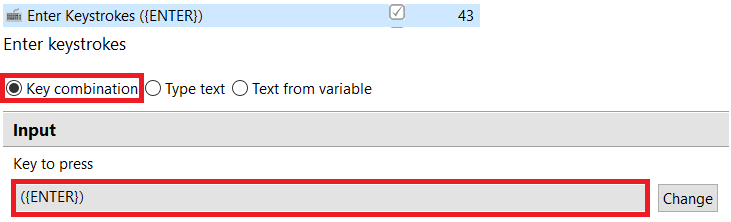
- Enter Keystrokes – press the ENTER key to start the conversion and save the result.
Return to the Adobe Reader window, wait for the end of the conversion process, and close the application
We return to Adobe Reader, wait for the end of the process, and close the application.
- Window – go back to Adobe Reader using part of the window title.
- Wait – in this action, wait for the conversion process to end. If you have a weak computer, set up more time to process

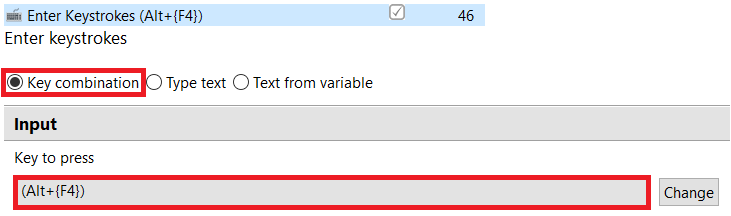
- Enter Keystrokes – press the Alt + F4 combination to close the current application window.
Process data and save results
Description: The group processes the converted .pdf files to .xlsx. The input to this part is the .txt files from the temporary folder, and output are .xlsx files, which are also stored in a temporary folder. The case is not universal, it can only process files in one format, so this part will be individual for each format.
Reusable element: Custom action – download the file by direct link to the folder. This is very useful if you store your files on an external storage and have links to them. This action allows you to save your file in any directory and with any name.
- The Get Folder Contents action allows you to get the path to all .txt files in a folder and save these paths in the list.
- Select the action in the Files and Folders group in Actions library.
- Specify the path to the folder where we want to get the file paths.
- If you are going to use this action again, set the format of the files for which you want to get the paths.
- Set a List variable to save the result of the action.
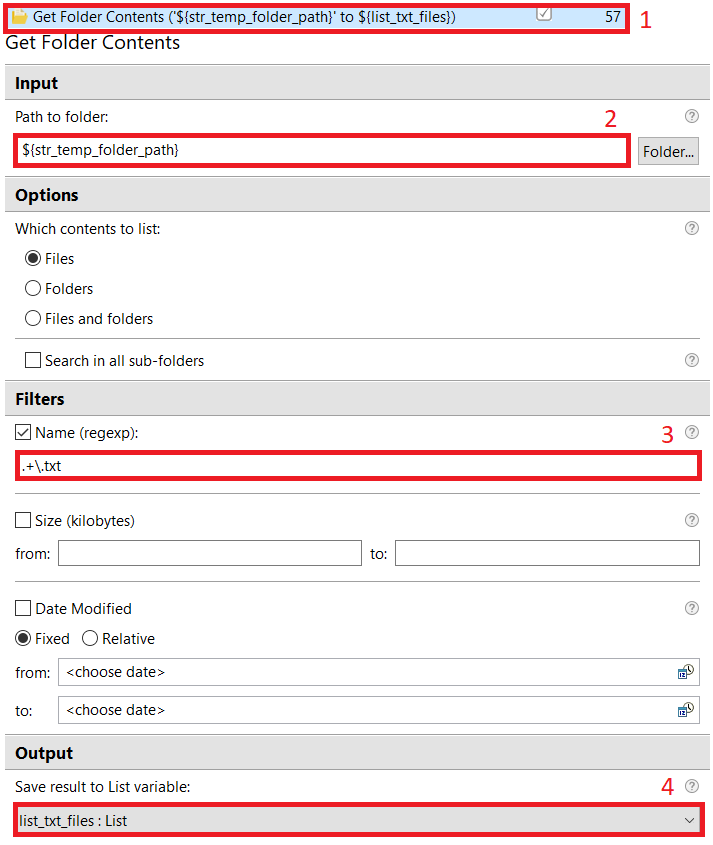
- The Exception Handling block intercepts all exceptions during processing. If something is caught, skip the processing step and proceed to generate the result.

- For Each is a loop performing all the actions inside it for all the items in the list. For our use case, we process all the files using the file paths from the list.
- Specify the list with file paths.
- Set a variable that contains the current item in the list.
- Use the For each block with actions to be performed for each item in the list.
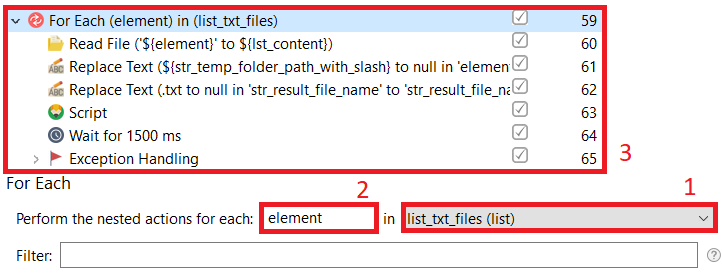
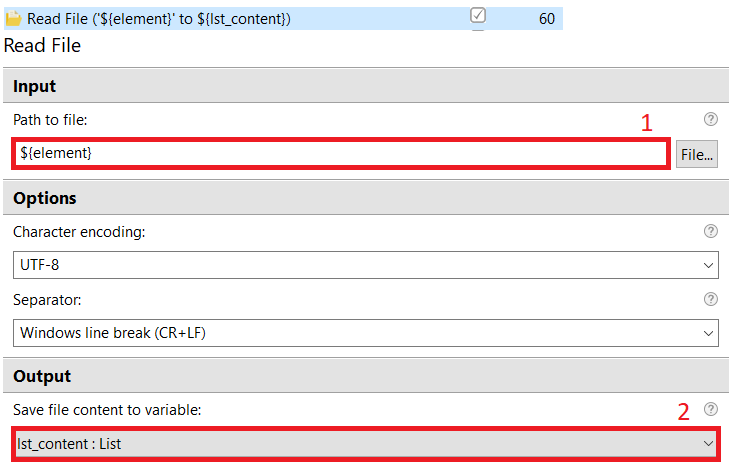
- The Read File action reads information from a .txt file and saves the result to a list or string variable.
note
If you save the result in a list variable, then each line from the file will be saved in the list separately. If you save in a string variable, then all the information will be saved as one line.
1. Specify the path to the file. We use the `element` variable, since it contains the path to one of the .txt files from the temporary folder.
2. In this field, select a variable to save the result.
- Get the file name from the file path. Replace the path (Replace Text) to the temporary folder and the format .txt to null. As a result, we get only the file name.
- The action replaces the path to the temporary folder to null.
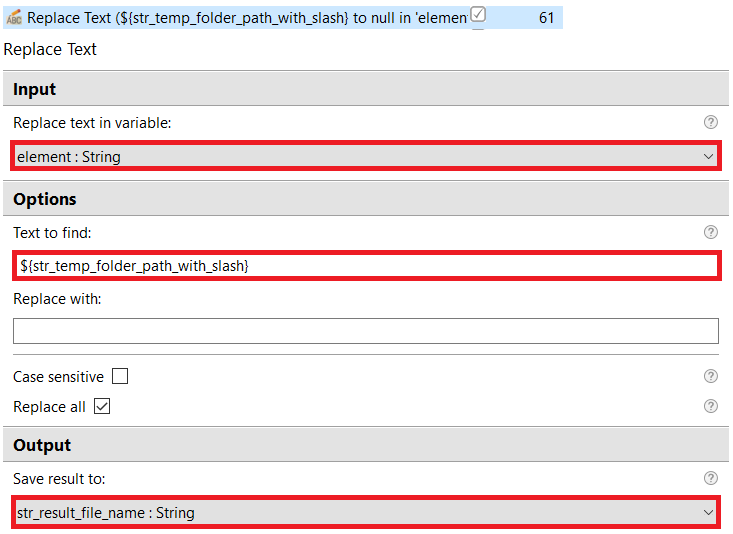
- The action replaces the file format .txt to null.
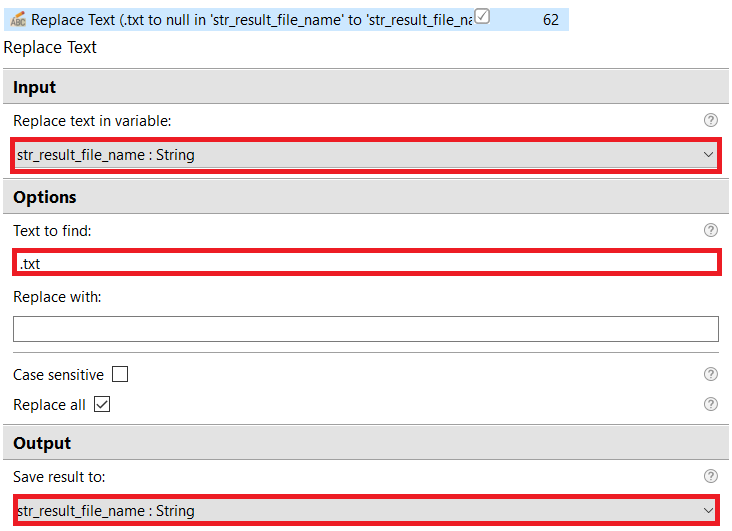
- The action replaces the path to the temporary folder to null.
Download the file by direct link to the folder (reusable)
It is a custom action for downloading a file using a direct link to the folder. With this action, you can upload a file from the network and assign a name that is more convenient for you.
- The action replaces 15-20 standard actions with the browser and desktop and does not depend on the browser.
For work several variables are used:
str_link_to_file– a direct link to a template or other file on the networkstr_temp_folder_path_with_slash– the path to the folder where you want to download the filestr_result_file_name – thefile name it will have after downloadingstr_template_file_format– the variable should contain the file format, for example .xlsx, or you can add the file format to a variable with the file name and leave the variable empty.
This is just an example. You can use any variable names you prefer. Below we take a closer look at how it works.
The action uses the program command to download. Inside it, a path is created to save the file of input variables, and using this path and a link to the file, it downloads it.
All input variables must be created, otherwise the action will not work.
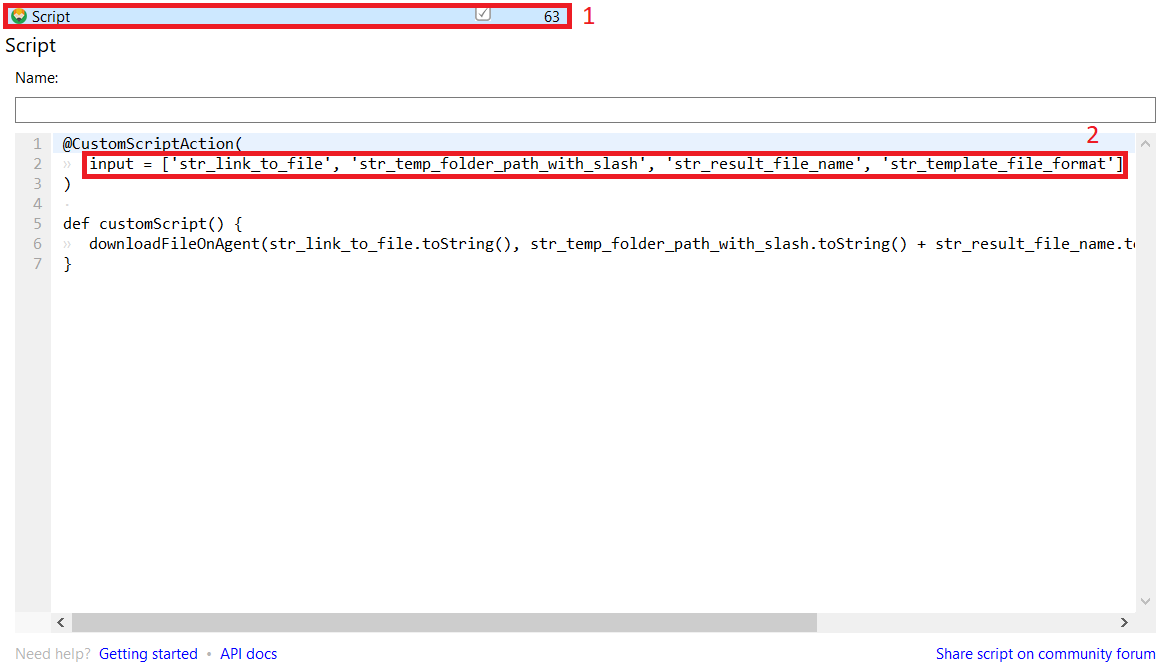
- The Exception Handling action is necessary to trap errors when handling an Excel file. If it intercepts anything, it will delete the .xlsx file and go to the next one.

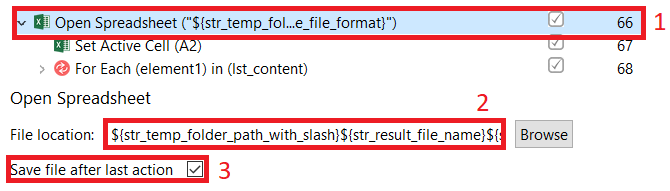
- The Open Spreadsheet action opens the Excel file in the background and allows you to work with it. In this case, we open the template that we downloaded in action 63.
- Select the action in the Excel group in Actions library.
- Specify the path to the pattern. We form it from the
str_temp_folder_path_with_slash,str_result_file_nameandstr_template_file_formatvariables. - Select the checkbox to be able to save the file after completing work with this file.
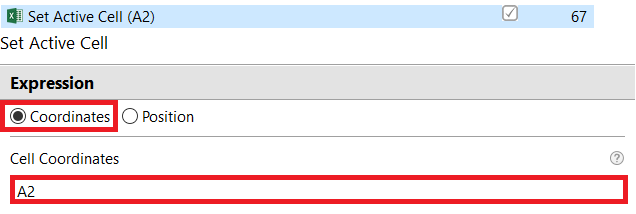
- Set the active cell to A2, because A1 is the standard starting cell, but the first row of the template is used for headers.
- The For Each cycle is needed for processing each line from the input file.
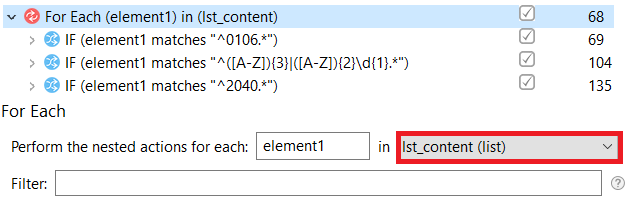
- Business logic implementation – this part of the group implements business logic and contains three actions with a regular expression.
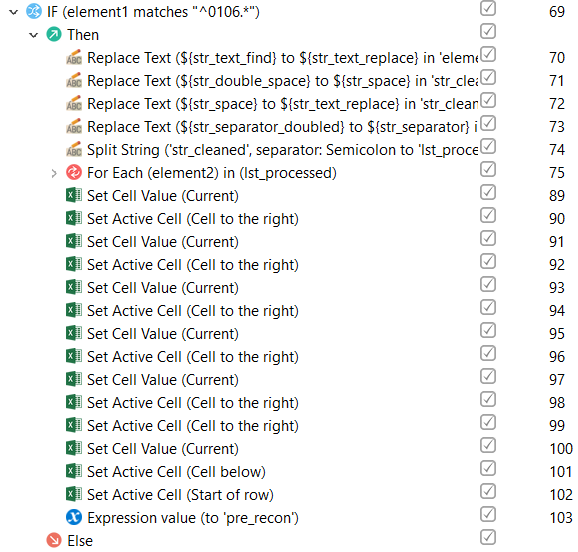
- The action processes all the transactions with the code 0106, enters this data into the Excel file, and sets the status.
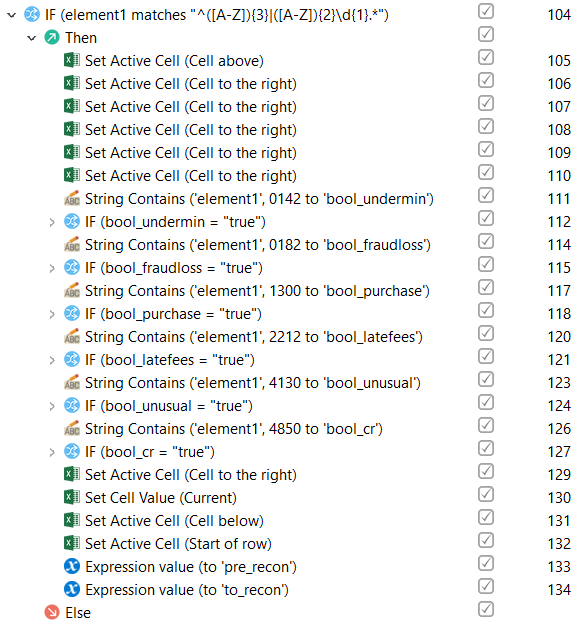
- The action returns to the previous line if the current line starts with an operator code, not a transaction code, and adds additional information about the transaction.
- The action processes all the transactions with the code 2040, enters this data into the Excel file, and sets the status.
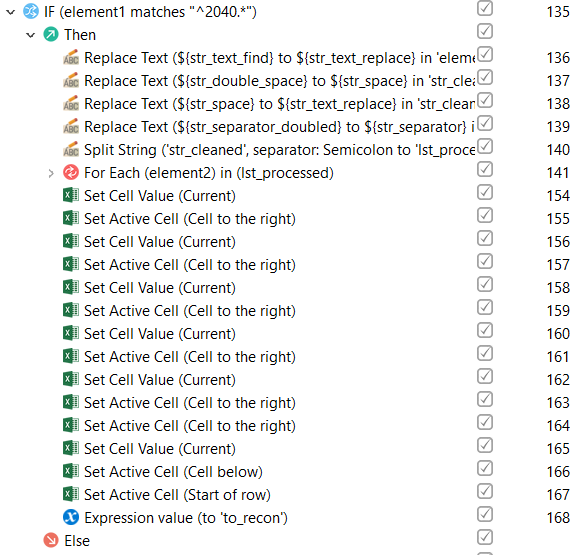
- The action processes all the transactions with the code 0106, enters this data into the Excel file, and sets the status.
Generate report
Description: This reusable group gets all the files with the selected format from a temporary folder and saves them to the results folder. You can use it not only for generating reports, but also for copying files of one format from folder to folder.
It would be more correct to use this group with reusable groups from the first part: Create a temporary folder, Create a result folder and Create a folder with name as a current date.
- The result generation reusable group gets all the files with the selected format from a temporary folder and saves them to the results folder.
For work, two variables are used:
str_temp_folder_path– the path to the temporary directory from which we will move filesstr_result_path– the path to the resulting directory where we will move the files
This is just an example. You can use any variable names you like. Below we take a closer look at how it works:
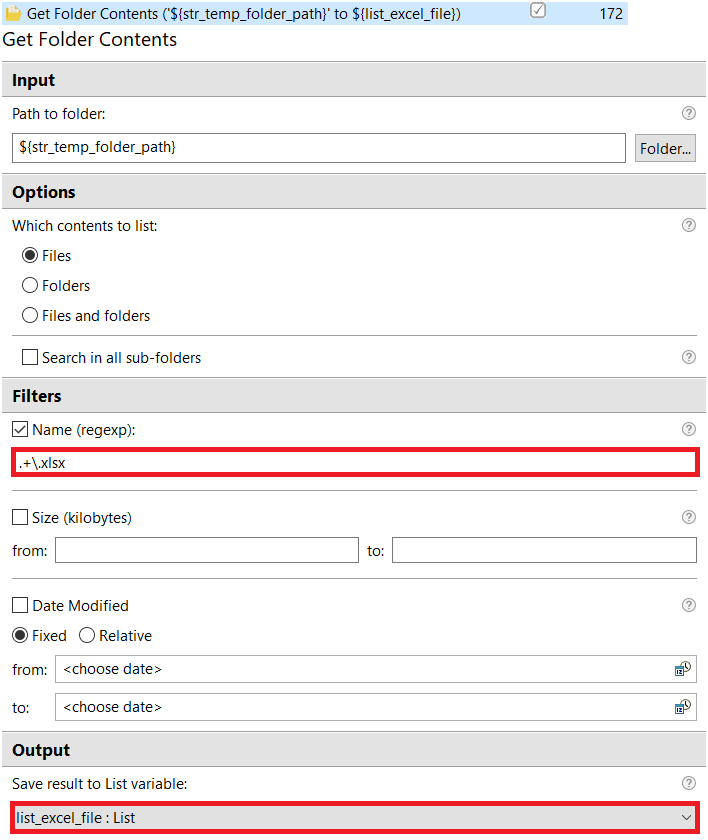
1.  Action 172 gets the paths to all .xlsx files in a temporary folder.
2.  Actions 173-174 copy files from the temporary folder to the results folder.
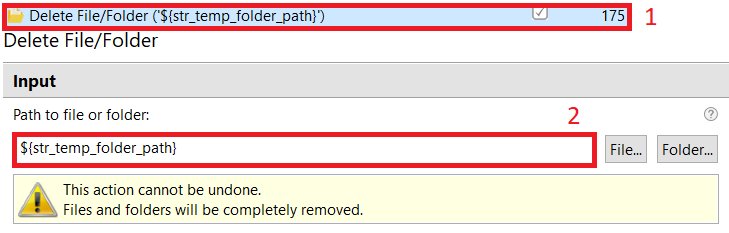
3.  Action 175 deletes the temporary folder.

- The Get Folder Contents action works like action 18, but here we get the paths to the .xlsx files, not the .pdf files. The result is a list with the paths to the .xlsx files in the temporary folder.
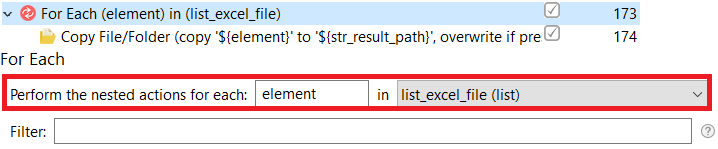
- The For Each cycle is required to move all the files from the list from the previous step.
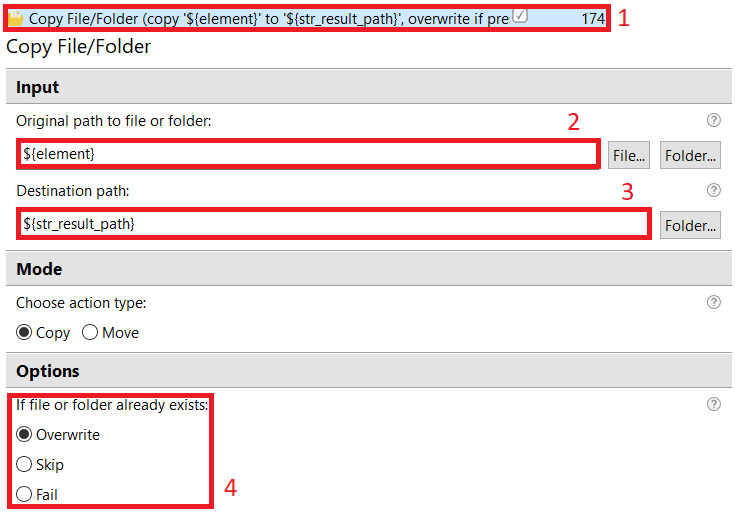
- The Copy File/Folder action can copy or move files, in which case we copy the file from the temporary folder to the results folder. If a file with that name exists, it overwrites this file and replaces it with a newer version.
- Select the action in the Files and Folders group in Actions library.
- The
elementvariable was created in the For each action in the previous step and contains the path to the .xlsx file in the temporary folder. - Set the destination path to the folder with the results. This variable was received in the group Create a folder with name as a current date.
- On this tab, choose what to do if a file with the same name exists in the folder where you are trying to copy/move the file.
- The Delete File/Folder action simply deletes the temporary folder. After completing the sample we have only one new folder, that is the folder with the results, without intermediate files and folders.