Complete manual review
As part of the default workflow, WorkFusion creates an assignment for exception handling in the Workspace application once Kayla finishes its automatic review. One assignment is created per entity.
The step, also known as Human-in-the-loop, is optional, and you can enable or disable it per Kayla variation. If it is disabled, a batch summary report is sent instead. For more information, see Input and output data.
Find results in Workspace
Once the Kayla variation where you enabled the human-in-the-loop step is ready with a review, its results become visible in the Workspace application.
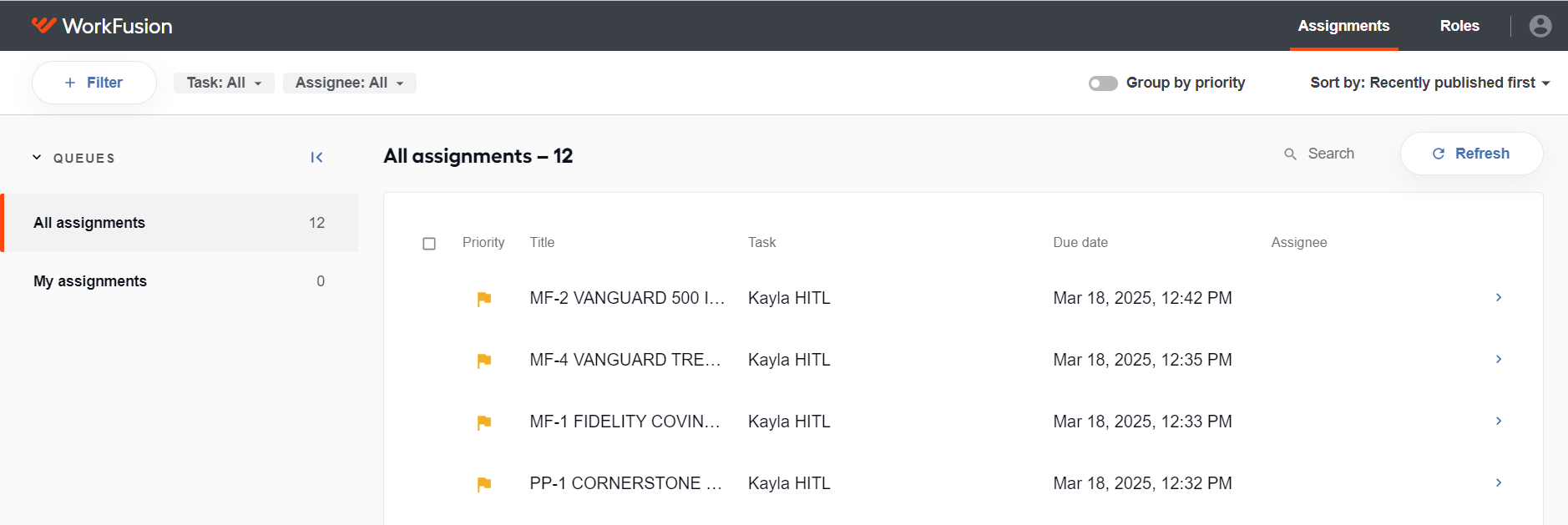
Just like with other assignments, you can add Kayla's human-in-the-loop tasks to the general queue or assign them to a specific user. For detailed instructions on managing queues and assignments in Workspace, see the following guides:
Review summary page
As you open an assignment from Kayla's flow in Workspace, you see a summary page similar to the one shown below:
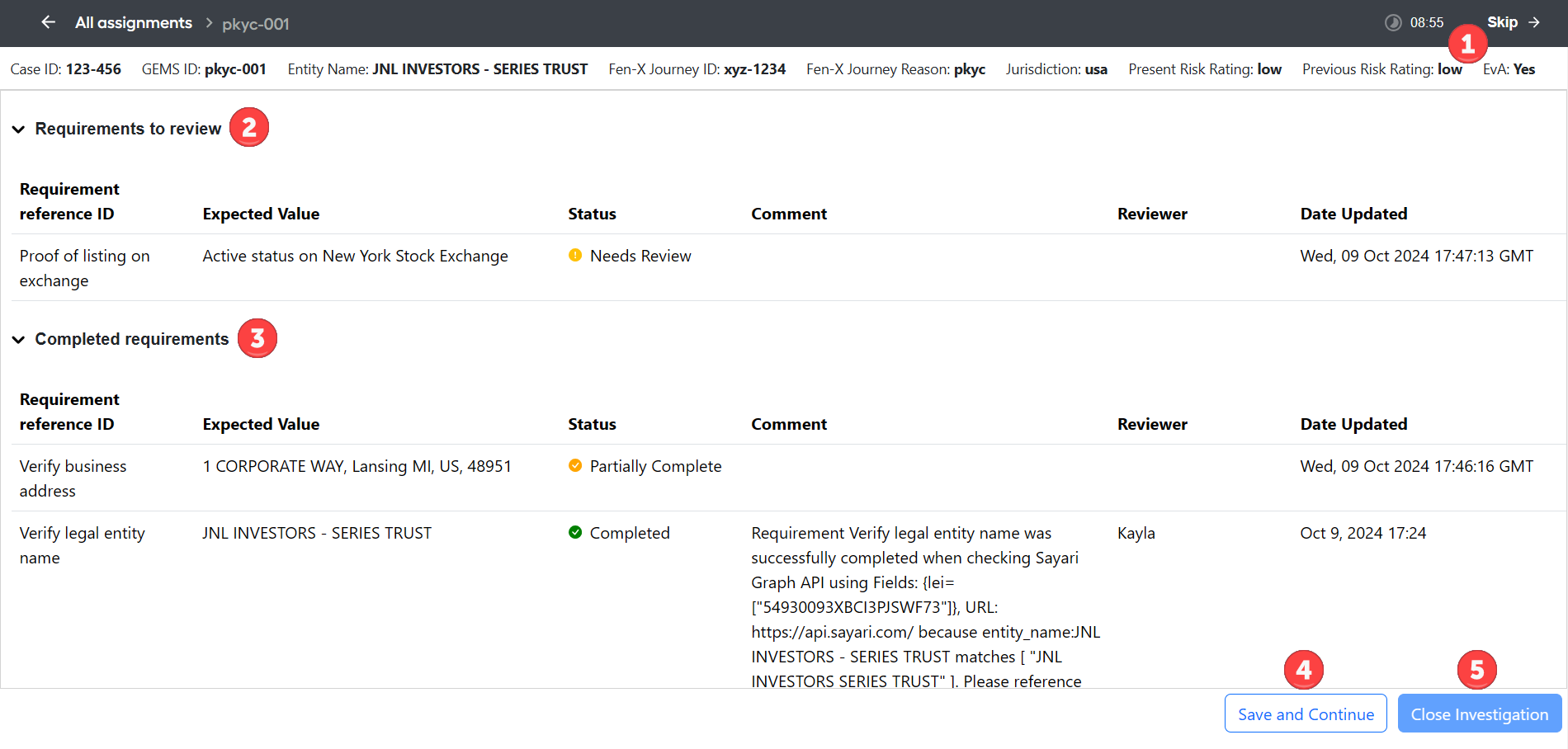
The following numbers correspond to those in the figure above:
Header information
- The unique entity ID, entity name, and customer type are mandatory.
- All other data elements are optional. You set them for each variation separately when configuring the input.
Requirements to review
The section contains a list of requirements that need manual review or additional information. You can click each requirement to see more details on sourced data or documents.
For each requirement, you can see a summary of results. Such details as the status, comment, reviewer, and update date might change as you review and edit the information for the requirements.
Completed requirements
The section contains a list of requirements reviewed by the AI Agent and available for manual review. You can click each requirement to see more details on sourced data or documents.
For each requirement, you can see a summary of results. Such details as the status, comment, reviewer, and update date might change as you review and edit the information for the requirements.
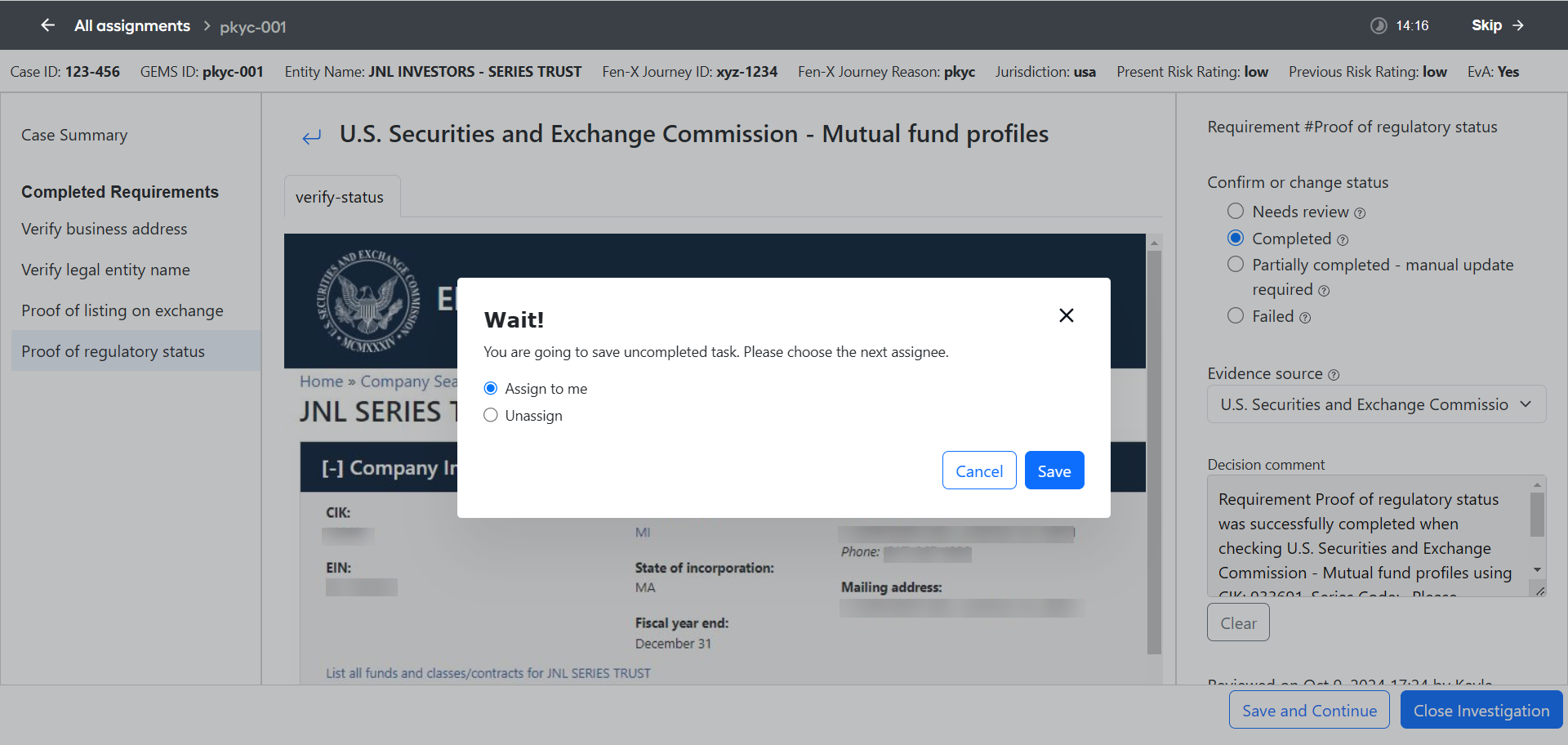
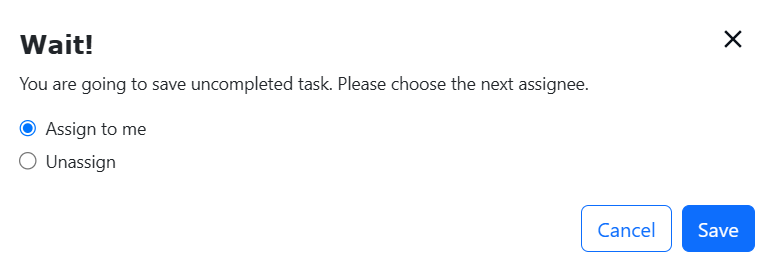
Save and Continue: click the button to save your progress on the task and go to the next assignment in the queue. In the confirmation dialogue that appears after clicking, choose to keep the task assigned to yourself or unassign it.
 info
infoWhen you click Save and Continue, your task is not marked as completed, although all your changes are saved. The task is recreated with the current creation date and added to the queue, either assigned or unassigned, based on the choice you previously made.
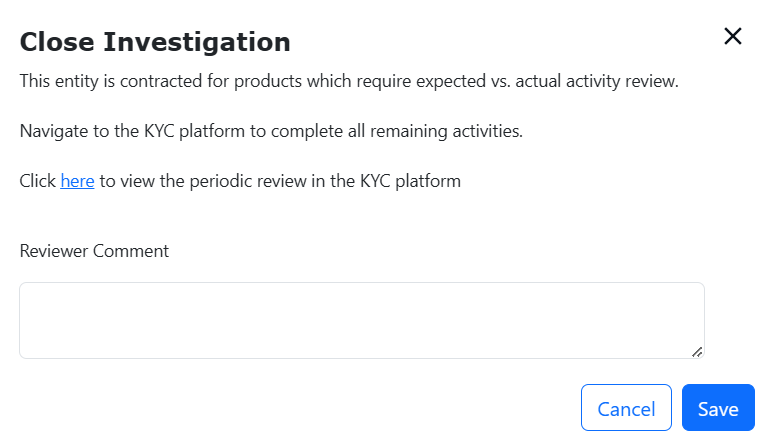
Close Investigation: click the button to close the investigation and complete the task. After you select the option, you can add a status for the entire investigation and enter a comment.
Review details about each requirement
As you click a specific requirement on the summary page, you drill down to the page with details about the selected requirement.
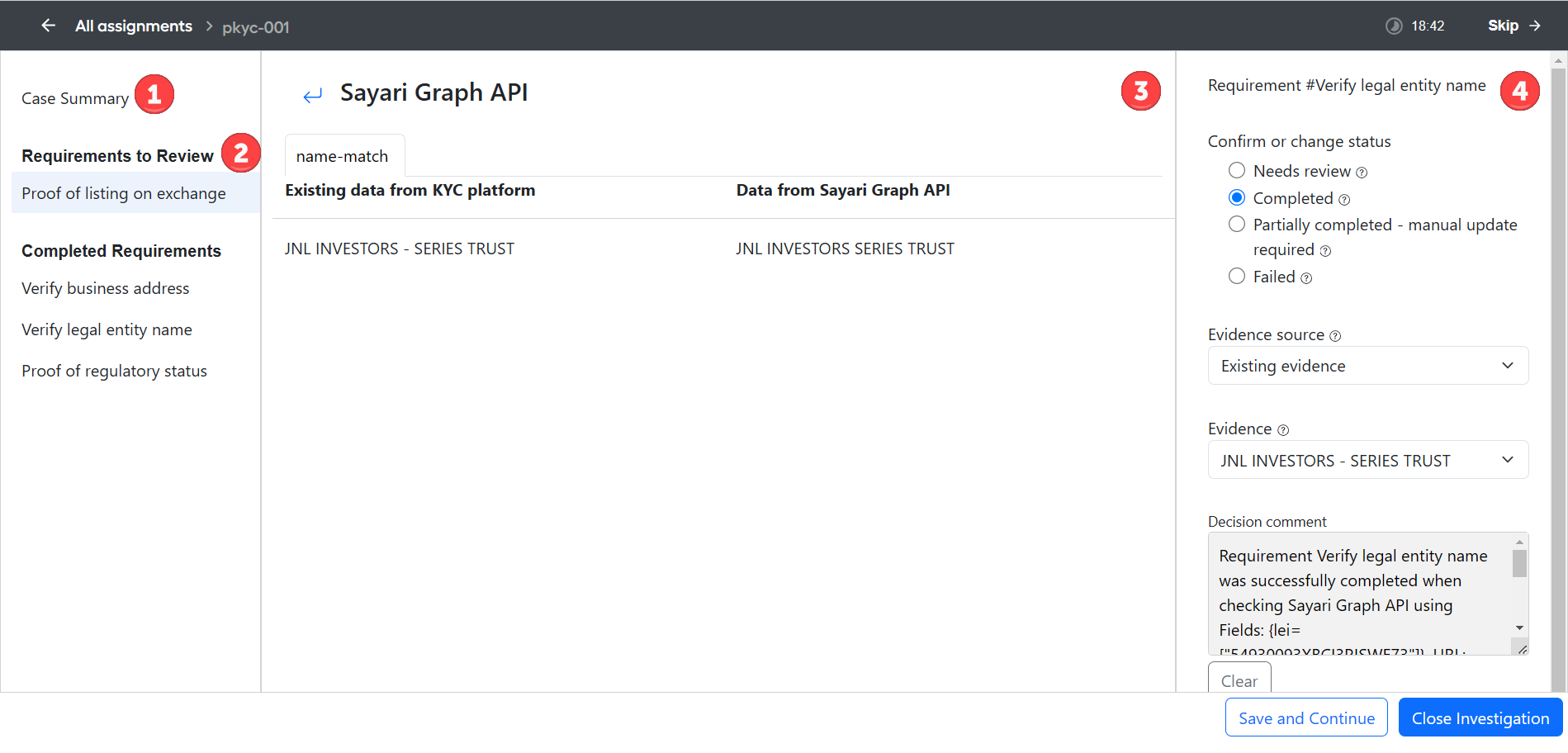
The following numbers correspond to those in the figure above:
Click Case Summary to navigate back to the summary page.
The left panel lists completed requirements and requirements that need to be reviewed.
The central panel displays the data or documents returned for the requirement.
The right panel displays the following:
The Status section defines the requirement's status, which you can update as you complete the review.
Evidence source is the source of the evidence to be used to update the KYC platform.
Evidence is the evidence data to be used to update the KYC platform.
The Decision comment box contains a human-readable explanation of how the decision was reached. The comment is provided for each requirement the AI Agent reviews and adjudicates. The text in the box is editable. Click Clear to clear the box contents and enter a new comment.
From the screen, you can choose to skip, save and continue, or close the investigation (once all requirements are complete) on the task.
Complete investigation
Once you finish reviewing the requirements, click Close investigation to complete the task.
The Close investigation window contains a description of what Kayla automatically does on the assignment, instructions on your further actions, and a link to a periodic review in the downstream system.
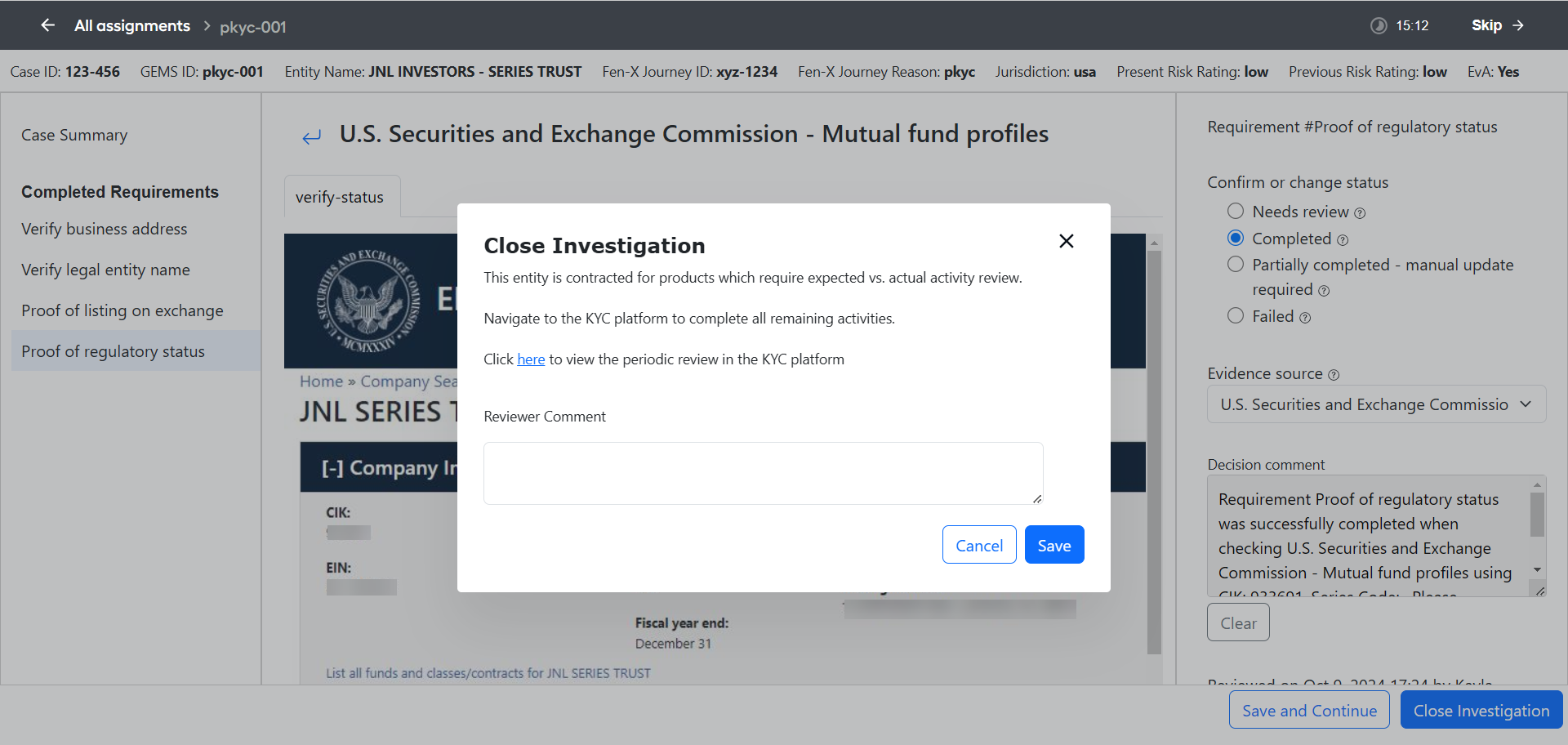
Upon completion, a final entity level report is generated and included in the API output. If you are using the File ingestion input method, you can also receive a batch summary report, provided you enable it during Kayla's configuration.
The Close Investigation button is disabled if not all requirements are completed.
If you want to close an assignment where not all requirements are completed, click the Save and continue button and proceed in one of the following ways:
Select Assign to me to save the progress on the assignment and go back to it later.
Select Unassign and specify another user in Workspace to escalate the investigation and include comments from another analyst.