
View all Tasks
The View All page provides the following functionality:
- lists all created MTs and links to them
- gives a quick overview of MT-related data, such as statuses, details, progress, possible issues
- enables access to Manual Task actions, including to create an MT.
For more information, read the View MT data and perform actions sub-section.
Sort and filter MTs
Before taking any actions, set the appropriate sorting and filtering at the top of the grid:
To sort MTs by order, select an option in the Sort by drop-down list.
To filter MTs by the status or other parameters, select a filter in the Filter by drop-down list or click the Show button.
View MT data and perform actions
note
The display of MT parameters and functions on the View All page varies depending on the MT status.
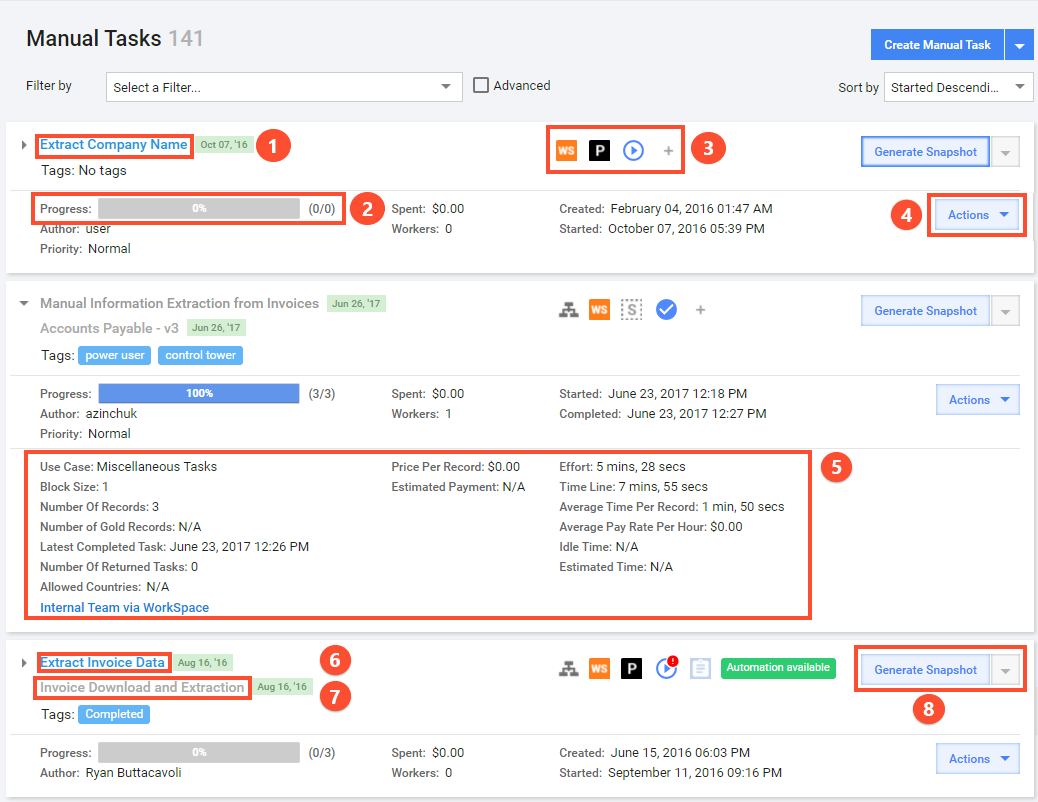
Task name. Click the link to perform the following actions:
- continue creating a task (for draft MTs)
- view MT data, properties, and results (for MTs with other statuses)
If several Tasks have the same name, you can distinguish them by defining unique tags. You can edit the tags by hovering over their label and clicking the pencil icon on the right side.
Progress bar. The progress bar displays the number of completed MTs against the total number of worker tasks. The bar is clickable for all non-draft tasks, and the link redirects you to MT results.
Indication icons:
 Business Process (BP) Task (if any). The icon informs you that the current MT is a BP step.
 Workforce
- Task Status:
 Draft
Draft Processing
 Paused
 Resuming
 Completed
 Expired MTs (if any)
 Processing Issues (if any)
 Use Case
 New Messages with the indication of their quantity
Actions drop-down menu gives accesss to a list of available task actions.
Expanded Task Details is an area containing additional MT information.
Processing Task Name. MTs with a Processing Status have names highlighted in blue.
Business Process Name. If an MT is a part of a BP, the BP name is displayed under that of the MT.
Generate Snapshot. You can generate a snapshot for non-draft MTs. For draft MTs, the button is replaced by the Edit & Run one.