
Add Manual Task
You can add a task to a business process using one of the following methods:
- from Toolbar or Canvas Context Menu. A blank task is created – you should select Operation, design, and set the task properties.
- from Sidebar or Element Context Menu. In this case, all task properties and design will be copied from the source task. You can edit the task if needed.
note
If you duplicate a task/business process, all subsequent changes in the source or duplicated task/business process will be synchronized.
If you copy a task/business process, you will be prompted to edit its name, and there will be no synchronization between the source and the copy.
Select Use Case
For more details, see Select Use Case.
Upload data
When a task is a part of a business process, you can upload Gold Data only. The data can be used for monitoring Workers' Accuracy.
Design task
For more details, see the Design Manual task sections.
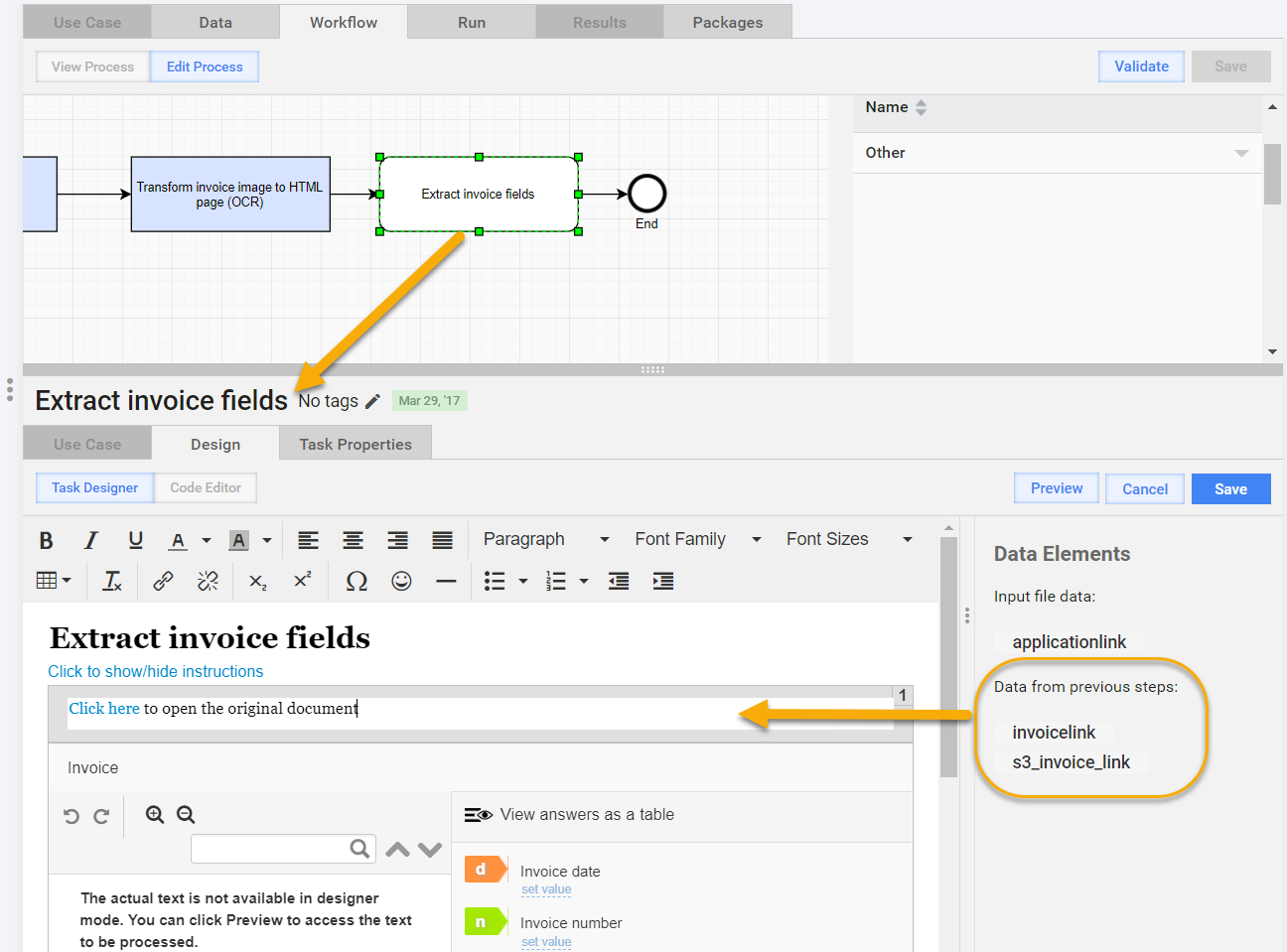
There are only two differences from an individual Task Design:
- Data Elements. You can insert Data Elements from Input file data and Data from previous steps. The data is taken from all the previous Tasks Answers.
- Preview. The preview may be unavailable if data from the previous steps is used in the Question section.
Task properties
See Set Run Parameters for more details.
You cannot run a task from the tab as the business process engine manages the task run.
Do not forget to save the task before closing it. After saving the task, save the business process.