Create Moderation Task
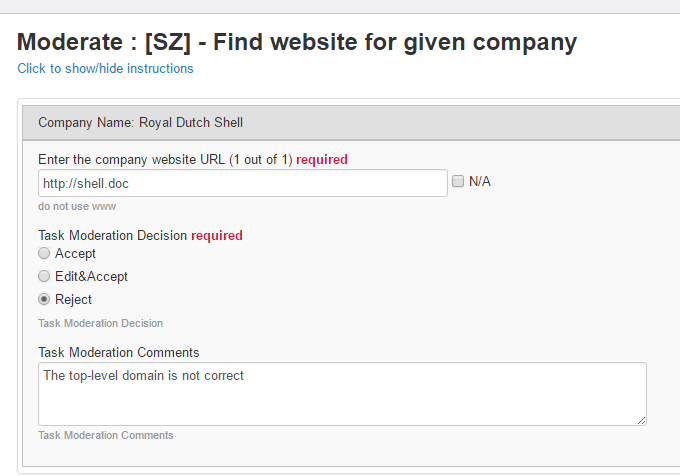
A Moderation Task is intended for reviewing the results of completed Manual Tasks or Business Processes (BPs) by accepting or rejecting and optionally commenting on each record.
You can achieve the same results by downloading a snapshot and manually editing each record. However, creating a Moderation Task has the following benefits:
- You can choose how many records are to be reviewed and with which confidence.
- You can assign a Moderation Task to a special group of reviewers—a Moderation Workforce.
- You perform all actions immediately in Intelligent Automation Cloud Enterprise—no need to download, edit, and upload snapshots.
- Moderation Tasks can be part of the moderation flow.
Create Moderation Task
There are several ways in which you can create a Moderation Task:
Manual Tasks > View All > Actions > Create Moderation Task
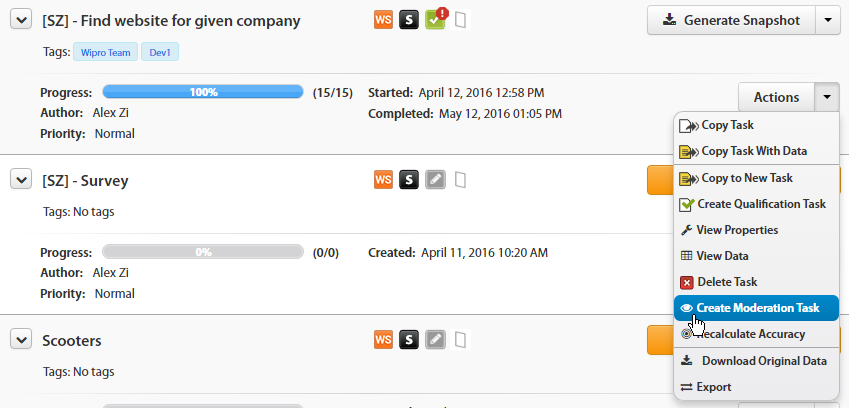
Note that the Create Moderation Task option is unavailable for Manual Tasks with the Draft status.
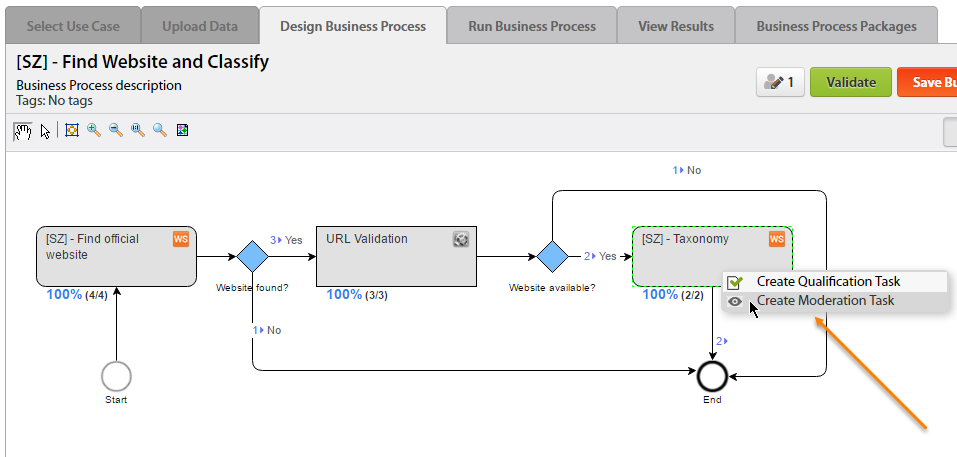
Business Process > Design > switch to the View Process mode and right-click any BP step > select Create Moderation Task
Apply moderation settings
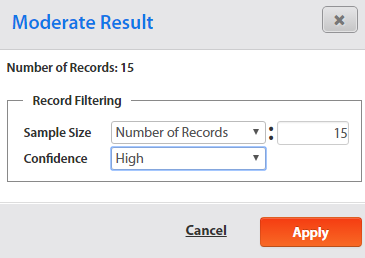
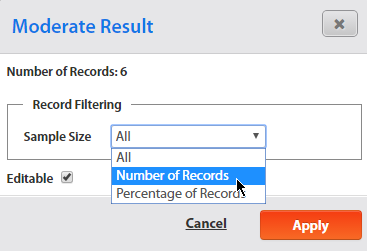
After you selected to create a Moderation Task, the Moderate Result popup appears on the screen.
| Moderation for Manual Task | Moderation for Bot Task |
|---|---|
 |  |
In the popup, set the following parameters:
Sample Size (All, Number of Records, Percentage of Records)—how many records are taken as input from the original task results.
Confidence (All, High, Low)—only records with the specified confidence are to be included in the moderation task input.
Editable—if selected, all original task output data are available for editing.
For example, assume that a Worker gave the following answer to specify a company's website: https://workfusion.com.
If the Editable option was selected, a Moderator can edit the worker's answer (https://workfusion.com) and choose the Edit & Accept Moderation Decision.
When you are done with the Moderation Task settings, click the Apply button.
Edit Moderation Task
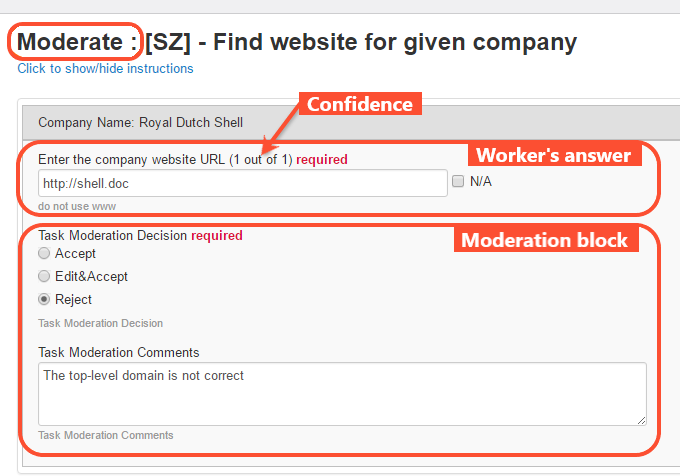
After you apply the settings as described in the previous section, a task is created with the Moderate: prefix in the title. The task design and settings are copied from the original task with the following modifications:
Input Data
These are taken from the original task output filtered according to the preset Sample Size and Confidence.
Task Design
- Two new answers are added after the workers' ones—Task Moderation Decision and Task Moderation Comments.
- Confidence is displayed for each worker answer.
Workforce
If a Moderation Workforce exists on your WorkFusion instance, it is selected for the created Moderation Task. Otherwise, the Workforce is copied from the original task.
Adjudication
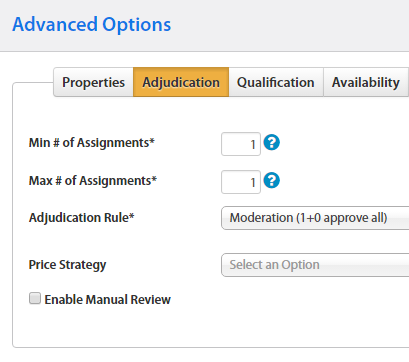
The adjudication rule is Moderation 1+0 with Min and Max № Assignments set to 1.
Run Moderation Task
Once all settings are configured, and the preview looks fine, run the Moderation Task as a regular one. When the Moderation Workforce users start submitting, check the task results.
Use moderation for IE tasks
If you create a Moderation Task out of an Information Extraction (IE) one, follow the steps below to enable correct display of worker answers:
Find out the column name with the text tagged by the worker. It has the following name pattern:
{$ie_unique_code}_taggedIn the example below, the IE unique code is
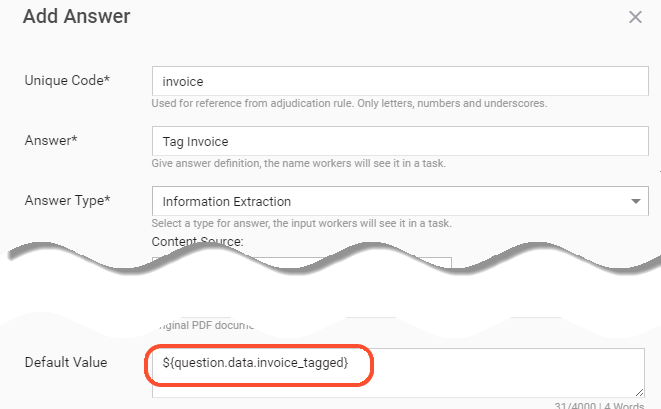
invoice. Therefore, the column name isinvoice_tagged.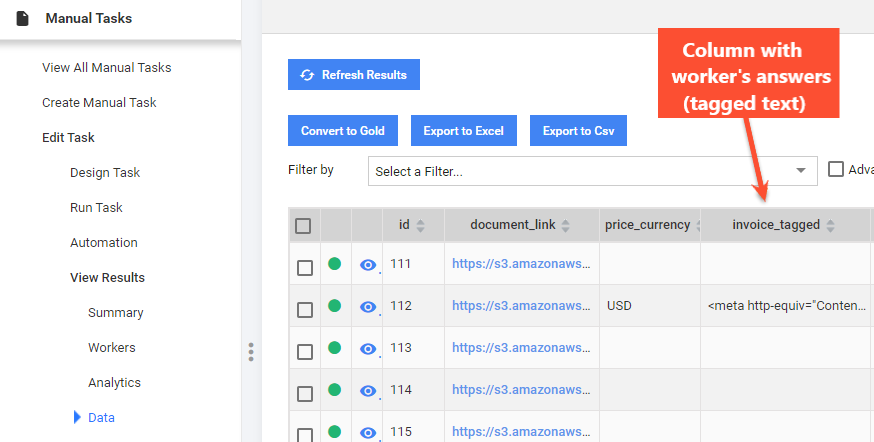
In the Moderation Task, open the IE answer.
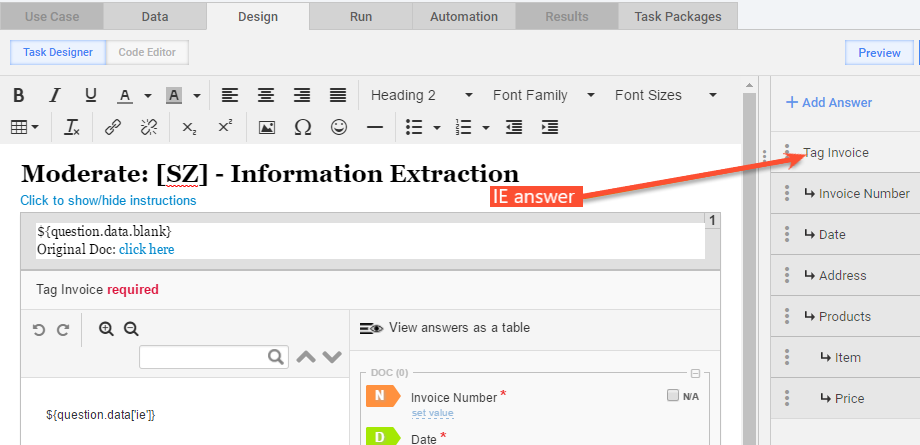
Go to Advanced Options > Default Value, add the column name obtained on Step 1 using the following pattern:
${question.data.column_name}For the current example, you need to add
${question.data.invoice_tagged}.