
View all Business Processes
To access the list of Business Processes (BP), log in to Control Tower and go to Business Processes > View All. The list provides the following capabilities:
- Gives a quick overview of statuses, details, progress, and possible issues for all BP instances.
- Allows you to access and manage BP instances: change their state (start, pause, resume, or stop), create more instances, and delete them.
- Enables you to create or import BPs and perform other actions with them.
The Business Processes page comprises three major areas shown and described below:
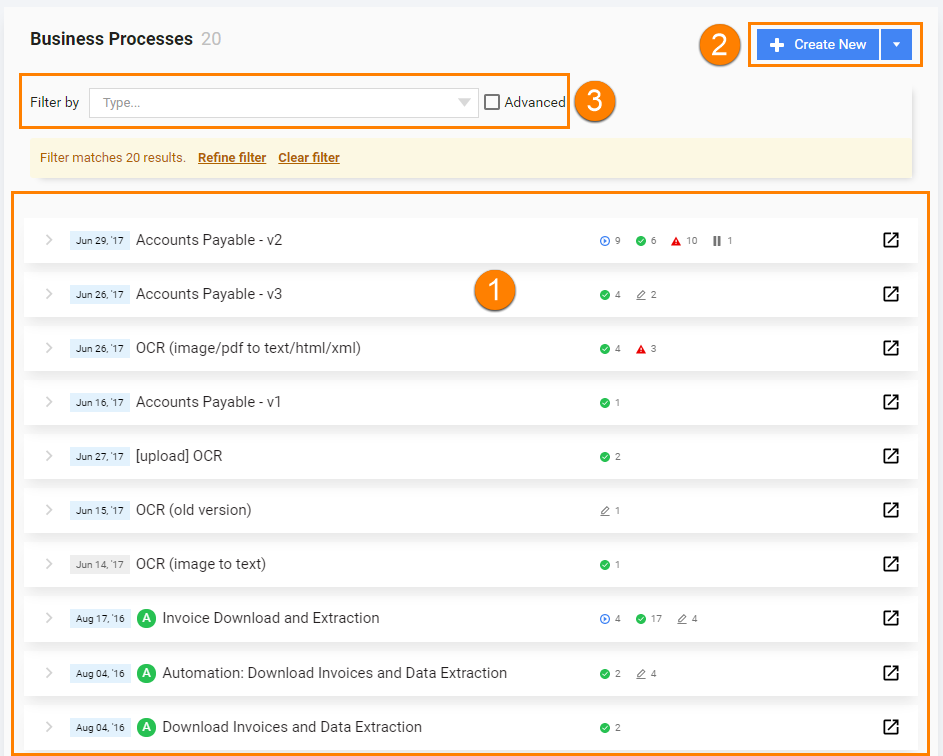
- Business Processes list: all instances pertaining to specific Business Processes are grouped under respective BP definitions. This allows a compact hierarchical view and quick status identification.
- Actions: include major operations with a BP, such as Create New and Import. For detailed instructions, refer to the Create Business Process topic.
- Filters: you can filter BPs using predefined and custom criteria.
Business Process list
The BP list displays all processes available in Control Tower at a given moment. A BP definition is represented as a box indicating the following:

BP name and date. The BP date is when the latest BP instance was created.
Status of all BP instances designated with the icons below:
- Draft

- Processing

- Paused

- Completed

- With Errors

- With Messages

If there are no instances with a specific status, respective icons are hidden.
- Draft
The Open process definition in new tab button opens a specific BP definition in a new tab. The function is helpful when you are working with one BP and want to view only its instances.
If a Business Process contains a Manual Task, you can automate with a Machine Learning model. Its name is indicated with the A sign:

Business Process instance
Once you expand a BP definition, you can see the entire list of BP instances pertaining to it.
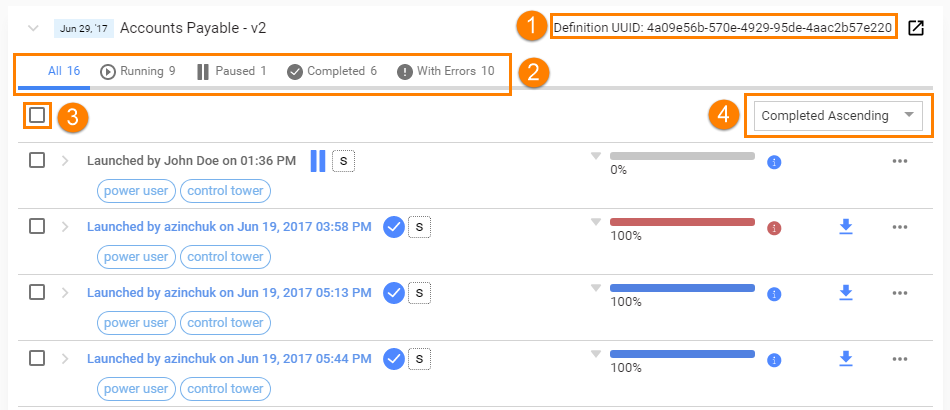
Instances allow the following actions, as indicated by the digits in the figure above:
See the Definition UUID where the Business Process is executed. This information is essential when working with WorkFusion REST API. You can also get the Definition UUID by clicking the Open process definition in new tab button as described in the Business Process list section.
Click a tab to view the instances with the respective status.
Select the checkbox to perform bulk actions with all or multiple instances, for example, start, stop, delete, or repair.
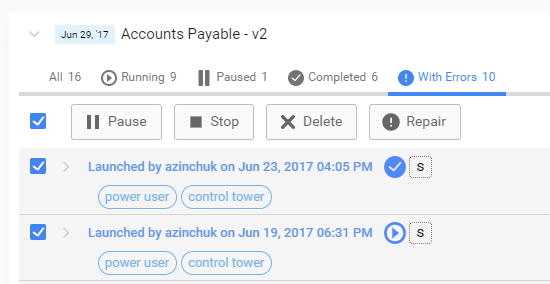
You can remove the selection from an instance or instances to exclude it or them from the bulk action.
Arrange Started or Completed instances in the ascending or descending order.
Business Process instance steps
To expand an instance and view its steps, click the arrow button to the left of the instance name:
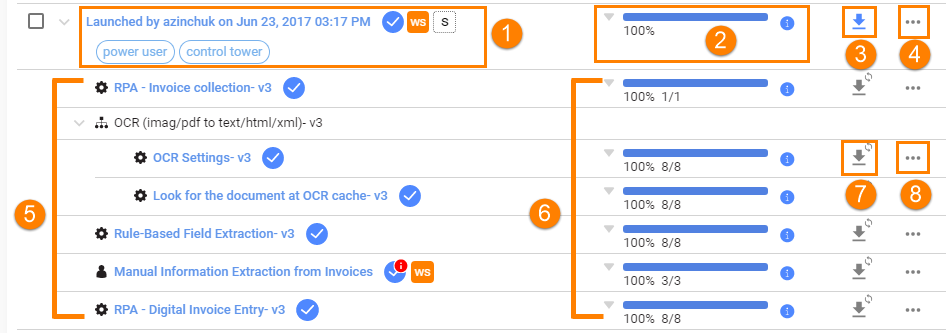
Instance details, featuring the following:
Who and when started the execution of the BP instance
Status of the execution, Worker Platform (for instances containing Manual Tasks) and environment.
The following statuses are possible:
- Draft
- Processing
- Paused
- Completed
- With Errors
- With Messages
- WorkSpace

- Started per Schedule. Click the icon to view the Schedule

- Draft
Click the BP instance name to start editing it, for example, changing process steps, scheme, input data, options, and so on.
The instance progress bar displays the completion percentage of the instance execution.
To view the events logged during the execution of the instance, click the Event log icon 🛈 near the progress bar. If some errors occur, the icon has a red background.
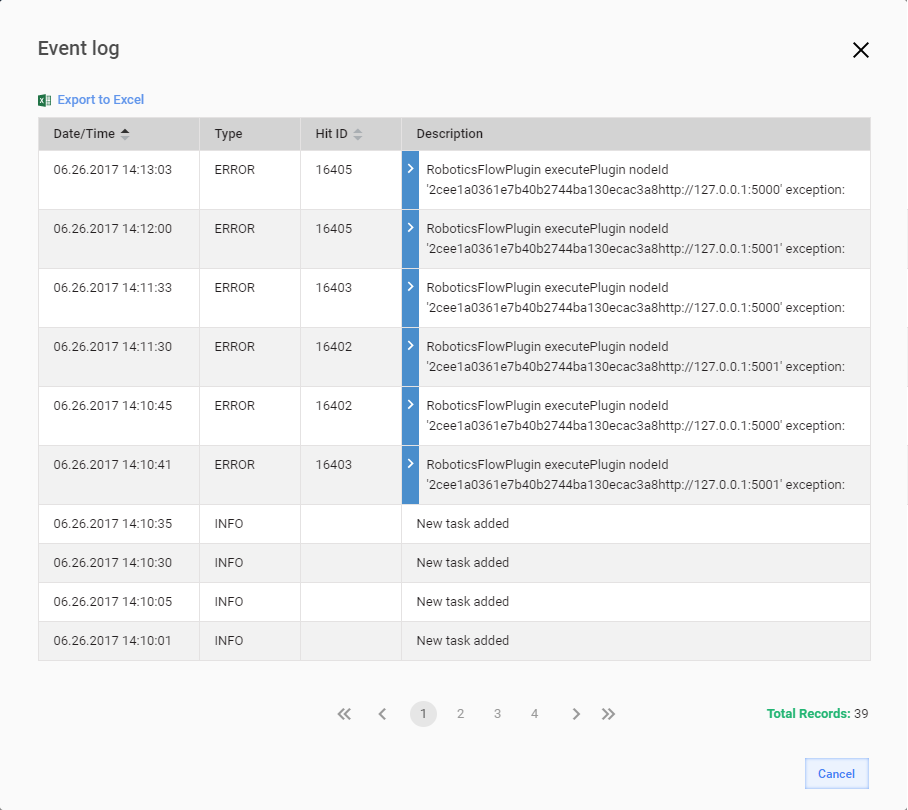
warning
When a user logs into a Control Tower instance using a time zone different from the Greenwich Mean Time (GMT), the Business Process event log and any exported event log sheets are in GMT, irrespective of the user time zone.
Using the button, you can generate a snapshot for the BP instance (for non-draft BPs).
The button opens the Actions drop-down menu listing the actions you can perform for the instance, such as:
Copy: create a copy of a BP as an instance linked to the source BP. If the source BP structure is modified, all referenced BPs inherit the changes respectively. You can run each copy separately without affecting the others.
note
You can copy a BP if you need to rerun a completed BP.
The Copy function has the following options:
- Include the input data: the input data from the source BP is included in the new one. Alternatively, you can provide new input data for the copied BP.
- Create an independent process definition: a new BP is created without a link to the source BP.
Start
Pause: pause the BP execution with the possibility of resuming it later (for running BPs only).
- In the local mode, the Pause operation works in the same way as Stop: when a BP is paused, the subsequent steps are not executed. Then, you can resume it.
- In the cluster mode, the Pause action continues to execute stateless steps until a non-stateful step.
Resume: resume the execution, if the BP is paused (for paused BPs only).
Stop: complete the execution of the BP at the current stage (for running BPs only).
Edit
Run
View data: view the input data provided in the Business Process.
Repair: to fix the instance issues unrelated to the BP configuration. For details, refer to View Business Process logs.
Download original data: download the input data as a CSV file.
Delete: remove the Business Process from Control Tower.
Note that available actions depend on the BP instance status—Draft, Processing, Completed, With errors.
A hierarchical list of BP steps (tasks) and sub-processes. The list contains only the steps that have at least one active record, meaning the BP execution reached the steps.
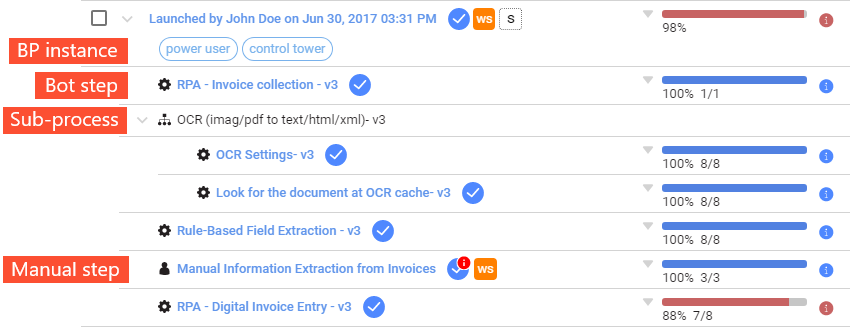
The task progress bar displays the percentage of the task execution completion and the ratio of input and output records (documents).
Click the button to generate a task snapshot—a CSV or XLSX file containing the step's execution results.
The button opens the Actions drop-down menu from where you can access the task execution results.
To view the details of a task, click the arrow button in the row for the respective step.
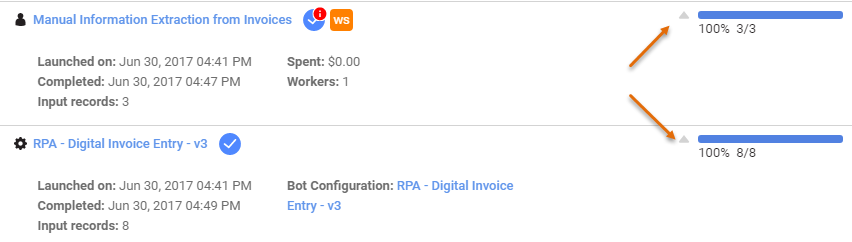
Task details can contain the following information:
- Launched on: date of the first execution of the current step.
- Completed: date when the current step was completed.
- Input records: number of records that reached the current step.
- Spent: amount spent on a Manual Task (displayed for the SmartCrowd product only).
- Workers: number of unique workers who submitted answers to the particular Manual Task.
- Bot Configuration: link to the Bot Configuration.
Automation Available
If automation with an ML model can be applied to a Manual Task in a Business Process, the BP instance is labeled with the Automation Available indication, and the respective step is marked with the A sign:
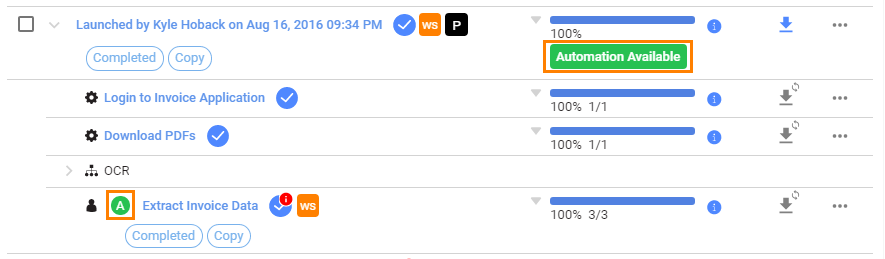
For more information, refer to Retrain IE Cognitive Bot ML model.
BP list actions
Using the controls on the top panel of the Business Process list page, you can perform the following actions:
Click the Create New button to create a BP.
Click the Actions (...) button to import a BP package.
Filters
Using the filters on the top panel of the BP list page, you can select BPs to be displayed in the list.

The filters are aimed to facilitate your work with BPs as you have a rich set of criteria to define what instances are included or excluded from the list.
The Filter state element shows how many records are filtered. With the option, you always know the exact number of items matching the criteria of the applied filter.
Learn about filter types
There are two filter types:
Predefined filters where you can use a built-in set of criteria to select what Business Processes are to be displayed. You can select Business Processes containing instances created by you, with a certain state, executed in a specific environment, and created within a specific period.
Advanced filters where you can set a number of custom filtering criteria, such as state or time span, picking them from a list of available options:
- Text filter for Tags, Author, Title, and UUID. In the text filter, you can define a match, such as contains, does not contain, equals to, or not equals to.
- Date filter to sort by dates when the instance is created, started, ended, or due. In the filter, you can define a match, such as equals to, not equals to, greater than, less than, greater than or equals to, less than or equals to, and period.
- Status, where you can select the following states of BP instances: Completed, Active, Running, Answered, Paused, Errors, Draft, Has New Messages. The filter criterion is
true. - Filter for environment to set the list to display the production or development environment instances.
Click Add Parameter to include and define an option for the filter. You can choose as many options as needed to create the required filter. When the setup is over, click Apply filter.
With the Match all parameters option you can define if the filtering results should match all or specific criteria.
Save filter
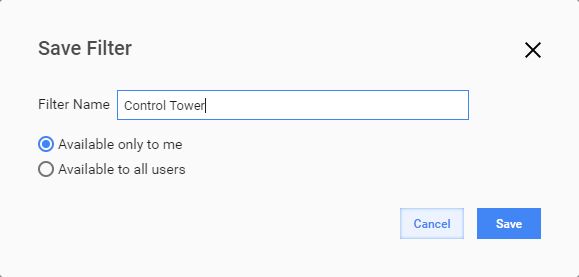
You can save the filter for future use. Click the button next to Apply filter and, in the drop-down list, select Save Filter.

Type in the name for your filter and choose if the filter should be private or available for other users.
Clear or refine filter
If a filter is applied, the following box is displayed in the filter area:

To remove or edit the filter, click Clear filter or Refine filter respectively.