
Managing Qualifications
Qualifications are a means that Intelligent Automation Cloud provides to ensure quality output from workers and narrow a Workforce for optimal performance.
There are three ways Qualifications can be assigned to workers:
- manually as described in Create and assign Qualifications to workers
- automatically via Qualification Rules
- via worker requests for specific Qualifications
For additional information, see the following topics:
Manage Qualifications
To start managing Qualifications, click the Qualifications item in the top menu. You will see the following grid with a search field and a filter.
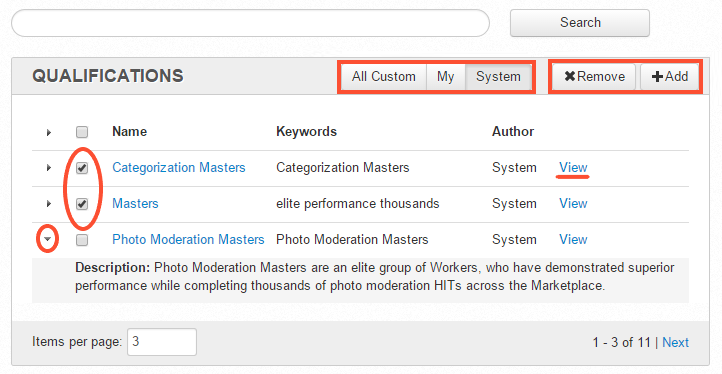
On the Qualifications page, you can perform the following actions:
- view Qualifications—Name, Keywords, Author, Description, the Auto Granted status.
- search Qualifications—by their name or keywords.
- filter Qualifications—by the criteria, such as All Custom, My, System.
- view or edit the Qualification Info and view the Change History—click the appropriate View link in the right column.
- add Qualification—click the Add button in the top right corner.
- remove Qualification—select Qualifications and click the Remove button.
Add Qualification
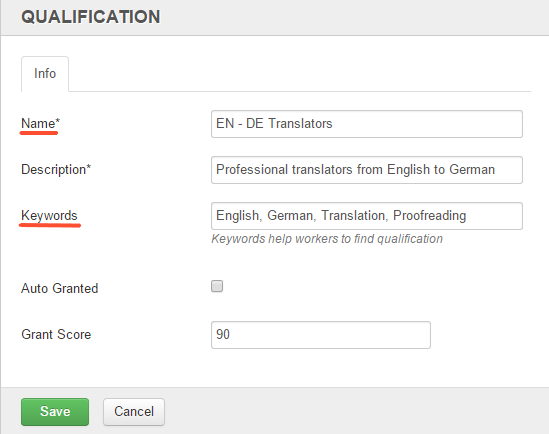
To create a Qualification, proceed as follows:
- On the Qualifications page, click the Add button.
- Enter the Qualification info in the appropriate fields.
- Click the Save button.
For a saved Qualification, you cannot modify the Name and Keywords.