
Set run parameters
To set run parameters for a Manual Task (MT), open a task and navigate to the Run tab. In addition to setting the parameters, the tab allows you to do the following:
caution
Always test MTs in a development environment to check their configuration.
View Manual Task details
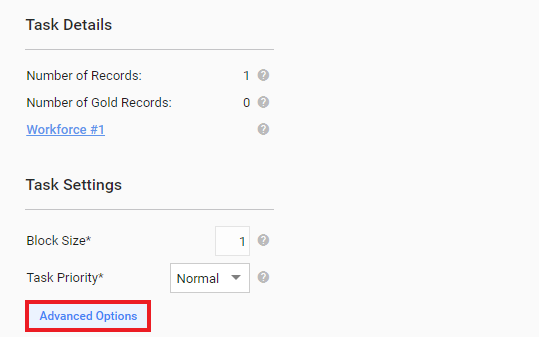
The Task Details block displays the following information:
Number of Records in the input data file
Number of Gold Records in the gold data file
Workforce selected to complete the task
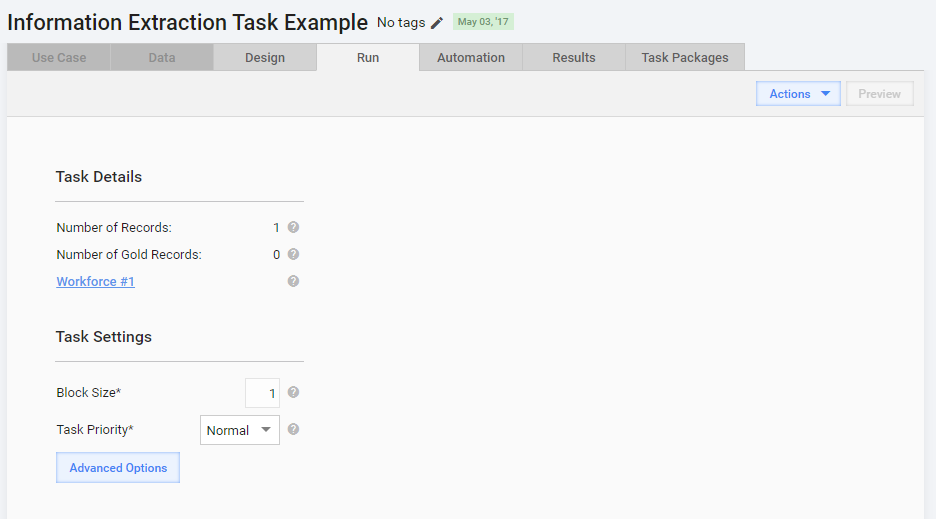
Set Workforce
Workforce is a grouping entity specifying who is working on a particular Manual Task. A Workforce can contain one or more Crowds. For detailed information, see the Manage Workforces and Crowds topic.
To view the Workforce and its Crowds selected for the Manual Task, go to the Task Details block and click the Workforce name link.
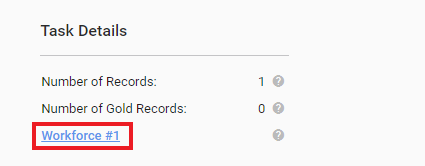
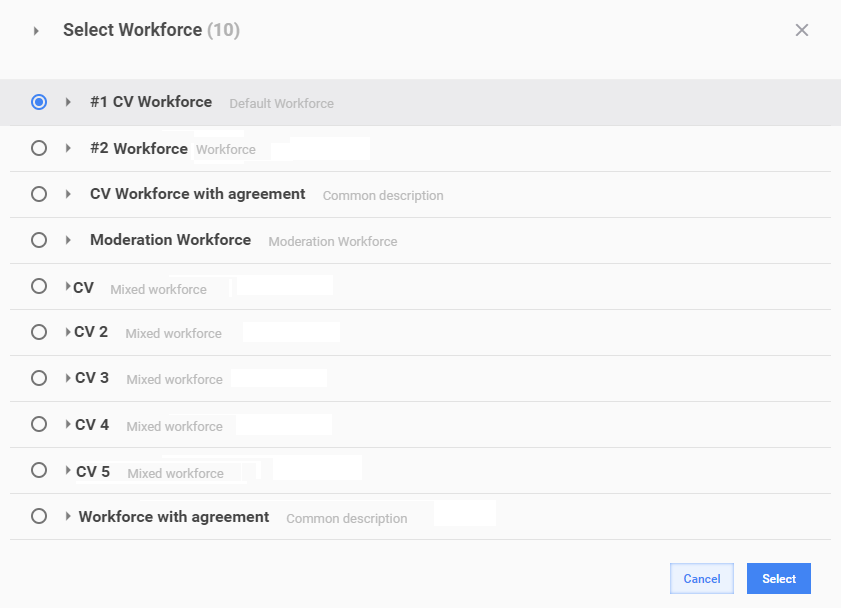
The following popup appears:
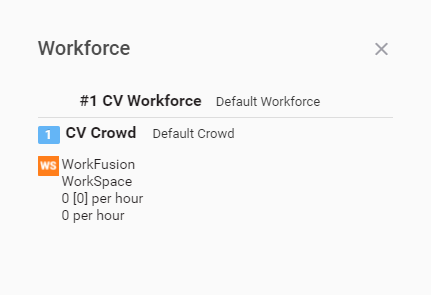
To set or change a Workforce for an MT, follow the steps below:
In the Task Details block, click the Select link.
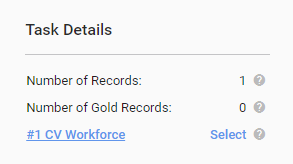
In the popup window, choose the required Workforce and click the Select button.
Set Manual Task parameters
In the Task Settings block, set the following:
Block Size stands for the number of records displayed for one task. The default value is 1. If the Block Size is 3, a worker is to complete three records for one task.
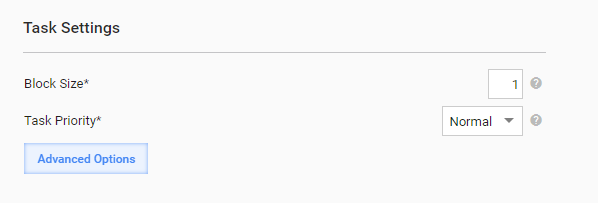
Task priority to change the task ranking in the search results of target endpoints. Tasks with the highest priority are displayed at the top.
Example
Suppose, you have two similar MTs with different input data files. You want workers to complete the second MT in the first turn. For that, set the second MT's priority to Max. When a worker finds the task type and clicks the View link, they see the MTs with the highest priority on top.
To set a priority for an MT, choose an option from the Task Priority drop-down list. The Normal is the default priority, whereas other options are configurable. For instructions on setting MT priority options, refer to Run Priorities.
To access the advanced MT run settings, click the Advanced Options button.
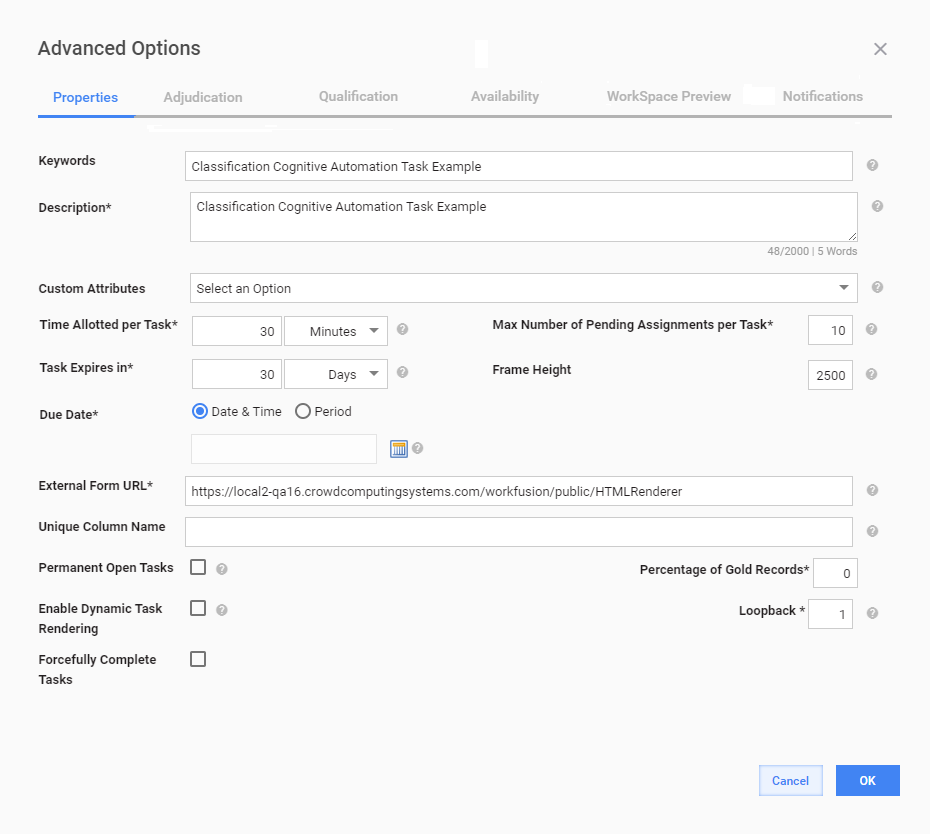
A popup appears where you can configure the settings described in the sub-sections below.
Properties
On the Properties tab, you can set different options for running a Manual Task. For details, see Select Advanced Options | Properties.
Adjudication
On the Adjudication tab, you can set a logic to determine the accuracy of the work submitted by workers with the task. For details, see Select Advanced Options | Adjudication.
Qualification
On the Qualification tab, you can optimize the Workforce settings. For details, see Select Advanced Options | Qualification.
Availability
On the Availability tab, you can restrict access to a Manual Task, depending on the number of already completed tasks, current time, country, and geolocation of workers. For details, see Select Advanced Options | Availability.
WorkSpace Preview
On the WorkSpace Preview tab, you can set how tasks are to be displayed in Workspace. For details, see Select Advanced Options | WorkSpace Preview.
Notifications
On the Notifications tab, you can set worker notification templates and notification frequency. For details, see Select Advanced Options | Notifications.
Select Manual Task actions
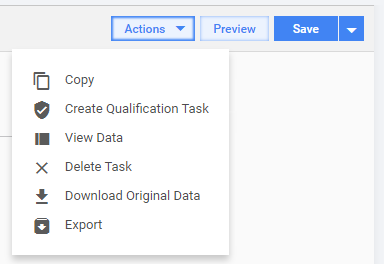
On the Run tab, click the Actions button and select one of the following MT actions:
- Copy to create MT duplicates. For details, refer to the Copy Task article.
- Create Qualification Task to create an MT to qualify workers for accepting and submitting tasks. For details, see the Create Qualification Task topic.
- View Data to show the Data tab for draft MTs and to display the View Results tab for tasks with the Processing or Completed status.
- Delete Task to delete Manual Tasks.
- Download Original Data to download the input data file.
- Export to export the MT in the XML format.
note
Available actions vary, depending on the task status—Draft, Processing, Paused, Completed.